
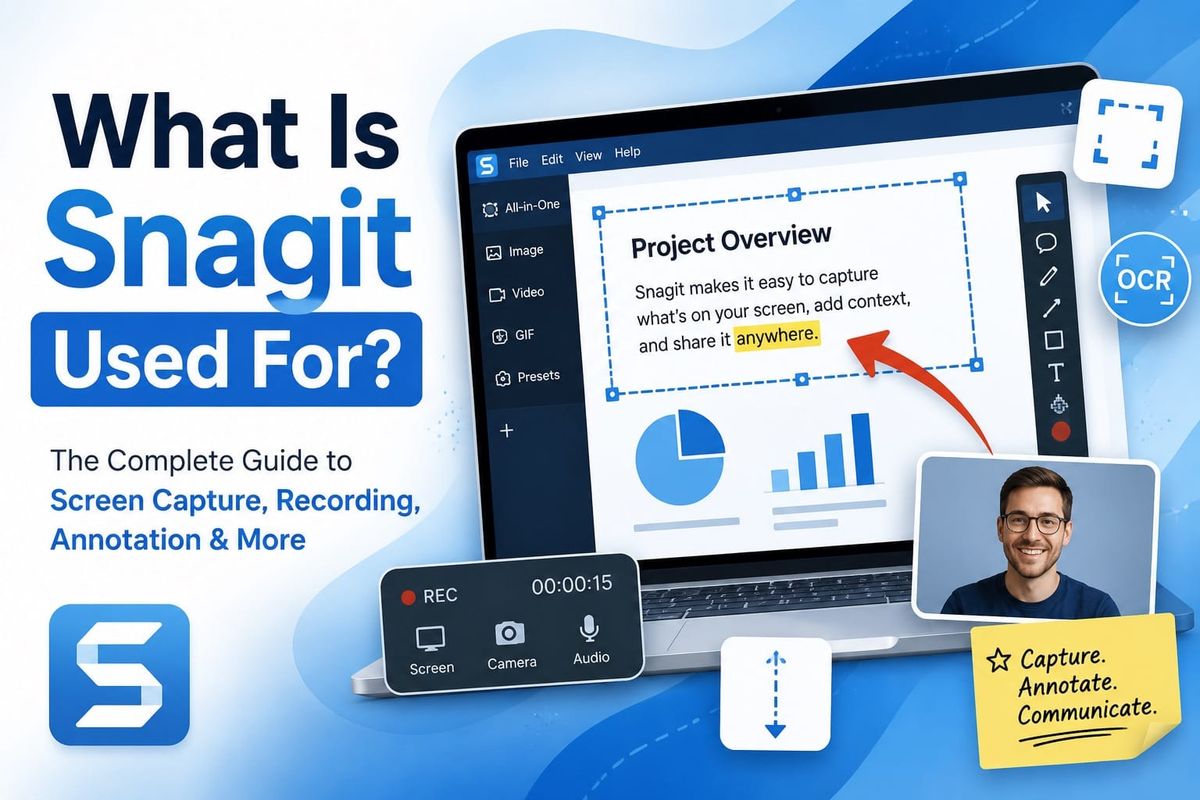
Snagit is used for capturing screenshots and screen recordings, then annotating and sharing them. Most people land on it because they need something more than Ctrl+PrtScn: a way to grab a scrolling web page, mark up an image without opening Photoshop, or record a 90-second walkthrough without setting up OBS. It handles all of that in one tool, with a built-in editor that opens automatically the moment your capture finishes.
I've used it daily for three years writing SOPs, user guides, and software documentation. The short version: it's a screenshot editor, OCR tool, screen recorder, and capture library in one place. As of 2026, TechSmith has rebranded it to Camtasia Snagit and moved to continuous delivery, so there's no longer a numbered annual version — updates roll in automatically as long as your subscription is active.
Pros and Cons of Snagit
- Pros: Scrolling capture works reliably on most pages; annotation tools are fast and require no design skill; OCR text extraction is accurate; Step Capture automates numbered screenshots; the searchable library saves captures permanently; runs on both Windows and macOS.
- Cons: Subscription-only since 2025 (no perpetual license for new buyers); video editing is basic (trim-only, no timeline); Screencast hosting is capped at 25 videos on the individual plan; scrolling capture struggles on complex web apps with sticky headers; $39/year is not trivial if you only need screenshots occasionally.
Snagit Features in 2026: Capture, Annotation, OCR, and Video Tools
TechSmith built Snagit around three steps: capture, edit, share. Every feature fits into one of those three stages.
On the capture side, you get region capture, window capture (with dedicated window tracking in the 2026 version), full-screen, scrolling capture (panoramic capture), and Step Capture. Step Capture is the one that actually changed how I build SOPs. You click through a process and Snagit photographs each step automatically, numbering each screenshot as you go. What used to take 23 individual screenshots and 40 minutes of cropping now takes about 4 minutes. The 2026 update added editable text and a proper title slide when you export Step Captures directly to PowerPoint.
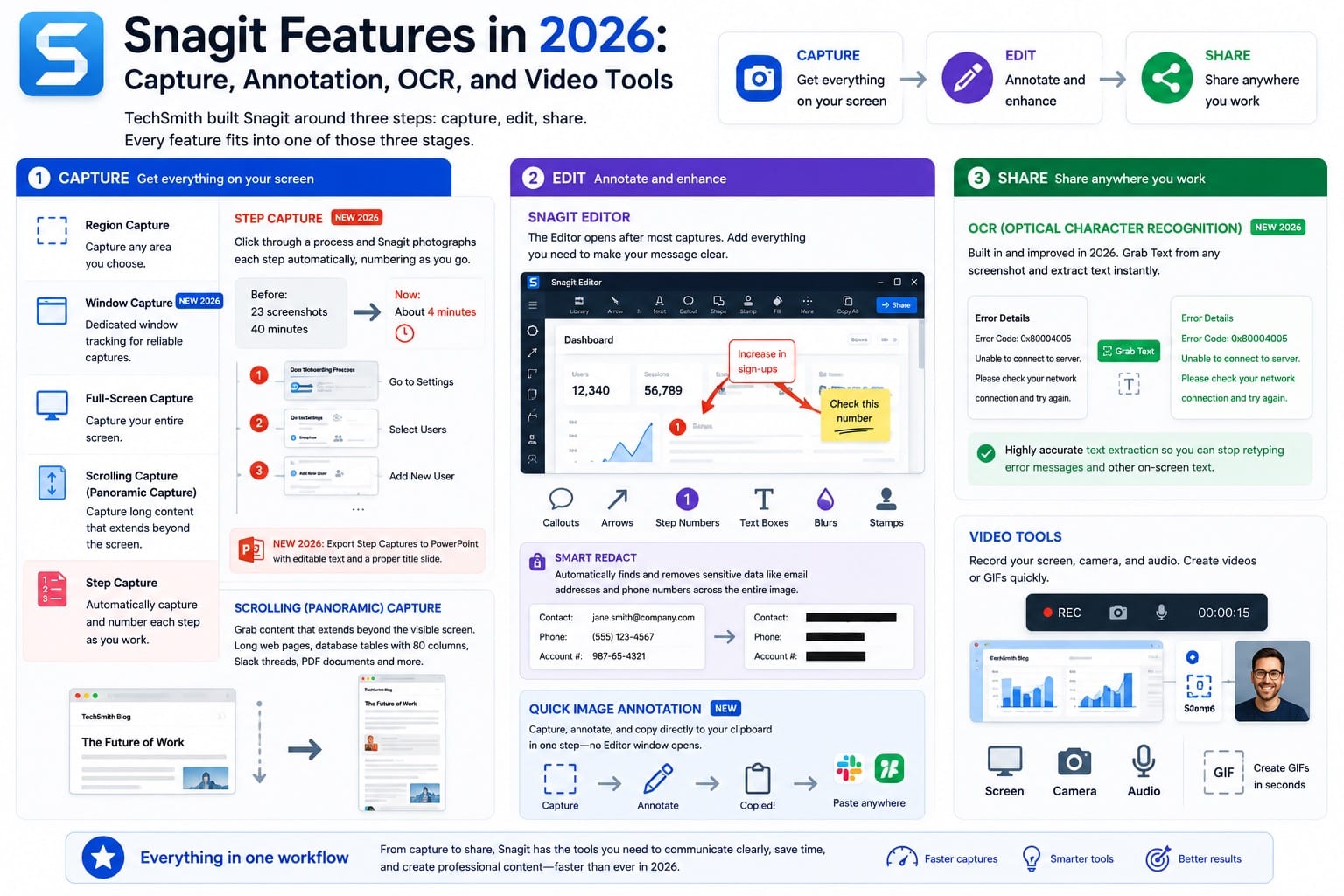
Scrolling capture — sometimes called panoramic capture — grabs content that extends beyond the visible screen. Long web pages, database tables with 80 columns, Slack threads, PDF documents. It produces a single stitched image instead of a stack of partial captures you'd otherwise have to piece together manually.
Quick Image Annotation is a newer addition: capture, annotate, and copy directly to your clipboard in one step, without the Editor opening at all. Useful when you just need to paste a marked-up screenshot into a Slack message or a ticket and move on.
The Snagit Editor opens after most other captures. You can add callouts, arrows, step numbers, text boxes, blurs, and stamps. Smart Redact automatically finds and removes sensitive data like email addresses and phone numbers across the entire image in one pass.
OCR is built in and was improved in the 2026 version. Open any screenshot, click Grab Text, and Snagit extracts whatever text appears in the image. It's accurate enough that I stopped retyping error messages years ago.
What Snagit Is Used for in Professional Settings
The bulk of Snagit's actual user base falls into a few specific job types:
- Technical writers and documentation specialists use it to build user manuals, SOPs, and onboarding guides. The step-numbered screenshot sequences are the main draw. You capture the workflow, export directly to Word or PDF, and you're done.
- IT support teams capture error screens, annotate what's wrong, and share the image with a vendor or ticket system in under a minute. Recording a short video walkthrough instead of writing a ticket description is faster for both sides.
- Trainers and L&D teams record screen walkthroughs of software tools, export as MP4 or GIF, and embed them in training materials. Snagit's Step Capture can export directly to PowerPoint slides, which cuts a lot of the manual formatting work out of that process.
- Marketers use it for blog screenshots, annotated feature callouts, and competitor comparisons. The Smart Move tool lets you reposition UI elements in a static screenshot, which is handy when you want a cleaner composition without re-capturing.
- Software consultants and business analysts mark up screenshots to communicate UI issues to dev teams. A red arrow and a text callout replaces three paragraphs of written description.
The common thread is repeated explanation. If your job involves showing the same process to multiple people, Snagit pays for itself fast. If you grab an occasional screenshot once a week, the built-in OS tools are probably fine.
Snagit for SOPs and Process Documentation
This is where I use it the most. A well-built SOP has numbered steps, annotated screenshots, and clear callouts pointing to exactly where a user should click. Snagit produces that output faster than any other tool I've tested.
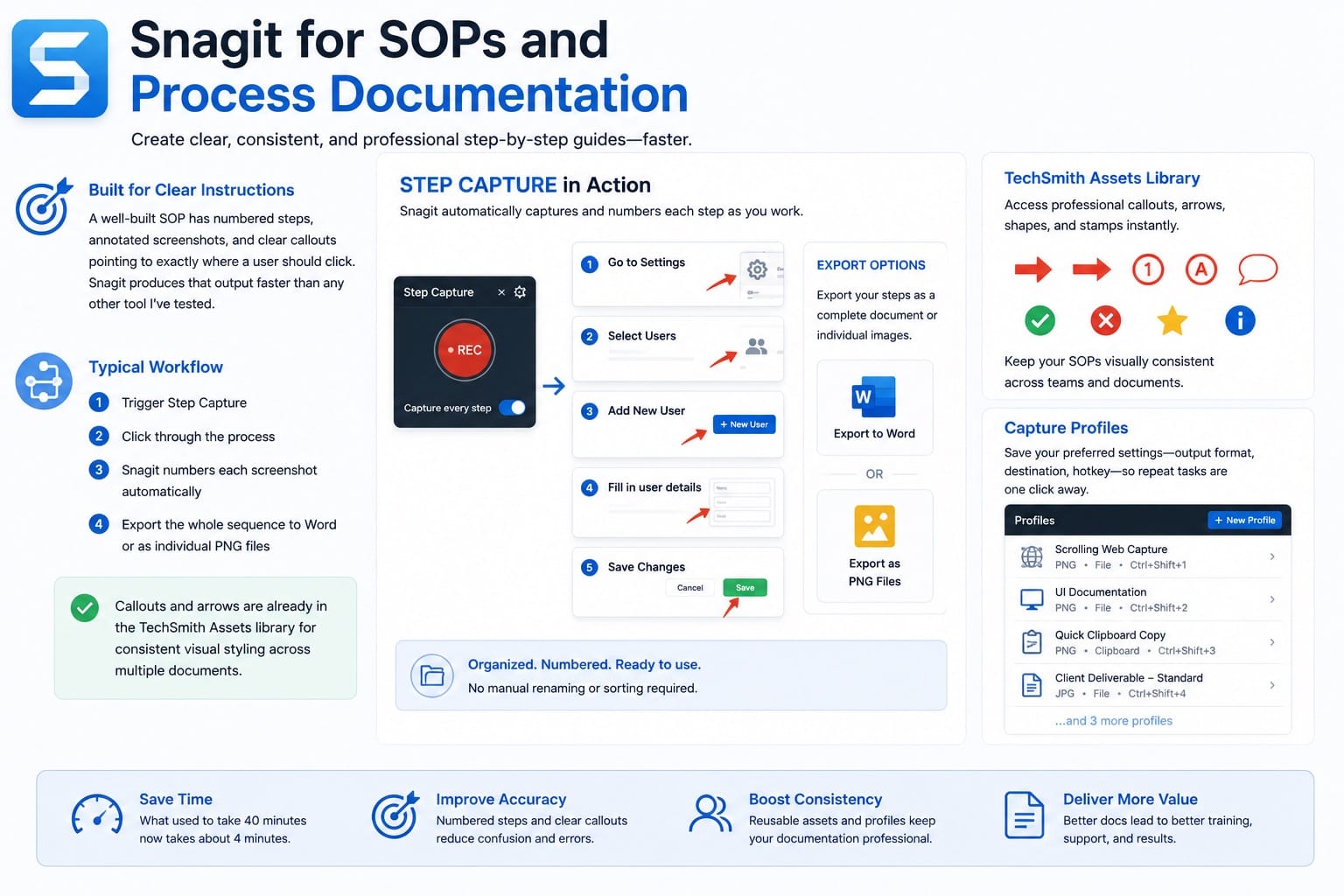
The typical workflow: trigger Step Capture, click through the process, let Snagit number each screenshot automatically, then export the whole sequence to Word or as individual PNG files. The callouts and arrows are already in the TechSmith Assets library if you want consistent visual styling across multiple documents.
Capture profiles let you save your preferred settings — output format, destination, hotkey — so repeat capture tasks don't require configuring anything each time. I have 7 profiles set up: one for scrolling web captures, one for UI documentation, one for quick clipboard copies, and a few others for specific client deliverables.
Snagit Screen Recording: GIFs, Video, and Webcam Capture
Snagit records your screen, microphone audio, system audio, and webcam simultaneously. You can export as MP4 or convert any video recording to an animated GIF. GIF recording is particularly useful for documenting repetitive UI interactions: a short looping GIF in a help article communicates a click sequence better than a paragraph of text.
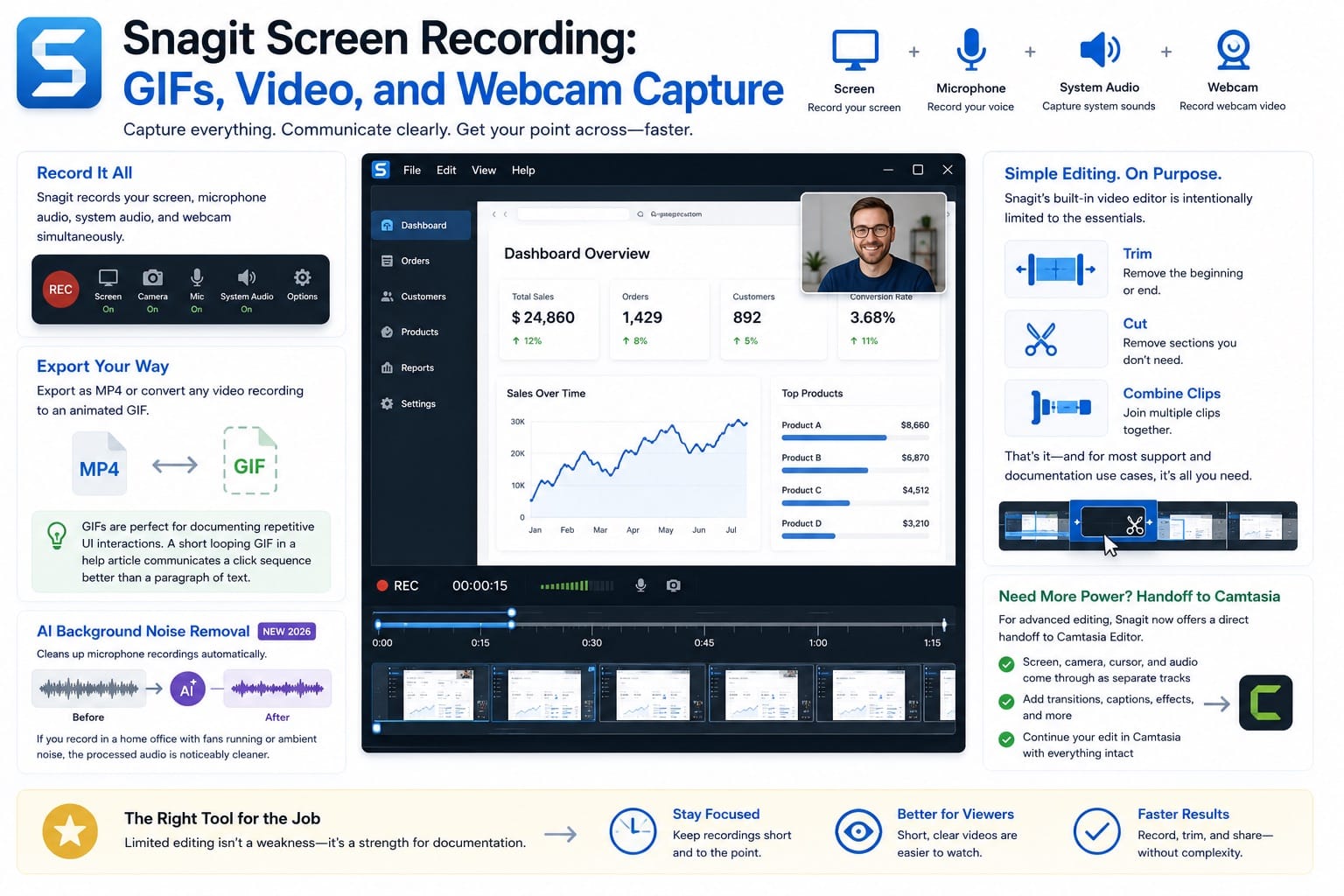
AI Background Noise Removal, added in 2026, cleans up microphone recordings automatically. If you record in a home office with fans running or ambient noise, the processed audio is noticeably cleaner than the raw recording.
Video editing inside Snagit is intentionally limited. You get trim, cut, and clip-combining. That's it. If you need transitions, captions, or a full multi-track edit, Snagit now offers a direct handoff to Camtasia Editor — screen, camera, cursor, and audio come through as separate tracks. For most support-and-documentation use cases, the trim-only editor is genuinely enough.
Most tutorials say the limited video editor is a weakness. That's backwards for documentation work. The constraint forces you to keep recordings short, which is what most viewers actually need.
Snagit vs ShareX: Which Is Better for Documentation?
| Feature | Snagit | ShareX | Recommendation |
|---|---|---|---|
| Price | $39/year | Free | ShareX if budget is the deciding factor |
| Scrolling capture | Reliable, automatic | Works, requires configuration | Snagit for reliability |
| Annotation tools | Built-in editor, fast | Basic, functional | Snagit for professional output |
| Step Capture | Yes — automated, numbered | No | Snagit |
| OCR | ABBYY engine, accurate | Requires third-party setup | Snagit |
| Capture library | Searchable, finds text in images | No library | Snagit |
| Windows only | No (Windows + macOS) | Yes | Snagit for Mac users |
ShareX is a strong free option for Windows users who are comfortable configuring software. Snagit is faster to set up and produces cleaner output with less effort, which matters when you're creating documentation at volume.
Snagit vs CleanShot X: macOS Screen Capture Compared
| Feature | Snagit | CleanShot X | Recommendation |
|---|---|---|---|
| Platform | Windows + macOS | macOS only | Snagit for cross-platform teams |
| Price | $39/year subscription | $29 one-time | CleanShot X for Mac-only users who want ownership |
| Step Capture | Yes | No | Snagit |
| Video recording | Yes, with webcam | Yes, with webcam | Tie |
| Annotation | Full editor, templates | Fast, clean, native feel | CleanShot X for quick annotations; Snagit for complex docs |
| OCR | Yes (ABBYY) | Yes (native macOS OCR) | Tie |
| Assets library | TechSmith Assets (stamps, templates) | None | Snagit |
CleanShot X feels more native on macOS and costs less long-term if you're comfortable with a one-time purchase. Snagit wins on Step Capture and document-scale workflows. If you're on a mixed Windows/Mac team, Snagit is the easier common standard.
Snagit vs Greenshot: Free Alternative Worth Using?
| Feature | Snagit | Greenshot | Recommendation |
|---|---|---|---|
| Price | $39/year | Free (Windows) | Greenshot if you need basic captures |
| Scrolling capture | Yes | Limited (IE only in older builds) | Snagit |
| Capture library | Full searchable library | No library | Snagit |
| Video recording | Yes | No | Snagit |
| OCR | Yes | No | Snagit |
| Annotation tools | Extensive | Basic | Snagit for documentation; Greenshot for quick captures |
Greenshot is a reliable, lightweight Windows tool for fast region captures with basic annotation. It doesn't do scrolling capture, video, or OCR. If those aren't things you need, Greenshot is fine and free. If you're building any kind of structured documentation, you'll hit its limits quickly.
Snagit Pricing in 2026: What You're Actually Paying For
Snagit subscription pricing starts at $39/year for the individual plan. The business plan costs $48/user/year. Education pricing for students starts at $20/year. Perpetual licenses are no longer available for new purchases. TechSmith made the full switch to subscription with Snagit 2025, and 2026 continues that model with continuous updates rather than annual releases.
Each plan includes access to both Windows and macOS versions, live support, and the TechSmith Assets starter library. The individual plan is non-transferable; if you need to move a license to another employee, you need the business plan. Volume discounts are available for larger teams — contact TechSmith sales for exact figures, as the threshold and rates aren't published clearly on the public pricing page.
Existing users who had active maintenance before February 12, 2025 received Legacy License subscriptions at their maintenance rate, locked in through 2030 per TechSmith's guarantee. If you bought Snagit 2024 or earlier and let maintenance lapse, you can still use that version but it reaches end of support on December 31, 2026 (without maintenance) or October 2, 2027 (with maintenance).
For most professionals using Snagit daily, $39/year works out to about 11 cents per day. For occasional users, the math is different — and that's worth being honest about.
You can try it free for 15 days — no credit card required — at TechSmith's site. See also our full Snagit pricing breakdown for a tier-by-tier comparison.
Snagit OCR Searchable Library: Finding Text Inside Screenshots
The Snagit Library stores every capture you've ever taken in Snagit. It's searchable — and not just by file name. It can find text that appears inside your screenshots using OCR. Search for "error 404" and it surfaces every screenshot that contains those characters, even if you never named the file anything useful.
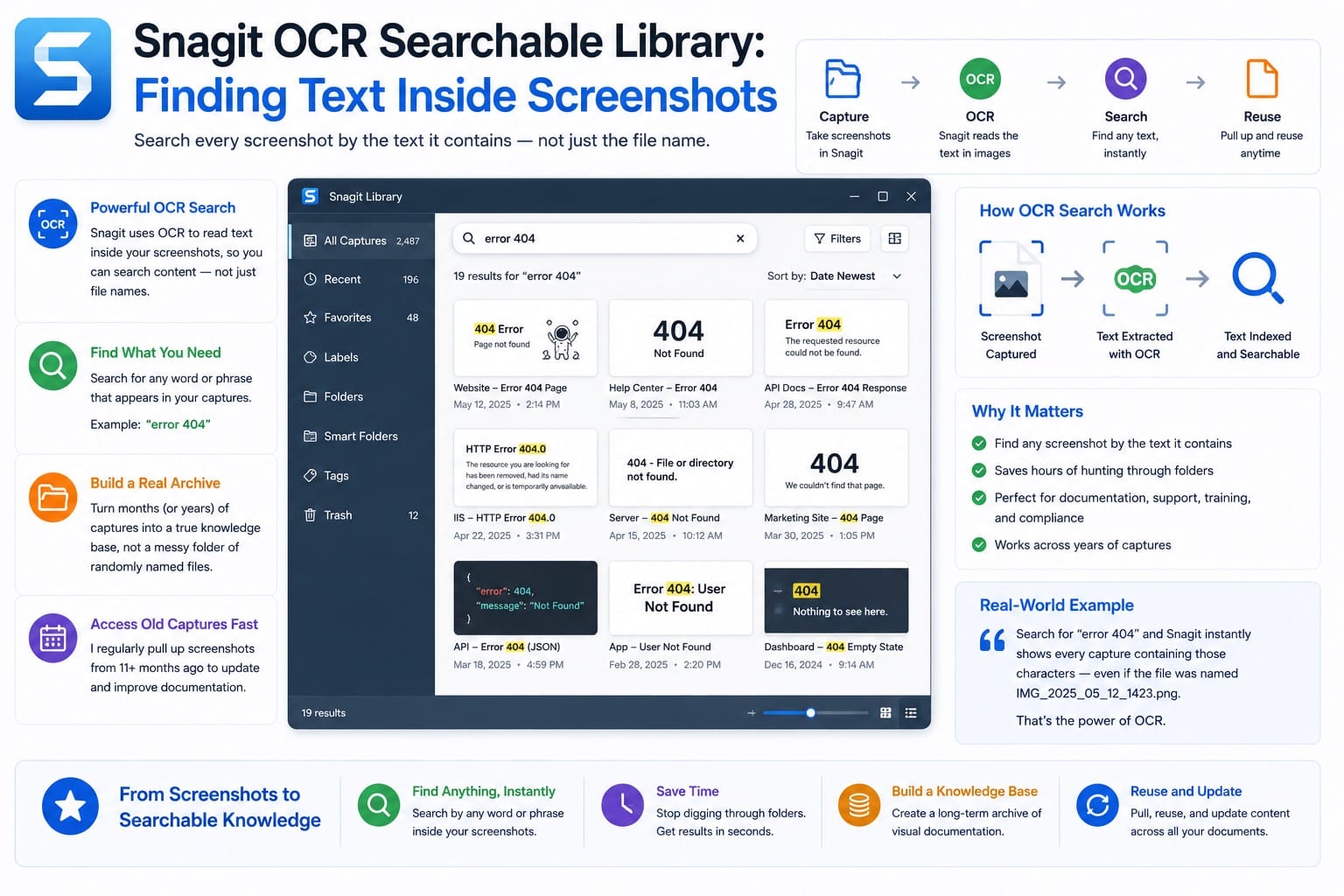
For teams building documentation libraries over months or years, this turns the library into a genuine reference archive rather than a folder of cryptically-named PNG files. I have captures going back 11 months that I regularly pull up and reuse in updated documentation.
Frequently Asked Questions
Is Snagit better than ShareX?
For most documentation workflows, yes. Snagit's Step Capture, searchable library, and built-in OCR have no equivalent in ShareX. ShareX is a strong free option on Windows, but it requires more configuration to produce the same output quality. If you're building SOPs or user guides regularly, Snagit is faster.
Does Snagit work offline?
Yes. All core capture and editing features work without an internet connection. You need a connection to activate the license and to access cloud-based features like Screencast sharing, but day-to-day capture and editing work fully offline.
Can Snagit replace Camtasia?
For quick recordings, yes. Snagit records screen, webcam, and audio, and its trim-only editor handles most short-form documentation videos. Camtasia is the right tool when you need multi-track editing, transitions, captions, or polished tutorial production. They're designed to complement each other, not replace one another.
Is Snagit good for YouTube tutorials?
For short software walkthroughs under 5 minutes, it's workable. For anything that needs titles, chapter markers, background music, or complex editing, you'll want Camtasia or a dedicated video editor. Most YouTube creators who use Snagit use it for thumbnail screenshots and short clips, not full video production.
Does Snagit use AI?
Yes. Snagit 2025 added Screentelligence, TechSmith's machine learning system for layout and design suggestions, along with Smart Redact (automatically identifies and removes sensitive data), and the Kinetic Cursor for recordings. All processing happens locally — data doesn't leave your machine.
Is Snagit worth it for students?
At $20/year on the education plan, it's one of the more affordable professional screenshot tools available to students. If you're producing research visuals, study guides, or any documentation-heavy coursework, it's worth the cost. For basic note screenshots, your OS built-in tools are probably enough.
Is a perpetual Snagit license still available?
No. TechSmith stopped selling perpetual licenses for new customers after Snagit 2024. All new purchases are subscriptions. Snagit 2024 is still available through the Apple App Store and Amazon as a one-time purchase, but it won't receive updates beyond version 2024.