
To crop a screenshot you have already saved on a Mac, open the image in Preview, select the area you want to keep, and click Crop. This changes the existing image; Shift-Command-4 selects an area before you take a new screenshot, as Apple's screenshot shortcut guide explains. If the picture is already on your Desktop or in Finder, Preview is the shorter route.
Crop the saved screenshot in Preview
I would make a copy first if the full screenshot might be needed later. Cropping removes the outer pixels from the image you save, which can matter if they contain context you only notice afterward. If the crop is wrong, choose Edit > Undo Crop immediately and select again; Apple also describes returning to an earlier saved version, but a separate original copy is easier to rely on.
- Find the screenshot in Finder. If double-clicking opens another app, Control-click the file and choose Open With > Preview. If you cannot locate it, check the current destination in the Mac screenshot location guide.
- In Preview, click Show Markup Toolbar if its tools are hidden. Choose Rectangular Selection, then drag a box around the part of the image you want to keep.
- Click Crop on the Markup toolbar. Inspect the new edges and choose File > Save to keep the edit. Apple documents the selection and Crop controls in its Preview cropping guide.
If Crop is unavailable or the result looks wrong
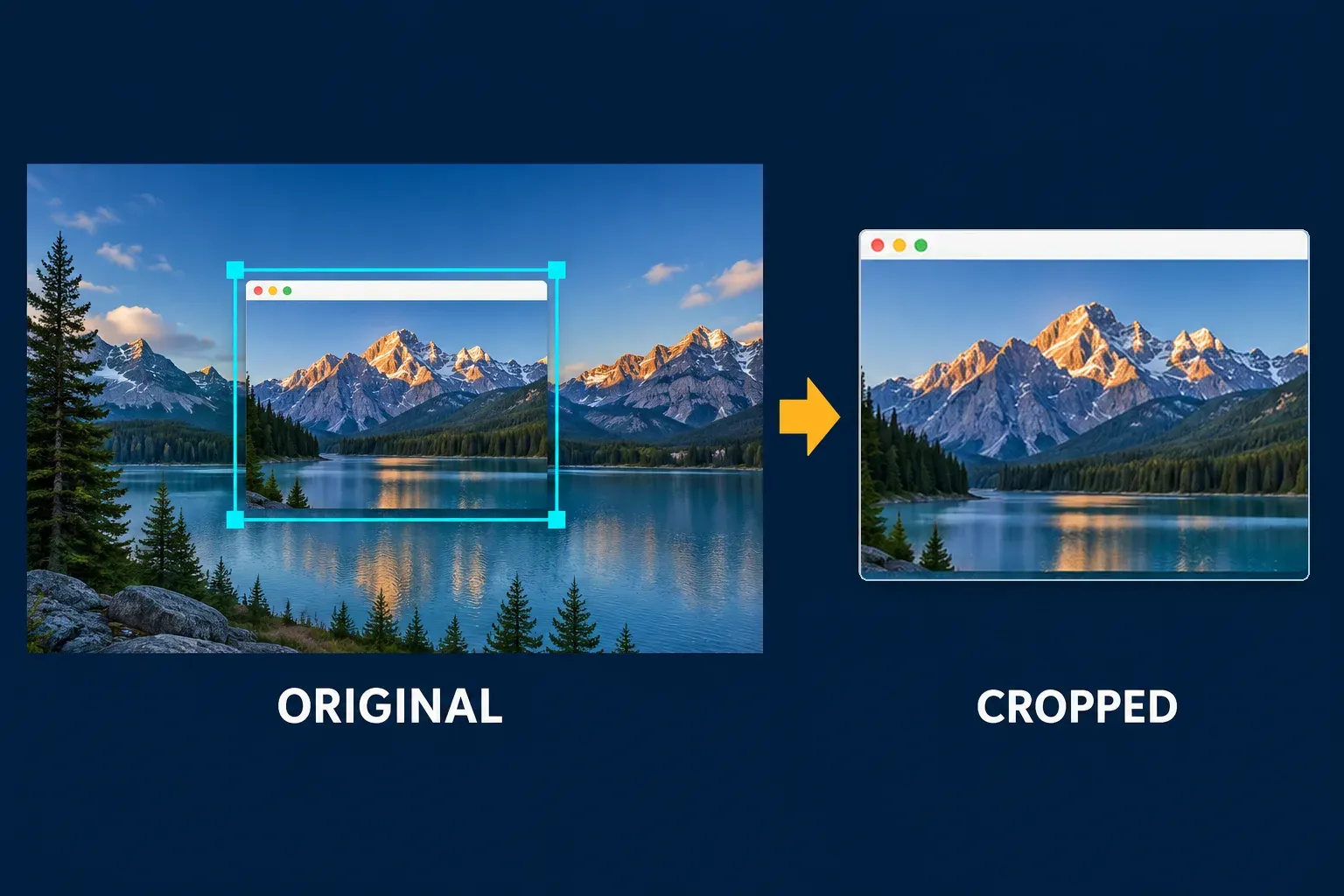
First make sure you have drawn a selection inside the image. The crop keeps the selected area; clicking a tool without choosing what to keep will not give you the edit you expect. If the Markup controls are missing, reveal them with Show Markup Toolbar, then repeat the rectangular selection. Apple lists the selection and Crop controls in that order in its Preview selection steps.
A crop removes parts of the picture; it does not make the same full image smaller in pixels. For that different task, Preview has an Adjust Size control, documented in Apple's Preview sizing instructions. And if you have not taken the screenshot yet, capture just the needed area with Shift-Command-4 instead of making a full-screen image to trim afterward.