
To scan a QR code from a screenshot, open the saved image. On iPhone, press and hold the code in Photos. On Android, open the screenshot in Google Photos and use Google Lens. On a computer, an image-based QR reader can decode the file without a second phone.
I would try the phone's existing image reader first. The important choice is a saved-image route: pointing the same phone's camera at its own screen will not help. Once the reader shows a result, review it before opening anything.
Choose a route for the device holding the screenshot
| Device | Start here | If nothing is recognized |
|---|---|---|
| iPhone | Photos: open the screenshot and hold the QR code | Try the saved-image picker in Google Lens, or a clearer original |
| Android | Google Photos: select the screenshot, then Google Lens | Open Lens through the Google app and choose the saved file |
| Samsung Galaxy | Gallery: open the saved image and hold the code | Use the Google Photos/Lens route |
| Windows or Mac | A QR reader with an image-file input | Get the original image and keep the whole code plus its clear margin |
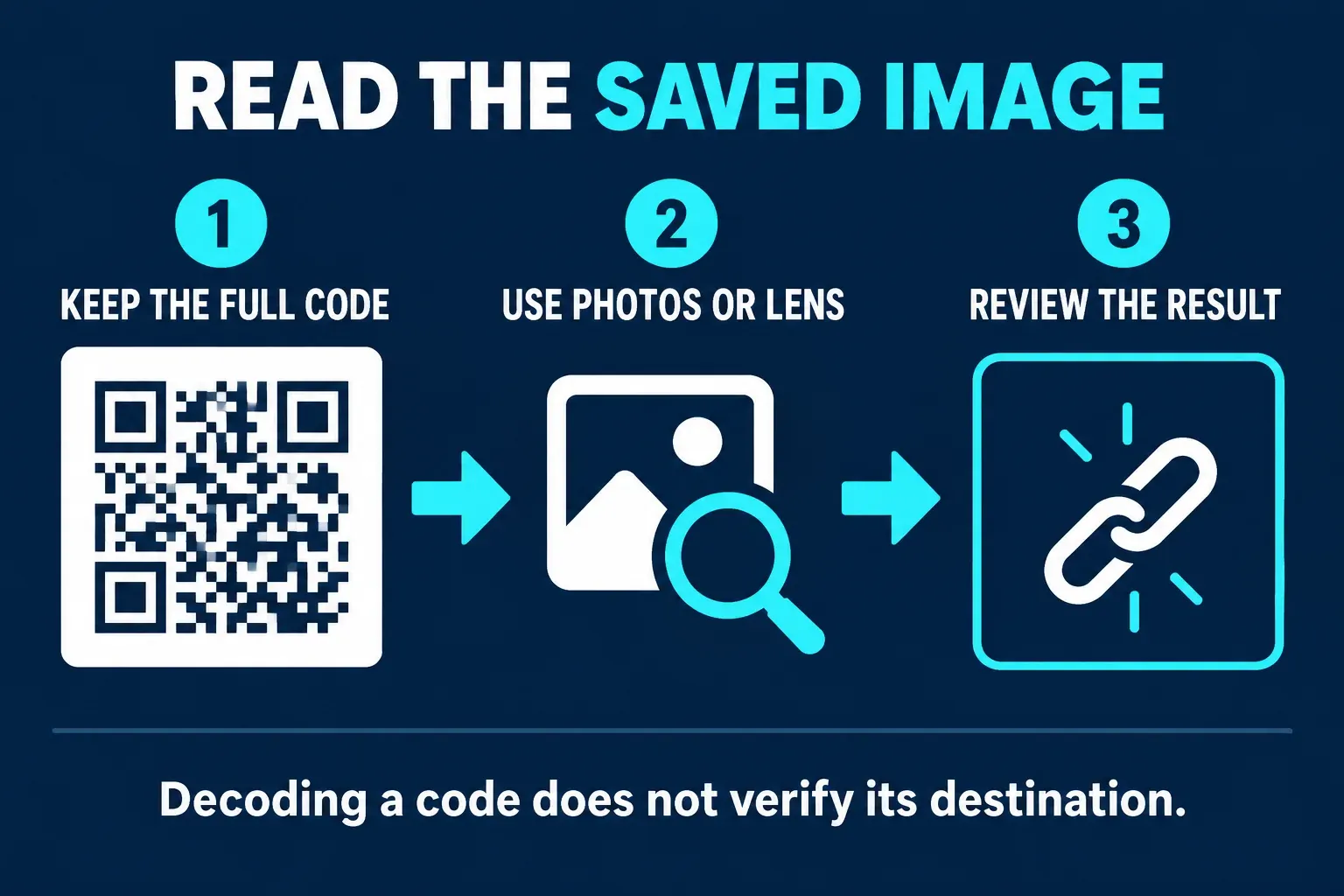
iPhone: read the code in Photos
- Save the image containing the QR code to Photos. If someone sent a picture, save that picture rather than capturing a small messaging preview.
- Open the image in Photos so you can see the complete code.
- Press and hold directly on the QR code. When it is recognized, an action menu appears.
- For a website code, review the link and choose the offered browser action only if you trust the destination. Use a copy-link option, when available, if you want to inspect the address first.
Adobe's instructions for reading a saved QR image on iPhone describe this Photos gesture: a long press opens a menu with options such as Open in Safari, Copy Link, Add to Reading List and Share. Those options change with the content of the code, since a code doesn't have to hold a website address.
If Photos selects ordinary text instead, press on the code itself. If it still offers no QR action, try a clearer image or the Google app's Lens image picker. Do not mistake copied text near the code for the decoded contents. Ordinary text extraction from an iPhone screenshot is a separate task.
The Camera app is useful when the code is on paper or another screen. Apple's Camera and Code Scanner instructions describe that live-camera route; they are not a file-import workflow for a screenshot already on the same phone.
Android: choose the screenshot in Google Lens
- Open Google Photos and select the saved screenshot.
- Open Google Lens. If you do not see a Lens button beside the image, open More → Google Lens at the top of the screen, as Google's help describes.
- Let Lens examine the code. If the screenshot contains several objects, select the code area rather than nearby text.
- Review the detected content. Open the offered link only after checking it, or use the relevant action for another kind of code.
Google documents opening Lens from a photo in Google Photos. Lens is also in the Google app and the Chrome app: tap Google Lens in the search bar and upload the saved image. Google's device-image instructions show how to drag the box corners to search only part of an image. Adobe's QR guide gives the same Lens route: pick the QR picture from the gallery, then tap the link that appears.
On Samsung Galaxy, there is also a Gallery route. Samsung's saved-image QR instructions say to open the picture in Gallery, press and hold the code until a notification appears, and review it before choosing an action. If your device doesn't show that notification, use Lens. Adobe's guide still lists a Bixby Vision route; I'd go with Samsung's own Gallery steps, which don't mention Bixby at all.
Windows or Mac: decode an image file
A browser-based QR reader with a file picker is a practical option for a public menu or other nonsensitive code. For example, Hovercode's image QR reader accepts a saved image and reads URLs, contact cards, Wi-Fi credentials and plain text. Hovercode says everything happens in your browser: the image isn't sent to a server and nothing is stored. It runs three decoders in turn, so a code one of them misses usually gets caught by another.
- Find the original screenshot file. On Windows, the screenshot destination depends on the capture method; an image that is only on the Clipboard needs saving to a file first.
- Choose the reader's image-file input and select that file. You do not need to give a webcam permission for a saved-image input.
- Read the decoded text or address. Copying a result and opening a website are separate actions.
For a login, private invitation, Wi-Fi credential, or personal document, I would keep the image within a trusted device or the issuing service's supported workflow. Do not send the whole screenshot to an unfamiliar decoder just to read a small square. An online tool's image input alone does not tell you how it processes the file.
If the code is not recognized, check the image
Start with the original attachment or screenshot. A tiny preview, repeated resizing, or heavy compression can leave too little detail to read. Making that damaged image larger does not restore its missing pattern; ask for the original or capture the source again at a readable size.
Keep every part of the square and its clear border. DENSO WAVE's QR code margin guidance specifies a quiet zone four modules wide on all sides. You can crop unrelated content around it, but leave that margin intact. Avoid drawing arrows, highlighting, or redaction across the code or its border.
If there are several codes in one screenshot, select or crop a copy around the intended one. Check that no notification or overlay covers it. Then try the image reader again. These changes help present the original code clearly; they do not make an expired invitation valid or repair a broken destination.
A displayed address means the reader decoded something. If the page then fails, check the address, network connection, and the sender's instructions. Scanning successfully and gaining access to the destination are different problems.
Finally, treat the result as information to assess. Samsung's QR safety guidance says to scan only codes from sources you trust and to be especially careful with codes that arrive by email, text message, social media or messaging apps. If you're unsure who sent one or why, Samsung's advice is not to scan it at all. A recognizable code can still lead to the wrong site. For an unexpected login or payment request, open the service through a route you already trust rather than proceeding from the screenshot.