
If you used Windows + PrtSc, look in File Explorer > Pictures > Screenshots first. The current Windows 11 Snipping Tool can also save there automatically, unless its save setting or folder has been changed. A capture copied only to the Clipboard won't show up as a new file. For Xbox Game Bar, check Videos > Captures instead.
Start by remembering how you took the screenshot. Combing through every folder before you've checked that wastes time, especially when the picture was never saved as a file.
Match the shortcut to the destination
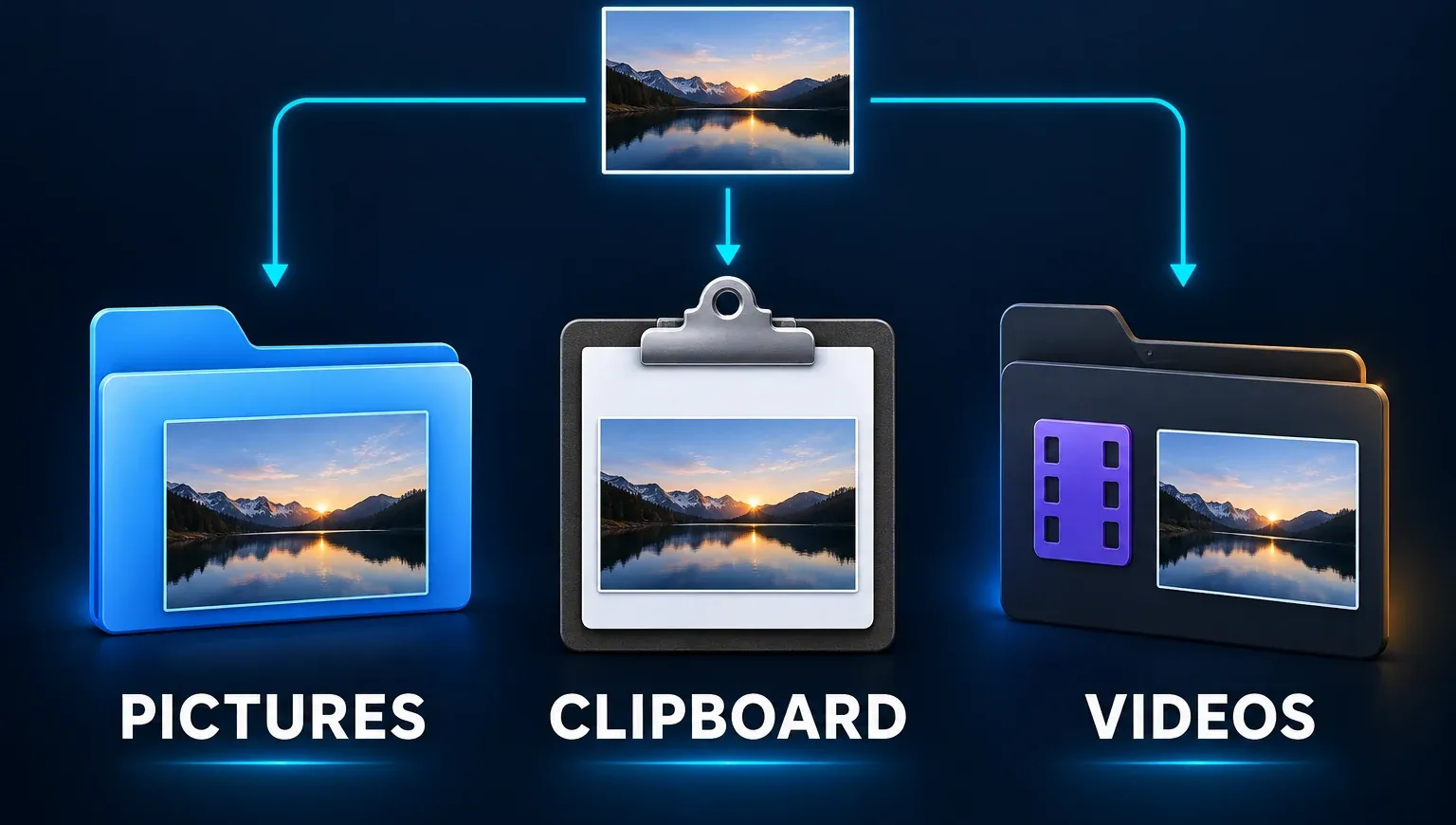
- Windows + PrtSc: Look in Pictures > Screenshots in File Explorer. Microsoft's Print Screen instructions give that route and note that some keyboards need a different key combination.
- Windows + Shift + S, or New in Snipping Tool: On current Windows 11, Snipping Tool automatically saves a completed snip to the Screenshots folder, unless its automatic-save behavior or default folder has been changed. The capture also appears in Snipping Tool, where you can choose Save as for a deliberate copy.
- PrtSc or Alt + PrtSc: Alt + PrtSc copies the active window to the Clipboard. Plain PrtSc opens screen snipping by default on Windows 11; finish the selection, then check Snipping Tool's save setting. If that key is configured for the older full-screen action, check the Clipboard instead. Microsoft explains the PrtSc setting and Clipboard shortcuts.
- Windows + Alt + PrtSc in Xbox Game Bar: Look in Videos > Captures. This is a different destination from ordinary Snipping Tool images, as Microsoft's Game Bar guide confirms.
- Windows + Shift + R, or Record in Snipping Tool: Look in Videos > Screen Recordings. The video is saved there when you select Stop, as Microsoft's Snipping Tool guide says, and the Windows Insider announcement notes that this automatic save can be turned off in Snipping Tool settings.
- Windows + Alt + R in Xbox Game Bar: Clips go to the same Videos > Captures folder as Game Bar screenshots, saved as MP4 files named after the game or app.
Find the saved image in File Explorer
- Press Windows + E to open File Explorer.
- Select Pictures in the navigation pane, then open Screenshots. Use the folder shown in your own File Explorer rather than assuming every PC uses the same hard-coded path.
- Sort by Date modified and open the newest image. Check its contents before attaching it: the newest file is not always the capture you meant to send.
The default location is %USERPROFILE%\Pictures\Screenshots, the path Microsoft lists for the Screenshots known folder. Paste it into the File Explorer address bar and press Enter to open it without knowing your user-folder name. If that path comes up empty while Pictures > Screenshots in the navigation pane has files, click the address bar there to read the path Windows uses. A moved folder or OneDrive backup changes it.
If you took the shot with Snipping Tool and that folder is empty, open the app and choose See more > Settings. Look at whether automatic saving is on and which default Screenshots folder it uses; Microsoft says both can be changed there. When the image is still open in Snipping Tool, use Save as to put a copy in a folder you know. Do not change the setting just to find an earlier image.
For future captures, I'd keep automatic save on, because a snip that only reaches the Clipboard is replaced the moment you copy something else.
If your Pictures folder is backed up to OneDrive, check OneDrive > Pictures in File Explorer as well. That only applies when backup is set up, which you can confirm in OneDrive Settings > Sync and backup > Manage backup. Microsoft's OneDrive folder-backup guide explains how to see which folders are backed up. An organization may give OneDrive a different name, so go by the folder your PC shows.
Older guides still tell you to turn on Save screenshots I capture to OneDrive. Microsoft says that OneDrive setting is no longer available and points to Pictures backup instead, so a missing switch doesn't mean OneDrive is broken.
If there is no file, check the Clipboard
Open Paint, or whichever app you want the picture in, and press Ctrl + V. If the screenshot shows up, it reached the Clipboard, and you can save it from that app when you need a file that lasts. That's the first thing to try after Alt + PrtSc, and it also helps you tell a capture apart from a failed save. A later copy can replace the active Clipboard item, so don't rely on it as an archive.
If you turned on clipboard history earlier, press Windows + V. Recent copies stay there after a newer one replaces the active item, up to 25 entries, and Microsoft's clipboard history guide adds that unpinned items clear when you restart the PC. Turning history on now won't bring back an older capture.
If pressing PrtSc opens a selection overlay, finish a small snip before you look for a file. The Snipping Tool shortcut reference lists which keys start each capture route. When you've confirmed the right method and save setting and still don't get a new image, follow the Windows screenshot saving checklist, which is where diagnosing a real save failure belongs. A key that never captures anything is a different problem, covered in the Print Screen troubleshooting guide.
Search the whole PC when you don't know the method
Open File Explorer, select This PC and type kind:pics date:today in the search box. That lists pictures dated today wherever they were saved; use date:yesterday or date:this week for older captures. Both filters come from the Windows search syntax reference. Sort the results by Date modified and open the newest ones first.