
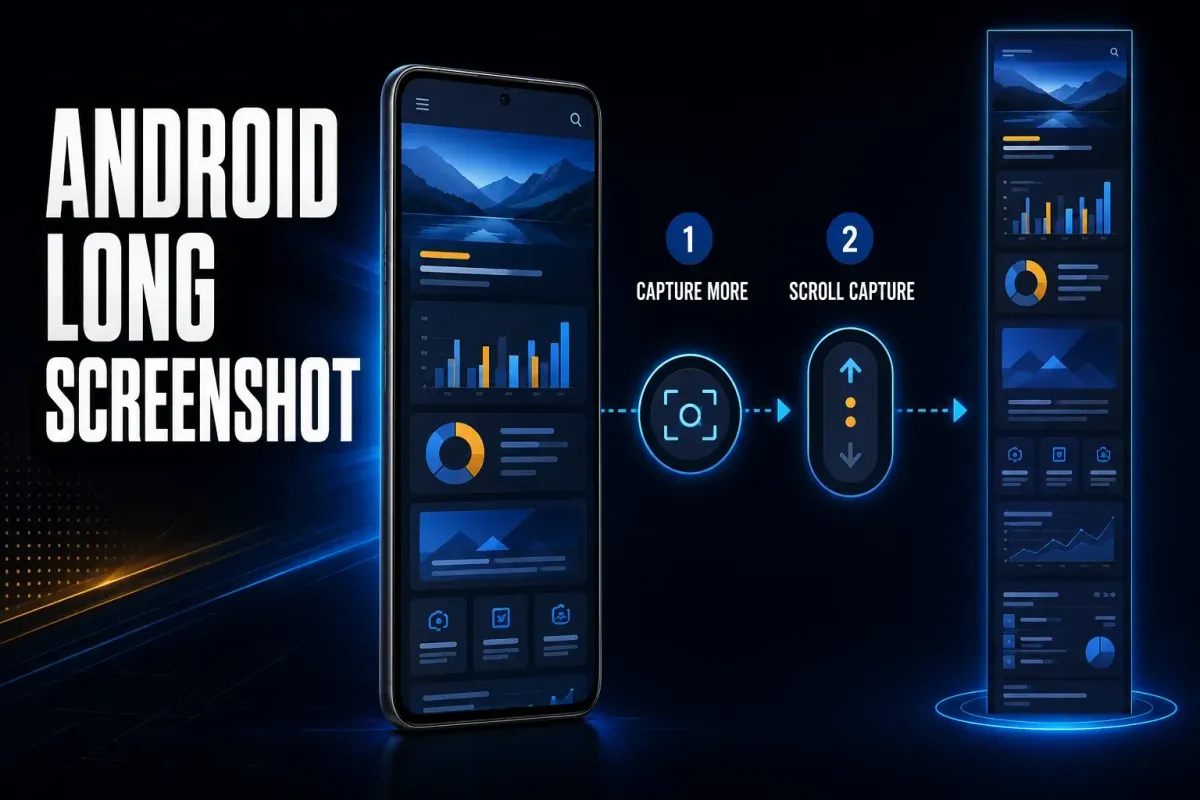
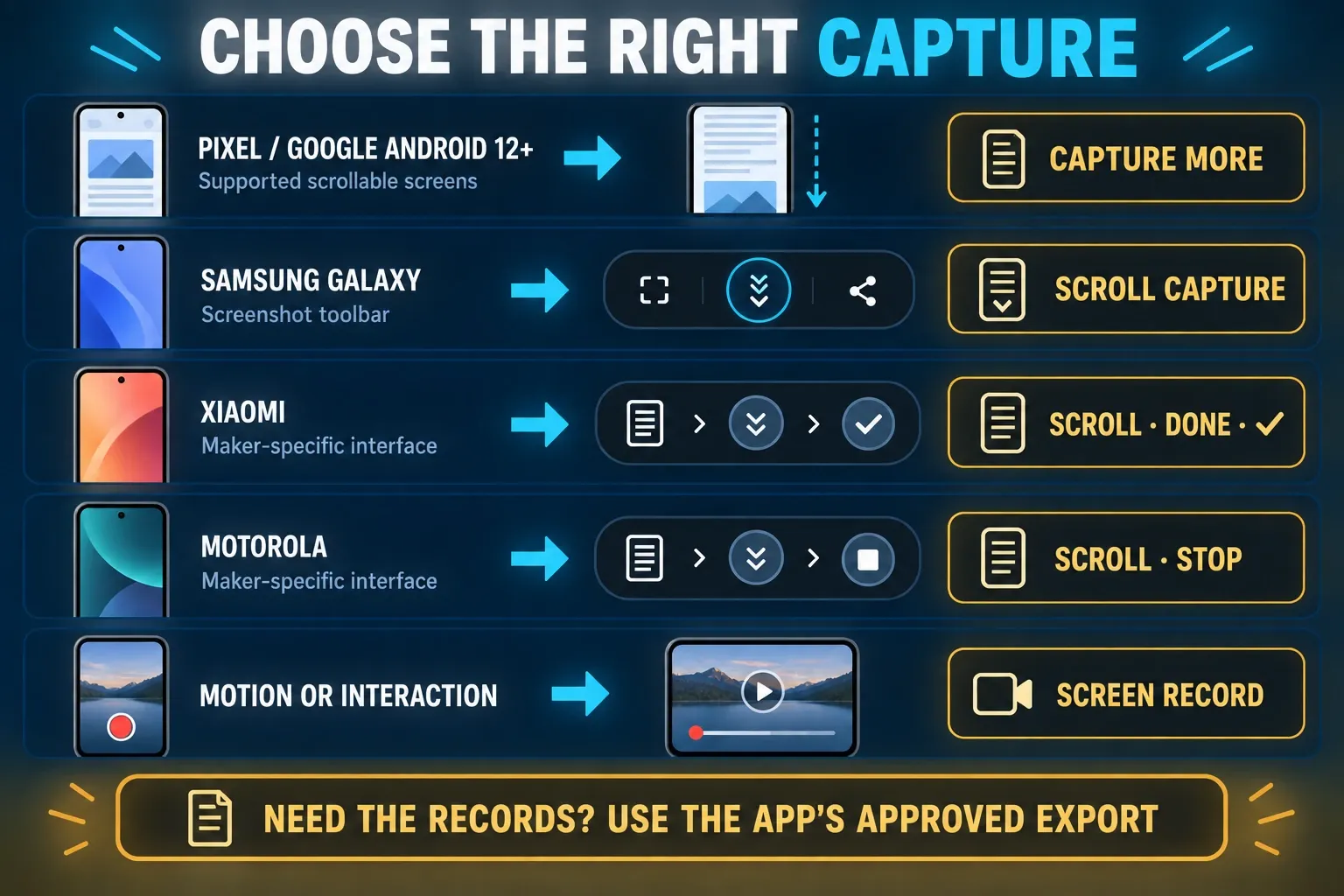
To take a scrolling screenshot on a Pixel or a phone using Google’s Android 12+ capture flow, press Power and Volume down together, then choose Capture more. Set the range with the crop guides and save. The current app must support extended capture; a scrollable screen alone does not guarantee it.
On Samsung Galaxy, use the Scroll capture button after a normal screenshot. Xiaomi and Motorola have their own controls, described below. Android 12 is the requirement for Google’s documented route, not a universal starting version for every manufacturer’s long-screenshot feature.
I checked these steps against Google’s and the manufacturers’ support pages on September 19, 2026 and kept them to what those pages document for these phones. Search results and community reports helped me spot the common missing-control questions, but they can’t tell you why a particular phone fails.
Android scrolling screenshot methods at a glance
| Phone or route | Control | Output | Main limit |
|---|---|---|---|
| Pixel and standard Android flow | Capture more | Tall image | Android 12+ and a supported scrollable screen |
| Samsung Galaxy | Scroll capture icon | Tall image | Toolbar and feature availability vary by model and software |
| Other Android phones | Maker-specific scroll control | Check the maker’s output | Manufacturer-specific label and behavior |
| Screen recording | Screen record | Video | Not a still image; protected apps may block it |
| Source app export | Export, Download, or Share | PDF, text, data, or media | Check export scope and contents |
Use the native long-capture button when it appears, and choose recording when you need motion or interaction. If you need the underlying records, check the source app’s export and verify its dates, rows and attachments. A tall image or an export filename doesn’t prove the result is complete.
How to take a scrolling screenshot on Android
- Open the scrollable screen you need to capture.
- Scroll through the required range and wait for delayed content.
- Return to the start and dismiss overlays or keyboards where permitted.
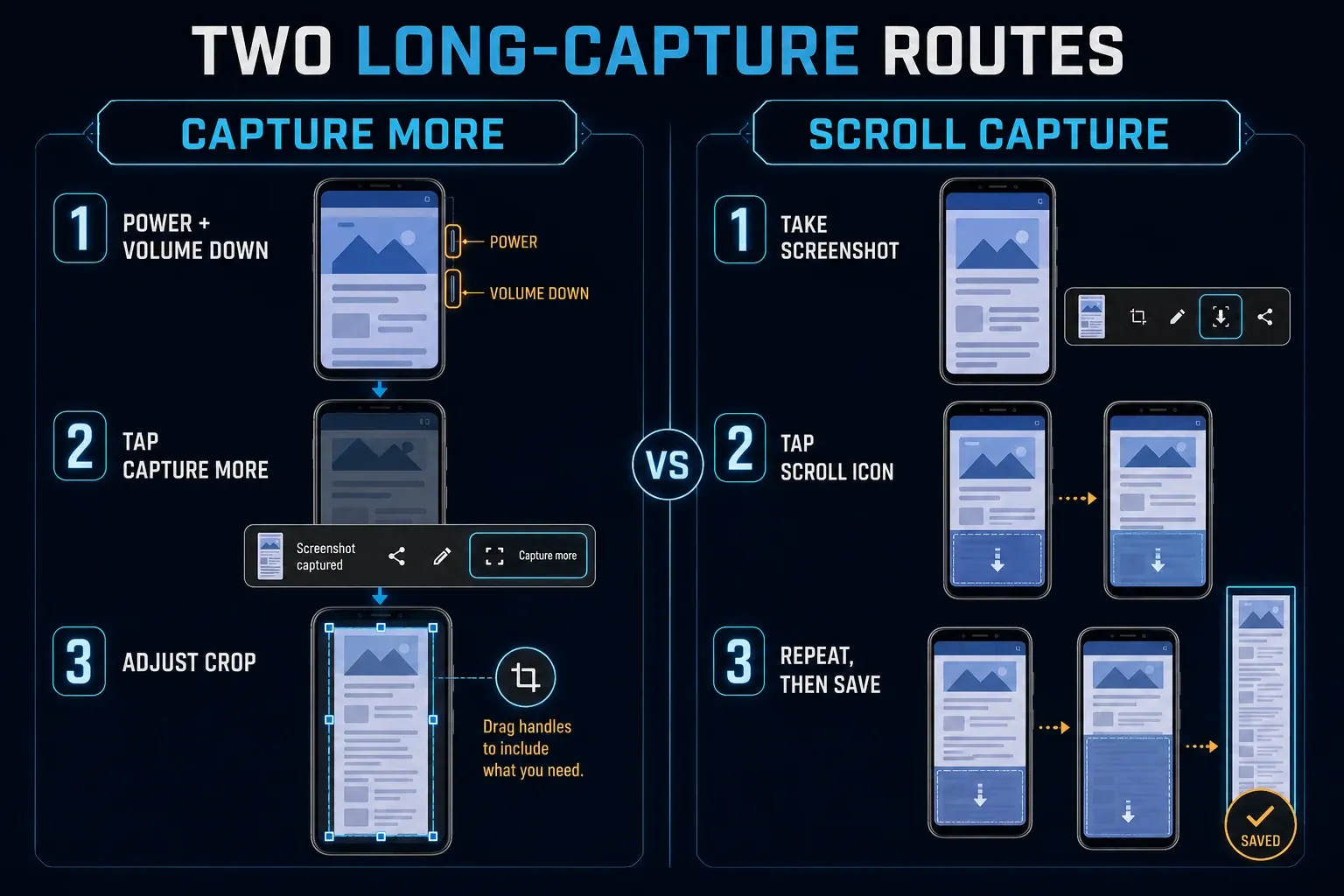
- Press Power and Volume down at the same time.
- Choose Capture more in the preview if available. If it is absent, use the device-specific checks below.
- Move the crop guides to include the required start and endpoint.
- Save the result, then reopen it in Photos or Gallery and inspect the complete image.
Google’s Android screenshot guide limits these scrolling steps to Android 12 and later and supported scrollable screens. If your phone has a different screenshot interface, follow its maker’s instructions rather than assuming this control must exist.
Use the hardware buttons for the standard route
Press the two buttons together and release after the capture. While the preview is still on screen, tap the extended-capture control; if it has closed, take a fresh screenshot. Not every shortcut for an ordinary screenshot also starts a scrolling capture.
Select only the content you need
Set the crop guides around the content you actually need; a shorter section is easier to read and verify. Keep an untouched original for comparison only if you’re allowed to retain it, and label cropped or combined versions as edited copies.
Take a long screenshot on a Pixel phone
The Pixel screenshot guide documents Power plus Volume down, Capture more and crop guides. Its Android 12+ requirement does not mean every view in every app is eligible. Check the preview before saving and compare the complete saved image with the source.
Find the extended-capture control
Google’s help labels the control Capture more and shows its icon. Look for it in the preview toolbar, where Share and Edit are separate actions. If your build’s controls differ, compare them with help for that device. A missing text label doesn’t by itself mean the feature has been removed.
Start with Power and Volume down when troubleshooting
For an ordinary Pixel screenshot without buttons, swipe up from the bottom and hold, select the open app, then tap Screenshot. With three-button navigation, tap Overview instead. Google documents these separately from scrolling capture, so return to Power and Volume down when comparing a missing Capture more option.
Take a scrolling screenshot on Samsung Galaxy
- Open the scrollable page and briefly press Power or Side with Volume down.
- When the screenshot toolbar appears, tap Scroll capture, the two downward arrows.
- Press and hold that control to continue farther, following the behavior on your model.
- At the required endpoint, tap outside the toolbar to finish.
- Open the saved image in Gallery and inspect all its content, including small text.
Samsung’s Scroll Capture instructions document this flow. Samsung notes that the image is resized automatically and the available scroll length depends on the content. If text becomes too small, capture shorter labeled sections instead of treating the thumbnail as a quality check.
Turn on the Samsung capture toolbar
Open Settings > Advanced features > Screenshots and screen recorder, then turn on Show toolbar after capturing. Samsung says devices without screen recording may show Screen capture instead. The switch restores the toolbar where supported; it does not make an incompatible app view scroll-capturable.
Find the file in Gallery
Open Gallery > Albums > Screenshots. Samsung’s Galaxy screenshot guide also lists My Files > Images, and settings and feature availability can vary by provider, software and model. Look at the full saved image rather than just its thumbnail.
Find the control on other Android phones
Xiaomi’s scrolling screenshot instructions use Scroll beside the screenshot preview: choose where to end, or wait for automatic scrolling, tap DONE, then tap the checkmark to save. That’s the documented interface, not a promise that every HyperOS build or app shows identical controls. Xiaomi notes that Gallery Editor may need access to the relevant folders, so read the exact permission request before allowing it.
In this Motorola screenshot guide, take a screenshot, tap the scrolling control, and use STOP to end before the bottom. Tap the thumbnail to review it. Motorola manuals are device/software-specific. For OnePlus, Oppo, Vivo, Honor or another maker, use the manual for your model rather than copying a Samsung settings path.
Record your device details first
Google’s version-check instructions use Settings > About phone or About tablet > Android version. Note the version, build number and security update, plus any maker-specific software version shown, since these details help support staff compare instructions. Leave out serial numbers and account identifiers unless a private support channel actually needs them.
Prepare the screen before capture
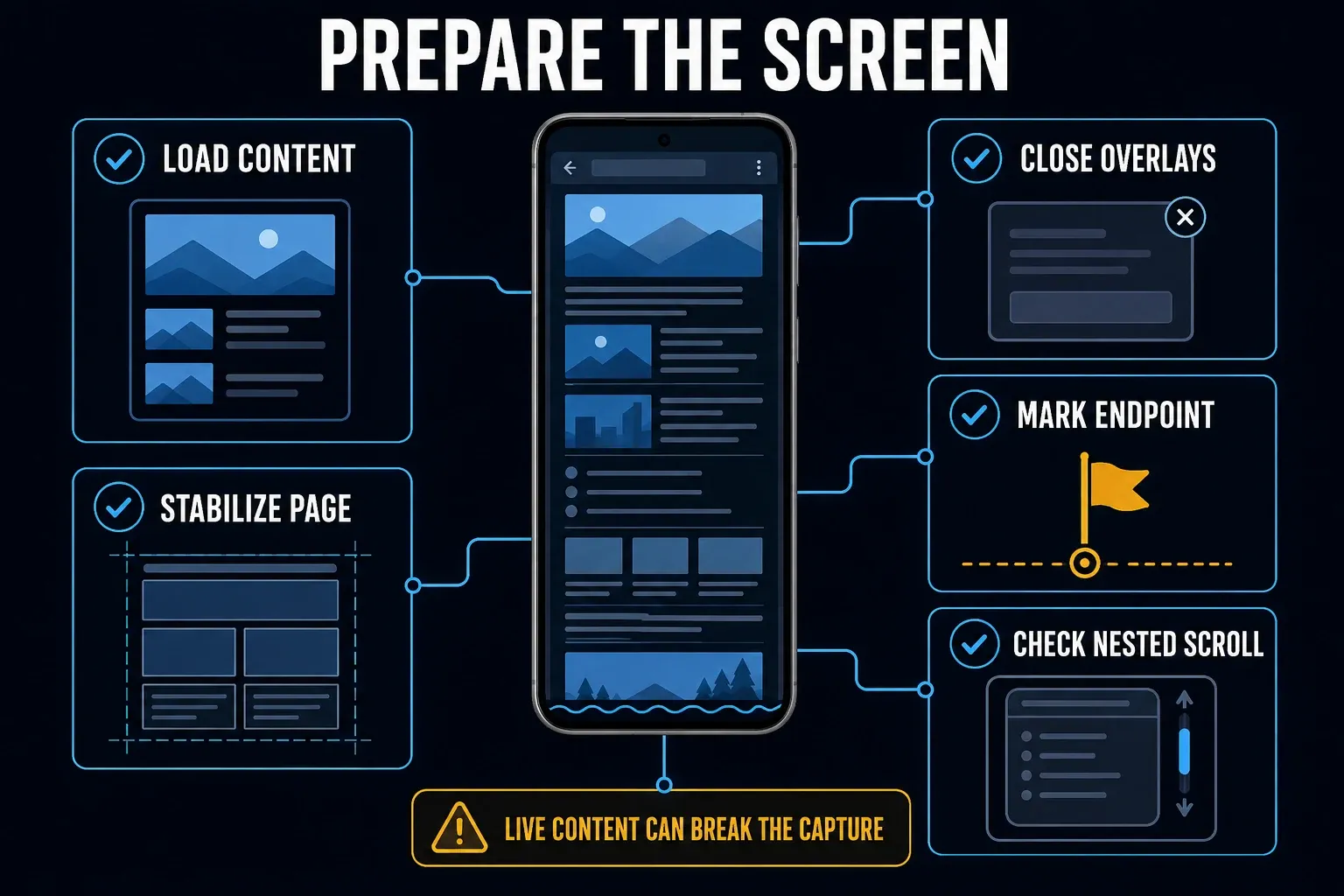
Scroll through the required content first and wait for images, messages, comments and attachments to load. Lazy-loaded webpage content may appear only as you approach it. Dismiss keyboards, notices and floating menus where permitted, and pause animation or live updates only if the app offers a control.
Choose an endpoint such as a timestamp, item ID, heading or final row. Endless feeds may keep loading, so a capture needs a defined range. If you need underlying data, use an authorized export and check its scope; do not assume it contains every record.
Keep the page state stable
Do not change filters, accounts, orientation, font size, or display zoom halfway through a capture. A layout change can move items and create missing or repeated content.
Check nested scrolling
A chat panel, spreadsheet or embedded report can scroll separately from the main screen. Android’s scroll-capture interface selects a supported scrolling element; it is not a command to capture every panel together. Check which content the preview contains. Use the panel’s export or smaller labeled captures if the needed area is omitted.
Capture common Android content without losing context
For a webpage, message thread, receipt or settings list, choose the endpoint and verification landmarks first. Keep an untouched original for a support case only while permitted by your access and retention rules. A screenshot documents a captured view; it does not prove that a whole account history was included.
Webpages and long articles
Wait for images, dismiss notices where permitted and expand the sections you need. Check the title and final heading against the source. For a document instead of exact screen pixels, Chrome on Android can print to PDF: open More > Share > Print, select Save as PDF and choose a destination. Inspect the preview and saved file; page layout, text search and completeness need checking.
Messages and conversation threads
Include a conversation name and timestamps only when needed. If the thread keeps moving or extended capture is unsupported, take an ordinary screenshot, scroll while keeping a recognizable message or timestamp visible, then take the next. Repeat through your endpoint at the same scale. In an editor with vertical stitching, align the shared landmark and remove the duplicate area once. Inspect every join against the originals. No stitching tool can recover a message that you scrolled past without capturing.
Receipts, orders, and settings
Confirm the order ID, date, currency and total before capture, without exposing unrelated account details. Crop out unnecessary addresses or payment data from the shared copy. For settings, keep the page title and toggle state, and note the phone model and build separately so another person can compare the path.
Maps, canvases, and remote desktops
Maps, canvases and remote-desktop views may not support capture the way a simple scrolling list does, so inspect the preview for a repeated frame or missing area. When needed, use the app’s permitted share/export action or a labeled visible-area capture. A file’s height says little about how much source content it contains.
Fix Capture more when it does not appear
- Check the documented route. Google’s Capture more steps require Android 12+; other makers may have a separate implementation.
- Use Power and Volume down for the Google/Pixel comparison.
- Try a long, simple Settings list and a normal webpage. Check whether each actually scrolls.
- Inspect the preview for the extended-capture control; Share and Edit are not the same action. On Samsung, check its toolbar setting.
- Compare a second supported view. A different result narrows the problem but does not prove a single cause.
- Reopen the app or restart the phone after preserving unsaved work.
- Check the maker’s supported updates. Do not install experimental profiles, root the phone or clear app data just to obtain a screenshot.
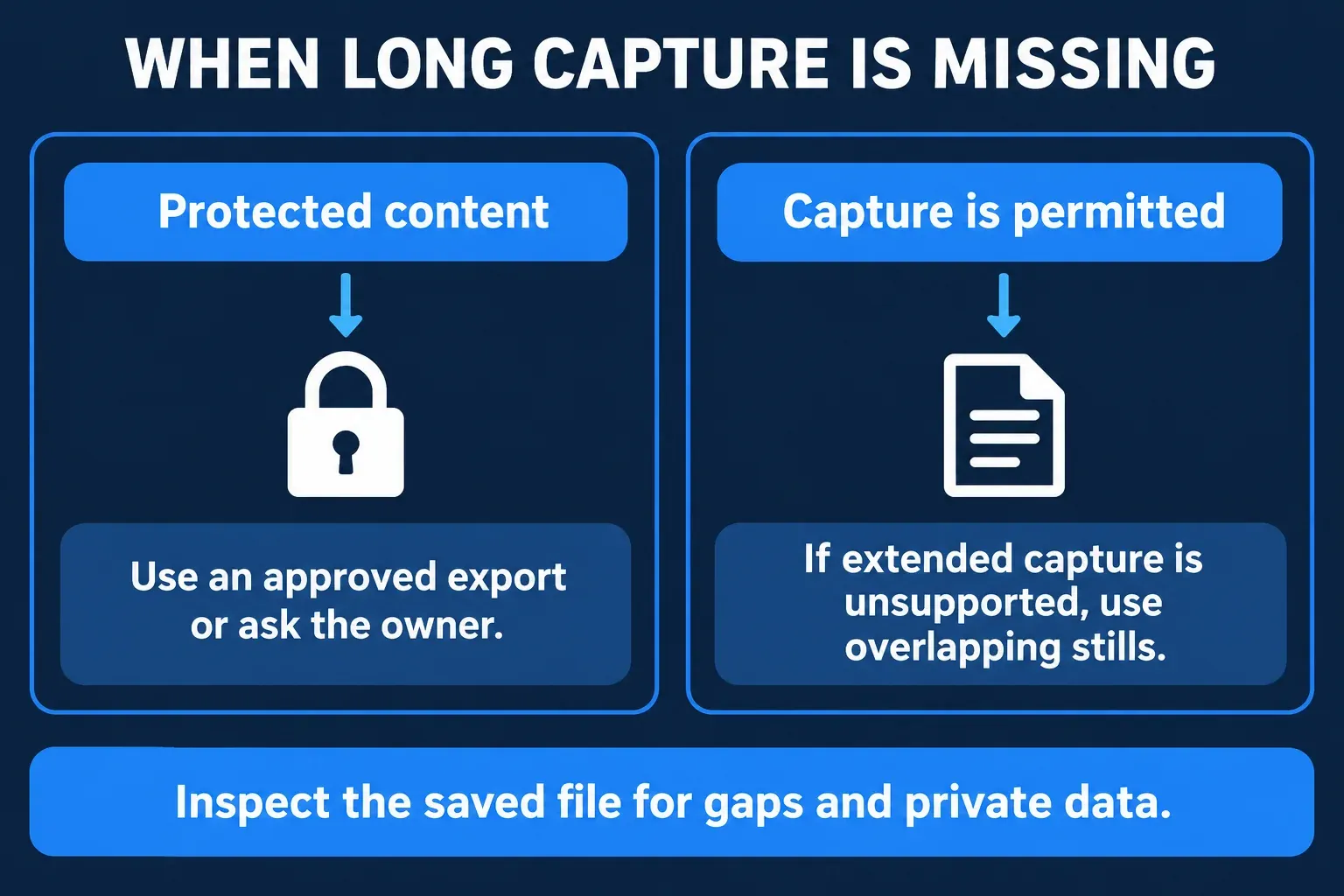
- If the view is still unsupported, use permitted overlapping stills, recording or an official export.
The app blocks screenshots
Some app windows deliberately block screenshots or hide protected content. Android documents controls that prevent screen capture, and Samsung warns that privacy or security restrictions can apply. Don’t bypass them with recording or third-party capture tools; use the app’s approved receipt, statement, download or support route instead.
Capture more opens but shows only one screen
Compare the same capture route on a simple scrolling list and in the original app. If the list works, the problem likely lies in that specific view, though the exact cause stays open. A virtualized webpage list can render only part of its dataset, and nested panels can fall outside the selected capture area. Use smaller sections or an authorized export, and check what was actually included.
Fix repeated headers, gaps, and wrong order
Compare repeated or missing portions with the source. Sticky controls, delayed content and changes during capture are possible explanations, not a diagnosis from the image alone. Preserve your place before reloading, wait for the required content and try a shorter defined range.
Inspect every section between the start and endpoint, not only two middle samples. Compare timestamps, row labels, image edges and order. If you find a gap, recapture that range with overlap, because a smooth-looking join doesn't prove that no row was omitted.
Orientation changes the layout
Lock the orientation before capture. Rotating between portrait and landscape can reflow text, resize columns, and reset the scroll position. Use the orientation that matches the recipient's reading or evidence needs.
Use screen recording when motion matters
- Open Quick Settings with two downward swipes from the top on Google’s documented Android interface.
- Tap Screen record. If missing, swipe through the tiles or use Edit and drag Screen record into Quick Settings.
- Choose the scope and audio options offered by your phone. On Pixel, select a single app or the entire screen; enable audio or visible touches only when needed.
- Tap Start and wait for the countdown. If an app chooser appears, select the app you want to record. Scroll through the required content at a readable pace.
- Swipe down and use the Screen recorder notification to stop.
- Open the saved video and review its full range and audio before sharing.
Google’s Pixel recording guide documents the single-app choice and the Photos > Collections > On this device > Movies location. Other makers can use different controls. Recording creates video, not a tall still image, and it does not override an app’s capture restrictions.
Do not convert video to one image by default
Converting a scrolling video to one image adds another alignment step, so check the result for missing and repeated rows. If you only need a still image, overlapping screenshots let you verify each source frame directly. Before importing sensitive captures into an extra app, review its privacy policy and permissions; Google shows how to review app permissions under Settings > Apps > the app > Permissions. Where supported, limit photo access to the required images.
Store and share the long image safely
In the Android Google Photos app, use Collections > On this device > Screenshots. Other phones may show the images in Gallery or an album; on Samsung, use Gallery > Albums > Screenshots. Open the file and confirm the range before repeating a sensitive capture.
Long images can expose private details far below the first screen. Remove unnecessary content before capture when possible. For an image you must redact, use a maintained editor, cover the sensitive pixels completely with an opaque shape, and export a separate flattened PNG or JPEG rather than sharing a layered project. Reopen that copy and inspect the covered areas. Check Google Photos backup settings separately: profile > Photos settings > Back up, including device folders. Saving locally does not prove that uploading is off.
Keep the original when context matters
Keep an original only while you’re allowed to retain it, and store the capture dates and endpoints you need without extra account identifiers. Edit a copy, label combined or redacted versions, and inspect the file the recipient will receive. These notes help with comparison; they say nothing about legal validity or completeness.
Run this final Android capture check
- Confirm the phone model, Android build, app, account, and endpoint.
- Use the current maker-specific capture control.
- Inspect every section between the first screen and the final required item, including each stitch seam.
- Inspect repeated headers, missing rows, images, and nested panels.
- Remove or permanently cover private data that is not required.
- Open the saved image in Photos, Gallery, Files, or the receiving app.
For another device, use the scrolling screenshot hub. If you are switching to an Apple phone, the iPhone long screenshot guide explains Full Page and its alternatives. For a webpage on a computer, use the desktop Chrome capture steps, not Android menu instructions.
Android scrolling screenshot FAQ
How do I take a scrolling screenshot on Android?
On a supported screen using Google’s Android 12+ route, press Power and Volume down, choose Capture more, set the crop guides and save. Reopen the full image to verify it. Samsung and other makers may provide different controls.
Why is Capture more missing?
The device may use a different capture interface, the app view may be unsupported, or Google’s Android 12+ requirement may not be met. Compare a long Settings list and another scrollable view using the documented buttons. A missing label or one successful test does not prove the cause.
How do I take a long screenshot on Samsung?
Take a screenshot with Power or Side plus Volume down, then tap Scroll capture in the toolbar. Continue to your endpoint and finish the capture. If the toolbar is hidden, check Settings > Advanced features > Screenshots and screen recorder > Show toolbar after capturing. Availability varies by model and view.
Does scrolling screenshot work in every Android app?
No. Google limits its standard route to supported scrollable screens. Some protected app windows block capture, while custom or nested views may limit the area captured. Use permitted alternatives and do not bypass security restrictions.
Where are long screenshots saved on Android?
Google’s Android guide uses Photos > Collections > On this device > Screenshots. Samsung lists Gallery > Albums > Screenshots and My Files > Images. Other makers can use different gallery layouts. Check the actual saved file, not only a thumbnail.
Can I use screen recording instead?
Yes, when the required result is video of motion or interaction. Set the recording scope and audio before starting, then inspect the saved video. Recording is not a long still image and does not bypass protected-content restrictions.
Why does my long screenshot repeat or skip content?
Possible causes include delayed content, sticky controls, changing layout or a separate scroll area. Compare the result with the source, try a shorter stable range and inspect every section and join. A successful capture elsewhere narrows the problem without proving the exact cause.