
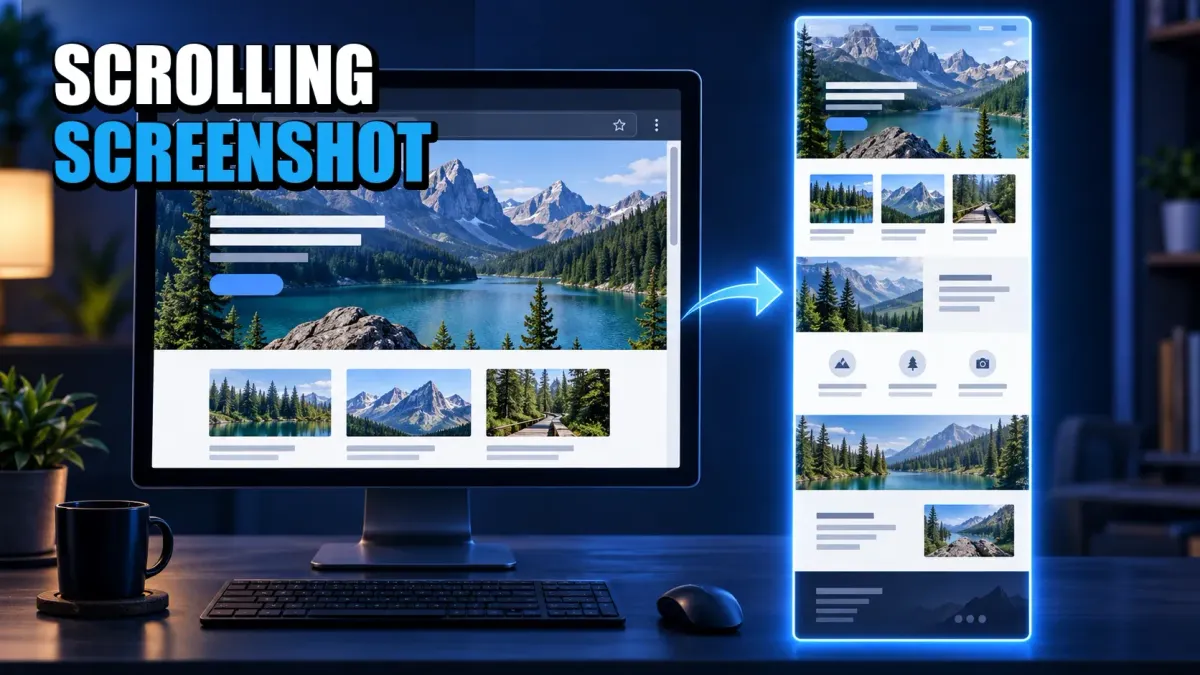
Use the target, not the device, to choose a scrolling screenshot method. For a normal webpage, start with the browser's full-page command. For a desktop app or a scrollable panel inside a page, use controlled scroll-and-stitch. On iPhone and Android, use the built-in extended-capture control when the app exposes it. Give an infinite feed a finite endpoint before you capture anything.
Choose the method by what has to scroll
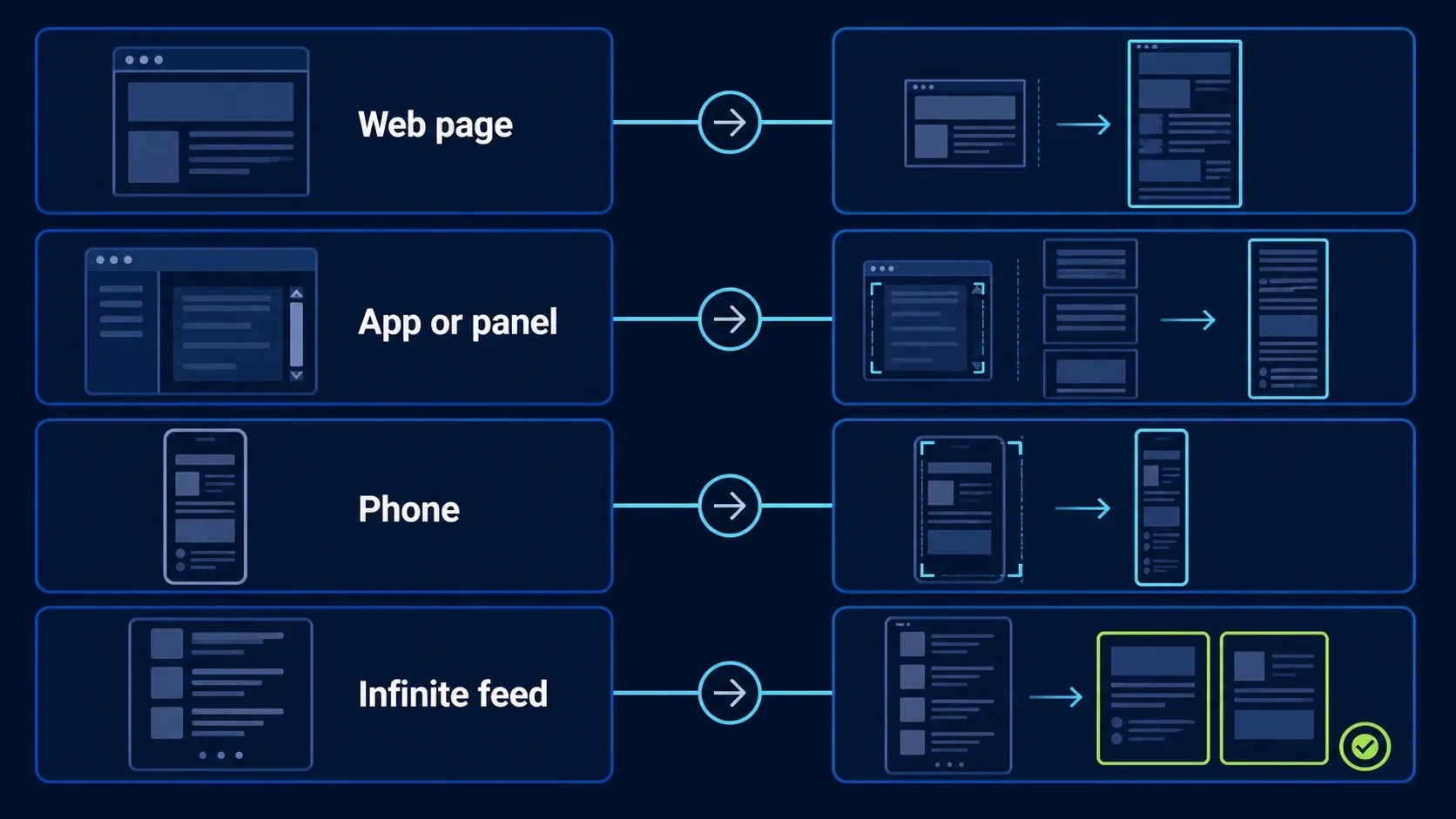
"Scrolling screenshot" actually covers two different operations. A browser can render a finite webpage beyond the visible viewport and save the rendered document as one image. A stitching tool records overlapping frames while the page or panel moves, then joins those frames together. The second route works in more places, but it can repeat fixed headers, skip rows, or join two states of an animation.
- Ordinary webpage: use Edge Capture full page, Firefox Save full page, or Chrome DevTools Capture full size screenshot.
- Desktop app or nested panel: use Snagit, ShareX on Windows, or another stitching tool that can target the exact scroll region.
- iPhone or Android screen: use Full Page or Capture more when the operating system and app expose it.
- Infinite feed or virtualized list: define a finite item or date range, use an export, or capture focused sections. There is no complete last frame for an endless feed.
If your real job is to explain motion, a dropdown sequence, or a process that changes state, one very tall image may be the wrong output. A short clip from the screen recording workflow can be easier to follow and easier to verify.
Browser rendering versus scroll-and-stitch
Browser rendering asks the browser itself to produce the page beyond the viewport, so there's no physical scrolling and no frame seams. It can still pick up a cookie banner, fixed overlay, unloaded image, canvas state, or content hidden behind authentication. Treat the output as a capture that needs inspection, not a guaranteed perfect copy.
Scroll-and-stitch follows a visible region while it moves, which makes it the useful route for settings panes, chat histories, desktop software, horizontal areas, and pages with nested scrolling. The catch: the method needs overlap between frames, and anything that changes inside that overlap can confuse the match.
So my shorthand: a stable finite page is a browser-rendering candidate, a panel with its own scrollbar is a stitching target, and a page that keeps loading new cards needs a scope decision before either method can produce a truthful result.
Take a full-page screenshot on Windows
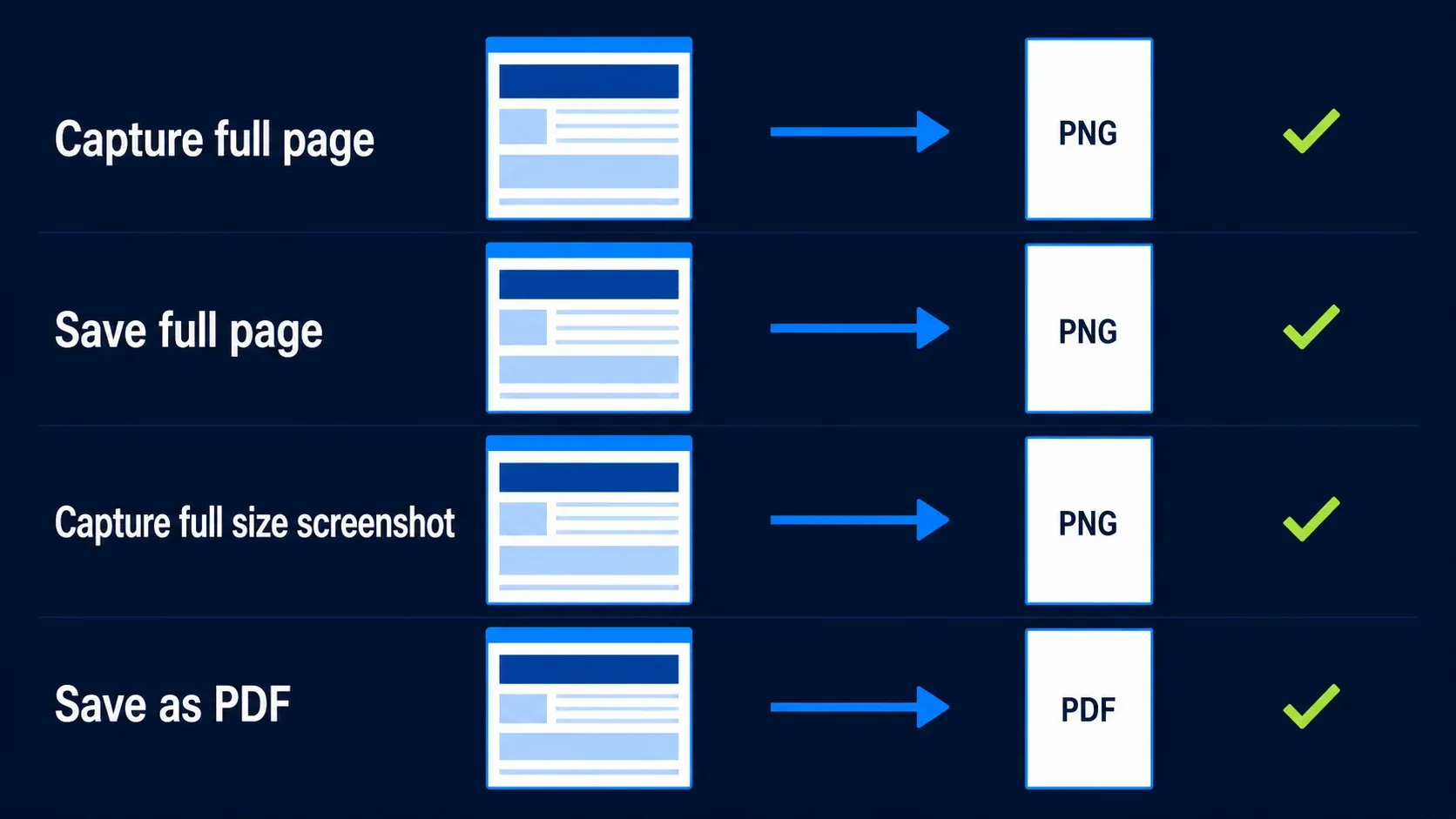
Use Microsoft Edge for the fastest built-in webpage capture
Open the page in Edge, press Ctrl+Shift+S, and choose Capture full page. Review the result, then copy or save it. Microsoft's current Edge Screenshot page documents the shortcut, full-page option, markup, copy, and save routes. Microsoft also notes that availability can vary by device, market, browser version, or account.
I'd try this Windows route first because it needs no extension and no extra desktop app. If the page has images that load only near the viewport, scroll through it once, return to the top, close cookie notices and chat bubbles, then run the full-page command. And check the bottom of the saved image — a long result that stops early isn't complete just because it has no visible seam.
Use Firefox when you want a simple cross-platform PNG
Open the page in Firefox and press Ctrl+Shift+S on Windows or Linux. Choose Save full page. Firefox can download the result as PNG or copy it to the clipboard. Mozilla's current Firefox Screenshots guide documents the shortcut and both output routes. On Mac, the shortcut is Command+Shift+S.
Firefox is the pick when the same instructions have to work on Windows, Mac, and Linux. It captures webpages, though — not arbitrary desktop windows. If the content lives in a settings panel inside another application, switch to a stitching method rather than forcing the browser command onto the wrong target.
Use Chrome DevTools for a full-size webpage image
Open Chrome DevTools. Press Ctrl+Shift+P on Windows or Linux, or Command+Shift+P on Mac, to open the Command Menu. Type screenshot and choose Capture full size screenshot. Chrome downloads an image of the rendered page. Google's Command Menu documentation confirms the shortcuts and screenshot commands, and the Device Mode guide documents the full-size capture option.
DevTools makes sense when Chrome is already part of your testing workflow. Check responsive layouts at the actual target width before you capture. And remember that device emulation only changes the viewport — it doesn't prove a physical phone renders every font, keyboard, safe area, or browser control the same way.
Do not wait for a Snipping Tool command that is not in the current guide
Microsoft's current Snipping Tool support page documents visible screenshot and recording workflows — and no general scrolling-capture command. That's a documentation boundary, not a promise about every preview build or future update. For a webpage today, Edge is the documented built-in full-page route; for a desktop application or inner panel, use a tested stitching tool.
Take a scrolling screenshot on Mac
On a Mac, pick the output before the tool. One tall webpage image? Firefox Save full page. A printable document with page breaks and potentially searchable text and links? Safari's PDF route. Content inside an application or nested panel? A stitching tool.
Save a long webpage as PNG with Firefox
Open the page in Firefox, press Command+Shift+S, choose Save full page, and download the PNG. You end up with an image you can annotate, drop into a ticket, or split into smaller steps. Inspect overlays and the first and last section before you edit anything.
Save a webpage as PDF or Web Archive in Safari
For a document-style result, choose File, Print, then PDF and Save as PDF. Apple's Mac PDF guide documents the print-to-PDF route. A browser-generated PDF can preserve searchable text and links when the page permits it, but canvas content and scanned material may remain image-only.
Safari can also save a webpage as a Web Archive or Page Source; Apple's Safari save guide documents both options. A Web Archive is a retained webpage copy, not a long PNG, and it may not be the easiest file for your recipient to open. Use it only when preserving the webpage package is actually the job.
Apple's current Mac guides don't document a one-click Safari full-page PNG command. That's why I point you at Firefox for the PNG route in this guide — I'm not going to pretend a PDF, an archive, and a screenshot are interchangeable.
Capture a desktop app or nested scroll panel
Browser commands only see the browser document. They won't capture every scrollable settings pane, desktop program, remote session, embedded canvas, or horizontal region. For those, select the panel itself and use a tool that can follow controlled scrolling.
Use Snagit when the target is an application or complex region
TechSmith confirms that Snagit supports vertical and horizontal scrolling capture, with both automatic and manual methods. I keep the detailed product workflow — arrow behavior, panoramic capture, platform-specific troubleshooting — in the dedicated Snagit scrolling capture guide so this general guide doesn't end up competing with it.
When a stitch fails, enlarge the target window, select the content without the scrollbar when the tool expects that, close floating toolbars, reduce scroll speed, and move in one direction. TechSmith's current troubleshooting article also lists parallax, changing content, and software or security conflicts as possible causes. Try the least invasive fix first — and don't run a capture utility with elevated privileges as a generic troubleshooting step.
Automatic arrows aren't universal, either. TechSmith documents cases where scrolling arrows may not appear, including some PDF selections and screens with multiple scroll regions. Switch to manual or panoramic capture when the automatic detector can't identify one unambiguous target.
Use ShareX for a Windows stitching workflow
In ShareX, choose Capture, Scrolling capture, select the region, then start the capture. The official ShareX guide explains the auto-scroll flow and its analysis statuses: green for success, yellow for a partial match, and red when the first pair could not be matched. Those colors are ShareX-specific, not a universal quality standard.
ShareX also documents fixed, animated, and hover-sensitive elements as matching problems. Keep the pointer away from controls, pause animation where you can, and keep the window geometry fixed. If the same header shows up in every frame, hide it — or, for an ordinary webpage, switch to browser rendering.
Take a full-page screenshot on iPhone or iPad
On a Face ID iPhone, press the side button and Volume Up together. On supported Touch ID models, use the side button and Home. Tap the screenshot preview, then choose Full Page when it appears. Review and crop the page before saving.
Apple's current iPhone screenshot guide says Full Page is available on supported content and can be saved as an image to Photos or as a PDF to Files. "Supported content" is the phrase to notice — not every app exposes a complete scrollable document. If Full Page is missing, try the page in Safari or use the app's export or print route before you install some random capture app.
Take a scrolling screenshot on Android
On Android 12 or later, open the target, press Power and Volume Down together, then tap Capture more when it appears. Use the crop guides to set the included range. Google's Android screenshot guide describes this route for most scrollable screens.
The control can be missing when the app doesn't expose a compatible scrollable surface, the Android version is older, or the phone maker uses another route — Samsung, for example, documents a Scroll Capture control in its capture toolbar. When labels differ, go by the device maker's current support page. And for account records, receipts, or messages, inspect the entire result and remove notification text, contact details, and account identifiers before sharing.
Use this six-step scrolling screenshot workflow
1. Identify the exact scroll region
Decide whether the target is a finite webpage, a desktop application, a nested panel, a phone screen, or an infinite or virtual feed.
2. Choose rendering or stitching
Use a browser full-page command for an ordinary webpage. Use controlled scroll-and-stitch for an application or inner pane. Give an infinite feed a finite endpoint.
3. Stabilize the content
Close pop-ups, expand the target area, load the content you need, pause animation where possible, and remove fixed overlays that can repeat.
4. Run one clean capture
Keep the window size and zoom fixed. For stitching, move smoothly in one direction and keep the pointer away from hover-sensitive controls.
5. Inspect from top to bottom
Check headers, tables, images, seams, the first and last line, and any area that loaded or changed while you captured it.
6. Export and test the delivery copy
Choose PNG, PDF, or focused sections, remove private content, flatten the delivery file, and reopen it as the recipient before sending it.
Fix repeated, missing, or broken content
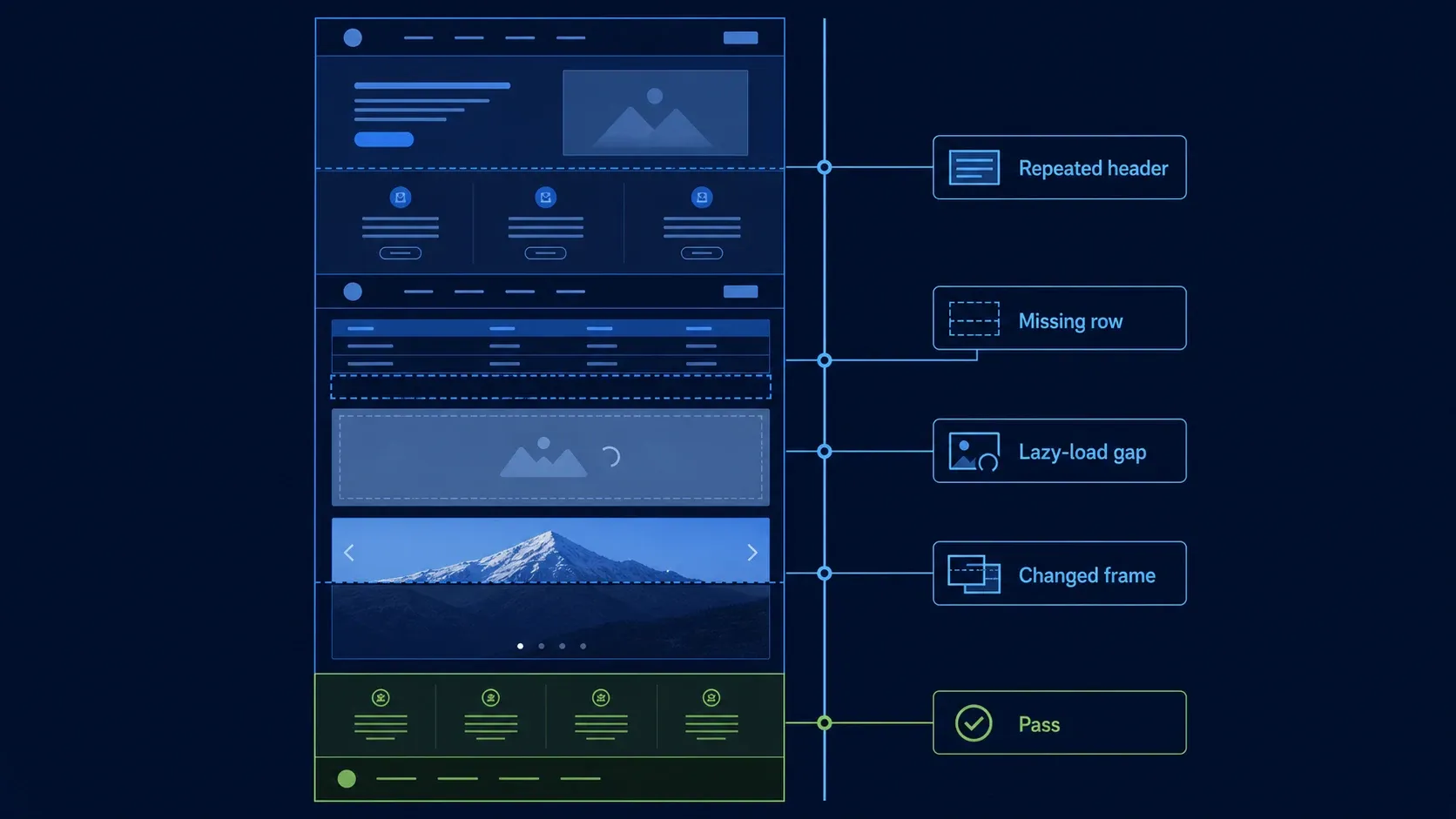
Inspect the saved file before you annotate it — editing can make a broken capture look deliberate and harder to question later. Start at the first line and scan to the last, compare tables by their row labels, check image boundaries, and look at every sticky element and carousel.
Repeated header or floating button
This means a fixed element stayed visible while multiple frames were recorded. Collapse the header, close the chat button, enlarge the target, and retry in one direction — or, for an ordinary webpage, use browser rendering instead of stitching. A repeated header isn't cosmetic if it hides the seam or changes the apparent order of content.
Missing row, duplicated block, or warped text
Here the stitching tool didn't find enough stable overlap, or the application reused off-screen rows. Reduce the scroll speed, increase the visible area, and keep the pointer off responsive elements. If the target uses a virtualized list, use its export command or capture smaller labeled sections instead — a missing row can't be repaired by guessing what belonged there.
Blank image or lazy-load gap
Scroll through the finite page once, wait for the media you need to load, return to the start, and capture again. If loading depends on user interaction or consent, record that state with the file. And don't call the page complete while a placeholder is still sitting in the delivery copy.
Changed carousel, video, map, or animation
A dynamic area changed between frames. Pause it if the page gives you a control, capture that area separately, or use a PDF or export that represents a stable document. When the changing state is the information the reader needs, use recording instead.
A capture that ends too early
First check whether a cookie notice, nested panel, or second scrollbar received the input. Then confirm the content is actually finite — an endless feed has no complete bottom. Set a scope such as a date range, one conversation, or 100 rows, and put that scope in the surrounding note or filename.
Choose PNG, PDF, or focused sections
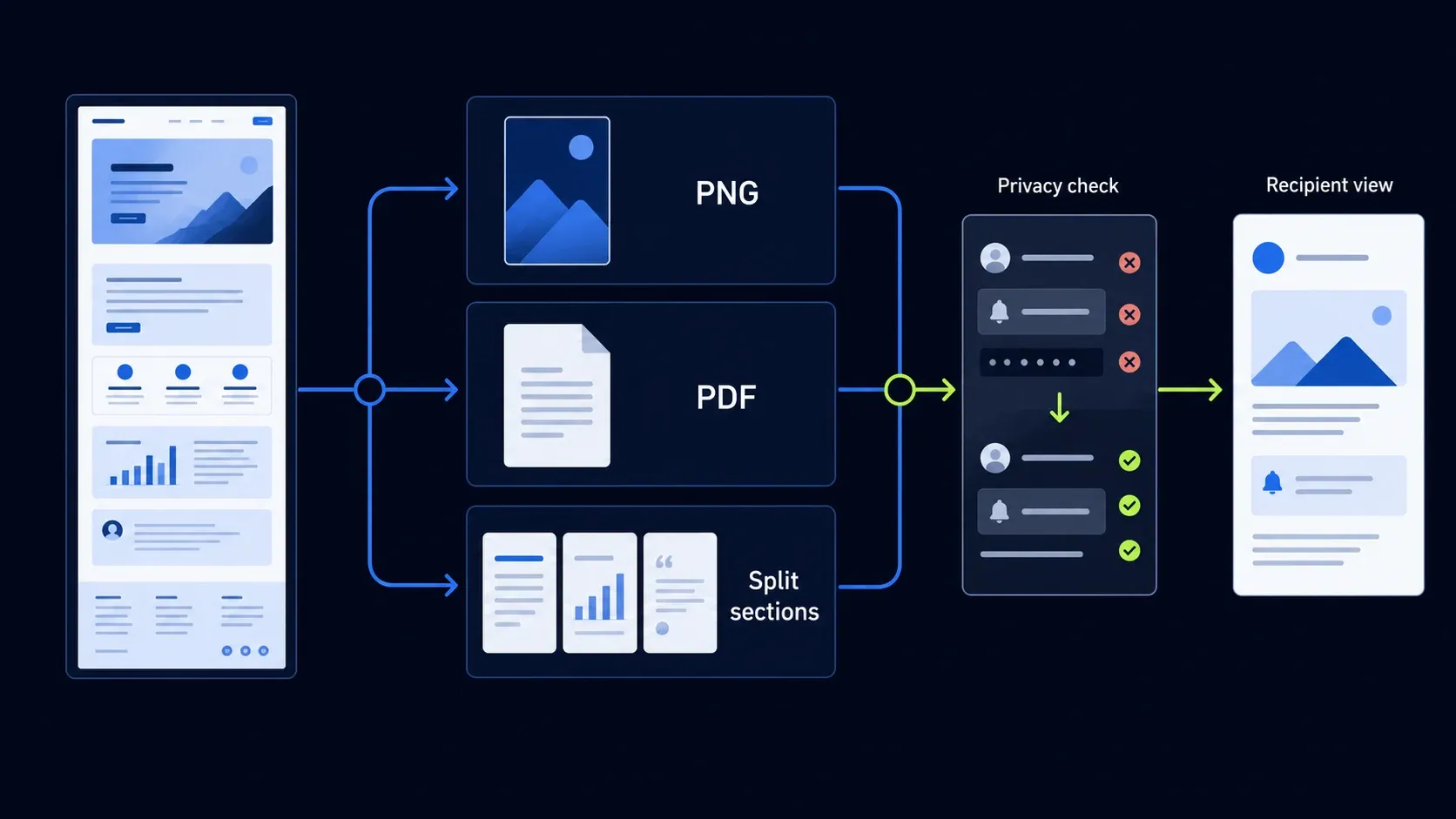
Use PNG when the result has to behave like an image: annotation, visual comparison, a bug ticket, an inline support step. Remember a PNG doesn't preserve the source page's searchable text, and it can't prove when or where the pixels came from — keep the source URL, capture date, and unedited original when provenance matters.
Use a browser-generated PDF when readers need printing, page breaks, selectable text, or links — then confirm those features in the saved file, because a canvas, scanned document, or protected viewer can still produce image-only pages. A PDF also sidesteps the extreme image dimensions that some ticket systems or editors downscale.
Split a very tall result when the recipient would have to zoom and pan to make sense of it. Give each section enough context to identify the screen, and keep the sections in task order. The Snagit Editor guide explains the editing workspace when you need to crop, mark, and export focused steps after capture.
Check privacy and the recipient view before sending
Long captures collect more than the line you meant to show. Scan for names, email addresses, account numbers, notifications, open tabs, internal URLs, license details, API keys, and unreleased interface text. Crop the irrelevant areas before redaction so there's less material left to inspect.
Remove the actual value, not just its label. Export or flatten the delivery copy, reopen it, and try to select, copy, or reveal the hidden area yourself. The redaction guide covers a safer editing workflow. If the untouched source contains private information, keep it only in an approved location.
Finally, open the file or link the way the recipient will. Check readability at the width they'll use, page order, upload limits, access permissions, and whether the first and last required detail survived. A perfect capture the recipient can't open isn't a finished result.
Scrolling screenshot FAQ
What is the easiest way to take a scrolling screenshot?
For an ordinary webpage, use the browser's full-page command instead of physically scrolling. Edge has Capture full page, Firefox has Save full page, and Chrome DevTools has Capture full size screenshot. Use scroll-and-stitch only for a desktop app, nested panel, or page that the browser command cannot render correctly.
Can Windows Snipping Tool take a scrolling screenshot?
Microsoft's current Snipping Tool guide documents visible screenshot and recording workflows, not a general scrolling-capture command. For a webpage on Windows, open it in Edge, press Ctrl+Shift+S, and choose Capture full page. Use a tested stitching tool for an application or inner panel.
How do I take a full-page screenshot in Chrome?
Open Chrome DevTools, press Ctrl+Shift+P on Windows or Linux, or Command+Shift+P on Mac, type screenshot, and choose Capture full size screenshot. Chrome downloads the rendered page as an image. Inspect fixed overlays and lazy-loaded sections before sharing it.
How do I take a scrolling screenshot on a Mac?
For a long webpage image, open it in Firefox, press Command+Shift+S, and choose Save full page. In Safari, use File, Print, PDF, Save as PDF when a printable document is the better output. For a desktop app or nested panel, use a tested scroll-and-stitch tool such as Snagit.
Why does my scrolling screenshot repeat the header?
A fixed header stayed on screen while a stitching tool captured several overlapping frames. Hide or collapse it, enlarge the target window, reduce motion, and capture in one direction. If the target is a webpage, switch to the browser's rendered full-page command to avoid frame seams.
Can I capture an infinitely scrolling page?
You can capture only a finite loaded range. An infinite feed has no stable final page, and a virtualized list may remove earlier rows as you scroll. Choose a date or item range, use an export when available, or capture focused sections with their source and capture date.
How do I take a scrolling screenshot on iPhone or Android?
On supported iPhone content, take a normal screenshot, tap its preview, and choose Full Page. On Android 12 or later, press Power and Volume Down, then tap Capture more on a supported scrollable screen. Phone makers can use different labels, and not every app exposes extended capture.
Should I save a scrolling screenshot as PNG or PDF?
Choose PNG when people need a visual image for annotation, comparison, or a ticket. Choose a browser-generated PDF when searchable text, links, printing, or page breaks matter. Split an extremely tall result into focused sections when the recipient would need to zoom and pan to read it.