

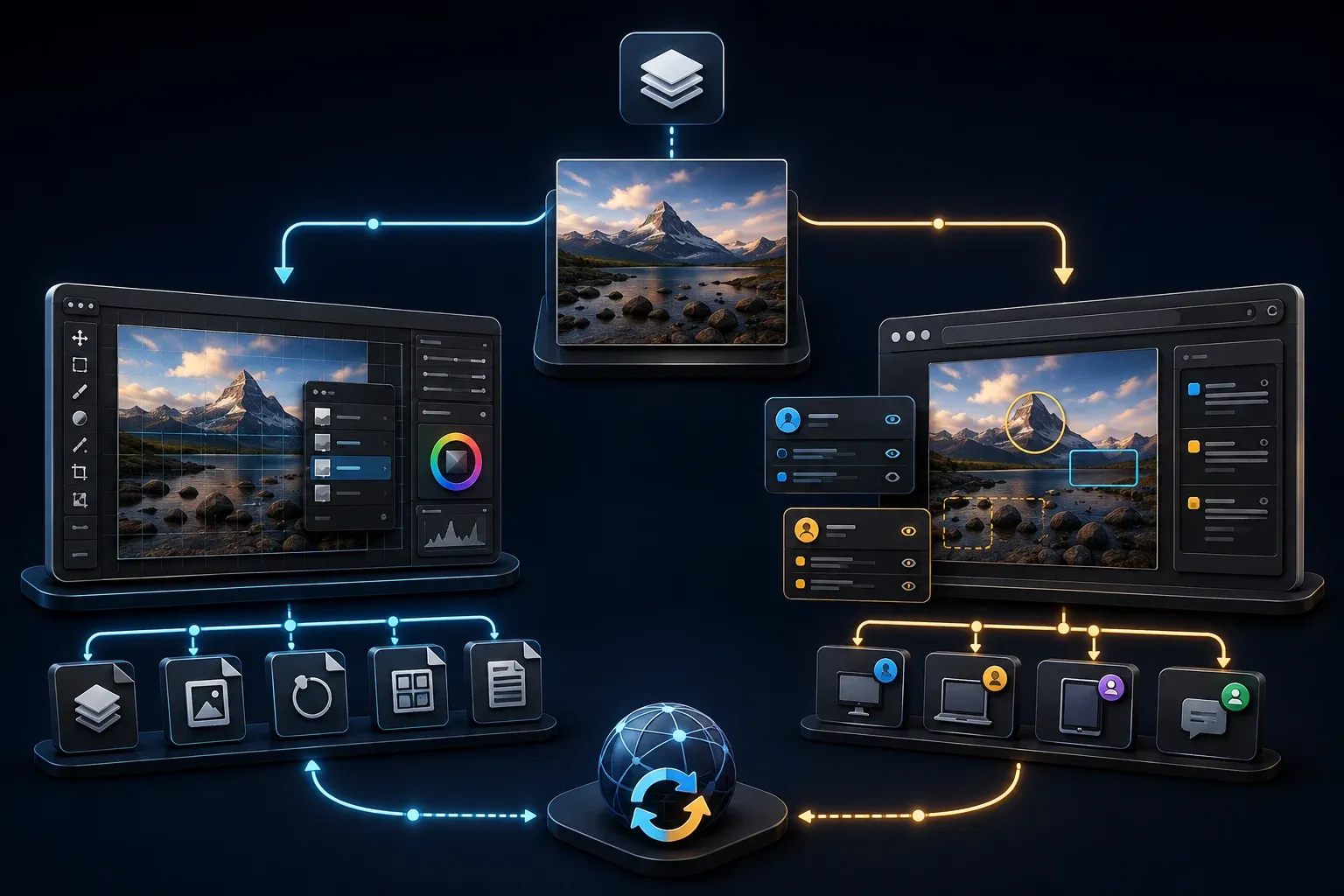
Choose Markup Hero for browser-based image and PDF annotation with separate reviewer layers. Choose Snagit for detailed screenshot editing, reusable visual instructions and screen recording. Both can share hosted links. The deciding questions are what you need to edit and who should be able to see the result.
Markup Hero keeps annotations on a cloud item that you can update at the same URL, within your plan limits. Snagit gives you a desktop editor and an editable source you can keep locally. Neither approach makes a downloaded copy update itself, and neither guarantees private sharing.
I checked official product and support documentation for this comparison on September 19, 2026. Older help pages sometimes conflict with current pricing, and those differences are explained below.
Snagit vs Markup Hero: quick verdict
| Need | Consider | Important detail |
|---|---|---|
| Annotate a PDF in a browser | Markup Hero | Direct PDF upload and multi-page annotations; Snagit exports PDF but is not a PDF importer |
| Edit and reuse screenshots | Snagit | OCR, Smart Move, Simplify, templates and editable local sources |
| Collect separate reviewer layers | Markup Hero | Collab links allow viewing and re-sharing by link holders; check account and tool limits |
| Create a numbered procedure | Snagit | Step Capture records clicks and drags; add text-entry and keyboard instructions |
| Capture a long Chrome page | Either, after checking the page | Markup Hero has a scrolling extension; Snagit offers desktop scrolling capture |
| Capture scrolling desktop content | Snagit | Not limited to a Chrome webpage; compatibility still depends on the target window |
| Work on Linux | Markup Hero | Linux capture app is beta; annotations use the browser editor |
| Record screen video and audio | Snagit | Screen, microphone, system audio and webcam recording; Markup Hero focuses on image and PDF markup |
Use this table to shortlist a tool for a specific job. Reviewing a three-page PDF, for example, is a different task from rebuilding a screenshot for a maintained help article. The comparison test below covers both without assuming they use identical import steps.
Browser annotation or a desktop editing source?
Markup Hero opens captures and uploads in its browser editor, where you can add objects, organize markups in history and share a live URL. Its sharing guide distinguishes that link from a downloaded image or PDF. Updating the cloud item won't replace attachments you've already sent.
Snagit opens captures in a desktop editor, where you can combine images, adjust objects, recognize text and prepare reusable layouts. Its Share Link workflow also uploads to Screencast and copies a URL. Screencast supports feedback on shared content; a local editing source and online review can be part of the same workflow.
Choose where you will keep the editable original before you share anything. For a changing procedure, assign someone to maintain it and replace outdated exports. A live review URL should not be the only copy of an instruction your team needs to retain.
Capture options and platform support
Markup Hero's download options include Mac, Windows, Linux beta and Chrome, and its browser editor supports modern desktop, mobile and tablet browsers. The desktop app also offers offline clipboard screenshots, but that doesn't turn the browser annotation and sharing service into an offline editor.
The Chrome extension guide lists Scrolling, Visible Tab, Select Area, Multi-Page Scrolling and Full Desktop. Multi-Page Scrolling lets you choose page breaks, and Full Desktop can select an entire screen or a window. Before sharing, look through your actual long page for missing sections or awkward breaks.
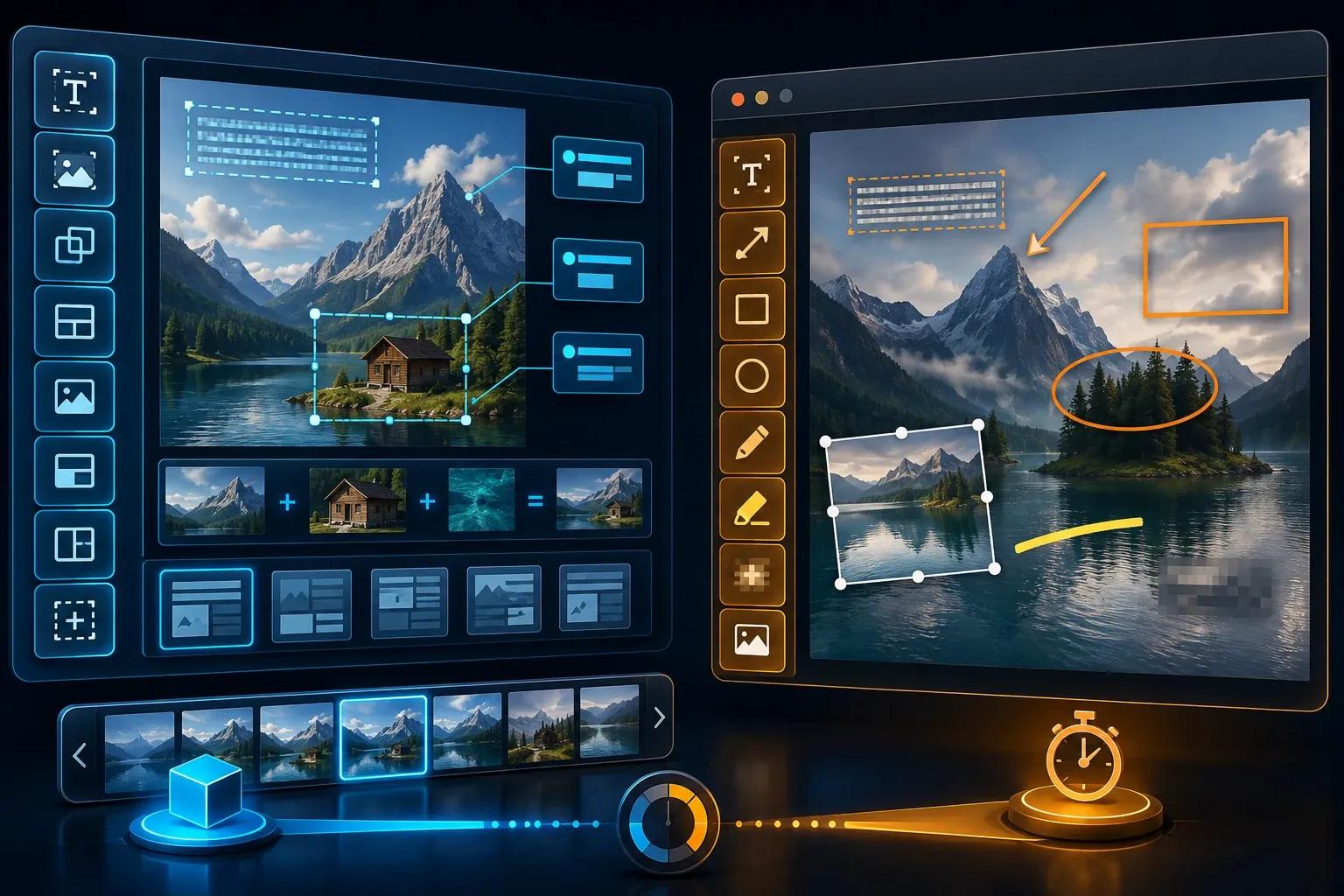
Snagit runs on Windows and Mac and offers region, window, menu, full-screen, scrolling and video capture. Presets and custom shortcuts help you repeat a capture setup. Scrolling beyond the visible screen is useful for application windows as well as webpages, though there's no guarantee that every window will capture correctly.
Annotation and image editing
Markup Hero includes text, arrows, shapes, pen, highlighter, inserted images, signatures and canvas controls. Ordinary annotation objects stay editable within the plan's editing window, with one important exception: the Blur tool instructions say Apply Blur flattens the change into the markup and cannot be undone. So not every edit is reversible.
Markup Hero image-to-text extracts selected text with AI for copying. The same page marks other functions, including replacing text and searching screenshot text, as coming soon. Text extraction also isn't the same as original PDF text editing. Compare the extracted words and numbers with the source before you use them.
Snagit's editing features include OCR, Smart Move, Simplify, background removal, image combining and templates. Step Capture turns clicks and drags into a numbered guide, but does not create steps for text entry or keyboard shortcuts. Add those instructions and check the sequence.
For an arrow and a short explanation, either product may do enough. For a maintained guide, compare the work required to align callouts, reuse a layout and correct the source later. I have not measured either editor, so I can't call one universally faster.
PDFs, multi-page markups, and scrolling pages
Markup Hero supports direct PDF upload and multi-page markups. You can add, reorder and annotate pages, then export them as a PDF. The annotations sit over the document, so they say nothing about whether the original PDF text, forms or document structure stay editable.
Snagit can export PDF, but don't plan on importing one into its editor: TechSmith's Mac file-format table explicitly marks PDF as export-only. For an existing PDF, capture the page you need in a viewer, or export it as an image with an approved tool, and annotate that image. That adds a step and doesn't preserve a PDF text layer.
Try a three-page document with realistic structure but synthetic content. Add a note, cover a harmless sample field and insert a replacement image, then inspect page order, legibility and the exported copy. Check whether the text is still searchable instead of assuming it is, and keep real private records out of any redaction test.

Sharing, collaboration, and privacy
Markup Hero's link permissions guide says Public is the default. Public and Collab links can be viewed and re-shared by anyone with the link, and eligible signed-in users can add their own layer through a Collab link. Private means owner-only, so Collab isn't an invitation-only private room.
The collaboration guide describes up to 20 collaborators and separate layers, with the owner's annotations shown by default. Collaborators cannot use Blur, Crop or Rotate. These instructions use older plan names. Current pricing says Basic includes all features, while the older permissions article reserves some controls for Superhero. Check your actual account before relying on those controls or the documented collaborator limit.
Test a harmless link while signed out, then with a second authorized account, and check re-sharing, visible layers, expiry and revocation. Export any reviewer notes you need before changing access, because the permissions guide warns that setting all existing markups to private removes collaborators and deletes their annotations. Canceling a paid plan leaves the account on Free after the paid term; deleting the account and history requires contacting support.
Neither product should receive confidential test data. Markup Hero's privacy policy is dated March 2020 and doesn't settle the processing arrangements for its newer AI features, so ask about those before using sensitive material. With Snagit, keep local files, synced folders, cloud sharing and connected AI processing distinct. A permanent blur in one image doesn't mean every earlier copy has been erased.
Snagit vs Markup Hero pricing
The Markup Hero plan selector, checked on October 17, 2026, shows the prices below. I opened each plan’s details rather than reading the selector label alone. The September $5/$10 monthly observation is historical; it does not establish today’s offer for a new customer. Confirm currency, tax and account-specific terms before paying:
- Basic: free for one account, with 25 total markups/history items, a 24-hour annotation editing window and an 8MB upload limit. No credit card is required.
- Premium monthly: $10 per user per month. The selected plan includes one account and lists additional accounts at $10 per month each.
- Premium annual: $36 per user per year, equivalent to $3 per month. Additional accounts are $36 yearly.
- Premium Teams annual: $48 per user per year, shown as $4 per user per month, for three or more users. Additional users are $48 per year each, prorated. Three users therefore have a $144 annual list-price total before tax. This replaces the older five-account package quoted here.
- Lifetime: the page advertises $199 once for one account. Confirm the offer terms and service availability; the label is not a guarantee of indefinite operation.
Premium lists unlimited markups/history, continued annotation editing and a 50MB upload limit. Additional-account prices in the selected plan details are $10 monthly, $36 yearly on individual annual, and $48 yearly on Teams annual. Teams costs more per user than the individual annual offer displayed alongside it, so do not assume the team label means a seat discount; check the management features and the actual order total.
The free-plan explanation confirms that 25 is a total allowance rather than 25 new items every month. At six new saved markups per workday, you would reach the cap during day five. That's only an example; it isn't a measured usage average, and deleting items may not restore the allowance.
The 24-hour free editing window matters if you revise instructions later. An exported image keeps the appearance but loses the editable objects. Before depending on Basic for recurring updates, open an older markup in your actual account and see what you can still change. An instant no-signup demo behaves differently from a registered account with saved history.
TechSmith’s Snagit Individual checkout showed $39 per year for one seat with United States and USD selected on October 17, 2026, before final address-dependent tax. The Snagit pricing guide explains the licence options. The activation support page specifies a 15-day trial.
Compare the full cost for the accounts and destination you need. Snagit's trial download terms restrict evaluation use, including commercial, training and benchmarking use. Use appropriately licensed software for work and do not treat a trial as permission to produce client or training material.
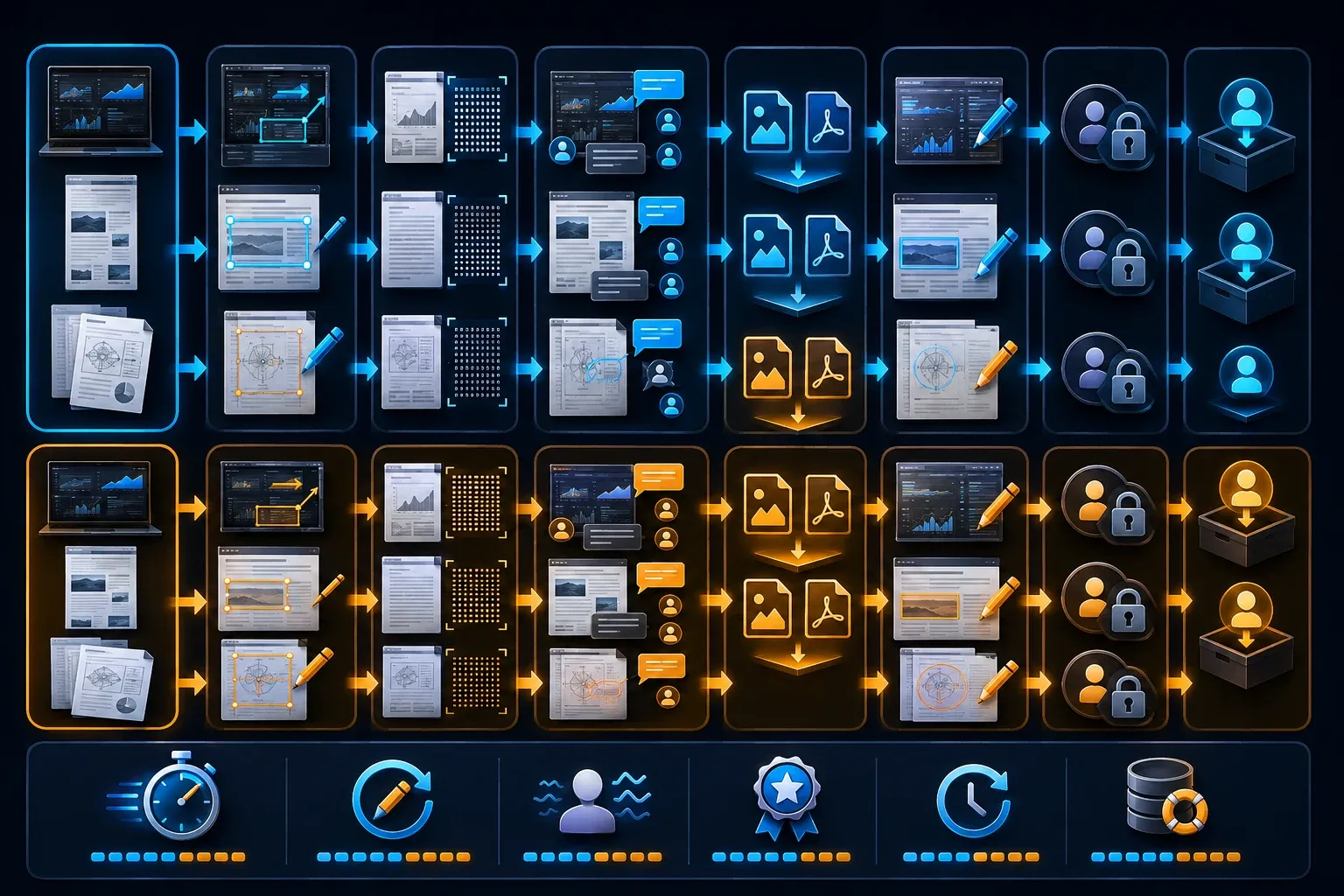
A practical comparison test
- Use synthetic data and appropriately licensed software. Capture a busy application screen and a long webpage.
- Upload a sample PDF to Markup Hero. For Snagit, first capture a page or convert it to an image with an approved tool.
- Add arrows, a callout and an inserted image. Try blur only on disposable sample content; applied Markup Hero blur cannot be undone.
- Extract a short label and check the result against the original. Keep an editable source for ordinary annotation changes.
- With a second authorized account, check the actual reviewer experience. Compare Markup Hero layers with feedback through your Snagit sharing destination.
- Export PNG and PDF where supported. Inspect page order, legibility and what remains editable or searchable.
- Change an annotation, reopen the live link and compare it with the previously downloaded copy.
- Preserve needed notes before testing revocation or creator offboarding. Check retained files and billing separately.
Record editing effort, recipient problems, export quality and the work needed to update or recover the source. This is a suggested checklist that I haven't run, and it carries no promise about completion time. Use a disposable authorized account for any destructive offboarding test.
Who should choose Markup Hero?
Shortlist Markup Hero when your deliverable is a browser-based review of an image or PDF, particularly if reviewers need separate annotation layers. It also provides a Linux capture option in beta. Check the free editing window, document size and recipient permissions before moving a recurring review process into it.
It's a weaker fit when cloud upload is prohibited, you need screen video, or you must edit original PDF text and forms. A browser annotation tool won't replace a full PDF editor. For sensitive work, access rules and data handling matter more than the convenience of a link.
Who should choose Snagit?
Shortlist Snagit for detailed image edits, reusable layouts, scrolling application captures and numbered visual instructions. It also records screen video with microphone, system audio and webcam options. Keep an editable source for later corrections and review automatically generated steps before sharing them.
Snagit can still support online feedback through Screencast or another chosen destination. That is different from Markup Hero's separate browser annotation layers. Test the recipient's view and account requirements in the destination you intend to use.
Can you use both?
Yes, by file handoff: export an approved image from Snagit and upload that copy to Markup Hero for review. That doesn't imply a dedicated integration. Keep the Snagit source separately, preserve the review record you need and decide when to revoke the cloud link. Revocation can't recall copies someone has already downloaded.
For options beyond this pair, compare the screenshot software shortlist. For annotation, OCR and related editing jobs, use the screenshot editing tools guide to choose the right type of editor first.
Snagit vs Markup Hero FAQ
Is Markup Hero better than Snagit?
Markup Hero is worth considering for browser-based image and PDF review with separate annotation layers. Snagit suits detailed image edits, reusable sources, visual instructions and screen recording. Both can share hosted links. Choose by the editing job and access rules, not an assumed speed winner.
Is Markup Hero really free?
Basic is free for one account, with 25 total markups/history items, a 24-hour annotation editing window and an 8MB upload limit. Current pricing advertises all features, but older permission instructions use different plan names. Verify the controls in your account before depending on them.
How much is Markup Hero Premium?
The Markup Hero plans checked October 17, 2026 show Premium at $10 per user monthly or $36 per user annually. Teams annual is $48 per user per year for three or more users, with additional users at $48 yearly, prorated. A one-account lifetime offer is $199. Confirm final currency, tax and your account’s order terms; the old $5/$10 monthly observation is not a current new-customer price promise.
Can Markup Hero capture a scrolling webpage?
Yes. Its Chrome extension includes Scrolling and Multi-Page Scrolling; the latter lets you choose page breaks. Inspect your actual page for missing content and unsuitable breaks. This does not establish reliable capture inside every desktop application.
Can Markup Hero annotate PDFs?
Yes. It uploads PDFs as multi-page markups for annotation, sharing and PDF export. Upload limits are 8MB on Basic and 50MB on Premium. Annotation does not mean editing original PDF text or forms. Snagit exports PDF but should not be treated as a PDF importer.
Does Markup Hero have OCR?
Markup Hero offers AI image-to-text for selected areas. Check the copied text against the source. Its page still labels functions such as replacing text and searching screenshot text as coming soon. Do not assume text extraction edits the original PDF or image text.
Which tool is better for teams?
Markup Hero provides separate reviewer layers, but a Collab link is viewable and re-shareable by link holders, not an invitation-only private room. Snagit can combine a local source with feedback through a sharing destination. Check account limits, permissions, exports and offboarding in either workflow.
Can Snagit and Markup Hero be used together?
Yes, through a file handoff. Export an approved image from Snagit, upload the review copy to Markup Hero and keep the editable source separately. Preserve needed feedback before revoking access. This is not a claim of a dedicated integration.