
The best screenshot software is the smallest tool that clears your repeated bottleneck. Use Snipping Tool on Windows or Screenshot plus Preview on Mac for quick capture. Choose ShareX for Windows automation, CleanShot X or Shottr for deeper Mac work, Flameshot for cross-platform local annotation, ScreenRec for link-first capture, or Snagit for a maintained Windows-and-Mac documentation workflow.
Quick picks by screenshot workflow
- Quick Windows capture: Snipping Tool. It is already present, opens with Win+Shift+S, and covers capture, basic markup, and current Text Actions.
- Quick Mac capture: Screenshot plus Preview. Shift-Command-5 handles capture and recording; Preview covers ordinary markup.
- Free Windows automation: ShareX. Use it when the same capture needs repeatable actions, naming, destinations, or scrolling.
- Minimal Windows or Mac capture: Lightshot. Save locally for low-risk work. Treat its upload links as public.
- Lightweight Windows annotation: Greenshot. It pairs quick capture with a focused editor, but its documented scrolling route is outdated for modern browsers.
- Premium Mac workflow: CleanShot X. It combines scrolling, OCR, history, annotation, and recording.
- Mac detail work: Shottr. It fits scrolling, OCR, annotations, QR recognition, and pixel inspection.
- Cross-platform local annotation: Flameshot. It supports Windows, macOS, and Linux and provides drawing tools plus command-line use.
- Link-first screenshots and recording: ScreenRec. It combines capture, annotation, recording, cloud storage, and share links on three desktop platforms.
- Windows-and-Mac documentation: Snagit. It combines scrolling, annotation, step-oriented tools, sharing, and recording in one maintained product.
These are workflow picks rather than a score table. A tool that's right for a technical writer can be overkill for someone who needs one cropped image a week, and free doesn't automatically mean right: a free app can still be the wrong choice when its platform, license, storage route, or support model doesn't fit the job.
This page sticks to still screenshots. The neighboring query “best screen capture software” leans toward recording tools, so use the screen recording guide when motion, narration, system audio, or webcam input is the main requirement.
Start with the built-in screenshot tool
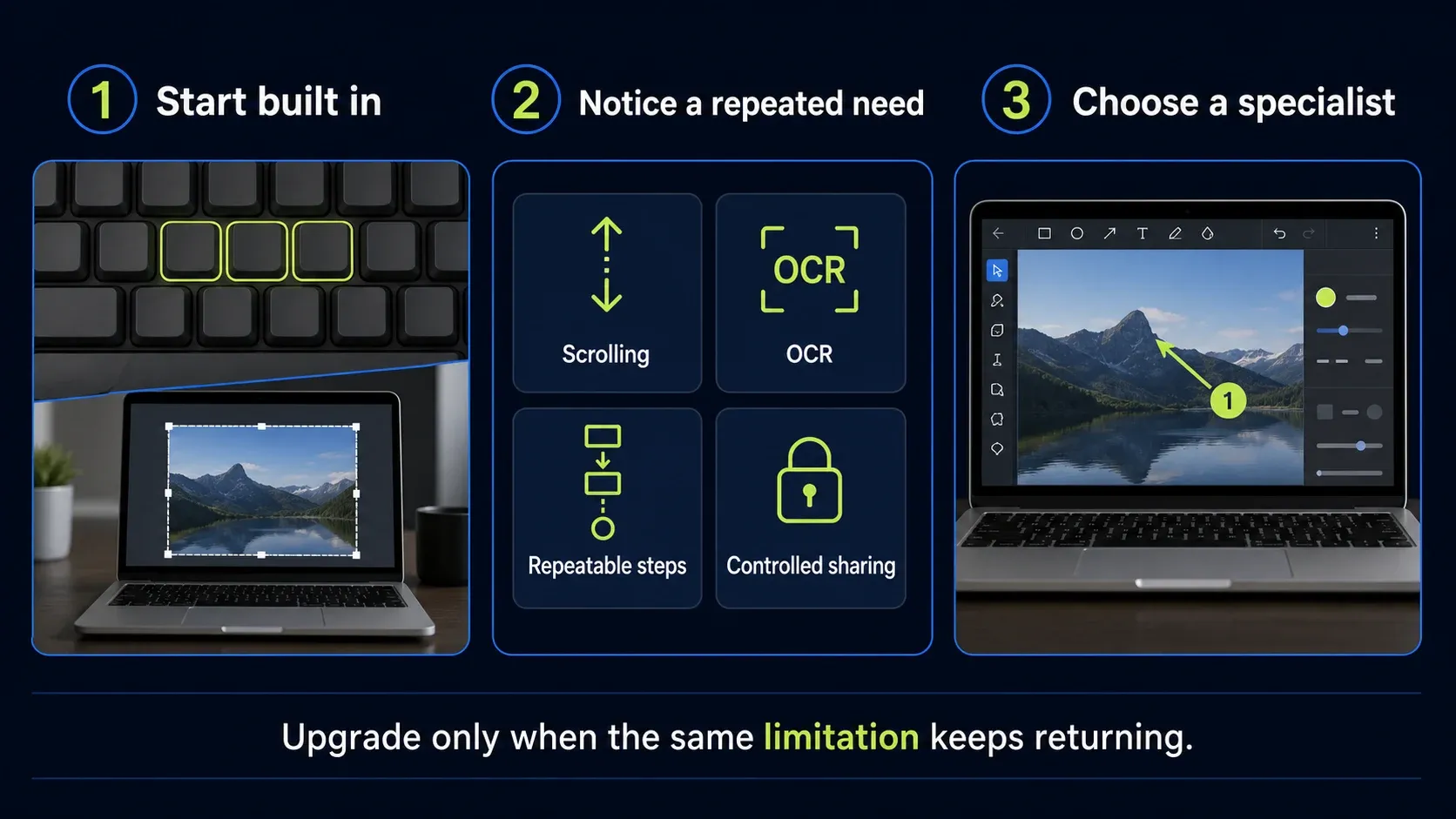
Every new app brings its own work: installation, shortcuts, permissions, updates, storage rules, and team support. Start with what the operating system already provides, and stick with it until the same limitation bites you in real work more than once.
On Windows, Microsoft documents Win+Shift+S for screenshot capture and Win+Shift+R for recording. Current Snipping Tool also includes Text Actions that can copy or redact recognized text. That is enough for a region, window, menu, quick crop, and a simple marked-up answer.
On Mac, Apple's Screenshot guide uses Shift-Command-5 for still capture and recording, and Preview's capture and markup tools handle ordinary selection, window, full-screen, crop, shape, text, and drawing work. There's a fair chance you already own the complete path for tickets, messages, and one-off instructions.
When something does keep failing, write it down in plain language: “I must stitch a long settings page twice a day,” “I retype labels from images,” “the same four annotations take ten clicks,” or “our link destination is not approved for customer data.” That one sentence is your requirement, and it will serve you better than comparing fifty checkboxes.
For webpage-only capture, compare Chrome screenshot extensions by capture mode, editing, permissions, and local or shared output.
Choose the earliest workflow stage that solves the job
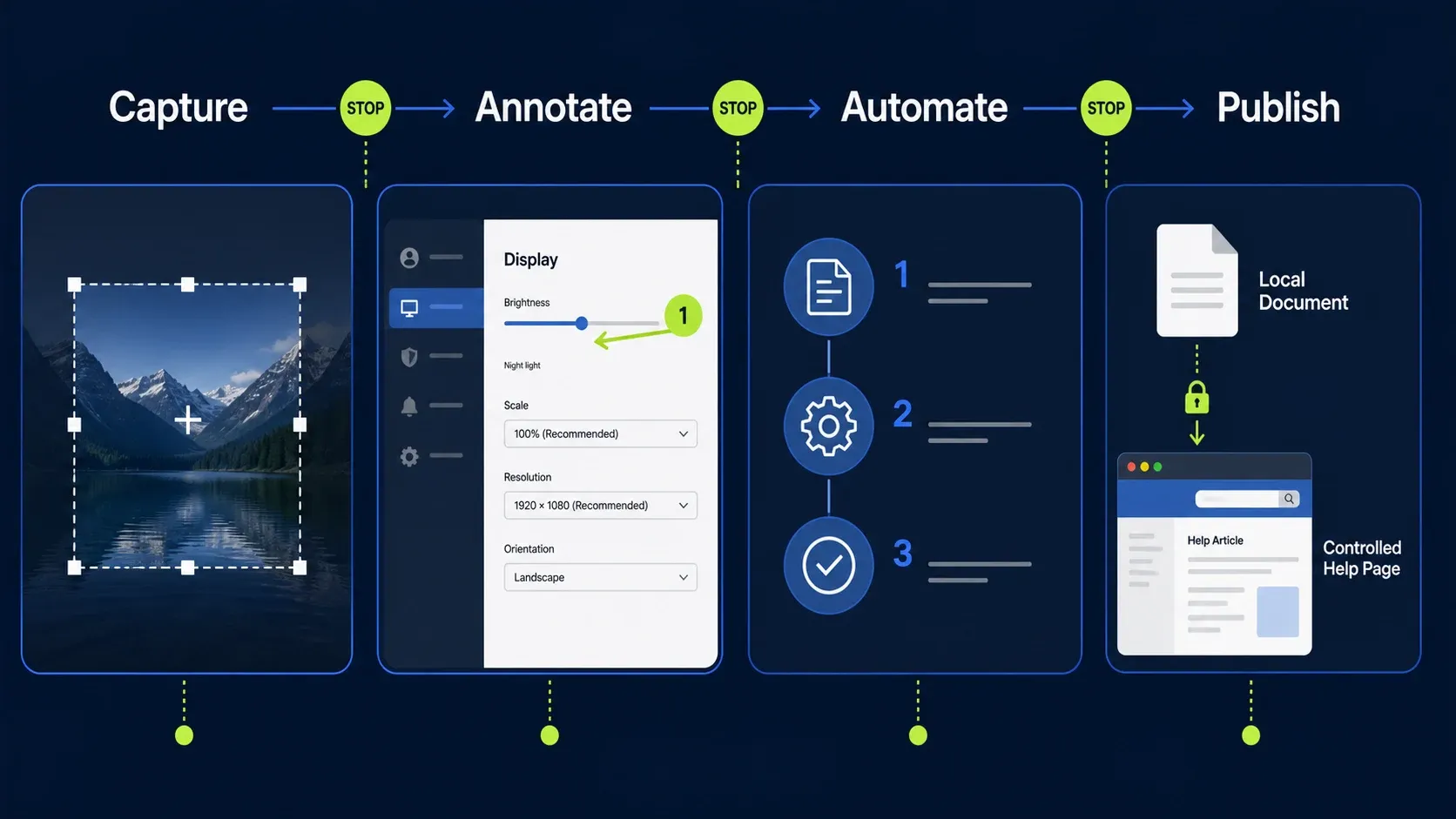
Screenshot work grows in stages: capture creates the correct pixels, annotation makes the next action clear, automation removes repeated handling, and publishing delivers the result to the right reader. You can stop after any stage.
If a cropped image pasted into a ticket solves the issue, stop after capture. If readers misread the image, add one arrow, one number, and a short instruction. Only add automation when the same handling repeats often enough to pay back the setup, and only add a publishing layer when filenames, permissions, destinations, or team review actually require it.
That's what keeps the selection honest. A product page can prove a feature exists; it can't prove the feature is faster for you. Your own files, pages, shortcuts, accessibility needs, and delivery systems decide the useful result.
1. Snipping Tool for quick Windows screenshots
Pick Snipping Tool when you need a region, window, or full-screen capture without adding software. It's the safest first choice for a personal Windows workflow because the shortcut and the editor are already part of the operating system.
The current Microsoft page confirms the screenshot and recording shortcuts plus Text Actions. Before you lean on OCR or redaction, test the exact text you handle, because recognition can miss small type, low contrast, or unusual fonts. After redaction, save or copy the flattened result and reopen it. Don't assume a visible black mark removed the underlying information in every format.
Move past Snipping Tool when you repeatedly need long-page capture, a multi-step automation chain, reusable destinations, or more structured documentation. The Windows alternatives guide compares those upgrade paths in more depth.
2. macOS Screenshot and Preview for quick Mac work
Stay with the built-in Mac pair when you capture selections, windows, or full screens and make light edits. It avoids another license and keeps ordinary work close to the operating system.
Use Shift-Command-5 to choose the capture type and destination, then open the result in Preview when you need crop, text, shapes, drawing, or a simple callout. Check where macOS saves files before a busy session; desktop clutter and duplicate names cause more trouble than the capture itself.
Move to a dedicated Mac app once scrolling capture, OCR, capture history, screen pinning, stronger annotation, or a repeatable handoff keeps showing up. The Mac alternatives guide covers that platform decision without mixing in Windows-only tools.
3. ShareX for free Windows automation
ShareX is the pick when capture is only step one. The official project describes a free, open-source Windows tool with configurable capture, after-capture, and destination workflows, and its current changelog lists version 21.0.0 on July 3, 2026, including scrolling-capture changes.
The strength is configuration. You can build a route like capture region, add a border, apply a filename, copy to clipboard, save to a chosen folder. That same flexibility creates setup cost, so start with one workflow and one approved destination, and don't enable upload tasks until you know the service, retention, and permissions.
ShareX is Windows-only, which makes it a poor standard for a Mac-heavy or mixed desktop team unless you document a separate equivalent path. When the real decision is open-source Windows automation versus a paid cross-platform documentation product, use the full Snagit versus ShareX comparison.
4. Lightshot for minimal local capture and optional links
Lightshot suits you when you want a small Windows or Mac capture flow with immediate selection and annotation. Its current product guide confirms local saves as JPG, PNG, or BMP without an upload, and that local route is the sensible default for ordinary files.
The upload route has a sharp privacy limit. Lightshot's privacy page says every uploaded image is public at its URL and that the service is not intended as secure storage. An unguessable-looking link is not access control, so don't upload passwords, customer records, private conversations, internal dashboards, license keys, or unreleased work.
Lightshot fits quick capture and fast public sharing. It doesn't become a controlled team repository just because the link is convenient. If your work requires named access, retention policy, audit history, or deletion guarantees, use an approved destination and verify it from a signed-out or recipient account.
5. Greenshot for lightweight Windows annotation
Greenshot fits when you want fast Windows capture and a focused editor for arrows, text, boxes, highlights, crop, and export. The official download page lists stable version 1.3.315 dated March 20, 2026 and describes the Windows build as free and open source.
Don't select it for modern scrolling capture off a generic feature list, though. The current Greenshot help page ties its scrolling method to Internet Explorer. That doesn't make Greenshot a bad annotation tool; it means long-page capture needs a different tested route.
Use the Snagit versus Greenshot comparison if your choice is a small Windows editor versus a broader Windows-and-Mac documentation workflow. For a long web page, follow the scrolling screenshot guide and test sticky headers, lazy-loaded sections, and animated content.
6. CleanShot X for a broad paid Mac workflow
CleanShot X is the one to look at when Mac capture needs to extend into scrolling, OCR, history, annotation, screen pinning, and recording. Its feature page supports that broad Mac workflow without forcing separate utilities for every step.
On September 21, 2026, CleanShot's pricing page listed the Basic license at US $35 one time for one Mac, with one year of updates and 1 GB of cloud storage. Optional update renewal was US $19 per year. Those terms can change, so verify the checkout and decide whether cloud storage is part of your intended route.
CleanShot X is Mac-only. It can be an excellent personal Mac fit and still fail as a company standard once Windows users need the same documented steps. The Snagit versus CleanShot X comparison separates the Mac-first workflow from the cross-platform documentation choice.
7. Shottr for Mac annotation, OCR, and pixel work
Shottr shines when your Mac work centers on scrolling, OCR or QR recognition, annotation, and close visual inspection. Its official page also describes pixel-oriented tools that fit designers, developers, and QA work better than a basic capture-and-paste path.
The current Shottr purchase page says the app begins asking for a license after a 30-day evaluation period and requires a license for commercial use. Basic was US $12 one time for one user on up to five computers as checked on September 21, 2026. Call it a low-cost paid option for work, not permanently free commercial software.
Test it on your actual display setup, especially multiple monitors and scaled displays. A pixel inspection feature only matters if the capture coordinates, color handling, and export behave correctly on the hardware you use.
8. Flameshot for cross-platform local annotation
Flameshot works when Windows, macOS, and Linux users all need a local capture-and-annotation tool with drawing, arrows, blur or pixelation, and configurable shortcuts. The official project also documents command-line use, which helps technical users wire capture into scripts and desktop shortcuts.
The official GitHub release feed lists Flameshot v14.0.0. Linux behavior still depends on the desktop session, portal, and compositor, so test your actual Wayland or X11 environment rather than treating “Linux support” as one identical experience.
Flameshot is strongest when the output stays a local file or clipboard item and your team can document the shortcut and save route. Add a separate approved publishing path when the result has to land in a help center, ticket system, or controlled repository.
9. ScreenRec for link-first capture and recording
ScreenRec is built for the workflow that mixes screenshots, annotation, recording, cloud storage, and share links. Its screenshot tool page publishes Windows, macOS, and Linux support and describes both local capture work and cloud-backed sharing.
The plan boundary matters. On August 16, 2026, ScreenRec pricing described Free as personal-use only with 2 GB of cloud storage and video up to 720p. Business use belongs on a business plan. Check the current plan, storage location, retention, and recipient access before standardizing the links.
ScreenRec can cut handoff steps when a link genuinely is the desired output. The trade-off is a cloud decision that a local-only tool never asks you to make. Run the recipient test from a separate browser session and confirm what a person without your account can open, download, or forward.
10. Snagit for maintained Windows and Mac documentation
Snagit earns its keep when screenshots feed support articles, onboarding guides, training, QA reports, or repeated customer explanations on Windows and Mac. TechSmith's current product page covers scrolling capture, annotation, step-oriented capture tools, sharing, and recording. What you're paying for is the connected documentation workflow, not the claim that every reader needs the largest toolkit.
The current store page lists Windows 10 and 11 plus macOS 14 or later. On August 16, 2026, the checked US store flow showed US $39 per year. Verify the current Snagit store and the detailed system requirements before purchase because prices, supported releases, and licensing terms can change.
Snagit can be too much for one-off capture. It gets easier to justify when one person or team repeatedly captures a long interface, applies consistent callouts, extracts text, creates numbered steps, records a short demonstration, and publishes through an approved route. The complete Snagit review covers the product decision beyond this shortlist.
Match the tool to the platform before the feature list
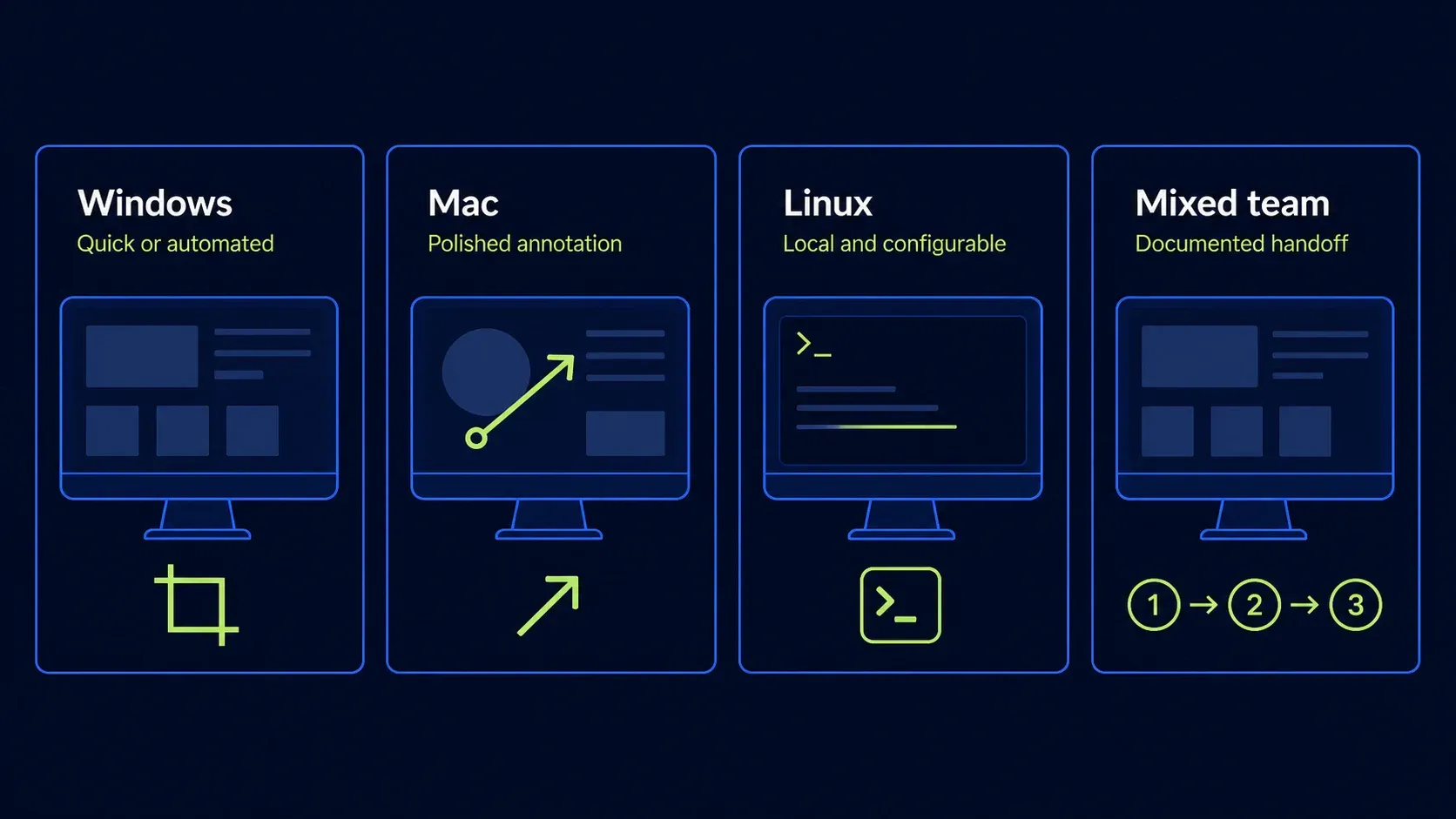
Platform support knocks out several candidates immediately. ShareX and the maintained Greenshot build are Windows choices. CleanShot X and Shottr are Mac choices. Flameshot, Lightshot, and ScreenRec publish broader desktop support, but their workflows and storage models differ. Snagit covers Windows and Mac, not Linux.
A mixed team needs more than a shared product name. Document the shortcut, capture type, annotation convention, filename, redaction check, destination, and recipient test. If two platforms end up on different tools, keep the output standard consistent. A clear PNG with the same callout style and storage route is often worth more than identical editor menus.
Run the same five-task pilot before you switch
Shortlist no more than two tools, and run the same real input through both, to the same destination. Don't substitute a vendor demo page for the page, application, or document that actually causes trouble in your work.
- Capture a difficult menu or transient state. Count retries and check whether the shortcut conflicts with another app.
- Explain one support step. Add one arrow, one number, and a sentence. Check whether the result is readable at the destination's real width.
- Capture a long page. Use a page with a sticky header and lazy-loaded content. Record duplicate sections, missing areas, and cleanup.
- Extract or redact text. Compare OCR with the source and reopen the flattened output to confirm the private value is gone.
- Deliver through the real route. Paste, upload, or publish to the actual ticket, document, or repository, then open it as the recipient.
Record practical evidence: retries, manual cleanup, missing content, output dimensions, file size when the destination limits it, and whether another person can follow the result. Don't invent a universal points system. Give extra weight to the failures that happen most often in your own work.
Treat local files, public links, and team destinations differently
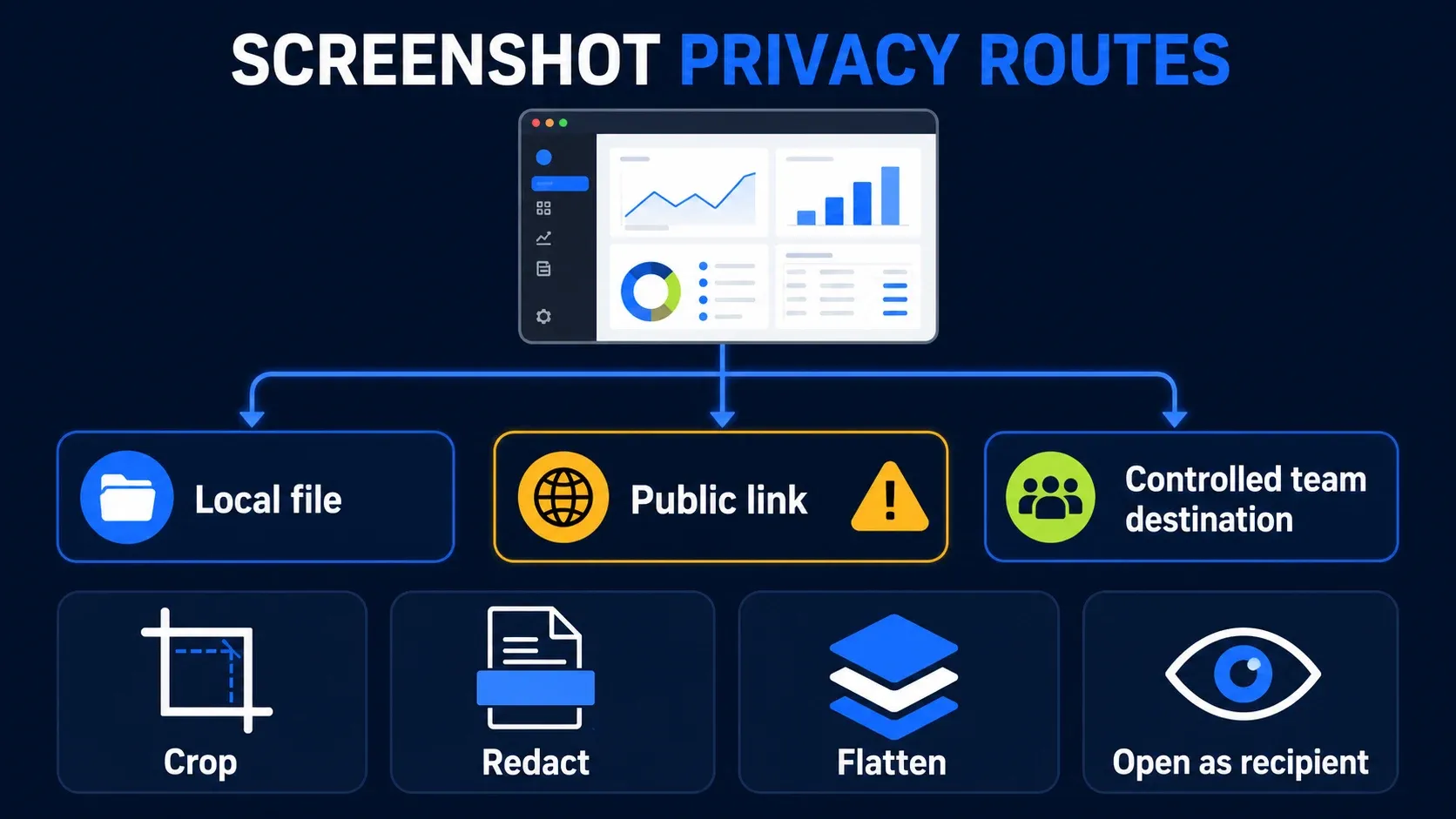
A screenshot can expose names, email addresses, customer records, browser tabs, notifications, API keys, license details, internal URLs, or unreleased interfaces. The capture tool sees whatever sits on the selected pixels, and a fast share button doesn't decide whether the destination is appropriate.
I use four checks: crop away irrelevant context, redact the actual value rather than just a label beside it, flatten or export the delivery copy so hidden editable content doesn't travel with it, and then open the final file or link as the recipient. For stronger redaction guidance, read the Snagit redaction guide before publishing sensitive instructional material.
Choose the route deliberately. A local file stays on devices and folders you control, though it can still leak through sync or attachment mistakes. A public link can be forwarded and may not provide access control. A controlled team destination needs real permission and retention checks. Keep source captures out of public cloud links unless the content is already safe for public viewing.
Best screenshot software FAQ
What is the best screenshot software for most people?
Start with the screenshot tool built into Windows or macOS, and add another app only when a repeated need such as scrolling capture, OCR, automation, stronger annotation, or controlled sharing costs you time. That rule produces a better fit than one universal winner.
What is the best free screenshot tool for Windows?
Use Snipping Tool for quick capture and basic markup. Choose ShareX when you need configurable automation or modern scrolling workflows, and Greenshot when you want a lightweight capture-and-annotation editor. ShareX and Greenshot are Windows tools, so mixed-platform teams need a different plan.
What is the best screenshot app for Mac?
Use macOS Screenshot with Preview for ordinary capture and markup. CleanShot X is the broader paid workflow for scrolling, OCR, history, annotation, and recording. Shottr is a lower-cost Mac option for scrolling, OCR, annotation, and pixel inspection. Test each candidate with your own pages before buying.
Which screenshot software works on Windows, Mac, and Linux?
Flameshot and ScreenRec publish support for Windows, macOS, and Linux. They solve different jobs: Flameshot focuses on local capture and annotation, while ScreenRec combines screenshots, recording, cloud storage, and share links. Test Linux capture under your actual desktop session because Wayland behavior can vary.
Is Lightshot safe for confidential screenshots?
Don't upload confidential screenshots to a Lightshot link. Lightshot states that every uploaded image is public at its URL and that the service is not intended as secure storage. You can save a Lightshot capture locally without uploading it, but you still need to crop, redact, flatten, and inspect the final file.
Do I need Snagit for scrolling screenshots?
No. ShareX, CleanShot X, Shottr, and other tools provide scrolling workflows on supported platforms. Snagit is useful when scrolling capture must sit inside a maintained Windows-and-Mac documentation workflow with annotation, step tools, sharing, and recording. Test the exact page because sticky headers and dynamic content can break any scrolling method.
What should I test before choosing screenshot software?
Run the same real tasks in at most two candidates: capture a menu, annotate one support step, capture a long page, extract text if you use OCR, and deliver the result through the real destination. Record the clicks, cleanup, output quality, privacy route, and any failure. Buy or deploy only after one tool wins on your repeated work.
Is screen capture software the same as screen recording software?
The terms overlap, but the search intent is different. Screenshot software primarily creates still images. Screen recording software captures motion and often audio. Some products do both, including Snipping Tool, CleanShot X, ScreenRec, and Snagit, but recording quality and audio setup need a separate comparison.