
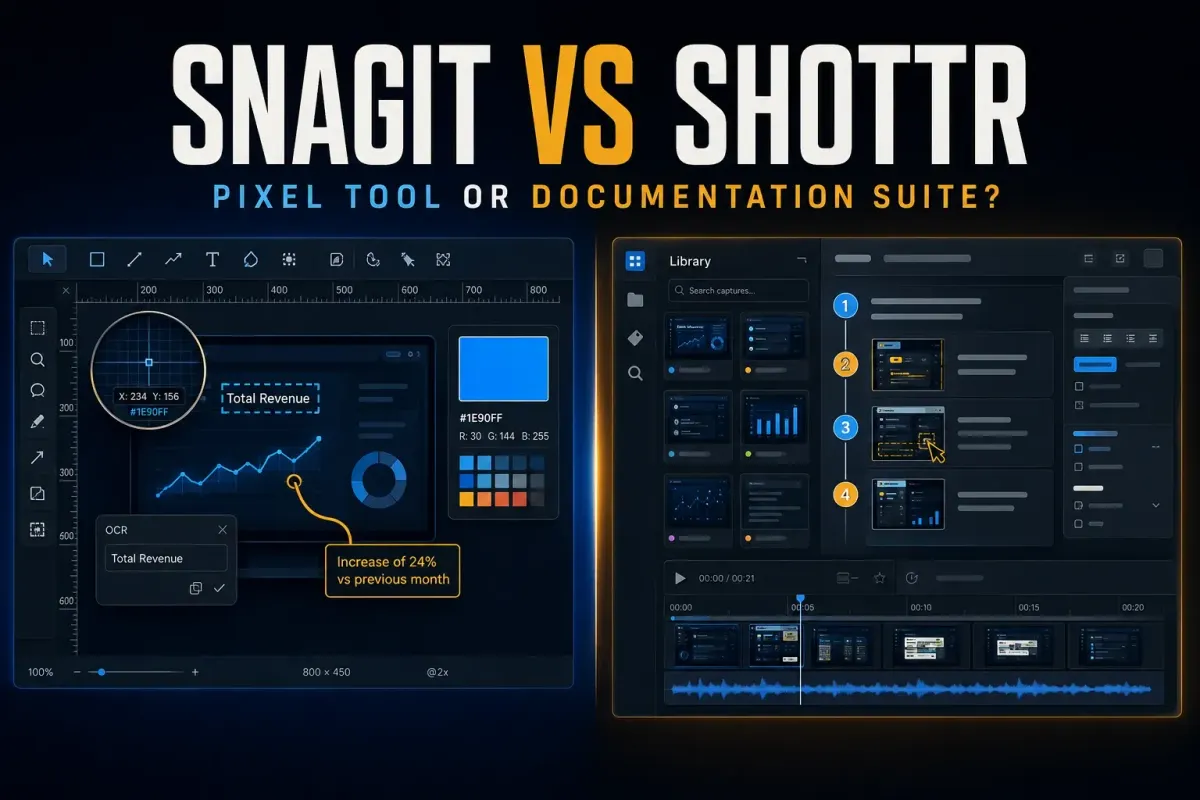
Choose Shottr for Mac screenshots that need precise crops, pixel measurements, color checks, OCR or a quick annotation. Choose Snagit when you also need Windows support, horizontal scrolling, reusable guides, a capture library or screen recording. Both can combine images and extract text, but those features alone don't decide the purchase.
What separates them is what you deliver. Marking a spacing error takes a different set of tools than maintaining a support procedure. Shottr concentrates on image capture and inspection, while Snagit pairs that work with documentation and video tools. Neither one is automatically the better choice for every Mac user.
I checked features, licensing and documentation for this comparison on September 19, 2026. Before you use either app for work, check the exact app version, the macOS release and your company's policy.
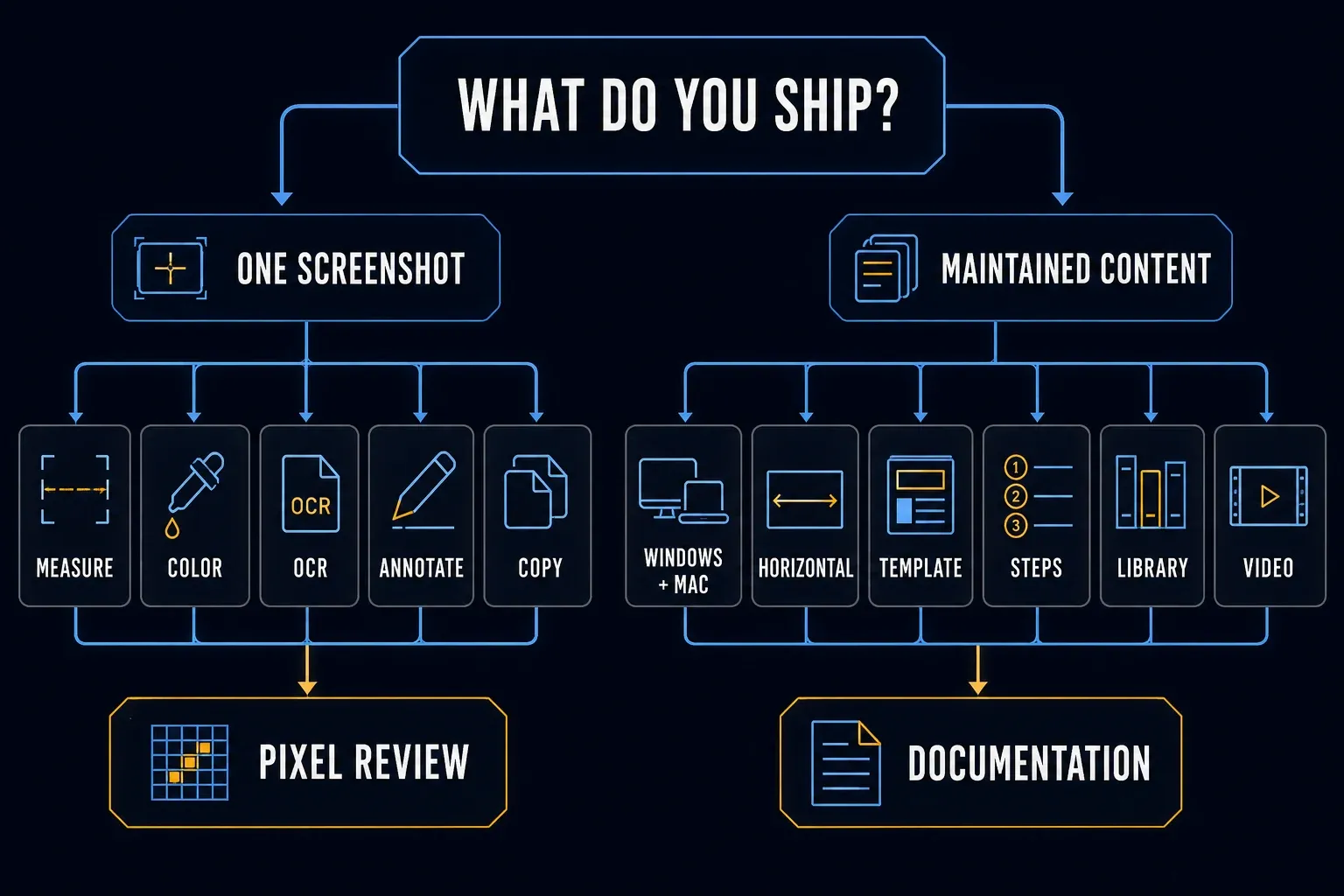
Snagit vs Shottr: quick verdict
| Need | Consider | Important detail |
|---|---|---|
| Capture, mark and copy a Mac image | Shottr | Focused still-image capture and annotation |
| Measure spacing or sample pixel colors | Shottr | Ruler, logical/physical Retina dimensions and color sampling |
| Use one product on Windows and Mac | Snagit | Shottr is Mac-only; check OS requirements and platform differences |
| Capture a vertical page or chat | Either, after a page check | Shottr supports automatic and separately enabled manual scrolling |
| Capture a horizontally scrolling grid | Snagit | Shottr documents vertical-only scrolling; inspect the actual grid |
| Extract screenshot text | Either | Both document on-device OCR; Shottr also reads QR codes |
| Build reusable instructions | Snagit | Templates and Step Capture; add omitted keyboard and text-entry steps |
| Record a screen with audio or webcam | Snagit | Shottr two-frame GIFs are not screen-video recording |
If you paste most of your results into an issue tracker or design review, start with the image tools you rely on. For a wider shortlist, the Mac Snagit alternatives guide separates image capture, presentation and recording options.
Shottr: precise cropping and pixel inspection
The Shottr feature page lists version 1.9.2, and its September 17, 2026 release notes report improved compatibility with macOS 27. The product page documents region, window and fullscreen capture, OCR and QR reading, pinning, overlays, backgrounds and image combining. Its precision guide recommends starting with a full-screen capture, then selecting the area in the editor and pressing Enter to crop. Zoom in before you adjust a small edge, and press Command + 0 to get back to 100 percent.
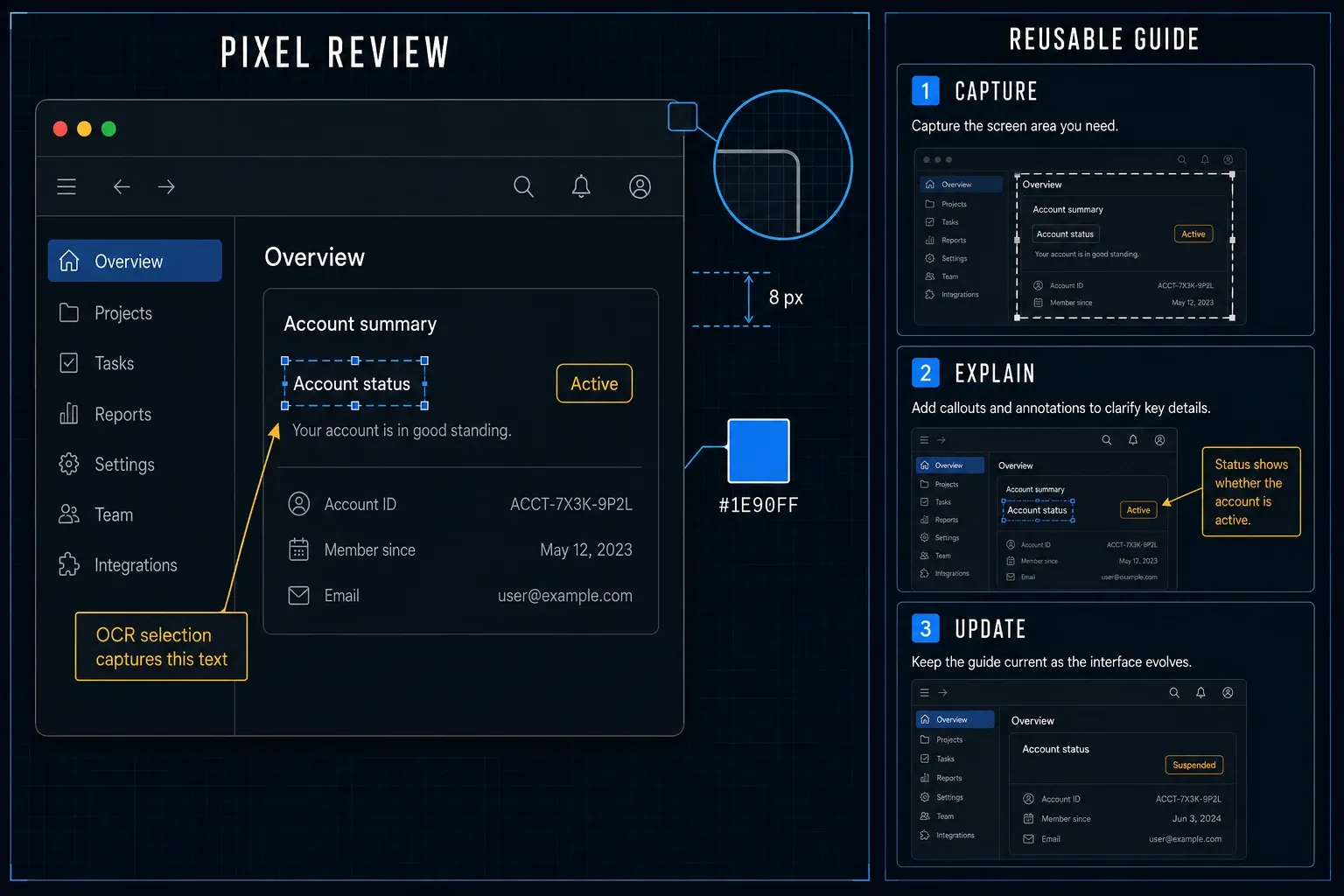
For measurements, the arrow keys inspect horizontal or vertical spacing, and a click imprints the result. Retina dimensions use logical pixels by default, and the dimension control switches to physical pixels. Tab copies the pixel color under the pointer, and selecting an area and pressing C copies its average color.
For a spacing review, you could capture a settings panel, compare a gap with its specified 8 px width, mark the misplaced button and copy the image into a ticket. Leave enough of the surrounding interface in the crop so someone else can find the problem.
Snagit: guides, capture history and recording
TechSmith documents templates, Quick Styles, capture presets, image editing and video recording, and its library organizes captures with metadata, tags and filters. A searchable library helps with instructions you keep updated, but don't take that to mean every word inside every old screenshot is automatically OCR-indexed.
Step Capture records clicks and drags and turns them into a numbered guide. It doesn't record text entry or keyboard shortcuts as steps, so you'll need to add those instructions yourself, delete any wrong clicks and check the final export. A generated sequence still needs an editor who understands the task.
Use the extra tools when the work calls for them. A support writer might keep approved source captures, stick to one annotation style and swap out a single image when an interface changes. A trainer might record a screen-and-webcam explanation. Buying a bigger editor doesn't by itself make either output clearer.
Vertical, horizontal and manual scrolling
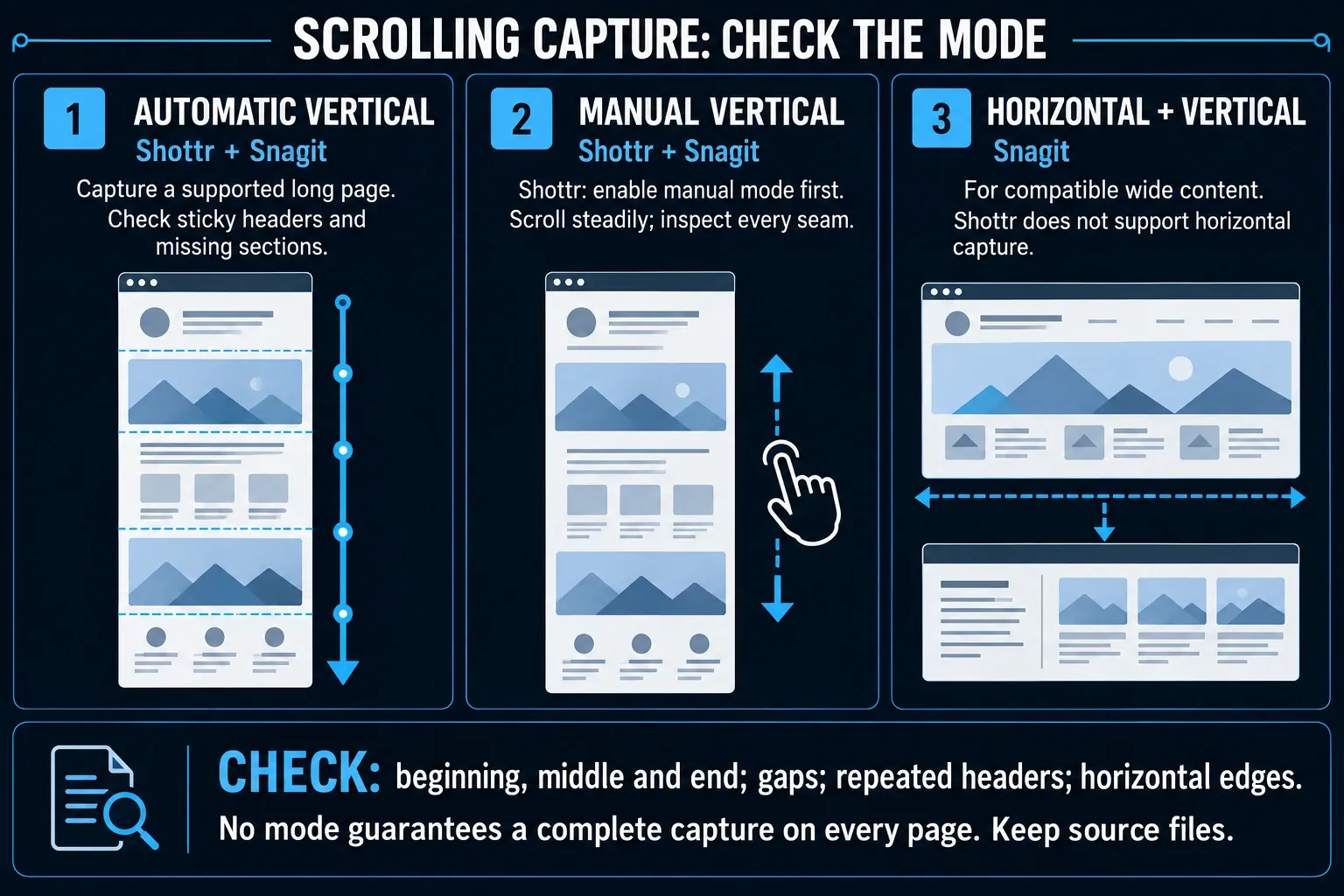
Shottr's scrolling guide documents automatic vertical capture, including upward capture for chats. It also describes manual scrolling, which isn't turned on by default, so check how to enable it in your build before you rely on that mode for a difficult app.
Animation, fixed headers and third-party scroll modifiers can disrupt stitching. Shottr recommends manual mode for non-native scrolling in apps such as Terminal and Visual Studio Code, and it doesn't support horizontal capture. Snagit offers vertical, horizontal and manual capture, so consider it for a wide grid. Neither product guarantees a complete result on every page.
Shottr allows a maximum-height setting up to 400,000 pixels, but that ceiling isn't a recommended default. Its guide illustrates the memory cost with a 3,072 × 80,000 image using four bytes per pixel: almost 1 GB before compression. Scrolling produces one stitched image rather than an automatic multipage PDF. For setup and alternatives, use the Mac scrolling screenshot guide.
OCR, overlays and redaction
Both apps handle annotation and text recognition. Shottr supports text-only removal, image overlays and two-frame before/after GIFs, though those GIFs don't record a screen session. Snagit adds editable recognized text, Smart Move and Smart Redact. Check that they're in your installed version, and review the recognition results instead of assuming every private field was detected.
There's one Shottr limitation worth knowing before you combine screenshots. Its editor FAQ says cropping, blurring, erasing, measuring and color picking don't apply to appended captures or overlays until you use Edit > Rasterize Image, which merges the objects into the image. If you'll need those objects separately later, keep an original where your policy allows it, and look over the merged copy before you share it.
Blur and small-block pixelation can leave recoverable information. Remove a secret or cover it completely with an opaque edit, then export a flattened PNG and reopen that file outside the editor. From there, go through every sensitive field and the metadata, and keep the originals private. My screenshot editing guide compares these editing tasks beyond this pair.
Privacy, permissions, and uploads
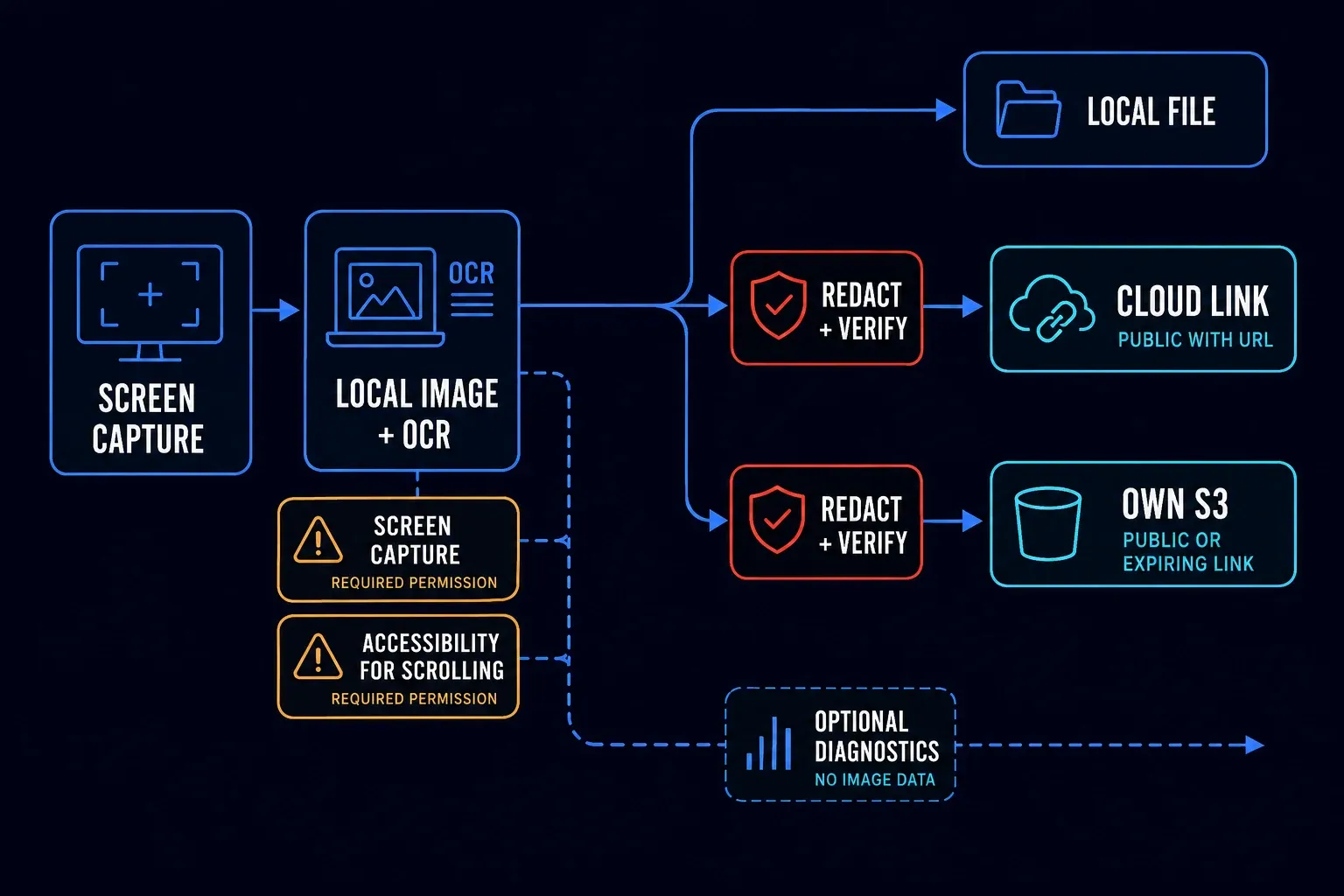
Shottr's privacy policy says screenshots are processed locally and OCR doesn't send the image or recognized text online. Capture needs Screen Recording permission, scrolling needs Accessibility, and saving needs access to the destination folder. TechSmith's technology disclosure also lists Snagit text recognition as on-device, with Apple OCR on Mac. That still doesn't make every sharing or AI service local.
Shottr still contacts servers for license checks, updates, optional telemetry and uploads. Turning telemetry off sends a final opt-out report; diagnostics may still be stored locally, and the other network functions keep running. Its policy says telemetry excludes images and recognized text.
Shottr Cloud upload requires a separate token and makes the image public at its exact URL. The developer can moderate it and doesn't guarantee storage availability. Manage Uploads lets you delete hosted images, but it can't recall copies recipients have already saved. For your own storage, the S3 guide describes direct uploads and public or time-limited presigned links. Use bucket-scoped credentials. Anyone holding a valid presigned link can use it, because an expiry time doesn't authenticate the recipient.
Snagit can keep a local library or send a file to a configured destination, so check folder sync, recipients and retention before you capture work content. With either app, local OCR won't stop you from pasting that text into a public conversation later. Leave optional upload routes unconfigured unless you need them and you're allowed to use them.
Snagit vs Shottr pricing and license terms
On September 19, the Shottr purchase page listed Basic at $12 and Friends Club at $30, both as one-time purchases. One license covers one user on up to five computers, not five employees. Personal use stays free, with upgrade reminders after 30 days. Check tax and the final total at checkout.
The Shottr terms require a purchased license for commercial use. Friends Club adds access to experimental features, but those features aren't guaranteed and may be discontinued. Do not buy it expecting a specific hidden tool to stay available.
TechSmith's US student-offer page gives $39 USD/year as the standard Snagit reference value, which isn't the same as a fresh US checkout quote. The store localizes prices and describes Individual as annual and non-transferable. My Snagit pricing guide walks through the license choices. For a team, compare the right business subscription instead of sharing a personal account.
What changes the decision for a team?
Start with the Macs you already have. Shottr lists macOS Catalina 10.15 and later. On September 19, Snagit's dedicated system requirements listed macOS Golden Gate 27, Tahoe 26 or Sequoia 15. The store still shows a broader macOS 14+ badge, so check the exact build against the requirements page before you deploy it. Mac compatibility depends on the OS version, not just the product name.
For documentation, decide where the editable originals live and who can update them. A plain exported image moves between tools, but it doesn't carry an editable Snagit project or keep separate annotation objects. Test the file handoff your colleagues need, including an update to an existing instruction.
For a defect report, pin down the evidence first: a measured spacing issue, a sequence of windows, a scrolling grid or a narrated reproduction. Then use the tool that captures that evidence correctly. A single-image task shouldn't be scored against an unsupported video task as though both products promised the same features.
In a mixed Windows and Mac team, Shottr can serve as a Mac-specific utility, but it can't be the common capture app on both systems. Snagit runs on both, though some features and instructions still differ by platform. Standardize the files you deliver and the review process, not just the app name.
Company approval matters even for local capture. In an archived discussion about an unapproved Shottr installation, the author didn't know why their company had restricted it, and that isn't evidence of a breach or malware. Ask which tool and upload policy your company has approved instead of working around a restriction.
Check the trial terms separately. TechSmith's activation help says 15 days, while its student FAQ says 14; confirm the period you're offered. The download terms prohibit using the trial for commercial work, training or benchmarking, so a work pilot needs properly licensed software.
A practical comparison checklist
- Use synthetic content and appropriately licensed software on a supported Mac. Record each app version and the output you need.
- Capture the same region, crop it and add a clear annotation. Check the exported file at the size a recipient will use.
- Where supported, measure two spacing errors and sample two colors. Distinguish logical from physical Retina pixels.
- Extract a paragraph with OCR and compare every character with the original, including punctuation and line breaks.
- Remove dummy private fields from a combined image. In Shottr, rasterize appended captures before raster edits; reopen the flattened export for inspection.
- Capture a long page and inspect its beginning, middle and end. Try manual scrolling only after enabling it; test horizontal capture in Snagit if your work requires it.
- Create a short guide in Snagit, add a keyboard-only step that Step Capture omitted and replace one screenshot. Check the exported result.
- If video is required, record a short screen and audio explanation in Snagit. Do not expect Shottr before/after GIFs to substitute for recording.
- Share a harmless file through an approved destination. Check access in a separate signed-out session where appropriate, then remove the temporary upload.
- Record missing content, corrections, extra tools and permission problems. Keep only the test files and originals you are authorized to retain.
Use this checklist for the tasks you need rather than as a score sheet for every possible feature. Judge the finished files and how much effort they take to maintain, then weigh those results against the license cost before you commit the team.
Who should choose Shottr?
Choose Shottr for Mac-only image work where precise cropping, measurements, colors, OCR and annotation cover the job. Check the rasterization limitation on combined images, and confirm manual scrolling access before you make it a requirement.
For commercial use, buy a license. Treat cloud uploading as a separate decision from capture, and choose another approved method when the target needs horizontal scrolling or recording.
Who should choose Snagit?
Choose Snagit when Windows support, reusable instructions, a maintained capture library, horizontal scrolling or screen video solves a recurring task. Before you send the result, review what Step Capture left out and any automatic edits. Check current OS support instead of assuming any Mac will run the latest build.
If neither set of requirements describes your work, use the broader screenshot software comparison. You may only need an approved built-in capture route and a basic editor.
Snagit vs Shottr FAQ
Is Shottr free?
Shottr allows free personal use, with upgrade reminders after 30 days. Commercial use requires a purchased license. Free use is not a promise that every activated or experimental feature is included.
How much does Shottr cost?
On September 19, 2026, Basic was listed at $12 and Friends Club at $30 as one-time purchases. One license covers one user on up to five computers. Check tax and the final checkout total; five computers does not mean five users.
Does Shottr work on Windows?
No. Shottr is Mac-only and lists macOS Catalina 10.15 or later. Snagit supports Windows and Mac, but its current dedicated Mac requirements list Golden Gate 27, Tahoe 26 or Sequoia 15. Check the requirements for the exact build you will install.
Does Shottr record video?
Shottr creates two-frame before/after GIFs, but its documented current product does not provide screen-video recording. Snagit records the screen, webcam, microphone and system audio. These are different capabilities.
Can Shottr capture scrolling screenshots?
Yes, vertically, including upward capture for chats. Its documented manual mode requires separate enabling and is not on by default. It does not support horizontal scrolling or automatically split the result into a multipage PDF. Check the actual page for stitching errors.
Is Shottr OCR private?
Shottr says OCR runs on your Mac and does not send the image or recognized text online. License checks, updates, optional telemetry and uploads are separate network activities. Disabling telemetry does not disable all network communication.
Is a Shottr Cloud link private?
No. Shottr Cloud needs an upload token and makes images public to anyone who has the exact URL. The developer may moderate uploads and does not guarantee storage availability. Deleting an upload cannot recall copies already saved by recipients.
Can Shottr replace Snagit?
It can cover many Mac screenshot, measurement, OCR, annotation and vertical-capture tasks. Choose Snagit when you need Windows support, horizontal capture, reusable guides, a maintained capture library or screen recording. Compare the outputs you actually need, not a presumed overall winner.