
To stop a Mac screen recording, click the Stop button in the menu bar or press Command-Control-Esc. Both methods are in Apple's current screen-recording instructions. Let the recording finish before looking for the video; closing the app or forcing a process to quit is a poor substitute when you want to keep the file.
If you started with Shift-Command-5, the recording is handled by Screenshot. If you chose File > New Screen Recording in QuickTime Player, you may see the same Screenshot controls or QuickTime's older recording window. The Stop button and shortcut work in either Apple-documented path, but what happens to the file afterward differs.
Stop a recording started with Shift-Command-5
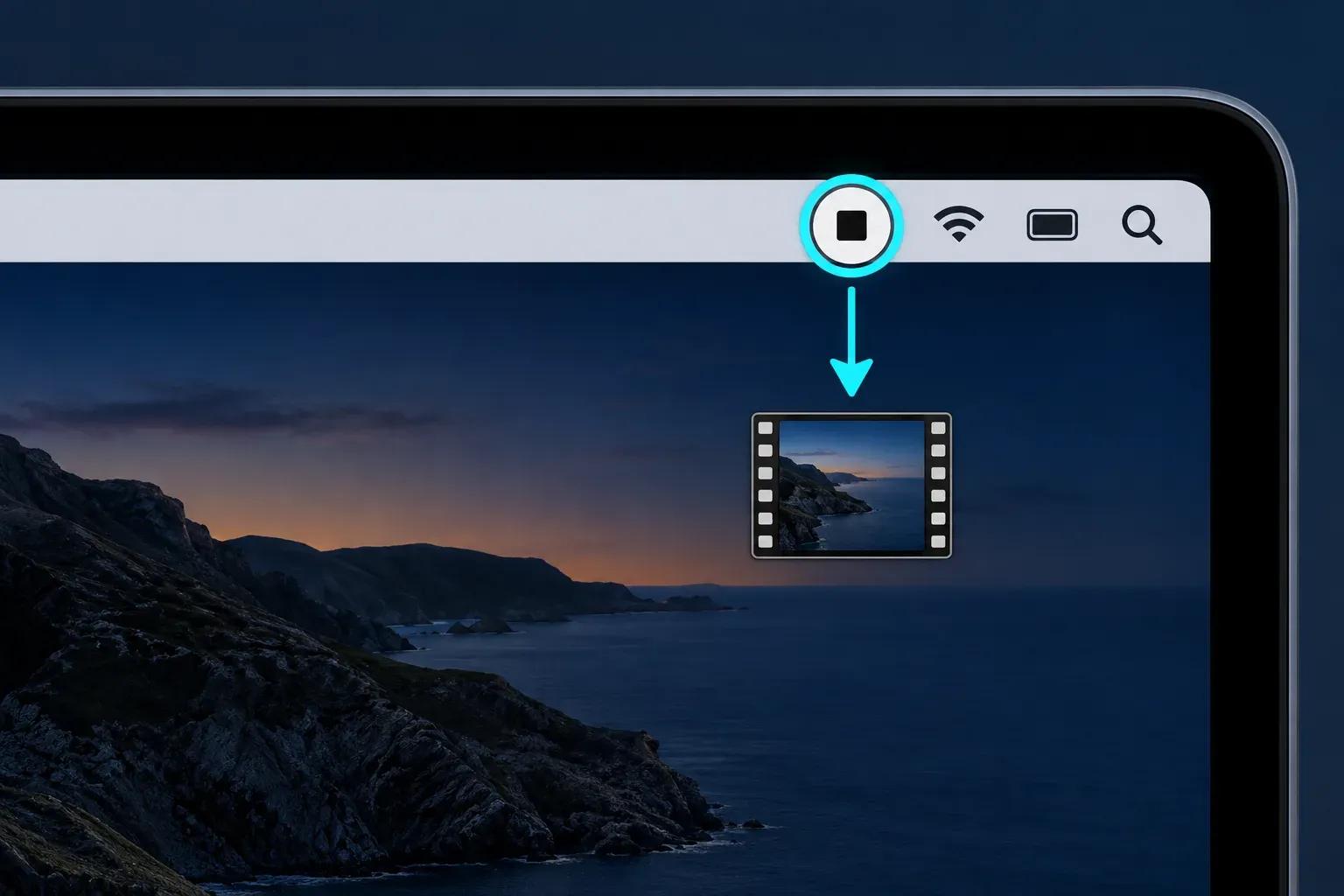
- Find the Stop Recording control in the menu bar at the top of the screen. It has a square inside a circle. Click it once. I would use Command-Control-Esc when the menu bar is hidden or crowded.
- Wait for the floating thumbnail to appear, if that option is enabled, or for the file to finish saving. Open the resulting video and check that it has the ending you intended before you share it.
Pressing Esc while the Screenshot toolbar is open before you click Record cancels that setup. It is not the shortcut for ending a recording already in progress. Apple makes that distinction in its Screenshot steps.
If you started from QuickTime Player
Choose File > New Screen Recording in QuickTime Player and the Mac may open the Screenshot toolbar. If it does, stop the recording as above and check the location selected under Screenshot's Options > Save to. Apple describes both QuickTime interfaces, so the app you launched is less useful than the controls actually on screen.
If QuickTime's own Screen Recording window appeared instead, click the menu-bar Stop button or press Command-Control-Esc. QuickTime opens the finished recording. To give it a name and choose a folder, use File > Save; these are the steps in Apple's QuickTime save guide. Check the saved video in that folder rather than assuming it went to the Desktop.
If the Stop button or the shortcut doesn't respond
No Stop button in sight usually means the menu bar is hidden. In a full-screen app it slides out of view until you move the pointer to the top edge of the screen, as Apple's full-screen guide explains. Pressing Shift-Command-5 again works from anywhere: the Screenshot toolbar returns with a Stop button you can click.
If the keys do nothing, check which three you're pressing. The stop shortcut is Command-Control-Esc: Control, not Shift. Option-Command-Esc opens the Force Quit window instead. On a Mac with a Touch Bar, Apple notes that Esc sits on the left side of the Touch Bar.
One failure wasn't the user's fault. In an Apple Community thread on the stop shortcut, people on the first macOS Sequoia releases reported Command-Control-Esc doing nothing. The workaround passed around there was the same Shift-Command-5 toolbar, and later replies confirmed the shortcut worked again in macOS 15.2. I'd update macOS rather than hunt for a setting.
If QuickTime Player itself has frozen, choose Apple menu > Force Quit, select QuickTime Player and click Force Quit, following Apple's force-quit steps. I keep this for last because it skips the app's normal quit, so check whether the recording survived before you record the scene again.
Find the video after you stop
Screenshot normally saves recordings to the Desktop. The location changes if you selected another destination under Shift-Command-5 > Options > Save to. Apple's automatic filename begins Screen Recording and ends in .mov, with the date and time in between. If the Desktop is empty, check the current Save to choice first, then search Finder for that filename pattern; Apple documents the default, setting and name.
A floating thumbnail is a short chance to open or move the recording; it is not a second copy you need to save before it disappears. If you recorded private material by accident, inspect the actual file before sending it. When the on-screen control belongs to another recording app, use that app's Stop command: the macOS shortcut above is documented for Apple's Screenshot and QuickTime paths, not for every recorder. Our Snagit recording guide covers that separate workflow.
Trim the last seconds before you share
Every recording ends with the pointer travelling to Stop. For a Screenshot recording, the fastest fix is the floating thumbnail: Apple says clicking it opens the recording for editing. Once the thumbnail is gone, QuickTime Player does the same job:
- Open the recording in QuickTime Player. A QuickTime recording is already open when you stop.
- Choose Edit > Trim.
- Drag the yellow handles so they frame the part you want to keep. Click and hold a handle to step through single frames.
- Click Trim, then save the file.
Those are the steps in Apple's QuickTime trim guide. Trim keeps one continuous stretch between the handles, which is all a bug report or a quick demo usually needs.
If an app is recording your screen without you
Sometimes the question is the opposite one: you didn't start a recording, but something is capturing the screen. Check the obvious candidates first: a meeting app still sharing your screen or a capture utility left running. Stopping the share in that app ends it. To cut an app off for good, choose Apple menu > System Settings > Privacy & Security > Screen & System Audio Recording and turn that app off, as Apple's privacy guide shows.
Apple lists the colored dots next to Control Center in the menu bar: orange for the microphone, green for a camera and purple for system audio being recorded. Open Control Center and the field at the top names the apps using them.