
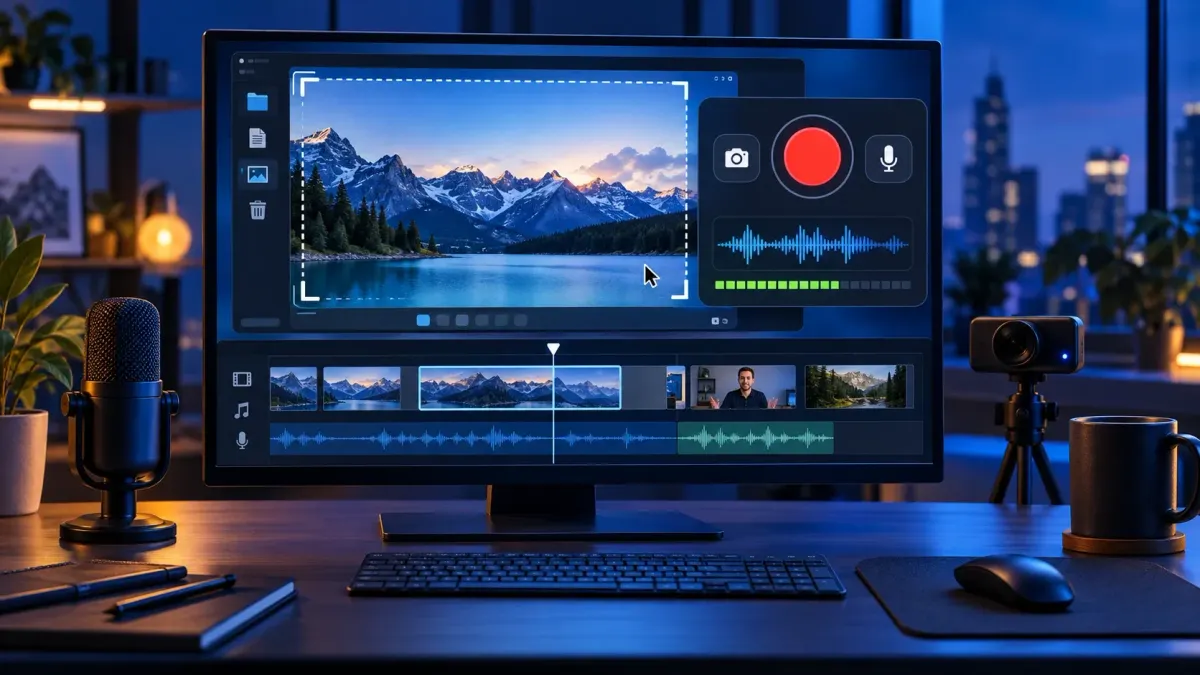
Snagit screen recording is a fast way to capture a region, app window, or full screen with microphone audio, system audio, and optional webcam. It is best suited to one-take walkthroughs, bug reports, SOP clips, and team updates. In Snagit Editor, you can trim mistakes, cut a middle section, combine clips, save a frame, or create a GIF. Send the recording to Camtasia Editor when the job needs independent media editing or a produced timeline.
Use Snagit when speed matters more than a full production timeline. If this is your first capture, start with the Snagit beginner tutorial. For a different capture, editing, export, or troubleshooting task, use the Snagit guides hub instead of forcing one recording workflow to fit every job.
What Snagit screen recording is good for
| Job | Use Snagit for | Move to Camtasia when |
|---|---|---|
| Bug report | A short clip with cursor and voice | You need labels, cuts across tracks, or a polished report |
| SOP or support answer | A focused walkthrough or GIF | The lesson needs chapters, captions, or updates later |
| Async team update | Screen, webcam, and audio in one take | Several speakers or media tracks must be mixed |
| Product demo | A quick feature tour | The video needs branding, titles, transitions, or zoom effects |
A one-take explanation with a few cuts? Snagit is usually enough. A reusable lesson or a public video? Plan the handoff before you record, because that choice affects the frame, audio, script, and how much correction you can do later.
How to record your screen with Snagit
- Open the Video tab. Start in the Capture window and choose Video.
- Choose the recording area. Select a region, window, or full screen. Keep private apps and notifications outside the frame.
- Set the inputs. Turn the microphone, system audio, and webcam on or off. Confirm the correct microphone before you continue.
- Run a short test. Record five to ten seconds. Check voice level, system sound, webcam framing, and cursor visibility.
- Start the real capture. Click Record, wait for the countdown, and complete the task at a steady pace.
- Stop and inspect. Stop the recording and watch it from the start. Check audio sync, missing frames, private data, and the final action.
- Edit and share. Trim or cut mistakes, combine clips if needed, then save MP4, create a GIF, or send the recording to an approved destination.
TechSmith's current video recording instructions confirm the Video tab, audio selection, recording, and trim flow. Protected media may block capture through HDCP. Do not try to defeat that protection; record content you are allowed to use.
Choose a region, window, or full screen
A region gives the cleanest result for software steps because unrelated windows stay outside the frame. Full screen is useful when the viewer needs the whole desktop context, but it raises the odds of showing notifications, account names, or private tabs. A saved preset keeps the same dimensions across a series.
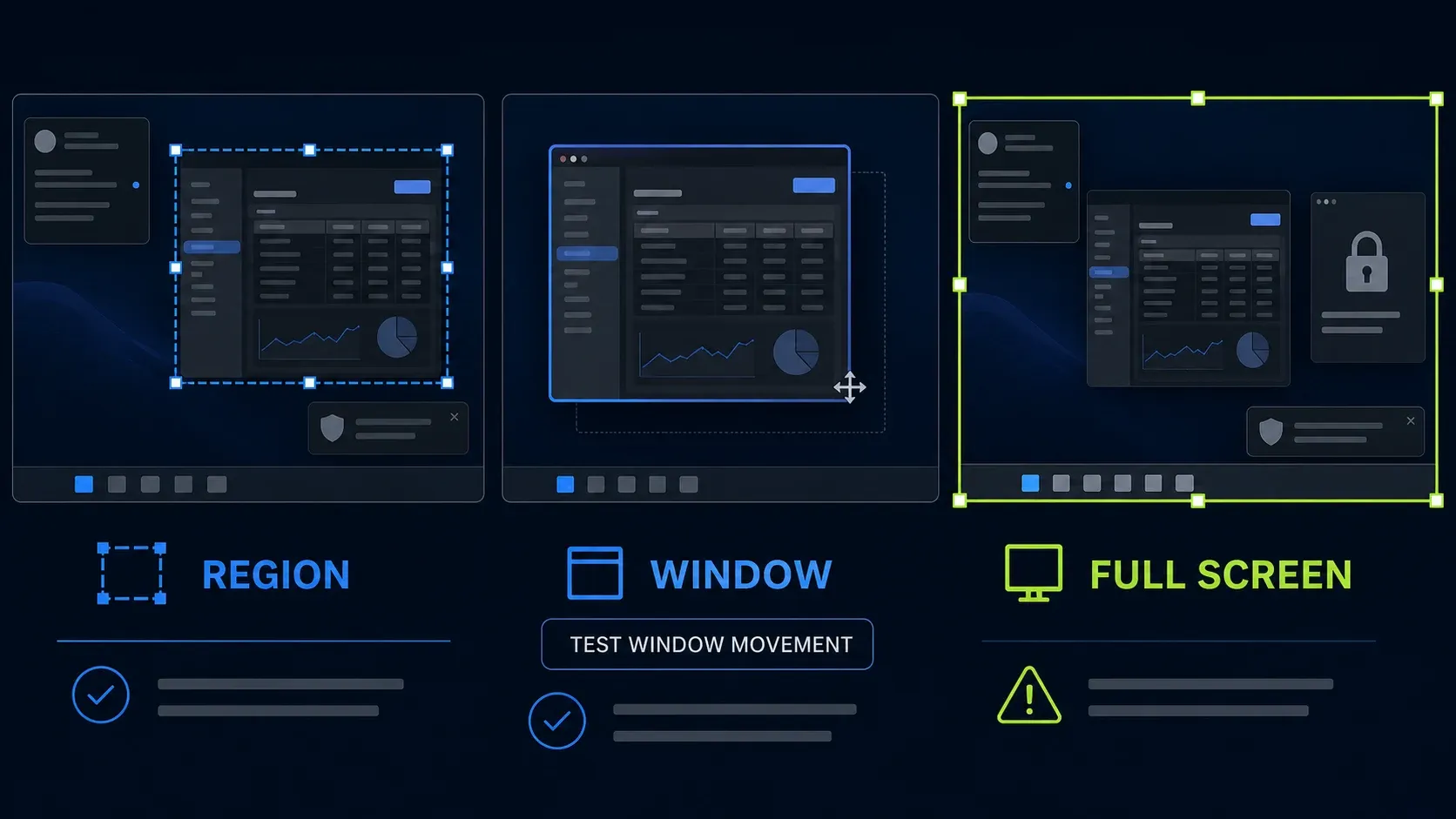
On Mac, TechSmith's 2026 version history confirms that Window video capture follows the selected window when it moves or changes size and excludes other windows. The same behavior is not stated in the current Windows release notes, so on Windows, verify the preview and avoid moving the target window during the take.
For repeated tutorials, record at the same dimensions and park the app in the same position before every take. Once the area and inputs are tested, the Snagit keyboard shortcuts guide can shave more setup time.
Record microphone and system audio without surprises
Microphone and system audio are separate toggles in the Video tab: microphone on for narration, system audio on for app sounds or media playback. With both active, speaker output can bleed into the microphone and create an echo — wear headphones when you need both sources.
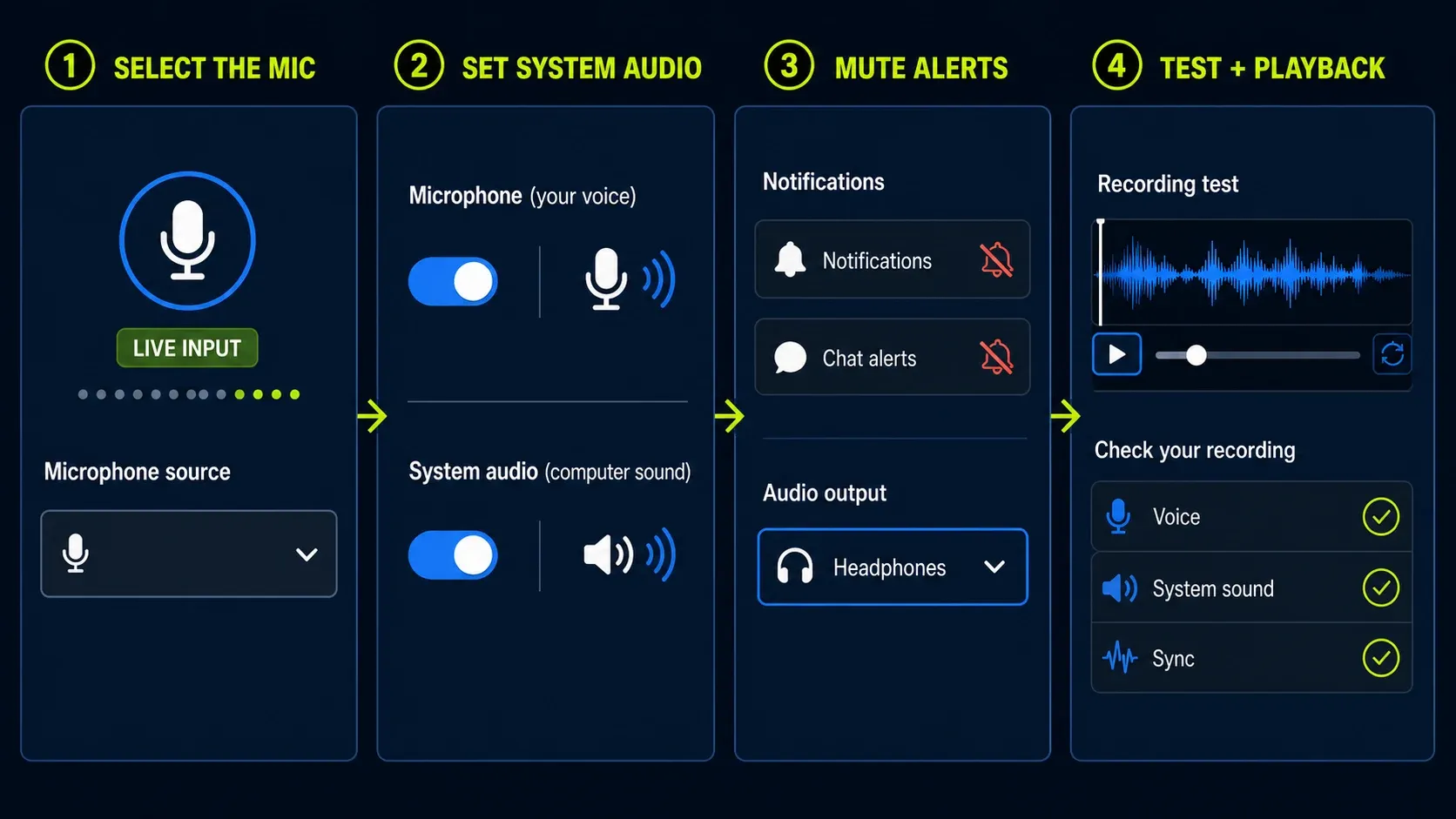
Remember the finished MP4 is not a multitrack audio project. Mute alerts, close chat apps, and play the loudest part of the source during your test. TechSmith's current echo guidance names speaker bleed as a common cause.
Snagit’s current feature catalog lists one-click AI background noise removal for audio recordings. It does not describe the feature as a live filter during capture. Treat it as post-recording cleanup, not a substitute for a clear microphone, and inspect the result for clipped or metallic voice.
For Windows audio trouble, TechSmith's audio quality article recommends a direct USB microphone and does not recommend Bluetooth devices for playback or recording. That advice is a troubleshooting path from a Windows article, not a claim that every Bluetooth setup must fail. The dedicated Snagit audio troubleshooting guide covers missing sources and permissions.
Use webcam, picture-in-picture, and Screen Draw
Snagit can record webcam video alone, place it over the screen as picture-in-picture, or switch focus between the screen and full-screen webcam mid-take. Use picture-in-picture when the viewer needs your face and the app at the same time. And glance at the webcam background first — names, documents, mirrors, and other private details have a way of sneaking in.
The current feature catalog lists webcam blur and virtual backgrounds as Mac-only. Don't build a Windows workflow around those controls unless your installed build actually shows them. A plain wall or a careful crop is the safer cross-platform setup.
Screen Draw adds arrows, shapes, and step numbers while you record, and those marks become part of the captured video. They're handy for live emphasis, but you can't treat them like editable post-production callouts. Pause before drawing, keep the mark simple, and restart the take if the annotation hides the wrong control.
Recording length, resolution, and frame rate
| Setting | Current guidance | Practical choice |
|---|---|---|
| Length | No hard cap; TechSmith recommends one hour or less | Split important work into shorter verified clips |
| Frame rate | Variable; quality settings set an upper limit | Choose for the content, then inspect the exported MP4 |
| Very High | Up to 60 FPS at 1080p on supported current builds | Use for motion only when the computer can sustain it |
| 4K at 60 FPS | Requires a discrete GPU according to TechSmith | Reduce area or quality when frames drop |
Snagit records only the frames needed as the screen changes, so a file may report a variable rate even when you chose a higher quality preset. The current frame-rate table lists Very Low through Very High settings and their maximum rates. Don't promise anyone a constant 30 or 60 FPS.
TechSmith's still-live maximum-length support article, last updated May 10, 2022, says there is no built-in limit and recommends one hour or less per recording. For anything important, record shorter sections and watch each file before you close the source app. One verified ten-minute clip is safer than one untested hour-long take.
What the Snagit video editor can do
Snagit's quick editor handles the common cleanup: trim the start or end, cut an unwanted middle section, combine clips, save a frame as an image, and create a GIF. The current feature catalog backs each action. The Snagit Editor guide covers the complete local workspace. Snagit still is not a multitrack production editor.
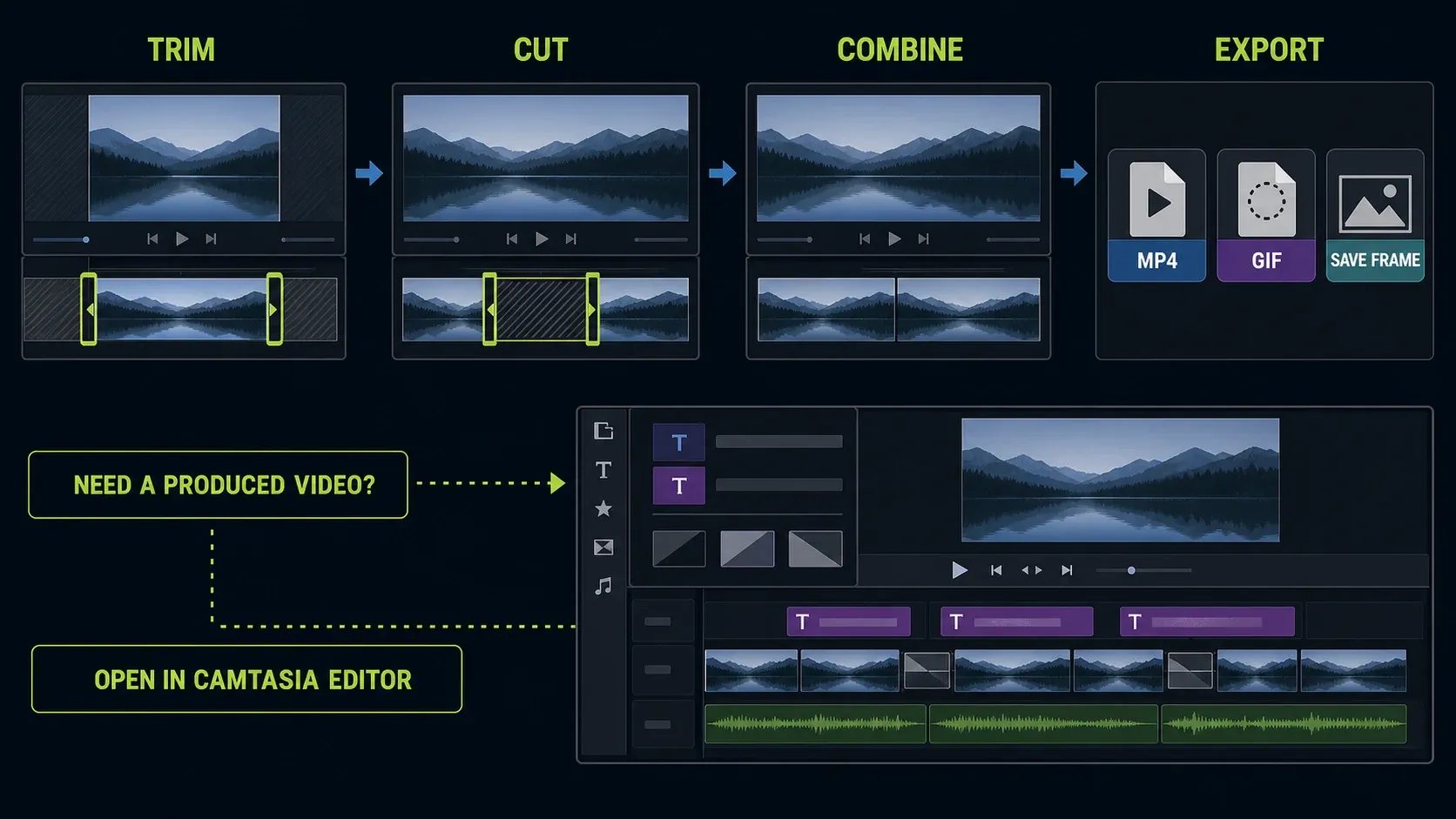
- Trim: remove dead time before the first action or after the final line.
- Cut: remove a mistake or pause from the middle of the recording.
- Combine: join several short takes in the correct order.
- Capture frame: save one useful video frame as an image for a guide or ticket.
- GIF: turn a short, silent action into a lightweight loop. Use MP4 when voice, detail, or accessibility matters.
Watch the full result after every cut or merge. A visually clean join can still chop a spoken sentence in half or drop a cursor movement the viewer needs. Keep the original clip until the final MP4 has been checked.
Captions: local Editor vs shared-video plans
TechSmith’s current feature catalog marks AI-generated captions for shared videos as a PRO feature. These are captions for hosted shared videos, not a full caption track inside the local Snagit Editor. Plan names and included services can change, so confirm the current subscription and share destination before relying on captions.
If captions are a requirement, check the exact plan and share destination before you record. The Snagit pricing and licenses guide tracks the current plan boundary. Make sure viewers can turn captions on, correct names and technical terms, and open the video without an account. When you need a controlled local caption workflow, use Camtasia or another caption-capable editor.
When to open the recording in Camtasia
On Windows, TechSmith’s 2026.1.0 release notes introduced an Open In setting that can send a new recording to Camtasia Editor for independent screen, camera, and audio editing. The Mac 2026.3.0 notes added a capture preset for the same handoff. TechSmith’s current What’s New page also describes separate screen, webcam, and cursor tracks in the Camtasia workflow. Track layout can still depend on the installed Snagit and Camtasia versions, so confirm the opened project before committing to the edit.
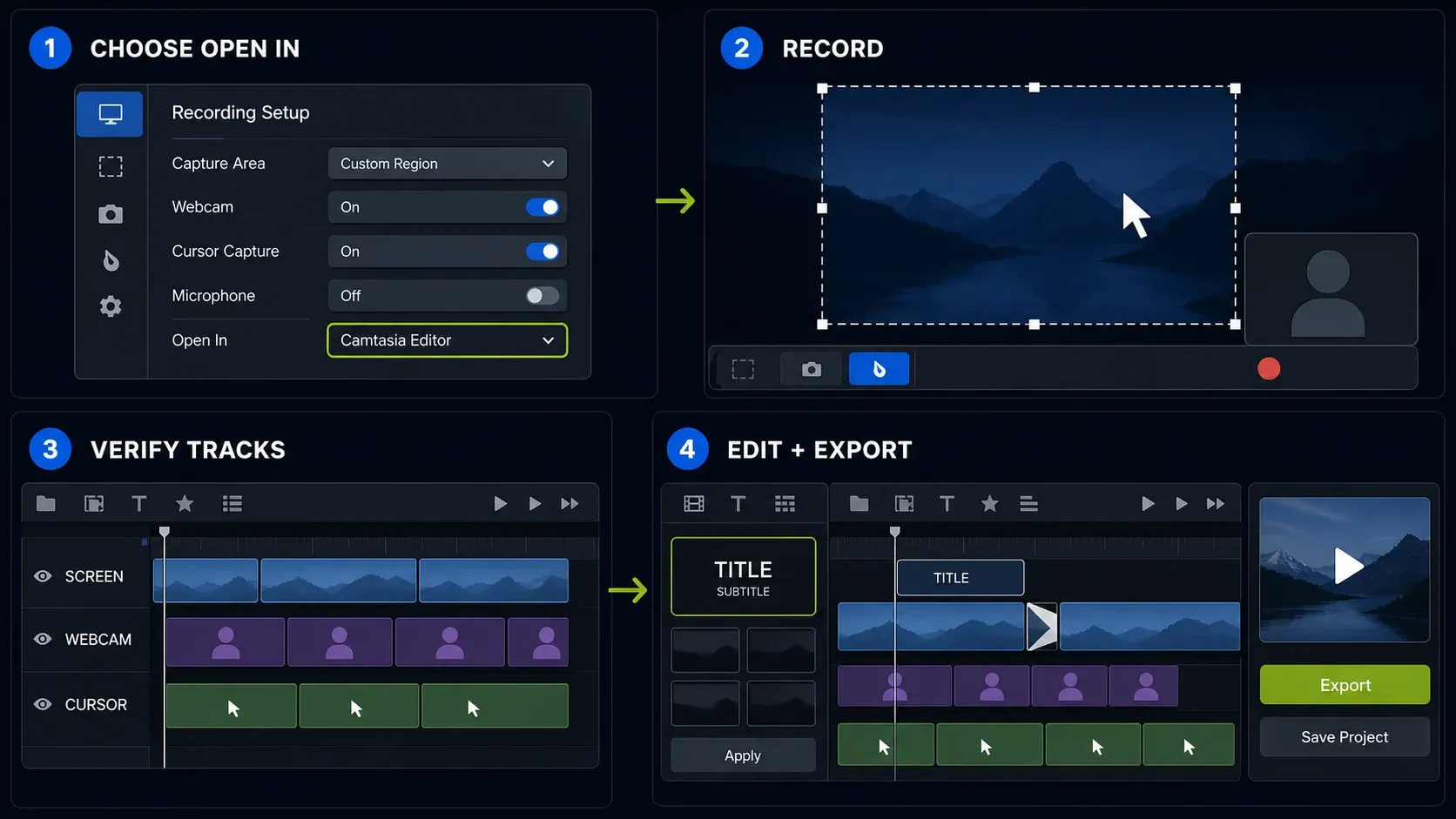
The Snagit vs Camtasia comparison covers the full editing decision. Here I keep the boundary simple: Snagit for fast capture and quick fixes, Camtasia for produced video.
Preflight checklist before you press Record
- Close messages, calendars, password tools, and private browser tabs.
- Choose the exact region and keep notifications outside it.
- Select the intended microphone, system audio, and webcam inputs.
- Use headphones when microphone and system audio are both on.
- Record a short test and play it through from start to finish.
- Check free disk space and use a quality level your computer can sustain.
- Decide whether the final output is MP4, GIF, a share link, or a Camtasia project.
If recording fails, start with TechSmith's symptom-based capture guide. On a Mac, verify the exact permissions in the Snagit Mac permissions guide. A black or protected frame belongs in the Snagit black-screen guide. Audio-device and graphics-driver failures need their own symptom-specific checks.
FAQ: Snagit screen recording
Can Snagit record system audio and microphone together?
Yes. The microphone and system audio controls are separate, and both can be on during one recording. Use headphones to reduce speaker bleed into the microphone, then check the exported file for echo and sync.
Can Snagit record the screen and webcam together?
Yes. Picture-in-picture shows the webcam over the screen. You can also switch the focus between screen and full-screen webcam during recording. Use picture-in-picture when both must stay visible.
Is there a Snagit recording time limit?
Snagit has no built-in hard limit. TechSmith's still-live support article, last updated May 10, 2022, recommends one hour or less because longer recordings can develop problems or fail. Shorter verified clips reduce that risk.
Does Snagit record at 60 FPS?
The Very High setting supports up to 60 FPS at 1080p or 4K in Snagit 2024.2.0 and later. Snagit uses a variable frame rate, so the exported file may not stay at 60 FPS. TechSmith says true 4K/60 capture requires a discrete GPU.
Can Snagit remove background noise?
Yes. Snagit’s current feature catalog lists one-click AI background noise removal for audio recordings. It does not describe live filtering during capture. Keep the microphone close, apply cleanup after recording, and inspect the result for clipped or metallic voice.
Can Snagit add captions?
TechSmith’s current feature catalog marks AI-generated captions for shared videos as a PRO feature. The local Snagit Editor is not presented as a full caption-track editor. Confirm the current plan and share destination, or use Camtasia or another caption-capable editor when you need controlled caption editing.
What video editing can Snagit do?
Snagit can trim, cut, combine clips, capture a frame, and create a GIF. Screen Draw adds marks during recording. Use Camtasia for tracks, transitions, reusable callouts, detailed captions, zoom effects, and deeper audio work.
Does Snagit save video as MP4?
Yes. MP4 is a supported full-video export listed by TechSmith. The Snagit export settings guide covers the output choices. Snagit can also turn a short recording into an animated GIF. Check the final file in the app or site where viewers will open it.