
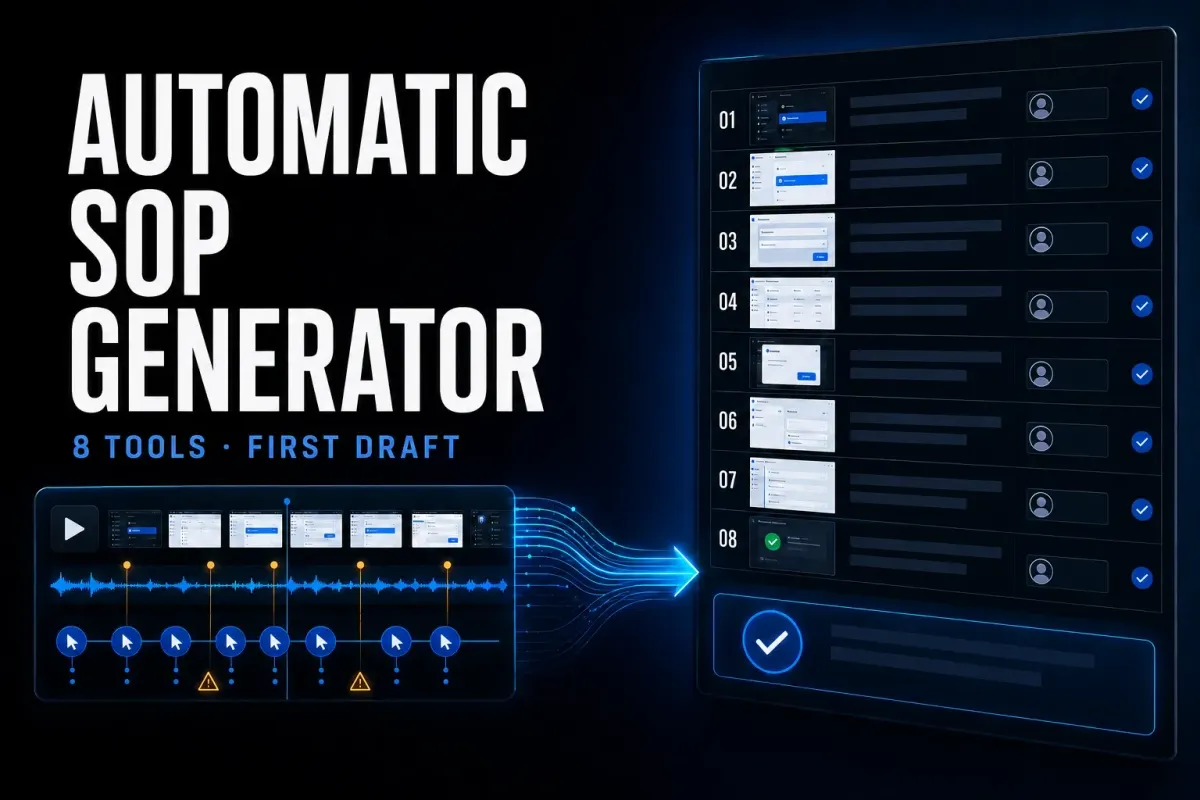
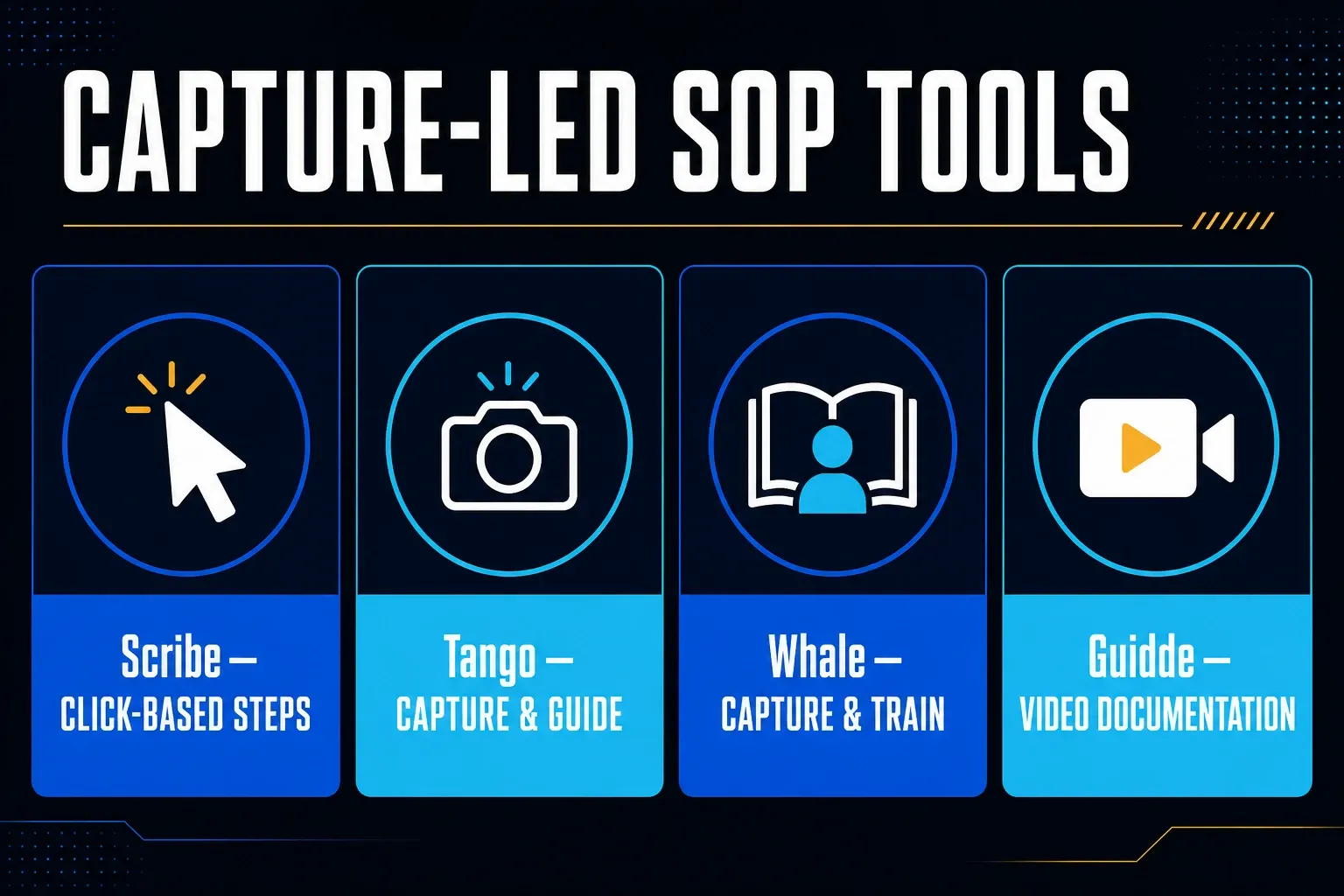
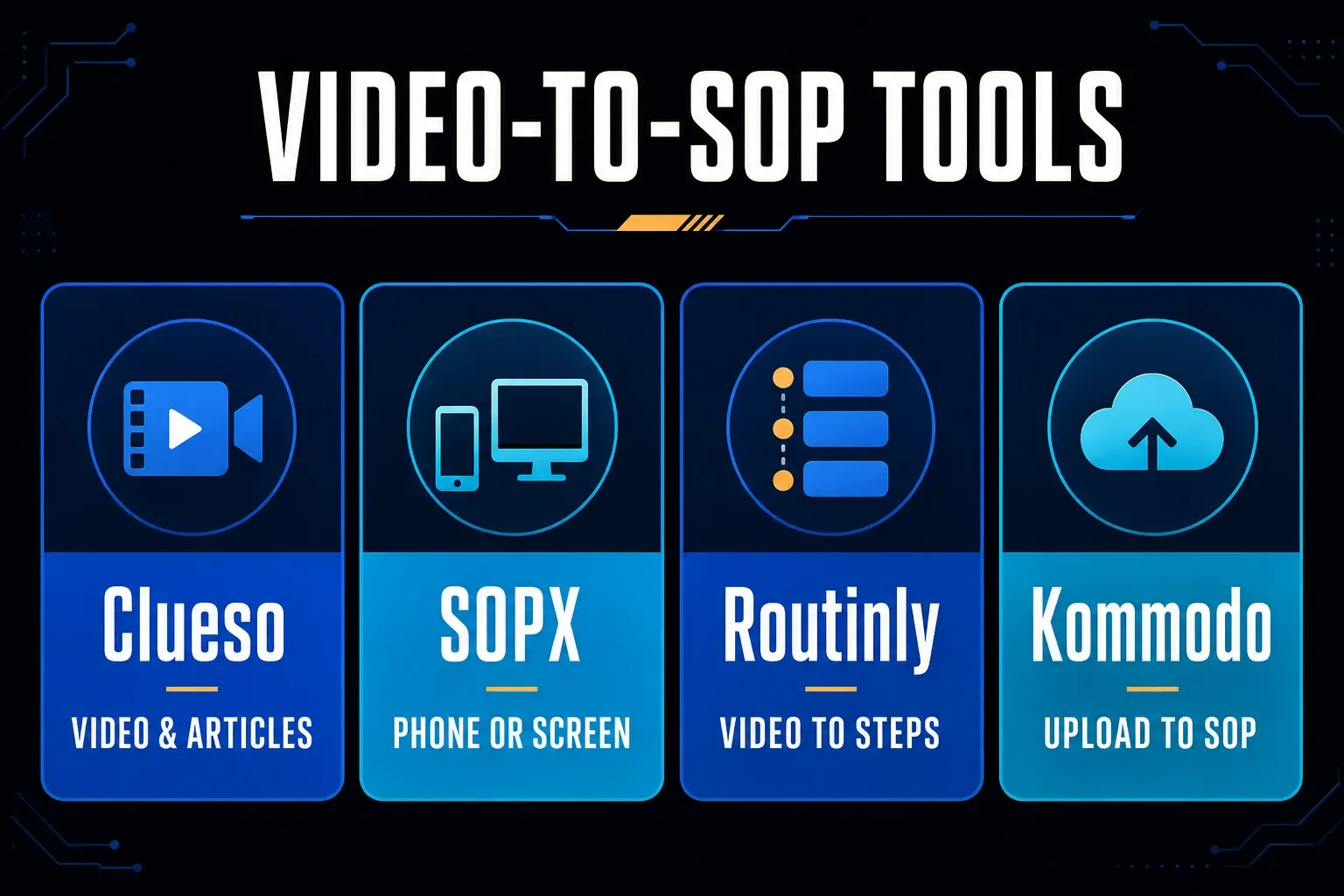
Choose an automatic SOP generator by what you already have. For live software clicks, start with Scribe or Tango. For an existing recording, compare Clueso, SOPX, Routinly, and Kommodo; Guidde also supports uploads, subject to plan limits. Whale combines capture with a documentation and training library. These tools create a draft standard operating procedure. They do not decide whether the procedure itself is correct.
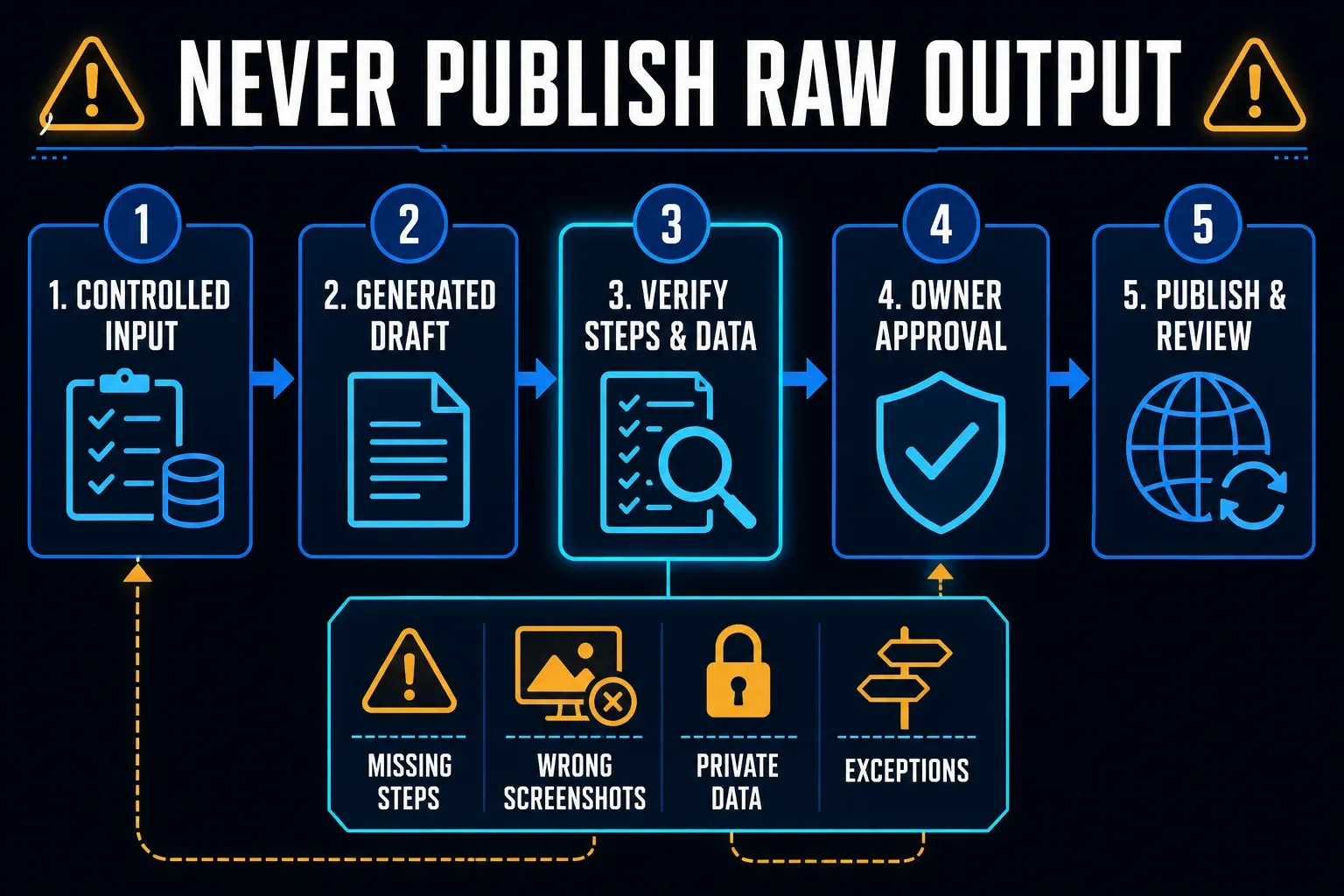
Record a controlled example, generate the draft privately, and check every instruction against the real task. Add the decisions and exceptions the recording missed. Have the process owner approve the corrected version before anyone uses it for work.
Features, prices, and limits checked September 7, 2026. Dollar amounts below are advertised USD prices, not a quote for your account. Confirm billing term, taxes, paid roles, export access, and data handling before subscribing or uploading business material.
Automatic SOP generators compared
| Tool | Input to use | Output to check | Current entry point |
|---|---|---|---|
| Scribe | Live browser or desktop clicks | Step-by-step guide | Free browser capture; paid desktop capture |
| Tango | Live browser or desktop workflow | Guide with plan-dependent in-app delivery | Free with five shared workflows |
| Whale | Recorded workflow, video, or written prompt | SOP library plus training | Free: one creator and ten members |
| Guidde | Step capture, screen recording, or plan-dependent video upload | Video and document; output depends on capture mode | Free up to 25 how-to videos |
| Clueso | Screen recording, mobile recording, or existing video | Video and article exports | Free with monthly export limits |
| SOPX | Phone video, screen recording, or PDF | Controlled SOP with video clips and run mode | 14-day trial with five AI-generated SOPs |
| Routinly | Recorded, uploaded, or linked video | Steps, screenshots, and shareable page | Free with three videos per month |
| Kommodo | Uploaded MP4, MOV, or WebM recording | Numbered SOP with extracted screenshots | Three free SOPs |
These products do not automate the same stage. Click capture sees actions but may miss the reason for them. Video analysis can use narration and visual changes, but it may split steps badly or select the wrong frame. Prompt-based creation can organize known facts, but it cannot observe a process that was never described.
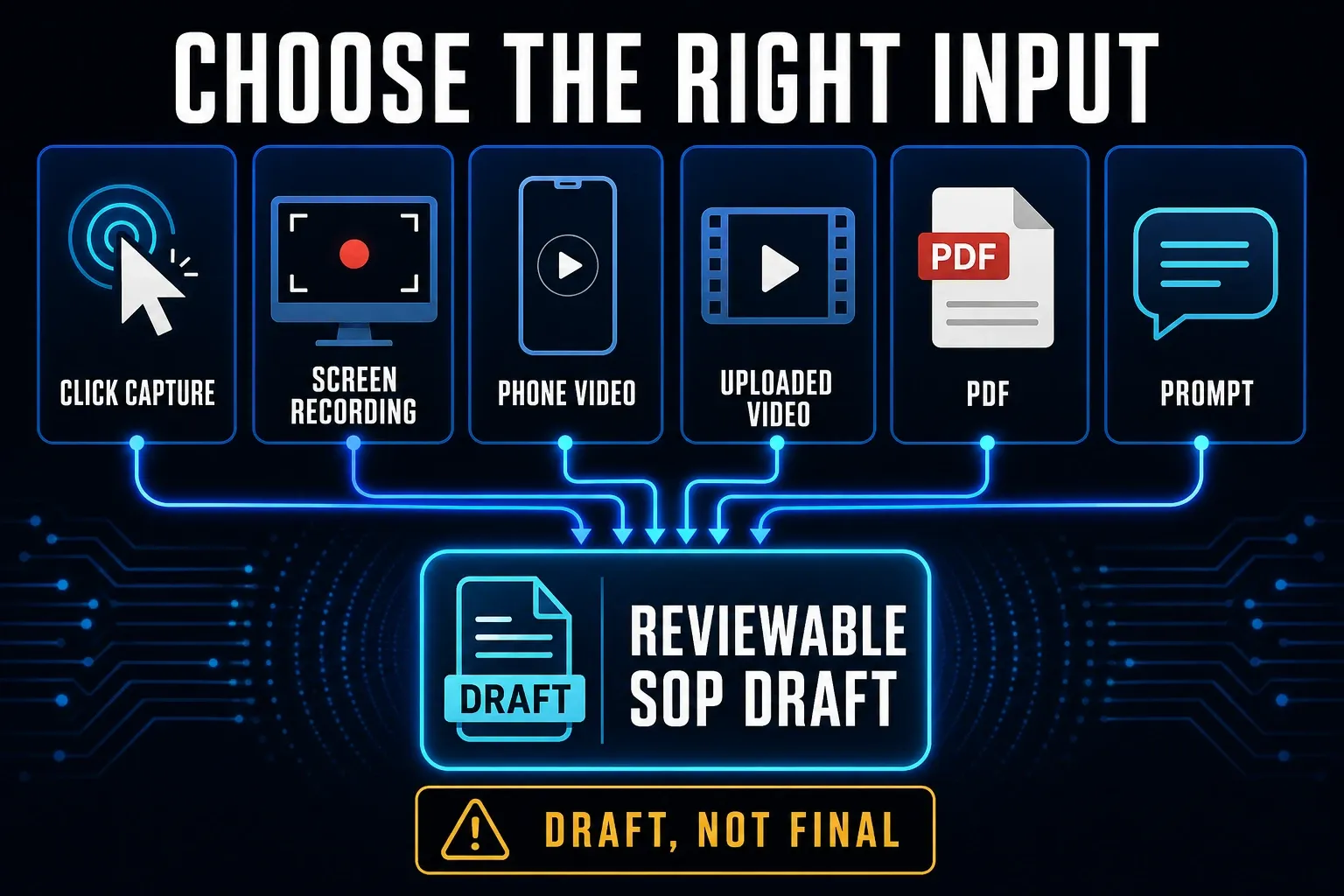
What an automatic SOP generator actually automates
Capture-led tools commonly help with these tasks. A prompt-only generator cannot select real screenshots unless you supply the images:
- Detect a click, screen change, spoken action, or visual transition.
- Split the recording into a sequence of candidate steps.
- Select a frame or screenshot for each step.
- Draft a title and instruction from activity or transcript data.
This reduces manual capture and formatting work, but we have not measured a time saving for these products. A recording may include a failed click, a correction, or a notification that should never become an instruction. It also cannot show an exception you did not demonstrate.
A good automatic SOP generator lets you edit text and images, remove or merge steps, add warnings and decisions, control sharing, and export the result. A complete SOP platform may also provide version history, approval, assignments, training, or run records. Do not assume those controls exist because the product can generate steps.
How we evaluated the eight tools
This is a documentation-based comparison, not a hands-on accuracy benchmark. We checked vendor pricing, help pages, supported inputs, and export limits. The recommendations describe which tools to shortlist for a particular input and destination; the numbers do not rank their accuracy. Where a vendor contradicts itself, the conflict is stated below.
Each product was checked against six questions:
- What source can it use: clicks, screen recording, phone video, uploaded file, PDF, or prompt?
- Can an editor correct step boundaries, wording, screenshots, and private data?
- Can the team assign an owner, review changes, and restore a prior version?
- Can readers open the result without an expensive creator seat?
- Can the organization export text, images, video, and document structure?
- What limit controls the price: creators, users, videos, minutes, articles, AI credits, or storage?
1. Scribe: capture live software clicks
Scribe records a process as you perform it and turns clicks into steps with screenshots. It is a direct fit for short, linear software procedures such as changing an account setting, exporting a report, or creating a record.
Basic covers browser capture; desktop capture requires Pro or Enterprise. Paid plans add screenshot editing, redaction, branding, and PDF, HTML, and Markdown exports. The Scribe billing guide lists monthly Pro Personal at $35 per user and Pro Team at $85 for up to five users, then $17 per additional user. Upgrading a team bills its members together, so do not budget for one paid author while leaving the other members of that same team on Basic.
A click trail needs explanation where the same screen permits several valid choices. Replace a generic “Enter a value” instruction with the approved value or a rule for choosing it. Add required permissions, waits, optional fields, and the error path yourself.
2. Tango: capture now, guide users in the app on Enterprise
Tango creates step documentation from a live workflow. Pro provides browser and desktop capture plus PDF, Markdown, and HTML exports. Its in-app Pins, Guide Me, and Automations are listed under Enterprise, not Pro.
Free includes five shared workflows, browser capture, and up to ten users. Pro costs $22 per user per month annually for one or two users, or $15 for three or more; monthly billing is $26 or $20 respectively. All members of an upgraded Pro workspace need paid seats. Pro adds unlimited workflows, annotation, blurring, and 14-day version history. Enterprise adds automatic PII redaction, conditional paths, translation, 365-day history, SSO, and SCIM.
If users need instructions beside a live application, test that Enterprise delivery in the actual apps and managed browsers they use. A guide that exports cleanly to PDF does not establish that in-app guidance works across your domains and roles.
3. Whale: keep captured SOPs with training
Whale combines AI-assisted writing, a step recorder, screen recording, video-to-guide conversion, checklists, search, and training flows. This makes it broader than a single-document generator.
The main pricing cards show Free with one creator and ten members; Team at $99/month billed yearly with ten users; Scale at $249/month billed yearly with three creators and unlimited members; and Advance at $499/month billed yearly with five creators and unlimited members. However, lower comparison tables show different prices. Treat the card amounts as displayed examples, not a confirmed quote. Get the plan, roles, AI credits, and export limits confirmed before budgeting.
Whale is worth a trial when a few authors support many learners. Check whether your readers count as members or paid users, and whether the plan includes the review and training functions you need. Those distinctions affect the bill more than the number of draft documents.
4. Guidde: distinguish step capture from continuous recording
Guidde can produce video with written instructions. Its document editor guide says step-by-step capture generates both outputs. Continuous screen recording is different: the screen recording instructions describe an initial single video step, not automatic splitting into a complete written procedure. Check the generated Document view before treating a recording as an SOP.
Screen recording is available on all plans: ten minutes per recording on Free, Pro, and Business, and 30 minutes on Enterprise. Free allows up to 25 guiddes. Pro lists unlimited guiddes, branding, watermark removal, and video, PPT, and PDF exports at $19/creator/month annually or $29 monthly. The desktop app requires Business or Enterprise. Uploading existing MP4 or WebM footage also requires Business or Enterprise. Check the upload options and plan limits, including dubbing and step generation, before choosing a subscription.
For a video-first procedure, read the written version separately. A silent video step may be hidden from Document view, so verify that every required action appears there. Test the exact capture or upload mode you intend to use, then inspect both exports.
5. Clueso: make a video and an article from one recording
Clueso can record a browser screen, accept mobile or existing video, and generate step-by-step documentation alongside edited video. Its current plan table lists version history across plans and several article export formats.
Free has one user and limited AI credits, but its advertised export allowance is inconsistent: the summary shows 15 articles/month and ten video minutes/month, the detailed table shows ten articles, and the FAQ mentions 15 video minutes. Neither maximum is safe to promise without account confirmation. Annual Solo is advertised at $40/month, one user, three video export hours and 180 articles per year. Annual Business starts at $120/month for two users, six video hours and 360 articles per year. Keep input length, exported minutes, and AI credits separate when comparing limits.
Clueso suits a team that needs the written guide as well as an edited video. Try an export before committing: check screenshot placement, links, watermark rules, and whether the document remains usable in your existing knowledge base.
6. SOPX: convert physical-work video or a PDF into an SOP
SOPX turns video or PDF input into structured steps. Its physical-work examples include filming on a phone, so it is relevant beyond software click trails. Pro adds approval flow, version restore, run checklists, forms, and sign-offs; having these controls does not itself certify a procedure.
The 14-day trial includes five AI-generated SOPs, three translations, imports up to ten video minutes or 20 PDF pages, and up to 100 invited teammates. It excludes PDF/Word exports and approval flow. Pro is $12/user/month monthly or $9/user/month billed yearly, with imports up to 20 video minutes or 100 PDF pages. PDF and Word exports are included in Pro; Markdown, SCORM, and PowerPoint exports are separate add-ons, also included in Enterprise.
Film the starting state, the action, and the result. A camera can miss a small setting or an out-of-frame safety check. Have a qualified process reviewer supply those details and verify translated instructions before staff follow them.
7. Routinly: reuse an uploaded recording or a YouTube video
Routinly supports screen capture, video upload, and YouTube links. It lists MP4, WebM, MP3, WAV, and M4A inputs up to 500 MB. Screenshots come from video frames; an audio-only file cannot supply visual evidence of the screen. The documented outputs are a share link, PDF, Markdown, or HTML.
The current page says Free includes three videos per month with AI processing. Solo is $19 per month with 20 videos and watermark-free exports. Team is $59 per month with 100 pooled videos, unlimited seats, a shared workspace, and custom branding. Verify whether public sharing, retention, and linked-video processing fit your security policy before uploading internal work.
Use the original authorized recording when possible. A linked video can be removed or its permissions can change. Check the generated step boundaries and screenshot timing, then keep the approved export where your team manages its procedures.
8. Kommodo: try video-to-SOP conversion with an existing file
Kommodo accepts MP4, MOV, or WebM screen recordings up to 1 GB. Its page says the generator uses transcription and visual analysis to produce numbered steps with screenshots. The current free entry point is three SOPs without a credit card.
Its page documents editing steps, replacing screenshots, and rearranging the guide. Outputs include PDF, a web link, and an iframe embed. That establishes available output types, not the privacy of a share link or the full commercial terms. Confirm retention, deletion, paid limits, and export access for your account.
Start with a short, narrated software walkthrough containing synthetic data. Inspect whether each screenshot corresponds to the instruction above it. Do not use the vendor’s speed or accuracy claims as a substitute for that check.
Where generated SOPs fail
Run the same error hunt on every draft:
- Missing decision: the recording shows the chosen path but not the condition that selected it.
- Wrong screenshot: the captured frame appears before the result or after private data is visible.
- False instruction: a transcript filler word becomes an action or a failed click becomes a step.
- Hidden prerequisite: the recording starts after login, setup, permission, or source-file preparation.
- No exception path: the happy path says nothing about invalid input, timeout, duplicate record, or rejection.
- Unclear evidence: the draft never states what must be saved, where it belongs, or how long to retain it.
- Stale interface: an app update changes a label, location, permission, or output format.
Ask a knowledgeable person who did not make the recording to follow the draft in a safe environment. Count every question, wrong turn, missing permission, and unrecorded decision. Those findings are more useful than a vendor's claimed creation time.
Protect private data before recording
Use a test account and synthetic names, addresses, orders, files, and identifiers. Hide notifications. Close password managers, email, chat, support tickets, analytics dashboards, and browser tabs that are outside the procedure. Keep API keys, passwords, payment data, health information, private employee records, customer data, and production credentials out of the recording.
Automatic blurring and redaction can help, but they are secondary controls. A frame can be retained in the source video, a thumbnail, a version, or an export even after the visible step is edited. Before a team rollout, check the vendor's data-processing terms, model-training policy, retention, deletion, access logging, sub-processors, region, SSO, SCIM, and backup behavior against your requirements.
Five gates before you publish the generated draft
- Controlled input: record the approved path in a safe account with synthetic data and notifications hidden.
- Generated draft: save the unapproved output where only authors and reviewers can reach it.
- Verify steps and data: compare every instruction and image with the real process, then add prerequisites, decisions, exceptions, warnings, and evidence.
- Owner approval: name the accountable owner and have the right subject-matter reviewer approve the corrected version.
- Publish and review: release the approved revision, record its review date, and trigger an earlier check after a product or policy change.
A generator handles document creation. For a permanent library with training, permissions, and approval controls, use the SOP software comparison. The broader process documentation software guide also covers mapping and execution. For software instructions, Scribe versus Snagit compares automatic click capture with screenshot editing, so you can decide which work to automate and which images to prepare yourself.
Automatic SOP generator FAQ
What is an automatic SOP generator?
It is software that turns clicks, a screen recording, phone video, uploaded file, PDF, transcript, or prompt into a draft standard operating procedure. Common outputs include numbered steps, screenshots, video clips, and editable instructions.
Can AI write an SOP automatically?
AI can create a useful first draft from a complete source. It cannot prove that the process is approved, safe, current, or complete. A named owner and qualified reviewer must verify the steps, decisions, exceptions, data, and evidence before publication.
What is the best AI SOP generator from a screen recording?
For an existing screen recording, compare Clueso, Routinly, Kommodo, or SOPX; Guidde is another option if its upload and document features fit your plan. Scribe and Tango primarily fit a new live click capture, so do not assume they import your old video. Try one authorized sample in two finalists and compare the corrected output, not just generation speed.
Is there a free SOP generator?
Yes. The products in this guide offer free plans or trials with different limits, such as workflows, creators, videos, minutes, articles, SOPs, or import length. Confirm the current limit and deletion policy before uploading business material.
Can I turn a video into an SOP?
Yes. A video-to-SOP tool can transcribe narration, detect actions or scene changes, select frames, and draft steps. Review screenshot timing, missing decisions, private data, prerequisites, exceptions, and export quality before using the result.
Should I upload an existing Loom or training video?
Only if you are authorized to share its content with the service and the vendor's retention, model-use, access, and deletion terms meet your requirements. A new recording with synthetic data is safer when the old video contains real accounts or customer information.
How do I check an AI-generated SOP?
Follow it in a safe environment from the stated starting point. Verify every step and screenshot, add decisions and error paths, remove private data, test with a second person, assign an owner, approve the corrected revision, and set a review trigger.