
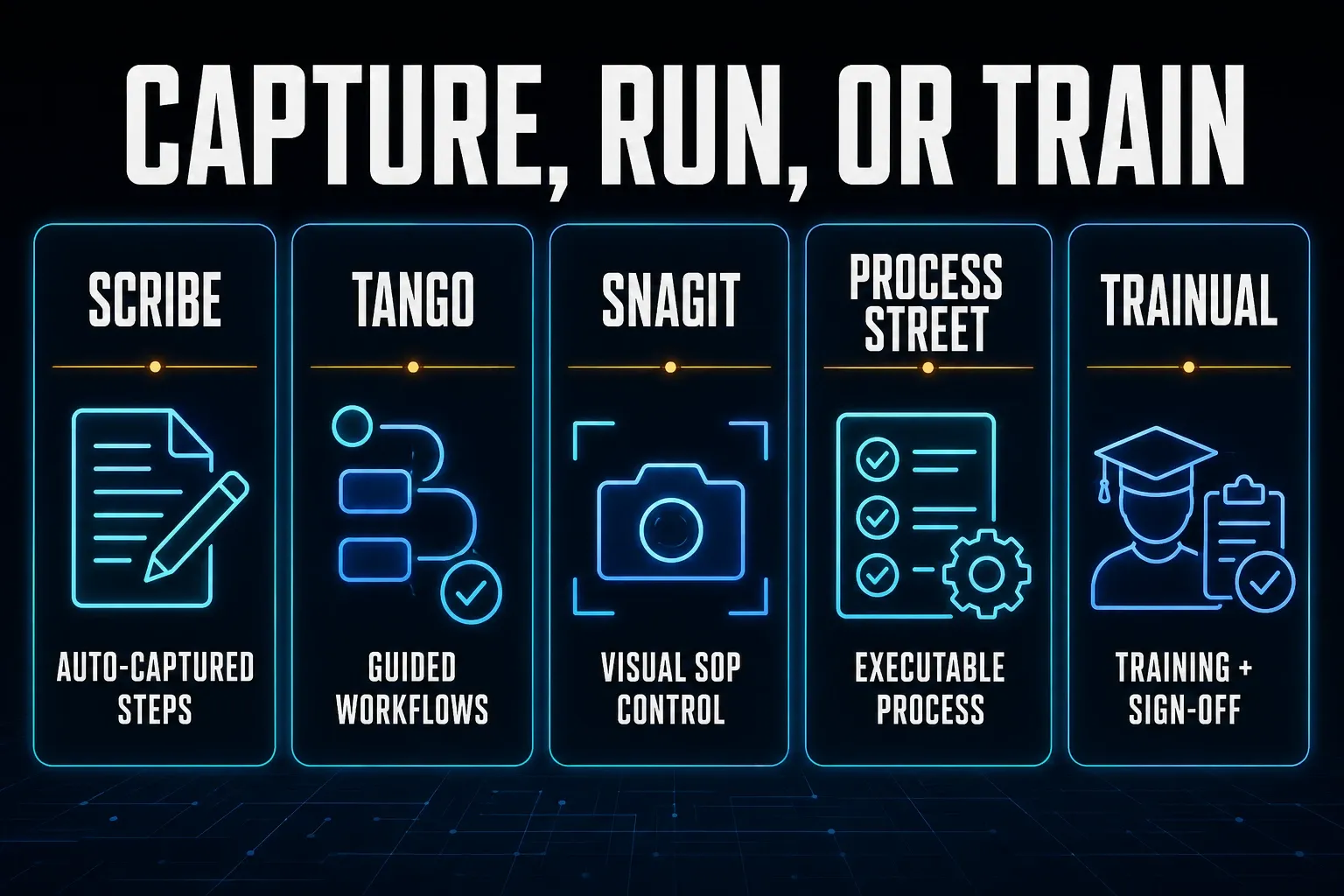
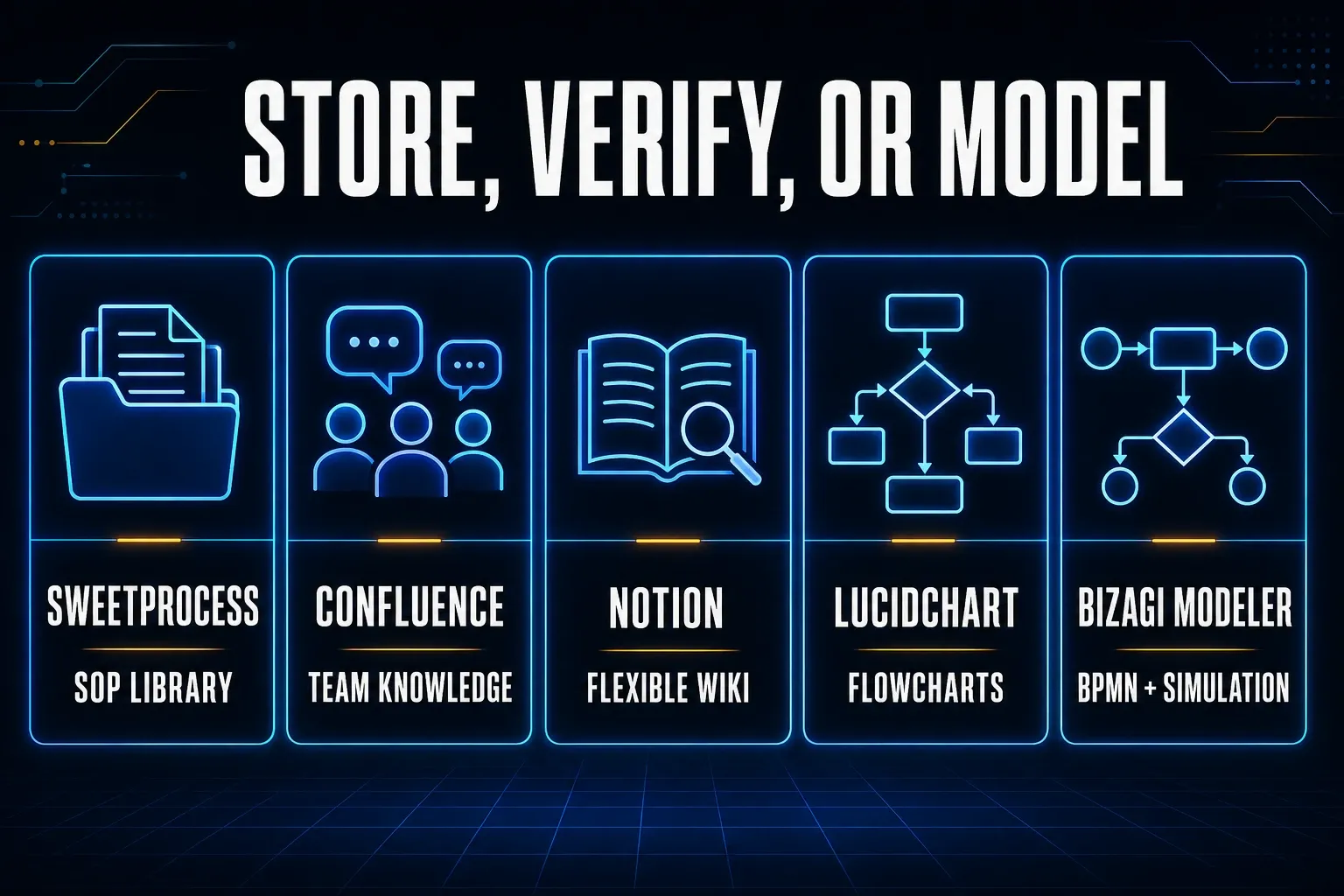
For automatically captured step guides, compare Scribe and Tango. Add Snagit when you need to edit screenshots carefully; it also has Step Capture. Shortlist Process Street for recurring work, Trainual for staff training, and SweetProcess for an operations manual. Confluence and Notion suit team wikis, while Lucidchart and Bizagi Modeler suit process maps.
Start with the problem you need to fix: guides that take too long to create, outdated instructions, missed approvals or confused new hires. Then test the tools that address it on three real processes. A product that produces a polished first draft may still leave you with expensive editing and maintenance.
I checked each tool on September 19, 2026 against vendor pricing pages and documentation.
Best process documentation software by job
| Job | Starting point | Reason to consider it | Check before buying |
|---|---|---|---|
| Capture a step guide | Scribe | Automatic browser capture; paid desktop capture | Exports and whole-team billing |
| Guide people through an app | Tango | Captured instructions and in-app Guide Me | Conflicting guidance-plan information; desktop exclusions |
| Edit visual instructions | Snagit | Step Capture plus detailed image editing | You still need a home for the finished SOP |
| Run recurring work | Process Street | Workflows, assignments and document control | Startup eligibility, custom quote and billable roles |
| Train employees | Trainual | Training paths, tests and completion tracking | Feature tiers and quoted price |
| Build an operations manual | SweetProcess | Procedures, policies and assigned tasks | Member count and review ownership |
| Maintain an Atlassian wiki | Confluence | Shared knowledge spaces | Permissions and storage vary by plan |
| Build a flexible team wiki | Notion | Pages and structured databases | Free team limits; verification tiers |
| Map handoffs and decisions | Lucidchart | Collaborative flowcharts | Free document and shape limits |
| Model BPMN on Windows | Bizagi Modeler | Free individual modeling and simulation | Free files are local, not shared cloud models |
What process documentation software should do
Process documentation software helps you record how repeatable work should happen: the steps, who's responsible, the decisions and exceptions, and the result you expect. Some products also assign the work and keep a record of each completed run.
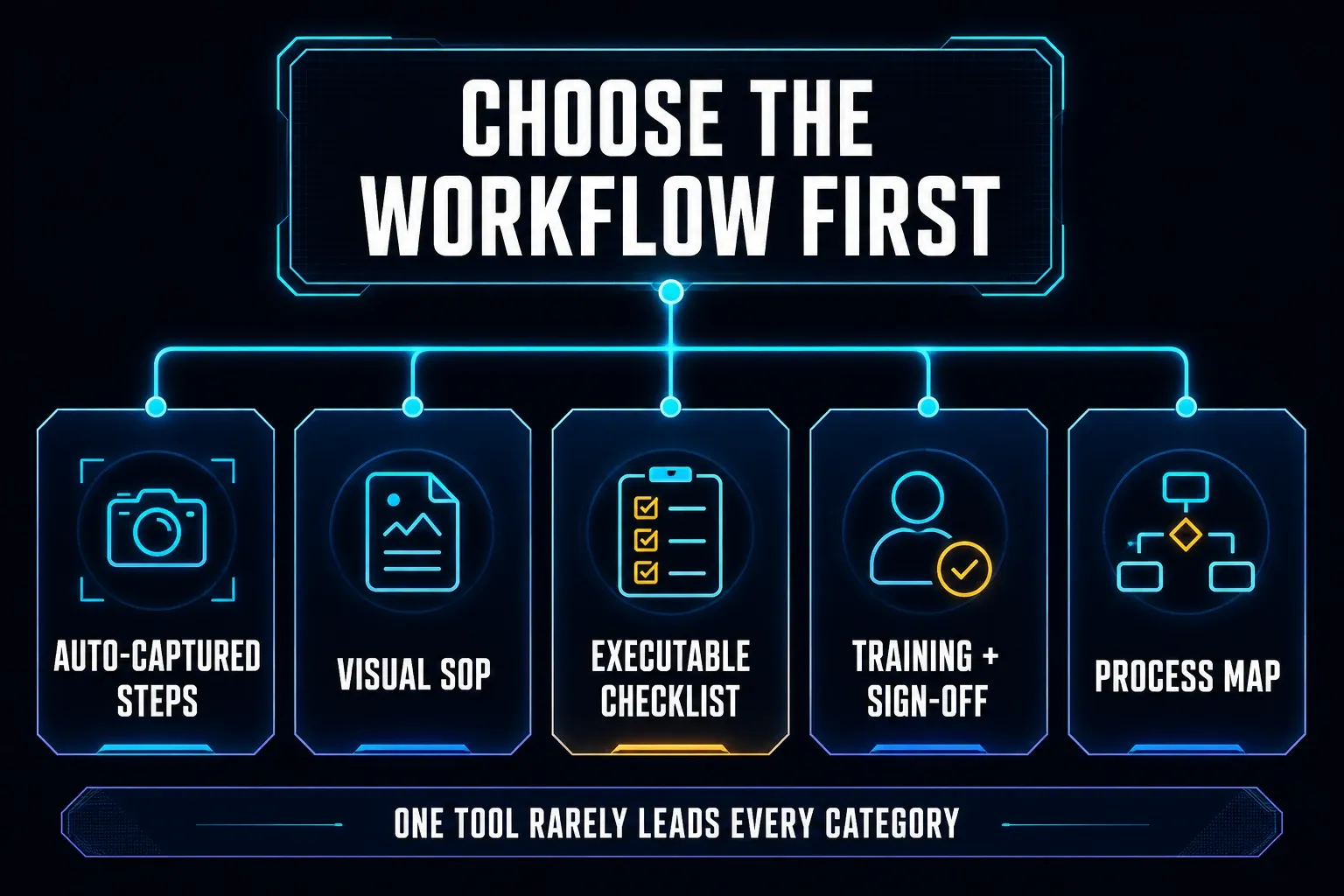
Separate these five requirements before comparing features:
- Capture: turn an on-screen task into editable instructions.
- Write and store: maintain visual SOPs, policies and supporting knowledge.
- Execute: assign tasks, collect inputs and route approvals.
- Train: assign learning and check understanding.
- Map: explain decisions, roles and handoffs in a diagram.
A wiki gives written procedures a shared home, and a capture tool can supply their images and steps. You can use both without forcing the wiki to record clicks or the screenshot editor to track employee training.
Treat these as separate buying decisions. Choosing SOP software is about maintaining approved instructions, while choosing an automatic SOP generator is about drafting them. When you create an SOP with screenshots, decide where readers will find the approved version and who'll update it.
How we compared the 10 tools
I compared documented features, plan limits and practical fit. I didn't give the tools invented speed scores or claim to have tested ten subscriptions. Use these questions to judge your own trial:
- Can it capture your browser and desktop steps, including exceptions?
- Can you correct text and remove private data before sharing?
- Which authors, readers, guests and administrators require paid seats?
- Can the required plan handle approvals, assignments and review history?
- Can you export a usable copy and move it to your existing knowledge base?
- Can a new employee complete the task without asking the author?
- What gets uploaded, who can access it and how do you remove it?
Dollar amounts below are in USD unless stated otherwise. Monthly subscriptions are listed separately from annual billing shown as a monthly equivalent. Taxes, location, seat minimums and negotiated contracts can all change your total, so check the final order before you commit.
1. Scribe: automatically captured step guides
Scribe’s plans separate free browser capture from paid desktop capture. On the free plan you can share a guide by link or embed it, and paid plans add editing and redaction features, branding, and PDF, HTML and Markdown exports.
At the October 17, 2026 recheck, the displayed Scribe pricing selector shows Pro Personal at $35 per seat on monthly billing or $25/month billed yearly. Pro Team is $29 per seat monthly or $23/month billed yearly, starting at five seats: $145/month or an annual-billed equivalent of $115/month before tax. The billing guide says upgrading a team puts its members on the paid plan; check your workspace total before paying.
It's a sensible place to start for repeatable software tasks. Review the generated steps, then add the reasoning a recording can't supply: when to reject a request, which exception applies and who approves it.
2. Tango: captured workflows and in-app guidance
Tango Free supports browser capture, five shared workflows and up to ten users. Pro adds desktop capture, unlimited workflows, annotation, blur and PDF, Markdown and HTML exports.
Pro costs $30 per user monthly for one or two users, or $20 for three or more. Annual billing lowers those monthly equivalents to $22 and $15 respectively. All workspace members move to the paid plan together. Automatic PII redaction and branching workflows are listed under Enterprise.
Guide Me deserves a closer look. Tango’s pricing page groups it under Enterprise, but its Guide Me access documentation, dated August 3, 2026, says Free, Pro and Enterprise members can use it, so confirm access in your workspace before you pay for an upgrade. Desktop captures do not support Guide Me or Live Blur. My Snagit vs Tango comparison separates capture, in-app guidance and export options so you can test the workflow you need.
3. Snagit: step capture with detailed image editing
Snagit can record steps automatically and also edit individual images. TechSmith’s Step Recorder page describes the Step Capture workflow: capture a sequence, then review, reorder and annotate it. The editor helps when your instructions need cropped details, numbered callouts or private information removed with care. Step Capture doesn’t record text entry or keyboard shortcuts as separate steps, so you’ll need to add those instructions yourself.
The Snagit store sells an annual individual subscription. The personal license is non-transferable, so look at the business option if you'll need to reassign a license. Prices are localized: check the store in your currency, and see my Snagit pricing and license guide for how the licenses differ.
Don't frame this as automatic Scribe versus manual Snagit, because both can capture steps. Compare cleanup, exports and where the approved guide will live; my Scribe vs Snagit comparison covers that narrower choice. On its own, Snagit isn't a team wiki or an employee training system.
4. Process Street: recurring work and document control
Process Street suits processes that need assignments, inputs and a record of each run. It also has Docs for controlled documents, with permissions, approvals and version history, so it isn't limited to running checklists.
The pricing page works on custom quotes. Startup is for companies with fewer than 15 employees and under $2 million in revenue, and its listed allowance includes five users and ten guests, unlimited workflows, tasks, forms and pages, 5,000 data-set records and a 5 MB file limit. Check the features and limits in your quote instead of relying on an old per-user price.
For organizations joining on or after August 1, 2025, Process Street counts Admins, Builders and Users as billable, so ask which people qualify as guests. In your pilot, test a rejected approval and a changed procedure as well as a successful checklist run.
5. Trainual: documentation tied to staff training
Trainual’s Training suite pairs documented procedures with tests and training administration. Core includes content verification and 30-day version history. Pro adds training paths and longer history, and Premium adds SSO and unlimited history, so confirm which tier you need during the demo.
The public page doesn't give a universal dollar price. Ask for a written quote for your number of people and the Training suite features you need, and don't confuse that suite with the Operations offering, which is presented separately.
Use a short onboarding lesson in the pilot and check assignment, completion and the manager’s follow-up. Completion and quiz scores are useful records, but they don't prove someone can perform the real task without help.
6. SweetProcess: procedures, policies and assigned tasks
SweetProcess combines a procedure library with policies, process maps, approvals and task runs. It also offers browser recording and quizzes, so it can cover more than manually written SOPs.
The standard monthly plan is $99 for up to ten members, plus $5 for each additional member, and annual billing is shown as $82.50 per month for ten members. Everyone added to the account counts as a member, not only active authors. The vendor also offers custom pricing for fewer than ten people.
For a small operations team, test whether readers can find the right procedure and whether a manager can approve an update. Look closely at the membership model if many people will only read a few documents.
7. Confluence: a shared team knowledge base
Confluence is worth considering when your team already organizes work in Atlassian tools. Use spaces and pages for procedures and the context around them. Treat advanced permissions, guests and public links as paid-plan considerations rather than blanket Free-plan promises.
Free supports up to ten users and 2 GB of storage. Standard lists 250 GB and Premium lists unlimited storage. Enter your user count and billing period in the pricing calculator, and don't treat its displayed estimate as a universal per-seat rate.
During the pilot, ask someone outside the author’s team to find and follow a procedure. Also check how you’ll assign recurring work and keep completion records, since a wiki page on its own gives you neither.
8. Notion: a flexible wiki with structured ownership
In Notion, you can pair instructions with a database of owners, statuses and review dates. Its wiki verification documentation treats verified wiki pages separately from verifying individual pages outside a wiki, which requires Business or Enterprise.
The Free plan includes a 5 MB per-file limit and ten external guests. Blocks are unlimited for individuals, but workspaces with two or more members get a block limit. Paid seats are billed per workspace member, so check your currency and whether you're billed annually or monthly. Guests get page-specific access and aren't interchangeable with full members.
Notion works best here when someone will look after the structure. Put the owner and review trigger where people can see them in the database, then test a reader account and an expired verification. A template on its own doesn't keep a procedure current.
9. Lucidchart: collaborative process flowcharts
Lucidchart is useful for showing who does what, where a decision branches and which team receives the handoff. A process map can expose a missing approval before you spend time recording the individual screens.
The Lucidchart plan page lists three editable documents and 60 shapes per document on Free. The advertised Individual price starts at $9 per month plus tax, so check the billing term in the order. Paid features include more editing capacity and Visio import/export.
Ask a colleague to explain the diagram without you. If it needs a narrated tour, simplify it or add the missing decision labels. Keep detailed operating steps beside the map, since drawing a flow doesn't execute the work.
10. Bizagi Modeler: free individual BPMN modeling
Bizagi Modeler offers free individual process modeling and simulation. You get unlimited models, document publishing to formats such as PDF and Word, and imports including Visio, XPDL and BPMN. Reach for it when formal process notation matters.
The free desktop application runs on Windows and isn't a native Mac app. The Modeler plan documentation separates local file storage on Free from cloud collaboration on Enterprise. A free individual model doesn't give you a free shared cloud workspace.
Before you choose it, confirm your organization’s Windows environment and how models will be reviewed and shared. A Mac team should sort out platform access before building its documentation around this app.
Which process documentation tools are free?
These free options can support a limited pilot. Their limits apply to different things, so a simple yes/no free column is misleading:
- Scribe: browser step capture; check paid exports and desktop needs.
- Tango: five shared workflows and up to ten users.
- Confluence: up to ten users and 2 GB of storage.
- Notion: individual use; team blocks, uploads and guest access have limits.
- Lucidchart: three editable documents, with 60 shapes per document.
- Bizagi Modeler: individual Windows modeling with local storage.
Build one representative guide before you move your library. Then check whether a reader can open it on the free version, whether you can update it and whether the export you need is included. A free trial isn't a permanent free plan.
Compare the cost of the whole team
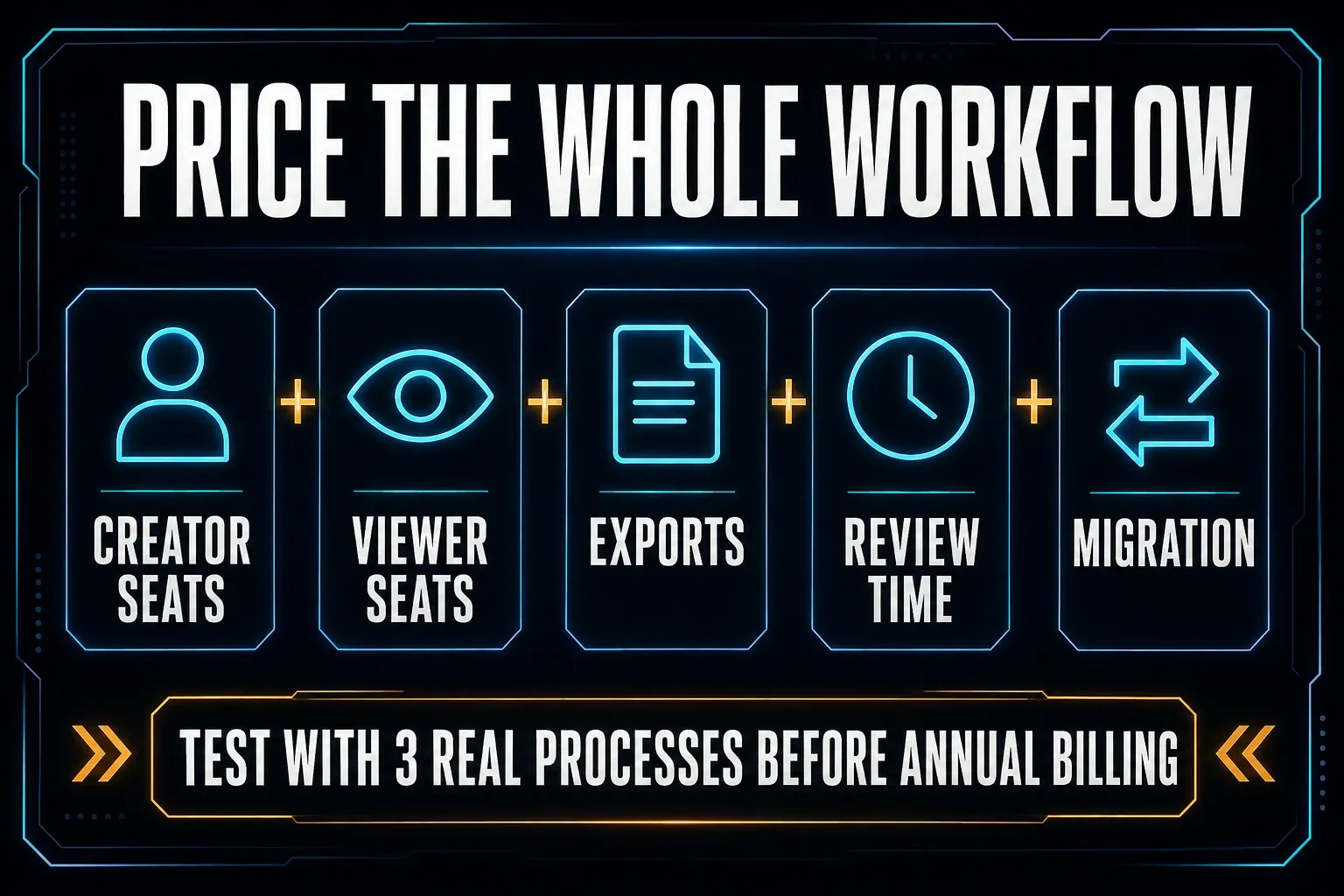
Price the system for the people who will use it. For example, ask each vendor to quote the same hypothetical team:
- Five people who create and edit guides.
- Two managers who approve changes.
- Forty employees who follow instructions.
- Ten outside contractors who need limited access.
- One administrator who manages accounts.
Ask which roles overlap and which need separate paid seats, and put your export, storage and review-history requirements into the quote. Then time the editing and maintenance during the pilot. A cheap capture subscription can still cost more overall if every update means rebuilding and re-uploading the guide.
Run a three-process pilot before migrating
Use your existing procedures as test cases. Give every shortlisted product the same three tasks so you can compare the result:
- A browser task, such as creating a CRM record. Include a validation error and the correction.
- A cross-application task involving email, a desktop application and a browser. Check what is captured and what you must add manually.
- A branching process, such as an approval with a rejected path. Check whether the reader knows what happens next.
Use dummy names, accounts and documents, and check the captured text and images before you share anything. Customer records and private messages don't belong in a documentation tool test.
Note drafting time, cleanup time, reader questions, update time and export problems. Have a colleague follow the guide without coaching, test access with a reader role, then change one step and check that readers land on the new approved version. If you're required to keep history, test restoring an earlier version too.
Assign an owner before you publish the procedure
Every procedure needs a named owner, a last-reviewed date and a trigger for the next review. A software release, changed approval rule or repeated user mistake may justify a review before the calendar date.
Store the approved instructions separately from records of completed work. Decide where both will live, who may edit them and how long you need to retain them. Then test the required exports before you migrate your existing library.
Process documentation software FAQ
What is process documentation software?
It helps you capture, write, organize or model repeatable work. Some tools also assign tasks and retain completion records. Compare capture, document storage, execution, training and mapping separately, because products cover these jobs differently.
Which process documentation tool is best for a small business?
Start with the job causing the most trouble. SweetProcess suits a procedure library; Notion or Confluence may fit a broader wiki; Scribe or Tango can reduce manual recording of on-screen steps. Compare the cost for your full team and run the same three-process pilot.
Can I document a process for free?
Yes. Scribe, Tango, Confluence, Notion, Lucidchart and Bizagi Modeler have free options. Limits differ across browser capture, team size, documents, storage and exports. Check the required features before moving a shared library; a trial is not a permanent free plan.
Is Snagit process documentation software?
Yes. Snagit supports Step Capture and detailed screenshot editing for visual instructions. It does not by itself replace a shared wiki, training platform or recurring workflow system. Decide where the finished SOP will be stored and maintained.
What is the difference between an SOP tool and workflow software?
An SOP describes the approved way to do work. Workflow software can assign the work, collect inputs and retain run history. Some products cover both. Test document review separately from task execution so neither requirement gets missed.
Should process documentation include screenshots?
Use them when the reader must recognize a field, control or screen state. Crop to the relevant area, remove private information and update the image when the interface changes. Omit images that add no information beyond the adjacent sentence.
How often should process documentation be reviewed?
Choose an interval based on risk and change frequency, then review sooner after a relevant release, policy change, incident or repeated mistake. Give each procedure one owner and visible review dates; no fixed monthly or annual interval suits every process.