
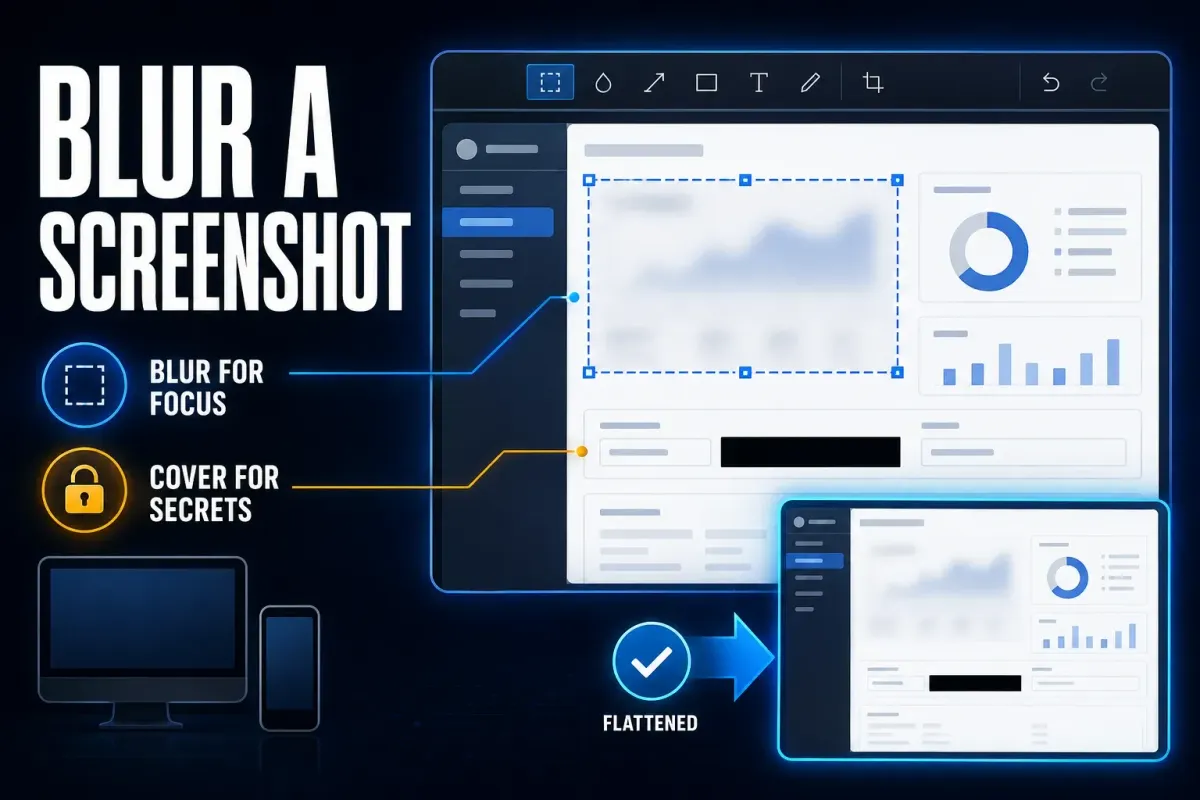
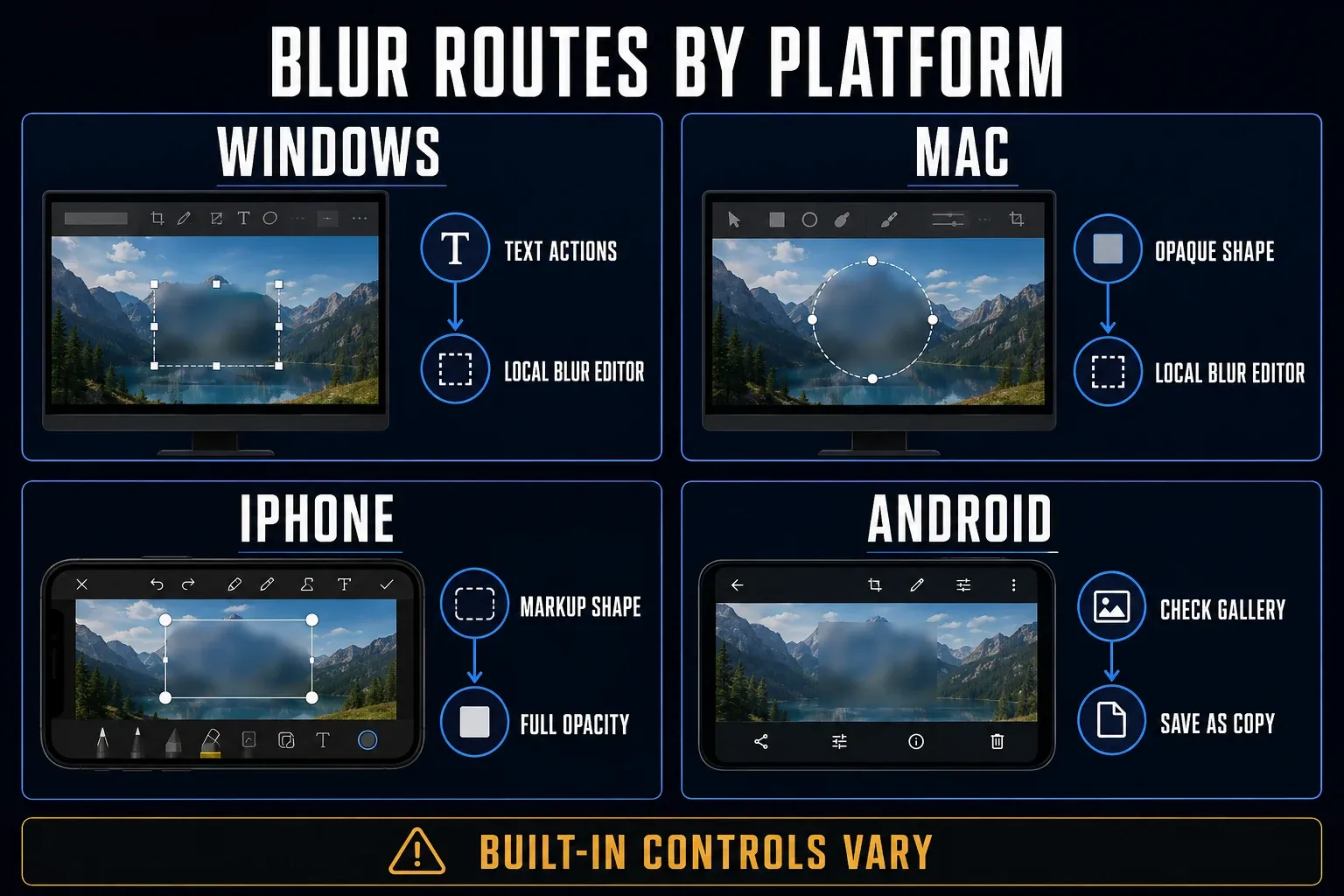
To blur part of a screenshot on Windows, open it in ShareX, choose Blur, drag over the area and use Save as. On Mac, CleanShot X offers smooth blur; Shottr offers pixelation. On phones, the available controls vary: iPhone Markup can cover a field, while supported iPhones also have the Clean Up object-removal tool. Check your Android editor rather than assuming it has the same tools.
Use blur to soften a distracting background, not to protect secrets. For passwords, recovery codes, account numbers or private text, crop out the field or cover its pixels completely with an opaque shape. Then export a flattened copy and inspect the file you're actually going to send.
I checked these workflows against each vendor's documentation on September 19, 2026.
Blur, pixelate, cover, or crop?
| Method | Use it for | Limit | Check |
|---|---|---|---|
| Soft blur | Making background detail less distracting | Can retain clues about text or identity | Judge focus at the final display size, not privacy |
| Pixelation | A blocky effect over low-risk visual detail | No block size guarantees safe text redaction | Use crop or opaque cover when disclosure would cause harm |
| Opaque cover | Removing sensitive pixels from the delivered image | Editable projects can retain the original underneath | Verify the flattened export and other private fields |
| Crop | Excluding an unnecessary edge or panel | Can remove context the reader needs | Inspect the exported frame, not an editable crop preview |
Blur blends nearby pixels, while pixelation groups them into blocks. A fully opaque fill covers a region, and cropping removes part of the frame. If privacy matters, the file you send should contain only the finished result, with no original image or reversible project edits behind it.
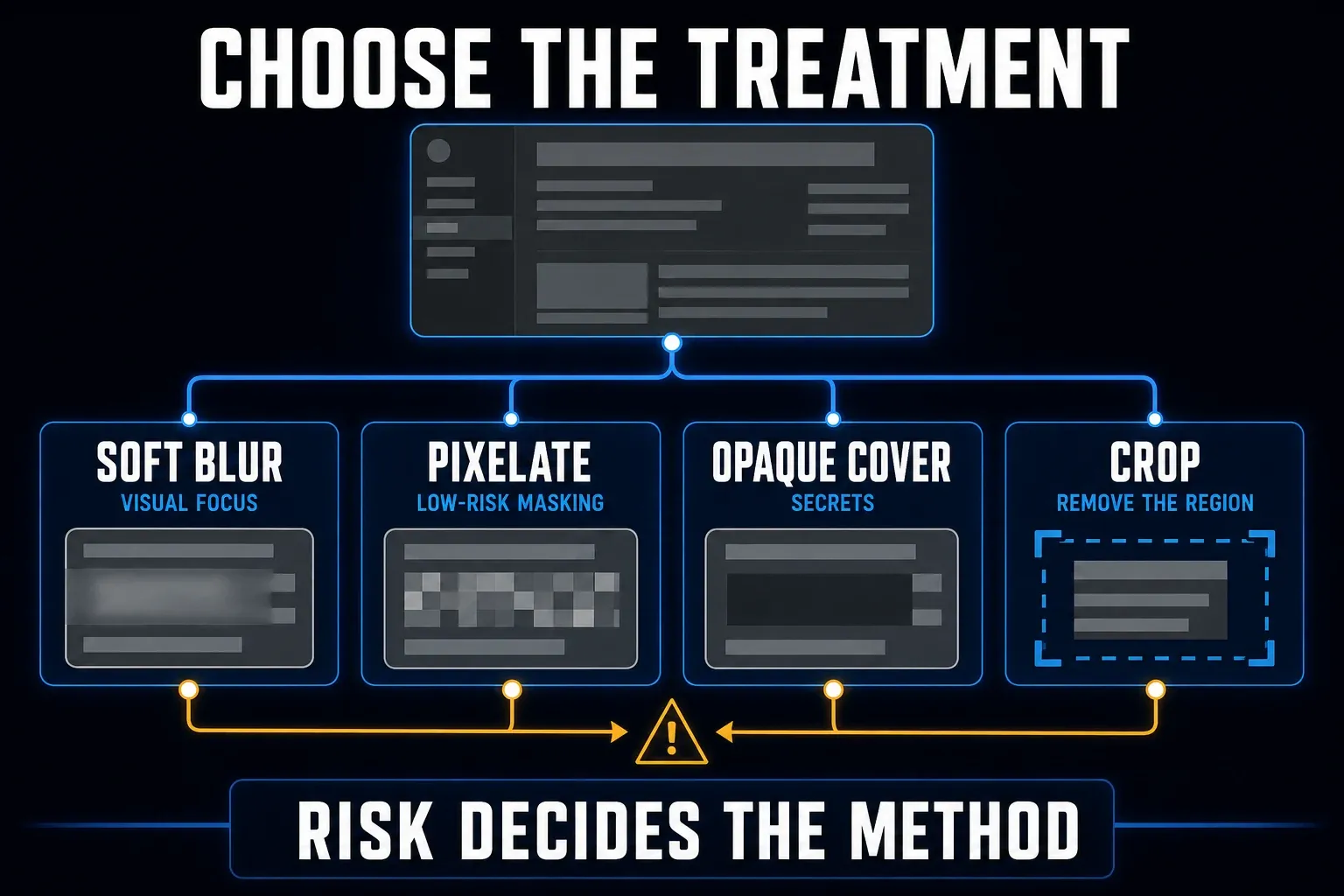
Choose a treatment and prepare the screenshot
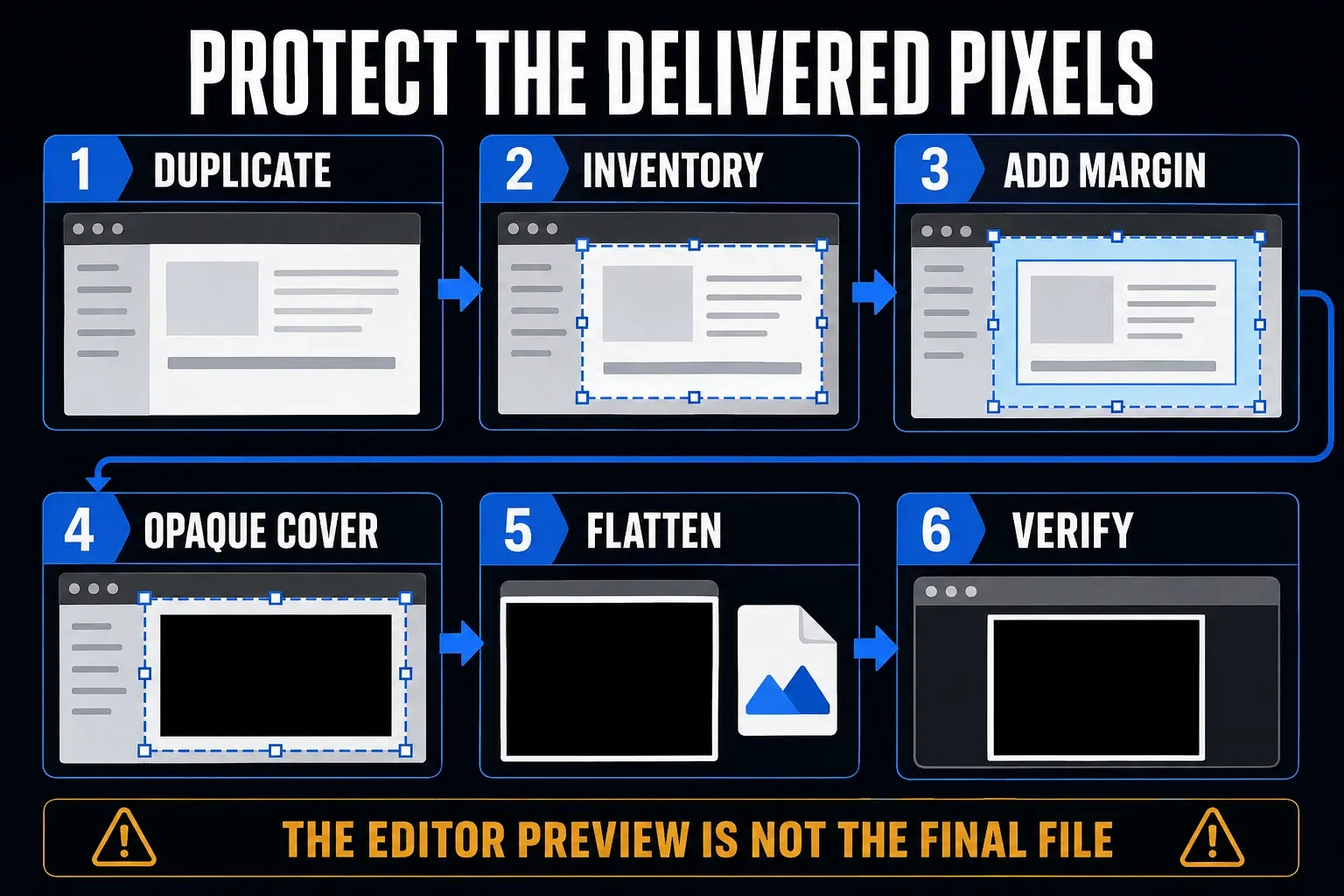
- Keep an original only if retention is authorized. Make a separate working copy when you need later revisions.
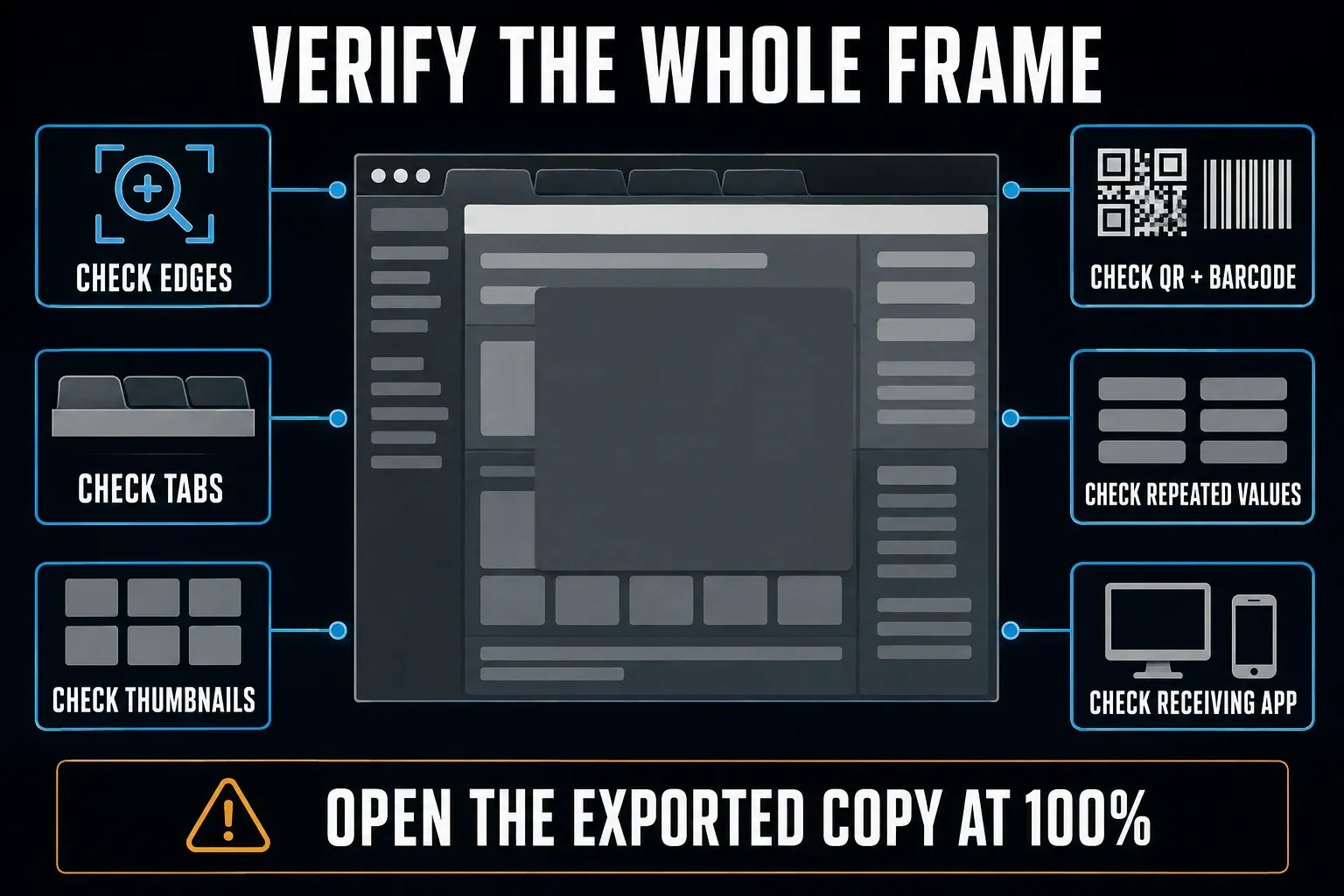
- Inspect the full frame. Check tabs, sidebars, notifications, avatars, repeated values and QR codes.
- Choose the effect. Use blur for visual emphasis; crop or fully opaque cover for confidential information.
- Select beyond the target. Include every character edge and nearby clue that must not be visible.
- Complete the edits before export. Avoid repeatedly saving and reopening a lossy delivery format while you work.
- Export a separate flattened image. Keep editable projects and unredacted originals out of the delivery.
- Open the exact delivered copy outside the editor. Inspect covered areas at actual pixel size, check phone-width legibility and review metadata separately when required.
Decide what the reader still needs
A support engineer may need the error message and button state but has no use for your email address or project list, so keep the useful context and remove the private fields. Blurring the entire window just makes the screenshot harder to use.
Extend the selection past the target
A selection that stops inside a character can leave readable fragments, so check its top, bottom and sides. For identity protection, look at nearby names, clothing and location too, because covering a face doesn't remove every identifying clue.
Why blur is weak protection for private text
Blur doesn't erase everything about the source. Predictable text, fonts and field formats can leave enough structure for someone to infer the characters, so a result that looks unreadable at a glance may still be recoverable.
A 2016 study of blurred and pixelated text demonstrated recovery in the researchers’ tested cases, though it is historical research rather than a test of today’s apps. Flameshot’s privacy guidance also warns about retained information and recommends a filled rectangle instead. A larger pixel block doesn't become a security threshold.
Use blur for focus, not secrecy
Soft blur suits background detail that should stay visible but secondary, such as an unrelated panel in a tutorial. Keep the control the reader needs sharp. Describe the result as visually obscured, not permanently redacted.
Use a black or solid cover for secrets
Set the shape’s fill to full opacity and cover the entire private field. Then export a flattened PNG or JPEG and inspect the result outside the editor, because a black rectangle in an editable project is a different thing from replaced pixels in the delivered image.
Blur a screenshot on Windows
Microsoft’s Snipping Tool guide lists shapes and Text actions in its current Windows 11 instructions but no general region blur. Text actions can quickly redact detected email addresses and phone numbers, and the text recognition is processed locally. The Windows 10 section describes different controls, so don't assume the two match.
Use Snipping Tool for supported text redaction
- Open your capture in the current Windows 11 Snipping Tool.
- Choose Text actions if it is available.
- Use Quick redact for the detected email addresses and phone numbers you want removed.
- Check names, IDs, tokens, codes and any fields that detection missed.
- Use Save as for the delivery copy, then open and inspect it.
If a private field gets missed, cover it with a fully opaque shape in an editor your organization has approved, or crop it out. Automatic detection of two categories can't replace your own review of the whole screenshot.
Use ShareX for a free Windows blur tool
In the ShareX image editor, choose Tools > Image editor and select the existing screenshot. Choose Blur, drag a rectangle over the area you want to soften, then use Save as in the bottom toolbar. Pixelate is a separate tool, and for a secret a filled Rectangle or Crop is the better choice. If you opened the editor through After capture tasks, check the remaining tasks before pressing Enter, since that key continues the chain, which may include an upload.
Use Snagit when the image belongs to documentation
In Snagit Editor, choose Blur and drag across the region, as described in TechSmith’s screenshot editing instructions. Adjust the effect your installed version offers, then export an image copy. Confidential text needs a fully opaque shape instead. Controls differ by version, so check the options shown beside your selection.
Blur a screenshot on Mac
Apple’s Preview annotation guide documents shapes and cropping, but not a general region-blur tool. Open the image, show the Markup toolbar and use a filled shape or crop when hiding a private field. Work on a copy if retention is allowed: Apple warns that image annotations cannot be moved, edited or deleted after saving.
Choose smooth blur or pixelation on Mac
For a soft effect, open the image in CleanShot X’s Annotate window and choose Blur. Its documented tools include smooth and secure options, a separate Pixelate tool and Filled rectangle. The Secure label is the vendor's own feature name, and I'm not certifying it. Shottr documents pixelation and object removal, so choose it for a blocky effect; for smooth blur, use CleanShot X or Snagit.
Keep the Snagit working file separate
If you revise screenshots across Windows and Mac, Snagit can keep editable annotations in SNAGX. TechSmith’s source-file guidance separates that working format from flattened PNG and JPEG exports. Send the inspected image rather than the unredacted project.
Blur or cover a screenshot on iPhone
For a solid cover, open the screenshot in Photos > Edit > Markup. Tap Add, choose a rectangle through Add Shape, set its fill and opacity to fully opaque, then resize it beyond the private field. Apple’s shape controls let you change fill, border and opacity. Finish Markup and save the edit. Markup’s documented tools do not include selective blur.
Check Clean Up and the sharing options
For a face, Apple’s Clean Up instructions describe Photos > Edit > Tools > Clean Up as a way to remove distracting objects by tapping, brushing or circling them. It isn't a general rectangle-blur tool for screenshots, and it requires a supported device and available Apple Intelligence features. Before sharing an edited image, check Share > Options. Apple says All Photos Data includes the original, edit history and metadata when enabled for AirDrop, so leave it off for a redacted delivery copy and inspect what the recipient receives. Location sharing is a separate option, and turning off original-data sharing doesn't guarantee all metadata is gone.
Blur or cover a screenshot on Android
In Google Photos, open the screenshot and tap Edit > Markup, or Edit > Tools > Markup if your layout uses Tools. Google’s current instructions describe pen, highlighter and text there, with Save as copy after editing. Portrait Blur is a photo effect rather than a documented general rectangle-redaction control. Feature availability and layout vary, and edits can sync when backup is on.
If your Android editor has no region blur
Check the phone maker’s Gallery editor for Blur, Mosaic or Pixelate, and try a harmless sample before relying on it. Do not paint over secrets with a translucent highlighter. If the tool you need is missing, crop out the private panel, or move the image by an approved route to ShareX on Windows or an approved Mac editor. Avoid uploading an unredacted screenshot just to get a blur effect.
Use an online blur tool only after a privacy check
A browser editor may not keep the image on your device. For example, Screenhance’s blur tool describes region editing in its Annotate palette, but distinguishes guest local storage from signed-in project-image uploads. That comes from the vendor's description; I haven't audited the network traffic. Check export requirements, storage, access and deletion before using any browser editor with internal material.
Remove private content before upload
For a public demo image, remove private content locally before opening an online editor, then select the region, apply the effect and inspect the exported file. Use synthetic content to try an unfamiliar service. Closing a tab or clearing its session doesn't confirm that previously uploaded files were deleted from the service.
Choose blur strength and edge coverage
Judge the visual effect at actual pixel size and at the final article or message width, since a reduced preview can hide details that remain visible in the full file. Increase blur only as far as the emphasis needs; no radius or percentage guarantees anonymity.
For private text, skip the blur-strength experiment and use an opaque cover or crop. Font, contrast and predictable field structure all affect what someone can infer, and being unable to read a value yourself says nothing about whether others can.
Check reflections, thumbnails, and repeated values
Look for a private name in the main panel, browser tab, avatar menu, notification and thumbnail. QR codes and barcodes count as separate fields, because they can carry information that's also shown as text. Check every corner and the space outside your main selection.
Match the treatment to the screenshot
Faces in a meeting or crowd
Blur can reduce facial detail in a low-risk illustration, but hair, clothing, background and name labels can still identify someone. If identity protection is a strict requirement, use a redaction process your organization has approved and consider whether the image should be shared at all. A face-only effect isn't anonymous.
Bug reports and support tickets
Keep the error, the affected control and the relevant app state. Remove unrelated tabs, account menus, filenames and notifications, and cover credentials and tokens completely. If an error message itself contains a secret, remove that value but leave enough surrounding text to explain the problem.
Public posts and training material
Use a clearly identified demo account with synthetic values when possible. That reduces cleanup, though you should still check for real browser tabs and notifications. Blur background clutter for focus and cover any remaining private field. An invented example shouldn't be presented as evidence of a real customer incident.
Documents, receipts, and financial screens
For sensitive documents, use the redaction process your organization has approved. A feature called redacted export still needs verification, since a PDF may retain searchable content or editable objects. If you deliver an image, inspect every occurrence of the value, and keep originals only where you're allowed to.
Export without leaking the original
If originals and working files must be retained, store them separately from the approved delivery copy. Clear names help, such as support-source.png, support-working.snagx and support-approved.png, with whatever working extension your editor actually uses. File names help selection but cannot prove that you attached the right file.
PNG is lossless and JPEG is lossy. Start with PNG for interface text, and compare JPEG for photographic content when size matters. Inspect the recipient’s file after any resizing or recompression. Neither format name tells you whether unwanted metadata or other private content has been removed.
Verify in another application
Open the exact exported file in a different viewer and look at the covered pixels and the context around them. Shapes that won't move in that viewer don't prove the file was flattened, so use the editor’s documented flattened-image export, verify the actual file type, and review metadata with an approved tool when required. Check the attachment or downloaded recipient copy, not just the editor canvas.
Choose an editor or add explanatory marks
Compare screenshot editing tools if your current app lacks the effect you need. For product-specific work, use the Snagit blur and redaction guide. Once private fields are handled, the screenshot annotation guide explains arrows, callouts and reading order.
If the image is already blurry before you edit it, adding another blur will not repair it. Recapture the required area clearly before annotating or hiding selected details.
Blur screenshot FAQ
How do I blur part of a screenshot?
Open the image in an editor with region blur, select Blur and draw over the area you want to soften. Save a separate image and inspect it outside the editor. In ShareX, start with Tools > Image editor and finish with Save as. Use crop or opaque cover instead for secrets.
Is blur safe for passwords or account numbers?
Do not rely on it. Blur and pixelation can retain clues about predictable text. Crop out the field or cover its pixels with a fully opaque shape, then inspect a flattened delivery copy and check other private fields and metadata separately.
Can Windows Snipping Tool blur a selected area?
Microsoft’s current Windows 11 instructions do not list general region blur. Text actions can quickly redact detected email addresses and phone numbers. For manual region blur, use an approved editor such as ShareX or Snagit; Windows 10 controls differ.
Can Preview blur a screenshot on Mac?
Apple’s current Preview guide does not list region blur. Use its opaque filled shapes or crop for private fields. For a soft blur effect, compare CleanShot X or Snagit. Shottr documents pixelation, which has a different appearance.
Can I blur a screenshot on iPhone without an app?
Markup can add an opaque shape but does not document selective blur. On supported iPhones, Photos > Edit > Tools > Clean Up can remove distracting objects, but it is not a general rectangle-blur tool. Check availability and the result, and avoid sending the original through All Photos Data when sharing a redacted copy.
What is the difference between blur and pixelation?
Blur blends nearby pixels into a softer region. Pixelation groups pixels into larger blocks. Both can retain clues about text or identity, so neither is a substitute for verified removal of confidential information.
Should I blur faces or cover them?
For low-risk visual emphasis, blur may be sufficient to reduce detail. It does not guarantee anonymity. When identity must be protected, follow an approved redaction process, inspect surrounding clues and decide whether sharing the image is appropriate.