
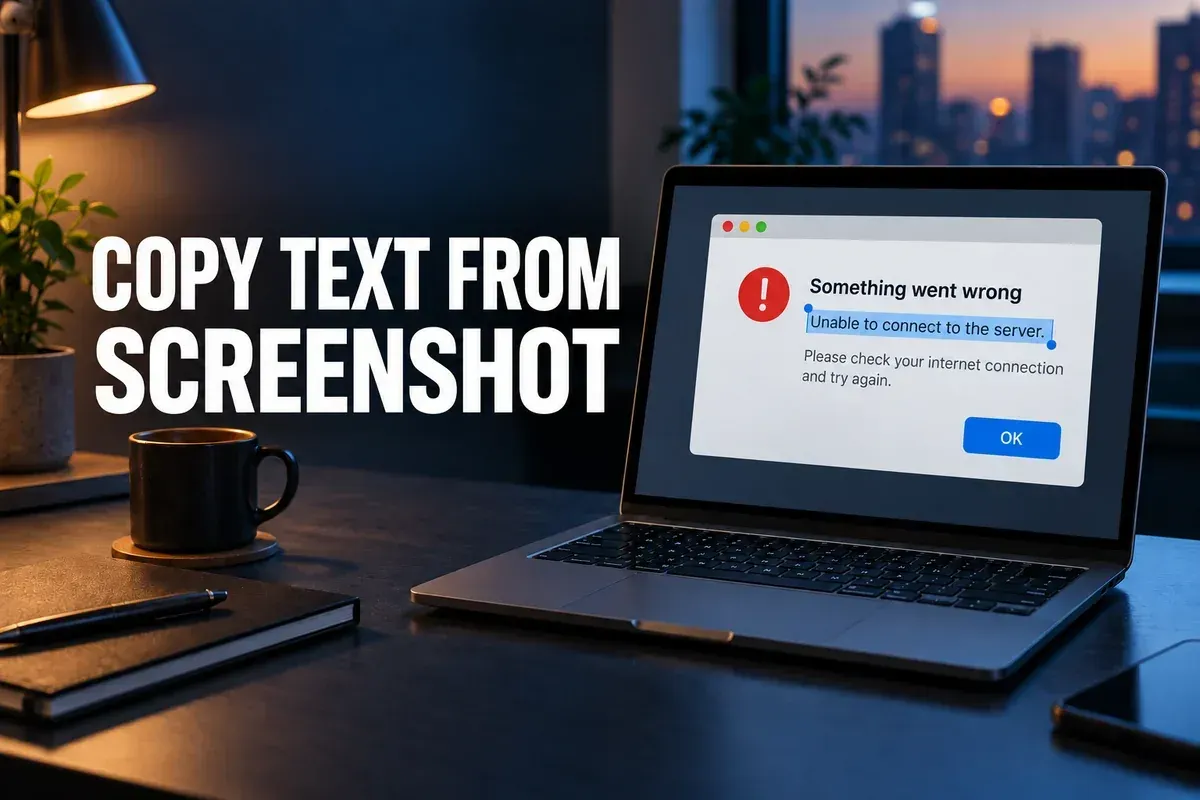
To copy text from a screenshot on a Mac, open the saved image in Preview, drag across the words, then Control-click the selection and choose Copy Text. Paste it into the document or message where you need it. This uses macOS Live Text; you do not need an OCR website or another app for a recognizable screenshot.
Copy text from a saved screenshot in Preview
- Find the screenshot in Finder. If it opens in another app by default, Control-click the file and choose Open With > Preview.
- Move the pointer over the words in the image. Drag across the exact text you want.
- Control-click the selection and choose Copy Text, then paste it where you need it.
Those are the controls in Apple's Preview Live Text instructions. Selecting a sentence is usually better than copying a whole image when you need an error code, a line of instructions or a short address. Check the pasted result before using it: OCR can mistake similar-looking characters, especially in a code, account number or URL.
If Preview will not let you select the text
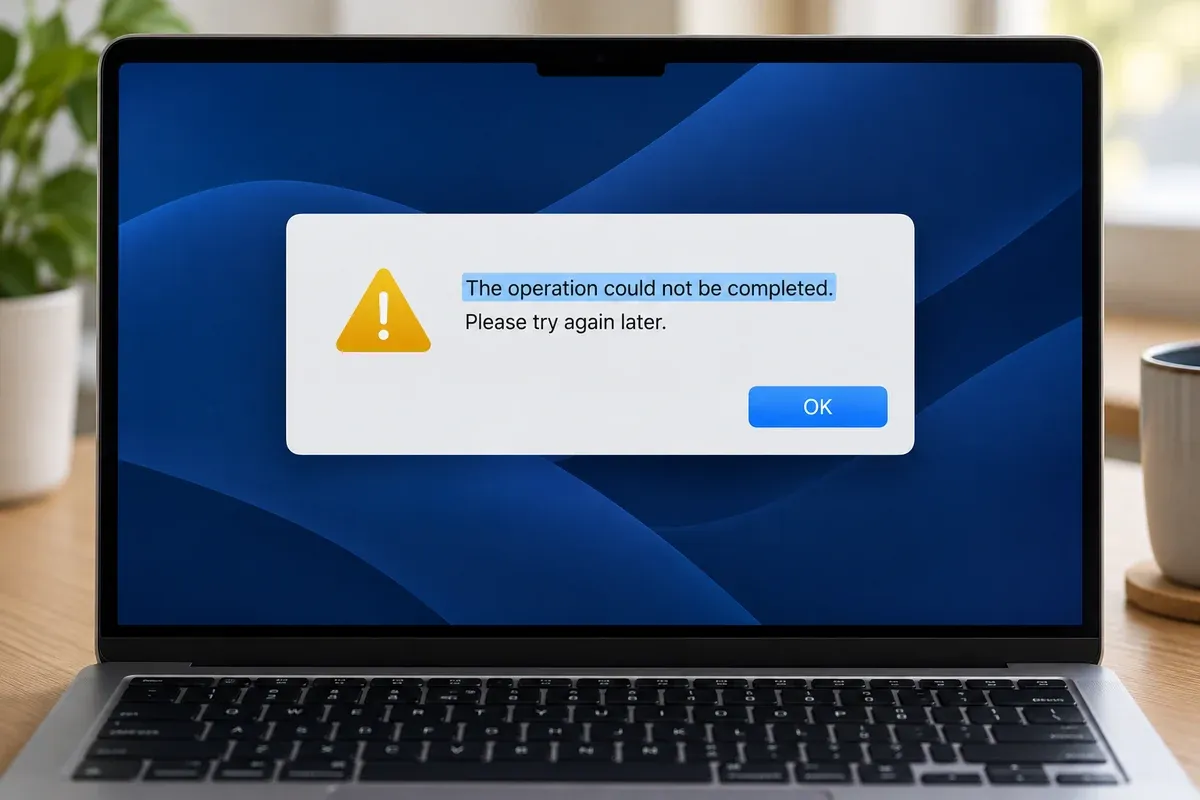
Choose Tools > Text Selection in Preview and try again. Apple calls out that switch when text cannot be selected. If the pointer still does not recognize the words, look at the image itself: tiny, obscured or low-contrast lettering may not yield a useful selection. A clearer original screenshot or a new capture with the text enlarged is more dependable than guessing at a partially recognized result.
Live Text also varies by region and language. Do not assume a missing selection means the image file is broken. If the source is a web page or document with selectable text, copy from that original when possible; you avoid an OCR step entirely.
What if you have just taken the screenshot?
If the floating screenshot thumbnail is still visible, open it before it disappears. Apple's Mac screenshot guide explains that the thumbnail opens the capture for immediate work. MacMost also demonstrates selecting text from that thumbnail. If you have already dismissed it, use the saved-file Preview steps above; there is no reason to repeat the capture just to reach Live Text.
When you need to find the file first, the separate guide to Mac screenshot save locations covers Desktop, Clipboard and changed destinations.
Choose the right route for repeated OCR work
Live Text is the fastest starting point for a few words in a screenshot you already have. For a repeated capture-and-extract workflow inside Snagit, use its separate Grab Text guide; it is a different tool and set of controls. Neither route guarantees exact transcription. Before pasting extracted text into a command, support ticket or public document, compare it with the image and remove any private data the recipient does not need.