

To copy text from a screenshot in Snagit, use Grab Text. For a new capture, open the Capture window, select Image, set Selection to Grab Text, and drag around the text. For an image already open in Editor, select the text area, right-click on Windows or Control-click on Mac, and choose Grab Text. Copy the result from Grab Text Results.
Keep the selection tight and compare the copied text with the screenshot. Check product keys, decimal points, names and line breaks individually. If recognition fails instead of returning text, use the Grab Text troubleshooting guide to separate Windows update issues from Mac and image-quality problems.
Choose the right Grab Text method
| Starting point | Best method | What happens |
|---|---|---|
| Text is still on screen | Image capture with Selection set to Grab Text | Snagit captures the chosen region and opens extracted text |
| Screenshot is already in Editor | Right-click or Control-click the image | Grab Text processes the existing image |
| You need one paragraph | Selection tool, then Grab Text | A smaller region reduces unrelated layout and graphics |
| You need to alter screenshot wording | Edit Text, not Grab Text | Snagit changes text inside the image instead of copying it out |
Grab Text extracts characters for another document or application. Edit Text changes recognized wording inside the screenshot. The Snagit Editor guide explains where these tools fit alongside selection, annotations and export.
Method 1: capture screen text with Grab Text
- Open the Image tab. Start in the Snagit Capture window and choose Image.
- Choose Grab Text. Open the Selection menu and select Grab Text.
- Start the capture. Click Capture. You can also use Print Screen on Windows or the configured capture shortcut on Mac.
- Draw a tight region. Drag the orange crosshairs around only the lines you need.
- Copy the result. When Grab Text Results opens, choose Copy All or select a smaller part of the result.
- Verify the paste. Check names, numbers, punctuation, symbols, and line breaks in the destination.
The capture-time procedure is documented in TechSmith's Snagit 2024 help manual. Settings incompatible with Grab Text are disabled while that selection type is active. Menu appearance may differ in your build; the illustrations below explain the workflow, not a verified view of every current release.
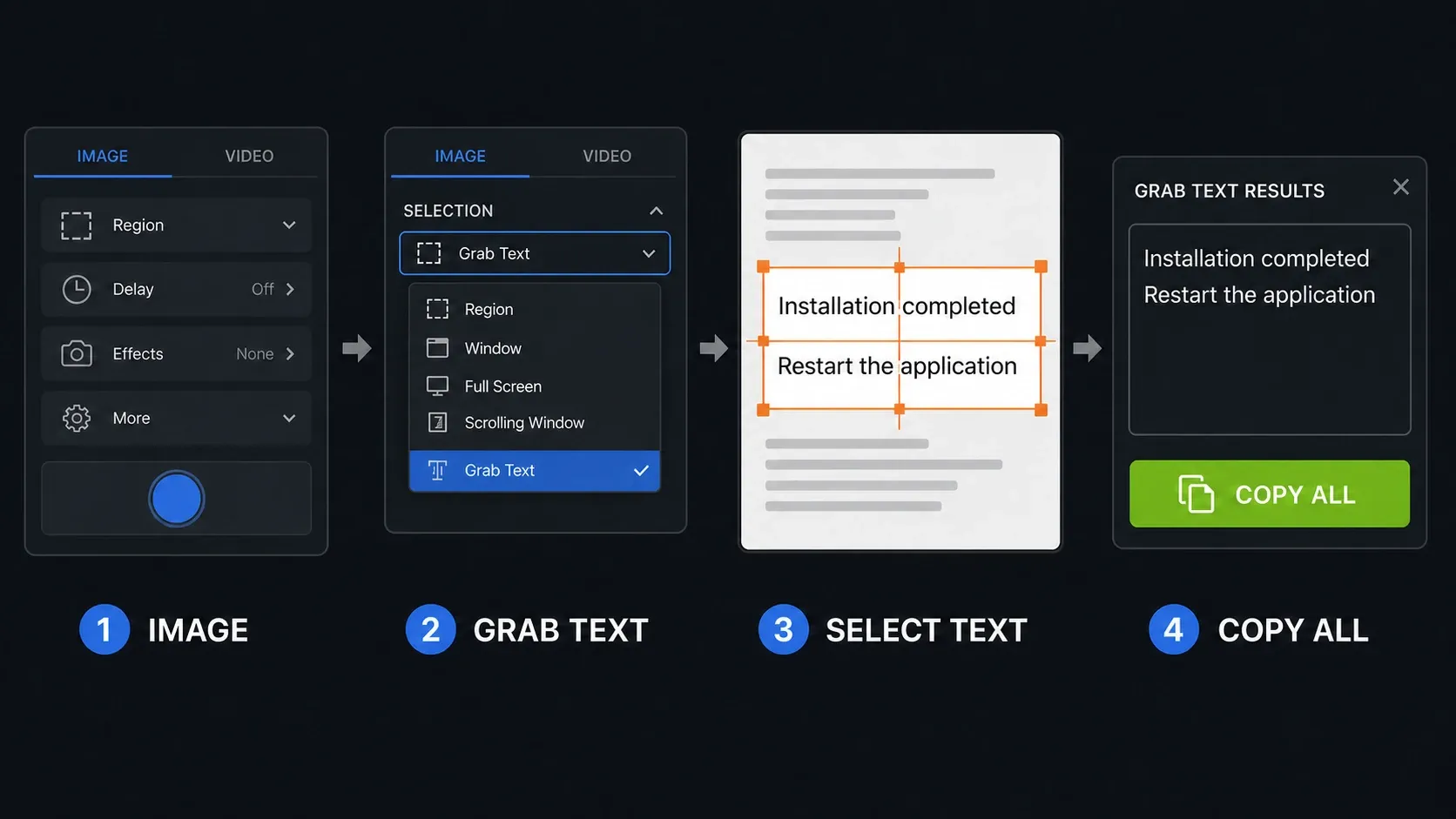
For an error message, capture just the message and its code. If you include a sidebar or several columns, inspect the reading order in the result before copying it. Select only the required lines when Copy All would include unrelated text.
Method 2: copy text from an existing screenshot
- Open the image in Snagit Editor.
- For the whole image, right-click on Windows or Control-click on Mac and choose Grab Text.
- For one section, choose the Selection tool and drag around the required text first.
- Right-click or Control-click the selection and choose Grab Text.
- Copy the result and compare it with the source image before using it.
TechSmith's image-to-text instructions describe this existing-image route and list JPG, PNG and WebP as supported examples. The help manual also documents using the Selection tool for a smaller area.
You can use an image from another capture tool or a scan if Editor can open it. Grab Text produces recognized text; do not assume it reconstructs the original document's tables, links or reading order. Compare the pasted result with the source.
Copy plain text instead of source formatting
Choose plain text when your ticket, form or document already has its own styles. This removes source font and color formatting. It does not repair misread characters, punctuation or line breaks.
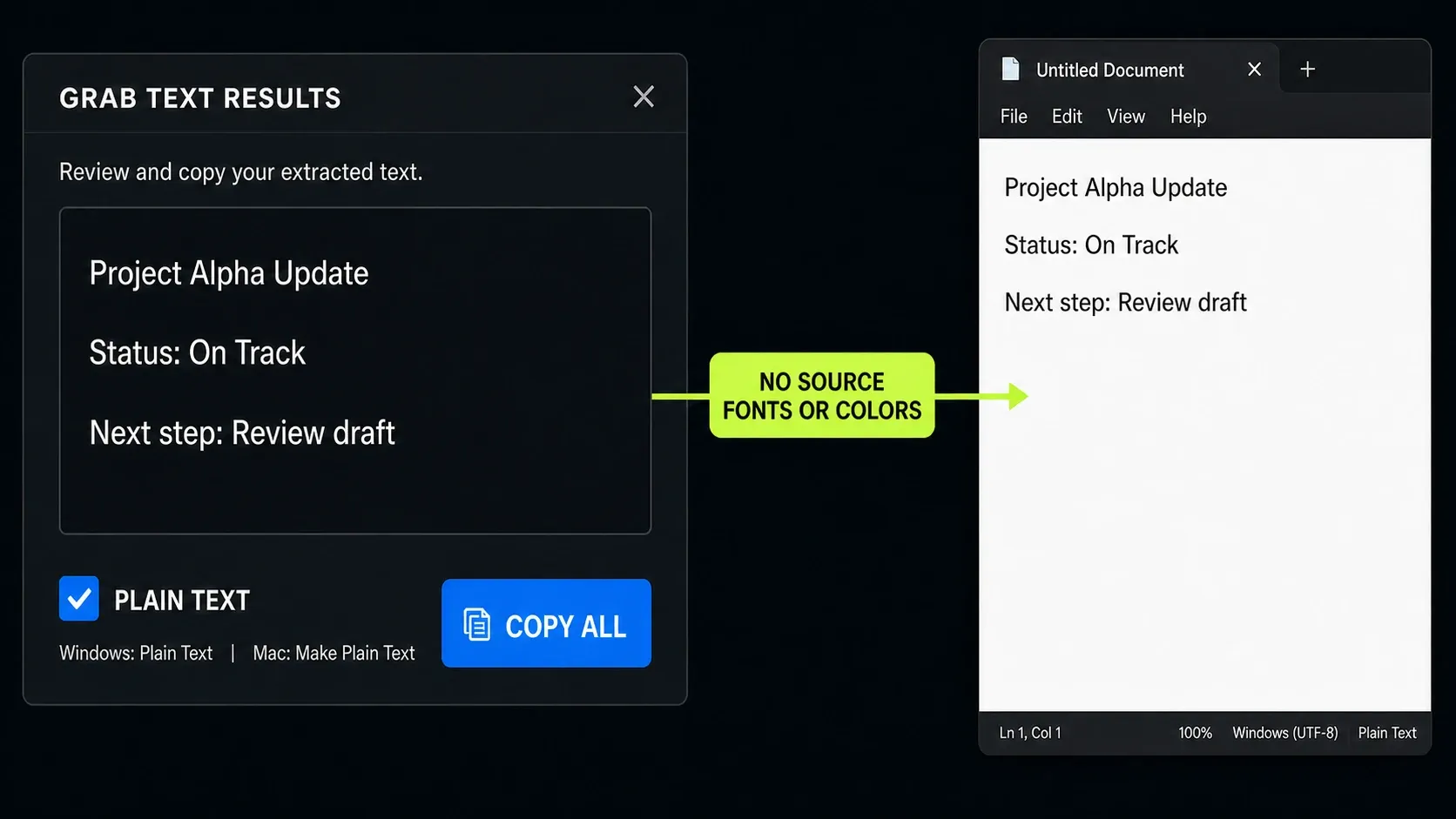
On Mac, enable Make Plain Text before copying. On Windows, Snagit 2024.3.5 added plain-text copying to Grab Text Results. An absent control can depend on the build or interface language: the Windows 2026 release notes record a fix in 2026.3.0 for the Plain Text toggle being obscured in Portuguese and Spanish. This is an interface fix, not a claim that those languages could not be recognized.
Keep formatted output only if you need its approximate appearance. Check fonts and spacing after pasting; similar-looking text is not proof that the original formatting was preserved.
Improve Grab Text recognition before you copy
| Problem | What OCR may do | Supported first fix |
|---|---|---|
| Slanted or rotated text | Miss characters or return nothing | Rotate the image, then run Grab Text again |
| Low contrast | Confuse foreground and background | Increase contrast or recapture a clearer source |
| Small type | Fail to detect that text exists | Zoom the source before capture |
| Bordered cells | Have difficulty recognizing text inside the box | Select inside the box and process only the text |
| Outlined or shadowed text | Return incorrect characters | Use a cleaner source or simplify the image first |
| Large or scrolling capture | Process more slowly or return an awkward reading order | Select a smaller section instead of the whole image |
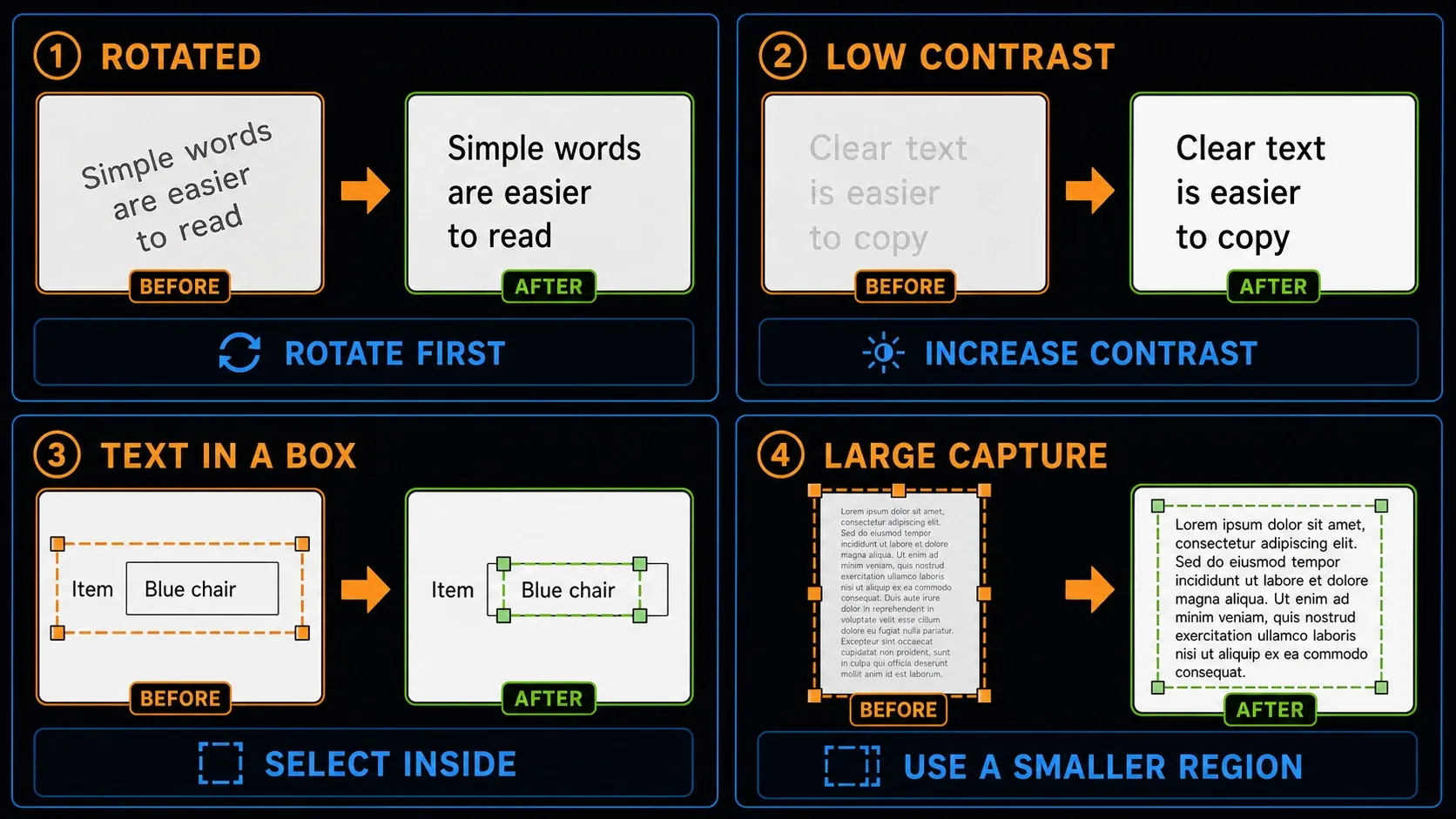
TechSmith's recognition best practices support these image-preparation steps. The page also notes that the first OCR operation can take longer. A delay alone does not identify a fault, but a persistent error needs troubleshooting rather than unlimited waiting.
Check unfamiliar symbols, accents and handwriting especially carefully. When extracting a long scrolling screenshot, process one section at a time so you can compare its reading order and characters with the original.
What languages does Snagit Grab Text support?
Do not treat the language list in an older OCR article as a complete specification for every current build. TechSmith's July 2024 best-practices page lists English, German, French, Japanese and Spanish, but qualifies Japanese ambiguously. Its newer text-recognition technology table, updated August 13, 2026, lists ABBYY and Windows Media OCR for Windows, and Apple OCR for Mac. Test representative text in your installed build before relying on a multilingual workflow.
Check names, abbreviations, serial numbers, decimal separators and mixed-language passages against the screenshot. A successful English sample does not establish recognition quality for another script.
If Grab Text returns an error instead of text
On Windows, TechSmith's OCR licensing notice identifies a May 1, 2026 expiry. The fixes start at Snagit 2026.1.1, 2025.4.2 and 2024.3.7 for Windows. These are minimum fixes, not the latest releases. Snagit 2023 for Windows and older will not receive this particular update. Do not apply these Windows version floors to Mac.
Save your work, record the platform and installed build, and test a small, clear text sample. Use the dedicated troubleshooting guide linked above for update instructions and remaining errors. On a managed computer, ask IT to handle the approved update. Do not delete your Library or change unrelated permissions just to test OCR.
Copy text from a PDF or scanned page
For a scanned PDF you are permitted to copy, open the page at a readable zoom and capture the passage as an image. Run Grab Text on that capture, as described in TechSmith's image-to-text instructions above. If the PDF already has selectable text, try ordinary copying first. Respect document restrictions.
This method extracts a passage; it does not turn the original PDF into a searchable document. Check columns, tables, footnotes and reading order manually. For many pages, consider a document OCR workflow designed to preserve page structure rather than extracting each screenshot separately.
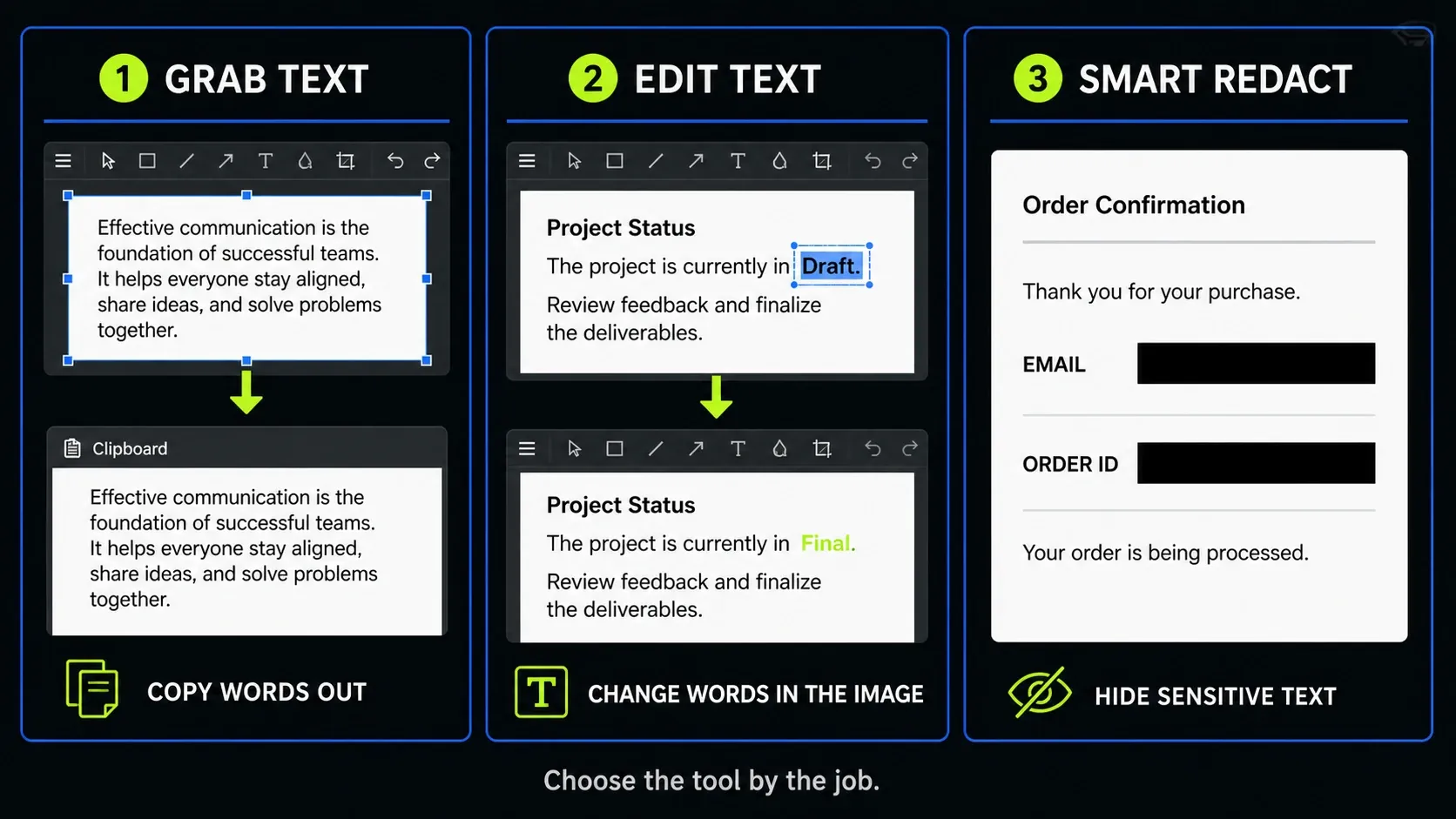
Grab Text, Edit Text, and Smart Redact are different jobs
| Tool | Use it for | Check before finishing |
|---|---|---|
| Grab Text | Copy recognized characters out of an image | Verify every important character in the pasted text |
| Edit Text | Change recognized wording inside a screenshot | Inspect font substitution, spacing, and background repair |
| Smart Redact | Find and cover sensitive text in a screenshot | Confirm every secret is covered in the exported image |
Extracting text does not remove it from the source image. Before sharing a screenshot containing secrets, follow the safe redaction steps and inspect the final exported file. Keep the unredacted source private.
Verify extracted text before you use it
- Compare names, dates, prices, product keys, and decimal points character by character.
- Check whether a zero became O, one became l, or a dash disappeared.
- Restore paragraph breaks, list indentation, table columns, and reading order manually.
- Remove unrelated interface text accidentally included from buttons, navigation or nearby panels. Preserve attribution and any context the quotation requires.
- Do not paste passwords, tokens, account numbers, or private data into an unapproved destination.
- Keep the source screenshot until the copied text has passed review.
If you need the original capture later, check your Snagit Library location and backup before deleting files. For the basic capture, edit and export sequence, use the beginner tutorial.
FAQ: copy text from screenshots with Snagit
How do I copy text from a screenshot in Snagit?
Open the image in Snagit Editor, right-click on Windows or Control-click on Mac, and choose Grab Text. For better recognition, select only the required text first. Copy the result from Grab Text Results and verify important characters.
Can I use Grab Text while taking the screenshot?
Yes. In the Capture window, select Image, set Selection to Grab Text, start the capture, and drag around the text. Grab Text Results opens after the capture so you can copy the recognized characters.
Can Snagit copy text from a PDF?
Yes. For a PDF you are permitted to copy, capture the passage as an image and run Grab Text. This extracts characters; it does not rebuild the original PDF's links, columns, tables or page structure. Try ordinary copying first if the text is already selectable.
How do I copy plain text without the original formatting?
On Mac, enable Make Plain Text before copying. Supported Windows builds include a plain-text copy option in Grab Text Results. Plain text removes font and color formatting but does not correct OCR mistakes.
Why is Snagit Grab Text not working in 2026?
One Windows-specific cause is the third-party OCR license expiry on May 1, 2026. The minimum fixes are Snagit 2026.1.1, 2025.4.2 and 2024.3.7 for Windows; Snagit 2023 for Windows and older will not receive that update. These floors do not describe Mac requirements, and an error alone does not prove a licensing problem.
Why does Grab Text miss or change characters?
Rotation, low contrast, tiny type, borders, shadows, handwriting, and complex layouts can reduce recognition quality. Rotate or recapture the source, increase contrast, zoom in, and process a smaller selection.
What is the difference between Grab Text and Edit Text?
Grab Text copies recognized characters out of the image. Edit Text changes recognized wording inside the screenshot. Use Grab Text for reuse in another document and Edit Text for correcting the screenshot itself.
Does Snagit OCR run fully offline?
TechSmith lists Snagit text recognition as on-device processing on Windows and Mac, with no training use for those recognition components. That does not mean every Snagit feature, sharing destination or account function works offline or keeps all data local. Use an approved destination for sensitive text.