
In desktop Microsoft Edge, open Settings and more (the three-dot menu), choose Screenshot, then Capture full page. On Windows, Ctrl+Shift+S opens the same tool. Check the preview, then choose Copy or Save. The method is built in, so you don’t need an extension.
On a Mac, start with the menu route instead of swapping Command in for Control. These steps cover the desktop browser, not Edge on a phone. Full-page capture can include content below the window, but it won’t always pick up a dashboard panel that scrolls on its own or a feed item that hasn’t loaded.
If Screenshot is missing on a work PC, your organization may have turned it off; the managed-browser section below shows how to check.
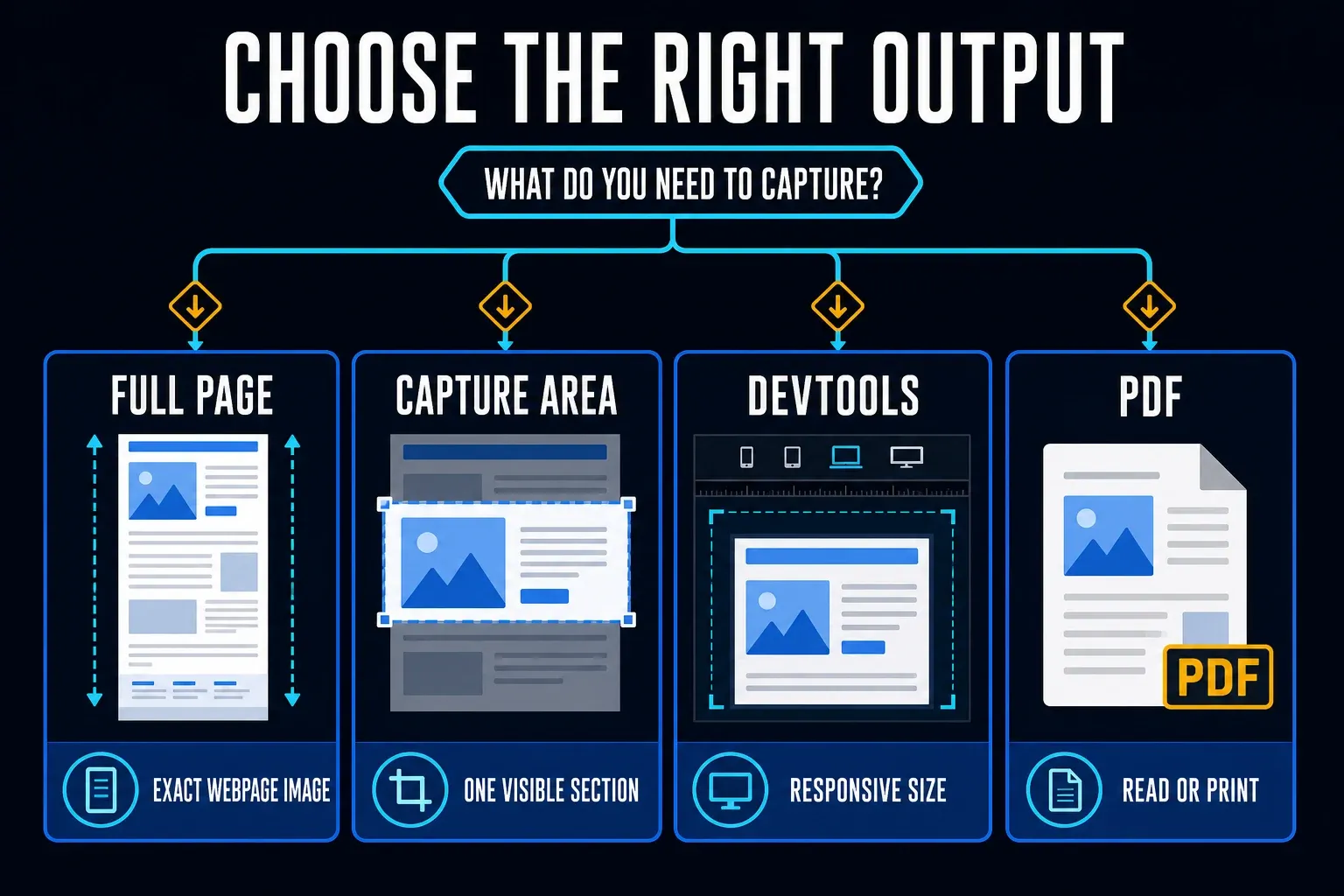
Edge full-page capture at a glance
| Route | Best use | Output | Main limit |
|---|---|---|---|
| Screenshot: Capture full page | Normal webpage | Image or clipboard | Can miss unloaded or unusual embedded content |
| Screenshot: Capture area | A selected region | Image or clipboard | Manual selection, not automatic full-page capture |
| DevTools full-size capture | Fallback and responsive testing | Image file; verify export format | Technical menu; document-level capture |
| Print to PDF | Reading, archiving, and printing | Print layout can differ from the screen |
For a normal webpage, start with Screenshot. Turn to DevTools when you need a controlled responsive width or an alternative capture route. For a paginated document, choose PDF, then check the saved text, links and layout, because PDF output isn’t automatically searchable or accessible.
How to capture a full webpage in Edge
- Open the correct page and confirm the account or workspace shown.
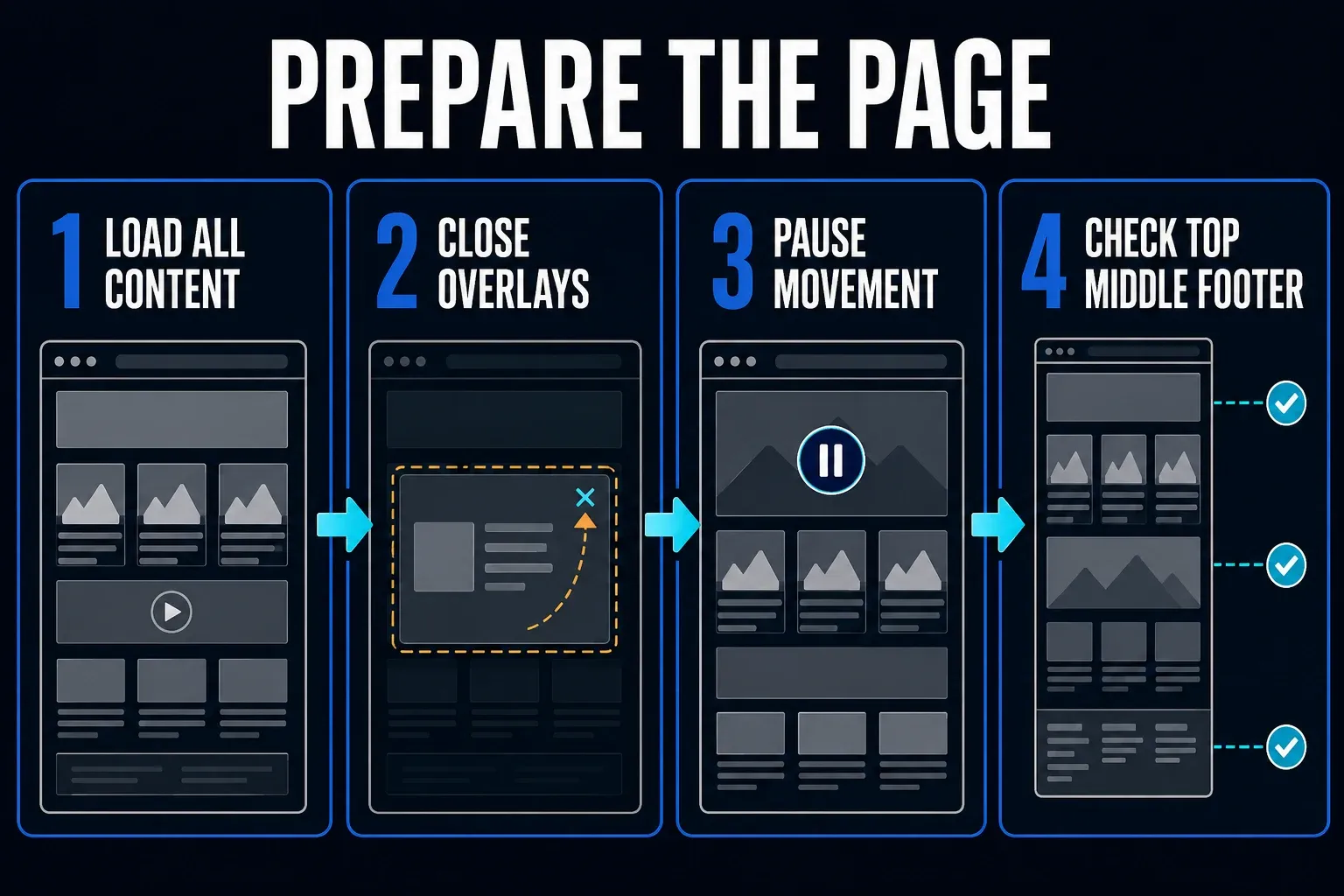
- Scroll through the sections you need and wait for delayed content to appear.
- Return to the top and close optional notices, chat launchers and floating menus.
- Open Settings and more > Screenshot. On Windows, you can also press Ctrl+Shift+S.
- Select Capture full page, not Capture area.
- Review the image, then copy it or save it to your device.
- Open the saved file and inspect the top, middle, bottom, dimensions and file format.
Microsoft’s Screenshot feature guide covers full-page and selected-area capture, markup, copying and saving. Its description of saving doesn’t commit to one file format for every build, so check the exported file instead of assuming PNG.
Use the menu when the shortcut is intercepted
Open the three-dot Settings and more menu and choose Screenshot. You may also find Screenshot in the context menu when you right-click an empty part of the page. Older guides call the feature Web Capture, and Microsoft's policy documentation confirms it was renamed Screenshot.
If Ctrl+Shift+S does nothing on Windows, click the webpage and try the menu. A working menu points to a shortcut or focus problem rather than a missing capture feature. On Mac, use the menu as the starting point, and don't replace it with an operating-system screen capture if you need content below the window.
What Capture full page actually includes
Capture full page produces one long image of the webpage, including whatever sits below the viewport. For an ordinary page, you don’t have to stitch together a series of visible-screen captures yourself. Still, look over the result before you treat it as complete.
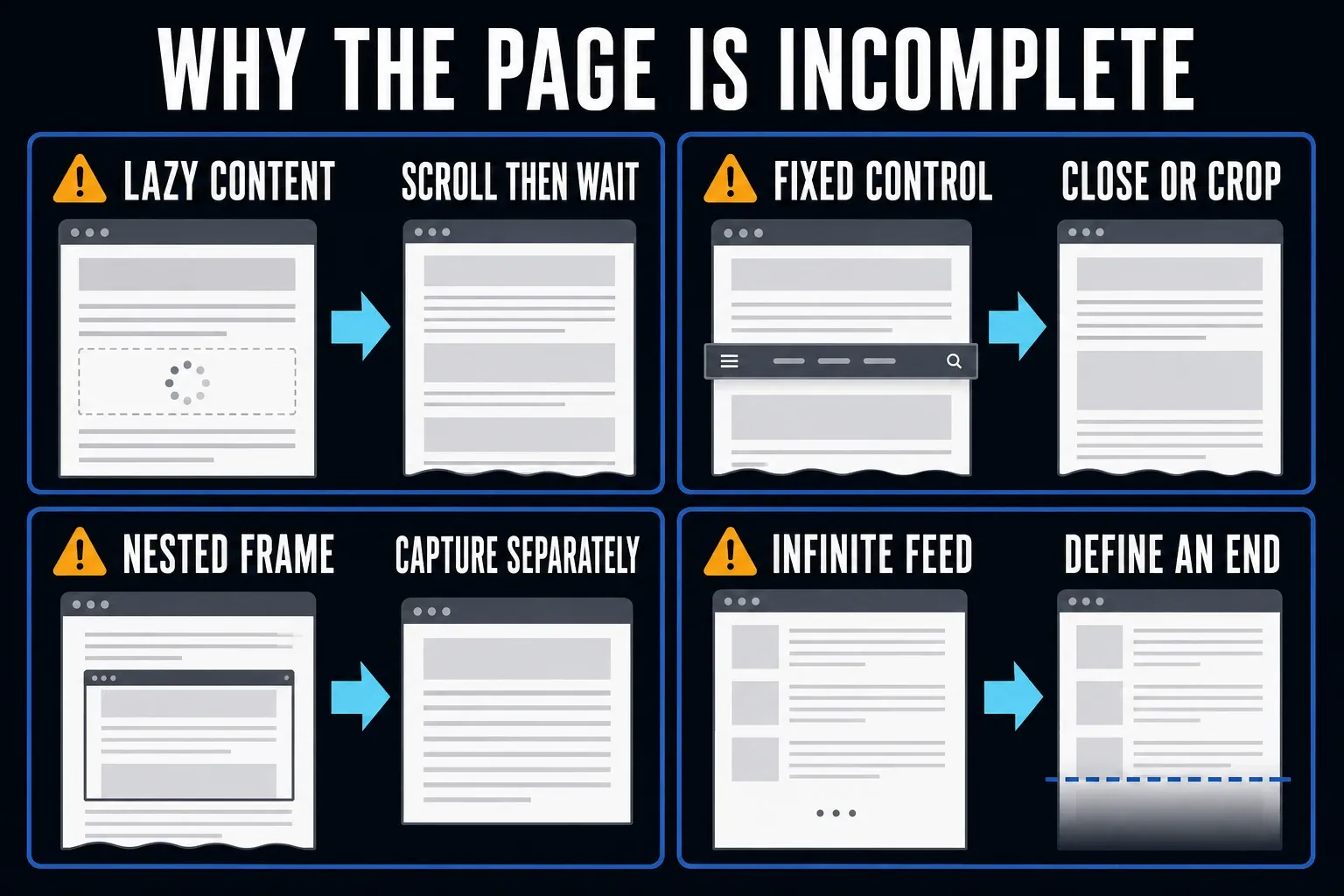
The browser still works with the page it has rendered, so images that load only after scrolling may be absent if you capture too soon. Collapsed accordions stay collapsed, content in an inner scrolling panel may not be part of the main document height, and infinite feeds have no fixed end.
Full page is not full screen
Capture full page follows the webpage beyond the browser window, while a full-screen operating-system screenshot records the current display. Capture area lets you choose a region; use Capture full page when you want the browser to select the whole document.
Set the webpage width before capture
Normal output uses the current page layout, so if a responsive site hides a navigation item at your window width, the screenshot keeps that state instead of inventing the desktop layout. Set the browser window to the intended width before capture.
Prepare dynamic pages before capture
Scroll slowly through the whole page, pausing wherever images, charts, comments, or product cards load. Expand only the sections you need. When the site allows it, also stop video, animation, carousels, and auto-refreshing dashboards.
Then go back to the starting position you planned, close any banners that cover content, and move the pointer away from hover menus. If the page contains sensitive information, switch to a test account or mask the data before capture rather than trying to repair every exposure afterward.
Do not assume a smooth image is complete
Check the evidence itself by comparing section headings, row numbers, dates, or item counts against the live page. Look at two points in the middle as well as the first and last screen, because a missing lazy-loaded card can leave a clean blank space that looks intentional.
A full-page screenshot in Edge should represent one defined state. Write down what that state is before capture: signed-in or public, filters applied, panels expanded, date range selected, and data loaded through a known endpoint. If the page changes while you capture it, the image may combine moments that never existed together.
Use an approved demo account or test record for checkout and account-change examples. Do not make a real payment or delete a record just to finish a screenshot.
Copy, save, or mark up the result
Copy puts the image on the clipboard so you can paste it into your document or editor and check the result there. Save keeps a file for later review; give it a descriptive base name such as checkout-error-2026-09-18 and keep the actual file extension. If you can't find the file, check the Save dialog or Edge’s download location.
For a bug report, keep the original capture and annotate a separate copy. If you need PNG but the saved file is JPEG, open it in an image editor and export it as PNG. Renaming .jpg to .png doesn’t convert the file, and it can’t recover detail already lost to compression.
Check image dimensions before attaching it
Very long pages can produce files that ticketing systems, chat clients, and image editors find awkward to handle. Open the file outside Edge at 100 percent zoom. If the text is hard to read at that size, split the image into labeled sections that overlap, or use PDF.
An image stores webpage text as pixels. A viewer may offer OCR, but the file doesn’t keep the webpage’s original links or document structure. When reading or assistive technology matters, share an accessible source document or, where permitted, the page link. Check any PDF separately, since a PDF filename doesn’t prove the file is accessible.
Use Edge DevTools as a full-size fallback
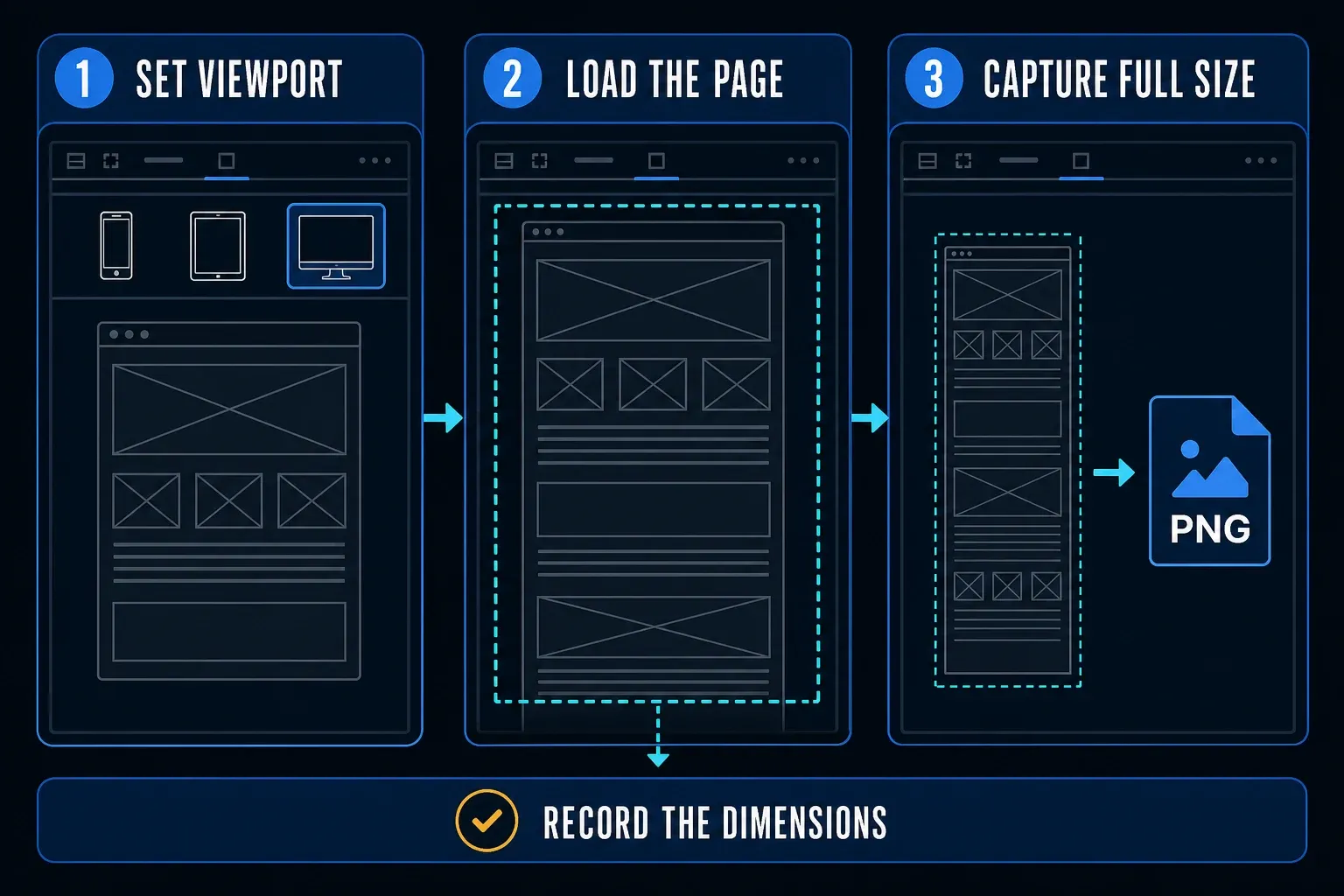
Right-click the webpage and choose Inspect to open DevTools. From the keyboard, press F12 or Ctrl+Shift+I on Windows, or Command+Option+I on Mac; Microsoft lists these DevTools shortcuts. In DevTools, choose Customize and control DevTools (...) > Device Emulation, or click Toggle device emulation. Set the width and height, then open the Device Toolbar’s More options menu and choose Capture a full size screenshot. The Device Emulation guide distinguishes it from Capture screenshot, which captures the viewport.
For example, compare the layout at 390 and 1440 CSS pixels wide. Note the viewport and device pixel ratio (DPR), because the CSS width won’t necessarily match the saved image’s pixel width. Device Emulation approximates a phone layout on desktop hardware, so it doesn’t replace checking the actual phone. Turn it off when you’re done.
Know what DevTools does not fix
DevTools still depends on the rendered document. It can’t create feed items that haven’t loaded or guarantee that every nested frame will be complete. The diagram below shows the intended image-export workflow. If Save As offers trace formats such as JSON instead of image output, cancel and check your Edge version. The Edge 152 issue report on Microsoft’s DevTools tracker traces that symptom to a Chromium bug, and the maintainers’ reply there says Edge 153 carries the fix, so update Edge and run the command again. If you’re allowed to use another browser, you can also try the Chrome full-page capture procedure.
Save the webpage as PDF when reading matters
Close DevTools or click the webpage first. Press Ctrl+P on Windows or Command+P on Mac, choose Save as PDF when it’s available, check the page range and margins, and then save. Microsoft’s Edge printing guide documents the shortcuts and More settings > Background graphics. That setting includes backgrounds, but it doesn’t force every interactive element into the PDF.
A PDF isn’t a screenshot. A print stylesheet may remove menus, reflow columns, change colors, and create page breaks. That’s often better for an article, invoice, or reference document, but it’s the wrong choice when you need to prove the exact position of a visual defect.
Keep both formats for a complex report
When both are useful, save an image for visual placement and a PDF for reading. To check the PDF, search for a distinctive word with Find, try selecting text, and look over the links and page breaks. Where needed, keep the source URL and capture date in a private note. Do not assume any PDF printer preserves searchable text.
Fix Capture full page when it is missing
Start with the Settings and more menu instead of the shortcut, and look for Screenshot there; older guides call it Web Capture. Then update Edge through its normal managed or personal update process, restart the browser, and try the capture on a simple public page.
Microsoft’s WebCaptureEnabled policy documentation says disabling the policy blocks Screenshot. It lists policy support on Windows and macOS, not Android or iOS.
Check managed-browser policy
If your organization permits it, open edge://policy only to inspect the policy state. Ask your administrator whether Screenshot is disabled on purpose and which approved alternative to use. Do not install an unapproved extension to evade a data-control rule.
Fix a blank, incomplete, or duplicated capture
- Test a static public page. This separates an Edge problem from a page-specific problem.
- Load every section. Scroll once and wait for delayed images, fonts, comments, and charts.
- Remove floating content. Close cookie bars, support chat, sticky promos, and hover menus.
- Check the scroll owner. A nested panel may need its own export or a scrolling-region tool.
- Try DevTools. Use Capture a full size screenshot for a second document-level route.
- Try PDF. Use print output when the visual layout is not the evidence.
- Split the task. Capture stable sections with overlap if the page is too dynamic or too tall.
- Verify the file. Check headings, joins, missing media, private data, and the final section.
Fixed headers appear more than once
If fixed headers repeat, try a second capture route and compare the files. Do not assume every tool processes the page the same way. Close optional overlays, but don’t quietly hide or edit the interface when the screenshot is evidence of a defect. Keep the original, and label any design example you’ve modified.
An embedded frame is cut off
The iframe may have its own scrollbar, loading rules, or cross-origin behavior. Open the embedded content directly when you have permission, use its export function, or capture it as a separate labeled item. Do not describe one document screenshot as proof that every frame was captured.
If the permitted target is an application-style pane rather than the webpage document, the Snagit scrolling capture guide explains a separate region-based workflow.
The bottom of an infinite feed is missing
An infinite feed has no complete page until the application stops loading items, so set a boundary such as a date, item ID, or visible record count. If you need a complete dataset, use an export or API that the service provides.
For example, a private ticket could say “captured through record 8421 at 14:30 UTC.” Use only identifiers approved for that ticket. Do not put account numbers, tokens or private URL parameters into a shared filename.
Protect private data in a long screenshot
A full-page image can expose addresses, account numbers, private comments, session details, or data far below the first screen. Use a test record where you can, and close unrelated tabs and notifications. Then review the entire output before it goes into chat, email, a ticket, or cloud storage.
For a raster image, remove sensitive pixels with an opaque edit and export a flattened copy. Reopen the final file, and keep the editable original private. That method doesn’t carry over to a PDF, where drawing a rectangle can leave text underneath. Use a proper redaction tool, apply the redactions and remove hidden information where needed, as described in Adobe’s PDF redaction instructions. Check the saved copy before you share it. Blur isn’t a reliable substitute for removal.
Use this final Edge screenshot check
- Confirm the URL, profile, account, and page state.
- Verify the first heading and the final footer or defined endpoint.
- Inspect at least two middle sections for missing or repeated content.
- Check images, charts, embedded frames, and expanded panels.
- Confirm the capture contains no private data outside its purpose.
- Open the saved image outside Edge before sharing it.
For other browsers, operating systems and app panels, use the scrolling screenshot hub.
Edge full-page screenshot FAQ
What is the shortcut for a full-page screenshot in Edge?
On Windows, press Ctrl+Shift+S with the webpage focused, then choose Capture full page. On Mac, use Settings and more > Screenshot > Capture full page. The menu is also a fallback when a shortcut does not respond.
Do I need an extension to capture a whole page in Edge?
No extension is required for Edge’s built-in Screenshot > Capture full page route. Availability depends on your desktop browser and its policies. An extension does not guarantee that a complex page will capture correctly.
Why is Screenshot missing from Microsoft Edge?
Look for the current Screenshot name rather than Web Capture. On a managed device, an administrator can disable the feature with the WebCaptureEnabled policy.
Can Edge capture a whole dashboard?
It can capture the main rendered document. A dashboard with nested scroll panels, virtualized rows, protected frames, or unloaded data may require the application's export or separate captures.
How do I take a full-page screenshot at a mobile size?
Open DevTools, turn on Device Emulation, set the width and height, then choose More options > Capture a full size screenshot in the Device Toolbar. Record the viewport and DPR. This emulates a layout, not phone hardware.
Does Edge save full-page screenshots as PNG or PDF?
Screenshot saves or copies an image; check the actual file type rather than assuming PNG. Print > Save as PDF is a separate document route. If a PNG is required, use a successful PNG capture or export the image as PNG in an editor. Check PDF text, links and layout after saving.
Why is the bottom of my Edge screenshot missing?
The page may still be loading, use infinite scrolling, or keep content in a nested panel. Load the content first, define an endpoint, or use the application's export.