

To capture a full page in Snagit, start an All-in-One capture, move the crosshairs over the scrollable window, and click the orange down, right, or center arrow. Snagit scrolls the detected area and opens one stitched image in Editor. If the arrows don't appear or the result has gaps, switch to manual Scrolling Capture and guide the page yourself.
Snagit supports vertical and horizontal scrolling capture. Follow the automatic or manual steps below. If a capture stops, crashes or misses content, use my Snagit scrolling capture troubleshooting guide for symptom-specific tests and recent fixes. For built-in Windows, Mac, browser and phone methods, use the cross-device scrolling screenshot guide.
Automatic vs manual Snagit scrolling capture
| Method | Choose it when | How you move | Main limit |
|---|---|---|---|
| Automatic | Orange arrows appear over one clear scroll area | Snagit scrolls for you | Detection can fail in complex windows |
| Manual Scrolling Capture | You need a chosen region or automatic capture fails | You scroll one direction | Fast, uneven movement can create seams |
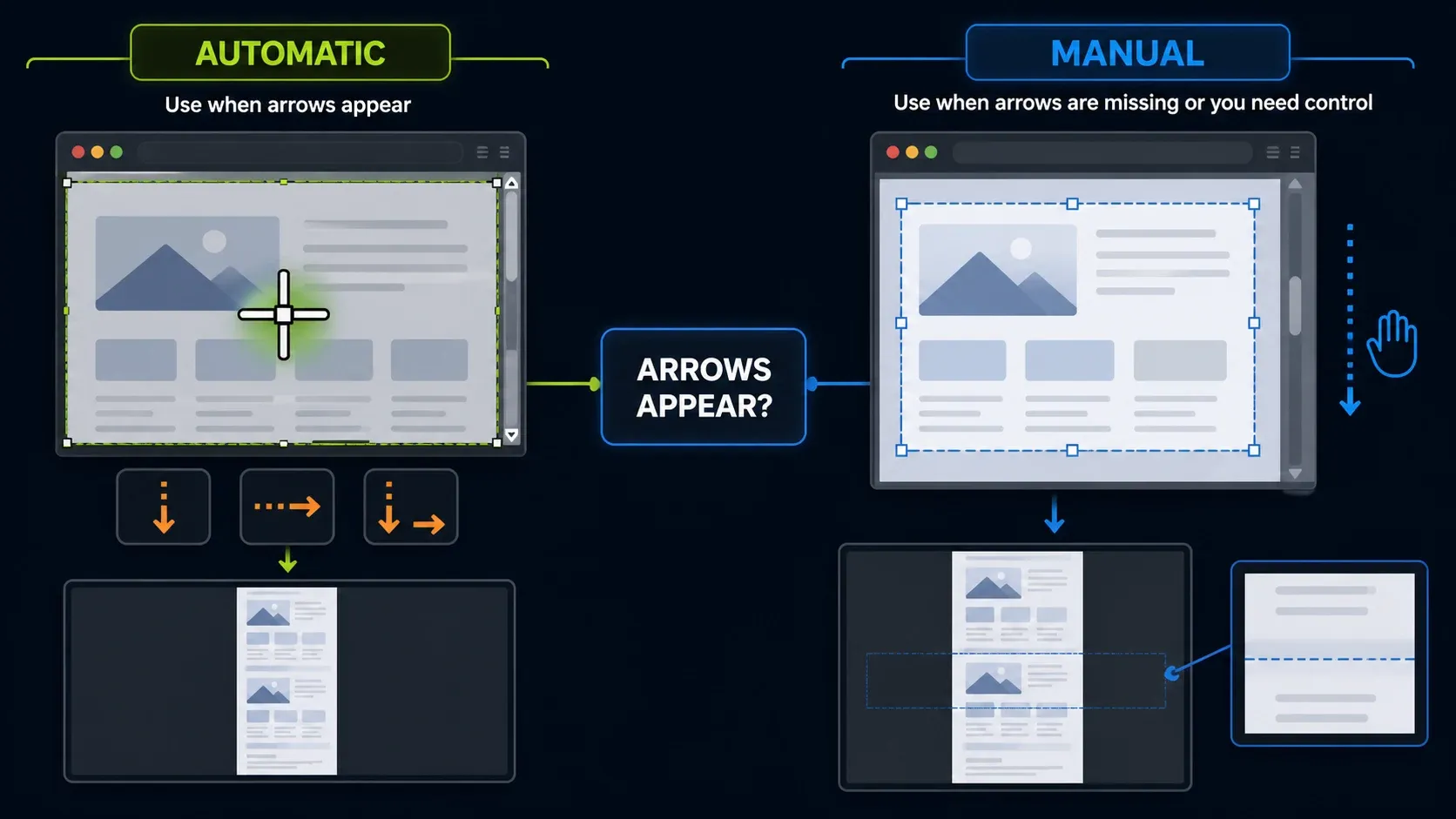
Manual capture gives you control over a selected region, but parallax pages and unsupported applications can still fail. The diagrams illustrate the workflows, not a guarantee that every target will work or an exact reproduction of every app version.
How to run automatic scrolling capture
- Load the full target. Open the page, sheet, or app and wait for images and data to appear. Close any banner you are allowed to dismiss.
- Start All-in-One capture. Open the Capture window, select All-in-One, and click Capture. A capture hotkey can start the same flow.
- Target the scrollable window. Move the crosshairs over the whole window rather than drawing a small region. Wait for the orange direction arrows.
- Choose a direction. Click down for a long page, right for a wide sheet, or the center arrow when you truly need both axes.
- Check the stitched image. Let Snagit finish and open the result in Editor. Inspect the start, end, repeated controls, blank areas, and seams before you share it.
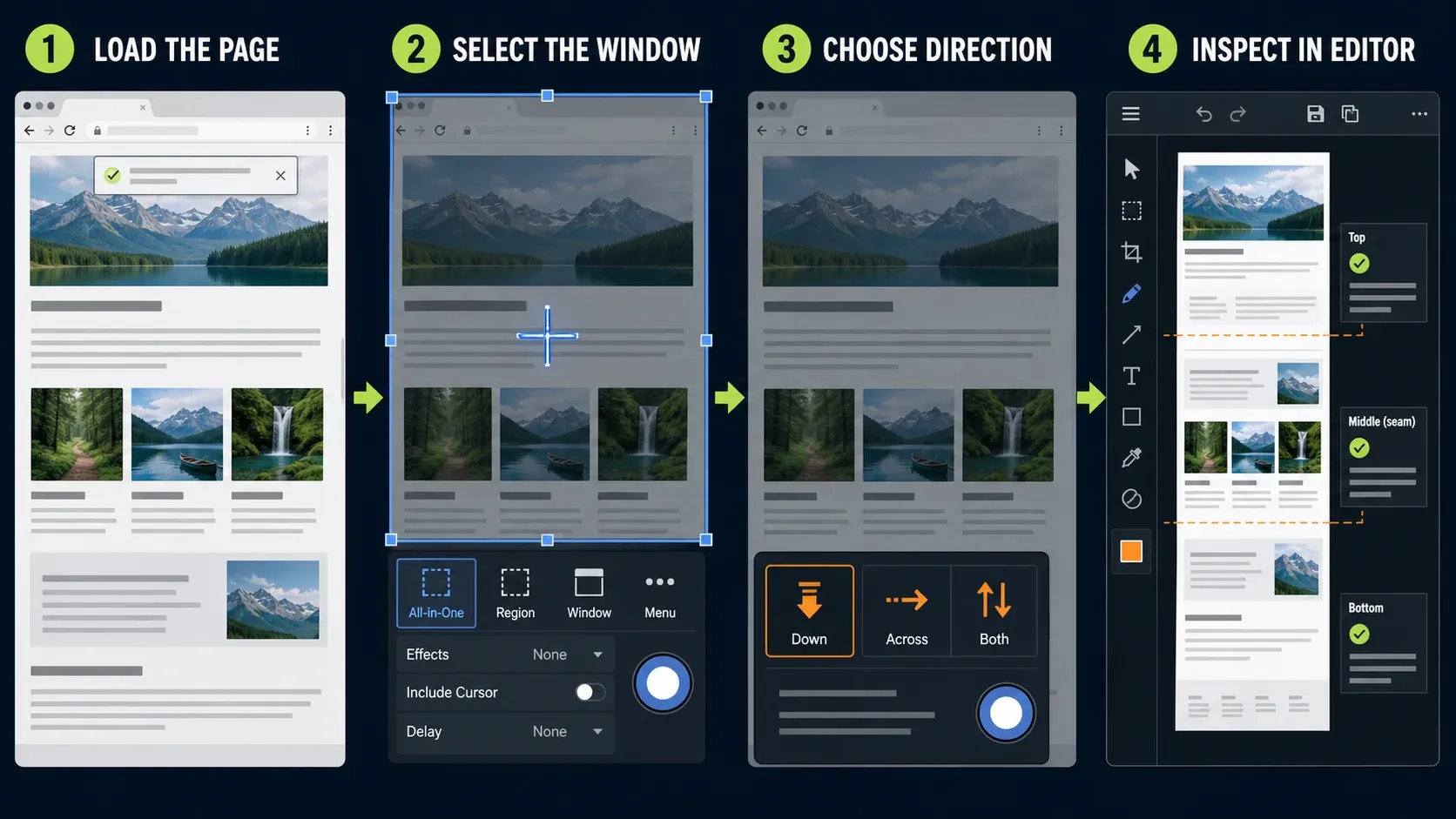
TechSmith's current full-page capture guide confirms the orange-arrow workflow and the Editor handoff. Save the center arrow for output that genuinely needs both width and height. A very tall image can be hard to read in a ticket or document even when the capture itself is correct.
For repeated work, set a capture hotkey after a successful test. The Snagit keyboard shortcuts guide covers default and custom shortcuts. If you are new to the app, the Snagit beginner tutorial follows capture, editing and export.
How to use manual Scrolling Capture
In Snagit 2023.2, TechSmith updated the scrolling-capture names: Panoramic Capture became Scrolling Capture, and the former Scrolling Capture became Automatic Scrolling Capture. Choose the manual method when arrows do not appear, the window has more than one scroll area, or you need only a selected part of the content.
- Start All-in-One capture. Click Capture and drag a box around the content you want. Keep the scrollbar and floating toolbars outside the box.
- Choose Scrolling Capture. On the All-in-One toolbar, click the window-and-arrows Scrolling Capture button.
- Move in one direction. Use the window scrollbar or mouse wheel. Scroll at a steady pace and avoid moving back and forth.
- Stop at the useful end. Click Done when you have the needed content. You do not have to capture the full page.
- Inspect the result. Zoom in on text, repeated rows, sticky controls, and image edges. Retry with a smaller region if the seams are poor.
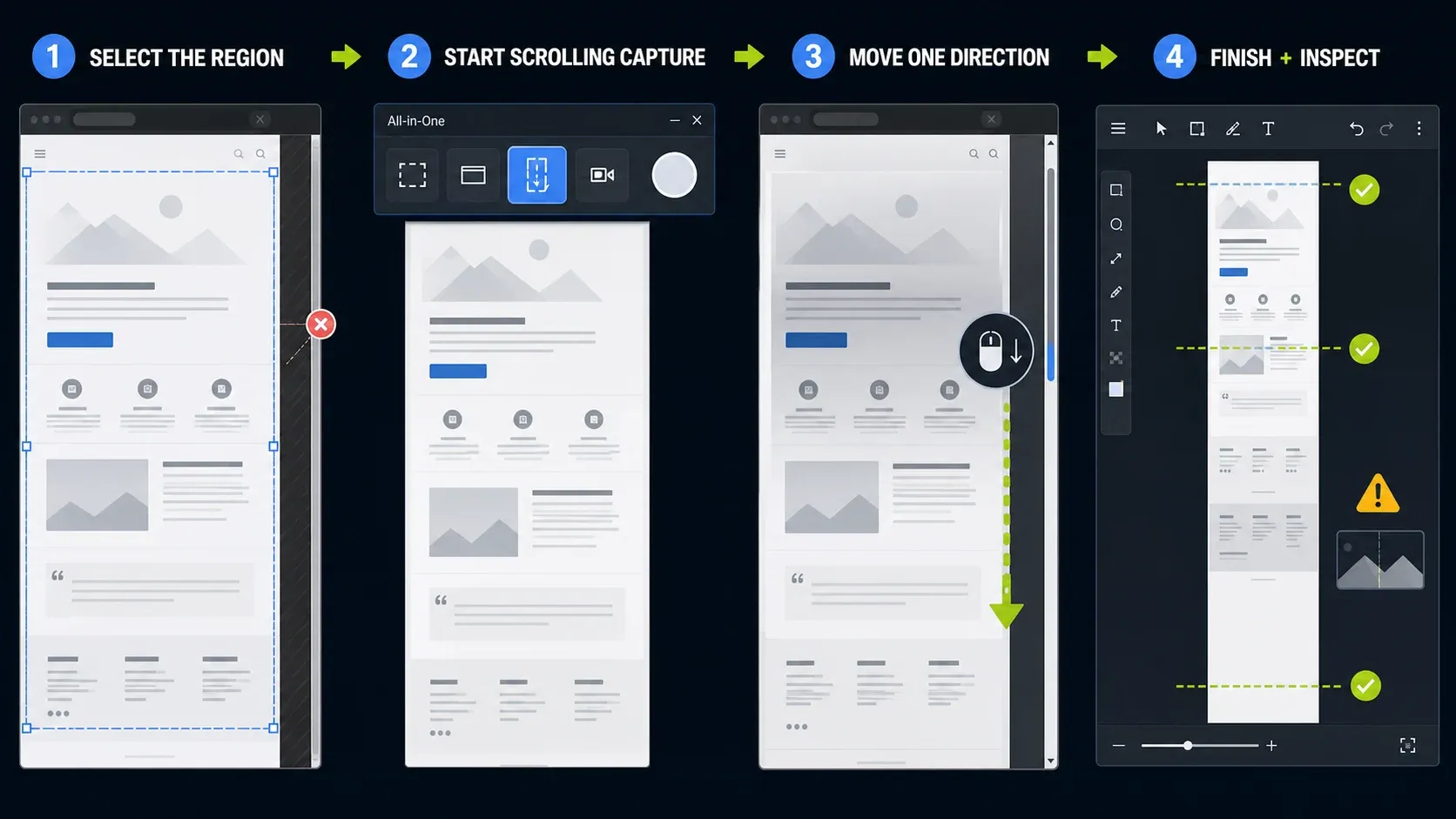
The current TechSmith troubleshooting page recommends excluding the scrollbar, removing irrelevant margins, disabling floating controls, and scrolling smoothly in one direction.
Prepare the page before capture
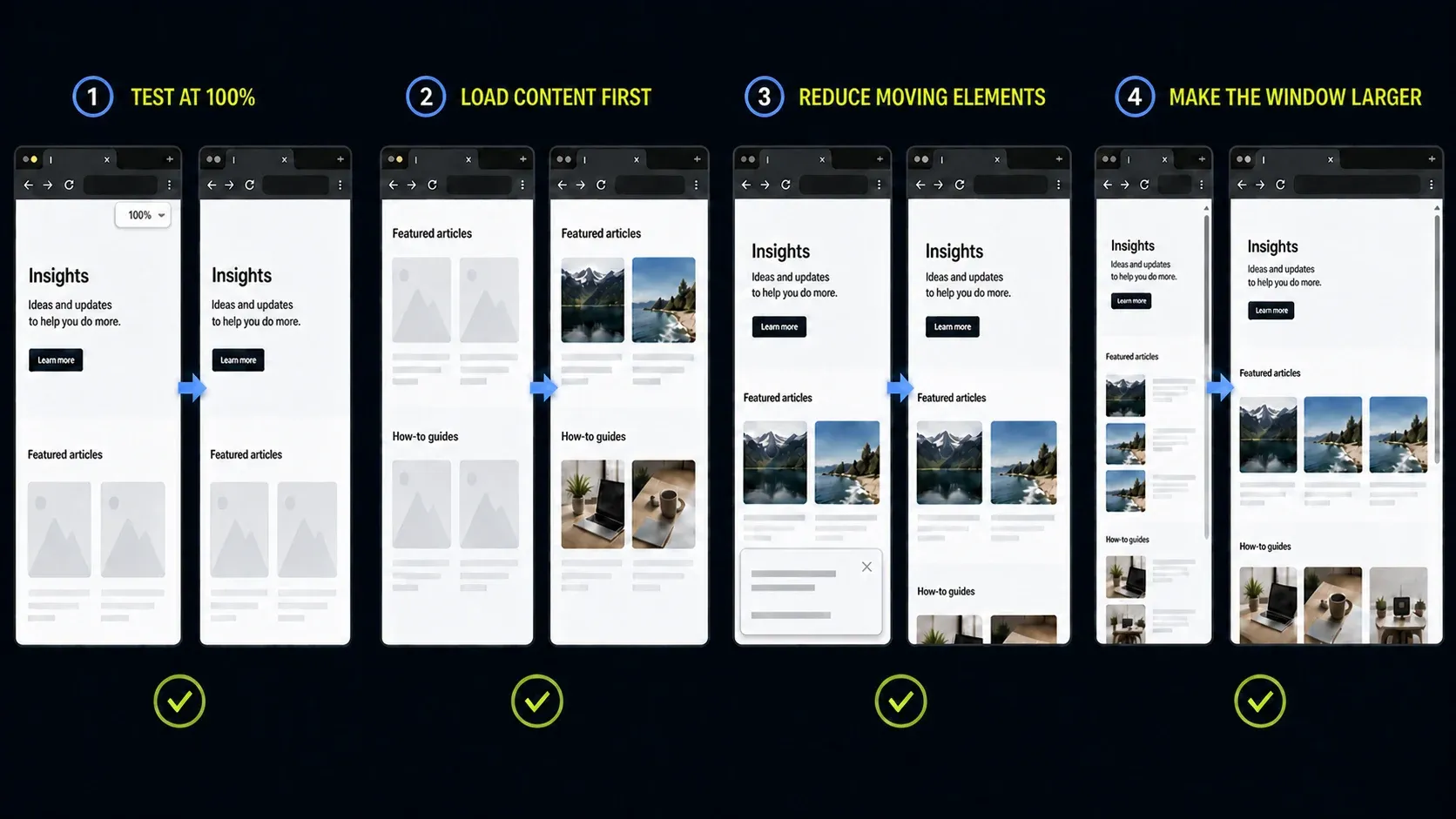
- Use the default 100% zoom as a test. TechSmith recommends default zoom for the best result. Other zoom levels may work, so do not treat 90% as a guaranteed failure point.
- Make the window larger. A larger view needs fewer stitched frames and makes the content easier to guide by hand.
- Load lazy content first. Scroll through the target once, return to the start, and confirm that images and rows have loaded.
- Reduce moving elements. Close cookie notices, chat boxes, and menus when you are allowed to do so. Do not change a live system merely to improve a screenshot.
- Choose the final use. A help article may need a cropped section, while an archive may need the full page. Capture only what the reader can use.
First checks when a capture fails
| Symptom | Possible cause | First safe test |
|---|---|---|
| No orange arrows | Nested area, unsupported reader, permissions, security tool | Try manual capture or another browser |
| Blank gaps or missing images | Lazy content or changing page | Pre-scroll, wait, then retry a smaller region |
| Repeated header or seams | Sticky element, zoom, uneven manual scroll | Use 100% zoom and steady one-way movement |
| Excel repeats rows | Unsupported view, pane, or hidden scrollbar | Use manual capture or copy the range |
| Mac capture fails | Accessibility, browser configuration or app build | Check permissions and the installed build |
| Snagit controls appear | Capture setting or old build | Enable the hide-controls capture setting |
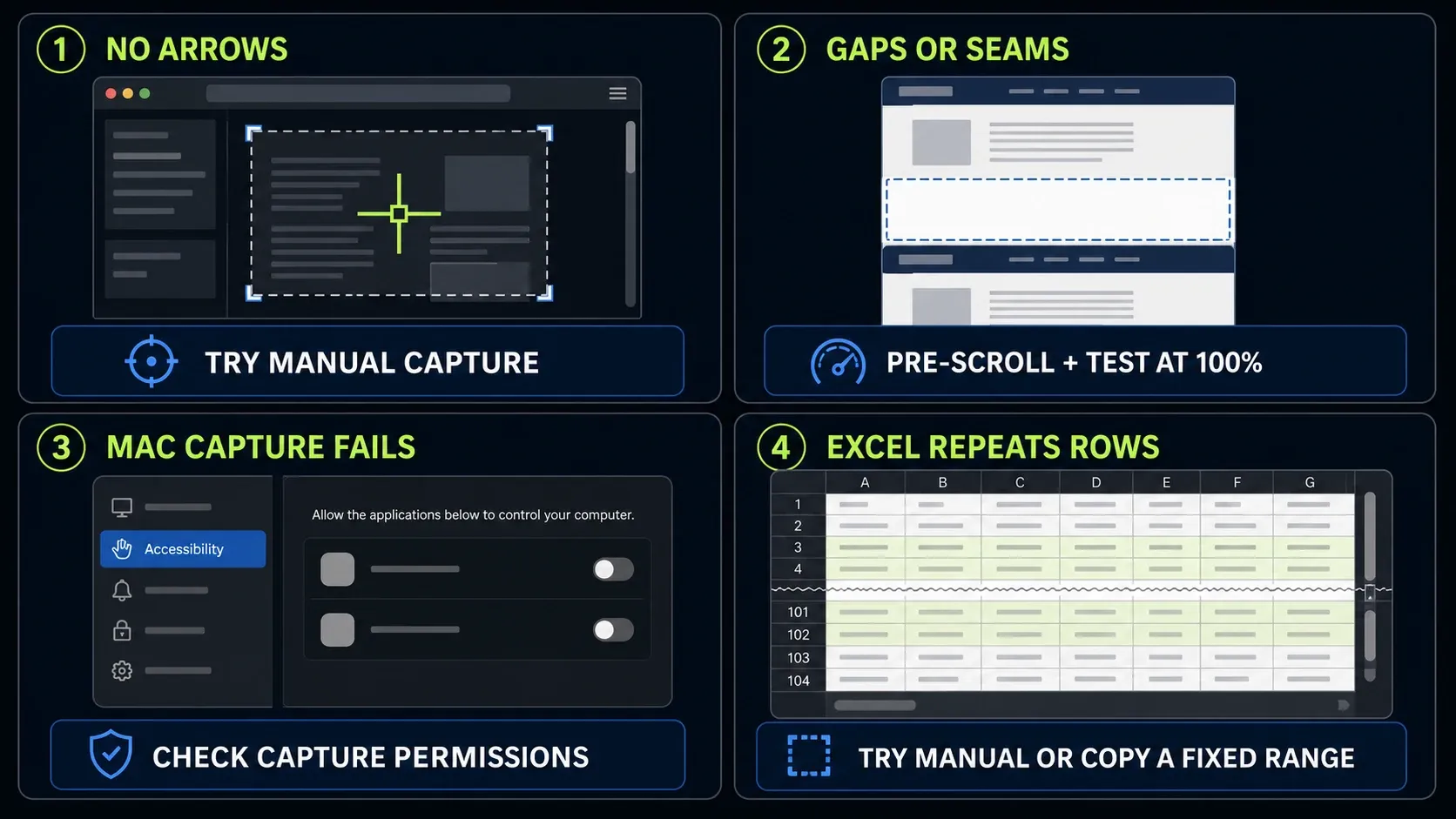
For Mac App Store builds, check the edition before relying on an old restriction. TechSmith's 2021 support note says automatic arrows are unavailable, while the newer App Store changelog includes automatic-scrolling fixes. Check your exact build and target. Neither the old warning nor the newer fixes guarantee what will happen in every application.
No orange arrows
Move the crosshairs over the whole scrollable window first. A nested scroll box may need manual capture. All-in-One does not detect PDF-reader scrollbars, according to TechSmith. A permitted browser view or document export may be more useful. Snagit Printer can send a print job to Editor on supported Windows installations where it is installed, but it is not supported on Windows on ARM.
Security tools can block detection, as TechSmith's missing-arrows article explains. Review relevant block notices with your security vendor or administrator. Do not disable protection as a default fix; any support-directed test needs harmless content, an approved scope and immediate restoration. If the entire image is black, use the Snagit black-screen guide.
Scrolling capture on Mac or Chrome fails
On Mac, open Snagit > Settings > Capture and select Fix Capture Permissions. Under Scrolling Capture, enable the helper and approve Accessibility access for Snagit and SnagitHelper. Restart Snagit if the status does not change. TechSmith's macOS scrolling-permission guide documents this path.
TechSmith's Chrome-on-Mac article, updated August 23, 2024, lists View > Developer > Allow JavaScript from Apple Events for a particular failure. It is not a universal requirement. Check availability and company policy before changing browser automation permissions; otherwise use another permitted browser or manual capture. The Mac permissions guide covers separate Screen Recording approval and restarting when prompted.
Excel capture fails or repeats rows
Excel needs its own checks. TechSmith says automatic capture can fail with custom worksheet or chart views, Print Preview, worksheet panes, Page Layout, edited cells, or chart sheets with hidden scrollbars. For a worksheet pane, Snagit scrolls the upper-left pane rather than a different pane you selected.
For a fixed range, copy the cells and use File > New from Clipboard in Editor. The Excel troubleshooting article describes this fallback. Verify the first and last row, displayed values and required columns. A picture does not preserve editable cell formulas.
Fix seams, repeated controls, or the Snagit toolbar
Retry at 100% zoom in a larger window. Load the page before capture and pause on sections with images or charts. During manual capture, move steadily in one direction and keep the scrollbar outside the selection. Use a smaller region when a parallax page or changing dashboard cannot be stitched cleanly. If Snagit controls appear, TechSmith's control-bar support article says Snagit 2024.1.0 and later can use “Hide Snagit during capture and remove Snagit controls from completed captures” in Capture Preferences.
Before export, open the result at 100% in Snagit Editor and check for missing text, duplicated rows, broken chart axes, repeated headers, and private data. Keep the editable capture while the source page can still change, then use the Snagit export settings guide to choose the delivery format.
FAQ: Snagit scrolling capture
Does Snagit capture a full webpage?
Yes. Automatic Scrolling Capture can move vertically, horizontally, or in both directions when Snagit detects the window. Manual Scrolling Capture is the fallback when you need to guide the movement or select a smaller area.
Why do the orange scrolling arrows not appear?
Possible causes include nested scroll areas, PDF-reader detection, Mac permissions and security restrictions. Older App Store guidance conflicts with newer release notes, so check your installed build. Try manual capture on a simple page, then investigate the symptom rather than assuming a broken installation.
What happened to Panoramic Capture?
TechSmith renamed Panoramic Capture to Scrolling Capture in Snagit 2023.2. The old Scrolling Capture name became Automatic Scrolling Capture. The manual method lets you select a region, move through the content, and click Done.
Does Snagit scrolling capture work on Mac?
Yes. Automatic scrolling may require Accessibility approval for Snagit and SnagitHelper. Screen Recording is separate. Older TechSmith help lists a Chrome Apple Events setting for a specific failure; check the current menu and your device policy before changing it.
Can Snagit capture a wide Excel sheet?
Yes, but automatic capture has limits in some Excel views, worksheet panes, and chart sheets. Use manual Scrolling Capture or copy a fixed cell range into Snagit Editor when automatic capture repeats rows or selects the upper-left pane.
Why are there seams or repeated headers?
Sticky controls, changing content, non-default zoom, and uneven manual scrolling can create seams or repeats. Retry at 100% zoom, load the page first, exclude floating controls, and scroll steadily in one direction.
Can Snagit scroll through a PDF reader?
All-in-One does not detect PDF-reader scrollbars, according to TechSmith. Try a permitted browser view, document export or manual capture. Snagit Printer requires a supported Windows installation with the component installed; Windows on ARM is excluded.
Is manual Scrolling Capture guaranteed to work?
No. Manual capture gives you control over the selected region and scrolling, but parallax pages, protected content, changing dashboards and unsupported applications can still fail. Inspect the result rather than treating a completed capture as proof of completeness.
If capture succeeds but the image does not open in Editor, follow the Snagit Editor startup checks. That is a separate problem from detecting or scrolling the page.