
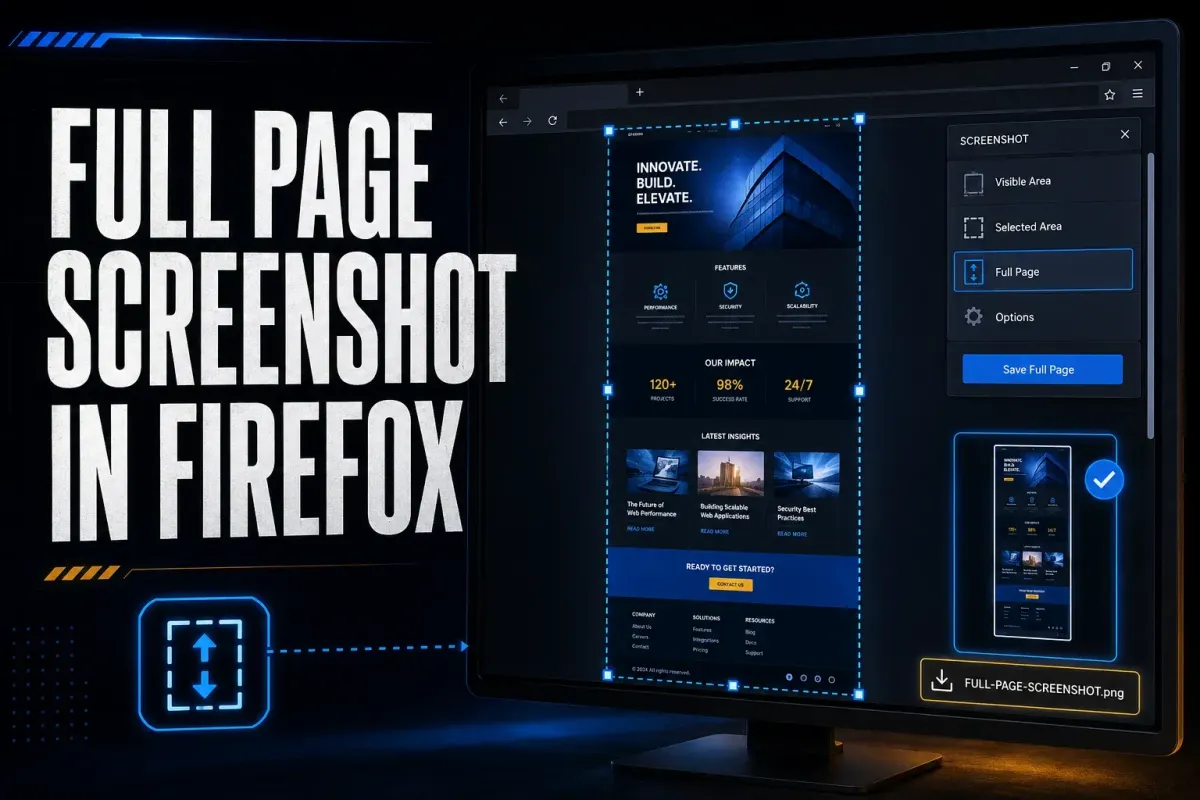
To take a full-page screenshot in Firefox, right-click an empty area of the webpage, choose Take Screenshot, then Save full page and Download. On a Mac, Control-click opens the same menu. You can also press Ctrl+Shift+S on Windows or Linux, or Command+Shift+S on a Mac. Download saves a PNG; Copy puts the image on the clipboard instead.
Firefox captures the main rendered document, even the parts beyond the visible window. It won’t open collapsed sections, finish an endless feed, or expand every inner scroll panel for you, so load the state you want first and then look over the complete image.
On September 19, 2026 I checked these Firefox desktop instructions against Mozilla Support, Firefox Source Docs, and Mozilla’s source code. Mobile Firefox has different capture and sharing controls.
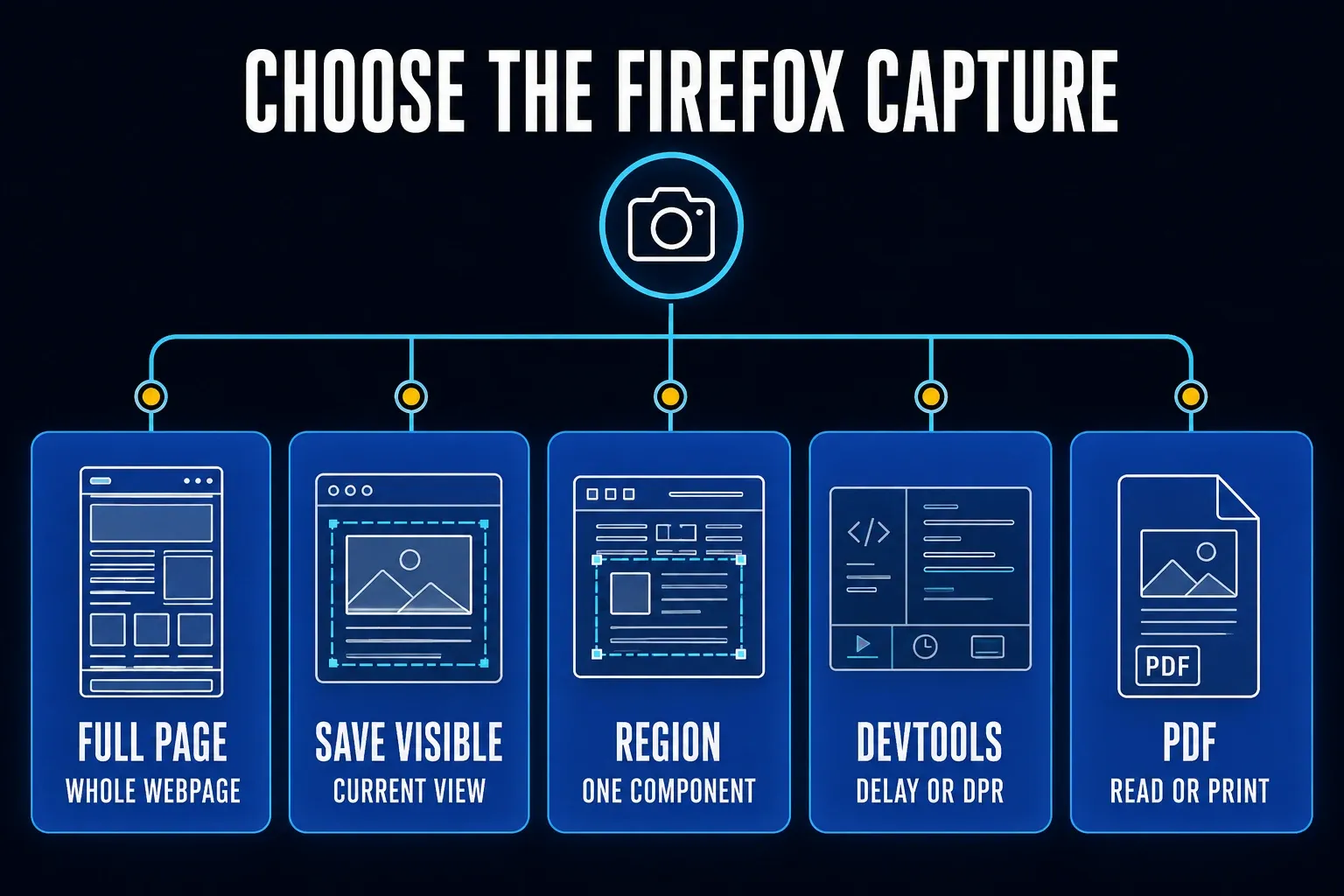
Firefox screenshot routes at a glance
| Route | Use for | Output | Main limit |
|---|---|---|---|
| Save full page | Normal webpage | PNG or clipboard | Main rendered document only |
| Save visible | Current browser viewport | PNG or clipboard | Stops at the visible area |
| Region or page element | One component or selected area | PNG or clipboard | Does not capture the whole page |
| DevTools screenshot | Technical capture, delay, DPR, or one node | PNG or clipboard | Requires Developer Tools |
| Print to PDF | Reading, archiving, and printing | Print layout can differ from the screen |
I'd start with Save full page for an ordinary webpage, and choose a region when one card, chart, or form is the subject. DevTools adds a delay, output scale, and element selection. Consider PDF for reading or printing, but verify selectable text and page breaks in the saved document.
How to capture a whole webpage in Firefox
- Open the correct URL and confirm the account, filters, and page state.
- Scroll through the required content and wait for delayed images and data to load.
- Return to the top. Dismiss notices, chat windows, and overlays when the website permits it.
- Right-click an empty area, or Control-click on Mac, and choose Take Screenshot.
- Select Save full page in the upper-right corner.
- Choose Download for a local PNG. If you choose Copy instead, paste into a trusted editor and save the image there.
- Open the saved image and inspect all required content, from the first heading to the final section.
Mozilla's current Firefox Screenshots guide documents the context-menu route, desktop shortcuts, full-page and visible-page choices, toolbar button, output actions, and keyboard controls.
Use the shortcut when right-click belongs to the website
Some editors, remote consoles, maps, and design tools swap the browser context menu for their own. When that happens, press Ctrl+Shift+S on Windows or Linux, or Command+Shift+S on macOS. The shortcut opens the Firefox capture overlay no matter what the page does with a right-click.
Add Screenshot to the toolbar for repeated work
Open the Firefox menu, choose More Tools, then Customize Toolbar. Drag the Screenshot item to the toolbar and select Done. A toolbar button helps when you capture pages often or need a visible route that a team procedure can point to.
Adjust a selected region with the keyboard
In the screenshot interface, the arrow keys move the crosshair by one pixel; Shift plus an arrow moves it by ten. Space starts or ends a selection. Enter selects a detected page region, or ends selection if none is detected. After selection, focus a corner or the region itself to adjust it with the arrow keys.
Ctrl or Command plus an arrow moves the focused edge to the matching viewport boundary. Mozilla notes that moving the crosshair doesn't work on Wayland, so if you're on Linux with that display system, you may need to make the initial selection with the pointer.
Save full page, Save visible, and region capture
Save full page creates one image of the main webpage, including what sits beyond the viewport. Save visible captures what the browser shows right now. Region capture lets you drag your own boundary or pick a page area that Firefox detects under the pointer.
Full-page capture suits a static article, landing page, help page, or receipt. Save visible preserves the current viewport, but entering capture mode can dismiss a temporary menu or tooltip. For a hover state that disappears, try the DevTools delay below. Region capture keeps attention on one component.
Full page is not full screen
A full-screen operating-system screenshot records the display, browser chrome included if it's showing. Firefox Save full page records the webpage document instead, so the browser window can be small while the result runs far below it.
Automatic element selection has a boundary
Firefox detects page regions under the pointer, but that boundary may not match the content you need. Try a manually selected rectangle when automatic selection is wrong. A canvas, remote session, or independently scrolling frame may need its own authorized export; choosing its boundary does not guarantee all hidden content is captured.
Prepare the page before saving it
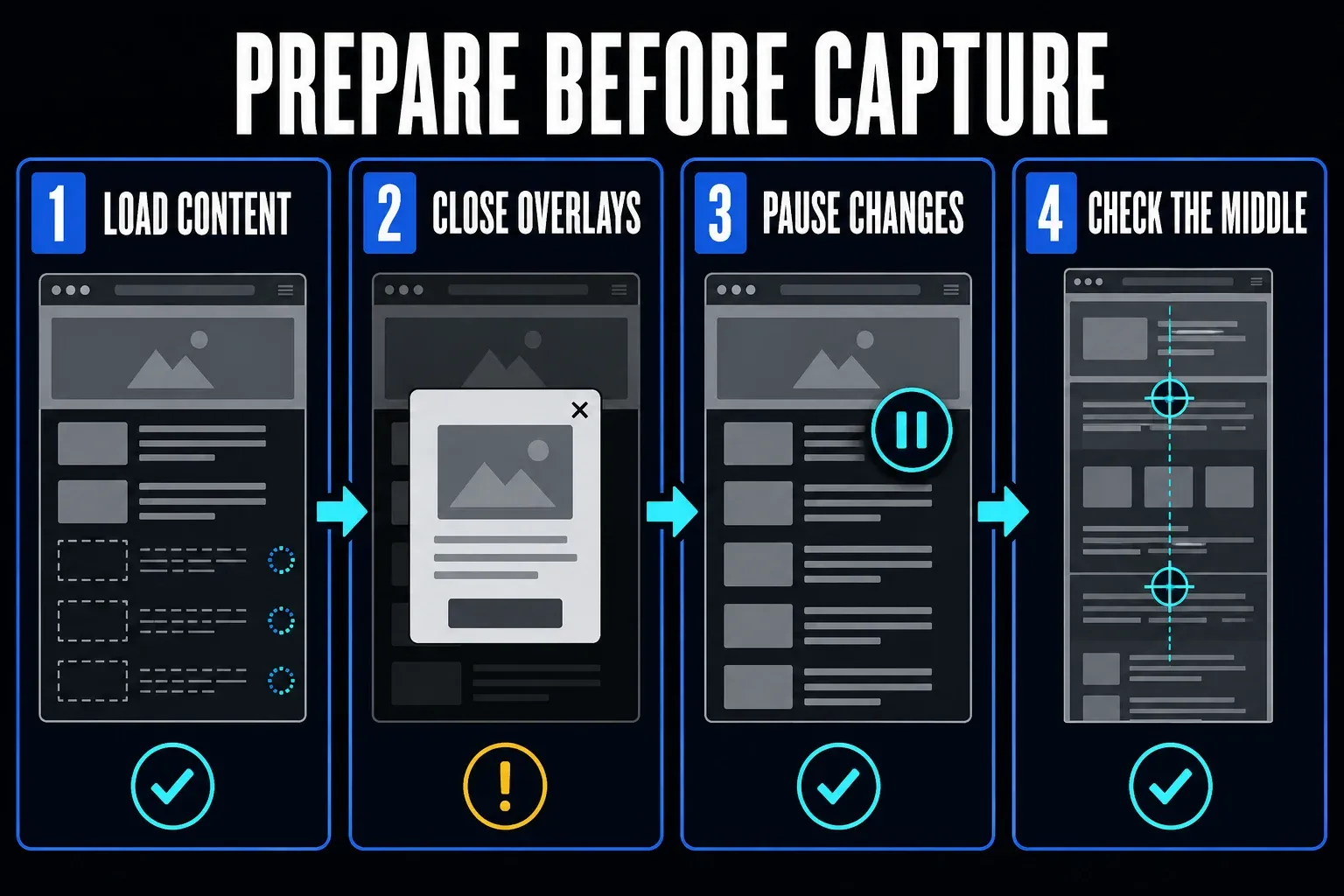
Scroll through the required content slowly and wait for images, fonts, comments, charts, and cards. Expand the sections the image must contain. Lazy loading can defer offscreen content until you approach it. Pause video, carousels, and refreshing panels when the service provides a control.
Return to the starting state. Dismiss notices and chat windows when permitted, and move the pointer away from hover-sensitive controls. For a ticket or audit, record the account type, filter values, date range, and endpoint without adding passwords or other unnecessary private information.
Define a single reproducible state
A long screenshot can combine content that changes while it's being captured, so note a short boundary such as “orders through 14:30 UTC” or “results 1 through 50.” If the page updates continuously, use the application's export or capture smaller labeled sections.
Check more than the first and last screen
Inspect the whole saved image rather than two sample locations, and compare headings, row labels, dates, and item counts with the page. A blank area can indicate unloaded content, but appearance alone does not identify the cause. Check repeated fixed headers and missing rows before using the file as evidence.
Download the PNG or copy it
Select Download to save the image to Firefox's configured download folder. According to Mozilla, the filename includes the date, time, and page title. If the image is going straight into a document or editor, select Copy instead.
Inside the screenshot interface, Mozilla lists Command+S and Command+C for macOS, and Ctrl+S and Ctrl+C for Windows and Linux. Press Esc to cancel without keeping the capture.
Keep an original before annotation
Keep an untouched original only if you're allowed to retain its contents, and store it somewhere appropriate. Annotate a separate copy. Use a filename that identifies the page, date, and state without exposing private account details, and share the checked, redacted export rather than an editable source project.
Use Firefox DevTools for more control
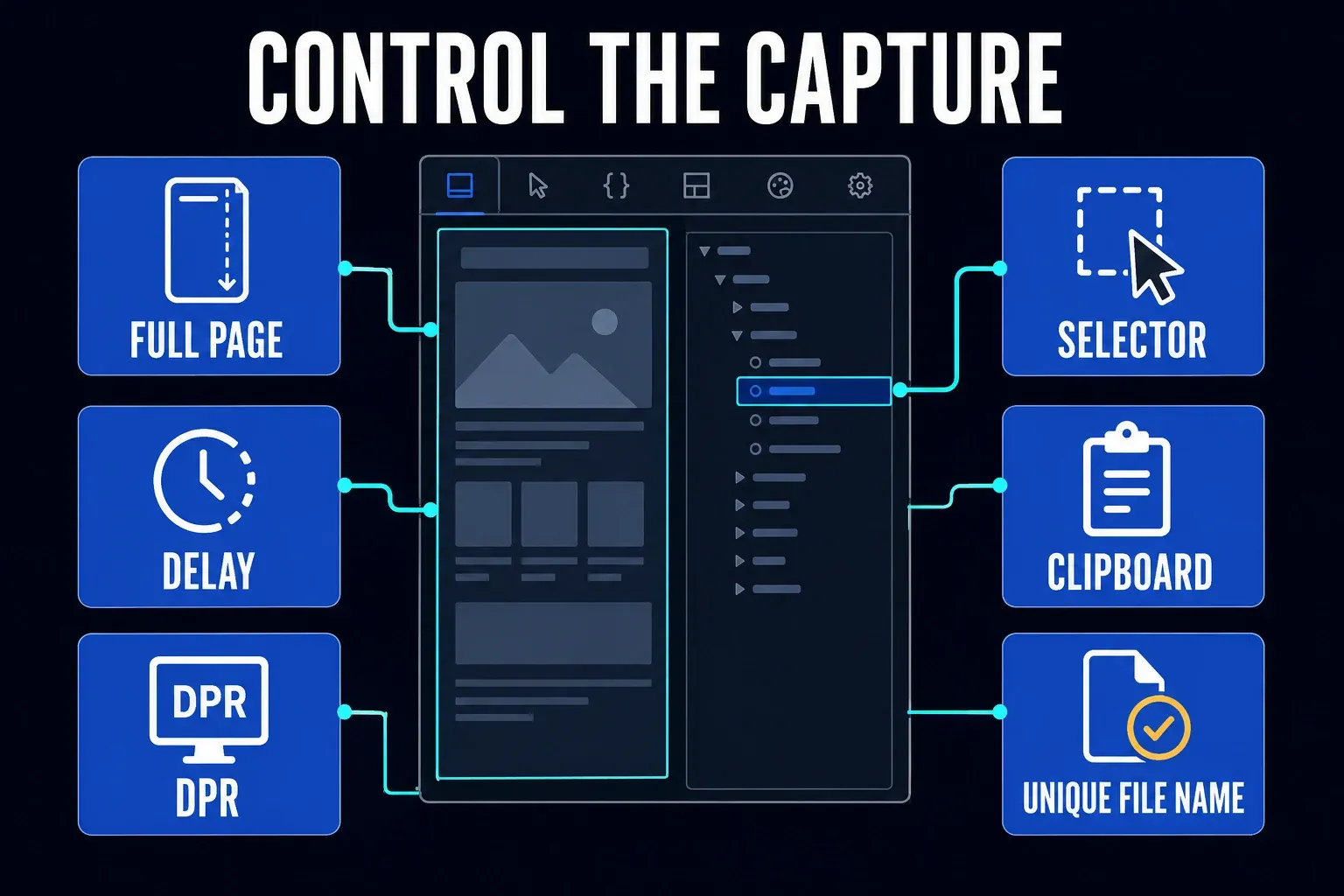
Open DevTools through the Web Console shortcut: Ctrl+Shift+K on Windows or Linux, or Option+Command+K on Mac. In the DevTools ellipsis menu, choose Settings. Under Available Toolbox Buttons, enable Take a screenshot of the entire page. Mozilla’s screenshot reference says this camera button is off by default.
Click the camera to save a full-page image to Downloads. Check the DevTools screenshot-to-clipboard setting if you also want a clipboard copy. For one element, select the Inspector tab, right-click its HTML node, and choose Screenshot Node. Hidden overflow in a scrolling panel still needs a completeness check.
Use the Web Console helper for repeatable captures
In the Web Console, enter :screenshot capture.png --fullpage to save the full webpage with a chosen filename. This is a built-in helper command, not a script you need to install. Do not paste unrelated JavaScript from an untrusted source into the console.
- Delay: enter
:screenshot menu.png --delay 5, then open the menu or hover state within five seconds. Add--fullpageonly for the whole document. - Copy and save: use
:screenshot page.png --fullpage --clipboard --file. Without--file,--clipboardprevents file saving. - One element: use
:screenshot section.png --selector "#main". Replace#mainwith the selector of an existing element. - Output scale: add
--dpr 2to set a device-pixel ratio of two. It does not reveal unloaded rows or add detail missing from the source image.
Do not overwrite evidence by accident
Firefox Source Docs warn that reusing the same filename can overwrite the earlier image, so add a timestamp, state, or sequence number when you’re saving a series. Before you close the page, check where the files landed.
Save the page as PDF for reading or printing
Open the Firefox menu and choose Print. Select Save to PDF as the destination, review the page range and print settings, then click Save and choose the filename and location. Mozilla’s printing guide covers margins, scale, headers, footers, and backgrounds. Inspect the preview before saving.
A PDF is not necessarily a record of the screen layout. A website’s print styles can change columns or hide navigation and controls. Use PNG for a layout report; consider PDF for reading or printing after checking that the required content remains.
Attach both formats when the job has two purposes
If readers need both the screen appearance and a printable document, attach a checked PNG and PDF. Search a known phrase and try selecting text in the PDF: image-only content doesn't become searchable merely because it is saved in that format. Include a permitted source URL and a short text explanation so the image isn't the only way to understand the report.
Fix Firefox Screenshot when the option is missing
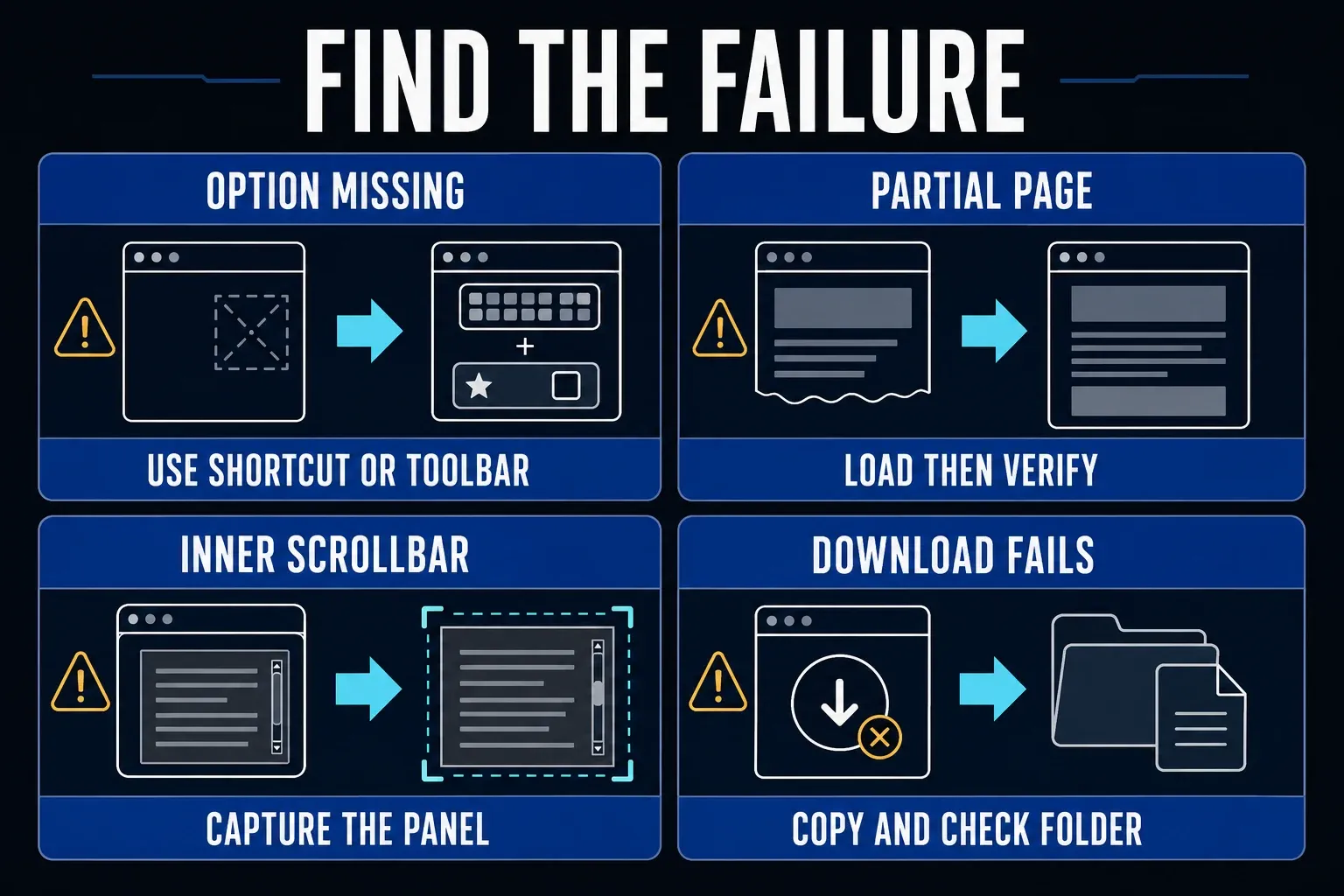
Start with the keyboard shortcut, and if it works, add the Screenshot button through Customize Toolbar. If neither route appears, update Firefox through whichever update method is approved for your device, restart it, and test a simple public page in a normal window.
If a site replaces the right-click menu, use the shortcut or toolbar button. On a managed device, ask the administrator whether DisableFirefoxScreenshots is enabled; that policy removes access to the feature. Do not bypass it or change advanced preferences from an old forum post as a first step.
Test Troubleshoot Mode before blaming the page
Save any unfinished work, then choose Firefox menu > Help > Troubleshoot Mode > Restart. In the next dialog, choose Open, not Refresh Firefox. Mozilla’s Troubleshoot Mode guide explains that these temporary changes disable extensions and other features. If capture works there, investigate extensions, the theme, or hardware acceleration; this does not prove an extension is the cause. Quit and reopen Firefox normally to leave the mode. Refresh Firefox makes lasting changes and is not required for this test.
Fix a partial, blank, or failed download
- Test a static public page. Separate a browser-wide failure from one complex site.
- Load the content. Scroll through the target and wait for delayed media and data.
- Remove moving layers. Close overlays, pause animation, and move the pointer away.
- Check the scroll owner. An inner panel may need a region tool or its own export.
- Compare a DevTools capture. Try the camera or :screenshot helper; a second method is a diagnostic check, not a guaranteed fix.
- Check Downloads. Confirm Firefox's configured folder and available storage.
- Consider PDF for a document. Inspect print preview and the saved file when exact screen layout is unnecessary.
- Verify the file. Inspect missing rows, repeated controls, blank areas, and private data.
A nested panel stops at one screen
Save full page follows the main document. A chat history, code pane, table, or embedded frame can scroll independently. A virtualized list may render only a moving subset of rows even if more data is available to the app. Use an authorized export for a complete dataset. For a compatible scrolling region, the Snagit scrolling capture guide explains another capture method, but you must still verify every required row.
An infinite page has no bottom
Pick an endpoint by time, item ID, page number, or result count, load the page through that point, and then capture. When you need a complete dataset rather than a visual record, use a service export.
Download does nothing
Check whether you chose Download: Copy alone creates no file. To separate a capture failure from a saving problem, try pasting the clipboard image into a trusted local editor. Check Firefox’s download folder, storage, and download controls, then test a short public page. Mozilla’s current screenshot implementation imposes image-dimension and area limits, so a very long result can be cropped. There is no single universal maximum webpage height, because output scale and version matter. Split the content into labeled sections or use its authorized export rather than assuming DevTools removes every limit.
Understand Firefox Screenshots privacy
The built-in Download and Copy actions save locally or use the clipboard and do not involve a Mozilla image-hosting upload. Mozilla retired the screenshot server in 2019. Its current Screenshots help says interaction telemetry does not collect the page URL or captured image details. That still leaves room for other network requests from Firefox, and a third-party extension may follow different rules.
Handle the exported PNG with care, since it can hold private messages, addresses, account IDs, recovery codes, and information far below the first viewport. Store, redact, and share it in a way that fits what’s in it.
Remove sensitive fields before capture when possible. Otherwise, cover them completely with an opaque shape and export a flattened PNG or JPEG copy. Reopen it outside the editor and inspect the covered areas. Do not share a layered project that retains private pixels beneath a removable shape. Review cloud sync, clipboard history, and attachment uploads separately.
Run this final Firefox capture check
- Confirm the URL, profile, account, filters, and endpoint.
- Check the first heading and the defined final section.
- Inspect the whole image for gaps, repeated sections, and cropped content.
- Verify images, charts, frames, and expanded sections.
- Confirm private data is absent or permanently covered.
- Open the saved PNG or PDF outside Firefox.
For a different browser, use the Chrome full-page capture instructions. The scrolling screenshot hub also covers operating systems and desktop app panels that Firefox cannot capture as a webpage.
Firefox full-page screenshot FAQ
What is the shortcut for a full-page screenshot in Firefox?
Press Ctrl+Shift+S on Windows or Linux, or Command+Shift+S on a Mac. Select Save full page, then Download for a local PNG. Copy uses the clipboard instead.
Do I need a Firefox add-on to capture a whole page?
No. Firefox desktop includes Take Screenshot and Save full page. Use an add-on only for a clearly defined extra requirement after reviewing its permissions.
Where does Firefox save a full-page screenshot?
Download saves a PNG in Firefox’s configured download folder. Its default name includes the date, time, and page title. Copy alone does not save a file; paste into an editor and save it there.
Why does Save full page capture only part of a dashboard?
The dashboard may have an independently scrolling panel, virtualized rows, or content that has not loaded. Very large output can also hit image limits. For a complete dataset, use the app’s authorized export and verify its record count.
Can Firefox DevTools take a full-page screenshot?
Yes. Enable Take a screenshot of the entire page under DevTools Settings > Available Toolbox Buttons, or enter :screenshot capture.png --fullpage in the Web Console. Check the saved image for missing content.
Can I save a Firefox webpage as PDF?
Yes. Open Print, choose Save to PDF, review the preview, then save the file. Check the final page and selectable text afterward; a PDF can differ from the screen and is not automatically searchable.
Does Firefox upload the captured image to Mozilla?
The built-in Download and Copy actions are not uploads to Mozilla’s old screenshot server, which was retired in 2019. Mozilla says Screenshots interaction telemetry excludes the page URL and image details. Clipboard sync, third-party extensions, and later sharing are separate privacy considerations.