
Start with the cheapest check: the screenshot may have worked and gone somewhere else. Press Shift-Command-5, open Options and look at Save to, because a changed folder or the Clipboard looks exactly like a failed capture. If Shift-Command-5 does not open the toolbar, open Screenshot from Applications > Utilities and check Options there. If Screenshot opens but Shift-Command-3 or Shift-Command-4 fails, check the shortcut settings and conflicts next. Only after those checks is it worth quitting the Screenshot process or looking at app permissions.
I went through Apple's current Mac help pages on taking screenshots, the Screenshot app's options, keyboard shortcuts that don't work, screen-recording permissions and Activity Monitor in October 2026, and compared them with the guides that rank for this question. Several of those guides also suggest NVRAM resets, malware scans and Safe Mode. None of the Apple pages I read ties those to screenshots, so they come last here, if at all.
Check these first
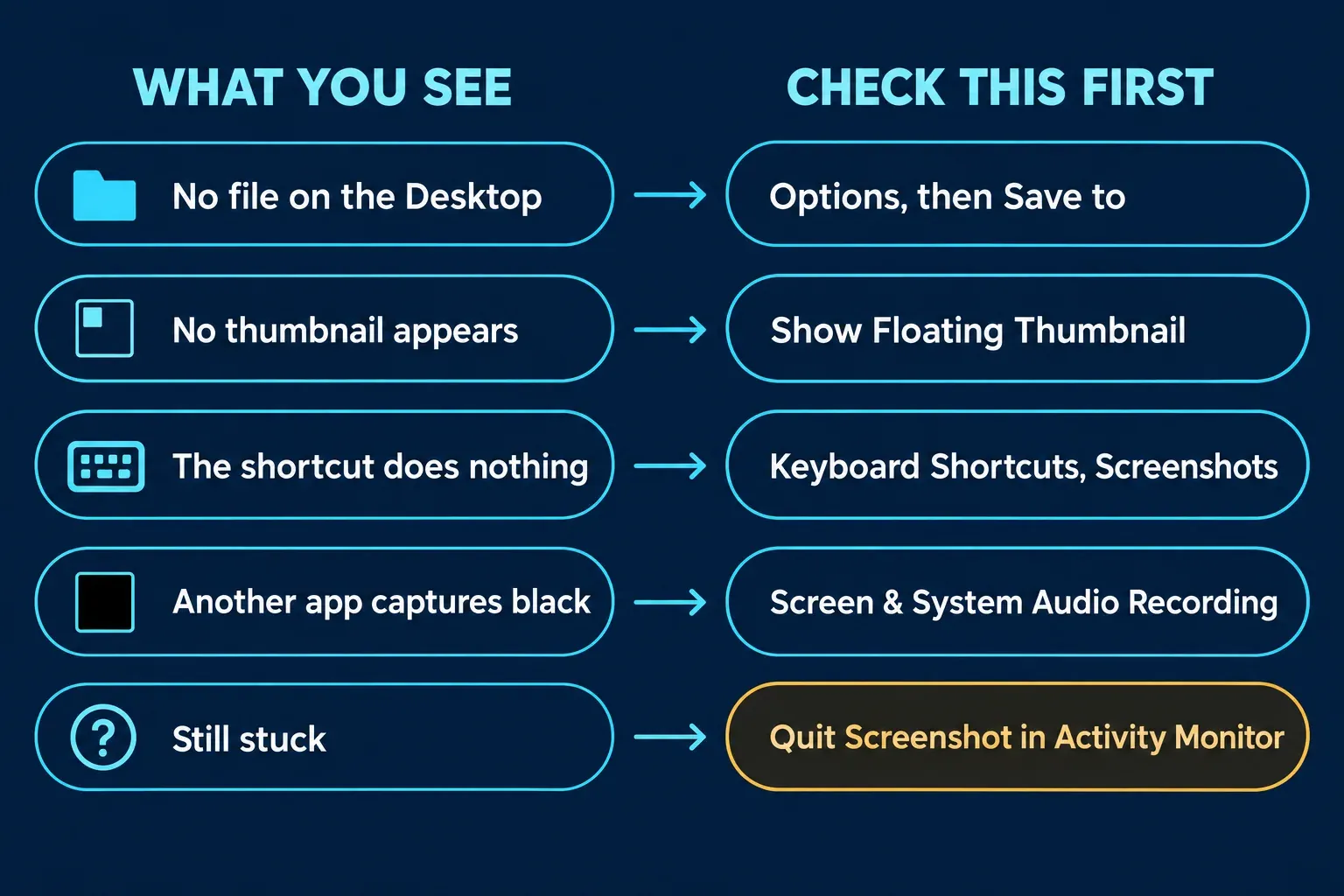
| What you see | Possible cause | Where to look |
|---|---|---|
| No file appears on the Desktop | Saved to another folder, or copied to the Clipboard | Shift-Command-5, then Options, then Save to |
| The thumbnail doesn't appear in the corner | Show Floating Thumbnail is off | Shift-Command-5, then Options |
| Pressing Shift-Command-3 or 4 does nothing | A shortcut is off, or another app uses the same keys | System Settings, Keyboard, Keyboard Shortcuts, Screenshots |
| A shortcut that uses a function key does nothing | The key needs Fn or Globe held down | Hold Fn or Globe with the shortcut |
| A third-party capture app records black or nothing | The app lacks screen recording permission | System Settings, Privacy & Security, Screen & System Audio Recording |
| Everything above is fine, but captures still fail | The Screenshot process is stuck | Quit Screenshot in Activity Monitor |
Find out whether the screenshot was saved elsewhere
Apple's page on taking a screenshot on Mac says screenshots save to the Desktop by default with a name that starts with "Screen Shot" and ends with the date and time, and that you can change the save location in the Screenshot app's Options menu. It also says you can send a screenshot to the Clipboard instead of saving it by adding Control to the shortcut, for example Control-Shift-Command-3. If you pressed that by accident, or a habit from another app added Control, you have an image on the Clipboard and no file anywhere.
- Press Shift-Command-5 to open the Screenshot toolbar. If that shortcut fails, open Applications > Utilities > Screenshot instead.
- Click Options.
- Under Save to, choose Desktop or another preset location, or choose Other Location and pick a folder.
- Take a test capture and check that location.
The Options menu is also where Show Floating Thumbnail lives. Apple's Screenshot app guide says the thumbnail floats in the bottom-right corner for a few seconds so you can drag, mark up or share the capture before it saves, and that you hide it by clearing the checkmark. A Mac with the thumbnail off still saves the file, but it feels as if nothing happened. If the file still isn't where you expect, my guide to where screenshots go on a Mac covers the other places to look.
Check the shortcuts
If Shift-Command-5 works but Shift-Command-3 or 4 doesn't, the Screenshot tool is fine and the shortcut isn't reaching it.
- Open the Apple menu, choose System Settings, click Keyboard in the sidebar, then click Keyboard Shortcuts.
- Select Screenshots in the list.
- Make sure the screenshot shortcuts are ticked and show the keys you expect.
- Look for a warning icon next to a shortcut.
Apple's page on keyboard shortcuts that don't work explains the warning icon: another app is already using that shortcut, and you can change the conflicting one. It also notes that a shortcut using a function key may need the Fn or Globe key held down, depending on your Mac model, keyboard and Keyboard settings. Setapp's guide to this problem adds that you can click Restore Defaults if the shortcuts are unticked or changed. I couldn't find that button described on the Apple pages I read, so check whether it appears on your version of macOS.
If a shortcut works everywhere except one app, that app is probably claiming the same keys. Changing the screenshot shortcut or the app's shortcut fixes it. Apple's guide to the Screenshot app lists the capture modes behind each shortcut, and my guide to taking a screenshot on a Mac lists the keys.
Third-party capture apps and permissions
Apple's page on controlling screen recording access says to open System Settings, click Privacy & Security, click Screen & System Audio Recording, and turn recording on or off for each listed app. That page is about apps and websites that can record your screen, so I'd treat it as a check for third-party capture software. If an app you installed captures black or nothing, make sure it's switched on there. Apple adds that if you allow third-party apps to record your screen and audio, their terms and privacy policies govern what they collect.
If the capture is black but only for one app or video player, permissions aren't the only possible cause. My guide to fixing a black screenshot shows how to tell a protected window from a broken capture.
Restart the Screenshot process
This is the step to use when the settings all look right and captures still fail. Setapp's guide tells you to open Activity Monitor, search for "Screenshot", select the process, click the X button and choose Quit, and says the system relaunches it automatically. Apple's Activity Monitor page describes the two choices: Quit works like File, then Quit and only stops the process when it's safe, while Force Quit stops it immediately and can lose data in an open file. I'd try Quit first and Force Quit only if a stuck process won't go away. I couldn't confirm the automatic relaunch from Apple's page, so if the Screenshot toolbar doesn't come back, restart the Mac.
What I left out, and why
Several of the guides that rank for this search, among them Setapp, ScreenSnap Pro and MacPaw, also recommend resetting NVRAM, scanning for malware, booting into Safe Mode or checking free disk space. None of the Apple pages I read connects those steps to screenshots, so I wouldn't start there. Low storage is the one worth a glance: Setapp calls it a rare cause, but a full disk can stop any file from being saved. Check Settings, General, Storage if saving fails only when the disk is nearly full.
The short version
Check Save to and the Clipboard first, then the Screenshots shortcuts and any warning icon. For a third-party capture app, check its Screen & System Audio Recording permission. If everything looks right, quit the Screenshot process in Activity Monitor, and only then consider the heavier fixes.