
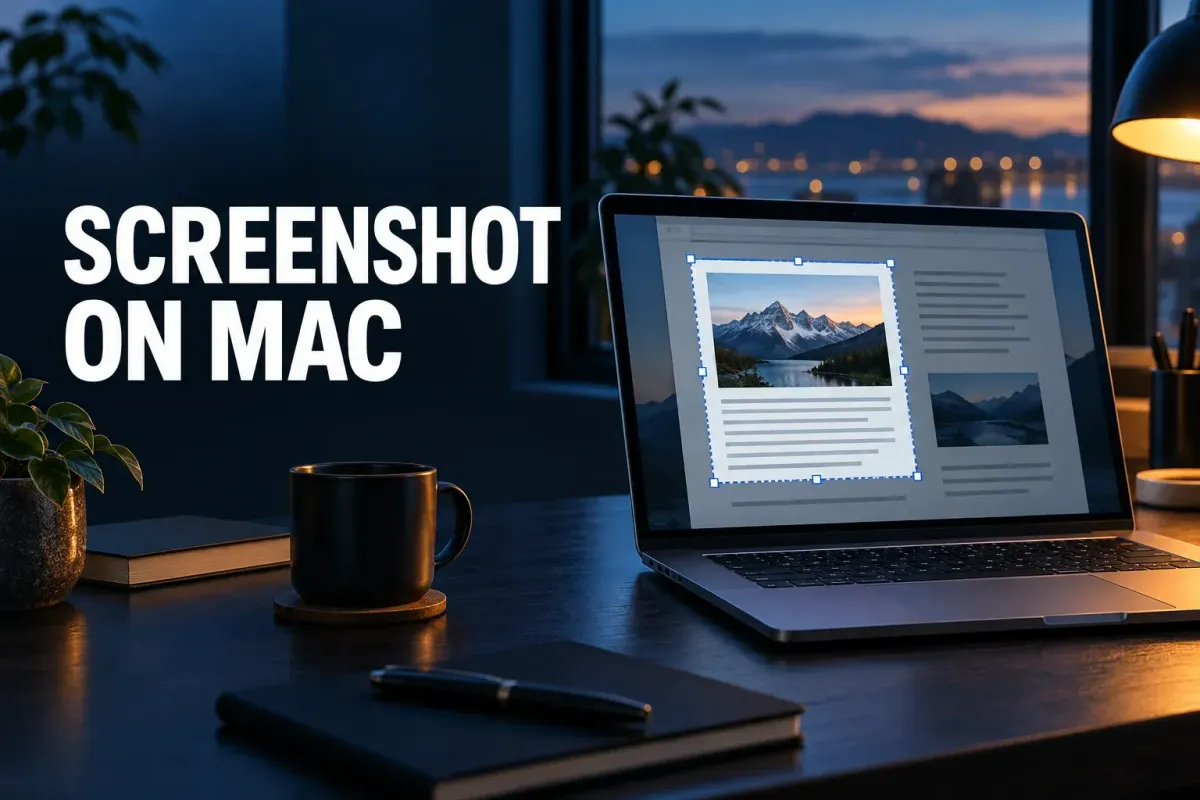
To capture part of your Mac screen, press Shift-Command-4, drag over the area, and release. For the entire screen, use Shift-Command-3. One window takes an extra step: press Shift-Command-4, release the keys, press Space, then click the window. These are the built-in macOS shortcuts from Apple's current screenshot guide, so you don't need a Windows-style Snipping Tool app.
By default, macOS saves the image to your Desktop. If you only want to paste it into a message or document, add Control to the capture shortcut instead. Decide which result you need before you take the shot: a Clipboard image is handy right now, while a named file is easier to attach or find later.
Every Mac screenshot shortcut at a glance
| Shortcut | What happens and where |
|---|---|
Shift-Command-3 | Capture the entire screen Saved as a file on the Desktop, or wherever Save to points. |
Shift-Command-4, then drag | Capture the area you select Hold Space while dragging to move the box; press Esc to cancel. |
Shift-Command-4, then Space | Capture one window or the menu bar Click the highlighted window. Hold Option as you click to leave out the shadow. |
Open a menu, then Shift-Command-4 | Capture a menu and its items Drag over the menu items you want in the picture. |
Shift-Command-5 | Open the Screenshot toolbar Capture and recording tools, plus Timer, Save to and other Options. macOS Mojave 10.14 or later. |
Shift-Command-6 | Capture the Touch Bar Only on MacBook Pro models that have a Touch Bar. |
Add Control | Copy to the Clipboard instead of saving a file For example Control-Shift-Command-4. Paste with Command-V. |
Select and copy this table into your notes, or use your browser’s Print command to keep a paper reference.
Press the keys of a shortcut together, then let go. Space, Esc and Option come after the crosshair or camera appears, while Control is held with the other keys from the start. The list matches the shortcut table in Apple's Mac User Guide.
Choose what belongs in the frame
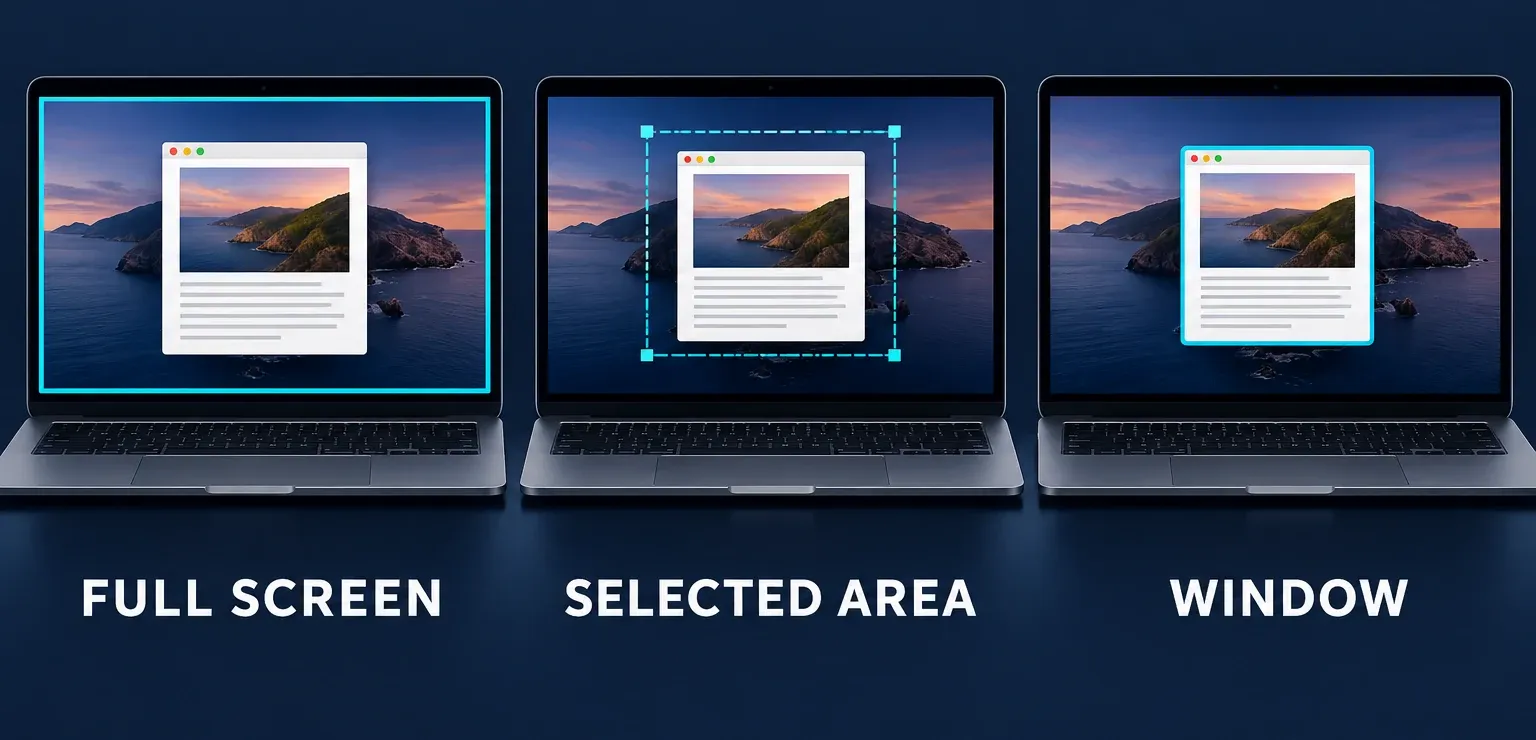
Selected area is my default for an error message or a single control, because it keeps unrelated tabs and notifications out of the frame. Press Shift-Command-4, wait for the pointer to turn into a crosshair, then drag across the detail and release to capture. If the box lands in the wrong place while you're dragging, hold Space to move it without changing its size, or press Esc to cancel and start again. Apple documents both adjustments in its selected-area instructions.
Use Shift-Command-3 when you need to show how several windows relate to each other. It captures the entire visible screen, including anything else you left in view. For a cleaner image of one app, press Shift-Command-4, then Space: the pointer turns into a camera, and you click the window or open menu you want. To leave out the window shadow, hold Option as you click. You'll find these steps and the shadow option in Apple's window-capture instructions.
Prefer buttons? Open the Screenshot toolbar
On macOS Mojave 10.14 or later, Shift-Command-5 opens the built-in Screenshot app. Pick the tool for the entire screen, a window, or a portion of the screen. For the full screen or a portion, click Capture; for a window, click the window itself. Apple's Mac User Guide describes both the capture controls and the separate recording controls in this toolbar, so make sure you've picked a still-image tool when you want a picture.
The toolbar's Options menu lets you choose where the screenshot is saved and whether to show a floating thumbnail. A timer helps when the menu or state you want to capture takes a moment to set up. For an ordinary quick capture you can leave these settings alone; the keyboard shortcuts above are faster once you know what you're aiming at.
Three more items in Options are worth knowing. Remember Last Selection keeps the frame you drew, so the next capture starts with the same area; I'd turn it on for a set of step-by-step images, because they come out the same size without cropping. Show Mouse Pointer adds the pointer to the picture. On supported Macs with macOS Tahoe 26 or later, Capture Format chooses between SDR, saved as PNG, and HDR, saved as HEIF, as Apple's screenshot article explains. I'd stay on SDR unless you need the extra brightness, because that's the option Apple labels Most Compatible.
If another app has taken Shift-Command-5, open Screenshot from Spotlight or from Applications > Utilities instead. Its recording tools work from the same toolbar, and my guide on how to stop a screen recording on Mac covers the Stop button and what to do when it doesn't respond.
Keep a file, or paste straight away
Without the Control key, a Mac screenshot normally lands as a file on the Desktop. Wait for the floating thumbnail to disappear, then open the new image and make sure it shows the area you meant before you attach it. If it isn't on the Desktop, the Mac screenshot save-location guide covers the current Save To setting, plus the Clipboard and iCloud Desktop cases.
The floating thumbnail has shortcuts of its own. Swipe it to the right to save at once, drag it straight into a document, email, note or Finder window, or click it to mark up the shot before it's saved; Apple's Screenshot instructions list all three. Apple adds two more: hold the pointer over the thumbnail and it stays on screen, or Control-click it for a menu that includes Save to Clipboard. When you take several shots in a row, I'd turn off Show Floating Thumbnail in Options, because the thumbnail holds each file for a few seconds before saving it.
Apple describes Control as the Clipboard modifier, so to skip a file you hold Control along with the usual shortcut, for example Control-Shift-Command-4 for a selected area. Release after selecting, click into the destination app, and press Command-V to paste. Do not look for a new Finder file from that capture unless you later paste and save it in an app.
Before you share either result, look over the image itself for names, messages and account details sitting inside the frame. Even a single-window capture can include private information within that window. When something needs to be hidden rather than just cropped away, use the screenshot redaction guide. A page taller than the visible screen is a separate job, and the Mac scrolling-screenshot guide handles that case.
If one particular app won't appear in a screenshot, the shortcut may be working normally: Apple notes that some apps restrict captures of their windows. Check first that an ordinary desktop area captures, then respect the app's restriction instead of changing screenshot settings over and over.
Change or turn off a screenshot shortcut
Choose Apple menu > System Settings > Keyboard, click Keyboard Shortcuts, then select Screenshots in the sidebar. Double-click the current key combination and press the new one, or clear its checkbox to turn that shortcut off. Apple's keyboard shortcut guide warns that a combination already used by another command won't work, and Restore Defaults in the bottom-left corner puts every shortcut back.
I'd change a screenshot shortcut only when another app has claimed it, because Apple's support articles and most how-to guides assume the defaults. If a capture shortcut still does nothing after Restore Defaults, the Mac screenshot not working checklist covers Save to settings, app permissions and restarting the screenshot process.