
To remove metadata from a screenshot before sharing it, clean a copy of the actual image file, then inspect that copy. On Windows or Mac, a local tool such as ExifCleaner supports PNG and JPEG screenshots. ExifTool gives you more control over which fields are removed and which color information is kept.
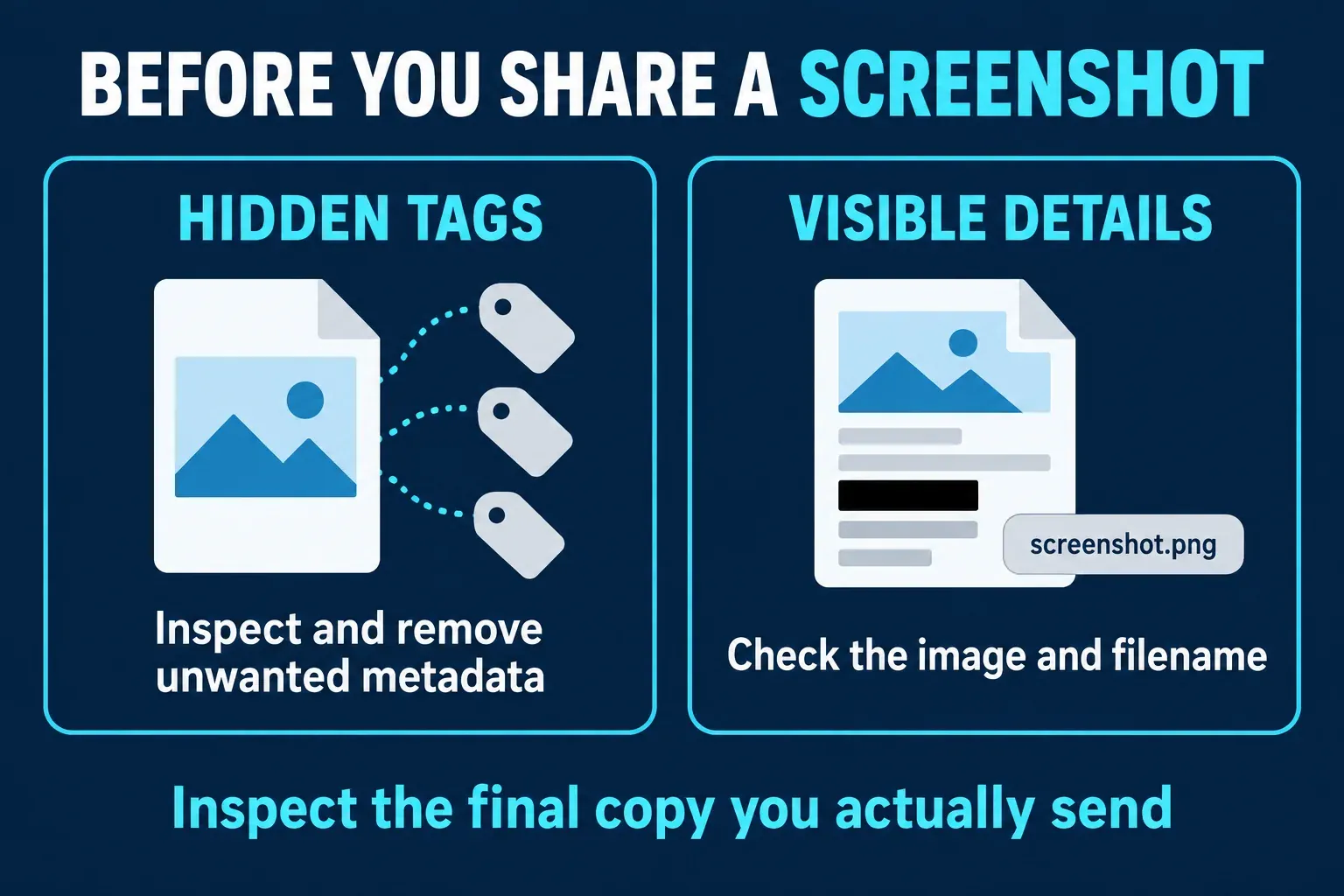
Do not assume that a screenshot has no metadata, or that hiding a location in a photo app cleans an attachment. The final file is what matters. Also check the visible image: removing hidden tags will leave a readable email address, browser tab, or account name untouched.
Check the right kind of information
EXIF is one metadata format, not a name for every hidden field. PNG screenshots can carry EXIF, XMP, and text fields. ExifTool's PNG tag reference documents text stored in tEXt, zTXt, and iTXt chunks, alongside other image information.
Look for fields such as author, title, comments, software, creation time, or location if they are present. A screen capture is not a camera exposure; you should not assume it contains camera GPS coordinates or a camera serial number. Inspect the file instead of guessing from the device that made it.
| Information | Where it is | What to do |
|---|---|---|
| Author, comments, software, or location tags | Embedded metadata, when present | Inspect and remove fields you do not want to send |
| Email address, account name, or open tabs | Visible image content | Crop or redact, then inspect the exported image |
| A descriptive filename | The file's name | Rename the sharing copy separately |
| Dimensions, file type, and color profile | Structural or display information | Expect necessary information to remain; preserve color deliberately |
Windows or Mac: use a local cleaner on a copy
For a single screenshot, I would start with a desktop app that handles the file format, then check its output. ExifCleaner supports PNG and JPEG files on Windows, macOS, and Linux and lets you inspect removed metadata. Get it from the project's official release page.
- Keep the original screenshot. Make a separate copy for sharing, especially if it belongs to a support case or a record you may need later.
- In ExifCleaner, enable Save as copy before adding the file. If your version does not offer that setting, work only on a duplicate.
- Drag the screenshot into the window. Adding a file starts cleaning, so choose the copy deliberately.
- Expand the processed entry to review the before-and-after metadata information.
- Open the cleaned output. Check the image, its colors, its filename, and any fields you still need to remove.
The 4.5.0 release notes describe verification of PNG and JPEG outputs in Save as copy mode, including reporting failed files. A failure is a reason to stop and inspect the result; do not send the original merely because it is still beside the cleaned copy.
Windows Properties is a limited alternative
On a duplicate, open Properties → Details. If Remove Properties and Personal Information is available, use it to select the exposed fields you want to remove. Microsoft's support instructions for removing file properties document this dialog.
Use it for fields Windows lets you edit. An empty-looking Details tab does not establish that every PNG text or XMP field is gone. If the relevant fields cannot be selected, use a format-aware cleaner and inspect the output.
ExifTool: inspect and create a separate sharing file
This is the route I would choose when you need to see exactly which tags are present. Use the official ExifTool installation instructions for your platform. The examples below assume the exiftool command is available and you are working in the folder containing the screenshot.
First, inspect the original PNG:
exiftool -a -G1 -s "screenshot.png"ExifTool documents these reading options: -a includes duplicate tags, -G1 shows their groups, and -s uses tag names. Group labels help you distinguish embedded fields from information about the local file.
For a PNG sharing copy, this documented-options recipe removes writable metadata and trailing data while keeping the ICC profile and copying color-space tags back:
exiftool "screenshot.png" -all= --icc_profile:all -tagsfromfile @ -colorspacetags -Trailer:All= -o "screenshot-share.png"The color-preserving pattern follows ExifTool's advice on deleting metadata safely. Keeping color information is deliberate, so the result is not a file with zero metadata. For PNG, the trailer warning explains why -Trailer:All= is included: ExifTool otherwise preserves data found after the image's IEND chunk.
-o writes a separate output. ExifTool's output-file documentation says existing output files are not overwritten. Choose a new name if screenshot-share.png already exists. Keep this example scoped to a PNG screenshot; do not apply it blindly to RAW photos, PDFs, or other containers.
Then inspect the copy:
exiftool -a -G1 -s "screenshot-share.png"Compare the unwanted fields with the first readout. You will still see information such as dimensions and file type, and you may see local filesystem dates. Check the group and meaning of a remaining field instead of treating every date or technical value as a failed cleanup. Open the image as well to check its appearance.
Phone location settings do not replace a file check
On iPhone or iPad, Apple documents a location option in the Photos share sheet: select the image, tap Share, open Options, and turn Location off. That is useful when location information is present. It is not an instruction to erase every metadata field from a screenshot.
Google Photos also distinguishes app-managed location from information supplied by a camera. Its location guidance says camera-added locations cannot be edited or removed in Google Photos. Removing an estimated location or changing a shared-album setting should not be treated as proof that a downloaded file or email attachment has been cleaned.
If you use a mobile metadata remover, check that it supports your screenshot's actual format. A JPEG EXIF workflow should not be assumed to cover PNG text fields. For a sensitive PNG, moving the file to a local desktop cleaner gives you the inspection route described above.
Check the file you are about to send
After cleanup, give the sharing copy a neutral, useful filename such as login-error.png. Removing embedded tags does not rename a file containing a person's name or an internal project identifier.
Open the final image at a readable size. If it exposes private information, redact sensitive details in the screenshot and export a flat image. Inspect that export again, because it is now the file you will send. Send the PNG or JPEG sharing copy rather than an editable project containing extra objects or revisions.
I would use local processing for private account or support screenshots. Online tools may process an image on a server or in the browser; read the specific service's handling policy before adding the file. Nor should you rely on a messaging service to strip everything automatically: the attachment you select can differ from a displayed preview.
For a screenshot in a support ticket, keep the original privately and label the cleaned copy clearly. Metadata cleanup reduces what travels inside the image file. It does not hide your sending account or remove information already visible in the picture.