
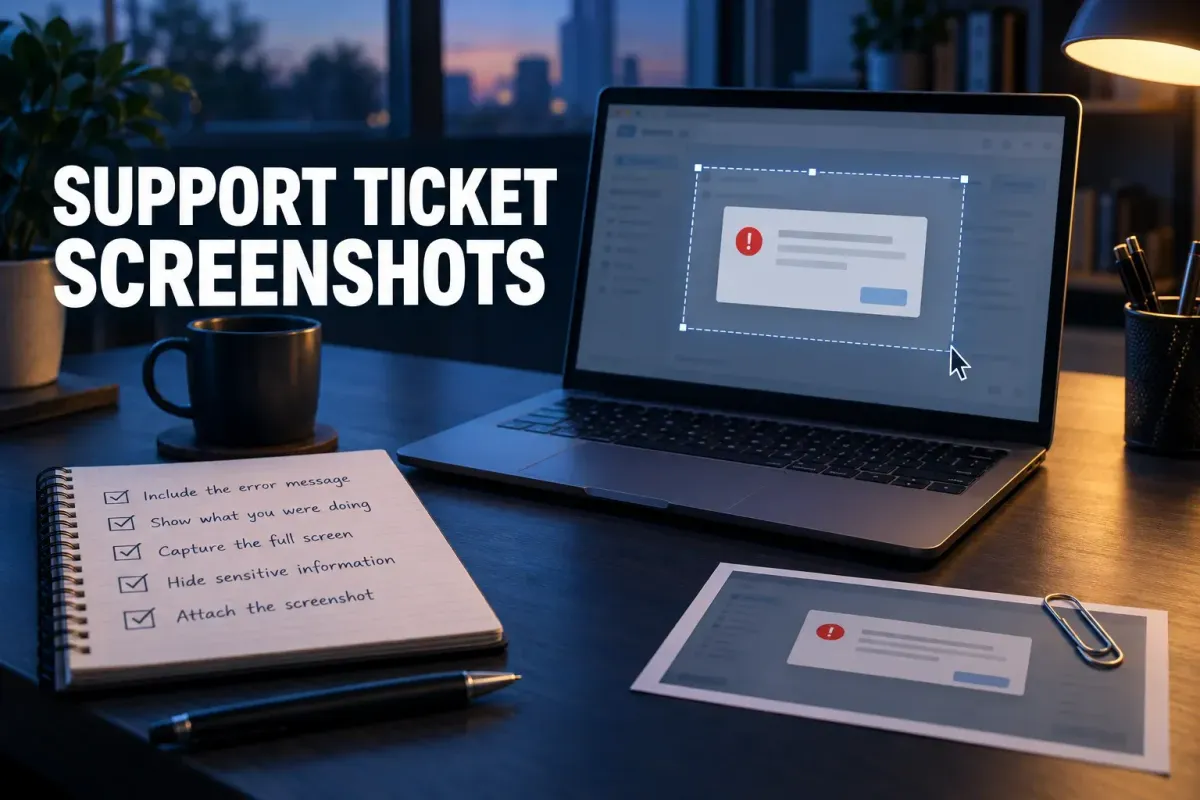
A useful support screenshot does more than prove that an error exists. It shows the exact failure, preserves enough context to identify the screen, removes private data, and arrives with the steps and environment details needed to investigate the problem.
The fastest way to slow down a support ticket is to attach an unexplained image. The person reading it can see that something went wrong, but still has to ask which button you clicked, which version you use, what you expected, and whether the problem happens every time.
Treat the screenshot as one part of an evidence package. For a simple support request, that package may be one focused image and two sentences. For a reproducible software bug, it usually needs the environment, numbered steps, expected result, actual result, and the right combination of screenshots, recording, or logs.
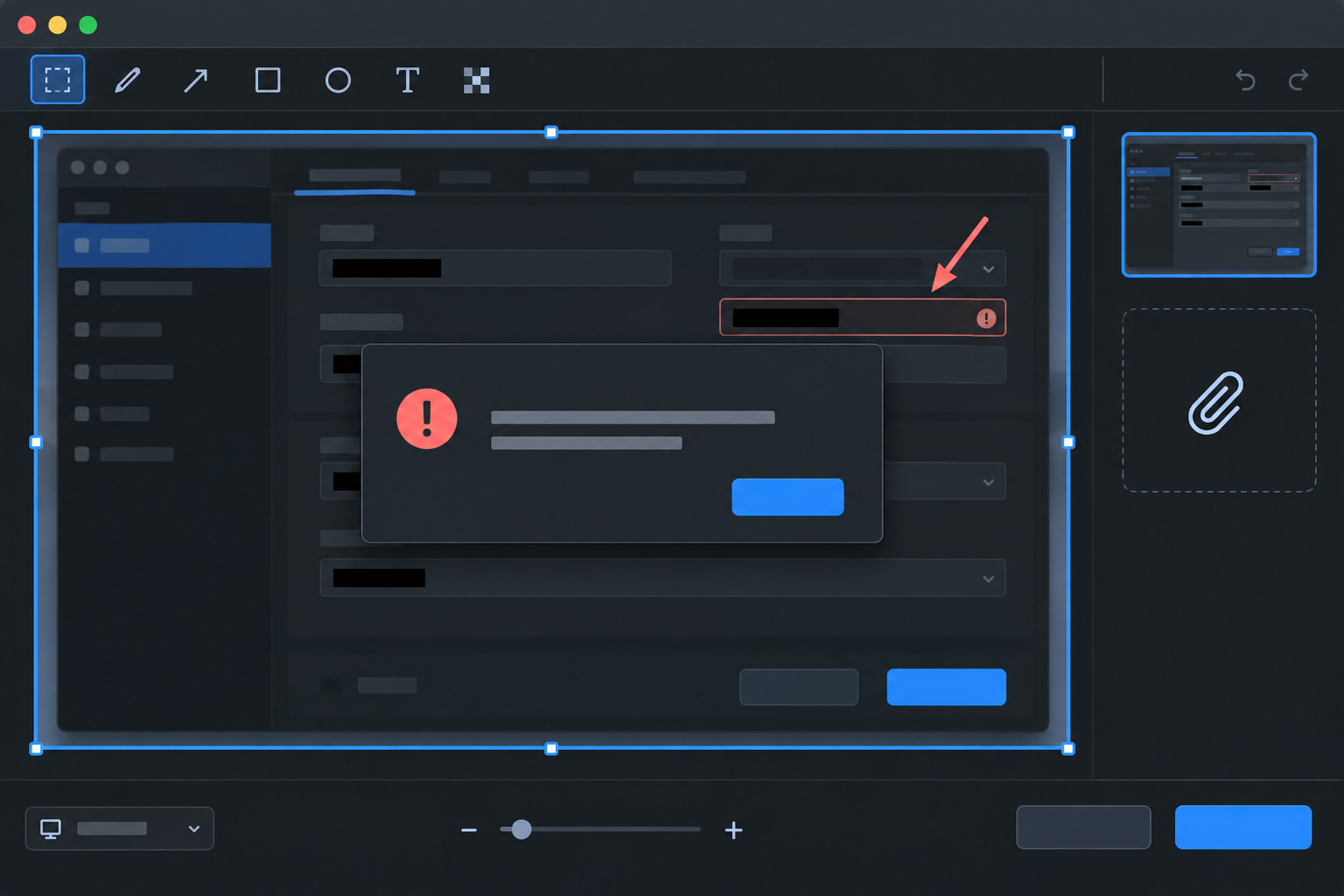
Support request or reproducible bug?
A support request asks for help with a result you do not understand: a setting is missing, an export looks wrong, or an account action fails. Show the screen, say what you were trying to do, and include the error text.
A bug report claims that a repeatable sequence produces an incorrect result. It needs more structure because another person must be able to follow the same path and compare the expected result with the actual one.
If you are unsure which one you have, describe the sequence anyway: what you tried, what you expected, and what happened instead. Support can classify the request from those facts; a screenshot without the sequence often creates another round of questions.
Build the minimum evidence package
Before capturing the screen, collect the smallest set of facts that identifies the problem:
- Goal: what you were trying to complete.
- Environment: application, version or build, operating system, browser and device when relevant.
- Location: page, menu, project, file type, URL, or account area where the problem appears.
- Steps: the exact actions immediately before the failure.
- Expected result: what should have happened.
- Actual result: what happened instead, including the exact error wording.
- Evidence: one screenshot, a short sequence, a recording, logs, or a safe sample file.
- Timing: when it happened and whether it repeats.
This is close to the information that structured issue systems request. For example, GitHub issue forms can require operating-system and software-version fields, which is a useful model even when your support portal is only a blank text box.
Capture the smallest useful area
A good boundary answers two questions at once: “What failed?” and “Where am I?” Include the error, the control or content involved, and enough window chrome or navigation to identify the application. Exclude unrelated windows, message previews, browser tabs, customer records, and personal documents.
Built-in tools are enough for a straightforward capture. On Windows, press Windows + Shift + S and select the relevant area; on a Mac, press Shift-Command-4 and drag around it. macOS can capture the full screen, a window, or a selected portion, while Windows Snipping Tool offers rectangle, window, full-screen, and freeform screenshot modes; on Windows 11, it also records video snips. Use Snagit when the job needs consistent annotations, redaction, scrolling capture, or several related images prepared in one workflow.
If the message disappears after you click OK, capture it before dismissing it. If that is impossible, copy its exact wording into the ticket and describe the action that opened it. The event sequence remains essential even when the image is clear.
Keep the error readable and the annotation out of the way
Do not shrink the image until interface text becomes difficult to read. Keep the original capture, then create a safe copy for the ticket if you need to redact or annotate it. PNG is usually the safer choice for small interface text, sharp lines, and callouts; JPEG is more useful when photographic content matters more than text clarity.
Use one arrow, outline, or short label to direct attention. Place callouts beside the evidence instead of over the error message. If several actions matter, number them in order or split the explanation into a short image sequence. The screenshot annotation guide shows how to mark a control without turning the capture into a wall of arrows.
Choose one screenshot, a sequence, a recording, or logs
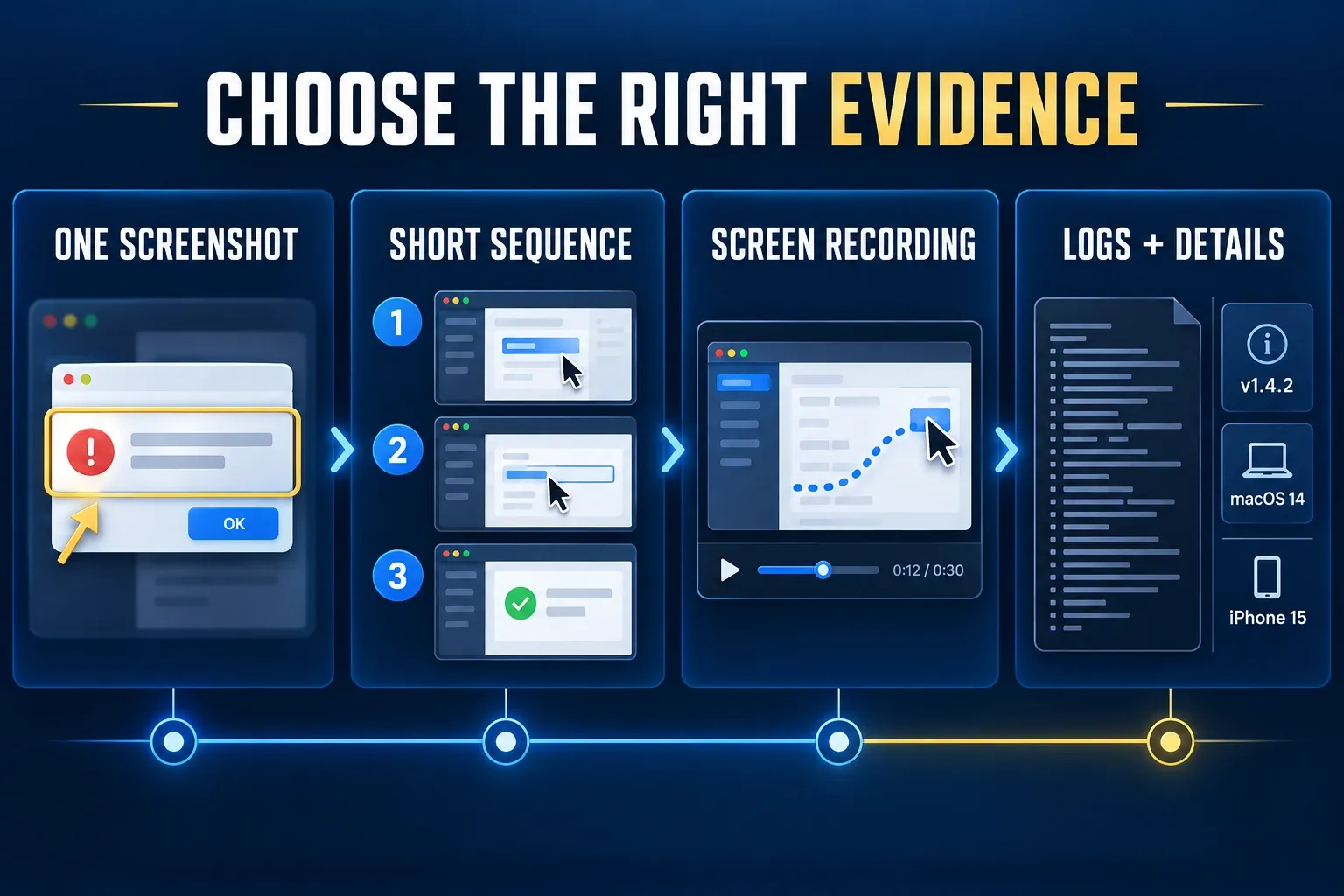
| Evidence | Use it when | Include | Avoid |
|---|---|---|---|
| One screenshot | The failure is visible in one stable state | Error, relevant control, enough application context | Full-desktop captures with unreadable detail |
| Short sequence | Two or three actions explain the change | Numbered files or callouts in the same order as the steps | Combining every step into one crowded image |
| Screen recording | Timing, motion, hover state, or intermittent behavior matters | Short reproduction path and a note about the moment to watch | Long recordings with unrelated work or private notifications |
| Logs and details | The problem depends on network, background processing, permissions, or a crash | Timestamp, build, environment, safe diagnostic files | Secrets, tokens, unrelated logs, or an unexplained data dump |
Use the lightest evidence that preserves the failure. A still image is faster to review than a recording when the problem is a static dialog. A recording is more useful when a menu closes too quickly, a cursor action triggers the issue, or the result depends on timing. Logs become necessary when the visible screen cannot show the internal cause.
Write the ticket beside the image
Do not force the screenshot to carry the whole explanation. Put the searchable facts in the ticket text, where support can quote them, route the issue, and compare similar reports.
Keep the title specific. “Export fails after choosing PDF on macOS 14” is more useful than “Broken export.” Then list the steps as actions, one per line. Use the same control names that appear in the interface.
Copyable support and bug-report template
Title:

Goal:

Environment:
- Application and version/build:
- Operating system:
- Browser and version, if relevant:
- Device, if relevant:
- Page or URL, if relevant:

Steps to reproduce:
1.
2.
3.

Expected result:

Actual result:

Error text:

Frequency:

Started:

Attachments:

What I already tried:

Privacy check completed: Yes / No
Save this as a reusable template if your team reports the same class of issue. GitLab, for example, supports project-level issue description templates, but the same structure works in email, a help desk, or a shared document.
Filled example
This is a fictional teaching example. Example App, its version, the macOS setting, and “5 of 5 attempts” illustrate how to format a ticket; they are not observations or tests conducted for this guide.
Title: PDF export closes without creating a file on macOS 14

Goal: Export the annotated capture as a PDF.

Environment:
- Application and version/build: Example App 4.2.1
- Operating system: macOS 14.7
- Page or location: File > Export > PDF

Steps to reproduce:
1. Open an annotated image.
2. Choose File > Export and select PDF.
3. Choose the Desktop and click Save.

Expected result:
A PDF appears on the Desktop.

Actual result:
The export dialog closes, but no file appears.

Error text:
No error message is shown.

Frequency:
5 of 5 attempts with this file.

Attachments:
01-export-settings-before-save.png
02-desktop-after-save.png
sample-safe-project-file.zip

What I already tried:
Changed the destination folder and repeated the export.

Privacy check completed: Yes
Within the fictional ticket, the reporter separates observable results from possible causes. It does not guess that permissions, storage, or the application caused the failure. That separation helps support investigate without first correcting the reporter's theory.
Record the environment and time
Version-sensitive problems are hard to route without a build number. Record the application version, operating system, browser version, device model, and relevant extension or plug-in version. If the problem occurs on a web page, include the safe page URL or route and whether the account is personal, team, staging, or production.
Add the exact local date and time when logs, background jobs, server requests, or intermittent failures may be involved. A timestamp with its time zone gives an investigator a much smaller window than “earlier today.” Include the time zone if the support team works in another region.
Redact private data before export
Review the image for names, email addresses, customer IDs, license keys, access tokens, internal URLs, folder names, document contents, open tabs, and notification previews. Replace real secrets with safe examples whenever possible. If the screenshot contains private customer data, reproduce the problem with a clean sample rather than covering half of the original record.
Use the site's Snagit redaction workflow for a practical editing sequence. Export a flattened copy and open that exact file before attaching it. A translucent shape, editable layer, or source project may leave the original text available.
Apply the same care to diagnostic files. The OWASP Logging Cheat Sheet recommends removing, masking, sanitizing, hashing, or encrypting items such as access tokens, passwords, sensitive personal data, connection strings, and encryption keys. Do not upload a complete log bundle just because support asked for “logs”; send the relevant, reviewed range.
Name and order the attachments
Use filenames that preserve the reproduction order and describe the evidence:
01-starting-state.png
02-export-settings.png
03-result-after-save.png
04-screen-recording.mp4
05-log-YYYY-MM-DD-1432.txt
Keep customer names, ticket secrets, passwords, and private project names out of filenames. If the portal reorders files, refer to each filename in the steps. For image format and export choices, the Snagit export settings guide explains when to keep a finished PNG, a share link, or an editable project.
Verify the attachment after upload
Upload success does not guarantee useful evidence. Open the attachment from the ticket preview and confirm that:
- the correct file was attached;
- the error text is readable at normal size;
- redaction survived export;
- the image is not cropped by the portal;
- the recording plays and starts near the relevant action;
- link permissions allow the intended support team to view the file;
- the numbered filenames match the written steps.
This final pass catches a common failure: the carefully prepared image remains on your computer while an older or unredacted version is attached to the ticket.
Know when a screenshot is not enough
Add other evidence when the problem depends on information that pixels cannot show:
- Intermittent timing: include a short recording and the approximate timestamp.
- Crash or freeze: include the crash report or relevant diagnostic log after reviewing it for secrets.
- Network or sync failure: include request IDs, status codes, timestamps, or a safe network trace if support requests one.
- Performance problem: describe the action and visible delay; attach an approved performance trace rather than guessing from a still image.
- Data-specific failure: create the smallest safe sample file that reproduces the issue.
- Permission or account problem: identify the role and environment without exposing credentials or private account data.
The screenshot still matters because it anchors the visible result. It simply cannot replace hidden state, timing, or reproducible input.
Final ticket checklist
- The title identifies the action, failure, and environment.
- The steps can be followed in the same order.
- Expected and actual results are separate.
- The screenshot includes the error and enough interface context.
- Annotations point to evidence without covering it.
- The chosen evidence matches the problem: still, sequence, recording, or logs.
- Version, browser/device, URL, and timestamp are included when relevant.
- Private data is removed from the image, logs, filename, and visible notifications.
- The uploaded attachment has been opened and checked.
A good ticket is compact, but it is not vague. One readable screenshot, a concrete sequence, and the relevant environment details give support a real starting point. If the image still needs explanation, add that explanation to the ticket instead of adding more arrows.