
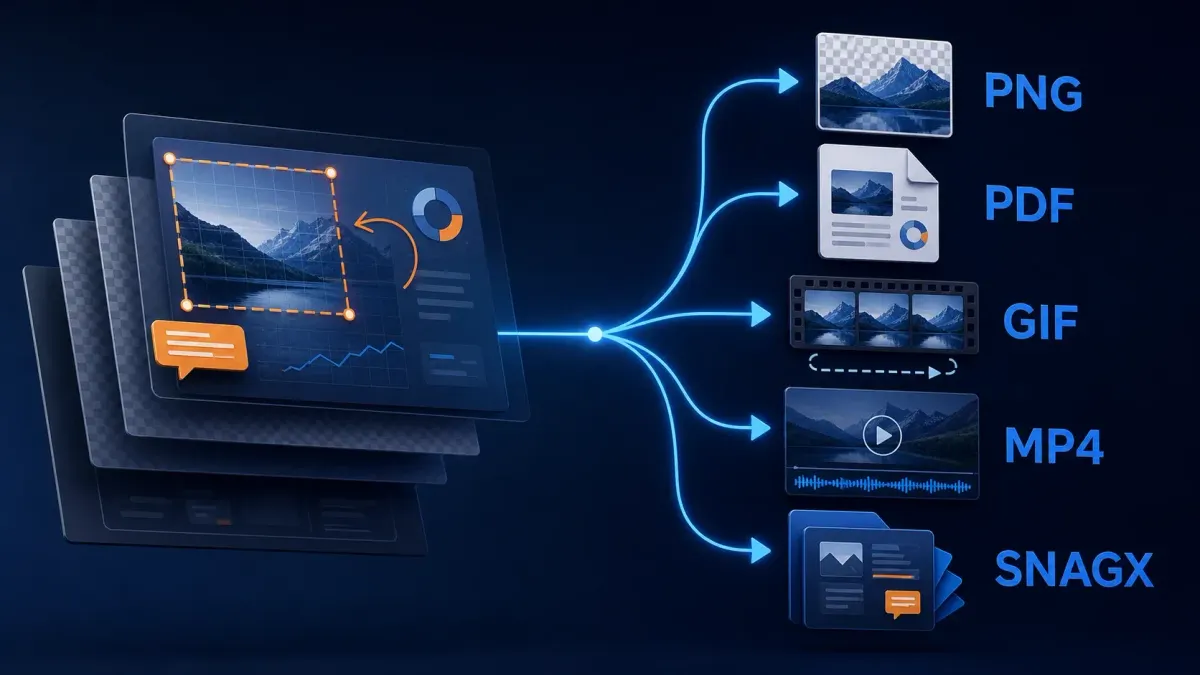
Use PNG for most interface screenshots, PDF for a document handoff, GIF for a short silent animation and MP4 for recorded video with sound. Keep SNAGX as the editable image master. Choose the destination, save a separate delivery copy and reopen it outside Snagit before sending it. Not every source can be exported directly to every format.
Choose the Snagit export format from the destination
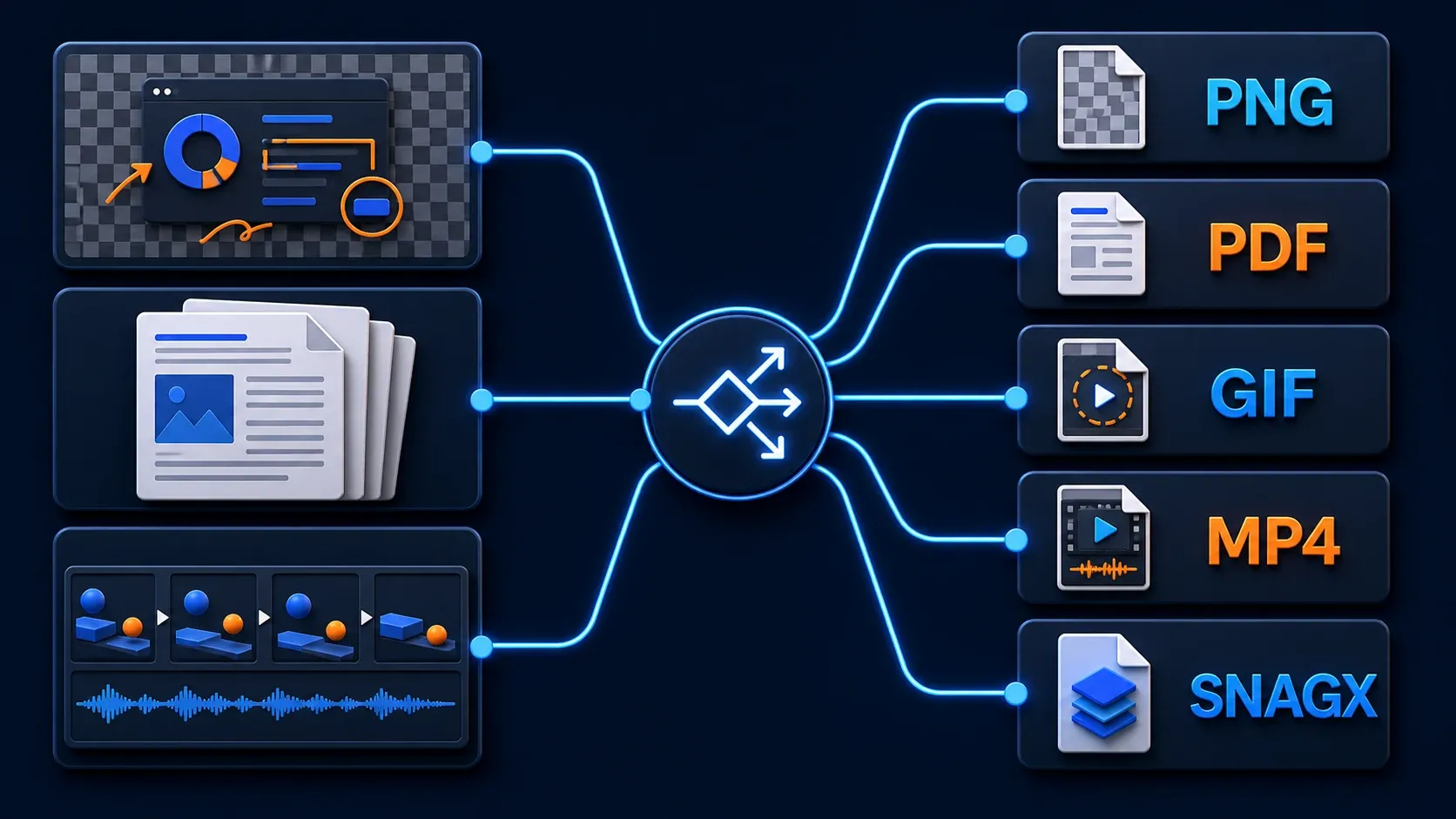
- Website, help center or ticket: PNG. It avoids JPEG compression artifacts and supports transparency, but the source and final display size still determine readability.
- Photo-heavy image for the web: JPEG. It can create a smaller lossy file, so inspect text and fine detail before delivery.
- Current Windows or Mac workflow that needs WebP: use WebP when the destination accepts it. TechSmith lists it among current Snagit export types; older releases may differ.
- Document handoff or printable page: PDF. It delivers a visual page, not automatic searchable or accessible text.
- Short silent demonstration: GIF. Use it for one compact looping action without audio.
- Narrated or longer demonstration: MP4. Use it for video playback and audio.
- Future edits to an image in Snagit: SNAGX. Keep this editable source separate from public delivery files; recorded video uses its own files.
A transparent button cutout usually calls for PNG. A visual instruction sheet may need PDF. A demonstration with narration needs a format that carries audio, such as MP4. Keep the original image or recording so you can make another delivery copy later.
Check what the receiving tool accepts, whether you need sound or transparency, and whether someone must revise the annotations later. Then check its upload-size limit. An allowed extension alone does not guarantee readable output.
Use Save As, Copy All, Share Link, or Share for different jobs
Save As creates a file, Copy All uses the clipboard, and Share Link creates a hosted link. If you are still finding these controls, the Snagit Editor guide explains the workspace.
- File > Save As creates a named image file in a chosen format and location. For recorded video, use the File share destination described below.
- Copy All copies the selected image or video for pasting into a compatible application. Check what the receiving app actually inserts.
- Share Link uploads the capture to Screencast and copies a URL. Review the capture for private data before using this route.
- Share sends the current capture to a configured app or service. Available destinations can depend on the platform and organization setup.
TechSmith's sharing tutorial documents these routes. An administrator can configure Share Link to use OneDrive on Windows or Google Drive instead of Screencast. The destination can require sign-in and account permissions, so check the configuration before uploading private material.
For a local file, use the appropriate file-save route. For a link, verify the intended access permissions and test with the recipient's expected sign-in state. A private browser window can show what an unauthenticated visitor sees, and restricted content should remain restricted. Also inspect the shared title: it can include the source file or webpage name.
Keep a SNAGX master before exporting a delivery copy
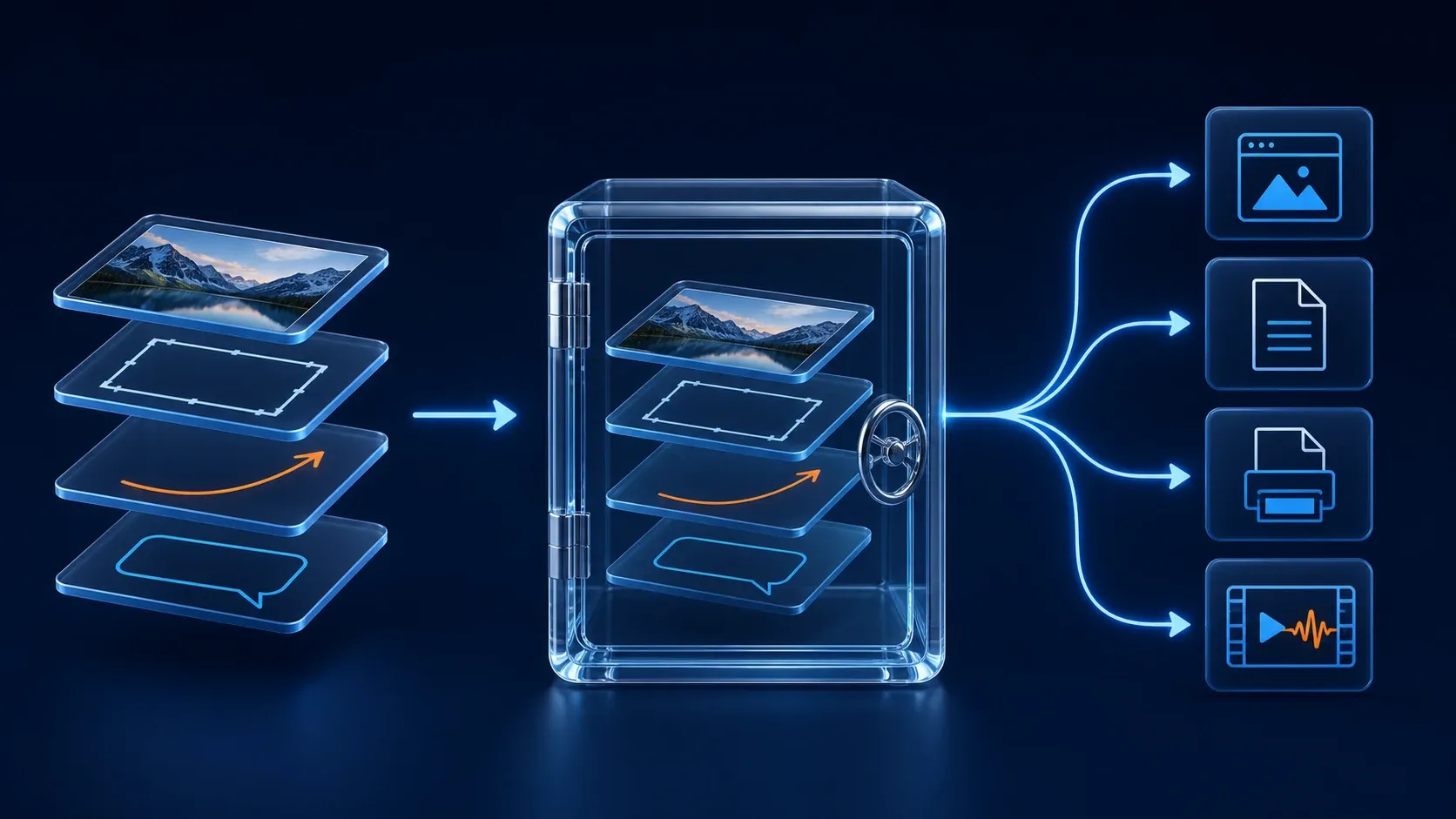
TechSmith's file-saving guide documents SNAGX image masters in the Library and File > Save As for a separate copy. SNAGX preserves editable objects such as text and callouts. Check that automatic Library saving is enabled if you rely on it; Windows allows it to be turned off.
Keep the editable image source separate from its PNG, JPEG or PDF delivery copy. Update an annotation in the source and export again when instructions change. Do not send a SNAGX master if it contains hidden or covered private information that the recipient should not receive.
TechSmith says Windows can retain editable annotations after you save another image format and reopen Editor, while Mac flattens the non-SNAGX file when Snagit quits. That Editor behavior does not make an exported PNG a portable layered project. Use SNAGX when another Snagit user needs the editable image objects.
Use distinct names, such as invoice-export_master.snagx and invoice-export_help-center.png. Do not overwrite your only editable source. A historical discussion about duplicate SNAGX and PNG entries illustrates the confusion this can cause; current saving behavior should be checked against the vendor documentation, not the thread's old version claims.
Export PNG for interface screenshots and transparency
PNG is a useful starting point for menus, dialogs, error messages and annotations. It supports transparent pixels and avoids JPEG compression artifacts. It cannot restore detail missing from a small source image.
Transparency only helps when the source contains transparent areas. The background-removal guide explains how to create them. Inspect the exported PNG against both a light and a dark background so unwanted fringes are visible.
Crop unused canvas before export. A correct PNG with a wide empty border still looks tiny once a CMS fits the whole file into a content column. Check the resulting pixel dimensions and the displayed width on the real page.
Use JPEG for photos, not small interface text
JPEG uses lossy compression and doesn't preserve transparency. It can shrink a photo-heavy capture, but compression artifacts usually show up first around text, thin lines, and high-contrast controls. Export a sample and inspect it at the size readers will actually use.
Start with a high-quality JPEG copy, compare its file size with the destination's limit and lower quality only while the result stays acceptable. There is no single quality setting for every image. Keep the original so you can export again without repeatedly recompressing the delivery copy.
Export WebP on current Windows and Mac versions
TechSmith's current feature page lists WebP among Snagit export types, and its Mac file-format page also lists WebP. Current Snagit supports WebP export on Windows and Mac; older releases may differ.
Use WebP when the receiving website or service accepts it and you want a web-oriented delivery copy. Keep the editable SNAGX master, then inspect the exported WebP at its real display size. If another person must export the file from an older Snagit release, confirm that release's available formats before making WebP part of the handoff.
Export PDF for document delivery, with clear limits
TechSmith lists PDF as export-only in its general and Mac format pages. To deliver an image as a PDF document, use File > Save As, choose PDF and save a copy. Open it in a separate PDF viewer before sending it.
Saving a screenshot as PDF does not by itself create selectable text, document headings or an accessible reading order. W3C's image-only PDF guidance distinguishes pictures of text from actual text. Keep essential instructions in document text and verify accessibility separately. To extract words before authoring the document, use the Snagit text-extraction workflow and proofread the result.
Choose GIF for a short silent loop and MP4 for video with audio
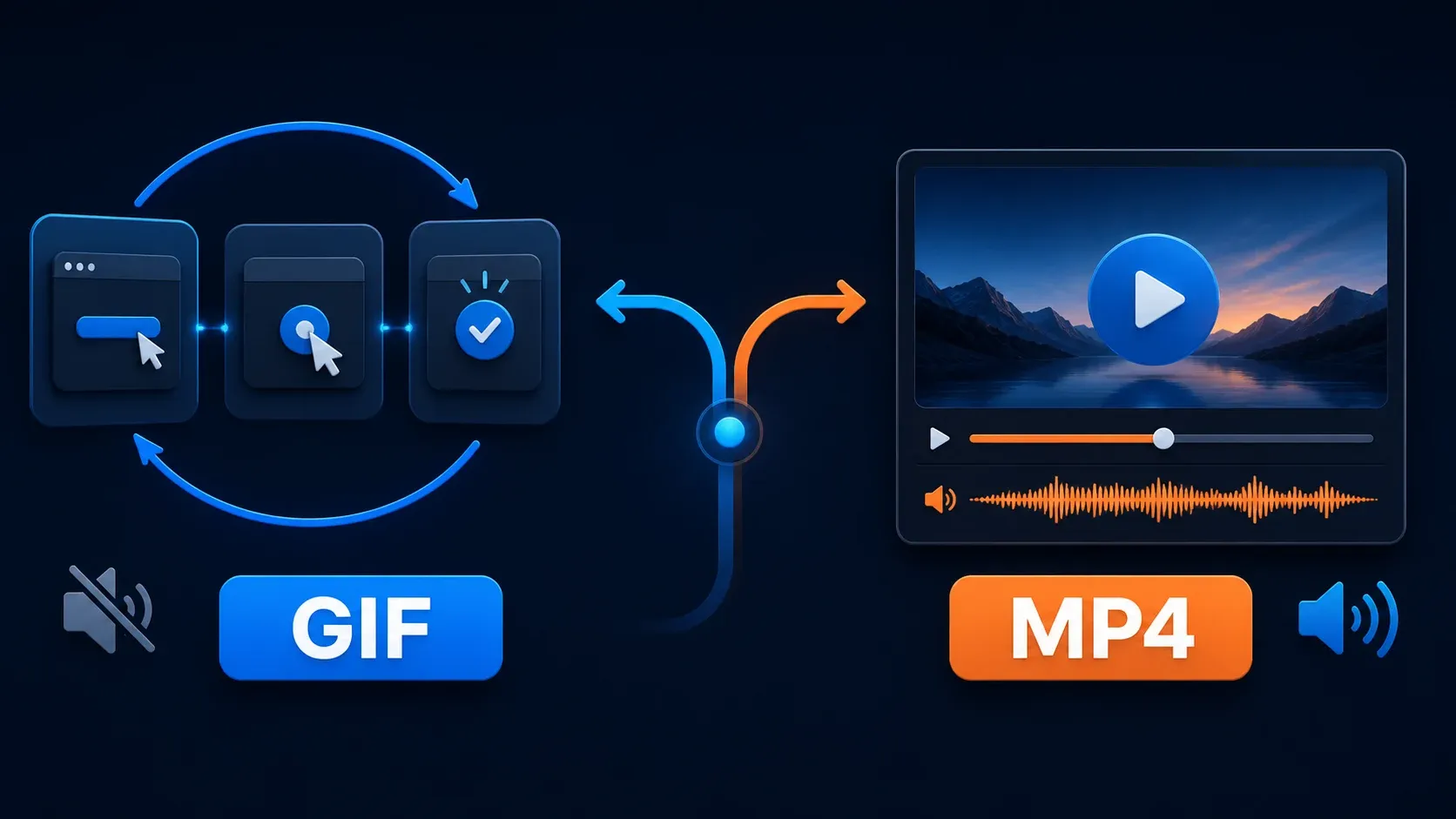
Choose GIF when a short silent animation is enough to explain the action. Choose MP4 when you need sound, a longer sequence or ordinary video playback. There is no duration cutoff that suits every destination.
TechSmith's animated GIF tutorial lets you set frame rate and dimensions and warns that a higher frame rate increases file size. Its current web-performance recommendation is 1 MB or less. Treat that as a web target, not a universal hard limit for every chat tool, intranet, or local presentation.
Trim the clip to one complete action and check that the pointer is easy to follow. If a silent animation leaves the reader guessing, add real explanatory text or use a narrated video. In Snagit's GIF settings, verify Looping if you need continuous repetition; GIF output does not have to loop indefinitely.
For MP4, TechSmith's video tutorial uses the Share Link or Share dropdown, then File. Play the exported clip outside Snagit and inspect its beginning, ending, sound and any private notifications. The screen-recording guide covers setting up the recording itself.
Pixel dimensions matter more than changing DPI
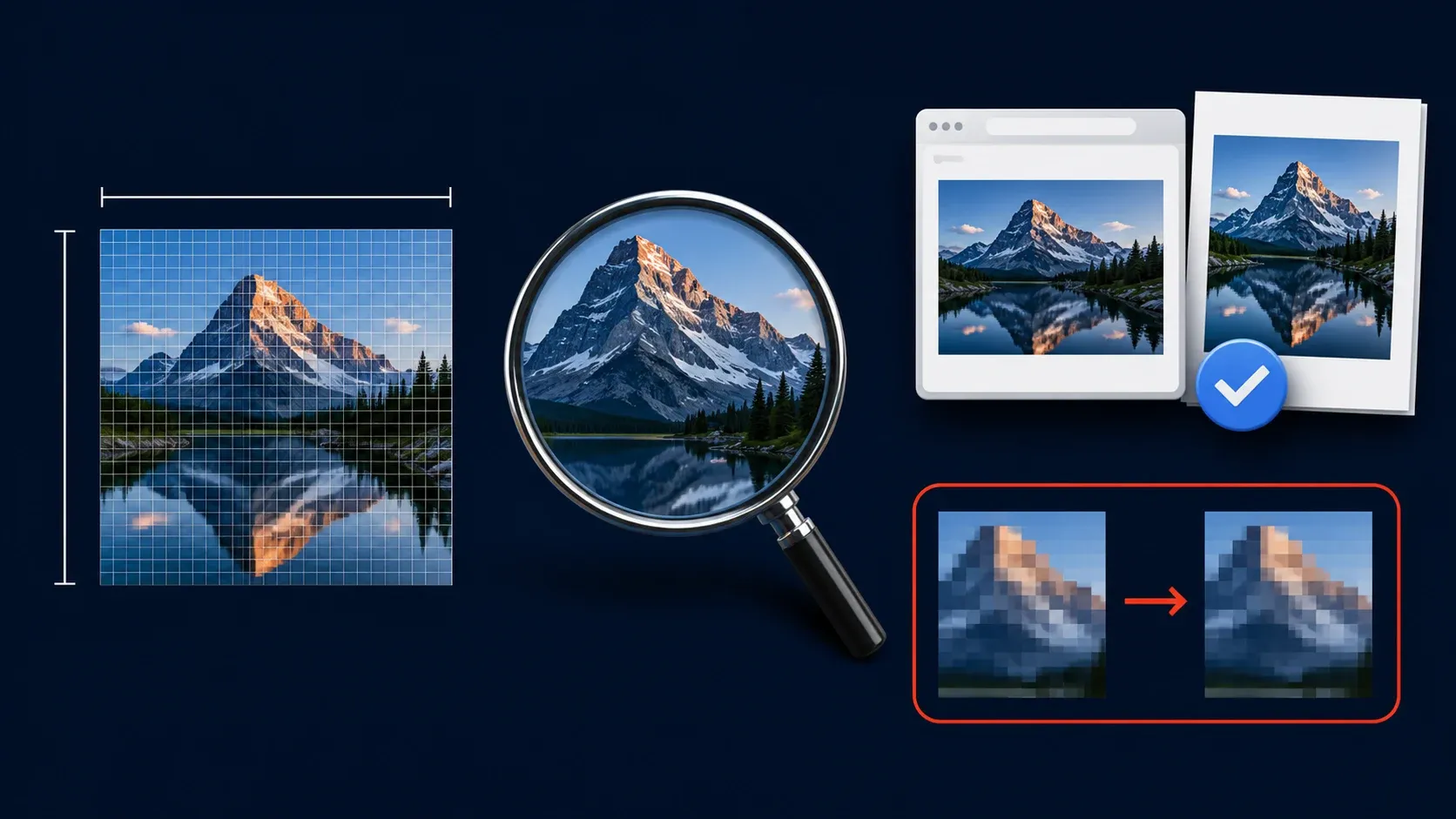
Changing DPI metadata alone leaves the captured pixel count unchanged. TechSmith's DPI explanation concerns the print size assigned to those pixels. Resampling during a resize is different: it calculates a new pixel grid but can't recover original detail that was never captured.
For a website, compare source pixels with the displayed size and device pixel ratio. A 600-CSS-pixel-wide image area at two physical pixels per CSS pixel needs 1200 source pixels across for a one-to-one match. If the result looks soft, use the blurry Snagit screenshot checks to distinguish Editor preview, export and destination scaling before changing formats.
For print, divide the image width in pixels by its intended width in inches. A 1800-pixel image printed six inches wide provides 300 pixels per inch; that is an example, not every printer's requirement. Ask for the required output specification and inspect a proof. Increasing a metadata number does not reconstruct missing text.
Set automatic PNG saving on Windows only when review is unnecessary
On Windows, use the Capture window, not Capture Preferences: select Image, choose File in the Share dropdown and open the gear icon. Choose the file type, naming behavior and folder. With Preview in Editor enabled, review the capture and select Finish. With preview disabled, Snagit saves automatically or prompts for a filename according to those settings. TechSmith's automatic-save instructions also show how to keep the setup as a preset.
Use automatic delivery only for captures that do not need review. Keep Preview in Editor enabled when you must crop, annotate or remove private data. The Snagit presets guide covers reusing the settings. A File share destination does not by itself mean Library saving has been disabled; keep an editable backup if you need it.
Convert a Library before your Snagit access ends
Before an active subscription or trial ends, TechSmith recommends Batch Convert Images for Library export. Convert image masters to standard formats while you still have access. Existing recordings and animations are already MP4 and GIF files. If access has expired, contact TechSmith support for the available options, and don't assume those files are lost.
Run a small test batch first. Open several converted files outside Snagit, confirm filenames and folders, and compare the count with the source selection before converting the rest. Keep the original Library backup until the new archive has been verified. The Snagit Library backup guide covers the separate backup and migration checks.
Export a Snagit capture in seven checks
Choose the destination before the format
Decide whether the file is for a web page, support ticket, document, print handout, silent loop, narrated video, or future editing.
Keep the editable master
Keep image captures as SNAGX masters in the Library or save a separate SNAGX copy. Retain original video recordings separately before editing or exporting another copy.
Use the correct export route
Use File > Save As for an image file, Copy All for compatible clipboard delivery, Share Link for a hosted URL, or a configured Share destination. For MP4, choose File from the Share menu.
Set the format for the real job
Use PNG for sharp interface stills and transparency, JPEG for photos when a smaller lossy file is acceptable, PDF for document delivery, GIF for a short silent loop, or MP4 for video with audio.
Check dimensions instead of trusting DPI
Confirm the actual pixel width and height at the final display size. Changing DPI metadata does not add image detail.
Remove private data and excess canvas
Crop unused space, remove private identifiers and inspect the exported copy. Do not share an editable master that contains hidden or covered information the recipient should not receive.
Reopen and test the exported file
Open the result outside Snagit, check text and transparency, play motion from start to finish, and test the actual upload or handoff destination.
Reopen the delivery copy in the application your recipient will use. Check the uploaded or printed result too: a CMS can resize an image, a ticket system can recompress it, and a document can place it at an unreadable size.
Snagit export settings FAQ
What is the best Snagit export format for screenshots?
PNG is a useful starting point for interface screenshots and transparency because it avoids JPEG compression artifacts. Readability still depends on the source and displayed size. Keep a SNAGX image master when you need editable annotations.
Should I save a Snagit capture as SNAGX or PNG?
Keep SNAGX as the editable image master and export PNG for delivery. Check Library saving or save a separate master explicitly. PNG is not a portable layered Snagit project; recorded video uses separate files.
Can Snagit export WebP on Windows and Mac?
TechSmith's current feature page lists WebP among Snagit export types, and its Mac file-format page also lists WebP. Current Snagit supports WebP export on Windows and Mac; older releases may differ.
When should I export a GIF instead of an MP4?
Use GIF for a short silent action and check its Looping setting. Use MP4 for sound, narration, longer motion or ordinary video playback. Choose by the task and destination, not a universal duration cutoff.
Does changing DPI make a Snagit screenshot sharper?
Changing DPI metadata alone does not change captured pixels. Resampling can change the pixel count but does not recover missing source detail. Check source dimensions, displayed size or intended printed inches.
How do I export a Snagit capture to PDF?
Open the image, use File > Save As and select PDF when offered. Inspect it in a PDF viewer. An image-only PDF does not automatically provide searchable text or accessible document structure.
How do I save every new Snagit capture as PNG automatically?
On Windows, open the Capture window, select Image, choose File under Share and open the gear icon. Set PNG, naming behavior and folder. Disable Preview in Editor only when review is unnecessary; a filename prompt can still appear if configured.
How do I export a Snagit Library before I stop using Snagit?
While access is active, use Batch Convert Images for SNAGX image masters. Copy the existing MP4 recordings and GIF animations separately and verify the archive. If your subscription or trial has already expired, contact TechSmith support for options.