
To back up a Snagit 2022 or later Library, copy its complete folder after saving your work and closing Snagit. Before copying, find the active path in Library settings. Keep one backup untouched, and test a separate restore copy before you delete anything. Older Windows Datastore archives need a different procedure.
Choose the correct Library generation first
Check the version on both computers. Snagit 2022 introduced SNAGX in place of Windows SNAG and Mac SNAGPROJ. You can still import a legacy Windows archive into a newer installation when its import requirements are met, but it isn’t the normal backup format for a new SNAGX Library.
| Source Library | What to preserve | Important distinction |
|---|---|---|
| Windows or Mac, 2022+ | Complete configured Library folder | SNAGX sources; check the destination before a move or merge |
| Windows, 2021 or earlier | Datastore and a supported .snagarchive backup | Legacy restore replaces captures; it does not merge Datastores |
| Mac, 2021 or earlier | Configured Autosaved Captures folder | Do not apply Windows Datastore instructions; old tags and app icons do not transfer |
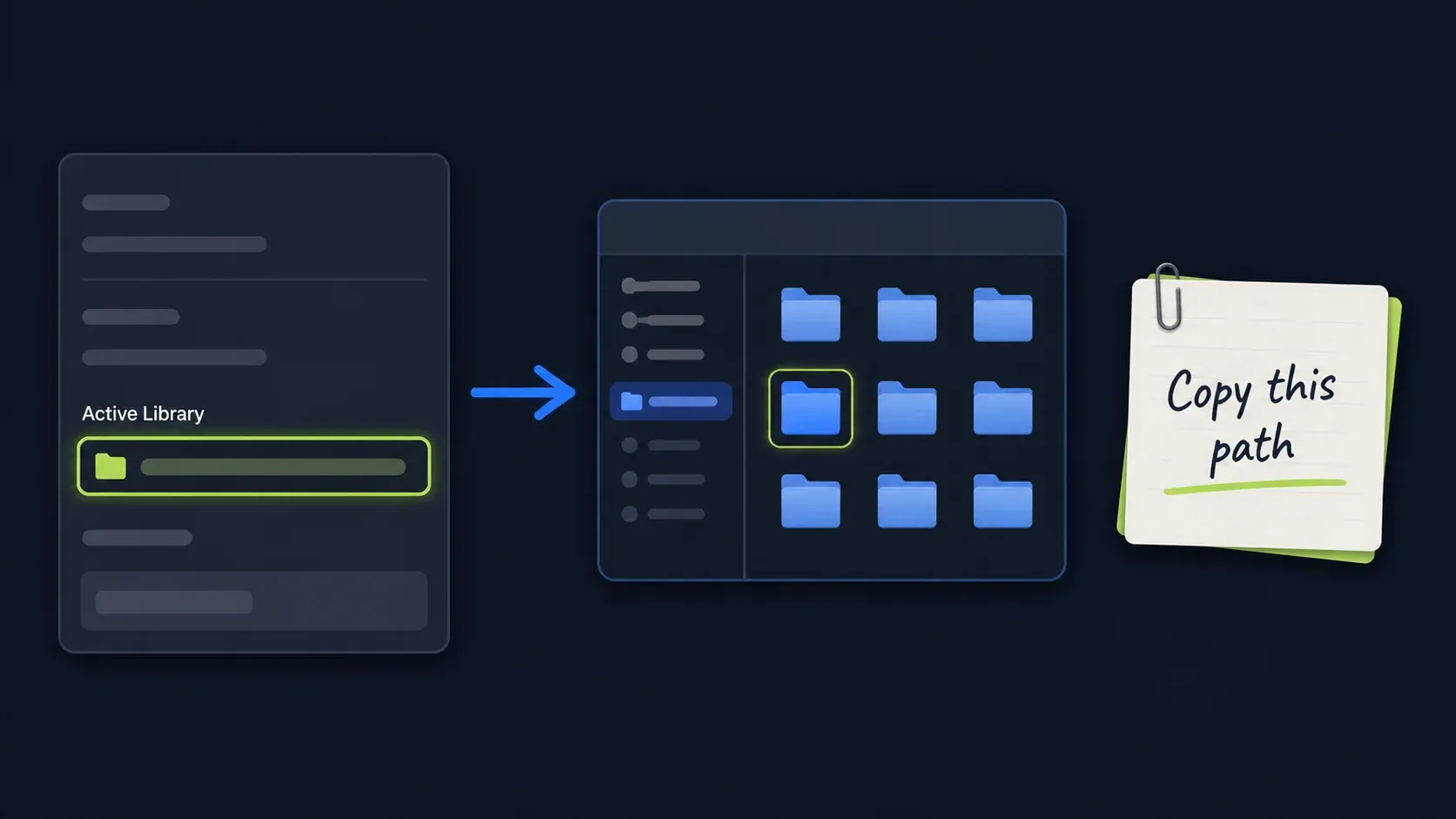
Find the active Snagit Library location
The configured path tells you which folder Snagit is reading right now. If the Library looks empty, that path may be the wrong one, so find out where the files really are before you move anything.
Windows
- Open Snagit Editor and select Edit > Editor Preferences > Library.
- Read or hover over the Library location to see its full path.
- Record that path before choosing a different folder.
The 2026 Windows deployment guide, pages 32–33, lists %USERPROFILE%\Documents\Snagit\ as the default. Custom folders, cloud storage, and administrator settings can change it, and IT can also stop users from changing the setting.
Mac
- Open Snagit > Settings from the Mac menu bar, or Preferences where that label is used.
- Look under Library for the stored-files location.
- Record the full path. Older instructions place this control under Advanced; use that only if it matches your installed version.
TechSmith’s current offloading instructions use the Library tab, while its older Mac migration guide uses Advanced and lists ~/Pictures/Snagit for 2022+, with Autosaved Captures under Pictures or Documents for earlier versions. Treat these as defaults, since your active path can differ.
Know what the Library backup covers
The Library is a view of files in its configured location, so copying it doesn’t back up every export, online recording, or application setting.
| Content | Backup action |
|---|---|
| SNAGX, MP4, and GIF files actually in Library | Include the complete Library folder and verify representative files |
| Sources or exports in other project folders | Back up those folders separately |
| Screencast or other online media | Use that service’s export process for the material you need |
| Quick Styles and other preferences | Plan a separate settings migration; a Library copy is not a full Snagit configuration backup |
The 2026 Windows deployment guide places settings such as Quick Styles in a separate user-data location, normally %LOCALAPPDATA%\TechSmith\Snagit. Do not blindly copy every application-data folder between computers. Ask IT which settings should come with you, and see the SNAGX format guide for editable image sources versus flattened exports.
Back up Snagit 2022 or later
If saving is already failing, protect the open capture with the Failed to Save Document procedure before you quit. Once the work you need is safely saved, use this backup sequence:
- Record the active Library path and Snagit version. Check that cloud files you need are fully downloaded.
- Save current edits and verify important source files before closing their windows.
- Quit both Snagit Capture and Snagit Editor before copying.
- Copy the entire Library to separate dated storage without replacing an older backup.
- Record the source path, date, destination, folder size, item count, and any copy errors.
- Make a separate working copy for restore checks. Open representative files from that copy.
- Keep the original and untouched backup until the restore checks pass and retention permits deletion.
A name such as Snagit-Library-Workstation-2026-09-12 identifies the device and date, and your record belongs right beside the folder. Do not rearrange its contents while making the backup.
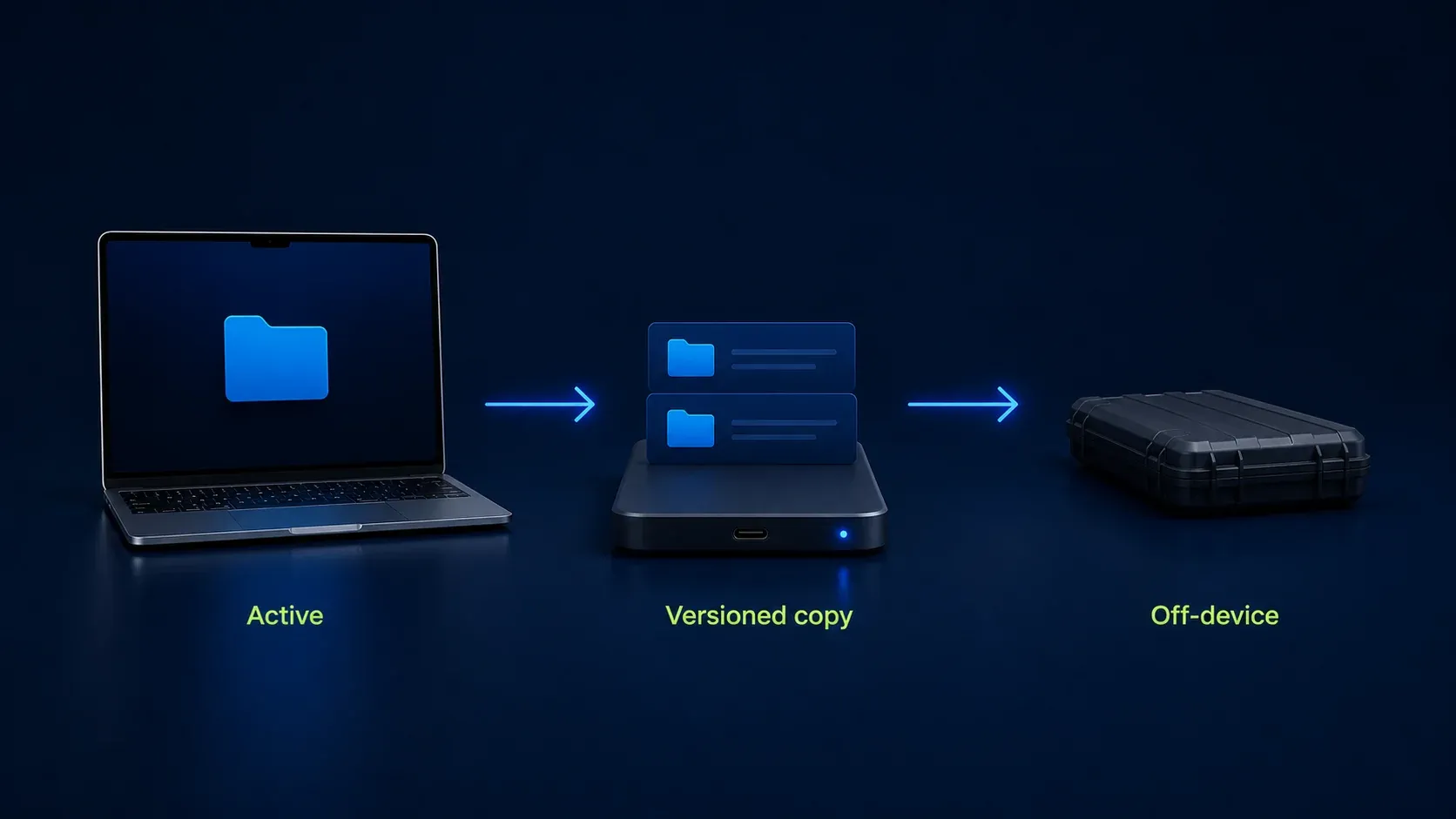
For irreplaceable work, I recommend a versioned backup plus a copy kept away from the computer. Live sync on its own doesn’t give you a record of a known-good state. Check that your backup tool includes this folder, keeps the versions you need, and can restore them.
Protect the backup as carefully as the active Library
Capture backups can hold private records and editable content hidden under annotations. Store them where your organization allows, limit who can open them, and agree on how long the backup itself is kept. Deleting a working file and keeping an older backup are separate decisions.
Keep employer data out of personal accounts unless policy allows it. Write down who can restore the backup and how you’d get access back if the computer is lost.
A redacted export doesn’t automatically clean the editable source. Check which sources your policy lets you keep, and don’t treat a rectangle over sensitive text as proof that every stored copy is safe to share.
Verify the backup before you need it
Run the test on a working copy and leave the backup untouched. Pick recent and older images, plus a video and a tagged capture if you use them, and note how each one behaves in the original Library so you have something concrete to compare.
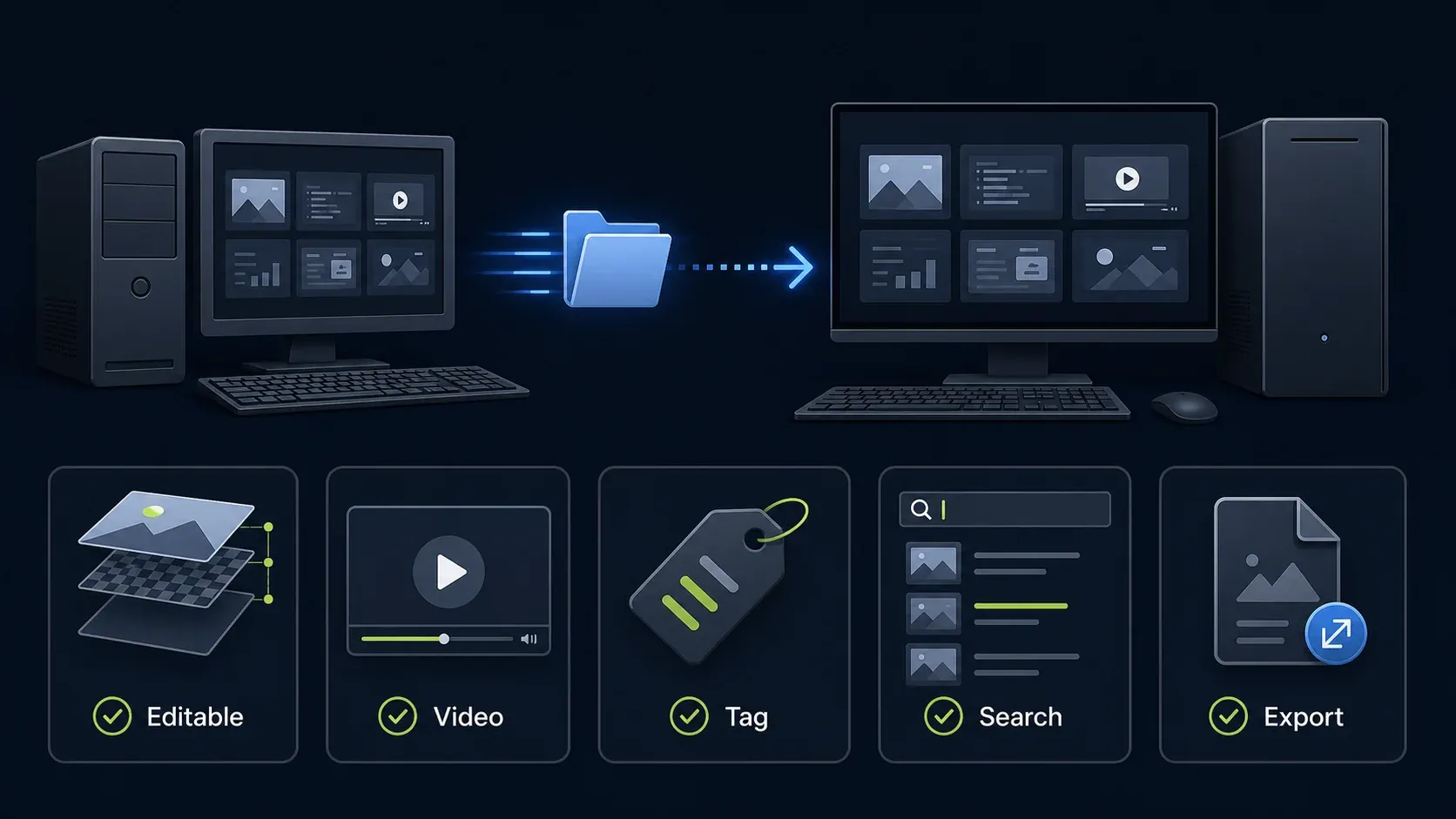
| Check | What to verify |
|---|---|
| Editable source | Open it in a compatible Snagit version; check the expected text and annotation objects |
| Video, when present | Play, seek, and check the end of a copied file |
| Library history | Look for both recent and older captures, not just the first thumbnails |
| Metadata and search | Compare expected tags, dates, and searches with the original, accounting for version and storage limits |
| Outside exports | Open the required project files that were backed up separately |
A missing search result can come from indexing or a network-storage limitation, so don’t assume the file is damaged. Compare the file itself and the Library settings before you blame the copy. Note any failures and keep the source, because a few good samples can’t guarantee that every file is intact.
Move the Library to a new Windows computer
For 2022+, TechSmith’s Windows migration instructions have you copy the whole folder. On the destination, install a compatible, licensed version and back up any Library that’s already there.
- Copy the old Library to a separate folder on the new computer’s internal drive.
- Open Edit > Editor Preferences > Library > Choose location.
- Use Browse other to select the copied Snagit folder and confirm the destination.
- Read any move, merge, or replace prompt before accepting it. Cancel if either affected Library lacks a backup.
- Run the restore checks above before retiring the old computer.
Documents is the vendor’s suggested destination, but OneDrive can back up Documents and Desktop. Check the full path and sync settings if you need a local-only destination.
Move the Library to a new Mac
The Mac migration guide says to close Snagit and transfer the capture-folder contents to the new Mac, but back up both computers’ Libraries first. If the destination already holds useful captures, or filename conflicts appear, stop before you accept any replacements and follow the merge guidance below.
Check the configured path on each Mac instead of assuming the default, then reopen Snagit after the copy and run the restore checks. The vendor says native SNAGX metadata transfers with 2022+ captures, but tags and application icons from Mac 2021 or earlier don’t transfer under its documented procedure.
Fix an empty or erratic Library safely
TechSmith’s missing-Library procedure checks the selected folder, offline availability, and sync restrictions. A Windows Search indexing notification needs its own investigation. Do not interpret an empty grid as permission to delete the folder.
With cloud storage, make sure the files you need are downloaded, the client is syncing, and there’s room for a complete copy. Metered connections and throttling can slow sync down. Do not change every cloud setting or download an entire account merely to check one Library.
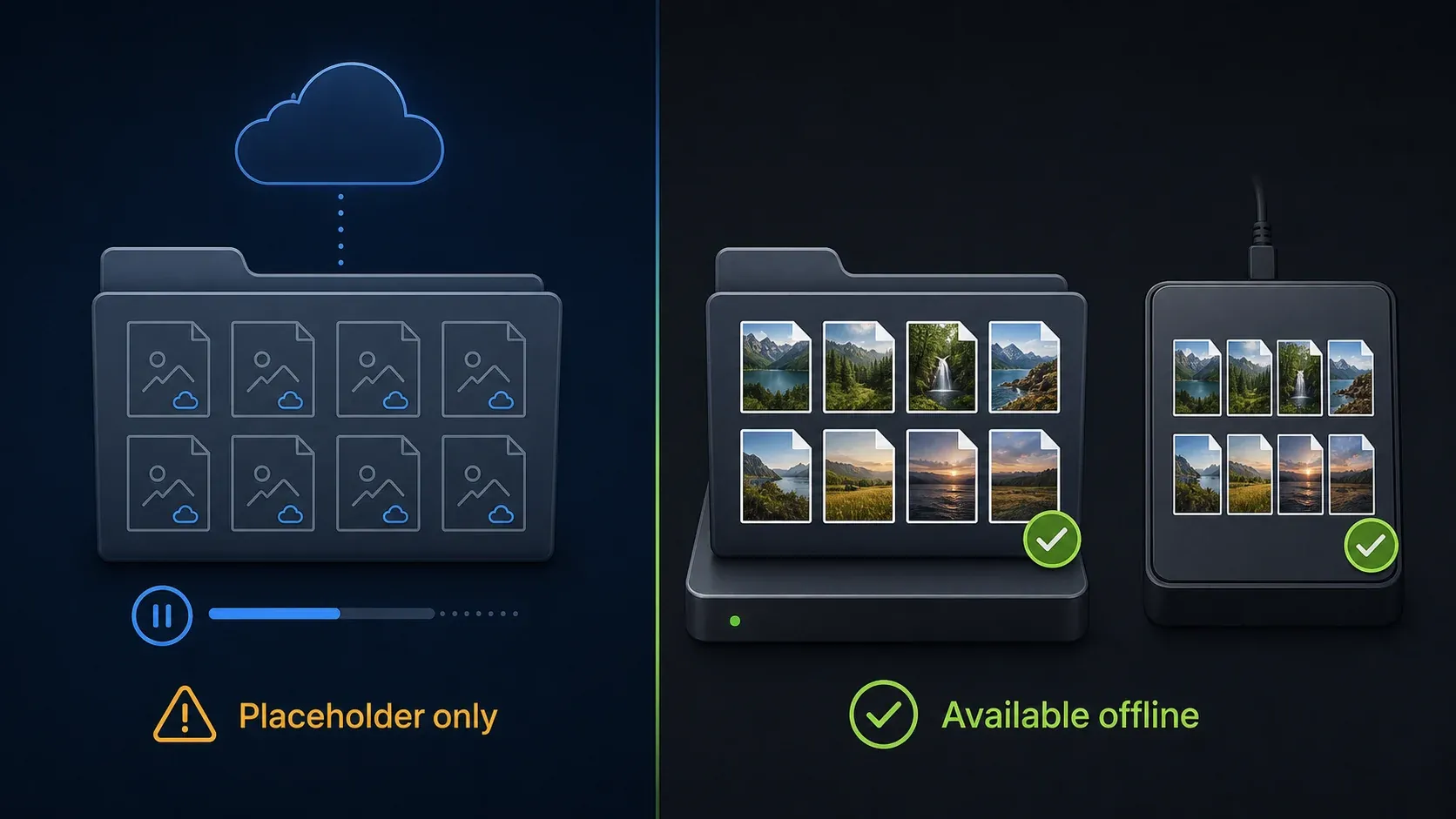
TechSmith’s erratic-Library article links OneDrive to wrong dates, broken thumbnails, unreadable SNAGX files, tag problems, and broken Explorer previews, and it recommends a temporary move off OneDrive. Preserve the current state first, then test a separate local location. None of this proves that OneDrive causes every Library error.
On Windows network drives, the 2026 deployment guide lists missing file counts, filename-only search, unavailable filter categories, and disabled tagging, and it recommends local unmapped storage if you want every feature to work. Supported cloud locations need a locally installed, actively syncing client, so check the provider-specific requirements for your version.
Restore a legacy Windows Datastore
The old Windows default was C:\Users\username\AppData\Local\TechSmith\Snagit\DataStore. TechSmith’s Datastore restore instructions apply to data from 2021 or earlier, including importing that data into a newer release. Restoring replaces the current captures; it does not merge two Datastores. Preserve both states first.
A legacy automatically-stored-files backup can leave out files saved elsewhere, along with the original created date. Before you retire the old installation, keep separate project files and note any metadata you need. Do not rename a current SNAGX Library as a legacy archive.
If a newer Windows installation can’t import an old backup, TechSmith’s import troubleshooting article names disabled Microsoft SQL CE as one possible cause, and changing that installer option may mean reinstalling. The deployment guide flags SQL CE as unsupported and describes an administrator conversion tool for temporary use. Ask IT or TechSmith which legacy conversion route fits your case, and don’t reinstall or weaken deployment policy as a routine current-Library fix.
Merge Libraries without confusing them with Datastores
Modern Library merging is a documented workflow. TechSmith’s current online Library tutorial gives this Windows 2022+ route: Edit > Editor Preferences > Library > Choose location > Browse other. Select the other Snagit folder, choose Select Folder, then Save. After the merge, use the same control to return to your preferred location if needed. The Snagit 2022 help manual, pages 207–210, describes the same location-based principle. Back up both Libraries first; this is different from combining folders by hand or restoring a legacy Datastore.
That manual shows older menus, especially on Mac. Back up both Libraries, use the location control your installed version offers, and read the destination prompt carefully. If the control or the proposed action looks different, keep both copies and check with TechSmith before you go further. Do not assume that duplicate filenames, damaged files, or mixed generations will resolve automatically.
Export standard files before subscription access changes
Subscription expiry does not itself delete locally stored captures. They can still be lost to disk failure, cloud deletion, or an organization’s retention policy. Keeping app access and keeping your files are two separate issues.
While your subscription or trial is active, TechSmith recommends batch-exporting needed images to standard formats. Copy the MP4 and GIF files already in the Library, and keep track of projects or media stored elsewhere separately. Export any Screencast media you need through that service. If access has already expired, ask support what options are available instead of assuming a fixed grace period.
Hold on to the editable sources you’re allowed to keep, as well as useful exports. Before uninstalling or deleting data, open some exported samples and check text, redaction, transparency, and playback. The pricing and licensing guide covers access terms, not backup guarantees.
For day-to-day use, choose a backup frequency based on how much work you could afford to recreate. Once your files are protected, the Snagit guides index can help you continue with capture, editing, or export tasks.
Snagit Library location and backup FAQ
Where is the Snagit Library on Windows?
In Editor, open Edit > Editor Preferences > Library and read the configured path. The 2026 Windows default is %USERPROFILE%\Documents\Snagit\, but a custom, cloud, or managed location may differ.
Where is the Snagit Library on Mac?
Check Snagit > Settings or Preferences > Library. Older versions may place the control under Advanced. TechSmith lists ~/Pictures/Snagit as the default for 2022+, but use the path actually configured in your app.
How do I back up Snagit 2022 or later?
Save your work, ensure required cloud files are downloaded, close Capture and Editor, and copy the entire Library to separate dated storage. Test a working copy without altering the backup. Legacy .snagarchive import is a separate procedure.
Can I keep my active Snagit Library in OneDrive?
Snagit supports cloud Library locations, but TechSmith documents specific OneDrive-related faults. Verify local file availability and sync, retain an independent backup, and use a backed-up local test when investigating those symptoms.
Can I merge two Snagit Library folders manually?
Use Snagit’s documented location-based merge workflow for compatible modern Libraries, after backing up both. Do not combine folders blindly. Legacy Windows Datastore restore replaces captures and cannot merge Datastores.
What does a Snagit Library backup miss?
It misses sources and exports saved elsewhere, media kept only in online services, and settings stored outside Library, such as Windows Quick Styles. Include those separately in your backup and migration plan.
What happens to my captures when a Snagit subscription ends?
Expiry does not itself delete the local captures, but editing access can change. Export needed images while your subscription or trial is active, retain permitted sources, and back up the files independently.