
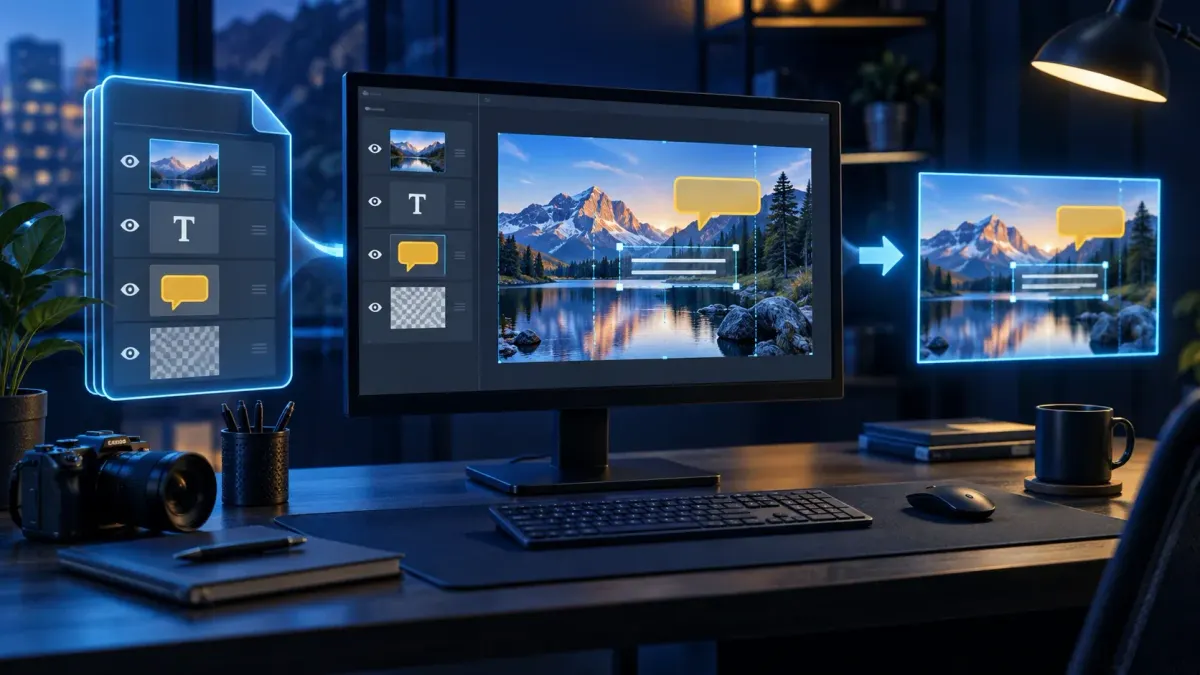
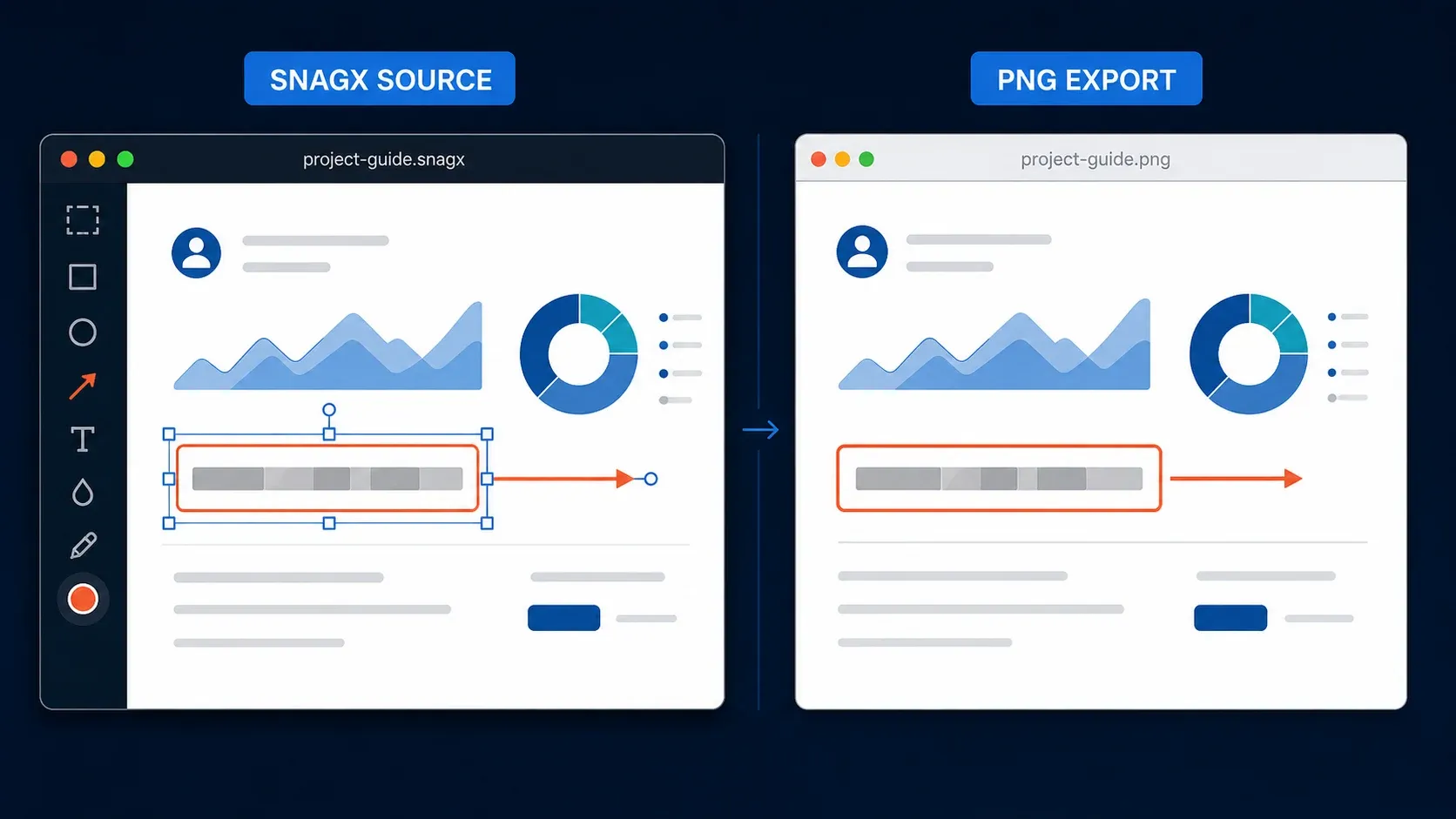
A SNAGX file is an editable Snagit image project. Open it in Snagit 2022 or later on Windows or Mac to work with its saved annotations. If you only need to view the capture and do not have Snagit, ask the sender for a PNG, JPG, or PDF. That export is easier to share, but it does not retain Snagit objects for later editing.
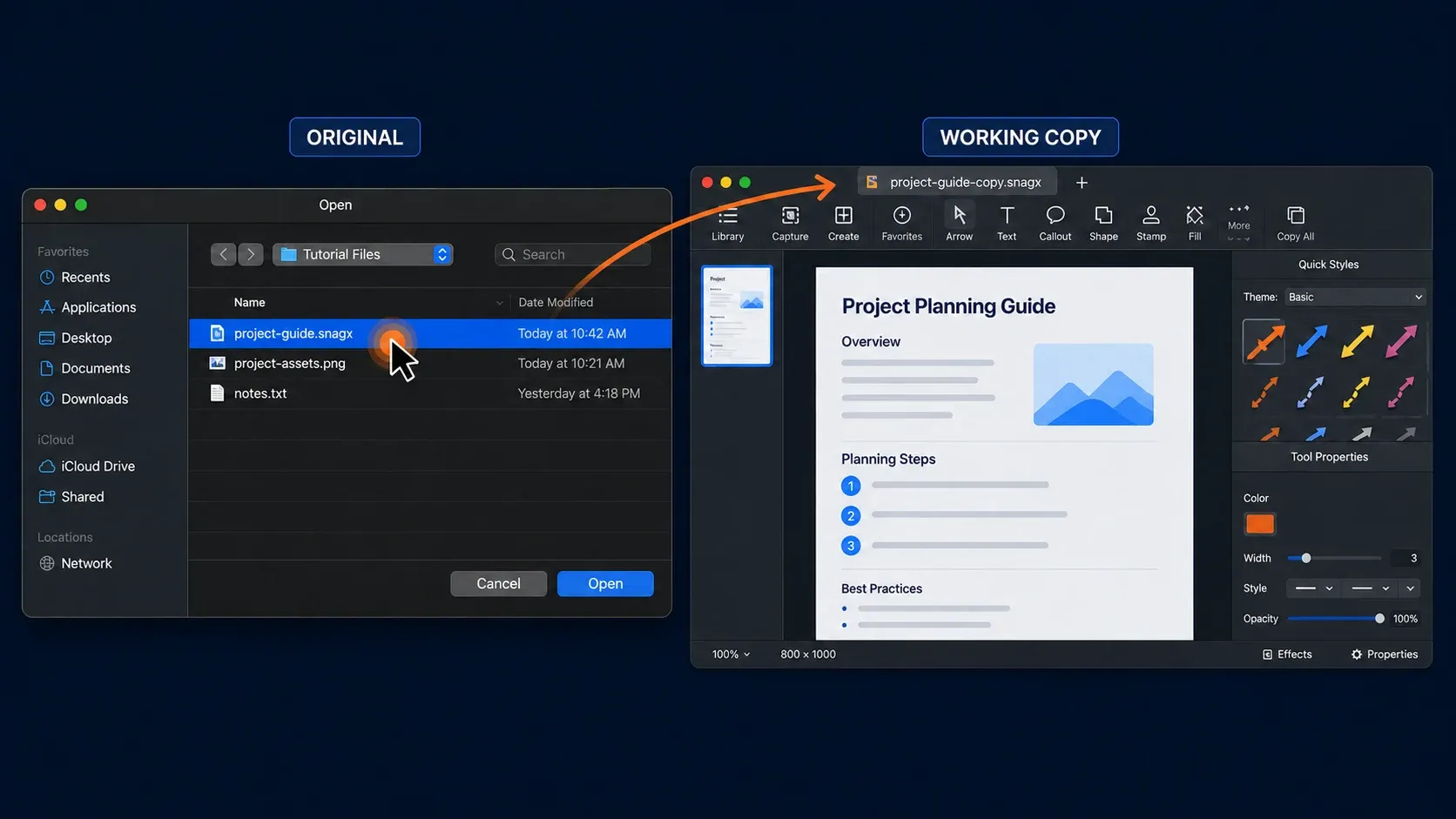
Keep the original SNAGX file and work on a copy. Renaming its extension to .png does not convert it. For a confidential capture, use a local export or your organization’s approved sharing process instead of uploading the project to an unfamiliar converter.
What is a SNAGX file?
Snagit introduced SNAGX in 2022 as a shared image format for Windows and Mac. Earlier releases used SNAG on Windows and SNAGPROJ on Mac. A source project is useful when someone needs to move an arrow, revise a callout, or replace an annotation, not just look at the finished capture.
TechSmith’s guidance on saving editable source graphics explains that SNAGX retains supported objects such as text, callouts, stamps, shapes, and pasted images. PNG and JPEG exports flatten those objects into pixels. Saving a flattened PNG back as SNAGX does not restore its former objects.
This distinction matters for private data, too. An object placed over a detail is still editable in the source. Check the finished export for anything that should not be shared; do not assume the editable project is safe to send merely because the detail is covered on screen. The screenshot redaction guide covers that separate task.
How to open a SNAGX file safely
- Make a backup of the original and a separate working copy.
- Use Snagit 2022 or later for your operating system. Check that your license and computer support the version you install.
- In Snagit Editor, choose File > Open, or use Ctrl+O on Windows or Command+O on Mac.
- Select the working
.snagxfile. If double-clicking launches the wrong app, open it from Editor instead. - Inspect the image, annotations, fonts, and any additional pages or steps before editing.
- Save revisions under a new name; keep the backup until you have checked the result.
Check the Windows release history and Mac release history if a file will not open. On September 21, 2026, they list Windows 2026.3.1 and Mac 2026.3.3. Windows 2026.2.0 fixed crashes involving normal and malformed SNAGX files. An update can address a software bug, but it can't guarantee recovery of a damaged file. On a managed computer, ask IT before changing the installation.
The Snagit Editor guide explains object selection and editing. Use the installation and update guide if Editor is missing. These are separate tasks from converting a file.
What can open a SNAGX file?
| Where you need the capture | Editable SNAGX workflow | Practical choice |
|---|---|---|
| Snagit 2022 or later, Windows or Mac | Open and edit the source | Keep SNAGX; check transferred objects |
| iPhone or iPad | No native SNAGX opening in TechSmith’s iOS guidance | Ask for PNG |
| Android | No desktop Snagit Editor on Android | Ask for PNG, JPG, or PDF |
| Browser or a recipient without Snagit | No complete Snagit Editor workspace | Send an export; Camtasia Online sharing is a separate video workflow |
| Ordinary image or document viewer | Do not expect editable Snagit annotations | Use a compatible PNG/JPG viewer or PDF reader |
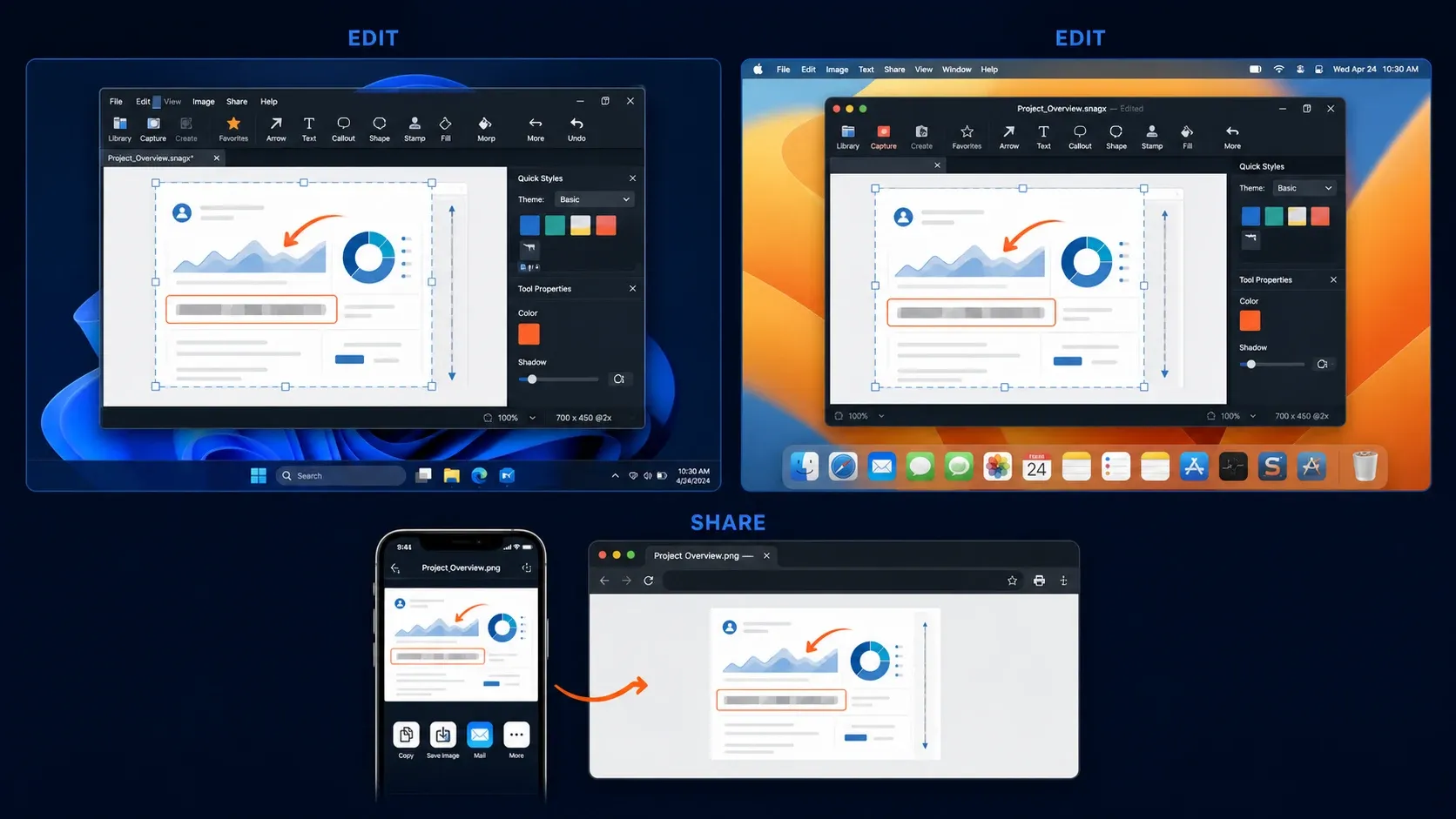
TechSmith’s iOS support answer says to save the capture as an image such as PNG before viewing it on iOS. A thumbnail or preview, where available, is not the same as opening the project with editable annotations.
How to convert SNAGX to PNG, JPG, or PDF
For one capture, open the working SNAGX file and use File > Save As. Choose PNG, JPG, or PDF in the format selector and save under a different filename. TechSmith also documents Share > File as a PDF export route. PDF is an output format and can't preserve editable Snagit annotations. The Mac format list marks it as export-only.
Open the result in a separate image viewer or PDF reader. Check dimensions, legibility, transparency where needed, and private details. For a multi-page capture, check every exported page rather than only the first preview.
PNG suits interface text, diagrams, or transparency. JPG fits a photo-heavy image when reduced file size is worth some compression loss, and PDF fits a recipient who needs a document. None of these choices replaces the editable source. For resolution and compression decisions, see the Snagit export settings guide.
For multiple images, use batch export. TechSmith’s published batch-conversion reference gives different starting points: on Windows, File > Export or the Library’s Batch Conversion Wizard; on Mac, select images in the Library or tray, then Control-click and choose Export. Menu labels can vary by build; this reference is from Snagit 2023, not a test of the latest interface.
Select the output format and a new destination folder. Export a small sample first, then check the complete batch for missing images, unintended filenames, crop changes, or unreadable text. Mac 2026.3.2 and later disable Export when only videos or animated GIFs are selected; select the image captures for this operation.
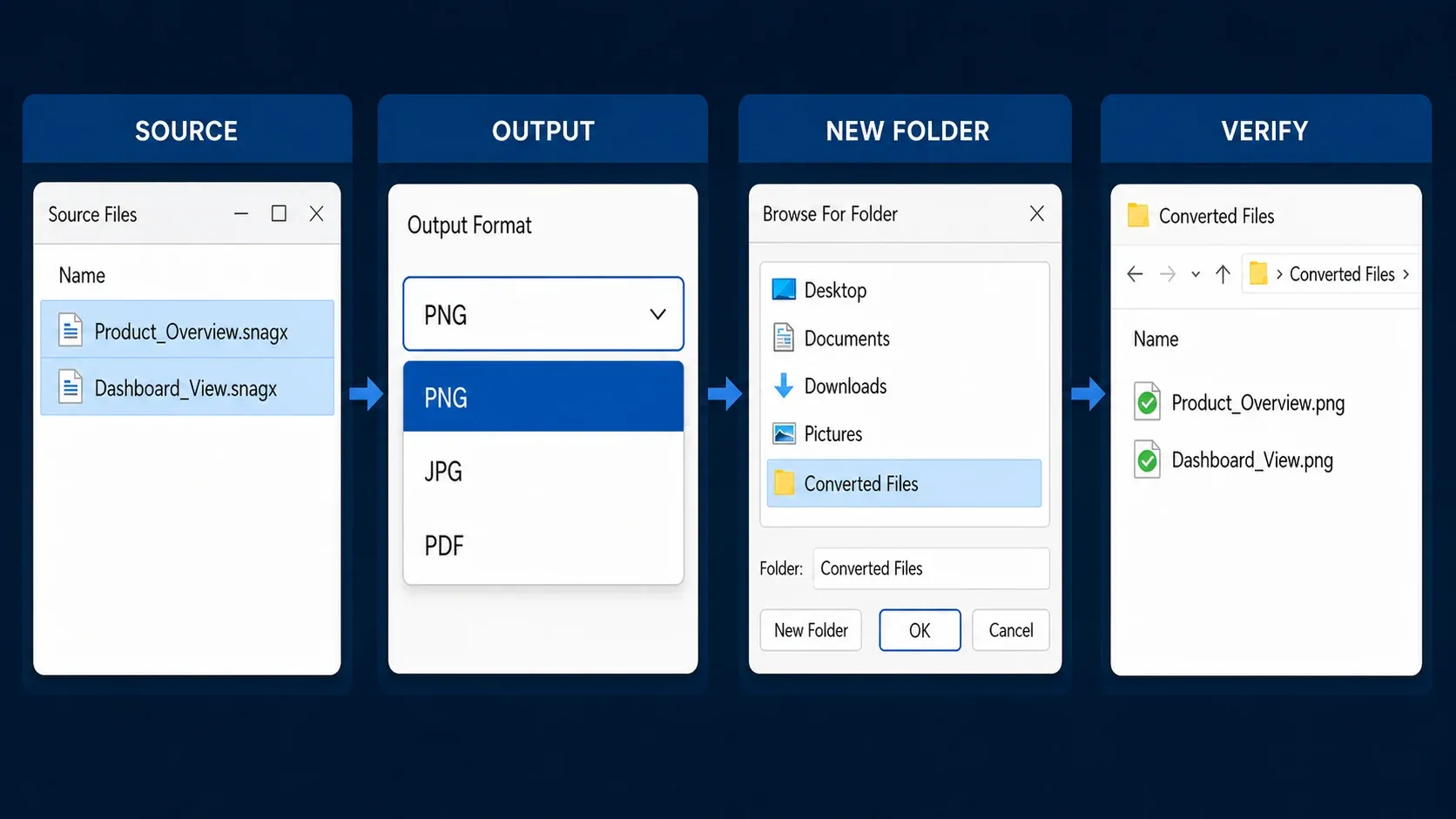
Before a subscription or trial ends, follow TechSmith’s Library export guidance. Convert the images while you still have access. Existing MP4 videos and GIF animations are already standard files and can be copied separately. If access has ended, ask TechSmith support about available options; do not assume that the app will provide a free export mode. Verify the exports and backups before uninstalling or deleting any user data.
If the SNAGX file will not open
- Protect the original. Troubleshoot a copy and keep any backup untouched.
- Check the file you received. Confirm the extension and that the download or sync completed. A zero-byte file has no image content to recover.
- Open it from Editor. This separates a wrong file association from a failure inside Snagit.
- Check the installed build. Compare it with the current release history and the sender’s version. Update only if your license, operating system, and IT policy allow it.
- Try a fully downloaded local copy. This helps separate a file problem from access to a synced, network, or removable location. It does not prove which service caused the error.
- Try a known-good SNAGX file. If that opens, focus on the failing file and request a fresh copy from the sender. If Editor itself fails, use the Editor launch troubleshooting guide.
- Record the exact error. Give TechSmith support the build, operating system, and steps that fail. Do not post confidential captures publicly.
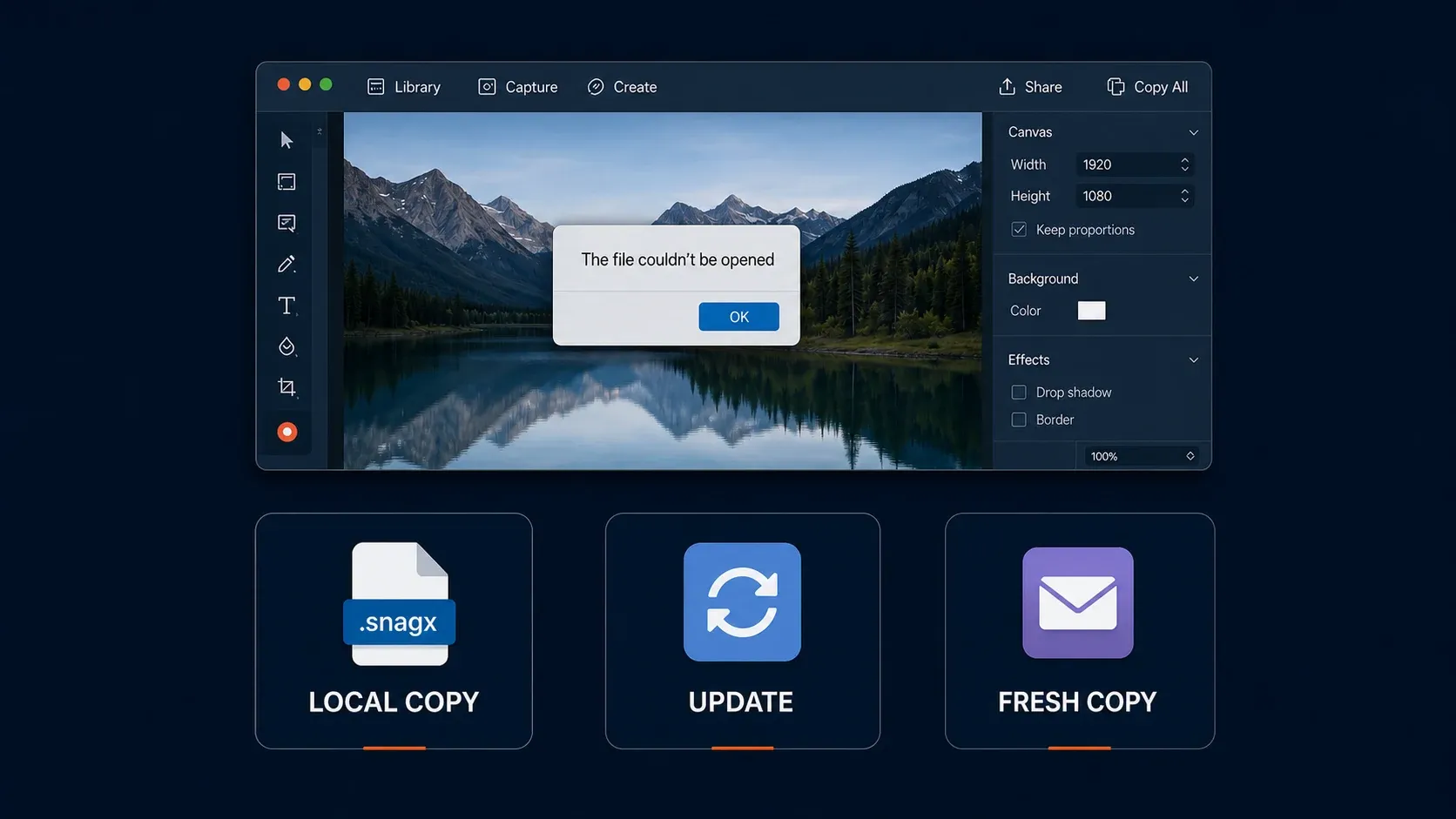
Do not edit the contents of the only source file to try to repair it. Extracting a preview from a container, if a tool can do that, is not the same as recovering all annotations or a working project. Keep recovery experiments on copies and verify the result before replacing anything.
Can you open or convert SNAGX online?
Desktop Snagit remains the documented route for editing a SNAGX source and exporting a standard image. There is an important exception to a blanket “no online support” claim: Windows 2026.3.1 and later and Mac 2026.3.2 and later can send images to Camtasia Online in their original SNAGX format, including capture information, for video creation. That sharing feature is not a complete browser version of Snagit Editor, and it does not establish that any browser can open a standalone SNAGX file.
If you do not have Snagit, ask the sender to export the image. You can also check the official download and trial options for eligible access. I haven't tested third-party SNAGX converters for object fidelity, file handling, or deletion practices. Don't assume that every converter is malicious, but don't upload confidential material without an approved service and a clear reason.
Moving SNAGX between Windows and Mac
SNAGX supports Windows/Mac exchange, but a shared file format does not promise identical results for every font, object property, or effect. Before handing over a source that someone must maintain:
- Make a transfer copy and keep the original.
- Check both Snagit versions and use builds supported by each computer and license.
- Use fonts available and licensed on both computers. Do not distribute a font file unless its license permits it.
- Inspect all annotations, pages or steps, and effects after opening the copy.
- Save the revised source with a new name.
- Compare an exported image or PDF with the intended result before replacing the approved source.
Moving a whole Library is a separate job. Use the Snagit Library backup and transfer guide; do not move or delete datastore components based on instructions for a single file.
SNAG, SNAGPROJ, and old Libraries
SNAG belongs to older Windows releases; SNAGPROJ belongs to older Mac releases. Do not rename either extension to SNAGX. Current Mac documentation still lists SNAGPROJ as supported, but that does not make the old format interchangeable across platforms.
The Library Conversion Tool guide covers legacy Windows Libraries and SNAGARCHIVE backups. The available guide is version 1.0.0, dated March 2024. It describes an administrator workflow for organizations moving from Snagit 2021 or earlier while limiting the use of old SQL CE components. It is not a general SNAGX-to-PNG converter or a repair tool for a damaged image. Let IT choose the migration method and retain a restorable backup.
Why Snagit keeps creating SNAGX files
With automatic image saving enabled, Snagit keeps an editable capture in the Library. Exporting a PNG does not necessarily remove that source. The two files serve different purposes: one is for later edits, the other for delivery.
TechSmith’s instructions for a different default file type describe a Windows route through Edit > Editor Preferences > Library, where automatic saving of new image captures can be turned off. The same article describes a capture preset with File output and a chosen format. Do not treat the Windows menu path as a Mac instruction. Before changing automatic saving, decide how you will keep an editable source and avoid losing unsaved work. The preset guide covers reusable capture settings.
A simple SNAGX policy for teams
- Source: keep an approved SNAGX copy with controlled access.
- Delivery: export the format your recipient can open.
- Naming: use a task and revision, such as
onboarding-login-r03.snagxandonboarding-login-r03.png. - Privacy: review the export and avoid sharing editable content unnecessarily.
- Transfer: compare the result on the receiving computer before replacing a source.
- Offboarding: export needed captures while access is active and verify backups before deletion.
FAQ
What program opens a SNAGX file?
Snagit 2022 or later on Windows or Mac is the documented editor for SNAGX projects. A thumbnail or preview is not a substitute for editable annotations.
Can I open a SNAGX file without Snagit?
For viewing, ask the sender for PNG, JPG, or PDF. For source editing, use eligible Snagit access. Camtasia Online can receive SNAGX through recent Snagit sharing features for video creation; that is not a full replacement for Snagit Editor.
How do I convert SNAGX to PNG?
Open the working SNAGX copy in Snagit Editor, choose File > Save As, select PNG, and save under a new name. Open the PNG in another viewer and check its content before sending it.
Can I rename SNAGX to PNG?
No. Changing the extension does not render the project as PNG. Export an image from Snagit and keep the source separately.
Can Windows and Mac open the same SNAGX file?
Snagit 2022 or later supports SNAGX on both platforms. Check the receiving build, fonts, annotations, pages, and exported result before replacing the original.
Can an iPhone or iPad open SNAGX?
TechSmith’s iOS guidance says the native SNAGX format cannot be opened there. Ask for an image export such as PNG.
Why are my annotations no longer editable in PNG?
PNG stores the rendered image, not the original Snagit objects. Return to the SNAGX source to edit retained annotations; converting the PNG back does not restore them.
Is an online SNAGX converter safe?
Safety depends on the service, its data practices, and the file you upload. No third-party converter was tested for this guide. Use a local export or an approved workflow for confidential captures.
What should I do before canceling Snagit?
Export needed image captures while your subscription or trial is active, copy existing MP4 and GIF files separately, and verify the results. If access has ended, ask TechSmith support about options.
Correction, September 12, 2026: updated the Mac release, clarified Camtasia Online sharing and platform-specific conversion references, corrected the legacy tool’s scope, and removed unsupported converter and recovery claims.