
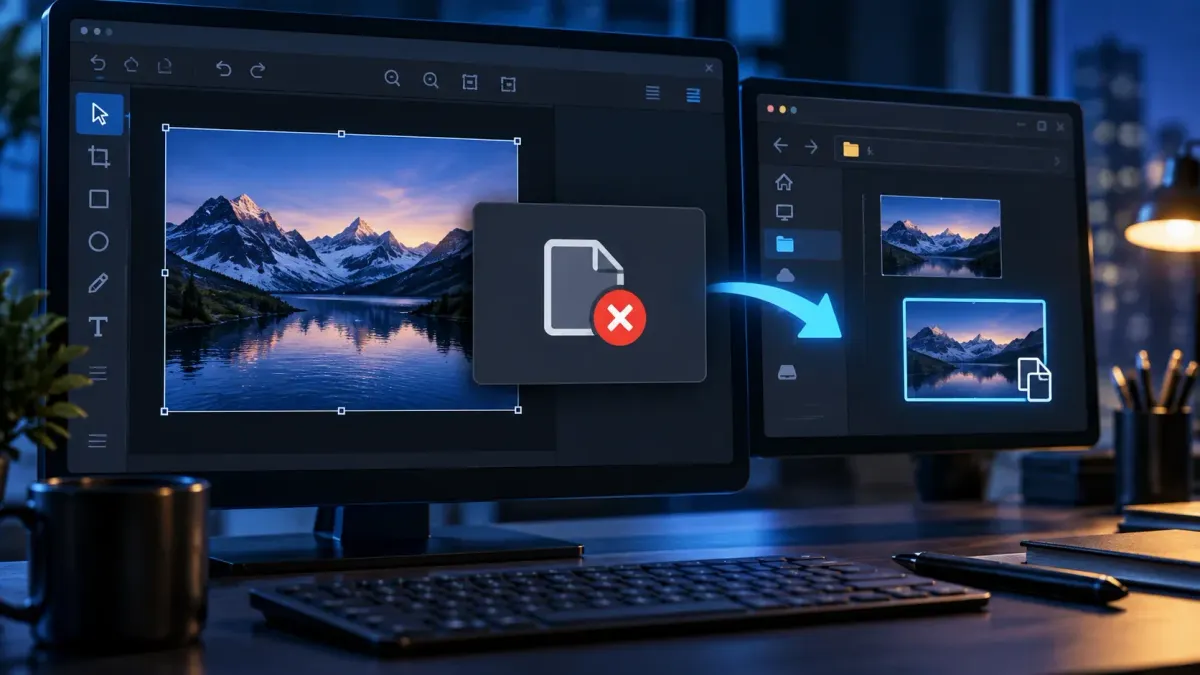
If Snagit says “Failed to Save Document,” keep the open capture on screen. Try saving a new copy before updating, restarting, or changing the Library. The message alone does not tell you whether the problem is the file, the destination, cloud availability, or a security block.
Start by separating two cases: a new capture cannot reach the Library, or one edited image cannot be exported. If only one export fails, test its filename and destination before moving the whole Library. Never delete your only source or turn off protection as the first fix.
First, protect the open capture
- Leave Editor open. Do not restart or install an update while the only copy is still unsaved.
- Try File > Save As. Choose a new filename, such as
capture-rescue-01.png, in a folder you own on the internal drive. Check that the folder is outside cloud sync or redirected storage. - Check the saved result. Open the PNG in another viewer. If supported annotations matter, also save and reopen an editable SNAGX copy in Snagit 2022 or later. Keep the original open until you have verified what you need.
- If neither copy saves, stop before restarting. Keep Editor open and ask TechSmith support or your IT team for help preserving the capture. Recovery is not guaranteed.
- Once the content is protected, test one disposable capture. Use the matching section below instead of changing several settings at once.
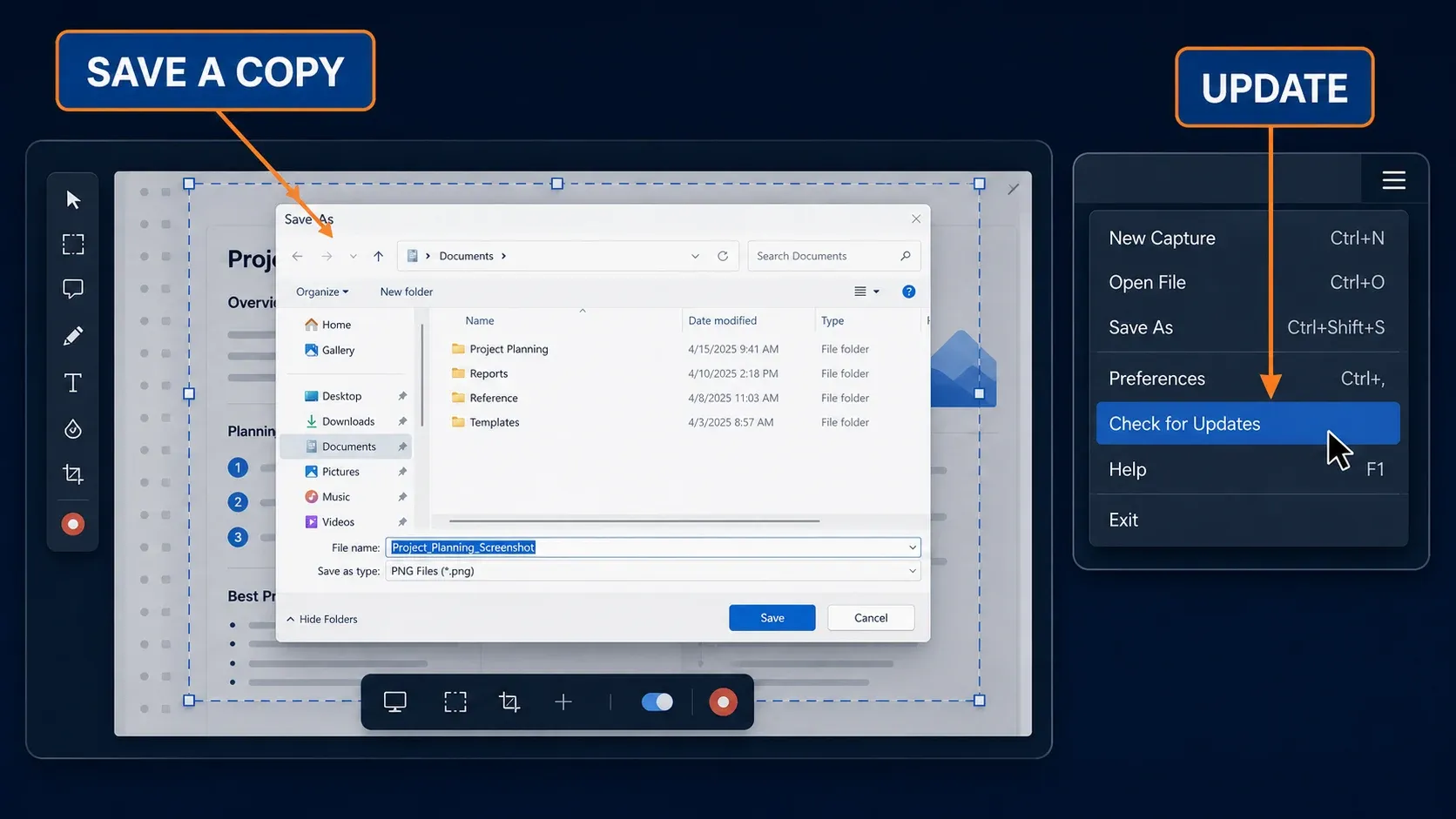
A successful PNG export protects that rendered image, but it doesn't prove that automatic Library saving works, and it doesn't preserve editable annotations. Desktop and Documents are not necessarily outside the cloud, either: OneDrive folder backup can include both. Check the actual path and sync settings before using either as a local-only test.
First identify what is failing
| What fails | Test after protecting the capture | What the result can help isolate |
|---|---|---|
| Every new capture | Check the build, then a backed-up local Library test | Library writes, access, cloud availability, or a software bug |
| One edited image | Save under a new name in another permitted folder | That source or destination, rather than every capture |
| PNG/JPG export, but SNAGX saves | Try a small disposable image in the same output format | File-specific export versus a broader format or destination problem |
| Cloud Library is slow or incomplete | Check offline availability and the configured path | Streaming, incomplete sync, or a different Library location |
| One Mac folder | Try a permitted local folder and review the access prompt | Folder access or cloud availability |
TechSmith’s Windows after-capture support article identifies older builds, security-software interference, and Library location as troubleshooting routes. Those are possibilities, not a diagnosis of every save failure. If Editor never opens, use the Editor launch guide instead.
1. Check for a relevant update after saving a copy
The Windows 2025 release history records a cloud-Library Failed to Save fix in 2025.3.0, released August 6, 2025. That release also fixed an exit-time auto-save crash. The fix was not introduced in 2025.4.0, as an earlier version of this guide stated.
Install the maintenance update offered for your licensed version and supported operating system, rather than deliberately stopping at that historical build. On September 21, 2026, the Windows 2026 history lists 2026.3.1; the Mac 2026 history lists 2026.3.3. The platforms do not share the same latest build number.
Preserve open work before installing or restarting. Use the Snagit update guide for installation steps; on a managed device, let IT approve the update. Then test one new capture and its saved file. An update may fix a known bug, but cannot guarantee recovery of an already damaged source.
2. Rescue the capture without flattening your only source
For an image you cannot recreate, try to retain two different files. Save each under a new name, without replacing the original:
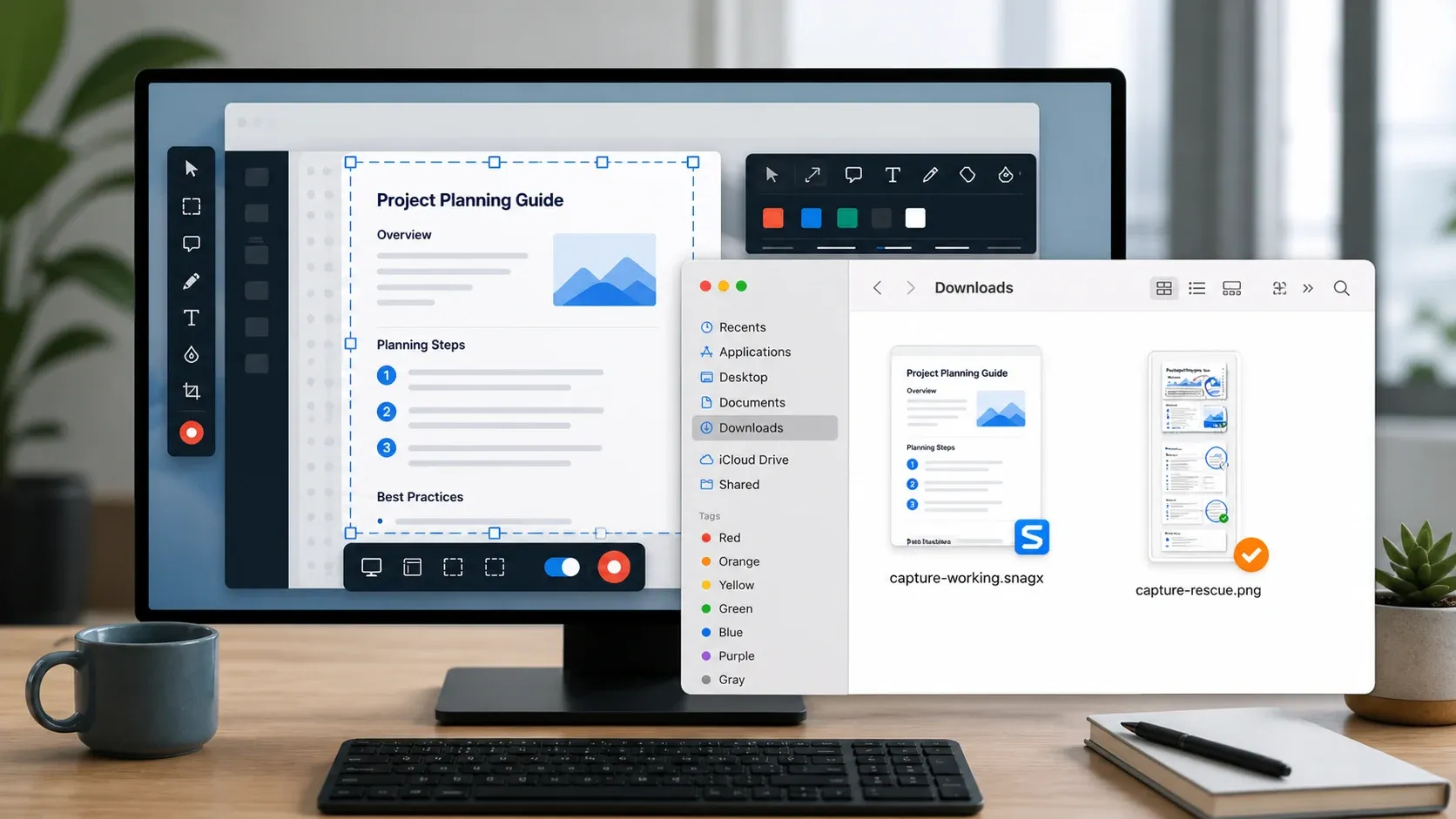
- PNG: a flattened image for viewing or delivery. Check its text and any transparency after export.
- SNAGX in Snagit 2022 or later: an editable source retaining supported objects such as text, callouts, arrows, and shapes.
TechSmith’s source graphics guidance distinguishes editable projects from flattened exports. On an older release, use its native source format rather than assuming SNAGX is available. Before closing the original, reopen each saved copy and inspect the content. The SNAGX file guide explains format compatibility and conversion.
3. Verify and test the Snagit Library location
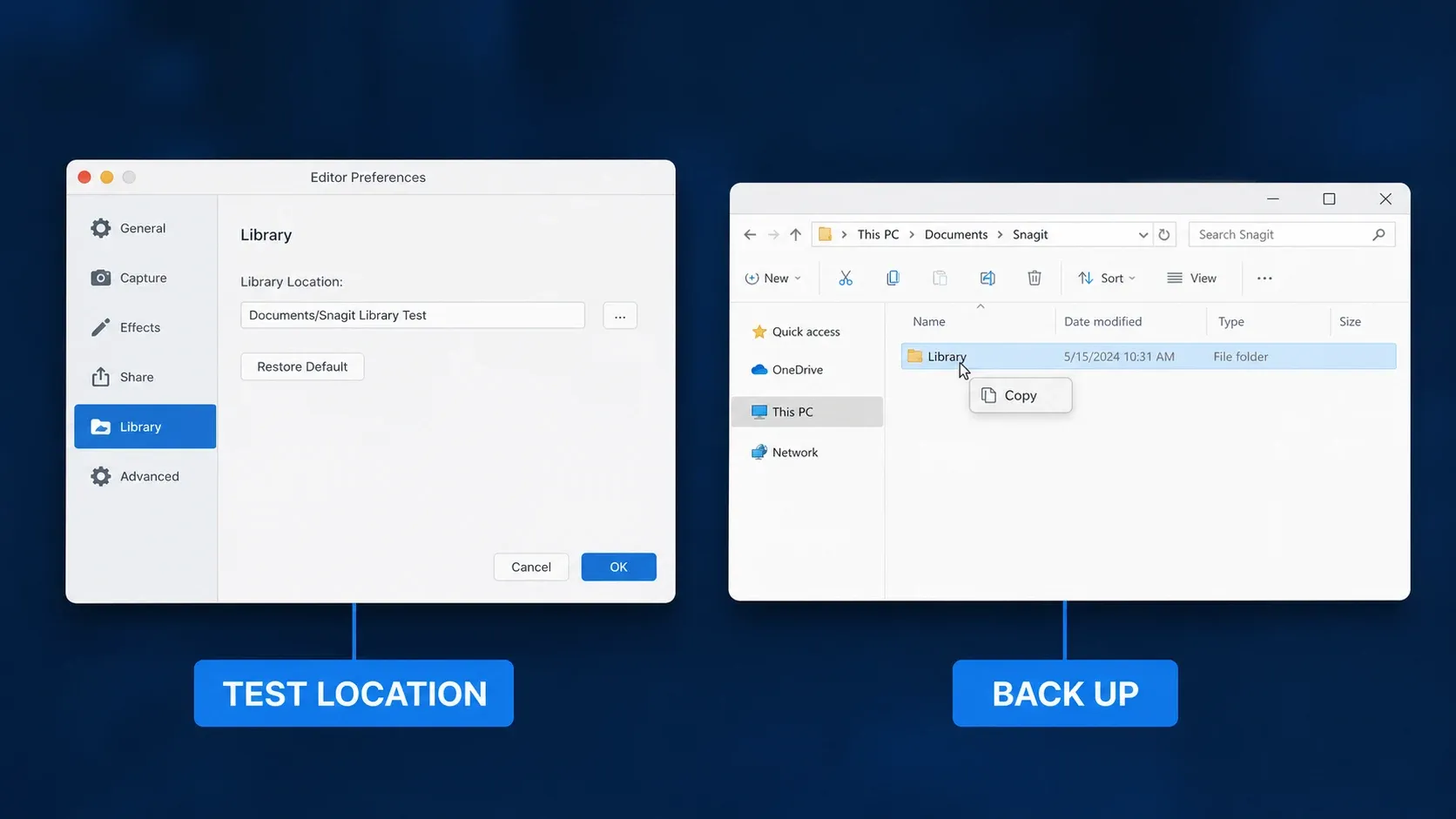
For the Windows Library test, open Editor > Edit > Editor Preferences > Library and record the exact configured location. For Snagit 2022 or later, protect open work, close Capture and Editor, and copy the entire Library folder to a separate backup. Cloud placeholders are not a complete local backup. Make sure the required files have downloaded first.
Reopen Snagit, return to Library > Choose location, and choose a separate test folder on the internal drive, outside your synced or redirected folders. Do not overwrite an existing Library. If a dialog proposes moving, merging, or replacing files you have not backed up, cancel it. Record the test path, take one disposable capture, and check that it can be reopened.
A successful test narrows the investigation to differences between the old and new locations; it does not prove that one cloud provider caused the failure. Keep both the backup and original location. TechSmith’s backup and move instructions separate Snagit 2022+ folder copying from older Backup/Restore workflows. Do not apply an old restore procedure to a current Library, or assume restoring will merge captures.
4. Check whether the cloud Library is fully available
A folder can appear in Explorer or Finder while some files are online-only. TechSmith’s missing-Library guidance checks the selected location, offline file availability, and sync restrictions such as metered connections or throttling. Missing thumbnails do not, by themselves, establish that every source file is lost.
The vendor’s streaming versus local Library guidance recommends locally available files rather than streamed-only content. It describes Google Drive mirroring and OneDrive/iCloud settings, but provider labels change. Check availability for the Library you actually use; do not download your entire cloud account or change all backup settings just to run this test.
- Stop new captures while checking sync status.
- Confirm that the Library’s source files are fully downloaded and that the internal drive has space for the backup.
- After protecting open work, close Snagit before copying the folder.
- Keep the original and a verified backup untouched while testing a separate local location.
- Record any captures created in the test Library before switching back, so they are not mistaken for missing originals.
For a permanent move or a Library that appears empty afterward, follow the Library location and backup guide. Do not alternate active writes between two copies and assume sync will merge their contents correctly.
5. Check security logs before changing protection
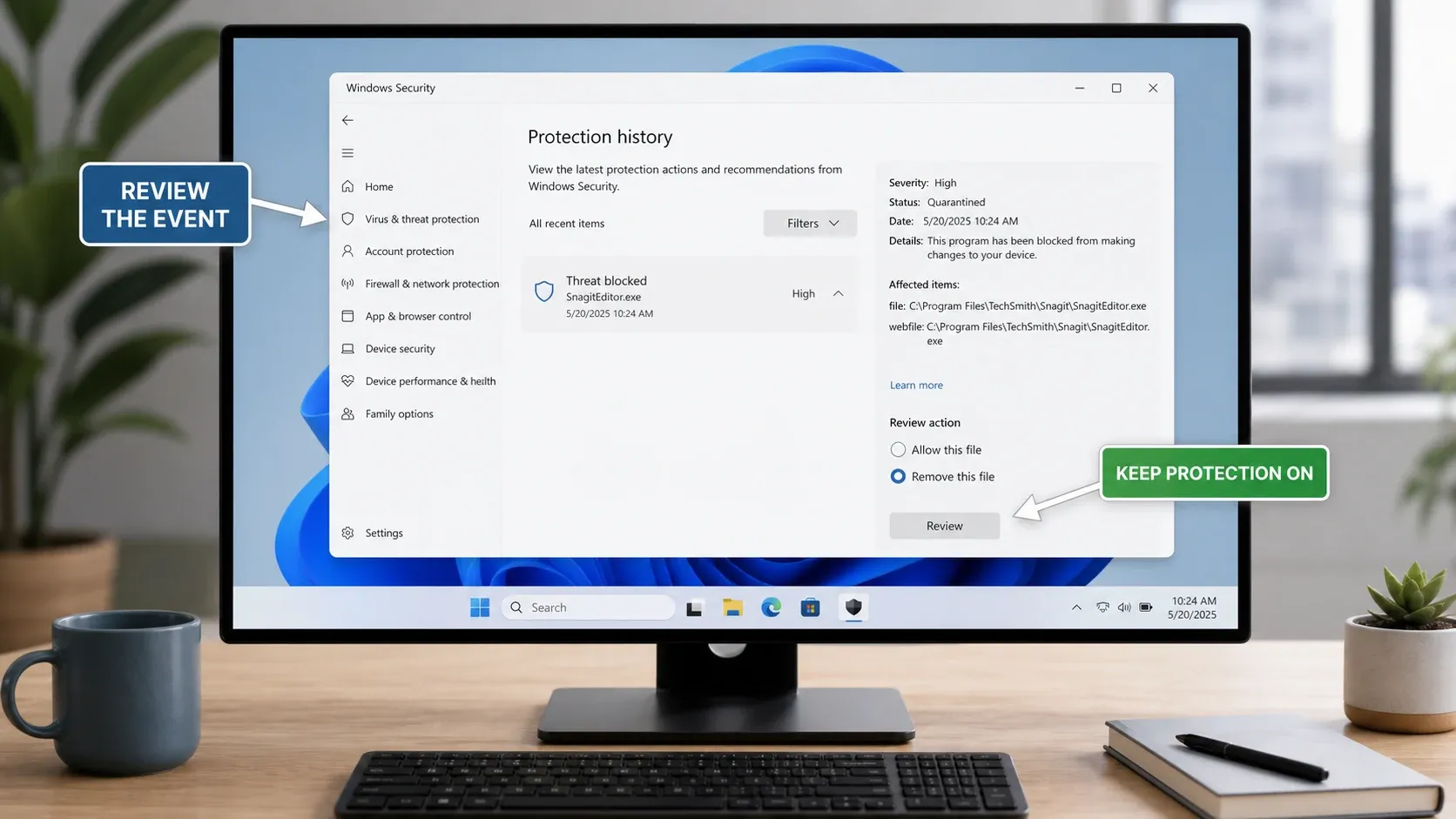
Check the security product’s blocked-event or quarantine history at the time of the error. TechSmith’s Windows support article names these processes for investigating interference; the list is not an instruction to allow every executable with a matching filename:
SnagitCapture.exefor Snagit 2022 and newerSnagit32.exefor Snagit 2021 and olderSnagPriv.exeSnagitEditor.exe
If Controlled folder access reports a block, follow Microsoft’s app-allow procedure in Windows Security. Record the blocked application’s exact path, verify that it belongs to your genuine Snagit installation, and allow it only if you trust it and your policy permits the change. Test a harmless capture afterward.
Allowing an app through Controlled folder access is different from excluding it from antivirus scanning. Either change affects protection. Do not disable real-time protection, add a whole-drive exclusion, or allow an unknown file simply to make the error disappear.
On a managed computer, give IT the event, timestamp, build, and affected folder. Let them decide whether a narrowly scoped change is justified. If a change does not help, have it reviewed or reversed rather than accumulating exceptions. A controlled test here means checking the result of an approved change, not turning antivirus off.
6. If Save As fails but captures still reach the Library
- Use a new, permitted destination outside cloud or redirected storage. Check available space.
- Try a short new name such as
capture-test-01.png. Microsoft’s Windows filename rules prohibit reserved characters and names; avoid trailing spaces or periods. Ordinary non-Latin letters are not universally invalid. - Try saving a harmless text file there from another app. Failure suggests a wider folder problem; success does not prove Snagit has permission, because controls can be app-specific.
- Export a disposable Snagit image to the same folder and format. Compare that result with the failing capture.
- If only one source fails, keep it unchanged and ask support. Do not repeatedly overwrite it while experimenting.
An export that opens but looks blurry or loses transparency needs a content check before delivery. A file existing on disk is not enough to declare the problem solved. Use the export settings guide for image dimensions and format choices once saving is reliable.
7. What to do on Mac
The Windows executable list does not apply to macOS. Keep the capture open while trying a new copy in a permitted, user-owned local folder. Desktop and Documents can belong to iCloud Drive, so those names alone do not establish that the destination is outside cloud sync.
If a folder-access prompt or denial appeared, check System Settings > Privacy & Security > Files & Folders. Apple’s folder access instructions let you review permissions for the listed app and location. Grant only the access you intend to give.
Check the Library path in Snagit > Settings (or Preferences in older versions) > Library. Protect the capture and back up the Library before testing a different location. Do not grant Full Disk Access or run commands that alter the macOS privacy database as a generic save fix. If a permission change requires restarting Snagit, preserve the open work first. Capture permissions are a separate issue covered in the Mac permissions guide.
Fixes to avoid
- Do not delete the Library or datastore. It may hold the only saved captures.
- Do not restore over an existing Library without a separate backup. TechSmith warns that legacy restore operations can replace captures rather than merge them.
- Do not run Snagit permanently as administrator to bypass an unexplained folder problem.
- Do not exclude an entire drive or user folder from antivirus scanning.
- Do not manually edit Library database files.
- Do not accept zero-byte or partly downloaded files as verified backups.
When to contact TechSmith support
Use the TechSmith Help Center if an irreplaceable capture cannot be saved, one source repeatedly fails, or the error remains after a supported update and a backed-up local test. Stop changing locations if the Library appears empty after a move. For an employer-managed device, involve IT before changing storage or security policy.
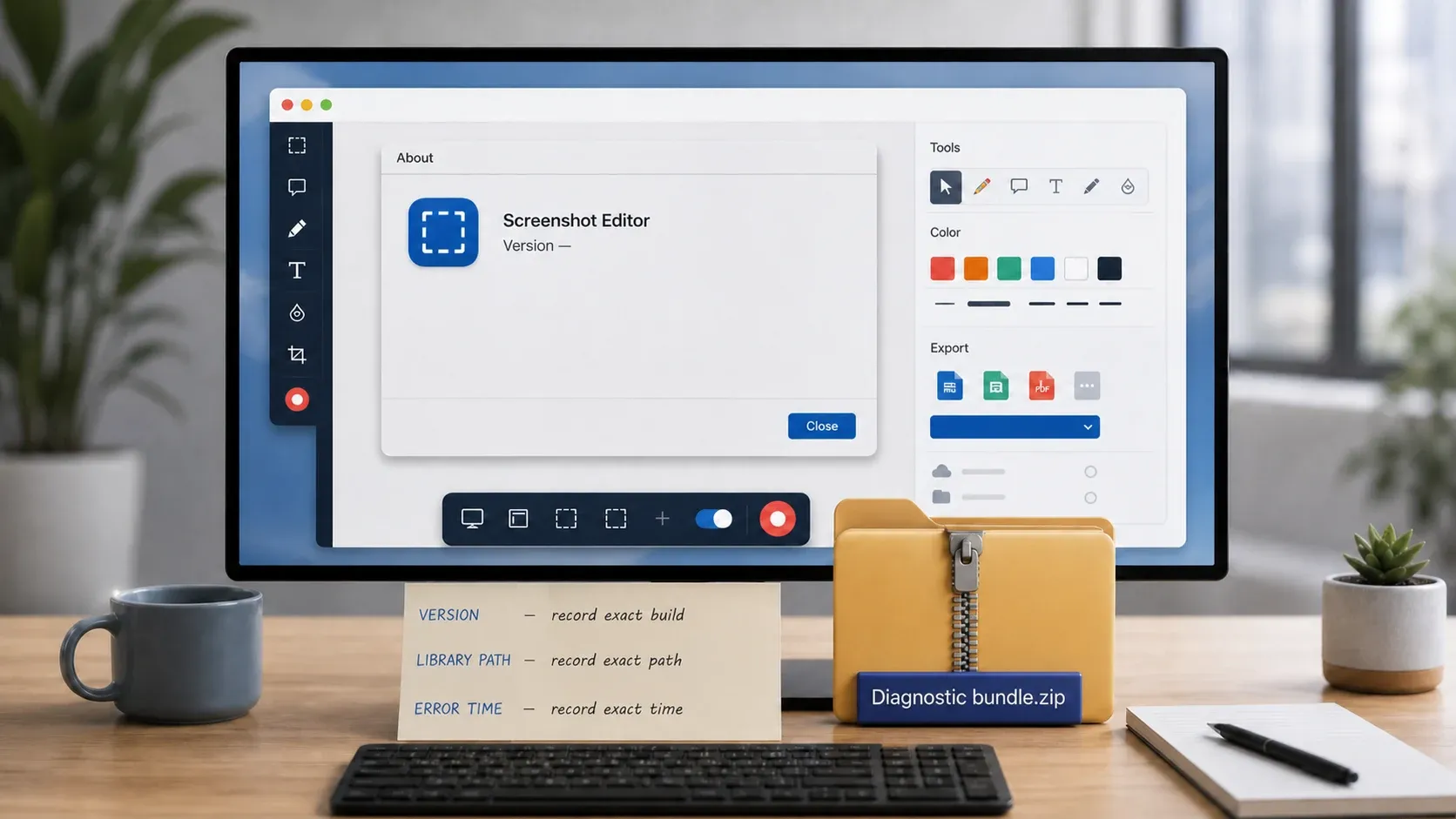
Record the exact error, operating system, Snagit build, timestamp, whether the failure follows capture or Save As, destination type, cloud provider, free disk space, and the result of each test. Share sensitive files and full internal paths only through an approved support channel. The Snagit troubleshooting index can route you to a different error when the wording does not match this guide.
FAQ
Why does Snagit say Failed to Save Document after a capture?
TechSmith’s Windows guidance identifies older builds, security-software interference, and Library location as troubleshooting routes. The message alone does not identify the cause or prove that the capture is corrupted.
Will updating Snagit fix the save error?
It may fix a known bug. Windows 2025.3.0, released August 6, 2025, fixed a cloud-Library Failed to Save issue. Preserve unsaved work before installing a supported maintenance update; no update guarantees file recovery.
Where should I move the Snagit Library?
For diagnosis, use a separate permitted folder on the internal drive outside synced or redirected storage, after a verified backup. Desktop or Documents may be cloud-backed. Record both paths and do not overwrite an existing Library.
Can OneDrive cause Snagit save problems?
Cloud availability can affect the Library, and TechSmith documented a cloud-Library save bug fixed in Windows 2025.3.0. Confirm the actual path and offline availability; a local test is not proof that OneDrive caused every failure.
Should I disable antivirus to fix Snagit?
No, not as a first troubleshooting step. Review blocked events and investigate the exact application and folder. A justified Controlled folder access permission is different from an antivirus exclusion; managed changes belong with IT.
Which Snagit processes may need a Windows security exception?
TechSmith lists SnagitCapture.exe for 2022 and newer, Snagit32.exe for 2021 and older, SnagPriv.exe, and SnagitEditor.exe. Confirm the blocked process and genuine installation path with your security administrator instead of automatically allowing all four.
How can I save an important capture before troubleshooting?
Keep Editor open and try File > Save As with a new name in a permitted local folder. Verify a PNG copy and, when needed and supported, an editable SNAGX copy. If neither saves, ask for help before restarting.
Does this error mean the capture is corrupted?
Not necessarily. A destination or access problem can prevent saving an intact capture. Test a new filename and permitted local folder without replacing the original. A repeatable single-file failure needs separate investigation.
What information should I send TechSmith support?
Provide the exact error, OS, build, timestamp, capture-versus-export trigger, destination type, cloud provider, available space, and completed tests. Use an approved channel for private captures or full internal paths.
Correction, September 12, 2026: corrected the cloud-save fix from 2025.4.0 to 2025.3.0, updated the Mac build, and clarified rescue-before-restart, cloud-backed folders, and security permissions.