
If Snagit OCR isn't working, first work out whether the command itself fails or the text just comes back wrong. On Windows, an outdated OCR licence is one documented cause of Grab Text failure after May 1, 2026. On Mac, use the Mac-specific checks below, because the Windows update numbers and menus aren't Mac instructions.
Start with a small, harmless sample. If that works and your original image doesn't, compare the two before you reinstall anything. Keep passwords, customer records, private URLs and personal messages out of any test image you might send to support.
I checked these troubleshooting steps against support articles and release notes on September 19, 2026. Use the platform labels in the text when choosing a fix.
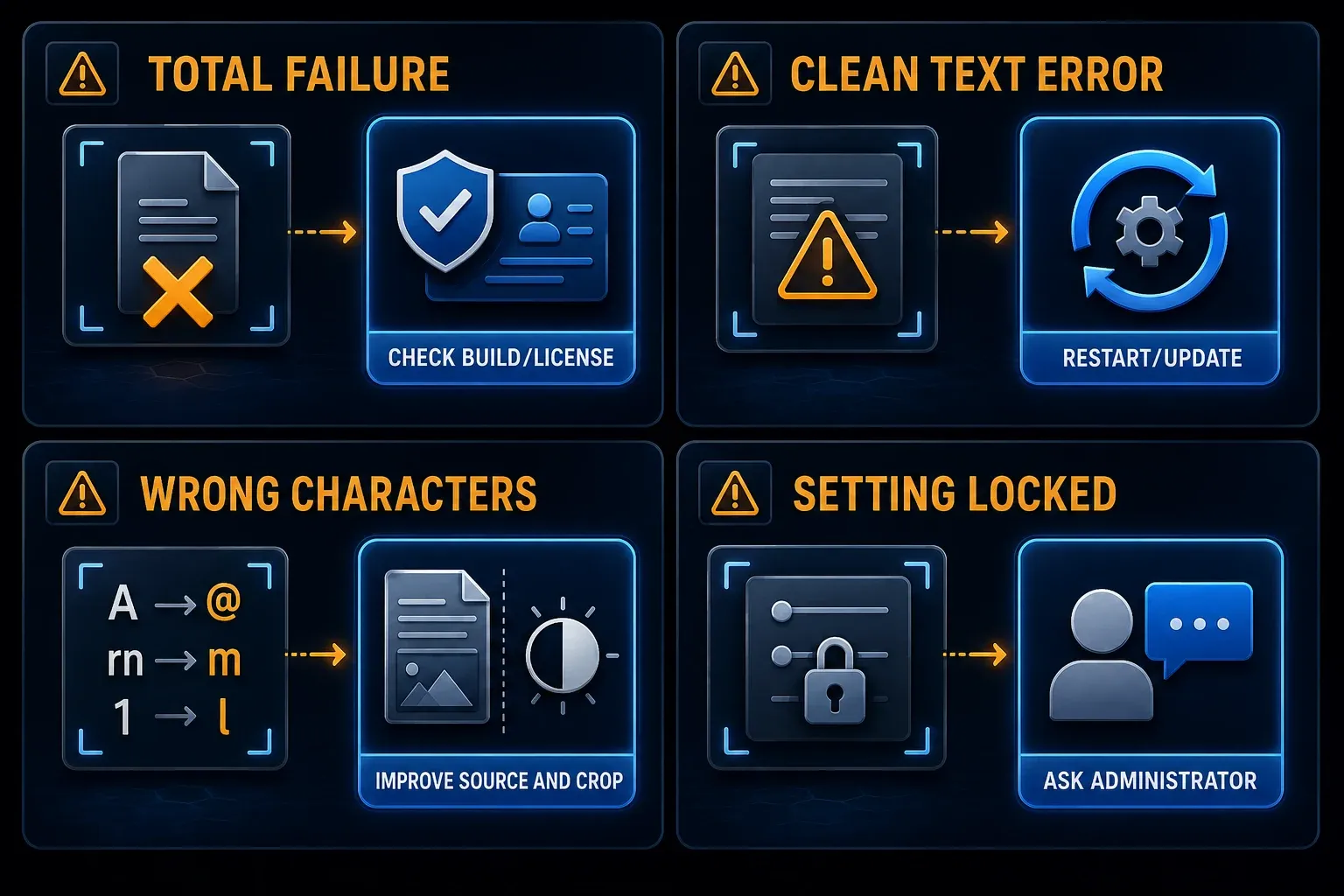
Snagit OCR not working: choose the right branch
| Symptom | First check | Avoid |
|---|---|---|
| All OCR commands fail on Windows | Check the refreshed-licence builds below | Reinstall the same old build |
| Cannot recognize text on a simple sample | Record the build, quit both apps, update and retest | Assume contrast is the only cause |
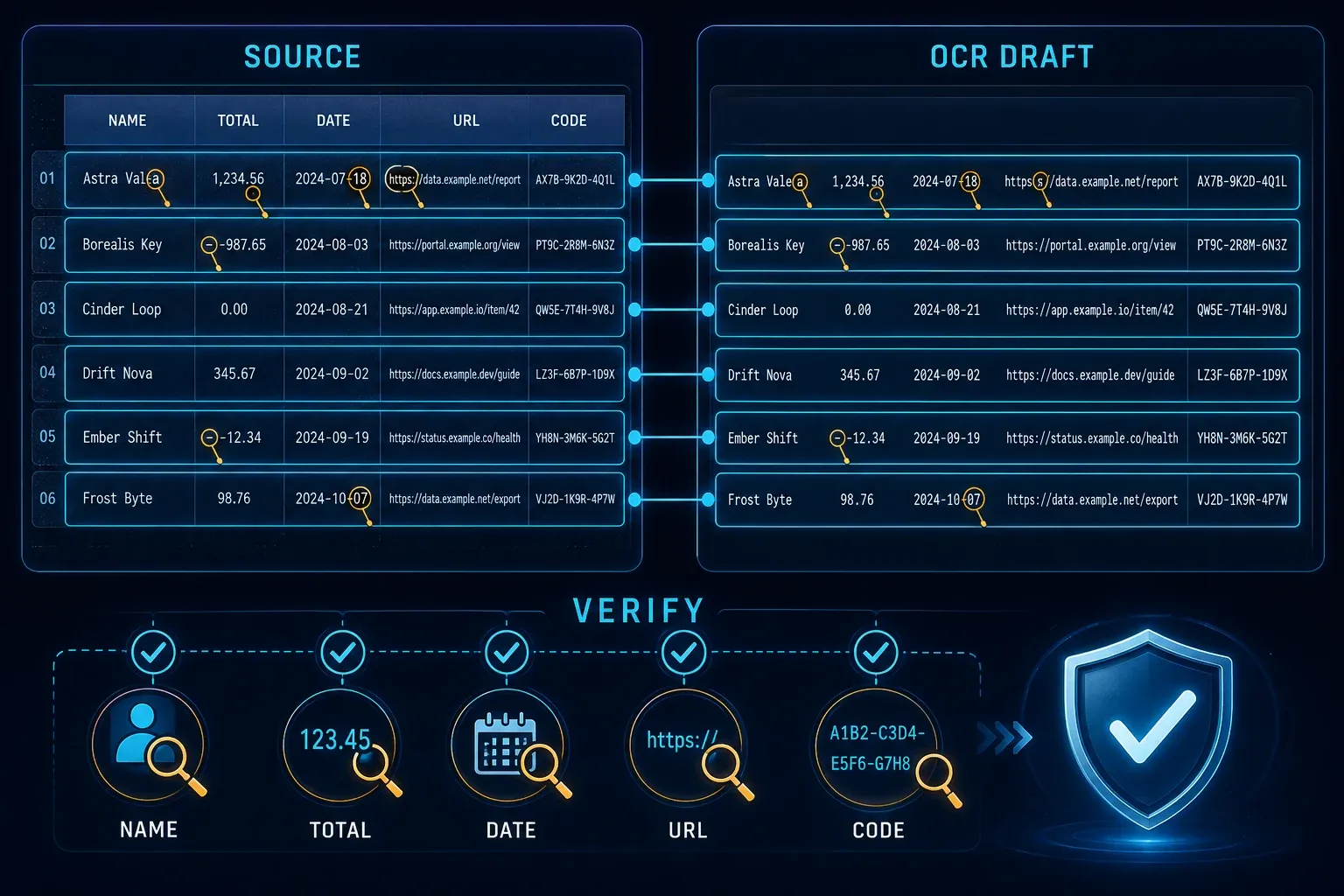
| Wrong characters or missing words | Compare a smaller, clearer selection | Trust amounts or codes without checking |
| First attempt or tall image is slow | Compare two small selections in one session | Treat every delay as a crash |
| Copy All crashes on Windows | Check the 2026.2.2 fix | Troubleshoot only recognition accuracy |
| Plain Text control is hidden | Check the Windows 2026.3.0 language-specific fix | Assume OCR returned no text |
| Optimized OCR is unavailable | Check Windows version and managed settings | Bypass organization controls |
| Mac Grab Text fails | Use Mac release notes and OS compatibility | Install a Windows licence fix |
Confirm which OCR function actually fails
Grab Text extracts the characters so you can use them somewhere else. Edit Text changes recognized wording inside the image itself, and it may not keep the original font or layout. Smart Redact finds potentially sensitive information, but always check what it misses before you share a capture.
Run the same sample through each function you need, and note whether the command opens, processing starts and a result appears. A successful Grab Text result shows that one operation worked on that sample. It doesn't prove that Edit Text or Smart Redact is fault-free.
If capture itself fails, open a harmless PNG you already have in Editor and try Grab Text there. That splits the problem in two: can Snagit capture this screen, and can it recognize this image? A screen-permission or hotkey problem needs separate troubleshooting.
Record what happens before changing settings
Write down the exact error and the moment it appears: processing never started, Editor closed, or text appeared but wouldn't paste. Timing helps you pick the next test, but it can't settle the cause on its own.
TechSmith's Grab Text best practices say the first OCR operation in a session takes longer, so compare two small selections. There's no universal wait time. If Editor stays unresponsive, save your work where you can and report the hang rather than starting more operations again and again.
Windows: check the May 2026 OCR licence update
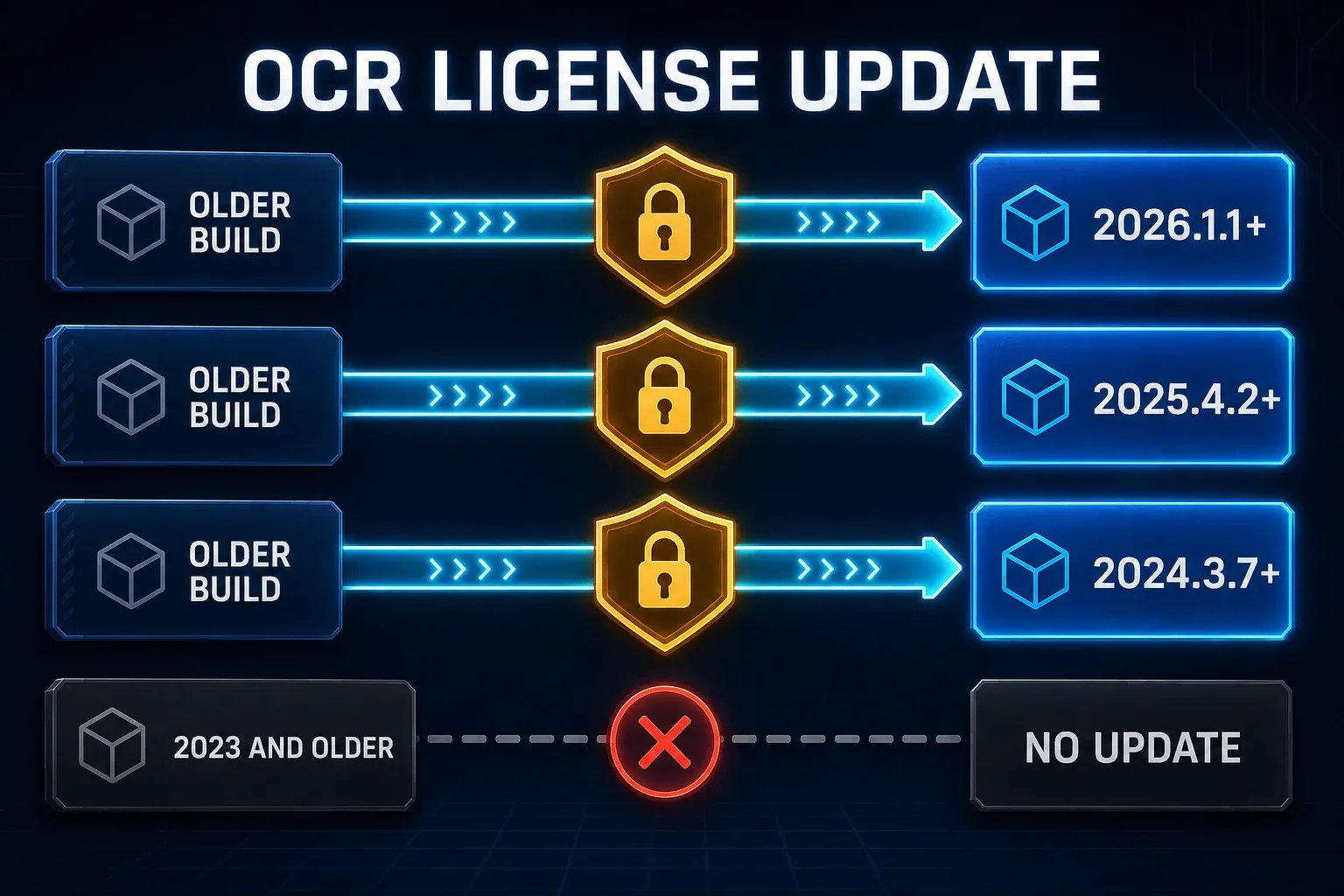
The OCR licence notice lists these minimum Windows builds: 2026.1.1, 2025.4.2 and 2024.3.7. Check your version under Help > About Snagit, then update within your own release. They're the minimum fixed builds, not the newest ones available.
On Windows, go to Help > Check for Updates > Install Updates. If your updates are managed, ask IT. The notice treats personal EXE installers and enterprise MSI packages separately, so don't replace a managed installation yourself.
Snagit 2023 for Windows and older Snagit Windows releases don't get this licence update, and reinstalling the same old build can't add the refreshed file. The version diagram below covers this Windows issue only, not Mac releases.
Run a clean OCR control test
- Save the original image and close private documents before testing.
- Make a harmless image with two short lines of large black text on white.
- Save open work, quit Snagit Capture and Editor, then reopen the installed app.
- Open the sample in Editor and use Selection around the text without cutting off character edges.
- Right-click the selection on Windows or Control-click on Mac, choose Grab Text, then use Copy All in the results.
- Paste into a plain-text document and compare every character with the sample.
- If it succeeds, repeat on a small region of the original image and record the difference.
If both inputs fail, record both results, but don't assume image quality is fully ruled out. When only the original fails, compare its size, script and layout. Change one thing at a time and repeat the same selection so you can see whether it helped.
Fix the Cannot recognize text error
For Windows, TechSmith's Cannot recognize text procedure says to quit Capture and Editor, install a supported current build, confirm it under Help > About Snagit and try again. Save any open work first, and pick an installer that matches your operating system and licence.
A 2024 user report describes the same error on simple text even after a restart, with workplace IT in charge of updates. It offers no confirmed fix. If your updates are managed, send IT your exact version and sample result instead of working around the deployment controls.
Improve inaccurate or incomplete recognition
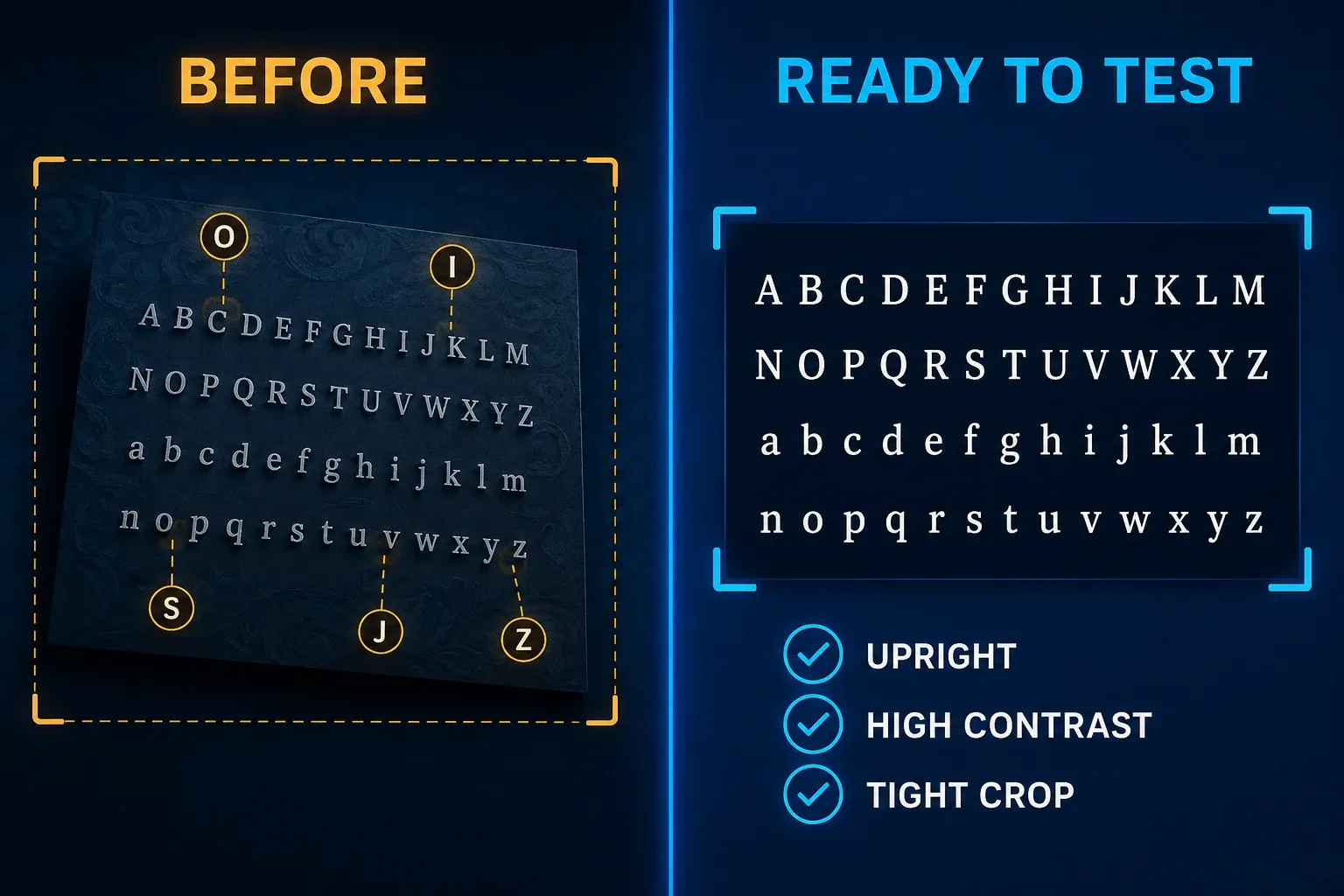
Use Selection inside any surrounding box, but leave the character edges intact. A smaller region keeps unrelated labels out of the result. Repeat the test on the same words so you can compare the before-and-after results.
Increase the contrast and straighten any angled text. If you control the source, make small text readable before you capture it, and keep an unchanged original so you have something to compare against.
Handwriting, symbol fonts, accents, shadows and outlines may cause errors. Treat them as possible trouble spots, not as a complete list of unsupported characters for every current build.
For a concrete check, compare a label and its value together: Invoice A-105 and 120.50. Check the hyphen and the decimal point as well as the words around them. This sample is only a suggestion and doesn't come with an accuracy figure. A fresh, legible capture beats enlarging a copy that's already unreadable.
Slow OCR on tall captures: reduce the selection
Work through one useful block at a time instead of the entire scrolling image. Check the first and last line of each block before you move on, or you can miss a section or paste the same line twice.
The Mac release notes place improved Grab Text results for tall captures and colour accuracy in 2026.1.0, released May 11, 2026. Mac 2026.2.0 on May 28 concerns licensing and activation. Neither note promises a particular recognition speed or perfect transcription.
Windows: test Optimized OCR only when permitted
Check the installed Windows build before following an experiment guide. Snagit 2026.4.0 makes Microsoft OCR the default, according to the Windows release notes. Earlier 2026 builds expose Optimized OCR under Edit > Editor Preferences > Experiments. If your version offers that option, compare a harmless sample only when your organization permits it; do not bypass disabled controls.
The Windows release history reports better Smart Redact accuracy with Optimized OCR in 2026.3.0, but you should still review the final redactions yourself. Do not treat this Windows option as a required Mac setting or disable management controls to expose it.
Language support depends on the platform and build
The older best-practices page mentions Japanese but also excludes Japanese characters, so it isn't a usable guarantee for current language support. Test the exact script and punctuation you need, and don't infer OCR support from the language of Snagit's menus.
TechSmith's technology table lists ABBYY and Windows Media OCR for Windows, and Apple OCR for Mac. The Windows 2026.4.0 notes make Microsoft OCR the default. Text recognition is listed as on-device; this does not make separate sharing or analytics features local or guarantee identical script support on both platforms.
Mac: check compatibility before following old fixes
The historical Grab Text Not Supported notice covers Snagit 2021.3.0 on macOS 10.14 or earlier and says that feature requires macOS 10.15. Its workaround for older builds isn't current advice for Snagit 2026.
Current Snagit requirements list macOS 15, 26 or 27. Note your exact Mac app and OS versions, then update through the channel that's compatible with that installation. Do not compare a Mac build against the Windows licence thresholds above or install an obsolete version without reviewing compatibility and support.
Text appears, but copying or formatting fails
Windows 2026.2.2, released May 28, fixed a crash when clicking Copy All in Grab Text Results. Windows 2026.3.0, released July 16, fixed an obscured Plain Text control in Portuguese and Spanish installations. Before you treat this as failed recognition, check whether your symptom and build match one of these fixes.
If the results window looks correct, paste into a second plain-text destination and compare the characters themselves and the line breaks. That helps you tell a copying or destination-formatting problem apart from text that was already wrong in the results window.
For tables, check each label against its value and confirm the row order. For commands, dates, amounts and account details, compare every significant character before you use the text, since a readable paragraph can still hide one error that matters. When you need structured data, use the table export in the source application.
For ordinary extraction steps, use my guide to copying text from a screenshot in Snagit. If you need to change wording inside the image instead, the Snagit Editor guide explains the editing tools.
Escalate with a private-data-safe test case
Contact support if a compatible, updated installation still fails on the small sample. Include your Snagit version, OS, installation source, exact message and which command fails. On Windows, also note whether Optimized OCR is available and whether updates are managed.
Attach only harmless reproduction data: the sample image, the two lines you expected and the text you got back. Say whether processing fails, stalls or returns the wrong characters, and check any diagnostic file for personal information before you share it through an approved support channel.
Snagit OCR troubleshooting FAQ
Can the May 2026 licence issue affect Grab Text?
Yes, on affected Windows builds. Use the minimum-build checks above; they are not Mac release requirements.
Which Snagit versions contain the refreshed OCR license?
For the Windows licence issue: 2026.1.1, 2025.4.2 or 2024.3.7 within the matching major release.
Why does Snagit say Cannot recognize text?
The message does not identify one cause. On Windows, quit both apps, apply a compatible supported update, verify the build and retry a small sample.
How can I improve Snagit OCR accuracy?
Try a tight selection, readable text size, upright lines and stronger contrast. Compare the output with the original.
Why is Grab Text slow on a scrolling screenshot?
A large image can take longer to process. Select a smaller block and inspect it before processing the next section.
Why is Optimized OCR greyed out?
In earlier Windows 2026 builds, managed experiment or usage-data settings may restrict the option. The 2026.4.0 release notes make Microsoft OCR the default, so first check your installed build. Ask IT about disabled controls; do not bypass policy.
Does Snagit OCR support Japanese characters?
Do not rely on the ambiguous older language list. Verify representative Japanese text in your actual platform and build.
Should I reinstall Snagit to fix OCR?
Test a harmless sample and check the installed version first. Reinstalling an unchanged old build is not an update; preserve your work before any installation change.