
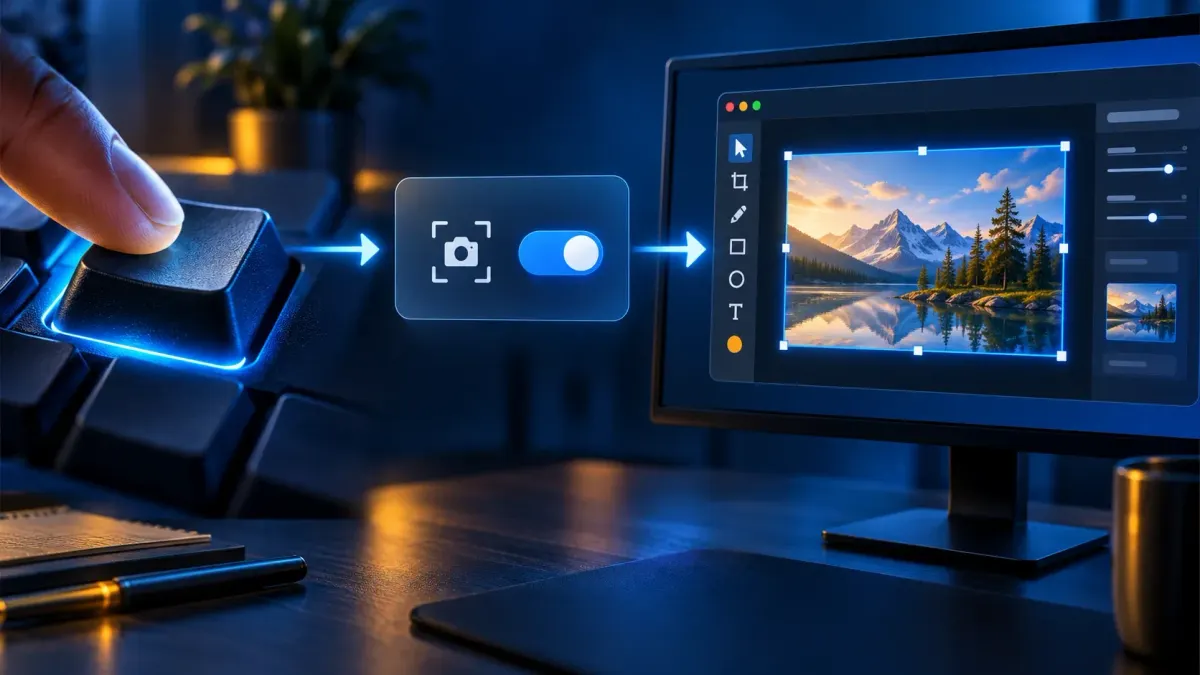
To make Print Screen open Snagit, turn off the Windows shortcut that opens screen snipping, then assign Print Screen in Snagit Capture’s hotkey field below the red Capture button. Keep Capture running. For a screenshot you can review, select Image, turn Preview in Editor on, and set Share to None.
Windows puts this switch in more than one Settings layout, and the steps below cover both. After them come checks for a shortcut that’s already taken, Logitech mappings and laptop Fn keys. If Print Screen already starts the capture you want, you don’t need to change every setting.
What setting Snagit as the default actually changes
You’re setting up a keyboard shortcut here, not picking which app opens a file type. Windows can reserve Print Screen for screen snipping, while Snagit can register it as a global capture hotkey, and other capture apps and keyboard utilities may also affect it. That’s why the setup happens in Windows keyboard settings and Snagit Capture, not in the usual Apps > Default apps picker.
Look for PrtSc, PrtScn or Print Screen on your keyboard. If the key also carries a second function, you may need Fn + Print Screen. Check this before anything else, because a remapped key or a missing modifier can keep the keypress from reaching Snagit even when the app settings are correct.
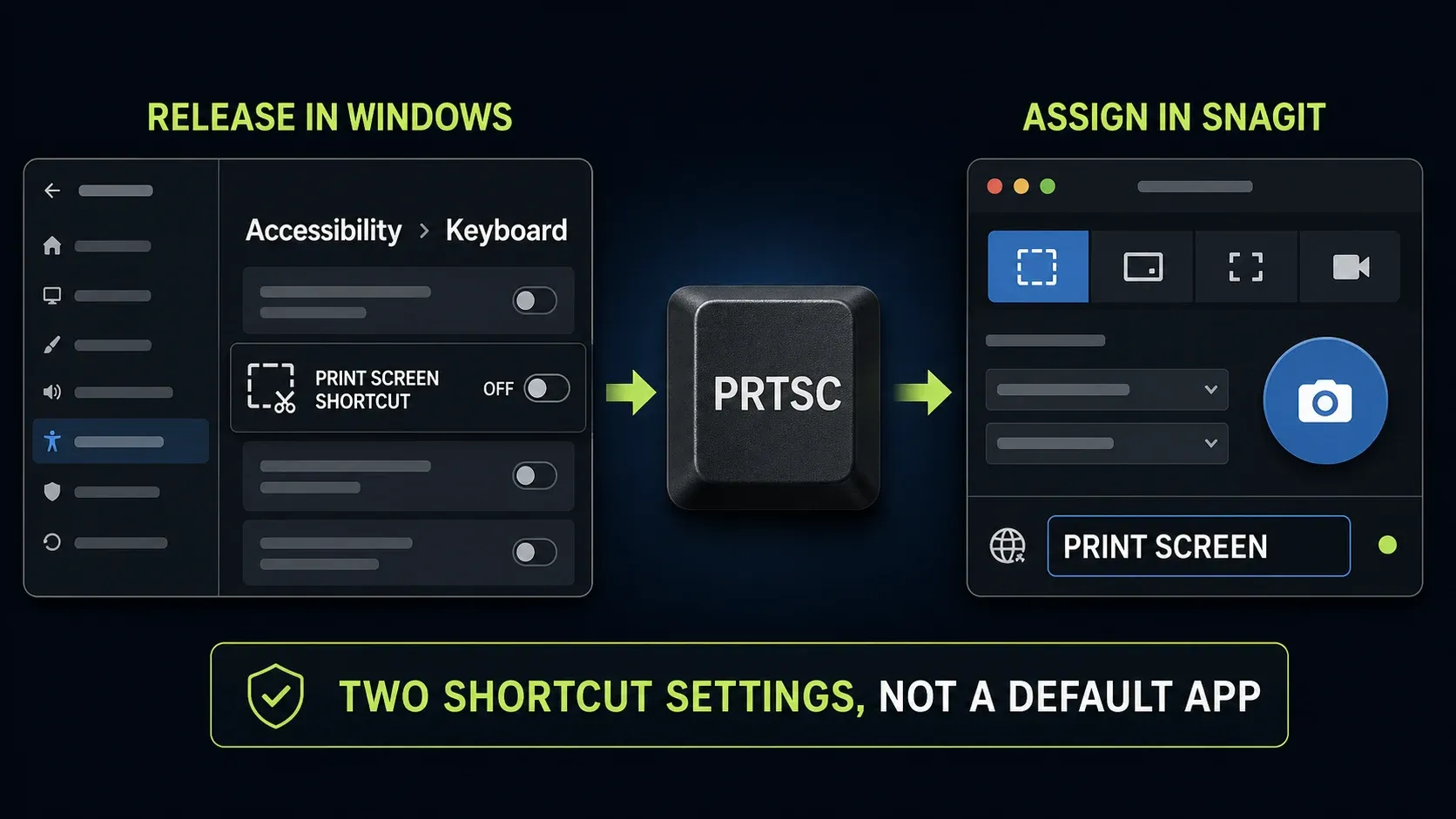
TechSmith’s Print Screen troubleshooting article describes a Windows update conflict and a fix in Snagit 2023.2.1. That marks an older version boundary, and it doesn’t mean every current installation is broken. If your shortcut stops working after an update, check the binding before you reinstall anything.
How to set Snagit as the Print Screen tool in Windows 11
1. Release Print Screen from Windows
Open Windows Settings and look for the Print Screen shortcut. Microsoft’s keyboard reference documents Accessibility > Keyboard, with a switch named Use the Print Screen button to open screen snipping. TechSmith’s instructions use the wording Use the Print screen key to open Snipping Tool. Turn that switch off.
If it is missing: check Bluetooth & devices > Keyboard > Shortcuts and hotkeys, where the label can be Use the Print screen key to open screen capture. This newer layout appears in Brink’s dated Windows 11 instructions and his reply to a missing-setting question on Microsoft Q&A. You can also search Settings for Print Screen. Use the layout present on your PC; the illustration below retains the Accessibility route.
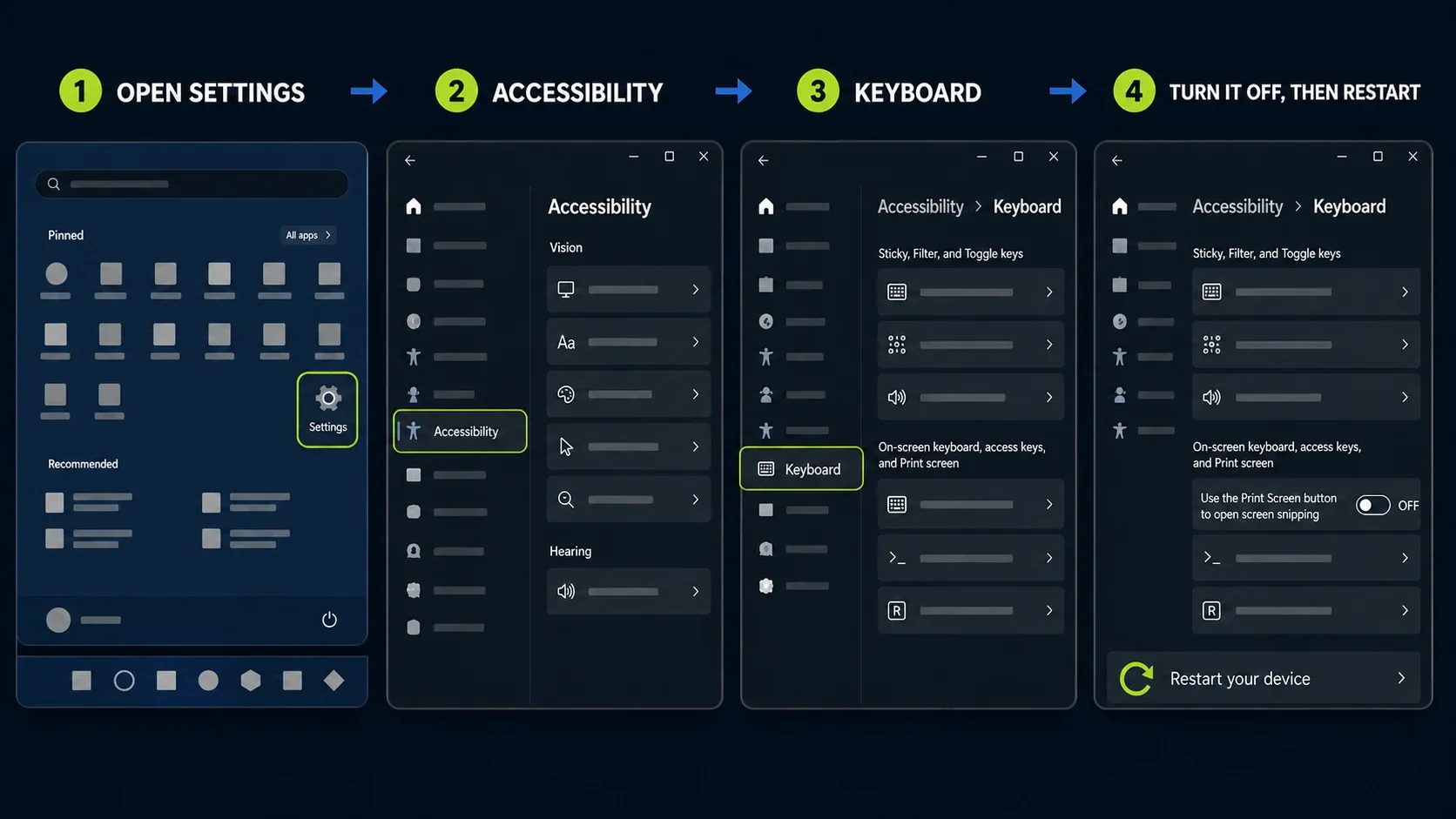
Save your open work, then restart Windows as TechSmith’s procedure instructs. Open Snagit Capture again afterward. You do not need to uninstall Snipping Tool. If the switch is unavailable or controlled by your organization, use the permitted fallback below instead of changing policy or the registry.
2. Assign Print Screen in Snagit
Open Snagit Capture, rather than only its Editor. Click the shortcut field directly below the red Capture button and press Print Screen, using your keyboard’s required modifier if applicable. Check what the field actually records. TechSmith’s direct image-capture procedure identifies this field as the global hotkey control.
To use a different combination, click the same field and enter an unused shortcut that your organization permits. Do not assume a suggested combination is free in every application. If Capture itself does not open, use the Snagit launch troubleshooting guide before trying more key assignments.
3. Resolve a hotkey conflict if necessary
If Snagit reports that another app uses the key, decide which app should receive it. In Snagit versions with the override feature, open File > Capture Preferences > Hotkeys, enable Allow Snagit to override other hotkey assignments, click OK, and assign Print Screen again. TechSmith documents this option for 13.0.2 and later. It is a conflict setting, not a way around an organization’s restrictions.
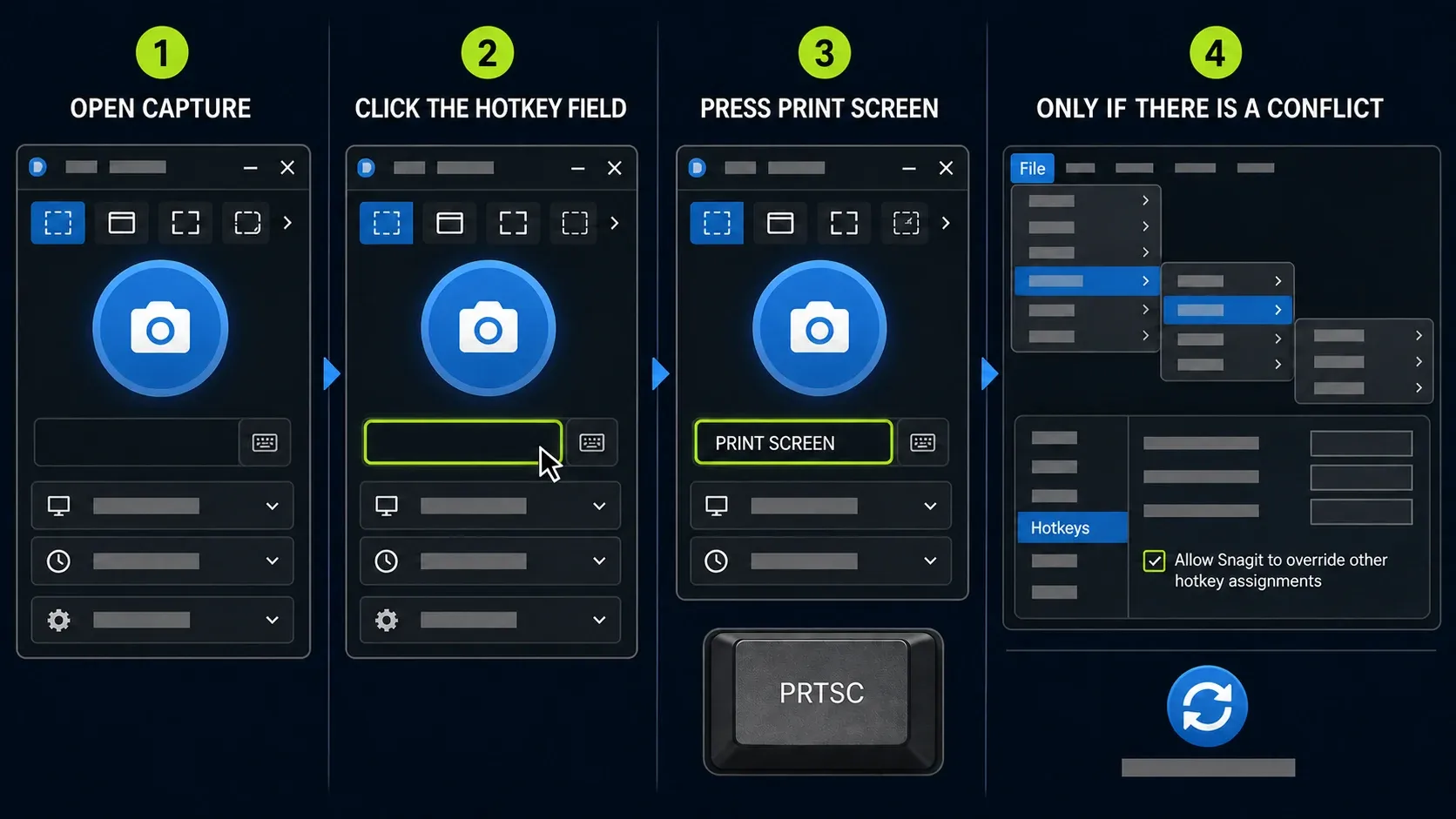
TechSmith names OneDrive and Dropbox as examples of past hotkey conflicts; that does not prove either app is the cause on your PC. Do not look for OneDrive’s old automatic-screenshot switch: Microsoft says that setting is no longer available. Inspect the competing app’s current shortcut controls only if you have evidence that it is intercepting the key.
4. Choose what Print Screen captures
For a simple test, choose Image in the Capture window and set Selection to Region. Check any selected Effects. The global hotkey uses the current Capture settings, so a previous video or full-screen setup can produce a different result even when the key works.
A preset hotkey uses that preset’s saved settings instead. The Capture Widget, formerly OneClick, has its own capture behavior too. TechSmith’s capture-mode reference explains those distinctions. Use the Snagit keyboard shortcuts guide when assigning separate combinations to repeatable workflows.
Turn Preview in Editor on and set Share to None. These are separate controls: the first opens the image for review, while the second avoids selecting an automatic share destination for this capture. TechSmith’s image-saving instructions show how preview and destination settings work independently.
Use a harmless sample for the first test. Share: None is not a privacy guarantee. It does not turn off OneDrive folder backup or other storage synchronization. If you later want a direct-to-file capture without Editor review, configure a separate preset and check its save location. These steps concern the Image tab, not the newer video Open In control.
5. Keep Snagit running and test the result
Snagit Capture must remain running for its global hotkey to be available; its window does not need to stay in front. If you want it to start at sign-in, open File > Capture Preferences > General and enable Run Snagit when Windows starts, as described in TechSmith’s startup preferences. This is optional. You can launch Capture manually when you need it.
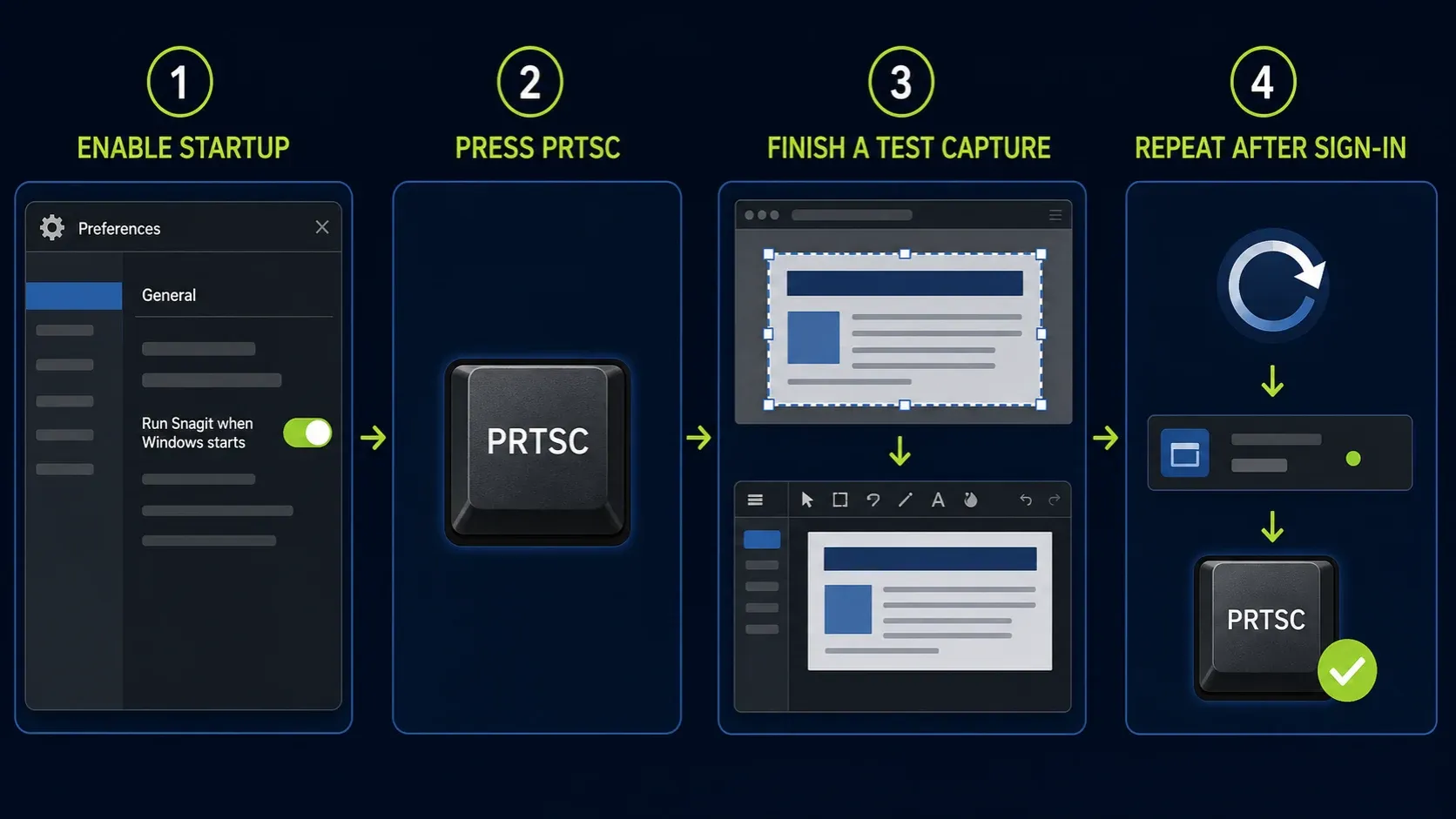
With Image > Region and preview enabled, open a document containing no sensitive information. Press Print Screen, select a small area, and confirm the image opens in Snagit Editor. Save any edits before closing Editor. Leave Capture running in the notification area and test the key again.
If you enabled startup, repeat the same test after your next normal Windows sign-in. That checks the setup in that session; it does not guarantee that later app updates, keyboard mappings or policy changes cannot affect it.
Fix Snagit Print Screen when it still does not work
| Symptom | Possible explanation | Next check |
|---|---|---|
| Snipping Tool opens | Windows may still be using the key | Check the Print Screen switch in the Settings layout on your PC; save work and restart after changing it |
| The Windows switch is missing | Settings layout or management differs | Check Bluetooth & devices > Keyboard as well as Accessibility > Keyboard; do not bypass managed policy |
| Nothing visible happens | Capture may not be running or receiving the key | Open Capture; check the hotkey field and Fn or keyboard remapping |
| Logitech capture interface opens | Key may send Screen Capture instead of Print Screen | Select the separate Print Screen action in Logi Options+ |
| Fn + PrtSc works | The key needs a modifier or mapping adjustment | Check the keyboard manual before changing Fn Lock |
| Wrong capture type starts | Current settings, preset or widget differ | Confirm Image > Region and which hotkey or button you used |
| Capture runs but Editor does not appear | Image preview may be off | Turn Preview in Editor on; Share None alone does not enable preview |
Snipping Tool still opens
Go back over the Windows switch and the hotkey Snagit recorded, then make sure Capture is running. Test Print Screen alone, not Windows + Shift + S, since that’s a different Windows shortcut. If you need to restart, save your work first. Do not infer a broken Snagit installation just because one key still opens another app.
A Logitech key opens the wrong capture interface
Logitech’s Logi Options+ 1.86 notice explains that Screen Capture no longer sends the same Print Screen keycode. In Logi Options+, select your device, open Keys or Buttons, pick the assigned capture key and choose the separate Print Screen action, then retest in Snagit. That fix is specific to this mapping, not to every Logitech keyboard problem.
A laptop needs Fn+Print Screen
Start with the key combination printed on the keyboard or documented by its manufacturer. If Fn + Print Screen works, the modifier and mapping are where to look, so don’t assume Snagit is failing. TechSmith mentions Fn + Esc as a possible Fn Lock control, but it isn’t universal. Do not change firmware settings or install keyboard utilities just to follow a generic shortcut suggestion.
Another app owns the same key
If another screenshot app is open, save its work, close it and retest. Changing one thing at a time shows you which setting helped. Do not disable security software or close a managed utility to reclaim the key. Snagit’s override may also stop applying when Capture and Editor are both fully closed.
On a managed computer, use another Snagit hotkey that’s unused and permitted, or the Capture button. If a setting is locked, ask your IT administrator about it instead of editing group policy or the registry. When Print Screen fails outside Snagit too, that’s a separate problem, and the broader Windows Print Screen troubleshooting guide covers it.
How to undo the change
- In Snagit Capture, replace the global Print Screen assignment with another unused, permitted shortcut.
- Return to the Windows keyboard settings layout you used above. Turn the Print Screen screen-snipping switch on if you want Snipping Tool to receive that key.
- Optionally turn off Run Snagit when Windows starts if you no longer want automatic startup. This is separate from changing the key.
- Save your work, restart Windows if needed, and test the intended behavior.
These steps change the shortcut and, if you choose, startup behavior. They don’t ask you to delete captures, reset the Library or uninstall either app. If you’re still choosing between the tools, start with Snagit vs Snipping Tool. Once the key works, the beginner capture-and-edit tutorial covers what to do with the image.
FAQ: Snagit and the Print Screen key
How do I make Print Screen open Snagit instead of Snipping Tool?
Turn off the Windows Print Screen screen-snipping switch, using Accessibility > Keyboard or Bluetooth & devices > Keyboard, depending on your Settings layout. Open Snagit Capture, click the global hotkey field below Capture and press Print Screen. Keep Capture running and test the key.
Is Snagit a Windows default screenshot app?
This setup assigns a global capture hotkey in Snagit; it is not a file-type default-app association. Windows keyboard settings, Snagit and other keyboard or capture utilities can affect which app receives Print Screen.
Why does Print Screen open Snipping Tool again after an update?
TechSmith documents a historical Windows update conflict and a fix in Snagit 2023.2.1. Do not assume every later update recreates it. Check the Windows Print Screen switch, Snagit’s assigned key and whether Capture is running before reinstalling anything.
Does Snagit need to stay open for Print Screen to work?
Snagit Capture must remain running for its global hotkey to be available. Its window does not need to stay in front. Enable Run Snagit when Windows starts if you want automatic startup, or launch Capture manually.
Can I make Print Screen capture an image instead of All-in-One?
Yes. Select Image and your desired Selection and Effects in Capture. For a region capture you can review, choose Region, turn Preview in Editor on and set Share to None. The global key uses the current settings; a preset hotkey uses its saved settings.
Why does my Logitech capture key ignore Snagit?
A Logi Options+ mapping may send Screen Capture rather than the Print Screen keycode. Select the device and assigned key in Logi Options+, then choose the separate Print Screen action. Other keyboard problems need separate checks.
Can I use another hotkey for Snagit?
Yes. Click the global hotkey field below Capture and enter an unused combination permitted on your computer. Presets can have their own hotkeys for saved capture settings. If shortcuts are restricted, use the Capture button.
What is the Snagit Print Screen shortcut on Mac?
TechSmith lists Control + Shift + C as the default Snagit global capture shortcut on Mac. The Windows Settings instructions on this page do not apply to macOS; check your assigned shortcut in Snagit on the Mac.
Checked September 12, 2026. This guide follows vendor documentation and the cited Windows layout reports rather than a new test of your PC. Labels can differ on your Windows build. For other capture tasks, use the Snagit guides hub.