
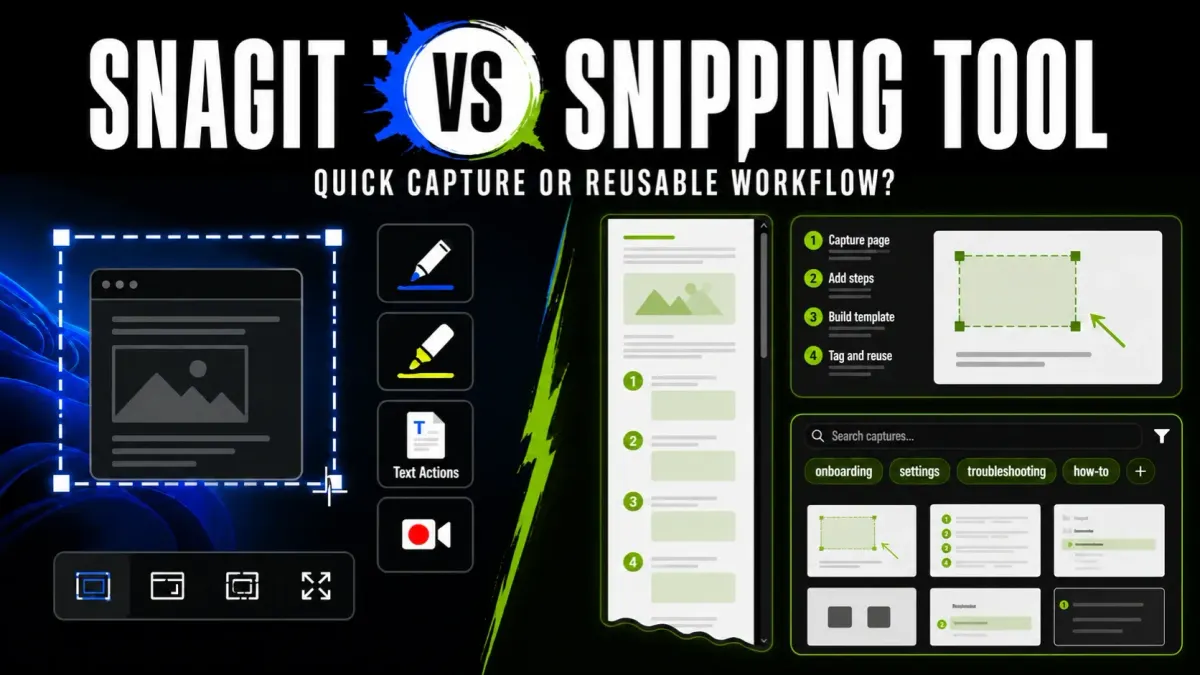
Start with Windows Snipping Tool for screenshots, arrows, text extraction and short recordings. Pay for Snagit when you repeatedly need scrolling capture, editable screenshot sources, capture presets or visual guides that you will maintain. OCR and audio recording alone are no longer good reasons to buy another capture app.
That choice depends on your installed version. This comparison was checked September 14, 2026 against Microsoft and TechSmith documentation. It focuses on current Windows 11 workflows, not the older Windows 10 interface. It is a research-based comparison, not a timed hands-on test.
Snagit vs Snipping Tool: what changes the decision?
| Your task | Snipping Tool | Snagit |
|---|---|---|
| Capture and mark up an image | Free Windows capture, shapes, arrows and Quick markup on updated systems | Detailed annotations, styles and capture presets |
| Copy text from an image | Text Actions with local OCR | Text extraction and image-text editing |
| Capture a long page | No native scrolling capture in current Microsoft guidance | Dedicated scrolling capture; test the target page |
| Change an old callout | A saved PNG/JPG is a flat image | Keep the SNAGX source to edit supported objects |
| Create a procedure | Capture images and assemble the guide yourself | Step Capture and reusable visual-documentation tools |
| Record with audio | Supported on current Windows 11; check device settings | Screen recording with audio and webcam options |
| Trim or export a GIF | Documented additions; availability depends on the app version | Capture-oriented video editing and GIF tools |
| Work across operating systems | Windows application | Windows and macOS, with version-specific requirements |
| Pay for access | Included with Windows | Annual subscription; trial available |
Keep both installed if they serve different jobs. The Snagit comparisons hub covers other head-to-head choices; the screenshot software comparison compares the wider field.
What Windows Snipping Tool already does
Microsoft's current Windows 11 guide describes rectangle, window, full-screen and freeform screenshots, plus markup with shapes and arrows. You can save PNG or JPG files, copy a result, and record your screen with microphone audio. Calling this a pen-only screenshot app understates it.
Quick markup lets you edit in the selection area before finishing a capture. Microsoft described its general Windows rollout in October 2025. Where available, turn it on in the capture toolbar or use Ctrl + E while that toolbar is open. You do not have to open a separate editor window for every simple annotation.
The Snipping Tool support guide documents Text Actions, local text recognition, and Quick redact for email addresses and phone numbers. It also covers autosaving and sharing. Buying Snagit just to copy text or share a simple screenshot would duplicate those built-in capabilities.
Perfect screenshot requires a Copilot+ PC. Microsoft's current support page also explicitly restricts Color picker to Copilot+ PCs, while the original feature announcement states that restriction only for Perfect screenshot. Those documents differ. Check whether Color picker is present on your PC; it is not a sound reason to buy new hardware or a Snagit subscription.
Scrolling capture is a practical reason to change tools
Microsoft's current guide explicitly says Snipping Tool does not natively capture scrolling webpages. You can still use a browser's full-page feature or another free capture application. A missing built-in feature does not automatically make a paid app necessary.
Snagit's capture tools include scrolling capture and presets. They can suit long help pages, settings panels or documents that need to become one image. Use the scrolling capture guide for the actual capture process.
Test the page you work with. TechSmith documents scrolling-capture problems with floating toolbars, parallax pages and unsupported applications. Inspect the first and last lines and the joins for missing or repeated content.
For a free Windows option with scrolling and configurable capture tasks, compare Snagit with ShareX.
Will you need to edit the screenshot again?
Snagit's SNAGX source format preserves supported text and drawn objects. Keep it when a label, arrow or callout will need changing. Export a separate PNG or JPEG for readers who do not need the source.
A flat export from either product does not retain those separate annotation objects. Changing a label on that image may mean covering it and rebuilding the annotation. Saving the original is useful only if you can find it and know which delivery image came from it.
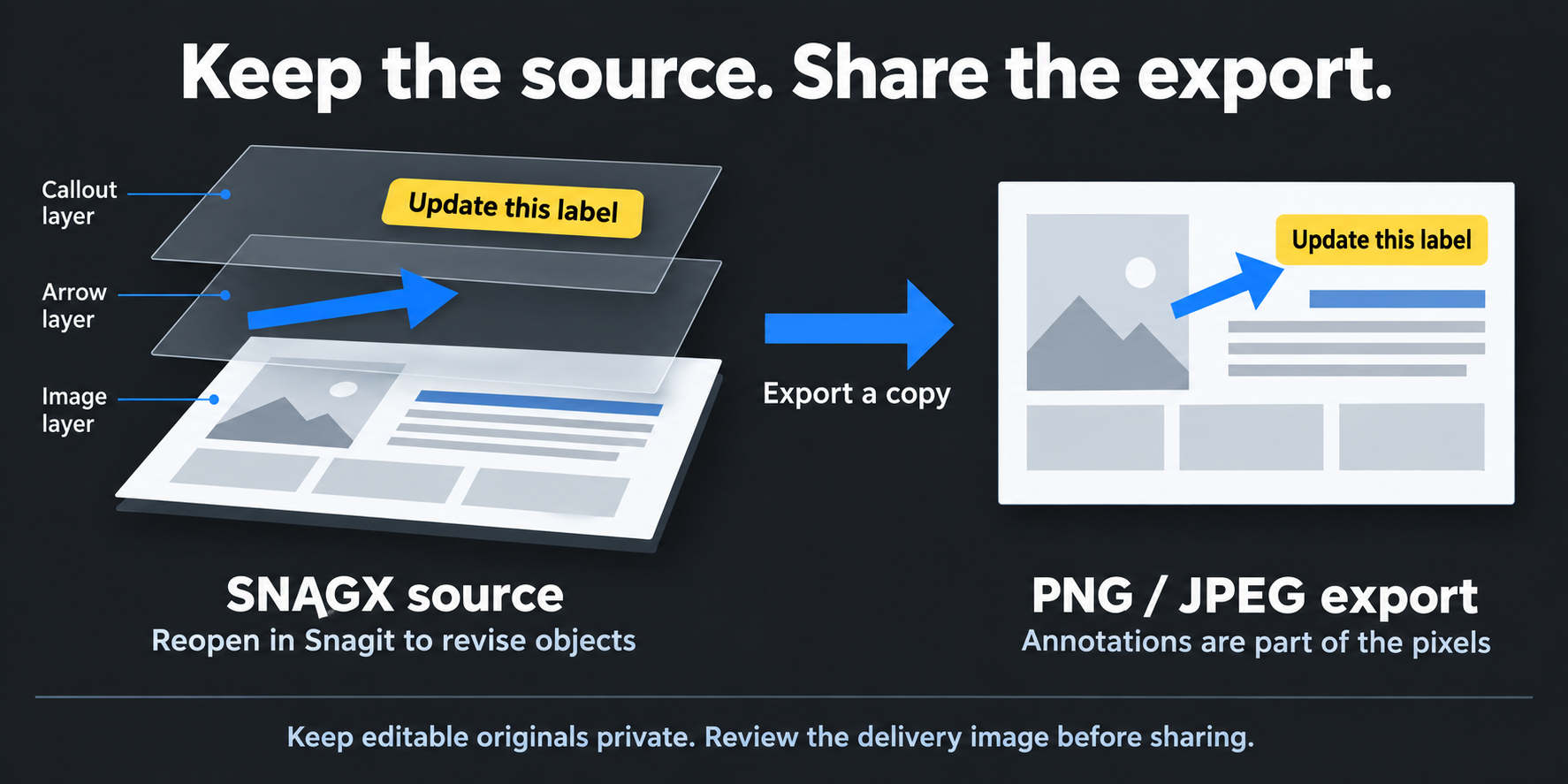
Save one annotated support image as SNAGX, export a delivery copy, then reopen the source and move its callout. This checks the revision step that a capture-only comparison misses.
There is a free route for more image work too: current Paint supports editable .paint project files, documented in the same October 2025 Windows rollout. That is a separate application and project workflow. It cannot recover separate annotations already flattened into the PNG you import.
Documentation, presets and finding old work
Snagit's Step Capture builds a numbered visual guide from a process. Templates and annotation styles also help when several screenshots belong to one document. This is a clearer reason to evaluate Snagit than simply counting drawing tools.
Check every captured step before distributing the guide. Add prerequisites, remove private data and correct ambiguous labels. Automatic capture does not verify that another person can follow the procedure. The documentation tools comparison covers tools built around this job.
Snagit presets remember capture settings for repeated tasks on Windows and Mac. For example, a standard capture format or delay can reduce repeated setup. They do not guarantee consistent output if people choose the wrong preset or edit it. Keep the settings understandable to the team using them.
Snagit's Library documentation describes filename search and filters for date, tags, source application and website. Tags are visible in Snagit; they are not a substitute for useful filenames in exported files. On Windows, network-stored Libraries also have documented limitations.
Snipping Tool's folders and Windows search may be enough for a small collection. If you maintain many revisable graphics, the Snagit Editor guide explains how Library and image editing work together. Neither a Library nor a folder replaces a backup.
Video: audio, trimming and GIFs are not exclusive to Snagit
Current Windows 11 Snipping Tool records with audio. Microsoft introduced PC-audio and microphone options in 2023; its current documentation still confirms audio recording. Check the selected microphone and system-audio controls with a non-sensitive sample before recording your real explanation.
Three additions matter when reading older comparisons:
- Trim adjusts the start and end of a recording.
- GIF export offers low/high quality and exports up to 30 seconds. For a longer recording, the documented prompt offers its first 30 seconds; this is not a recording-duration limit.
- Window mode sizes the recording area to a selected window. The area then stays fixed: it does not follow a moved window or exclude windows that cover it.
Those links document the features' Insider introductions and rollout conditions. They do not prove every Windows 11 installation has them. Check for the controls in your updated app before paying for another tool to solve the same task. A GIF has no audio; keep a video file when the sound matters.
Snagit offers screen/audio/webcam capture and basic video trimming. Its value is the capture-and-documentation workflow around those features. See the recording guide for setup. Snipping Tool can hand recordings to Clipchamp for more editing; that is another app, not a built-in Snipping Tool timeline. Snagit is not the full Camtasia Editor either.
Privacy: check autosave as well as the shared result
Local OCR means text recognition happens on your device. It does not prove that a saved image stays out of synchronized folders, clipboard history or a destination you choose later. Review storage and sharing settings in either product.
Snipping Tool can automatically save captures. Check the configured folder and any original copies before working with sensitive material. Microsoft documents an exception: the Quick markup Share, Bing Visual Search and Ask Copilot actions do not autosave or copy the image to the clipboard. Do not assume a local backup exists after using those actions. Verify the saved file location before sending it.
Quick redact only targets the documented email/phone categories automatically. Names, tokens, account numbers or background windows can remain. Inspect the final exported image, not just the editor preview. For secrets, use permanent removal in the delivery copy and keep editable originals restricted; the redaction guide covers this distinction.
Snagit also has optional cloud-sharing paths. Current Windows release notes and Mac release notes say images sent to Camtasia Online use the original SNAGX with text, cursor and other capture information. That is not the same as sharing a reviewed flat export. On managed computers, follow the organization's approved storage and sharing policy.
Price and the task worth paying for
Snipping Tool is included with Windows. Snagit Individual is an annual subscription, not a current $63 perpetual purchase. The US store lists Snagit Individual at $39 per user per year, billed yearly, checked September 14, 2026. Regional prices and checkout totals can differ. Individual subscriptions are non-transferable; the pricing and licensing guide covers the purchasing distinctions.
Snagit supports Windows and macOS, subject to its version-specific system requirements. Snipping Tool is a Windows app. You do not need to replace the Print Screen key to try Snagit: use separate shortcuts, or follow the Print Screen setup guide if another app already owns that key.
Use a non-sensitive example of a task you repeat: capture it, annotate it, save it and revise it later. Keep Snipping Tool if it handles that complete job. Pay for Snagit when scrolling capture, source-file revisions or guide creation removes a recurring obstacle.
Snagit vs Snipping Tool FAQ
Is Snipping Tool enough instead of Snagit?
For Windows screenshots, arrows, text extraction and short recordings, often yes. Evaluate Snagit for recurring scrolling captures, editable SNAGX sources, presets and visual-guide creation.
Does Snipping Tool have OCR?
Yes. Text Actions can copy recognized text, and Microsoft says recognition runs locally. Quick redact automatically targets email addresses and phone numbers, not every kind of sensitive information.
Can Snipping Tool take scrolling screenshots?
Microsoft’s current Windows 11 guide says it cannot do this natively. Use a browser full-page feature or another capture tool. Snagit offers scrolling capture, but you should test the target page.
Can Snipping Tool record audio?
Yes, current Windows 11 versions support audio recording. Check microphone, system-audio and device settings with a sample. Audio support is not exclusive to Snagit.
Can Snipping Tool trim recordings and export GIFs?
Microsoft has documented both additions. Their introduction pages describe rollout conditions, so check the controls in your installed version. GIF export is limited to 30 seconds, not the recording itself. For longer recordings, the documented prompt offers the first 30 seconds. GIF does not retain audio.
Does Snipping Tool window recording follow the app?
The documented window mode initially sizes the recording region to the selected window, then keeps that region fixed. It does not follow the window when moved or exclude another window that covers it.
Can I edit screenshot annotations after saving?
A PNG or JPG is a flat image, not separate annotation objects. Snagit can preserve supported objects in SNAGX. Paint also has its own editable project format, but importing a flattened image does not restore its earlier annotation objects.
Should I buy Snagit just for occasional screenshots?
Try Snipping Tool first. Pay when a repeated task needs capabilities such as scrolling capture, source-file revisions or guide creation. Compare the current annual price with that actual need, not a long feature list.