
If Snagit Editor will not open, first try opening it manually and check whether its window is hidden. If it opens but does not appear after a capture, check that capture’s preview or destination setting. If it fails to launch, use the Windows or Mac branch for your exact symptom. Save accessible work before ending a process, restarting, or resetting files.
Documentation checked September 12, 2026. These troubleshooting steps are based on the cited sources. The backup moves below are an editorial precaution and do not guarantee recovery of a damaged or unfinished capture.
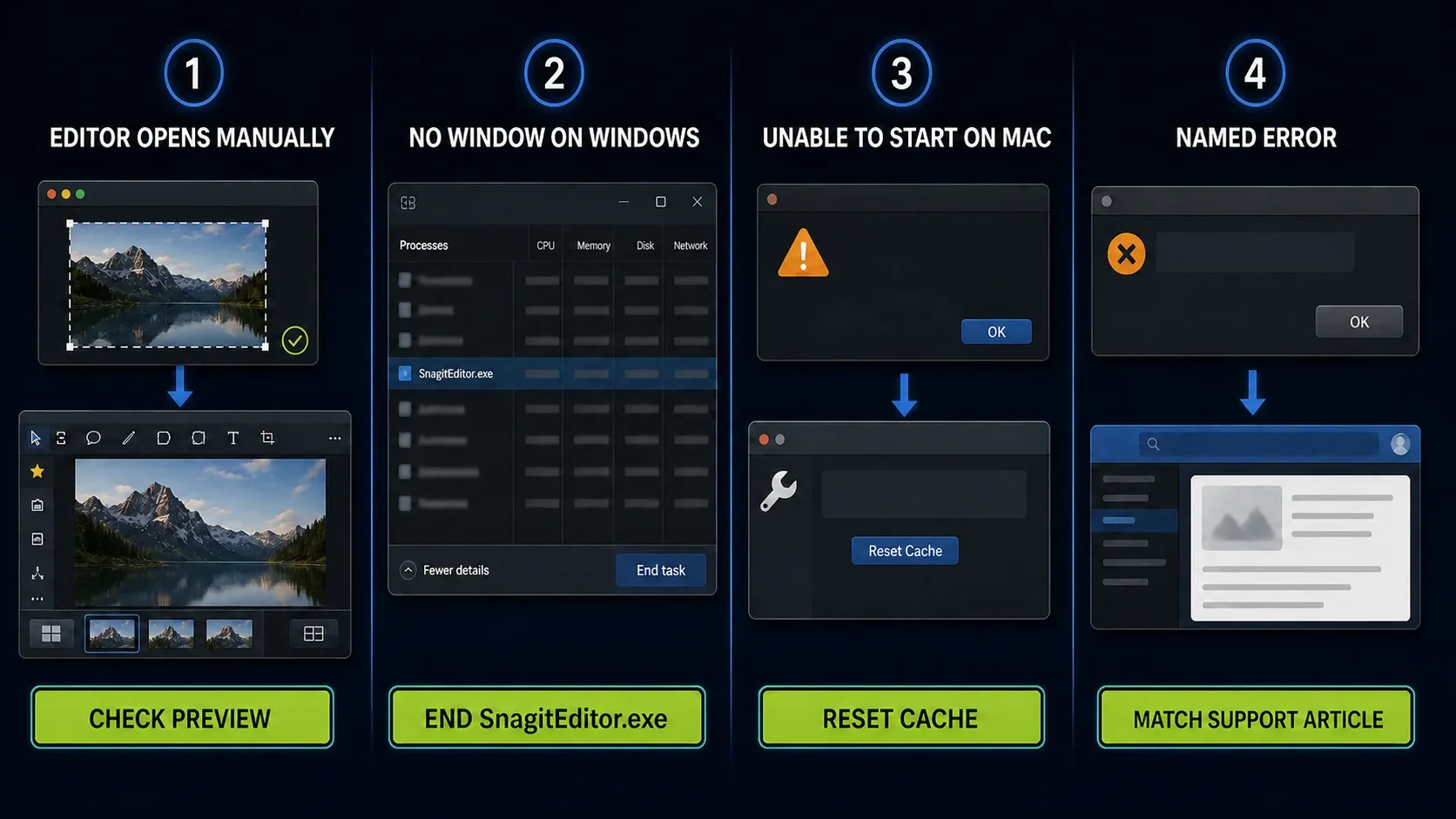
First, check whether Snagit Editor opens manually
On Windows, use the installed Snagit Editor entry or the Capture window’s Open Editor control. Check the taskbar and Alt+Tab before assuming the process is stuck. With an existing Editor window selected, Windows+Up can maximize it; Windows+Shift+Left or Right moves the active window between monitors. Microsoft documents these window-management shortcuts. They cannot recover a process that has already crashed.
On Mac, launch the installed Snagit app from Applications. TechSmith’s hotkeys guide, marked for Snagit 2025, lists Command+Shift+E for Open Editor. Use the command shown in your installed app if your shortcut differs. A failed hotkey alone does not establish a launch failure.
If Editor opens, it launched successfully for that test. That does not rule out an intermittent crash or a problem with one file. The Snagit Editor guide covers the normal workspace. For an Editor that opens but stays absent after capture, check the settings you actually used:
- Image capture: check Preview in Editor in the image settings or preset used for that capture. Turn it on if you want a preview, then retest that same workflow.
- Video on Windows Snagit 2026.1.0 or later: check Open In. Snagit Editor, Camtasia Editor and None are different destinations; None skips the preview. Do not apply this Windows version boundary to every Mac or older build.
- One preset or file fails: compare a known-good preset or harmless local file. Keep the failing original. A SNAGX file that will not open needs a file-specific check, not an automatic reset of the entire Library.
TechSmith’s automatic-save instructions explain the image preview switch. Its Windows 2026 release history dates the video Open In change to 2026.1.0. The capture preview and destination guide covers intentional routing. Continue below only if the matching launch symptom remains.
Windows: use the least destructive fixes first
The official Editor-will-not-open procedure applies when the window does not display after capture or manual launch. After the window checks above, try one change and retest before moving on. Do not interrupt an active capture, export or another user’s work.
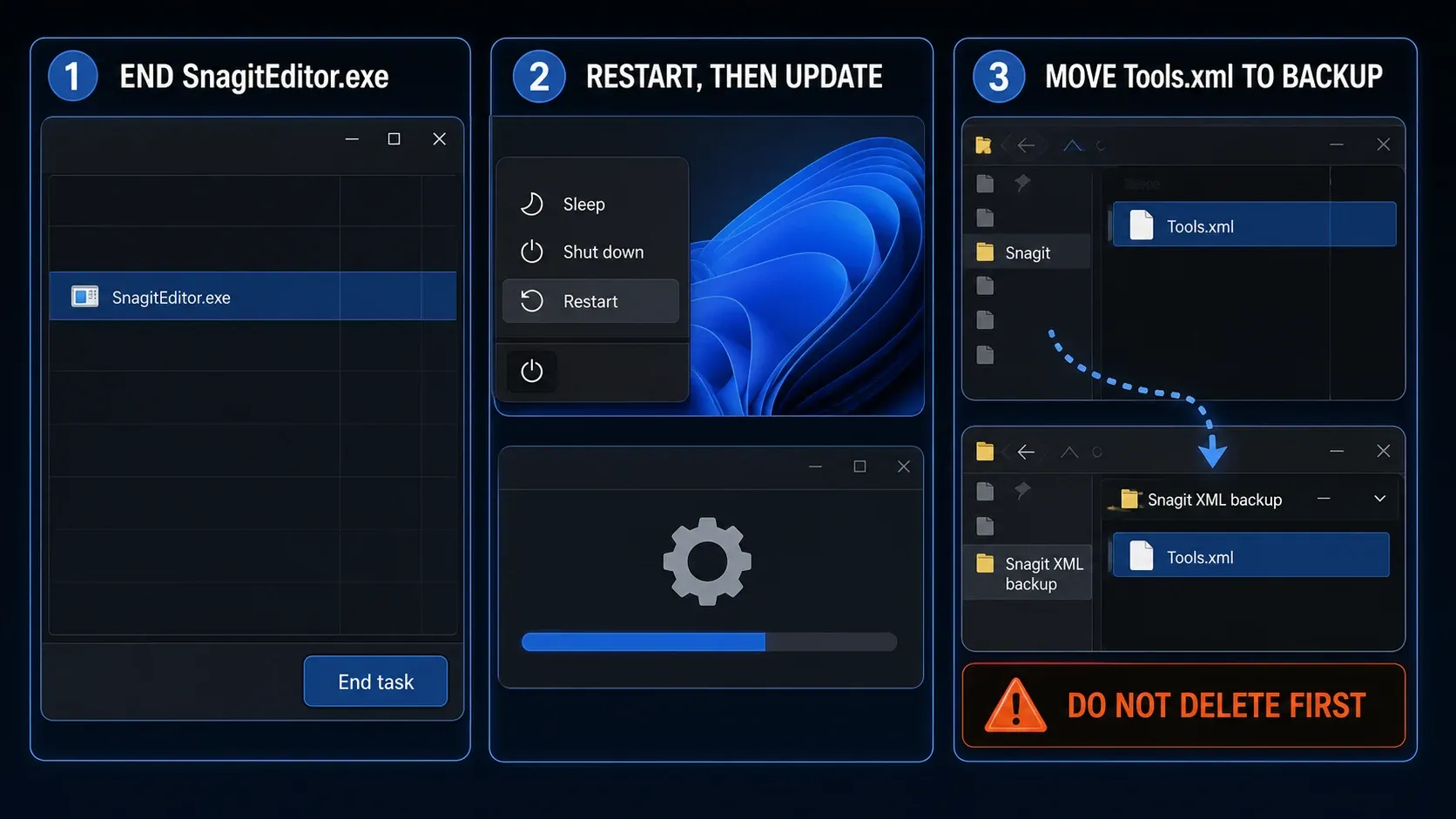
1. End SnagitEditor.exe and retry
- Save any accessible Snagit edits and other work first. If Editor is unresponsive, understand that ending it can lose unsaved changes.
- Open Task Manager with Ctrl+Shift+Esc.
- Find your Snagit Editor process, identified as SnagitEditor.exe, and choose End Task.
- Open Editor again and record whether it appears.
This initial test targets Editor, not every TechSmith process. If it opens, stop resetting things and check a harmless capture. If the same failure returns, record that recurrence; one successful restart does not prove the underlying problem is gone.
2. Restart Windows, then update your installed branch
Save work before restarting Windows, then test Editor again. If the failure remains, use the supported maintenance update for your licence and operating system. TechSmith’s update instructions put Help > Check for Updates in Windows Capture. If Snagit cannot open, use the official download route for the correct version, or ask IT for the managed installer.
The vendor identifies a startup crash in 2024.0.3; treat that as a historical build-specific defect. Windows 2026.2.0 also fixed some Capture/Editor startup and SNAGX-opening crashes, according to the release history above. Neither entry diagnoses every later failure. Check the vendor’s current system requirements and the version-specific compatibility guide before changing major versions.
3. Back up Tools XML files before resetting them
- Save accessible work and quit Snagit. Confirm that your SnagitCapture.exe, SnagPriv.exe and SnagitEditor.exe processes have ended.
- Open
%localappdata%\TechSmith\Snagit\with Windows+R. - Create a new dated backup directory in private, approved storage outside the Snagit configuration folder. Keep separate subfolders for the root and each original version folder, so identical filenames cannot overwrite one another.
- If the root
Tools.xmlexists, copy it to the corresponding backup subfolder, verify that the copy exists, then move the original into a separate held-originals subfolder outside the active configuration directory. Preserve the same root/version separation there. - For an existing numbered folder that matches your installed major version, do the same for XML files whose names start with
Tools. Record the exact source paths. Do not guess or create a missing version folder, and do not move unrelated XML files. - Open Snagit and test Editor. Keep the backup even if the test succeeds.
The launch article removes Tools files, while the separate configuration-reset article moves files to safe storage for a broader XML reset. This guide keeps the narrower file selection and adds backup precautions. If the test fails, close Snagit, preserve any newly generated test files separately, and restore the original files to their recorded paths without overwriting your only backup. If a path, file or permission does not match, stop and contact support. Leave Library and License folders alone.
Windows errors that need a different route
A window that flashes and closes does not establish a licence failure. Use the exact error text or observable behavior:
| What you see | Use this route | Do not assume |
|---|---|---|
| Unable to start Snagit | Record the full message and consult the current platform-specific License-folder support guidance. | A brief flash proves a licence fault. |
| 0xc000007b | Review the exact vendor reinstall procedure with backups and IT where applicable. | Every launch failure needs all versions removed. |
| Editor opens, menus or tools missing | Use the missing-menus procedure. | Display software rendering is a generic launch fix. |
| A black capture inside Editor | Use black-screen capture troubleshooting. | The Editor never launched. |
| Only one file fails | Keep it and compare a harmless known-good file. | The entire Library or installation is damaged. |
The older Windows Unable to Start article includes Identity and License cleanup. The diagnostic guidance updated August 28, 2026 instead asks for a License-folder archive for support. Its Windows parent folder is %LocalAppData%\TechSmith\Snagit. Preserve those files; do not delete or send them merely because Editor closed. Confirm the exact error and a private support handoff, with IT approval for organizational data.
If Editor is visible but incomplete, follow the missing menus or tools procedure. Its software-rendering option concerns the displayed interface, not a general launch repair or the video-recording method. If the capture itself is blank, use the Snagit black-screen troubleshooting guide.
Mac: match Unable to Start and startup crashes separately
Windows Task Manager and Tools XML paths do not apply on Mac. Try a normal quit after protecting accessible work. Apple warns that force quitting can lose unsaved changes; use it only for an unresponsive app when necessary. Separate the exact Unable to Start message from a startup crash or a failure to open one file.
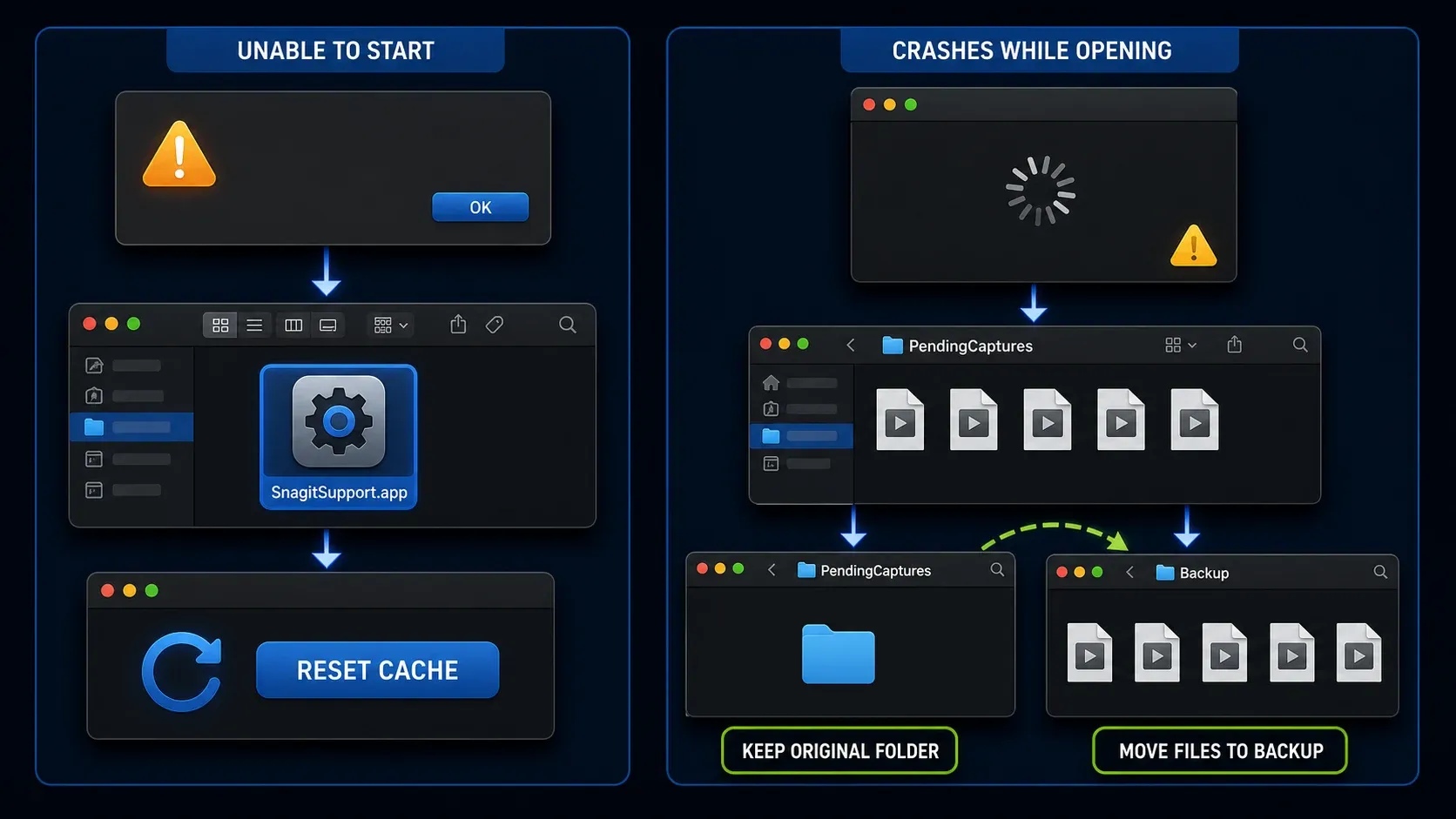
If Mac shows Unable to Start
For Snagit 2023 and later, TechSmith’s Mac Unable to Start instructions describe Reset Cache in the bundled support app. Preserve important data first. The article does not enumerate every cache item or promise that all state is retained.
- Locate your genuine installed Snagit app in Finder’s Applications folder.
- Right-click it and select Show Package Contents.
- Open
Contents > MacOS > SnagitSupport.app. - Choose Reset Cache, then confirm Reset.
- Restart Snagit and test the same launch.
If Snagit opens far enough, the vendor also provides Help > Support Tool. If the named error persists, the newer diagnostic article above includes a Mac branch: its License folder is under ~/Library/Application Support/TechSmith/Snagit. This is different from PendingCaptures. Ask support to confirm the minimum necessary files and private submission method; do not publish a licence archive or delete activation data as a shortcut.
If Mac Editor crashes while opening
TechSmith’s Mac startup-crash procedure clears the contents of a versioned PendingCaptures folder. The reversible approach below preserves those contents first, but it cannot guarantee that an unfinished capture can be recovered.
- Save accessible work and quit Snagit. Do not move files while it is capturing or exporting.
- In Finder, choose Go > Go to Folder.
- Use
~/Library/Group Containers/7TQL462TU8.com.techsmith.snagit/Snagit 2026/PendingCapturesonly if that existing version folder matches your installation. The vendor’s example is 2024 and instructs you to substitute your version. Stop if the expected folder is absent. - Copy the contents to a new dated backup in private, approved storage and verify that the files copied. Move the active contents into a separate held-originals folder outside PendingCaptures, retaining their names and structure. Keep the original PendingCaptures folder.
- Restart Snagit. If the symptom remains, save other work before the computer restart suggested by the vendor.
If this changes the result, a pending item may be involved. The change does not identify which one. Keep the backup and ask support about recovery instead of restoring everything at once. If only one file triggers the crash, preserve it and compare a known-good local file. If Snagit opens but screen capture is denied, use the Mac permissions guide, not another cache reset.
Reinstall only after you protect the data you need
A reinstall can replace program files, but it will not necessarily resolve external policy, a bad file or an unsupported operating system. Use it after the relevant checks, or when support names it for your exact error. The Snagit Library backup guide separates capture files from settings and activation data.
- Preserve accessible unsaved work, editable SNAGX files and the actual Library. Check the backup before uninstalling.
- Record your installed versions and operating system.
- Confirm the entitled account or software key privately. Individual subscriptions use sign-in; perpetual or business entitlements may use a key.
- For a managed machine or several installed versions, have IT review the removal and reinstall plan.
- Use TechSmith’s installer for the licensed, compatible version. Retest before removing any backup.
The software-key guide explains account versus key activation. For the exact 0xc000007b message, the vendor’s reinstall instructions call for uninstalling all Snagit versions, rebooting and reinstalling. That wider removal needs backups and a plan for any older installation you still use. Do not apply it to unrelated errors.
What to send TechSmith Support
If the same launch failure remains, send a concise description before collecting a diagnostic archive:
- The complete error message, with private information removed from any image.
- Windows or macOS version, Snagit build and whether IT manages the installation.
- Whether manual launch, a capture, one preset or one file triggers the problem.
- Whether the window appears in the taskbar or on another display.
- Recent changes, described as context rather than a proven cause.
- Each single test, its result and the location of backups you kept. Do not include private file paths unless support needs them.
The Support Tool documentation describes those contents and version-dependent collection steps. Start with TechSmith Support rather than an unverified repair service. For a different named error, the Snagit troubleshooting index routes you to its own procedure.
FAQ: Snagit Editor won't open
What should I try first if Snagit Editor won't open on Windows?
Check for a hidden or minimized window and save accessible work first. If Editor remains unresponsive or does not display, end your SnagitEditor.exe process and retry. Then consider a saved-work restart and a supported update. Back up configuration files before a matched reset.
Does moving Tools.xml delete my Snagit captures?
The Tools-file procedure does not target the Library, but it can affect settings and is not a recovery guarantee. Preserve original files in separate backup subfolders matching their source paths. Keep the Library backed up separately, and never move License or Library data as part of the Tools reset.
What should I do when Snagit says Unable to Start?
Match the platform and exact message. TechSmith documents Reset Cache through SnagitSupport.app for Mac Snagit 2023 and later. Its newer Unable to Start guidance includes Windows and Mac License-folder support archives. Preserve activation data and agree on a private handoff before collecting or sending sensitive files.
Why does Snagit capture but not open Editor?
Open Editor manually first. If that works, inspect the image preset’s Preview in Editor setting. Windows Snagit 2026.1.0 and later uses Open In for video destinations. A missing preview or a failing hotkey alone does not prove the app cannot launch.
Should I reinstall Snagit if Editor still will not open?
Use the relevant process, window, update and named-error checks first unless support specifies otherwise. Protect the Library, settings and activation access before uninstalling. The exact 0xc000007b procedure calls for removing all Snagit versions, so review any older installations and managed-computer requirements first.
Correction, September 12, 2026: added hidden-window and unsaved-work checks, separated backup filenames by source folder, qualified version-specific reset paths, and updated the Windows/Mac support handoff.