
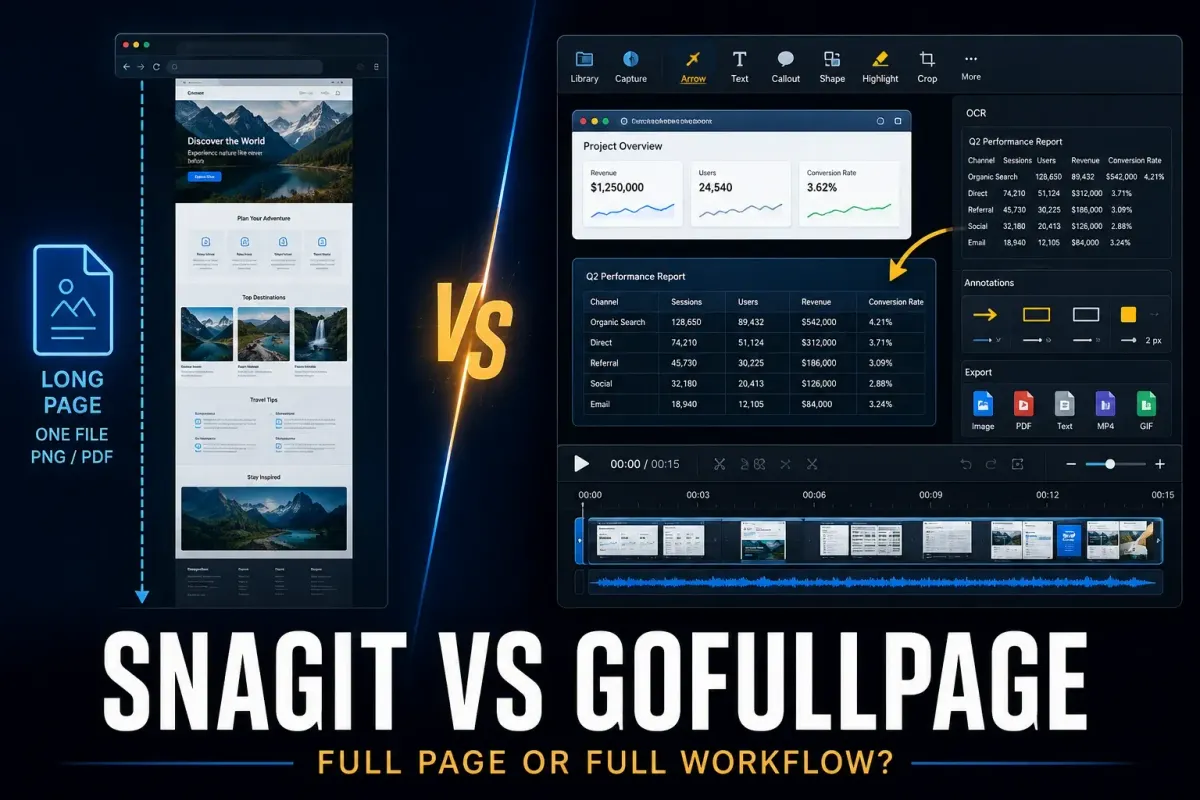
Choose GoFullPage when you need full-page browser screenshots and a downloadable image or PDF. Choose Snagit when you also capture desktop applications, edit recognized text, build numbered instructions or record video. For saving webpages alone, I'd start with GoFullPage's free Basic version, which runs in Chrome, Edge and Firefox.
GoFullPage Basic provides unlimited captures and unedited exports, and its paid editor adds page-annotation and PDF-layout tools. Snagit combines capture with a desktop editor on Windows and Mac. Both tools can capture horizontally scrolling webpages, so that feature alone won't decide the comparison.
The price gap is wide: GoFullPage Premium costs $12 USD a year, while Snagit costs $39 USD per user per year. If everything you capture lives in a browser tab, the extension is the better buy. Once you need application windows, OCR or video, Snagit's higher price pays for tools GoFullPage doesn't have.
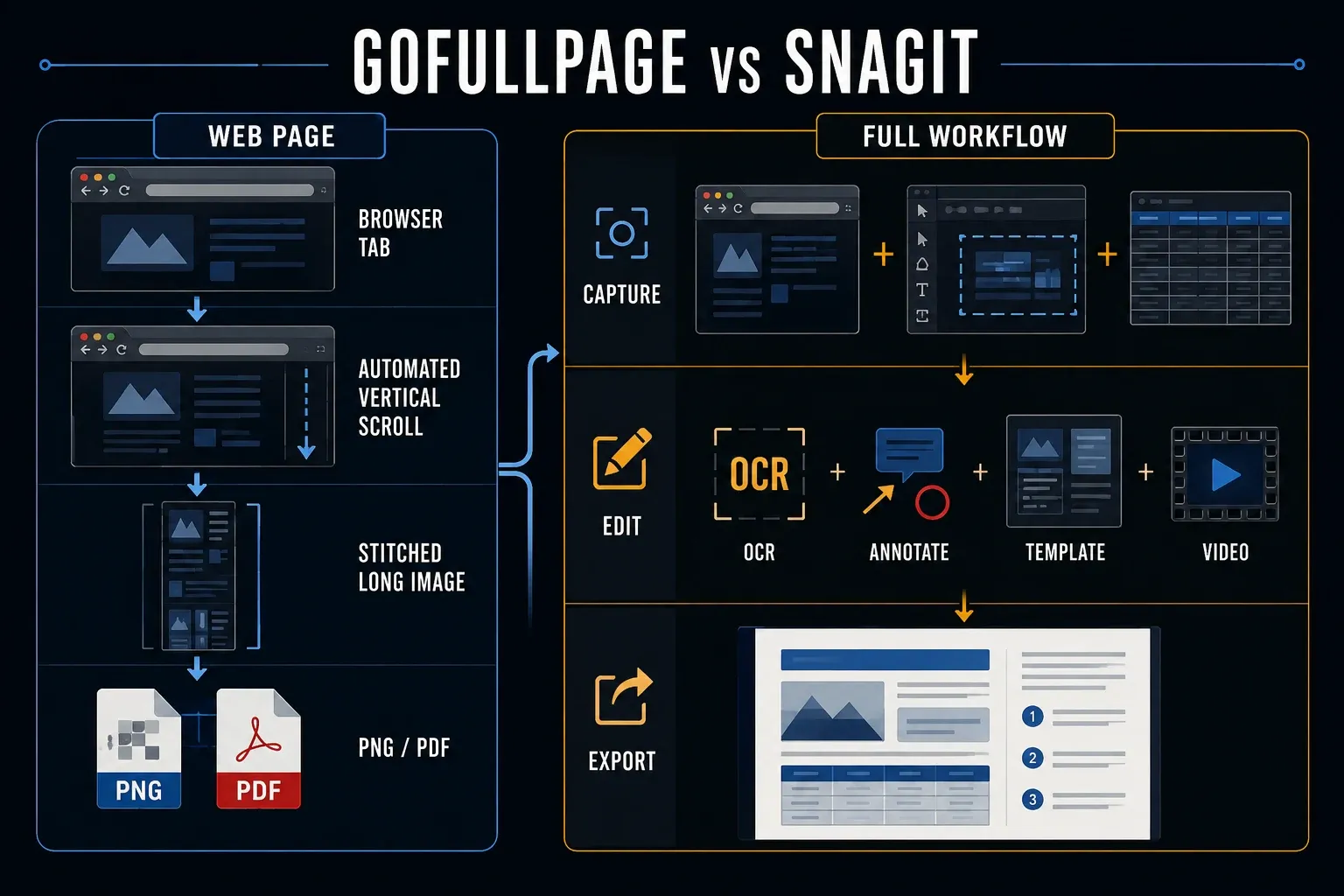
Snagit vs GoFullPage: quick verdict
| Need | Consider | Important detail |
|---|---|---|
| Save unedited full browser pages | GoFullPage Basic | Free, unlimited captures and PNG, JPEG or PDF export |
| Choose an official browser extension | GoFullPage | Official Chrome, Edge and Firefox listings; Chrome beta is an optional early-feature channel |
| Capture scrolling desktop applications | Snagit | Scrolling capture in application windows, not just browser pages |
| Capture a horizontally scrolling webpage | Either | GoFullPage scrolls down and across; Snagit also offers horizontal and manual scrolling |
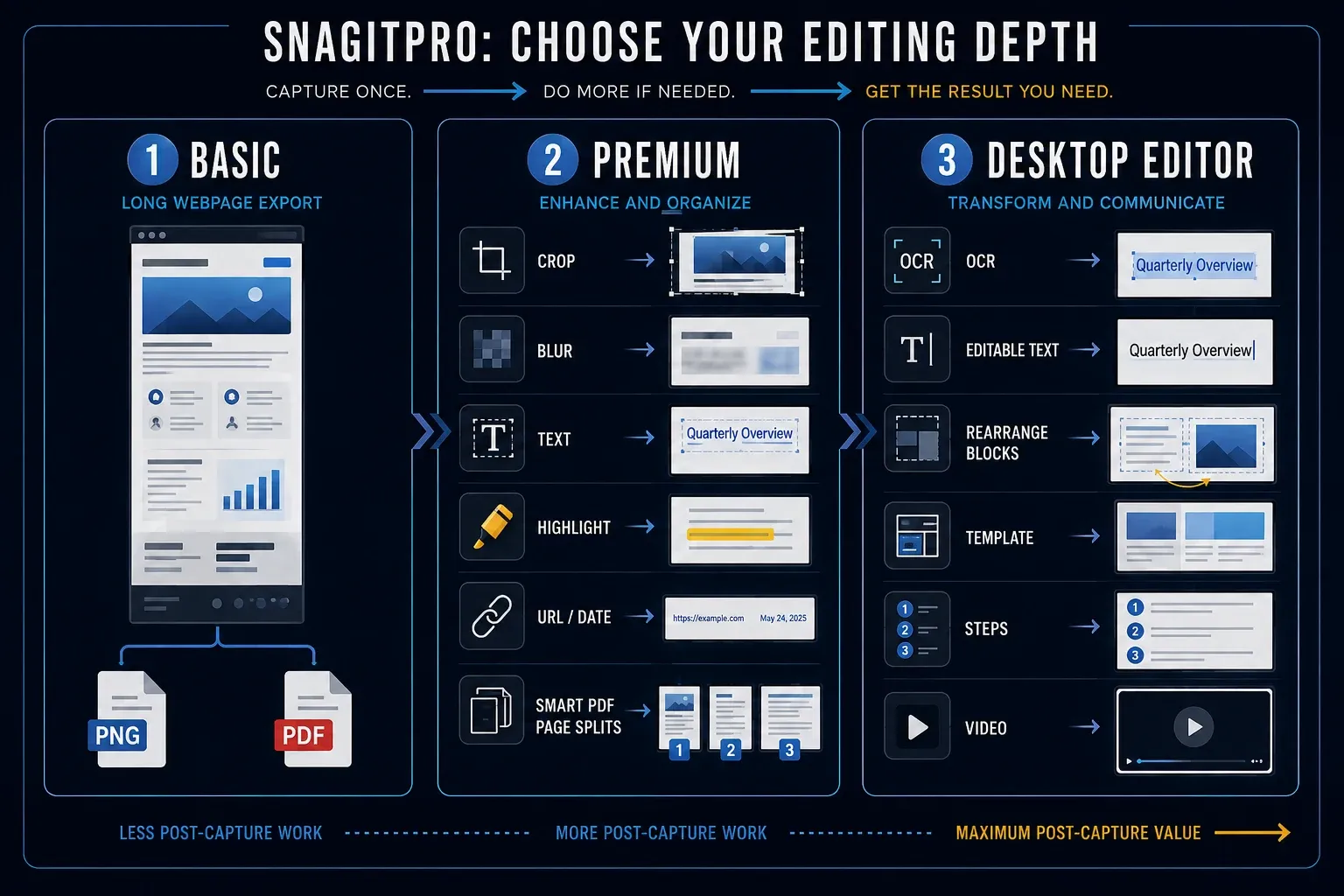
| Annotate pages and adjust PDF breaks | GoFullPage Premium | Cropping, annotations, URL/date labels and smart page splitting; $12 USD annually before tax/FX |
| Recognize text and rebuild screenshot layouts | Snagit | OCR, Smart Move, Simplify, templates and image combining |
| Create numbered process instructions | Snagit | Step Capture records clicks and drags; add omitted text-entry and keyboard steps |
| Record screen, audio and webcam | Snagit | GoFullPage has no video recording in either tier |
Start with the file you need to deliver. An unedited webpage archive needs no paid editor. A support task that combines an application window, a numbered explanation and a narrated clip needs more than a browser-page export.
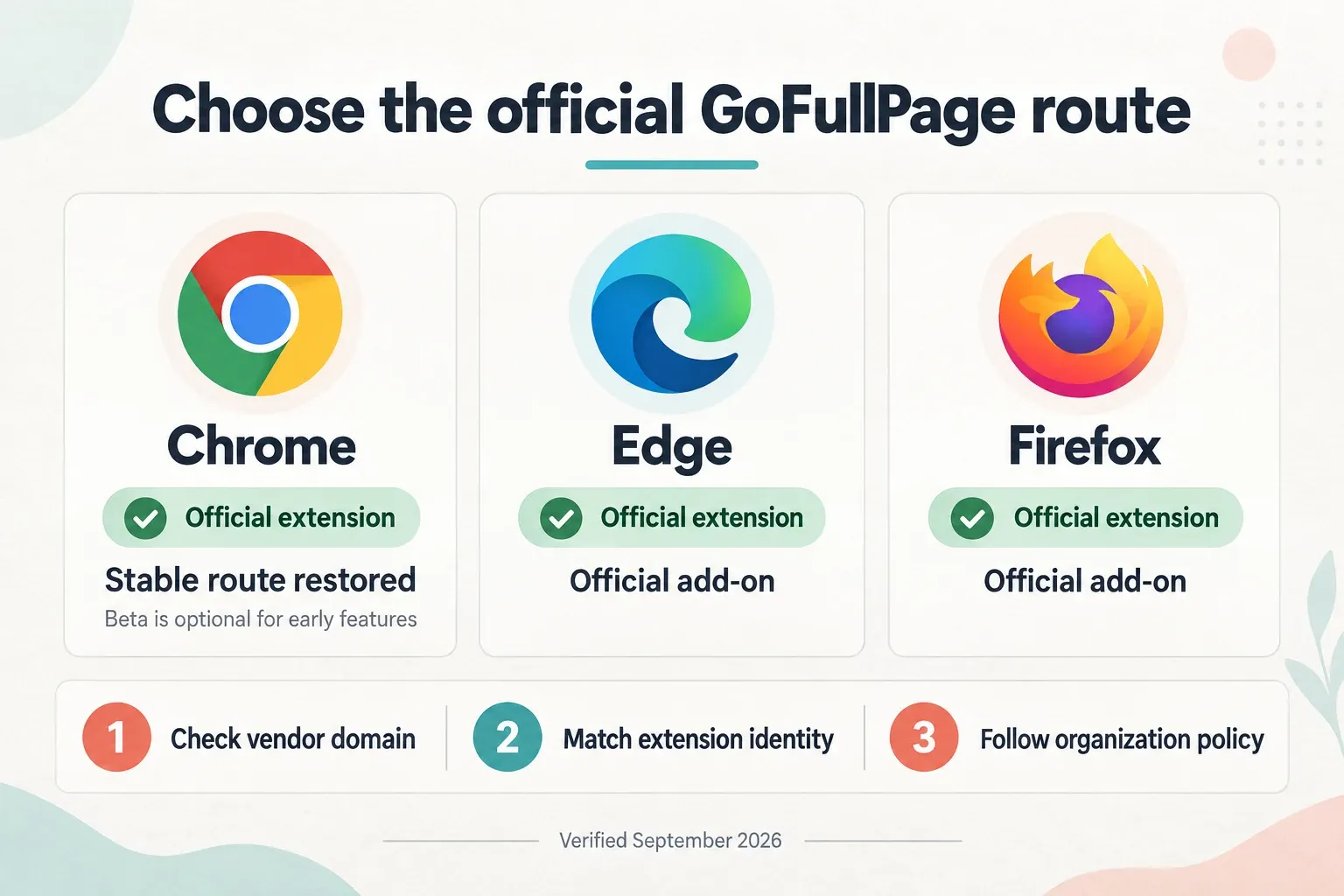
Browser availability: Chrome, Edge and Firefox
In its August 11 incident report, GoFullPage said a copyright-related issue caused the original Chrome listing to be removed and some installed copies to be disabled or removed. The vendor said this was not a security issue.
GoFullPage's regular Chrome listing, Edge listing and Firefox add-on are available. In a September 14 update, GoFullPage said the standard Chrome version had been restored and recommended it for the most stable experience.
The separate Chrome beta listing is an optional early-feature channel. GoFullPage says beta builds get new features before full testing, and Premium works on either version. I'd stay on the standard listing unless you need a specific beta feature, and I'd install only from these listings, because the vendor warns about unofficial copies.
How GoFullPage captures a webpage
The GoFullPage FAQ describes scrolling down and across the current webpage, combining the views, then opening the result in a new tab. Download PNG or JPEG, or choose a PDF page size. Its documented PDF Size setting, full image, produces a single tall page; Premium smart page splitting is a different option for dividing the output.
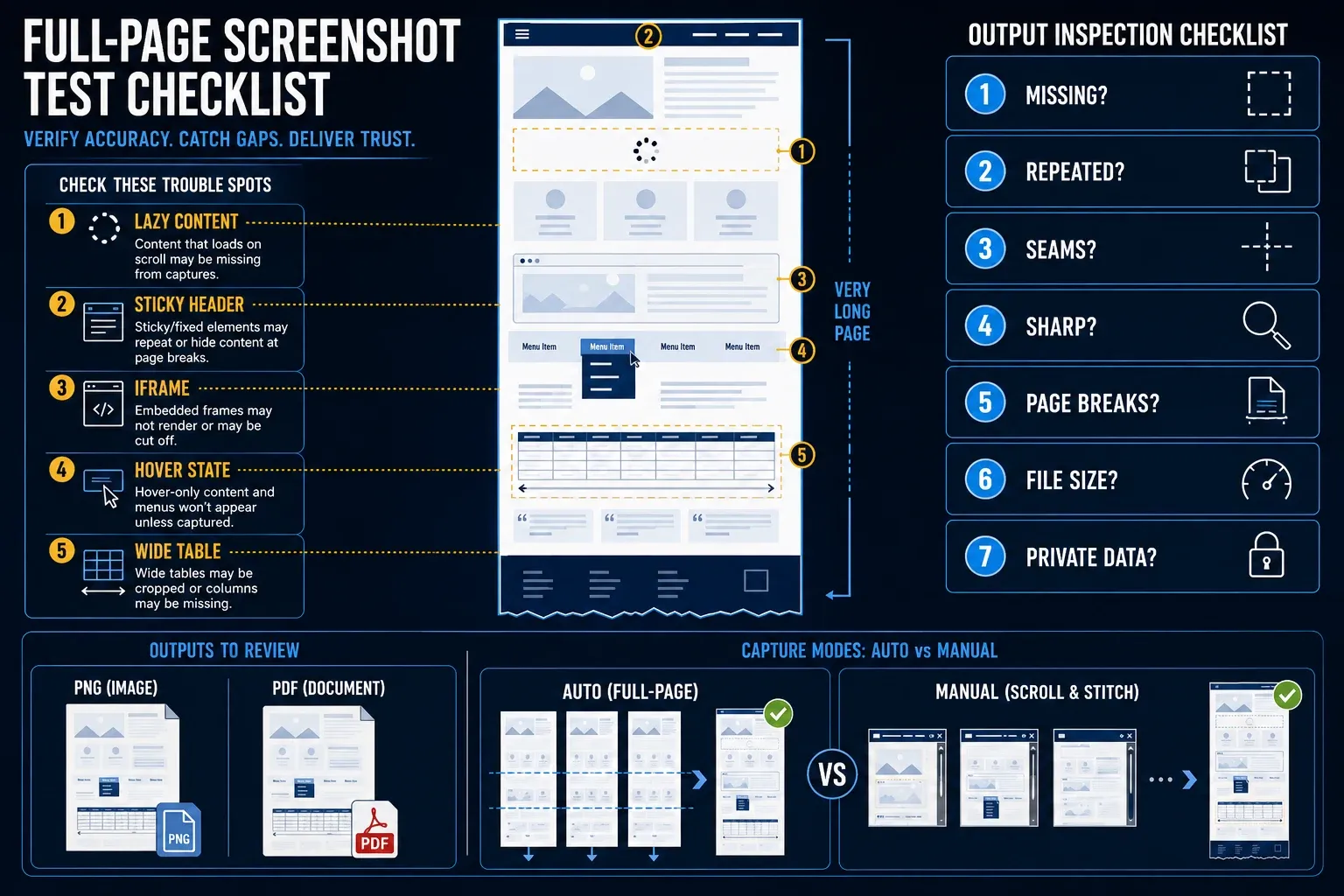
Let the page finish loading first, then scroll through any lazy-loaded sections, return to the start and capture at the browser width you want to show. GoFullPage's own advice for the best result is the same: close bars and pop-ups that aren't part of what you're recording, and load all the content before you click. If the capture serves as a record, Premium's URL and date stamp saves you noting those details separately.
The vendor documents support for many fixed elements, inner scrollers and iframes, but lists exceptions. Browser PDF viewers don't expose the document for its scrolling capture, custom JavaScript scrolling can fail, and scrolling loses a hover state even when capture starts from a shortcut. Very large pages split into several images, and the FAQ warns that a capture needing ten or more parts may not complete.
A blurry preview isn't a blurry capture. GoFullPage fits a long image into its preview, but its FAQ says the download keeps full resolution, so open the downloaded file at actual pixel size and look through every segment before you judge it.
How Snagit scrolling capture differs
TechSmith documents vertical, horizontal and manual scrolling capture. Manual capture lets you select a region and scroll it yourself when the automatic arrows don't appear or pick the wrong area, and the result opens in Snagit Editor. That makes manual capture the fallback I'd reach for when automatic scrolling stops early.
Snagit runs on Windows and Mac and can capture application windows as well as browser content. Regions, window captures, menus, delays and presets are useful when a task extends beyond one webpage. A horizontally scrolling spreadsheet inside a desktop app is a different target from a wide table in a browser; GoFullPage's horizontal page capture does not make it a general desktop capture tool.
Run the trial on your hardest page before buying. In one ServiceNow capture discussion, a user reported failures with both tools on a customized form and later switched to a printer-friendly view. If an internal app defeats both tools, its print view is the first thing I'd try.
Free capture versus paid editing
You can save an unedited GoFullPage capture without Premium. The paid boundary appears when you use its premium crop or annotation tools and download the edited result. If you only need a basic export, seeing the paid editor screen doesn't mean a charge on every PNG or PDF download.
The Basic/Premium feature table puts cropping, URL and date labels, smart PDF splitting, blur, text, highlighting and priority support in Premium. Neither tier has OCR, a click-by-click guide builder or screen recording.
Snagit's editing tools include text recognition, Smart Move, Simplify, Smart Redact, templates and image combining. Step Capture records clicks and drags but not text entry or keyboard shortcuts as steps, so you add those instructions yourself. I'd also glance over Smart Redact's results before sharing.
Permissions, local storage, and privacy
GoFullPage's Chromium permissions guide describes contextual requests for Downloads and iframe capture. The iframe request can include tabs, webNavigation and access to all URLs. The vendor says it operates on the current tab when activated, not during ordinary browsing. Denying iframe access can prevent capture on that page altogether, rather than just leaving out the embedded frame.
The Firefox build has its own permission list. Its Mozilla listing requires access to gofullpage.com and www.gofullpage.com, lists downloads, tabs and webNavigation as optional permissions, and declares no required data collection, with technical and interaction data listed as optional.
GoFullPage's FAQ says Chromium screenshot history stays in local browser storage (HTML5 filesystem and IndexedDB), not on any server, and that deleting history or uninstalling removes those stored images. Download the copies you need first; exported files remain separate. Uninstalling does not cancel Premium, so stop a trial or disable subscription renewal through your account instead.
Local image history doesn't mean the service collects nothing. GoFullPage's privacy policy covers account details such as your email, name and payment information, plus website analytics. For passwords, tokens or customer data in a capture, I'd use a fully opaque box rather than blur and share a flattened export.
Snagit vs GoFullPage pricing
GoFullPage Premium is listed at $12 USD per year before tax and foreign exchange. The advertised $1 per month is an annual equivalent, not a separate monthly billing quote. Its seven-day trial converts to a paid subscription unless canceled. The FAQ says you can cancel during the trial from Account; after payment, disabling renewal leaves access through the current paid term.
TechSmith's US student-offer page lists Snagit at $39 USD a year and offers eligible students in listed countries $20 USD a year. The store shows the price in your currency, and the Snagit pricing guide explains the license options.
The Snagit trial runs 15 days, and the Snagit activation guide says you can extend it once for 15 more days. Installers for Windows and Mac are on TechSmith's download page.
How to choose for a team rollout
Sort a week of your team's real capture tasks into unedited webpage records, annotated reviews, application captures, maintained instructions and video. GoFullPage covers the first group well. If the same people keep landing in the other groups, Snagit is the better buy for them.
For an extension rollout, write down the extension ID, browser, permissions and where exports should be saved, then install the official listing on one managed device first. If your policy blocks the iframe permission, expect some pages to fail outright rather than lose just the embedded frame. Billing lives in each GoFullPage account, so removing the extension doesn't end a Premium subscription.
For Snagit, build a few presets around real jobs: a support preset that captures a region, a documentation preset that opens the editor. Check where any automatic sharing destination sends files, and keep video and still-image presets separate so nobody records the screen when they meant to grab one image.
In a small pilot, count failed captures, fix-up time, files that needed a second tool and permission problems. Then have someone else use the delivered file, not just the editor preview, and weigh the results against the license cost before you commit the team.
A difficult-page test
- Pick a long page with lazy-loaded content, a fixed header, an embedded frame and a wide section, ideally one your team captures often.
- Note which menus or expanded sections must appear in the final image.
- Load the required content, return to the start and capture at the intended browser width with each supported automatic method.
- Try Snagit manual scrolling on the same page. Capture a hover-only control separately, because scrolling dismisses it and a delay won't keep it open through a full-page scroll.
- Download PNG and PDF from each tool, and judge GoFullPage's free export before you try its paid editor.
- On a copy, add a text note and a highlight in each tool. Cover private fields with an opaque box or crop them out instead of blurring.
- Inspect every segment, seam, page break and the file size. Clickable links in a GoFullPage PDF are a beta feature, so try the beta if you need them.
- Repeat in the browser version your team uses, and keep only the files you'll deliver.
The winner is the tool whose file is complete and usable where it's going. If a printer-friendly view or the application's own export beats both, use it, as long as every field you need made it into that file.
Who should choose GoFullPage?
Pick GoFullPage for unedited browser-page records or light page annotation. Basic offers unlimited capture and export; Premium adds crop, annotation, URL/date and PDF-splitting tools for $12 USD a year. It runs in Chrome, Edge and Firefox, and the standard Chrome listing is the one I'd install.
Download anything important before you change extensions or browser profiles, because the local history isn't a backup. GoFullPage also won't replace a desktop capture and video tool.
Who should choose Snagit?
Pick Snagit when you need application captures, OCR, composed instructional images, reusable layouts, numbered guides or screen video alongside scrolling capture. Don't buy it just because a browser page scrolls sideways; GoFullPage captures horizontal scrolling too.
If you only save unedited webpages, start with GoFullPage Basic and add an editor when a specific task calls for one.
Can you use both?
Yes, through an image-file handoff: export PNG or JPEG from GoFullPage, then open that image in Snagit. A PDF won't import natively, because TechSmith's file-format list and Mac format guide mark PDF as export-only. Any GoFullPage annotation arrives baked into the image, so do the editing in Snagit if you'll need to change it later.
For browser-only alternatives, compare the Chrome screenshot extensions. For capture steps, use the full-page Chrome guide. The broader screenshot software comparison covers choices beyond this pair.
Snagit vs GoFullPage FAQ
Is GoFullPage better than Snagit?
GoFullPage suits focused browser-page capture and image or PDF export. Snagit adds desktop application capture, OCR, detailed image editing, numbered guides and video. Both can scroll horizontally on webpages. Choose by what you capture and the file you deliver: GoFullPage for browser pages, Snagit once desktop apps, OCR or video enter the job.
Is GoFullPage free?
Yes, the Basic version is free: unlimited screenshots and unedited image or PDF downloads. Premium or its trial is needed to download a result edited with the premium crop or annotation tools.
How much is GoFullPage Premium?
Premium is listed at $12 USD per year before tax and foreign exchange. The $1 monthly figure is an annual equivalent. The seven-day trial becomes paid unless canceled through Account; an existing subscription can be set not to renew. Uninstalling the extension does not cancel billing.
Why was GoFullPage removed from Chrome?
The vendor attributed the August 2026 removal to a copyright-related issue and said it was not a security issue. GoFullPage reported that the standard Chrome extension was restored on September 14; official Edge and Firefox listings are also available. Chrome beta remains optional. Install from those official listings, since the vendor warns about unofficial copies.
Does GoFullPage upload screenshots?
No. GoFullPage's FAQ says screenshot history stays in local browser storage, not on any server, and deleting history or uninstalling removes it, so download the copies you need first. Accounts are a separate matter: the privacy policy covers account, payment and analytics data.
Can GoFullPage capture PDFs?
It can export a webpage screenshot as PDF, but its FAQ says it can't capture a PDF open in the browser's PDF viewer. Snagit also lists PDF as export-only, so use an image file for a GoFullPage-to-Snagit editing handoff.
Can GoFullPage capture hover menus?
Not during a full-page scroll. The vendor says scrolling dismisses a hover state even when capture starts from a keyboard shortcut, so take a separate capture of the visible area with the menu open, such as a Snagit region capture with a delay.
Can Snagit and GoFullPage be used together?
Yes. Export PNG or JPEG from GoFullPage and open the image in Snagit for further work. Skip the PDF route, because Snagit doesn't import PDF, and expect any GoFullPage annotation to arrive baked into the image.