
Start with FireShot for local full-page images or PDFs, Awesome Screenshot for capture plus recording and sharing, or Marker.io for website bug reports tied to a project. Lightshot suits a selected area. If you only need an occasional full-page PNG, try Chrome DevTools before installing anything.
The six listings and publisher documents in this comparison were checked September 8, 2026. GoFullPage availability was rechecked October 17: the publisher has since restored its standard Chrome extension, with beta remaining an optional channel.
SnagitPro is independent of Google and these publishers. The recommendations below follow each tool's documented capture modes, output, permissions, and account requirements, so they aren't a measured speed ranking.
Best Chrome screenshot extensions at a glance
| Extension | Useful for | Output | Main limit or check |
|---|---|---|---|
| FireShot | Local full-page files | Images and PDF | Pro editor is Windows-only; check free/paid features |
| Awesome Screenshot | Editing, recording, review links | Image/PDF, clipboard, local or cloud recording | Export and plan limits; selected destination |
| Scrnli | Images and temporary sharing | Image, clipboard, WebM, 24-hour screenshot link | Sharing and web conversion leave the local workflow |
| Lightshot | Selected-area images | Local file, clipboard, optional public upload | Not a documented full-page capture tool |
| Marker.io | Website issues and UAT | Annotated report tied to a project | Account, project access, optional diagnostics |
| FullPage Capture | Full-page output with editing | PNG/JPEG, PDF, clipboard | Privacy disclosure is a publisher claim |
Start with the deliverable: a file you keep locally, an annotated image, a recording, a review link, or a tracked issue. If you're weighing desktop apps alongside browser tools, my screenshot software comparison covers both.
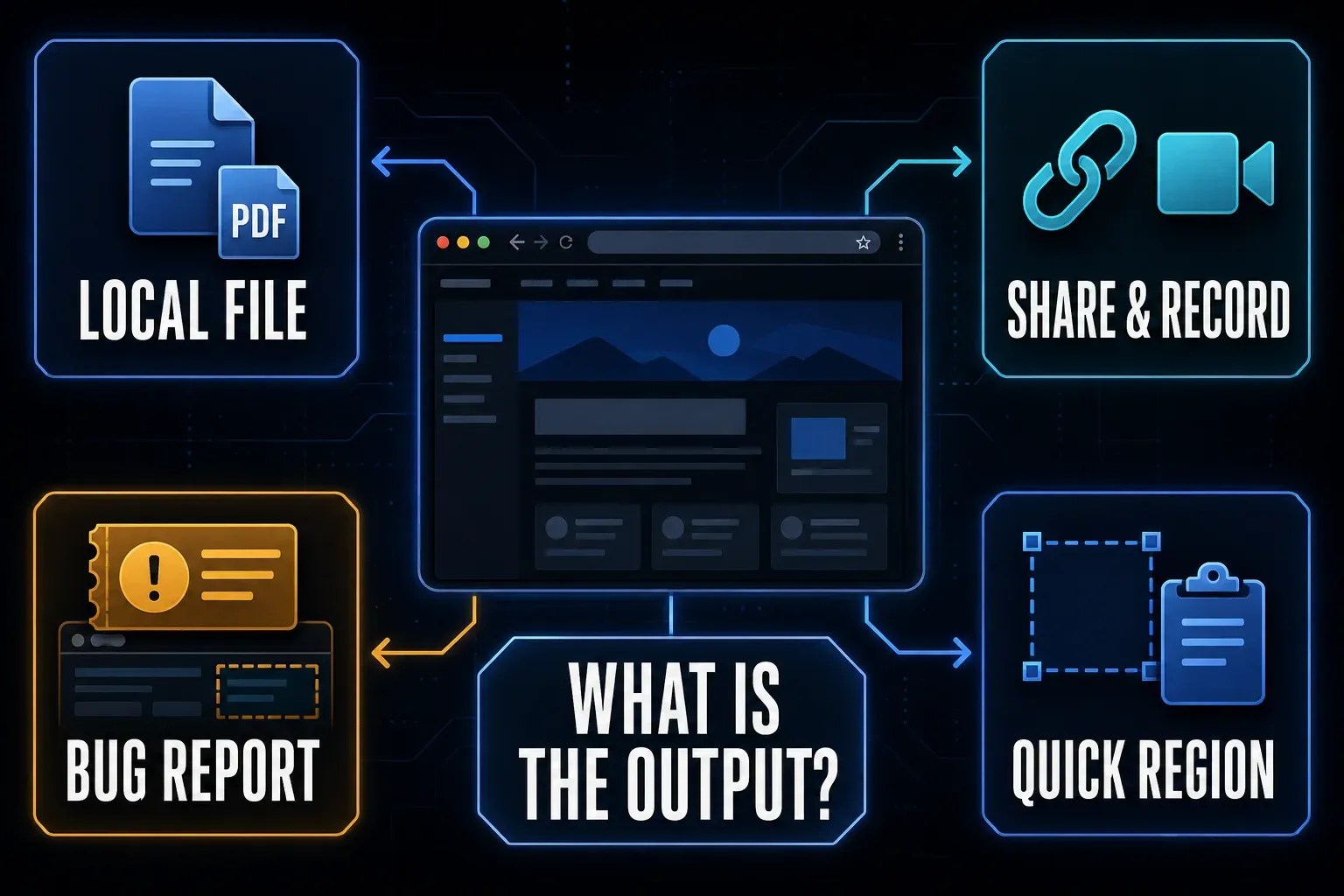
Do you need an extension?
Chrome supports full-page capture in DevTools. Open DevTools, then its Command Menu with Control + Shift + P on Windows or Linux, or Command + Shift + P on Mac. Type screenshot and choose Capture full size screenshot to save a PNG.
An extension earns its place when you repeatedly need an editor, PDF export, a share link, or a bug-reporting destination. For a one-off image, the built-in route saves you from installing another component. Look over the saved image afterward, especially on pages with lazy loading, nested scrolling, or virtual lists that render only some rows at a time.
A disabled full-page command doesn't mean every capture method is blocked. Some extension modes need scripts that Chrome restricts on internal pages and the Web Store, while Google's visible-tab capture API can capture certain otherwise-restricted pages with activeTab permission. Awesome Screenshot's restricted-page guidance recommends its visible-part or screen/window modes where appropriate, and DevTools uses a different route. Check the exact method instead of treating all these restrictions as identical.
1. FireShot: local full-page files and PDF
FireShot captures a full webpage, its visible area, or a selection. Its listing documents offline capture and local image/PDF output. The free Lite edition stays available after the Pro trial, so when the trial ends, you don't have to buy Pro for basic capture.
The Pro purchase page lists an expanded editor and advanced capture features, and the Pro editor is Windows-only. On September 8, the page listed $39.95 per year or $99.95 for a lifetime personal license covering two devices. Before paying, check which platform, features, and number of users you need.
If you're saving a receipt or archiving a page, try the free capture and export first. For annotation or batch work, check the Pro feature table instead of assuming the Chrome extension includes the Windows editor on Mac or Linux.
The offline-capture claim in the listing is narrower than a promise that the vendor collects no data, and its privacy policy also covers use of its service, support, and purchases. For private images, pick a local destination and check whether that folder syncs elsewhere.
2. Awesome Screenshot: annotation, recording, and review links
Awesome Screenshot combines full-page, region, visible-part, screen, and window capture with editing. Its listing includes crop, resize, arrows, shapes, text, and blur. Recording can use a tab, desktop, window, or camera, with local and account-based storage routes.
Screenshot output covers PNG/JPG, PDF, clipboard, and cloud links, and the listed integrations include Jira, Slack, Trello, Asana, and GitHub. For video, the store description specifically documents WebM or MP4 downloads of uploaded recordings, so check your recording route and plan before you assume every export is included free.
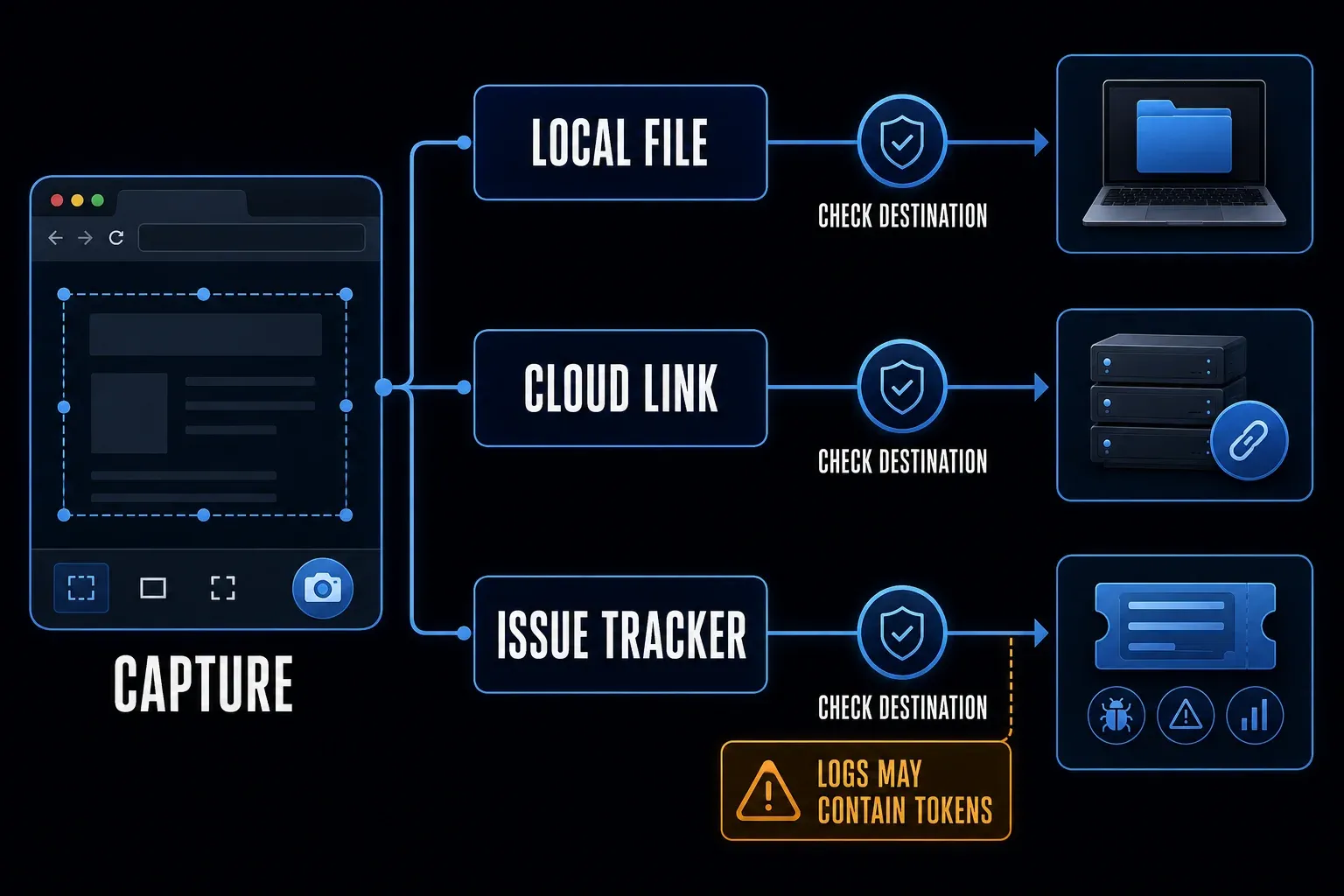
This combination fits a marked image followed by a short demonstration. Before you capture, decide whether the result should stay a file or become a shared link, because the two actions send your data to different destinations.
The free-plan help page documents 100 stored cloud screenshots and unlimited local saves. That limit is about storage; it doesn't promise that every feature is free. The privacy policy describes a local-save option. For cloud output, check the access and retention controls, and remove links once the review is over. Do not assume a link will stay available indefinitely.
To compare this browser workflow with desktop editing, see my Snagit versus Awesome Screenshot comparison, which covers that decision.
3. Scrnli: capture with temporary sharing
Scrnli offers full-page, selected-area, and visible-screen images, plus tab, window, and desktop recording. Its editor provides drawing, text, and arrows. You can download an image, copy it, or create a link.
Scrnli's usage instructions describe Download > Image, Copy, and Share > Copy Link. Shared screenshot links expire after 24 hours. Video downloads use WebM, and if you ask to convert a file larger than 50 MB, you're redirected to its website.
If the image must stay on your device, use a local download. A 24-hour link is temporary, but temporary isn't the same as private. Treat sharing and web conversion as separate decisions before using customer information or internal work.
4. Lightshot: selected-area capture
Lightshot's Chrome extension captures a selected area, supports editing, and offers local save, clipboard, similar-image search, and upload. Its current listing doesn't document full-page scrolling capture.
Choose it when the region you can select is the whole image you need. For content below the fold, use a tool with a documented full-page mode, and treat those as two separate jobs, since not every screenshot extension does both.
After you edit, tell local save and copy apart from upload, and check the destination before using an online action, especially if the capture includes unrelated tabs, names, or messages.
Lightshot's privacy policy says uploaded images are public at their exact URL, including images uploaded through an account. Do not use that service as private storage. My Snagit versus Lightshot guide compares the wider editing choices.
5. Marker.io: website bugs and UAT
Marker.io ties a marked screenshot to a website issue and project, and its extension setup guide requires an account and access to a project. It's built for team reporting, so it won't replace a simple local image downloader.
The extension FAQ documents full-page capture for members and also notes limits with memory-heavy pages, a non-scrollable page body, and restricted sites. Optional diagnostics need the right widget setup, so installing the extension alone won't make every diagnostic available.
Before you report, check the target project, recipients, and enabled diagnostics. Logs and request details can contain private information that isn't visible in the image, so a safe test project is a good place to confirm what gets attached and who can open it.
6. FullPage Capture: local output with an editor
FullPage Capture lists full-page stitching, PNG/JPEG, clipboard, and PDF output as one long page or paginated pages. Its editor includes arrows, text, numbered badges, crop, and blur. It also offers URL and date stamps.
The publisher describes local processing without an account, analytics, or network requests. Read that as the publisher's own disclosure rather than an independent security audit. The editor makes this more than a capture-only option, though how well it fits still depends on the pages and output you need.
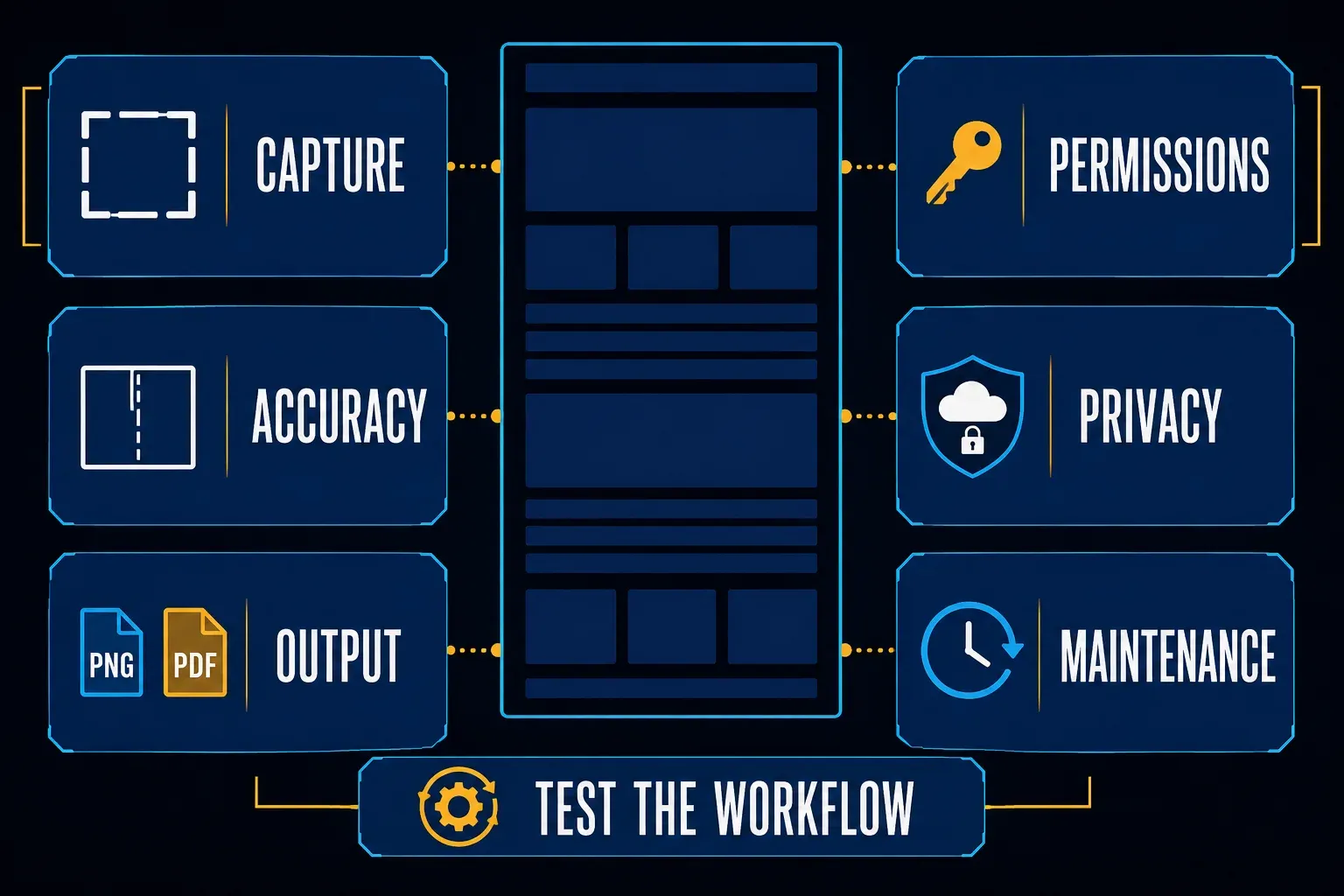
Before using work content, check its publisher identity, permissions, recent changes, and exported file. On a long webpage, look at the beginning, middle, and end for missing sections or repeated fixed elements. A privacy label says nothing about capture accuracy.
What happened to GoFullPage?
The original GoFullPage Chrome listing returned an empty product page in my September 5 check. Its publisher's August 11 incident notice attributes the removal to a copyright issue and says it was not a security issue. That explanation comes from the publisher, so it isn't a separate security assessment.
The August 14 update linked an official Chrome beta during the disruption. The later September 14 announcement says the standard Chrome extension was restored and recommends it for the most stable experience. It also lists official Edge and Firefox versions; the publisher homepage is the starting point for current installation links. Chrome beta remains optional. Verify the publisher and follow your organization's extension policy. Do not sideload an old package to work around a warning. For desktop capture or recognized-text editing, my Snagit versus GoFullPage comparison covers that separate choice.
How to check permissions before you install
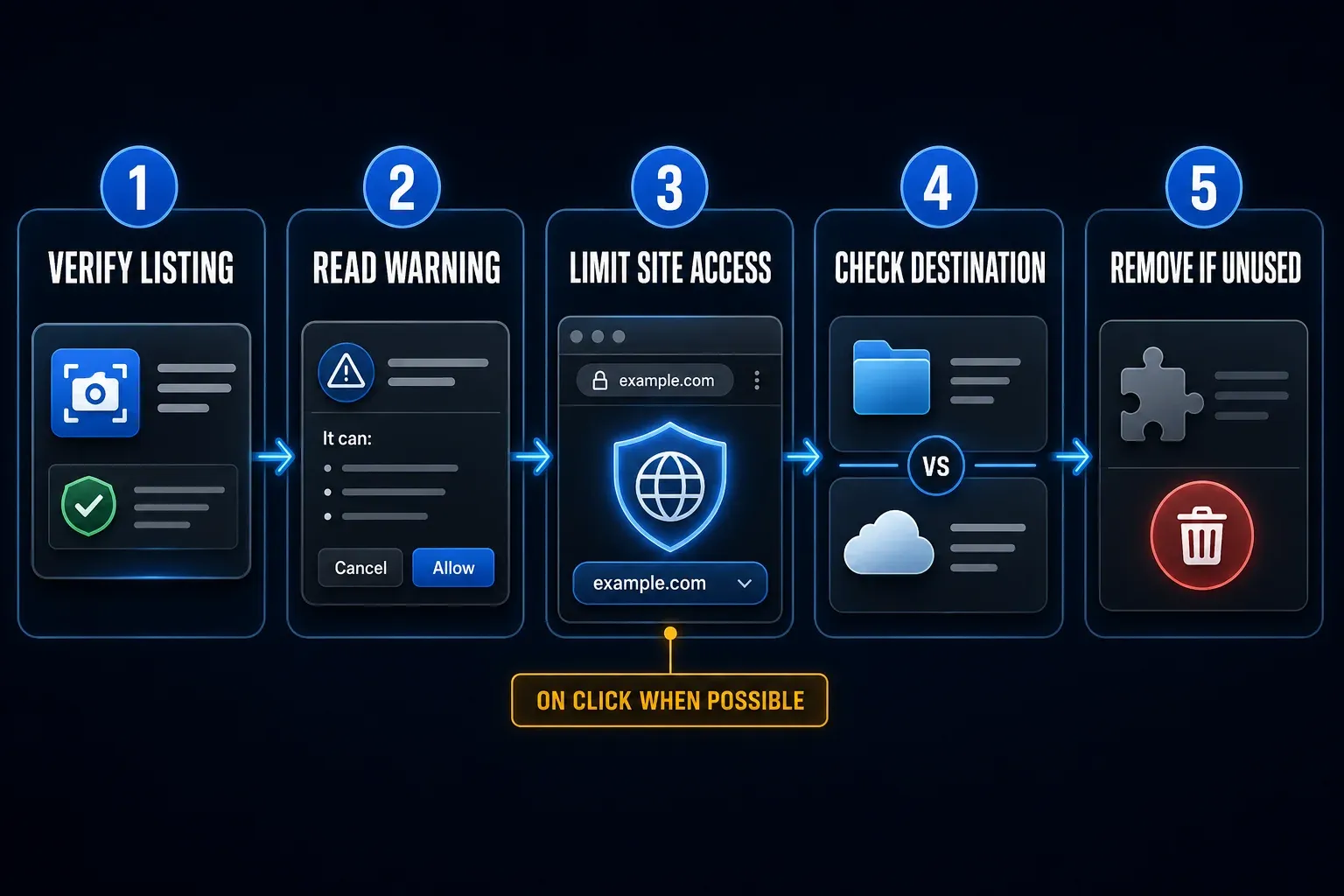
Read the warning itself and the access the extension requests. Google's permissions reference distinguishes clipboardRead from clipboardWrite, since reading copied data is different from writing a captured image to the clipboard. Tab-related access may expose URLs and titles. Broad website access deserves a closer look, but a warning alone doesn't prove an extension is malicious. When installing, follow Chrome’s installation and access instructions:
- Open the publisher-linked Chrome Web Store listing and check the developer, website, privacy disclosure, and update history.
- Select Add to Chrome, read the warning, and confirm Add extension only if the requested access fits your use.
- Open chrome://extensions, choose Details for this extension, and review its site access.
- Where supported, allow access only when you select the extension or on specific sites. Confirm the required capture still works.
- Keep optional incognito, file URL, microphone, camera, and diagnostic access off unless you need it.
- Try a harmless webpage. Select the supported capture mode, save a local file, and inspect it before testing any approved sharing route.
- Remove the extension when you no longer need it.
Google describes activeTab as temporary access after a user action. It can stay in effect across navigation on the same origin, and it isn't necessarily revoked the instant a screenshot finishes. To see what access an extension has, open its own Details page. If a managed work browser blocks installation, ask its administrator instead of working around the policy.
Try these seven page types before choosing a team tool
This is a suggested check, not a report of completed tests. Compare two finalists using dummy content on pages you are authorized to capture. Try only the modes you need and that each tool supports; do not expect Lightshot's region mode to capture an entire scrolling document:
- Capture the required area of a normal article with images and a sticky header.
- For full-page tools, try a long product page with lazy-loaded sections.
- If needed, try a dashboard with an inner scrolling panel and check for missing rows.
- Inspect a page with fixed cookie, chat, or navigation controls for duplicated elements.
- Capture a dense table and check small text and thin lines at the size recipients will use.
- Try an authorized page with dummy canvas, map, or chart content if that is part of your work.
- Use dummy text to check supported editing, local save, and any approved sharing and deletion route. For private information, inspect an opaque edit in a flattened export rather than relying on weak blur.
Write down any missing content, repeated headers, readable text, dimensions, file size, editing steps, and destination. If you need searchable PDF text, confirm it in the exported file instead of assuming a PDF is searchable. Reopen files outside the extension, too. For work records, keep the relevant page and capture details with a private original, and share only the copy that's been checked and approved.
If a long capture comes out incomplete, my scrolling screenshot guide explains that capture problem separately from choosing an extension. The diagrams here are decision checklists; they don't show measured product results.
Chrome screenshot extension FAQ
What is the best Chrome screenshot extension?
Try FireShot for local full-page files, Awesome Screenshot for editing plus recording and sharing, or Marker.io for project-based bug reports. Choose Lightshot for a selected area. Check the required mode, platform, and output before adopting one for a team.
What is the best free full-page screenshot extension for Chrome?
FireShot offers a free Lite capture route, and FullPage Capture lists local image and PDF output. Check which export and editing features are included in the version you install. Chrome DevTools provides a no-extension full-page PNG route.
Can Chrome take a full-page screenshot without an extension?
Yes. Open DevTools, open its Command Menu, type screenshot, and select Capture full size screenshot. Inspect the saved PNG for missing or repeated content, especially on dynamically loaded pages.
Is a Chrome screenshot extension safe?
A listing or a large user count is not a security guarantee. Verify the publisher, review permissions and privacy disclosures, narrow site access where practical, choose destinations deliberately, and remove unused extensions.
Why will an extension not capture a Chrome page?
It depends on the page and capture mode. Script-based full-page capture may be unavailable on restricted pages while a visible-area or screen capture remains possible. Nested scrolling, lazy loading, virtual lists, and very large pages can also leave content missing. Check the saved output and the tool's current guidance.
Is GoFullPage still available?
Yes. GoFullPage's September 14 announcement says its standard Chrome extension was restored; official Edge and Firefox versions are also available. Chrome beta is an optional early-feature channel. Use current publisher links and verify the exact extension before installing.
How do I keep screenshots private?
Use dummy data for tests, avoid unnecessary personal information, hide unrelated windows and notifications, and choose local output when sharing is not required. Check folder sync too. Remove private pixels with an opaque edit, export a flattened copy, and reopen it for inspection. Keep editable originals private and delete temporary uploads when finished.