
To install Snagit, get the official Windows EXE or Mac DMG that matches your license. To update an existing installation, use Help > Check for Updates in Windows Capture or Snagit > Check for Updates in Mac Editor. On a work computer, follow your IT team's deployment instructions.
Back up your captures and editable files before a major update, a reinstall or a move to another computer. Keep the known-good installer too, because a backup plan doesn't guarantee an instant downgrade. I checked this workflow against TechSmith documentation on September 13, 2026, and rechecked the activation and sign-in steps on October 5, 2026.
Choose the installer that matches your license
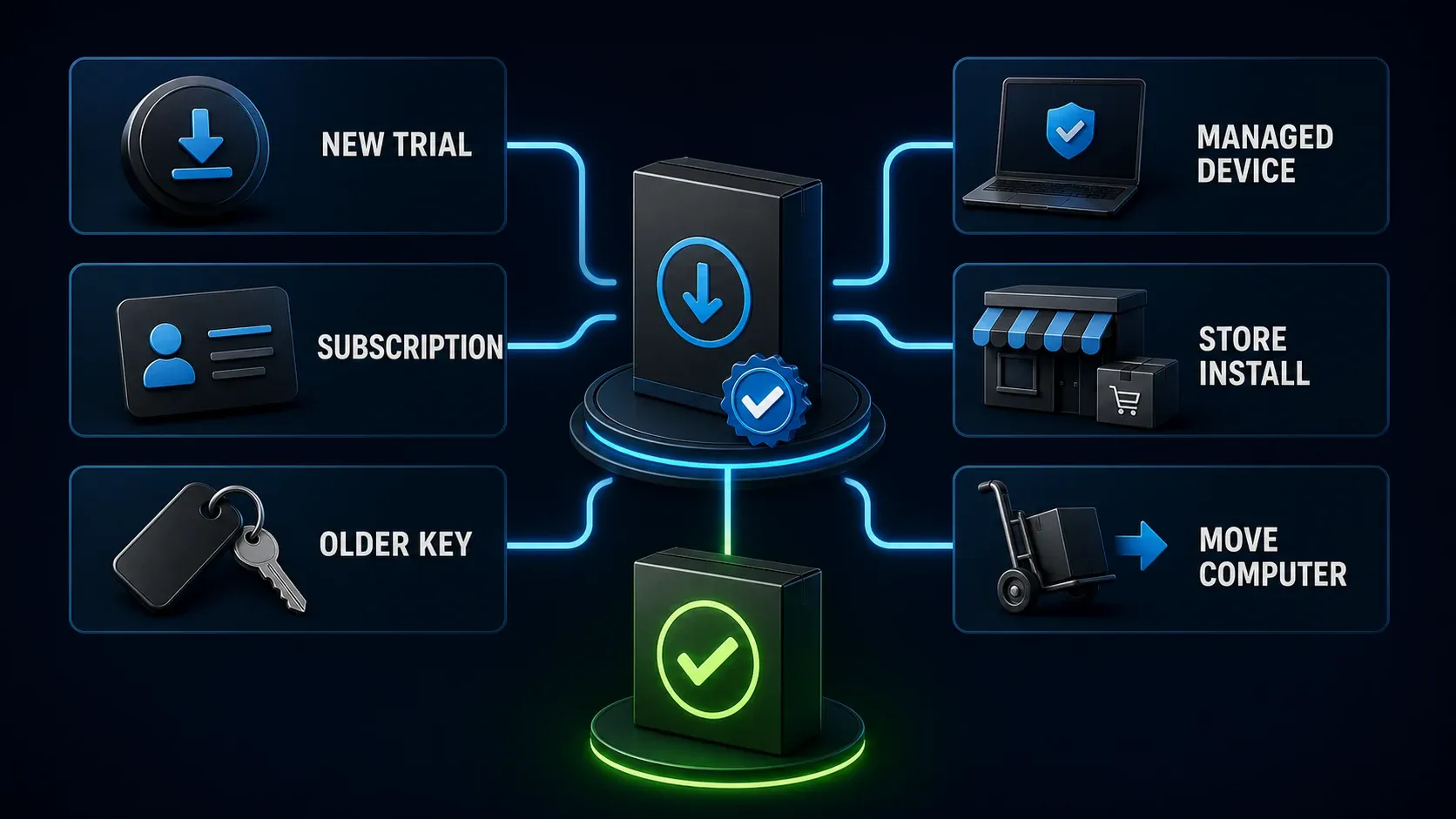
| Your situation | Installation route | Check first |
|---|---|---|
| New trial | Current standard download | Use the trial within its evaluation terms |
| Active subscription | Current app or offered in-app update | Use the licensed TechSmith account or Business key |
| Perpetual 2024 or earlier | Installer for the major version your key covers | Download availability and support lifetime are separate |
| Managed computer | IT-provided package or software portal | Do not override deployment or update policy |
| Microsoft Store | Official Store package | TechSmith licensing still applies |
| Replacement computer | Backup, license transfer and matching installation | An app copy does not transfer the Library or license |
Use TechSmith's Snagit download for the standard package. Its installation router also points administrators and people moving to a new computer toward the right instructions. Avoid repackaged or pre-activated installers.
An active subscription includes access to the latest version. A perpetual license covers updates released for its purchased major version, as TechSmith explains in its update and upgrade policy. Individual subscribers sign in; key-based purchases use the matching software key. The Snagit licensing guide covers plan differences.
Perpetual does not mean security updates forever. TechSmith's release policy currently lists December 31, 2026 as the end of security updates and major bug fixes for Snagit 2024. Before you keep an older version in active use, check its support status and OS compatibility.
For older installers, the previous-version download instructions distinguish 2019 and later from 2018 and earlier. The newer group comes from the Download Center, and the older group uses the download associated with a key in your TechSmith account. Do not assume every historic installer remains on the public download page.
Protect your captures before changing the installation
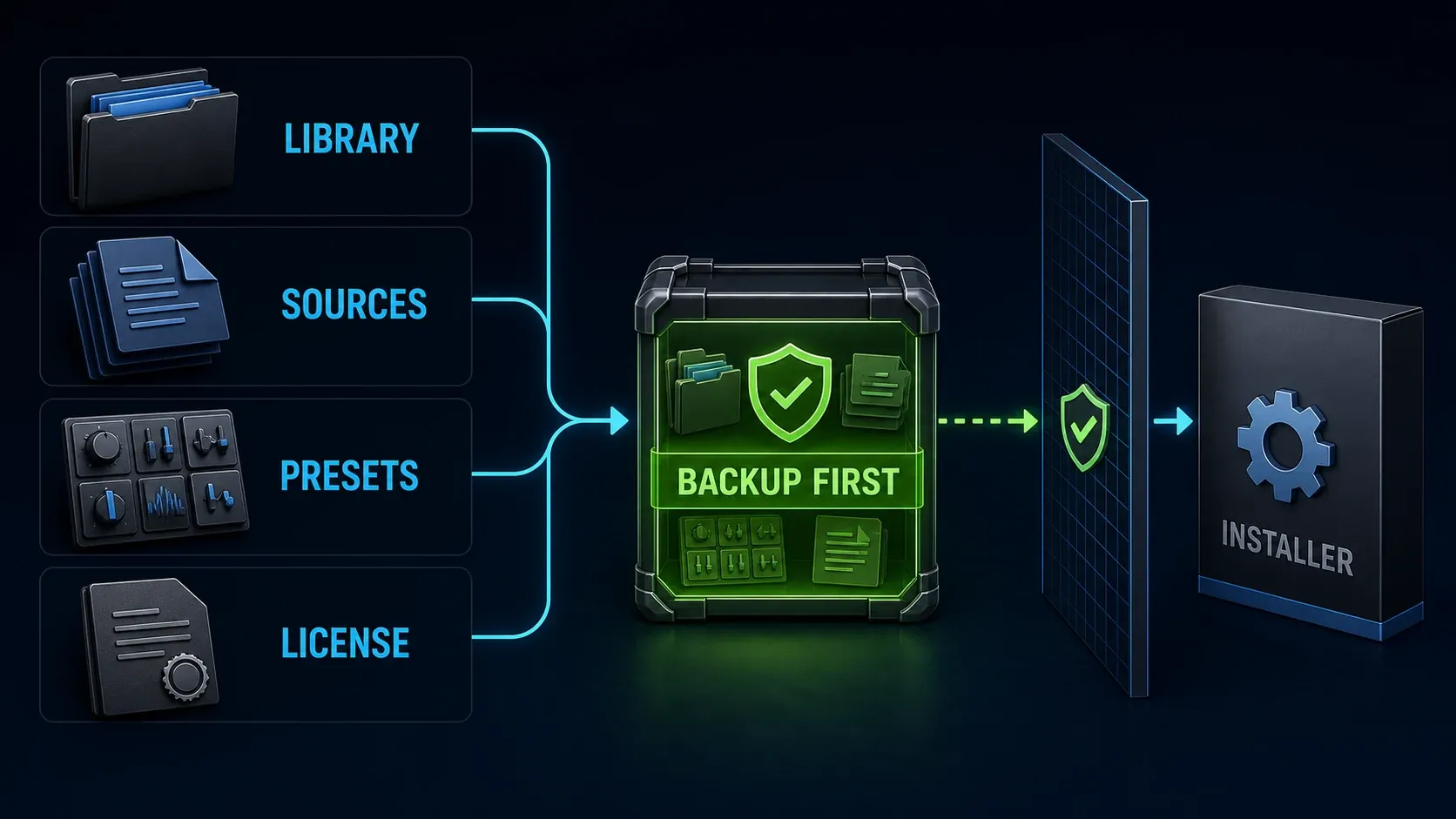
Keep a verified copy of the Library, along with separately saved projects, presets and any custom assets you need. Note the current build, the Library location, your license route and any settings that would be hard to recreate, and keep license keys private.
A PNG export preserves an image, not the complete editable setup. Follow the Library backup guide for your platform and version, and check the preset guide for capture settings. Do not assume a Library copy also includes every preset, hotkey or external project.
TechSmith's version-specific Windows backup instructions include an important warning: restoring an older Library archive can replace your current captures rather than merge with them. Copy both the old and new data before any restore, then open several files you need from the backup instead of relying only on a folder count.
Keep the installer as well as your data backup. Before changing a working installation, compare your OS and processor with the requirements for the Snagit version you plan to install.
Install or update Snagit in seven steps
Identify the license
Choose the route for your trial, subscription, older key, Store purchase or managed device. Confirm that the package matches it.
Record the current setup
If Snagit is already installed, record its full build, operating system and Library location before making changes.
Verify your backup
Protect the Library and separately saved editable files, then preserve the presets and settings your workflow needs.
Get the official package or update
Use the matching TechSmith download, in-app updater or approved organization package. Save open work before continuing.
Install for your platform
Close Capture and Editor before Windows setup. For a standard Mac DMG, drag Snagit to Applications, eject the installer and launch the installed app.
Confirm activation and permissions
Check the installed build and license. Approve only the permissions your capture workflow needs, then reopen the app if requested.
Test before cleanup
Capture an image, reopen an editable file and check an export. Test scrolling, audio, video or OCR if you use them. Retain the backup until the required checks pass.
Install Snagit on Windows
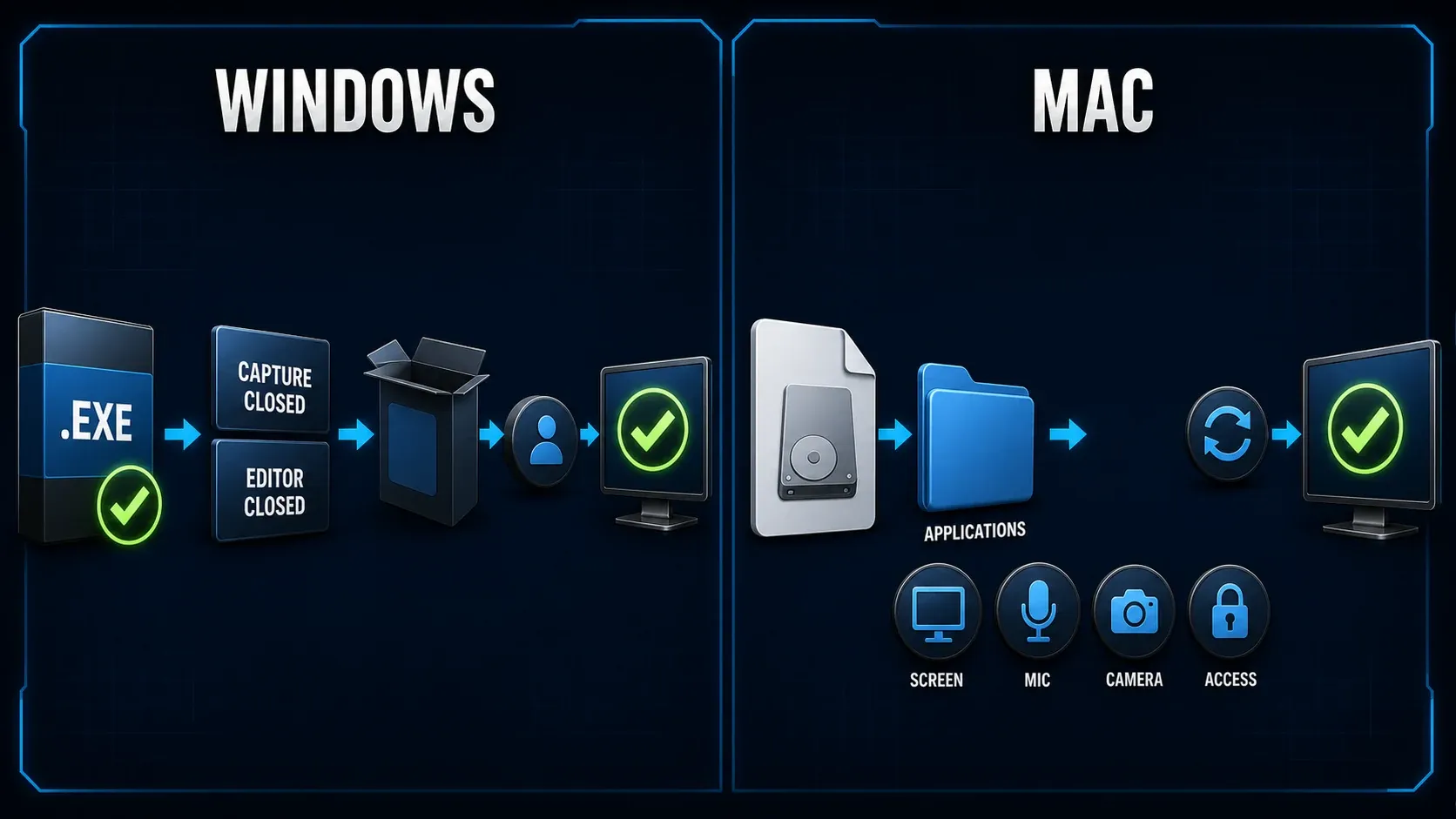
- Download the matching snagit.exe from TechSmith or your approved software portal.
- Save your work. Exit Capture with File > Exit TechSmith Snagit and Editor with File > Exit Snagit Editor.
- Run the EXE. If administrator approval is required, use your approved administrator route or ask IT.
- Choose the language, review the license terms and select Install. Use Options only when you need a documented change.
- Launch Snagit and sign in with the licensed account or enter the appropriate key.
- Check Help > About Snagit, then try a capture and export.
These steps follow TechSmith's Windows installation guide. If setup shows Modify, Repair, Remove, a copy is already installed, so open that installation and check its build before you choose a maintenance action.
Do not count on keeping two subscription versions side by side. TechSmith's current release policy says installations from the 2025 subscription line onward replace older subscription versions, which limits the older Windows guide's general statement that previous versions remain installed.
Install Snagit on Mac
- Download the matching snagit.dmg. In Finder, check Downloads if you used the default download location.
- Open the DMG and drag the Snagit app into Applications.
- Eject the installer disk image in Finder.
- Launch Snagit from Applications and activate it through the purchase route that applies to you.
- Approve the permissions needed for your work. If macOS requests Quit & Reopen, let Snagit restart.
- Check Snagit > About Snagit and test a capture.
TechSmith's Mac installation instructions cover the standard DMG. An organization package or existing App Store purchase follows its own distribution route.
Installing the app doesn't grant every capture permission. TechSmith documents Settings > Capture > Fix Capture Permissions in its permission instructions. The labels vary with the app and macOS version, so if capture fails, work through the Mac permissions checklist. You only need microphone and camera access for workflows that use them.
Do not add an old audio driver as a routine installation step. TechSmith's system-audio guidance describes native capture on macOS 13 or later with compatible, updated Snagit 2022-or-later builds, while older environments need their own version-specific instructions.
Update the installed app
Save open work first. In Windows Capture, choose Help > Check for Updates. In Mac Editor, choose Snagit > Check for Updates. Follow the offered update and confirm the full build afterward. Those are the platform-specific paths in TechSmith's updater instructions.
The Snagit 2026 release notes explain that subscribed users no longer need a separate installer each year for new features. That change doesn't stop IT from deploying a controlled package, and if a managed device shows no update prompt, check the policy instead of bypassing it.
Microsoft Store installations
The Snagit Store-package instructions say the app starts in trial mode. An Individual subscription uses the TechSmith purchase account rather than the Microsoft Store account, while a Business subscription uses its supplied key. Snagit updates are managed inside the app rather than through the Store. Check your existing license before buying again.
Move Snagit to another computer
TechSmith's computer-transfer procedure starts with exporting the captures you need and noting the key, if your purchase uses one. Individual subscribers can skip the key step. Once you've verified the backup, uninstall from the old computer, install the matching version on the new one, activate it and import the captures.
For a Mac App Store purchase, reinstall on the new Mac with the same Apple ID. Copying the app bundle by itself won't move your Library, presets or license, so keep the old data until the new setup passes the checks below.
If installation or updating fails
Setup Blocked
Save your work and close both Capture and Editor. If processes are still running after that, TechSmith's Setup Blocked guidance describes the installer's Close Snagit button for them. Do not force-close an application with an unsaved capture you still need; recover that work first.
The Library looks empty after updating
Do not immediately restore over the new Library. On Windows, start with the checks in TechSmith's missing-Library article: the selected Library folder, whether cloud-stored files are available locally, and any search-indexing warning. An empty view on its own doesn't prove the original files were deleted.
A key is rejected or the app still says trial
Start by checking the account, the license type and the installed major version. An Individual subscription doesn't need a key; you sign in with the email used for the purchase. Business and older perpetual licenses use a key, and TechSmith's key guide confirms that keys are version-specific. Do not try to activate a newer subscription release with an unrelated perpetual key.
If a paid copy still shows Trial or Expired Trial, work through TechSmith's trial-after-purchase steps in this order. Its menu paths are written for Windows. On a Mac, you'll find About Snagit in the Snagit menu.
- Compare the email shown in the upper-right corner of Snagit with the purchase email. The TechSmith sign-in page also offers Google and Apple, so a different address is easy to miss. If it is wrong, choose Help > Sign Out and sign in again with the right account.
- Open Help > About Snagit and click the Refresh icon.
- Set the computer's date and time to automatic. TechSmith's license verification checklist says a clock that is off by even a few minutes can make verification fail.
- Check the build. Versions earlier than Snagit 2024.1.1 do not recognize an Individual subscription, according to TechSmith's subscription activation note.
- If permitted, try another network or briefly pause a personal VPN. Do not disable a managed work VPN without IT approval. On a work computer, ask IT to allow the licensing addresses and ports 443 and 80 listed in TechSmith's sign-in troubleshooting article. The same article suggests temporarily changing the default browser when sign-in hangs on "Waiting for Sign in."
A Business or perpetual key appears under the Keys tab of your TechSmith account portal. A key bought under another email or through a reseller may be missing there, and TechSmith's Save a key steps add it to the account. “Activation Limit Reached” means the entitlement's activation allowance is already in use. Current Individual and Business subscriptions allow one active device per licensed user; older perpetual entitlements can differ. The key guide explains how to clear old activations. TechSmith puts its cached-license cleanup after the checks above, and I would keep it for last because it deletes files.
Permissions or security software block setup
Write down the exact message, then verify the download source and the publisher. Ask IT or the security owner to review the block, and don't disable endpoint protection, delete registry entries or install a repackaged copy to get past it.
If installation finishes but Editor won't start, use the Editor startup diagnosis. Reinstalling won't tell you whether the failure involves startup, capture permissions, licensing or a particular file, so identify that first.
For managed deployments
A standard personal install on Windows uses the EXE. TechSmith documents an MSI installation alternative for deployment or support-led troubleshooting, and its deployment documentation covers custom packages, storage locations, connected features and update policies.
Test the package with the same standard-user permissions, security controls and network conditions employees will use. Record the installer identity, settings, OS build and result, and keep keys out of public logs. For disconnected systems, check the approved offline activation route before you deploy.
Verify your workflow before cleanup
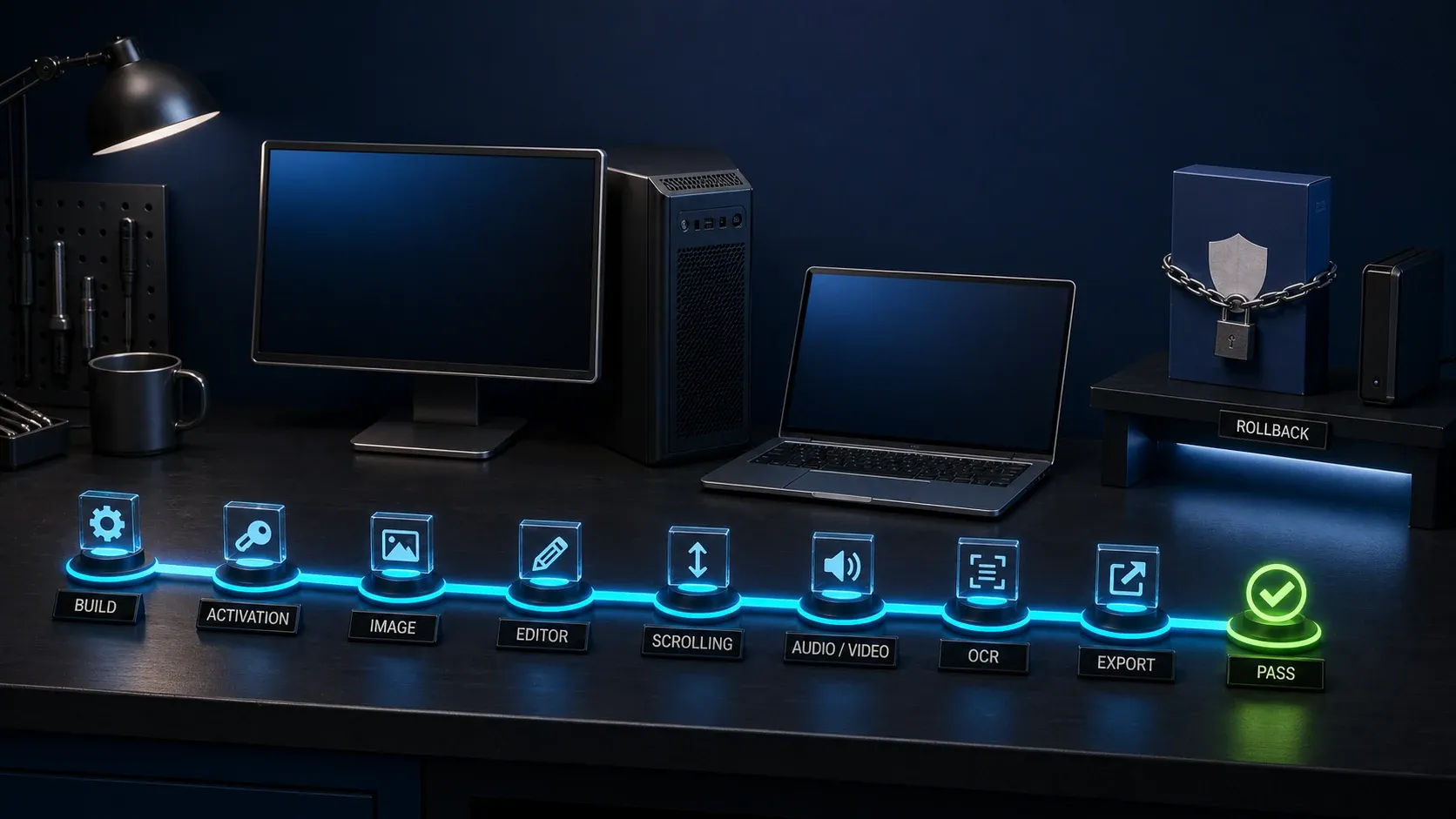
Start with a non-sensitive sample: capture a region, add an annotation, save an editable source, then close it and reopen it. After that, export an image and open the delivered file, and make sure the older captures you need still open too.
Only test scrolling, microphone audio, system audio, video and OCR if your work uses them and the installed version supports them. A still-image workflow doesn't need camera or microphone access. Keep a short pass/fail record that notes the complete build and the destination you tested.
If a check fails, save the sample and the error details. A newer Library or project may not behave the same way in an older release, so don't promise an instant rollback. Keep verified backups and the known-good installer, and test any downgrade on a copy before changing working data.
Once the required checks pass, follow your retention policy for backups and obsolete packages. For the next capture and editing task, use the Snagit Editor guide.
Install and update Snagit FAQ
Where should I download Snagit?
Use the official TechSmith download for a current standard installation. Match an older installer to your key, or follow your organization or Store purchase route. Avoid repackaged or pre-activated copies.
Are updates included with a Snagit subscription?
An active subscription includes access to the latest version. A perpetual license covers updates released for its purchased major version, not an unlimited period of security support. TechSmith currently lists December 31, 2026 as the cutoff for security updates and major bug fixes for Snagit 2024.
How do I check for Snagit updates?
In Windows Capture, choose Help > Check for Updates. In Mac Editor, choose Snagit > Check for Updates. Save your work first, and use IT instructions instead if your organization manages the installation.
Will updating Snagit delete my Library?
Do not treat an update as a backup guarantee. Protect the Library and separate projects before a major change. If the Library looks empty afterward, check its location and file availability before restoring; older restore workflows can replace current captures.
Can an old Snagit key activate the newest version?
Not automatically. A perpetual key must match the major version it covers. Individual subscriptions use the licensed TechSmith account rather than a software key.
Why does the Microsoft Store copy open in trial mode?
TechSmith says this is the initial state of the Snagit Store package. Activate it with the TechSmith account linked to an Individual subscription or the supplied Business key. Snagit updates are handled inside the app.
Should I use EXE or MSI on Windows?
The EXE is the standard personal installation route. MSI is an alternative for managed deployment or support-led troubleshooting; it is not a guaranteed fix for every installation failure.
Do I need to uninstall the old Snagit version first?
Check your route. Current subscription installations can replace older subscription versions, so do not assume both will remain. For a computer transfer, TechSmith instructs you to back up needed captures and uninstall from the old computer before installing on the new one.