
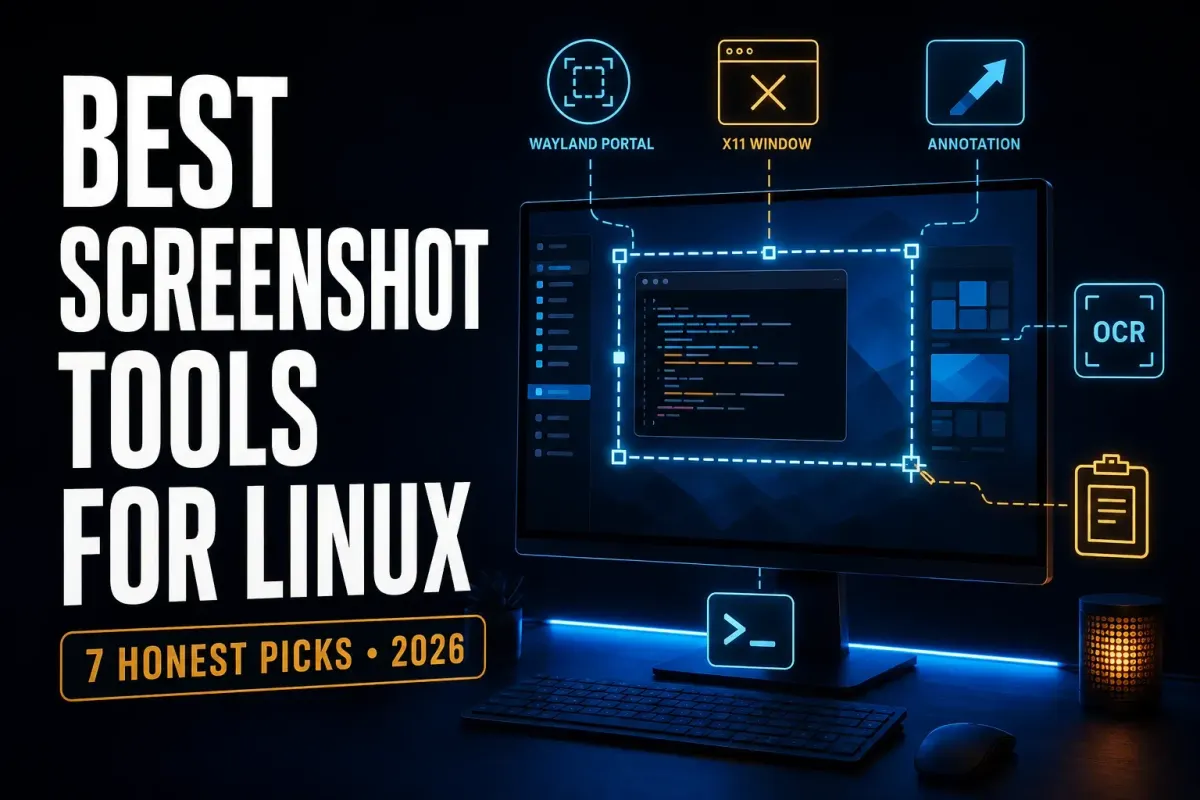
Start with GNOME's screenshot overlay on GNOME, or Spectacle on KDE Plasma. For capture and annotation, try Flameshot; Shutter suits tabbed tutorial editing, and ksnip is an option when its capture modes fit your session. On a compatible Wayland compositor, grim, slurp, and Satty give you a configurable command-line route. ApexShot adds OCR and recording, but it's still a public beta.
Your desktop and display server matter more than a generic Linux ranking. An X11 capture method may not work under Wayland, and Wayland desktops don't all provide the same capture interfaces. I checked official documentation and release records on September 18, 2026. The picks below are editorial recommendations based on those documented capabilities.
SnagitPro is an independent publication and isn't affiliated with these projects. The seven choices below mix desktop components, standalone apps, and one three-tool setup, and they aren't a measured speed ranking.
Best screenshot tools for Linux at a glance
| Pick | Best fit | Display path | Main tradeoff |
|---|---|---|---|
| GNOME screenshot overlay | Built-in capture and recording on GNOME | Native GNOME Shell capture | Basic editing and no general scrolling capture |
| KDE Spectacle | Plasma capture, annotation, and OCR in supported versions | Plasma on Wayland or X11 | Check the installed version for OCR |
| Flameshot | Capture with visual annotation | X11; experimental GNOME and Plasma Wayland support | Wayland permissions and portals can interrupt capture |
| Shutter | Classic tabbed capture and tutorial markup | X11; limited XDG portal capture on Wayland | Wayland capture modes depend on the portal |
| ksnip | Detailed annotation and cross-platform habits | X11 and desktop-dependent Wayland modes | Development/stable distinction; own global hotkeys not on Wayland |
| grim + slurp + Satty | Scriptable capture and modern annotation | Compatible capture protocols, including Sway and Hyprland | Several tools and shell configuration instead of one app |
| ApexShot | Capture, OCR, recording, and editing in one new app | Wayland-focused, tested by its project on selected desktops | Public beta with distro-specific gaps |
Try the tool already supplied with your desktop before installing another one. When a specific feature is missing, such as numbered labels, OCR, or a reusable command, add an editor or capture app for it. Native integration is a good starting point, though it doesn't guarantee that every shortcut or display will work.
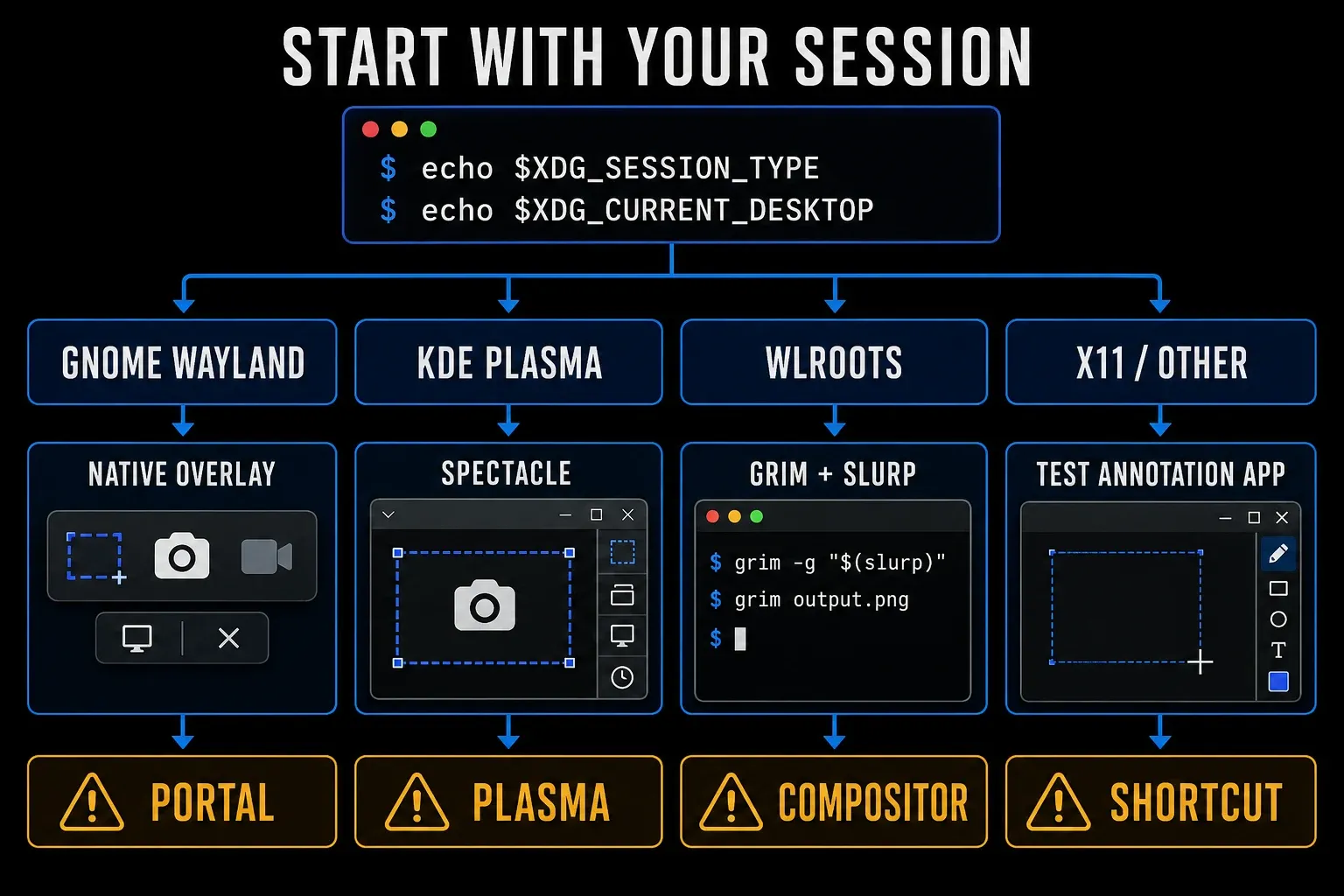
Check X11, Wayland, and your desktop before installing anything
Run echo $XDG_SESSION_TYPE to see whether the current session reports x11 or wayland, and echo $XDG_CURRENT_DESKTOP to identify GNOME, KDE, Sway, Hyprland, or another desktop. Both commands should run in a terminal inside your graphical session rather than over SSH. If a value is empty or unclear, check the desktop session settings; these variables are clues rather than a hardware test.
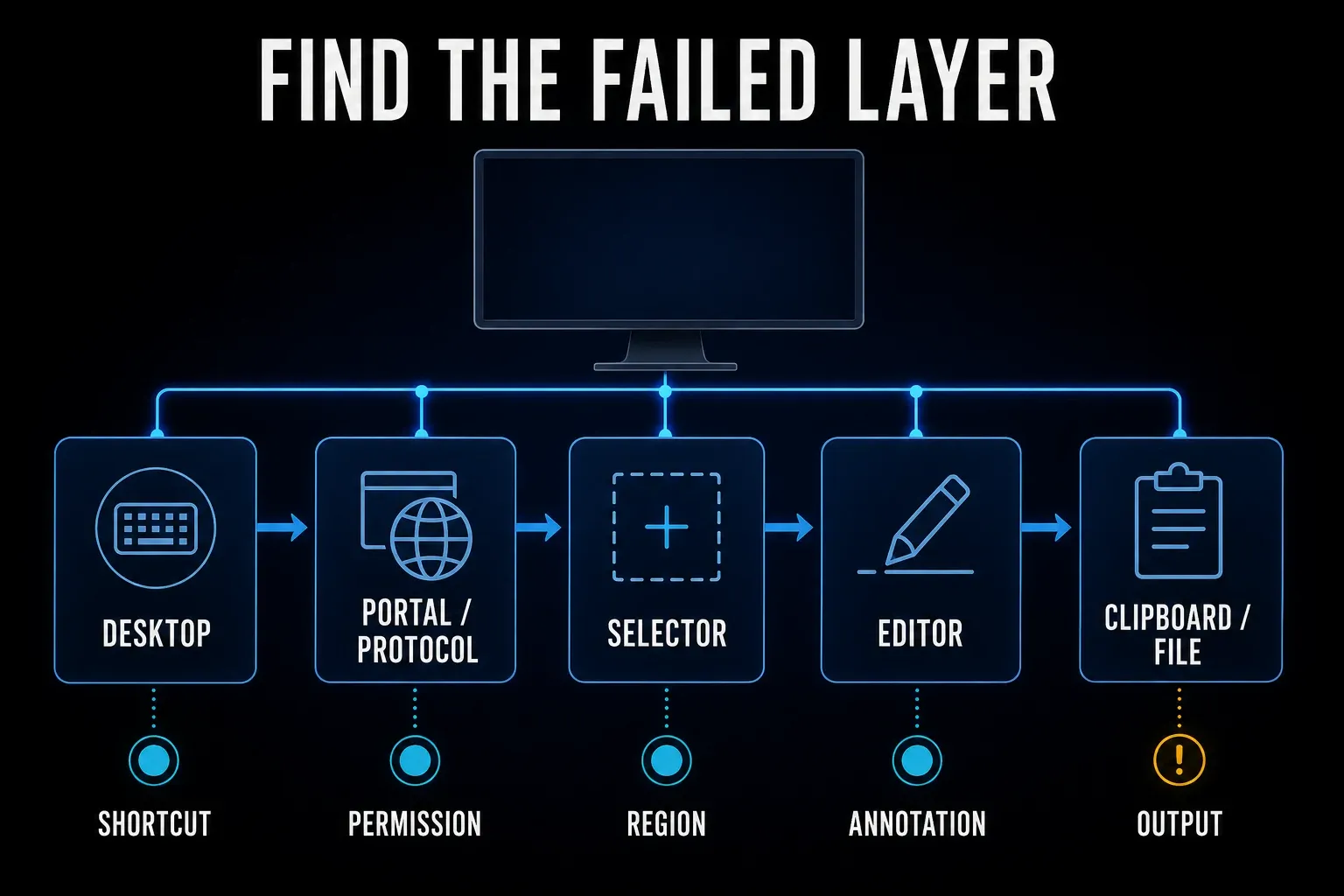
Wayland capture depends on the compositor, the software that manages your windows and displays. A third-party app may request an image through the Screenshot portal or use a supported compositor protocol, so a permission prompt can be normal. A black image or missing selector needs diagnosis, and reinstalling the app won't necessarily help.
If you're choosing for several operating systems, the cross-platform screenshot software guide compares those options. Here, start with your Linux session and the kind of file you need.
GNOME's overlay: built-in capture without another app
The official GNOME screenshot guide documents region, window, and full-screen capture from the Print key. The overlay can include the pointer and switch between still capture and screencast mode. It saves images in Pictures/Screenshots, copies the image to the clipboard, and saves recordings in Videos/Screencasts.
Use it for an image you'll paste into a ticket or message. It's built into GNOME Shell rather than being a third-party app that asks the shell for a screenshot. If you need annotations, open the saved image in an editor.
The overlay isn't a scrolling-capture or OCR tool. For occasional markup, pairing it with an image editor may be simpler than replacing your capture shortcut.
KDE Spectacle: capture, annotation, and OCR on Plasma
On Plasma, start here. KDE's Plasma 6.4 announcement describes the redesigned capture and recording app, and Plasma 6.6 added text recognition. Before you count on OCR, check the package your distribution ships. Older screenshots of Spectacle's interface may no longer match your version.
Install it from your distribution's package manager or KDE Discover. Before you change shortcuts, check that a region capture, your monitors, Save As, and clipboard paste all work. A second app competing for Print can make an otherwise working setup harder to use.
Flameshot: annotate during capture
Flameshot is free, open source, and available for Linux, Windows, and macOS. Its capture editor includes arrows, text, freehand marks, highlights, shapes, counters, blur or pixelation, and solid-color boxes. Command-line controls make it useful for custom shortcuts.
The v14.0.0 release changed multi-monitor selection and scaling. On Linux it now uses XDG Desktop Portal as the primary capture route and the only Wayland route, though the project overview still labels GNOME and Plasma Wayland support experimental. The Wayland troubleshooting guide marks the old KDE fractional-scaling workaround as relevant to versions before v14, so don't apply it automatically to a current build.
Try Flameshot if you want to capture and mark up an image without opening a separate editor. Check selection, copy, scaling, and the shortcut in your own session, and look over its optional Imgur destination before you use it with work images. The Snagit versus Flameshot comparison covers the wider editing and licensing differences.
Shutter remains useful for tutorial-style editing
Shutter combines area, desktop, window, menu, tooltip, and website capture with a tabbed editor. Its markup includes text, arrows, shapes, crop, pixelation, and automatic step numbers. That's a practical set for manuals and bug reports.
Shutter 0.99.7, dated May 9, 2026, fixes its drawing tool. Its Wayland FAQ says capture currently goes through the XDG portal, commonly for a full screen depending on the portal, while the editor stays available. That's limited support, not the same capture experience you get on X11.
It's a good choice when tabs and numbered markup suit your work, but confirm the capture modes you need before installing it as your default. Its website-capture description still names gnome-web-photo, so don't assume that older web-capture path works in a current package.
ksnip: detailed markup with package and maintenance checks
ksnip provides tabs, stickers, crop, blur, and capture modes that vary by desktop. Its own global hotkeys are documented for Windows and X11 but not Wayland, so a desktop-configured shortcut is a separate route. The project's OCR plugin uses Tesseract and requires a compatible build.
The release page still marks 1.10.1 as the latest formal release. The README labels development work 1.11.0, warns that continuous builds aren't fully tested, and asks for a co-maintainer. None of that turns a continuous build into a stable release.
Try your distribution's package first. If a team will depend on it, record the package version and who will maintain it. Do not assume a portal capture has every mode listed for X11.
grim, slurp, and Satty: a configurable Wayland pipeline
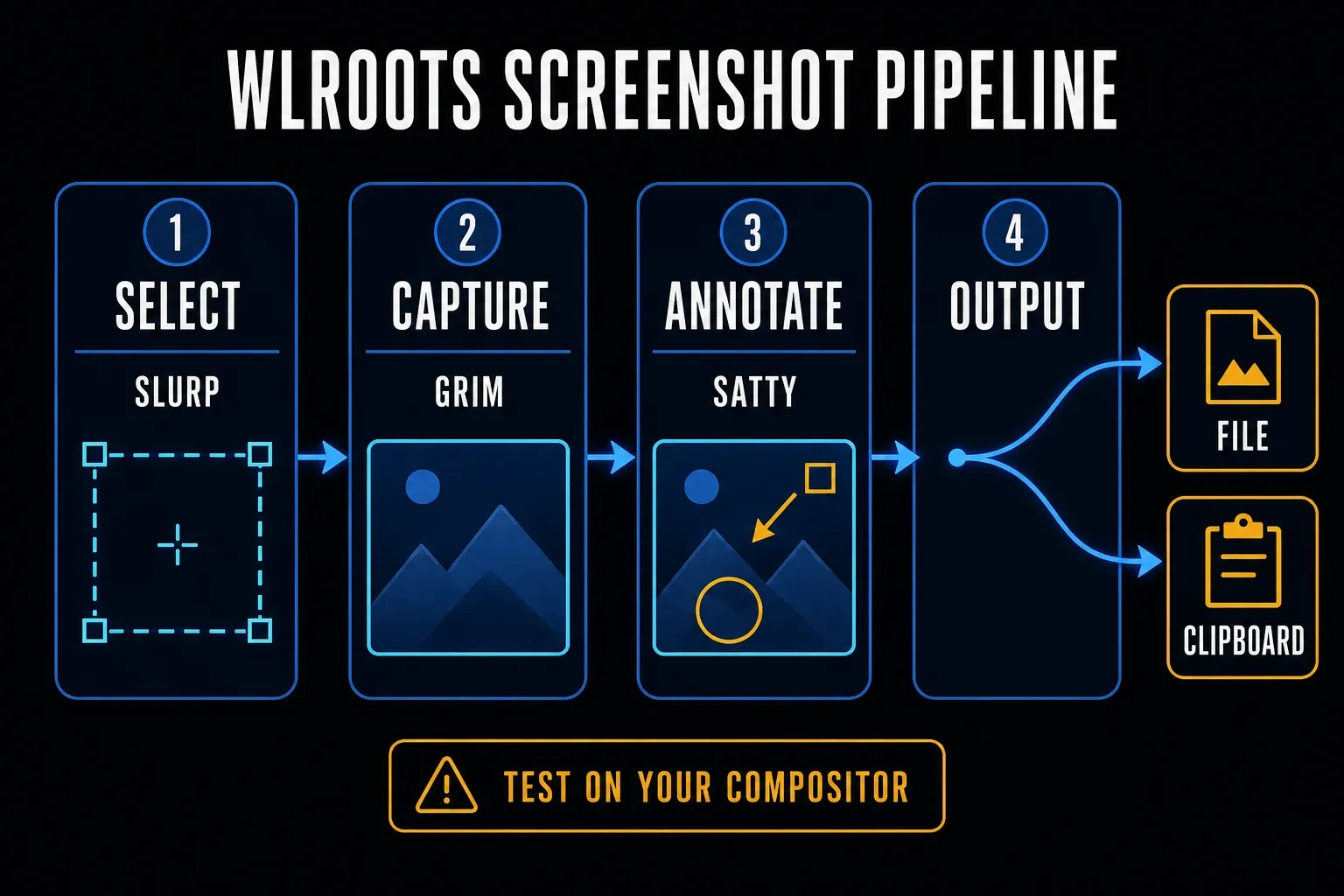
grim captures Wayland output to a file or standard output. slurp selects a region and prints its geometry. Pipe the result into Satty for annotation, crop, blur, text, and post-capture editing.
This route works on compatible compositors such as Sway and Hyprland. Hyprland stopped depending on wlroots in 2024, so compatibility now comes from supported protocols rather than that old classification. Its current screenshot guide still documents grim and Satty. When you add a key binding, use the wiki version that matches your installed Hyprland release.
Install grim, slurp, Satty, and wl-clipboard from sources you trust. Run the following Bash example in the target graphical session with dummy content. It selects a region, opens the captured pixels in Satty, and sets a timestamped output path. Ctrl+S saves; Ctrl+C uses wl-copy. It has been checked against the documented command options, not executed on a Linux desktop for this article. GNOME's native capture is a different route; installing these packages does not make grim compatible with every compositor.
(
  capture_geometry=$(slurp) || exit
  [ -n "$capture_geometry" ] || exit
  capture_dir="$HOME/Pictures/Screenshots"
  mkdir -p "$capture_dir" || exit
  grim -g "$capture_geometry" -t ppm - | satty --filename - --copy-command wl-copy --output-filename "$capture_dir/shot-$(date +%Y%m%d-%H%M%S).png"
)
ApexShot: an all-in-one option still in beta
The project is still in public beta. Recording isn't supported on Fedora, and openSUSE has no published binary; the generic installer refuses that platform. Some GNOME integrations need a companion extension. Cloud upload is optional, so review its settings before you capture private data.
Try it with dummy content before you rely on it for daily work. Check the package source and permissions, and don't run an installer command just because it appeared in a comparison article.
Scrolling capture and OCR need separate proof
Selecting a large window doesn't capture content below the fold. ApexShot documents a Chrome/Chromium extension for full-page capture, but that isn't general scrolling capture in every Linux app. For a webpage, your browser's full-page image command is worth a look, while PDF export produces a different file. In either output, inspect sticky headers, lazy-loaded images, and nested panels.
For OCR, look at Spectacle in Plasma 6.6 or later, a compatible ksnip OCR plugin, or ApexShot's documented OCR. A separate Tesseract workflow can also process an image. Whichever you use, verify the language and compare punctuation, line breaks, and code with the original, because an OCR feature doesn't guarantee accuracy.
For a support ticket, use dummy data or remove private content before you share anything. An opaque block in a flattened export you've checked is a better choice than weak blur. Reopen the final file in another viewer. Keep the editable original private, and check both the app's upload settings and any folder-sync service.
Run this Linux screenshot compatibility test
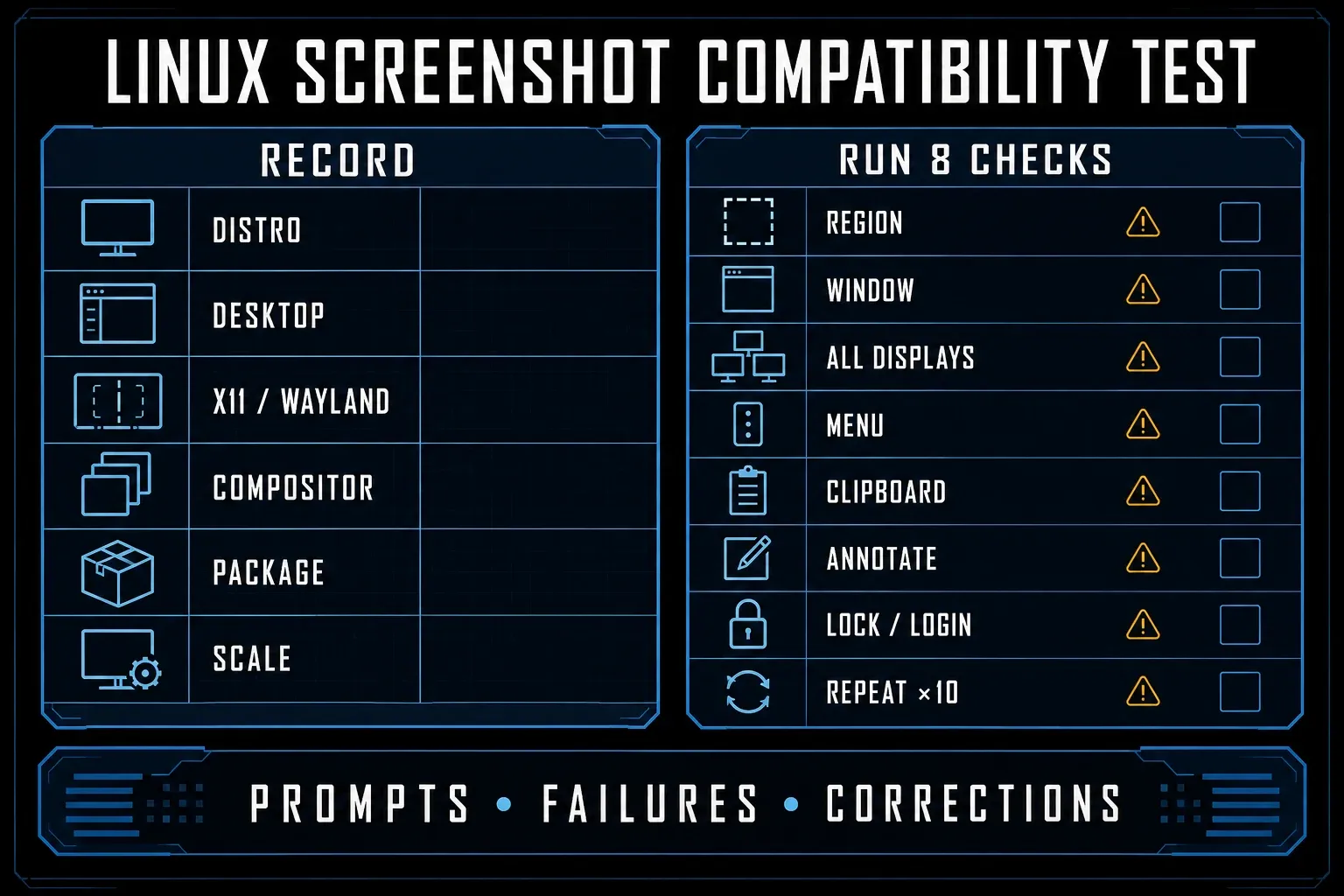
Record the distribution, desktop, display server, compositor, package version and source, monitor layout, and scale factor, and use dummy data. Stick to the modes you need and the tool supports; a tool without annotation can still be fine for simple capture. Save your work before logging out:
- Capture the region, window, and displays you actually need, using supported modes.
- If needed, capture a menu or tooltip using a documented delay or native mode.
- Copy an image and paste it into two applications you use.
- Where supported, add an arrow, text label, numbered step, crop, and opaque block over dummy text.
- Compare text at your usual scale and a fractional scale, if supported.
- Lock and unlock your session, then try the capture shortcut.
- Save your work, log out and back in, then check capture permissions and any configured autostart.
- Repeat your routine capture ten times if repeatability matters; record prompts, failures, and corrections.
After a reboot or desktop update, repeat the relevant checks instead of assuming past results still apply, and note the output format, dimensions, and any prompts or missed content. Keep uploads off for these tools until you've checked the destination and access settings.
Which Linux screenshot tool should you choose?
I'd keep GNOME's overlay for simple GNOME capture and try Spectacle first on Plasma. Compare Flameshot for markup, Shutter for tabbed editing, and ksnip with its maintenance and package limits in mind. Choose grim, slurp, and Satty when you want a command-line setup on a compatible compositor, and treat ApexShot as a beta evaluation.
If you need a tool for more than Linux, the free screenshot software comparison separates platform support and license limits. A project's popularity can't tell you whether its shortcut, capture, and clipboard paths work on your machine.
Linux screenshot tools FAQ
What is the best screenshot tool for Linux?
Start with GNOME's overlay on GNOME or Spectacle on KDE Plasma. Compare Flameshot for annotation, or grim, slurp, and Satty for a configurable pipeline on a compatible compositor. The right choice depends on your session and required output, not a universal ranking.
Why does a screenshot app fail on Wayland?
A Wayland app needs a supported capture interface, often a desktop portal or compositor-specific protocol. Capture modes and permission prompts vary. Check the app's current documentation and your portal setup before reinstalling it.
Is Flameshot good on Wayland?
Flameshot can work on Wayland through XDG Desktop Portal, which v14.0.0 calls its only Wayland capture route. The project overview still labels GNOME and Plasma Wayland support experimental, so test selection, scaling, copy, and shortcuts on your own session. The older KDE fractional-scaling workaround is for versions before v14.0.0.
What is the best screenshot tool for Ubuntu?
If your Ubuntu session uses GNOME, start with its built-in overlay. On a Plasma-based flavor, try Spectacle. Check the actual desktop and session type instead of assuming every Ubuntu installation uses the same capture method.
What is the best screenshot tool for Hyprland or Sway?
The projects document grim for capture, slurp for region selection, and Satty for annotation on compatible sessions. Check your compositor version before binding the command. Hyprland is no longer wlroots-based; shared protocol support is what matters.
Which Linux screenshot tool supports OCR?
Spectacle gained text recognition with Plasma 6.6. ksnip offers a separate OCR plugin, and ApexShot documents built-in OCR while remaining a beta. Check package compatibility and language support, then verify the extracted text.
Can Linux screenshot tools capture a scrolling page?
Full-page browser capture and general scrolling capture in desktop apps are different tasks. ApexShot documents a Chrome/Chromium extension for the former. Check the exact application, output format, and completeness instead of assuming every screenshot tool can stitch a long page.