
For a basic screenshot, start with Windows Snipping Tool or macOS Screenshot. Choose ShareX on Windows when you want scrolling capture, text extraction, and automated saving. Flameshot adds region annotation on supported Windows, Mac, and Linux systems, but check its Mac build before downloading. On KDE Plasma, use Spectacle, and for a full webpage without an extension, use Chrome DevTools.
All six main picks support ongoing still-image capture and local saving without a screenshot subscription. I compared their official feature and licensing documentation, checked on September 18, 2026, and the recommendations follow those documented capabilities.
SnagitPro is independent and is not affiliated with Microsoft, Apple, Google, KDE, ShareX, Flameshot, or TechSmith. Features and platform support can change, so check the linked official page before deploying a tool across a team.
Best free screenshot software at a glance
| Pick | Platform | Best for | Important limit |
|---|---|---|---|
| Windows Snipping Tool | Windows | Everyday captures and light markup | No general scrolling-page capture |
| macOS Screenshot | macOS | Zero-setup screen, window, and region capture | Markup is basic and full-page web capture is separate |
| ShareX | Windows 10 or newer, 64-bit | Power users, scrolling capture, OCR, and automation | Many settings and optional upload actions need care |
| Flameshot | Windows, Linux, supported Mac builds | Region capture and annotation | Intel asset conflicts with the v14 release notes; verify the exact Mac build; not a scrolling-capture tool |
| KDE Spectacle | Linux | KDE Plasma desktops and multi-monitor capture | Best fit is KDE, not every Linux desktop |
| Chrome DevTools | Chrome on desktop | Occasional full-page website screenshots | Captures webpages, not the whole desktop |
For an occasional email attachment, an included capture tool saves you another installation. If you often mark up bug reports, compare the annotation and save options. Capturing a full webpage is a different task from capturing a desktop window, so choose the capture route before you compare extra features.
What “free” means in this guide
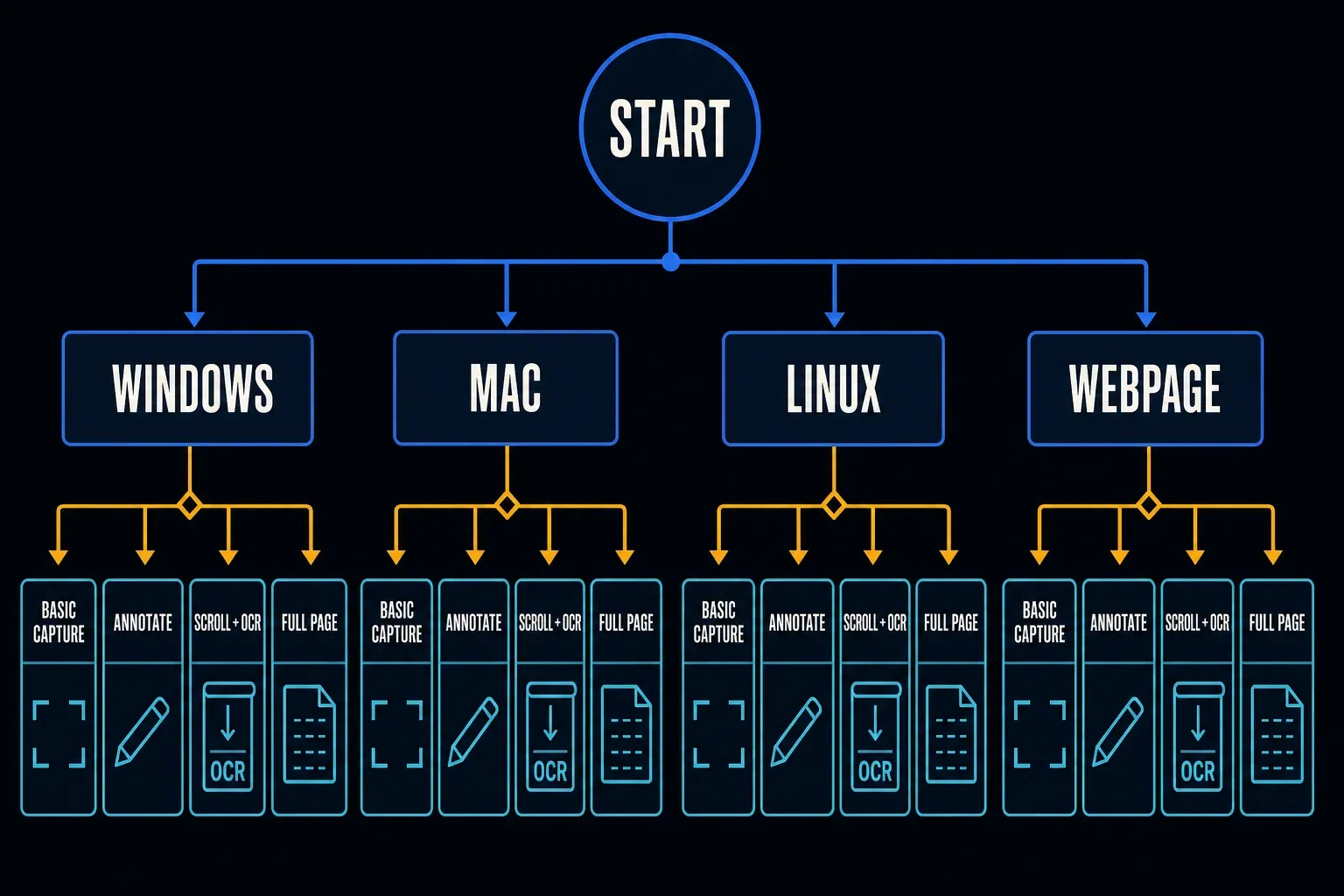
A free download button isn't enough on its own. The main picks meet four conditions for still screenshots:
- You can keep using the capture function without a trial deadline.
- The saved still image has no forced watermark.
- A normal local-save workflow does not require a paid plan.
- The restriction that matters most is stated next to the recommendation.
This shortlist is about still images. A free recording limit doesn't necessarily restrict screenshots, and a free screenshot feature doesn't make the whole product free. Check the exact edition against the task you need, especially before you use a personal-use license at work.
Use PNG for interface text and thin lines, and switch to JPEG only when a smaller file matters more than perfect text edges. If the image records a bug or an approval, keep the untouched capture next to the edited copy and give both files useful names. When you're done, delete any test captures that contain information you no longer need.
1. Windows Snipping Tool: best zero-setup choice for Windows
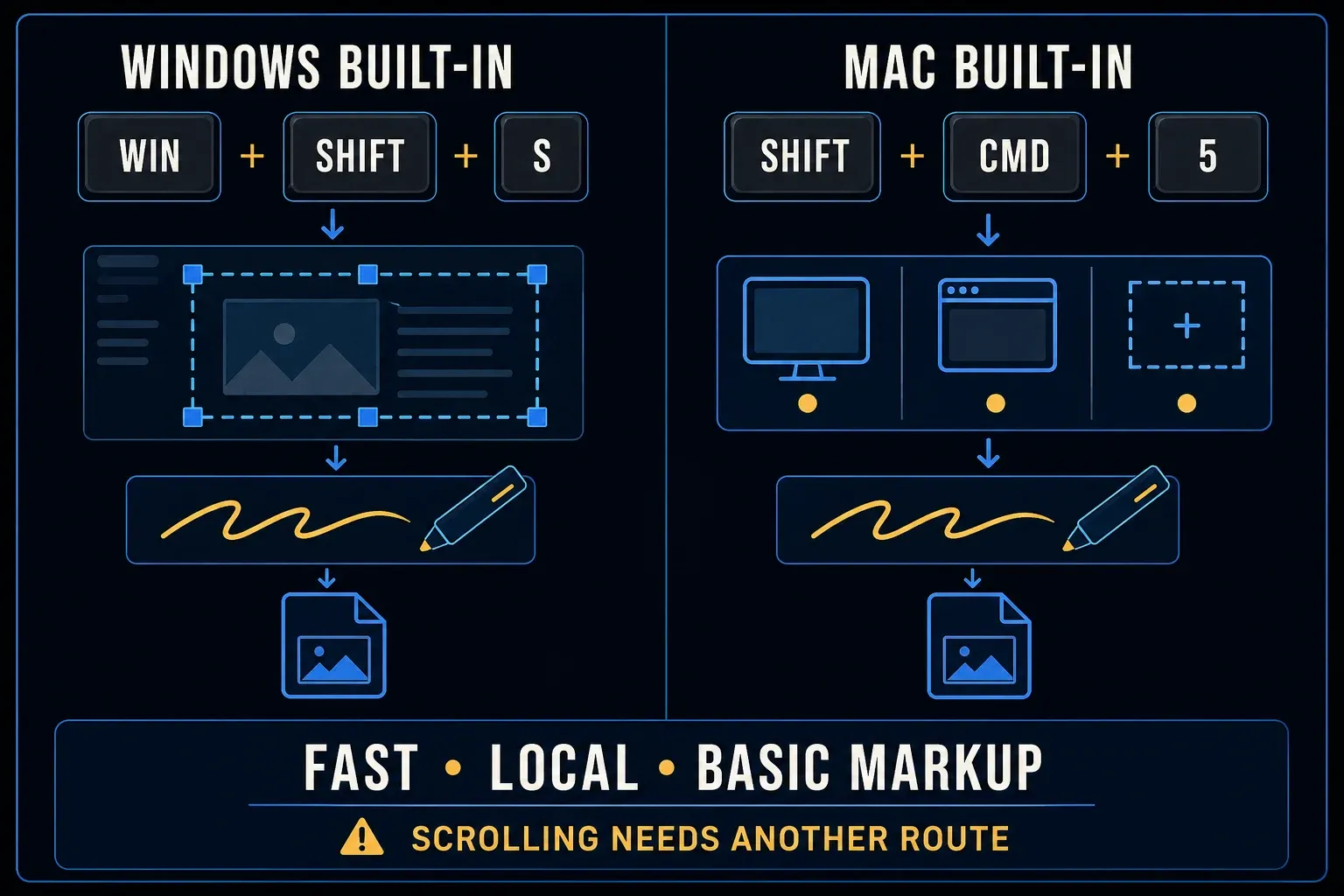
Press Windows + Shift + S to open the capture bar. Microsoft documents Snipping Tool capture modes for a rectangle, window, full screen, or freeform selection. On supported Windows 11 app versions, Text Actions can extract text from the captured image locally, so basic OCR alone isn't a reason to install another tool.
For an email, chat message, or support ticket, capture the relevant area and add only the markup the reader needs. A crop and one arrow can be enough.
Use another tool for long scrolling pages or configurable post-capture actions. Feature availability also depends on your Windows and app version. Microsoft's July 22 announcement restricts Perfect screenshot to Copilot+ PCs and says Color picker was added for all Windows 11 PCs. Its current support page groups both under Copilot+ features, so check the installed controls rather than treating either document as proof of Color picker availability on every PC.
2. macOS Screenshot: best zero-setup choice for Mac
Press Shift + Command + 5 to open Apple's Screenshot app. Apple's current macOS guide documents full-screen, window, and selected-area capture, plus a timer and pointer options. Still images save as PNG by default, and you can change the save location from the Options menu.
Click the floating thumbnail to open Markup, where you can crop or add shapes, drawing, text, and a signature. Save it to a local folder if you don't want the file to end up in a synced Desktop folder.
The system Screenshot app doesn't have a general scrolling-capture mode. For a long webpage, use a browser-specific route such as the Chrome method below. If you're documenting several annotated steps, see whether Markup gives you enough control before you install another editor.
3. ShareX: best free screenshot software for Windows power users
ShareX is free, open source, and built for Windows. The official ShareX feature page lists full screen, active window, monitor, region, scrolling capture, OCR, annotations, image editing, screen recording, and automated after-capture tasks. It also says the program has no advertisements and requires no account.
ShareX’s changelog specifies Windows 10 64-bit or newer for current builds, so an older office computer may need a different capture tool even though ShareX itself is free.
Choose ShareX if you want to configure what happens after each capture, such as opening the editor, saving a file, and copying it to the clipboard. If you only need an arrow and a local PNG, Greenshot is another free Windows option, covered below.
Before you capture private material, check After capture tasks and Destinations, because saving locally and uploading are separate actions. ShareX version 19.0.1 turned off automatic upload by default for new installations, but an existing installation can keep different settings. My Snagit versus ShareX comparison covers the editing and documentation differences.
4. Flameshot: best cross-platform free annotation tool
Flameshot offers region capture with arrows, text, shapes, and local copy or save options. Its v14 release notes list both ARM64 and Intel DMGs in the v14.0.0 assets, yet the same notes say the Intel build was no longer included because beta binaries were reported as not working and the maintainer couldn't troubleshoot them. Because of that conflict, treat Intel compatibility as something to verify on your exact Mac rather than a promise derived from the filename. Before you rely on it, check screen-capture permission, the shortcut, clipboard behavior, and restart behavior.
Choose Flameshot for capture followed by on-image annotation. On Linux, desktop integration matters: v14 uses desktop portals for Wayland capture and offers a legacy X11 fallback. On Mac, follow the project’s screen-recording permission instructions so the app can access the screen.
Do not treat blur as secure redaction. Flameshot's own privacy guidance warns that blur can be reversed and that small pixel blocks may still expose the original text. The project recommends an opaque filled rectangle as the safest method. Its optional upload action sends an image to Imgur, so choose local save for confidential material. The Snagit versus Flameshot guide explains the trade between a compact free annotator and a broader documentation tool.
5. KDE Spectacle: best native Linux option for Plasma
Spectacle is KDE’s screenshot application. It captures the desktop, a monitor, a window, or a rectangular region, and you can save the image locally or send it to another application for editing.
Install it through your distribution’s package manager or KDE Discover. Distribution packages don’t all update on KDE’s release day, so check the Spectacle handbook for the controls in your version.
If you already use KDE Plasma, Spectacle is a natural first option. On GNOME or another desktop, try the included capture utility first. Check window capture and the correct monitor in your own desktop session before you choose an additional package.
6. Chrome DevTools: best free full-page web capture without an extension
For a full webpage, right-click the page and choose Inspect to open Chrome DevTools. Press Control + Shift + P on Windows or Linux, or Command + Shift + P on Mac. Type screenshot and choose Capture full size screenshot. Google’s screenshot guide also covers individual page elements and selected areas. DevTools must have focus for its command shortcut to work.
This route suits an occasional full-page webpage image when you don’t want an extension. A managed browser can restrict developer tools too, so if DevTools is disabled, use the capture method your organization has approved.
DevTools captures webpage content, not other desktop applications. Load the sections you need before you capture, then look through the saved file for missing content or repeated headers. A page with an independently scrolling panel may need a separate capture of that panel, and my scrolling screenshot guide helps you choose the next route.
Other free options and license limits
Greenshot is a valid free Windows alternative, while PicPick needs a closer license check if you plan to use it for work:
- Greenshot for Windows is free and open source, including the official installer. The $1.99 App Store offer on that page is the separate Mac product. Its Windows editor adds arrows, text, shapes, and local file output, useful if ShareX offers more configuration than you need.
- PicPick Free is offered for home users; the Pro edition covers commercial and business use. Check the license for your work before choosing the free download.
If you're replacing an existing Snagit setup, the free Snagit alternatives guide compares the capture, editing, and recording features you might lose or keep when switching.
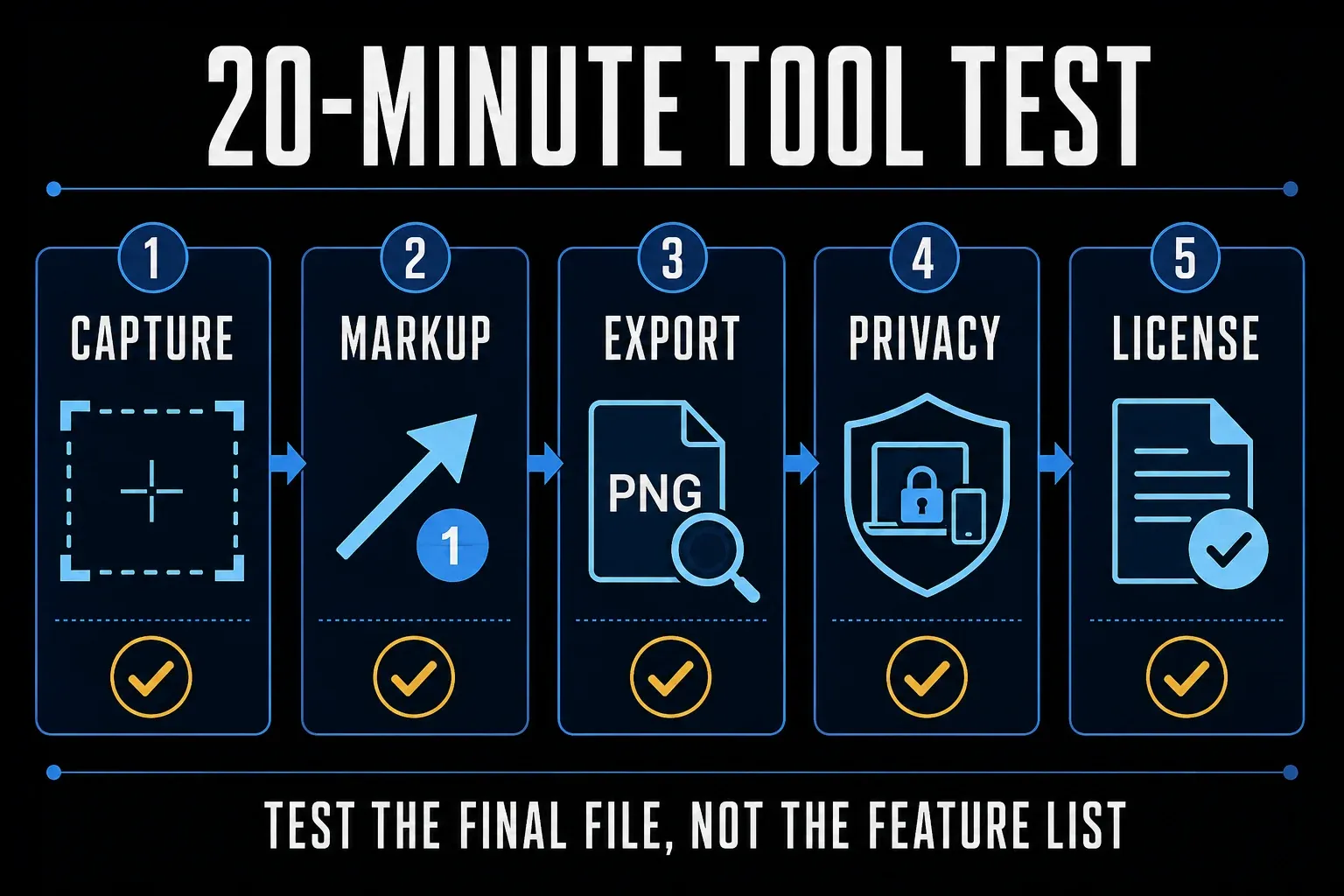
How to test a free screenshot tool in 20 minutes
- Capture safe examples of the tasks you actually do: a window, a selected region, and, if needed, a long webpage or a second monitor. Mark unsupported capture types as a limitation rather than trying to force every tool to do every job.
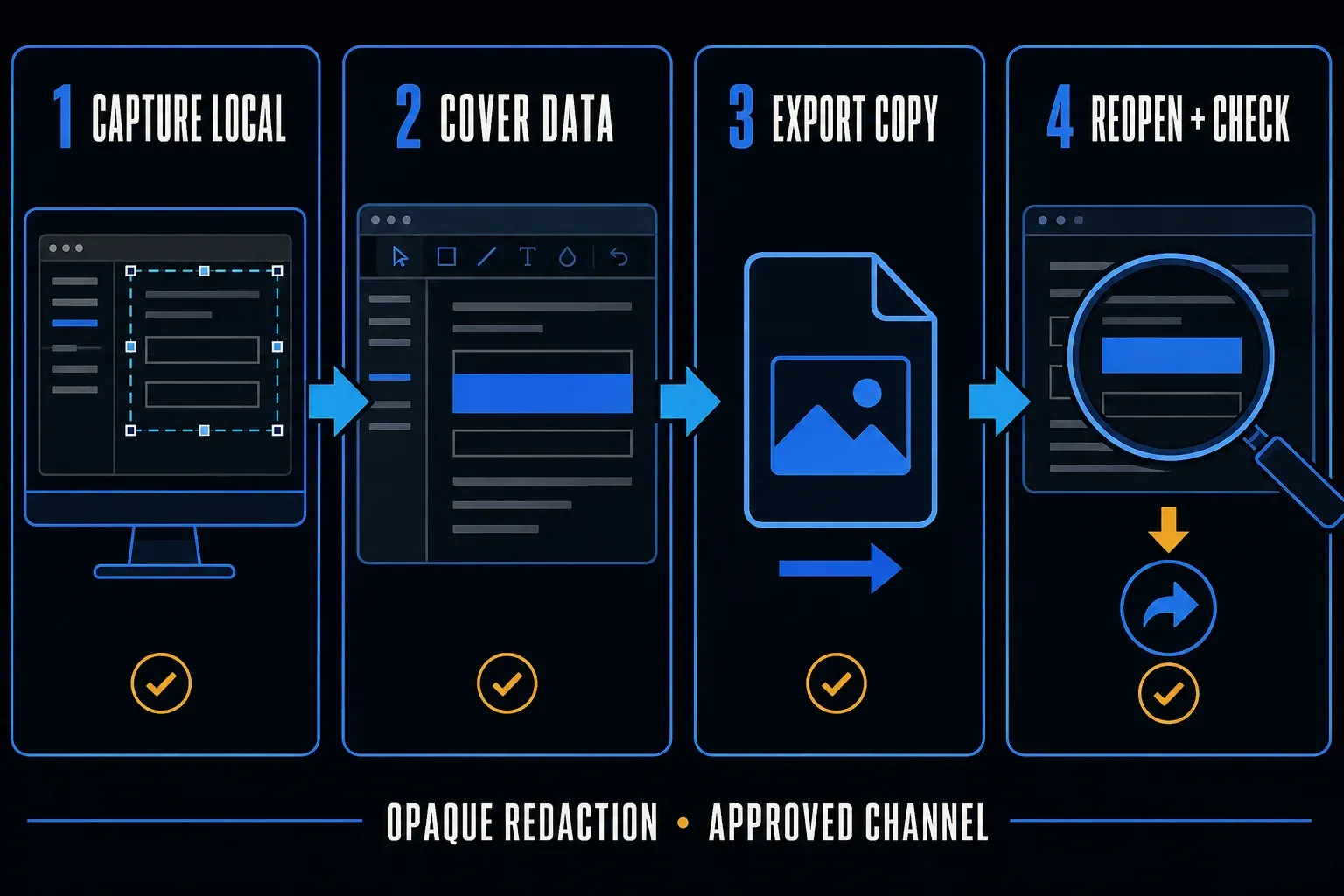
- Add the markup your work needs: an arrow, a text label, and a fully opaque block over dummy private data. Try numbered steps only if you need them.
- Export locally: start with PNG for interface text. Check any other format your workflow requires and confirm that the saved image has no unwanted watermark.
- Reopen the exported file in a different viewer. Check small text, missing sections, repeated headers, cursor placement, and that the privacy block completely covers the dummy text. Share that exported image, not an editable project containing the original data.
- Repeat one routine capture. Note the clicks needed to save it, whether the filename is useful, and whether the tool remembers your chosen folder.
- Review optional upload and sharing settings. Use a local folder outside any unwanted cloud-sync location, and keep test images free of real personal data.
- Confirm the license: check whether company, client, classroom, or commercial use is allowed for your exact edition.
Treat 20 minutes as a suggested timebox for these checks rather than a promised completion time, and start with dummy data. If a tool can't capture your usual window or save to an approved location, that matters more than an extra effect or border style.
Which free screenshot software should you choose?
For one-off captures, I'd start with the included Windows or Mac tool. Choose ShareX for a configurable Windows workflow, Greenshot for a separate Windows editor, Flameshot for region annotation on a supported system, and Spectacle for KDE Plasma. Use Chrome DevTools when the job is a full webpage.
Consider paid software when you can name a missing function that affects your work, such as a documentation template or a supported team workflow. The broader screenshot software comparison covers free and paid choices, and before you buy, make sure the exact paid edition includes that feature.
Free screenshot software FAQ
What is the best free screenshot software?
For Windows scrolling capture and configurable after-capture tasks, choose ShareX. For an occasional window or region, start with Windows Snipping Tool or macOS Screenshot. Flameshot suits region annotation on supported systems, while Spectacle fits KDE Plasma.
What free screenshot tool has no watermark?
Windows Snipping Tool, macOS Screenshot, ShareX, Flameshot, KDE Spectacle, and Chrome DevTools all save still screenshots without a forced watermark. Check the export and license of any other free-tier product before using it for work.
Is ShareX completely free?
Yes. ShareX is free and open source, has no advertisements, and does not require an account. Optional upload destinations can send files off the computer, so configure local save and review its after-capture tasks before handling private material.
What is the best free screenshot software for Mac?
Start with macOS Screenshot for screen, window, and region capture. Flameshot adds region annotation. Its v14.0.0 asset list exposes ARM64 and Intel DMGs, but the release notes say the Intel build was no longer included after beta binaries were reported as not working. Treat Intel compatibility as a verification item for the exact Mac and build. Use a browser-specific method for a full webpage; neither app is a general scrolling-capture solution for every Mac application.
What is the best free screenshot software for Linux?
Start with Spectacle on KDE Plasma. Flameshot is another option for region capture and annotation, but check compatibility with your desktop session and installed package. Linux distribution versions and Wayland integration can differ.
Can free screenshot software capture a scrolling page?
ShareX can perform scrolling capture on Windows, and Chrome DevTools can capture a full webpage. Long pages with lazy loading, sticky headers, or inner scroll panels may still fail, so inspect the complete exported image.
Is free screenshot software safe for confidential information?
It can be when you use local capture and save, but no tool removes the need for care. Hide unrelated content, disable uploads, cover private data with an opaque shape, export a flattened copy, reopen it, and share only through an approved channel.