
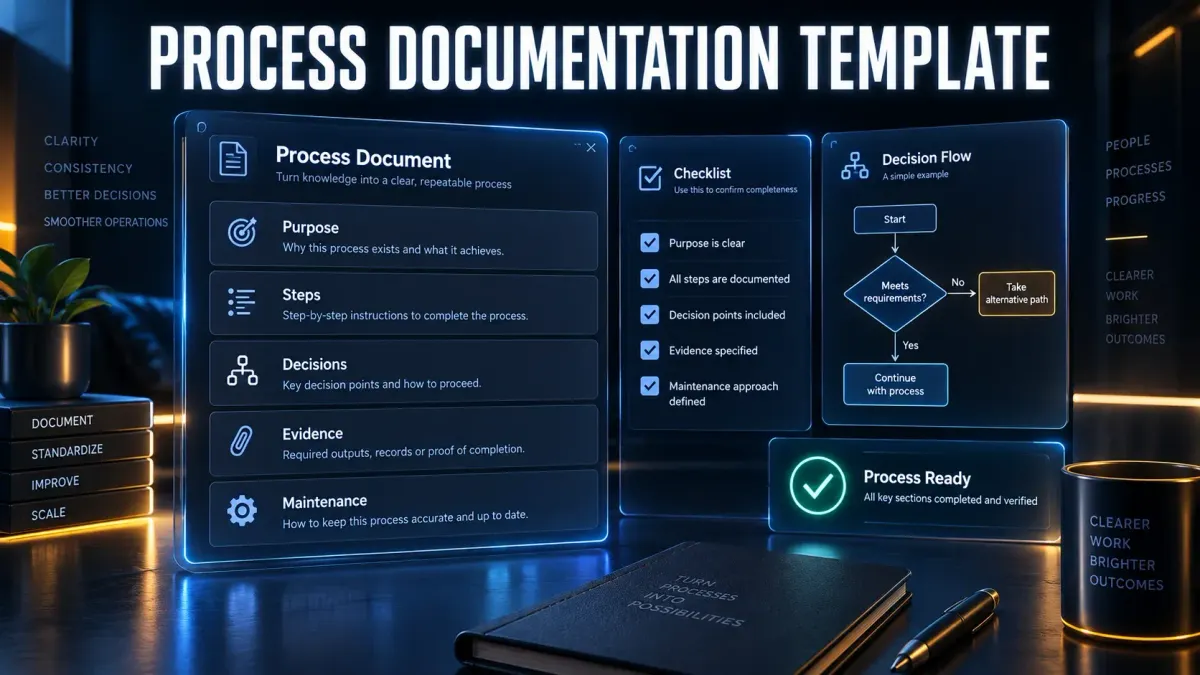
A useful process documentation template should tell a reader what starts the work, what result they must produce, which steps lead there, how to handle exceptions and how to prove the task is complete. Copy the short template below for a simple low-risk workflow. Use the full version when the process includes approvals, decisions, sensitive data, handoffs or records that must be retained.
This template works in Word, Google Docs, Notion, Confluence or a knowledge base. It is deliberately tool-neutral. The document should still make sense if you move it to another platform next year.
The filled example uses a fictional help-center update after a software interface changes. It illustrates the fields without claiming that a real product or team followed the process.
Short process documentation template
Use this version when one person completes a straightforward task, the normal route is stable and the consequences of an error are easy to reverse.
PROCESS NAME: [Verb + outcome]
PURPOSE: [Why this task exists]
START WHEN: [Request, event, or approved condition]
OWNER: [Accountable role]
FOR: [Role following these steps]

BEFORE YOU START
- Access or permission: [What is needed]
- Approved input: [Ticket, source, or request]
- Tool or environment: [Where the work happens]

STEPS
1. [Action using the visible control or field name]
   Expected: [Visible result]
2. [Next action]
   Expected: [Visible result]
3. [Final action]
   Complete when: [Observable outcome]

IF BLOCKED: [Safe retry, stop, or escalation route]
LAST REVIEWED: [Date]
REVIEW OWNER: [Role]
REVIEW WHEN: [Interface, policy, permission, or output changes]
If that feels too long for the task, the process may only need a checklist. If it feels too short, do not squeeze more rules into the steps. Move to the full template so decisions and evidence remain visible.
Full process documentation template
The full version is for software and business processes where a reader may face branches, approvals, sensitive information or a result that must be verified later.
1. Document control
| Field | Entry |
|---|---|
| Process name | [Specific task and outcome] |
| Document ID | [Optional controlled identifier] |
| Version | [Current approved version] |
| Status | Draft / In review / Approved / Retired |
| Owner | [Accountable role] |
| Reviewer or approver | [Role, if required] |
| Last reviewed | [Date] |
| Next planned review | [Date or interval] |
| Change triggers | [Events that require an earlier review] |
2. Purpose and boundaries
- Purpose: [Why the process exists.]
- Starts when: [Trigger or authorization.]
- Ends when: [Observable result and required record.]
- Included: [What this document covers.]
- Excluded: [Related tasks owned elsewhere.]
3. Audience, roles and handoffs
| Role | Responsibility | Handoff or escalation |
|---|---|---|
| [Role 1] | [What this role does] | [Who receives the next action] |
| [Role 2] | [What this role checks or approves] | [Where unresolved work goes] |
4. Prerequisites and inputs
- Access: [Application role, workspace and environment]
- Approved inputs: [Ticket, request, source content or data]
- Tools: [Applications, capture tools or templates]
- Training or policy: [Required knowledge]
- Do not proceed if: [Missing approval, wrong environment or unsafe condition]
5. Procedure
| Step | Action | Expected result | Evidence or record |
|---|---|---|---|
| 1 | [Where to go and what to do] | [What appears or changes] | [What to retain, if anything] |
| 2 | [Next action] | [Expected state] | [Record] |
| 3 | [Final action] | [Completion state] | [Final evidence] |
6. Decisions and exceptions
| Condition | Action | Stop or escalate when | Evidence |
|---|---|---|---|
| [Normal condition] | [Continue route] | [Limit] | [Record] |
| [Known exception] | [Alternative route] | [Unsafe or unauthorized condition] | [Record] |
7. Verification
- Check: [What a reviewer or operator inspects.]
- Pass condition: [Observable state that confirms completion.]
- Failure response: [Correct, revert, retry or escalate.]
8. Screenshots and visual evidence
For each visual, record its purpose rather than its file name.
| Visual | Purpose | Safe-data check | Replacement trigger |
|---|---|---|---|
| [Image 1] | [Orient the reader or locate a control] | [Private values removed] | [Control moves or label changes] |
| [Image 2] | [Show the expected result] | [Synthetic account or redaction verified] | [Result state changes] |
9. Recovery and escalation
- Safe retry: [When the action can be repeated.]
- Rollback or correction: [How to reverse an incorrect result.]
- Escalate to: [Role and channel.]
- Include with escalation: [Error text, record ID, timestamp and approved screenshot.]
10. Related documents
Link only to material the reader needs at the relevant step: policy, glossary, access request, troubleshooting guide or the owner document for a separate outcome. Avoid turning this section into a dumping ground for every document that mentions the same product.
Which fields should you keep?
The template is a menu, not a form that must be completed in full. Keep a field when it changes how safely or consistently the reader can finish the task.
| Process characteristic | Fields to keep |
|---|---|
| Simple and reversible | Purpose, trigger, prerequisites, steps, expected result and owner |
| Several valid routes | Decisions, conditions and route-specific completion checks |
| Approval required | Approver, authorization trigger, stop conditions and retained evidence |
| Sensitive data visible | Safe-data rules, redaction check and access limits |
| Several teams involved | Role table, handoffs, escalation and ownership boundaries |
| Irreversible or costly action | Warning, pre-action confirmation, rollback limits and approval evidence |
| Interface changes often | Screenshot purpose, replacement triggers and shorter review interval |
| Regulated or audited workflow | Version, approval, retained record, review history and applicable policy |
A field that always contains “N/A” may not belong in that process. A missing field that repeatedly forces readers to ask the same question does.
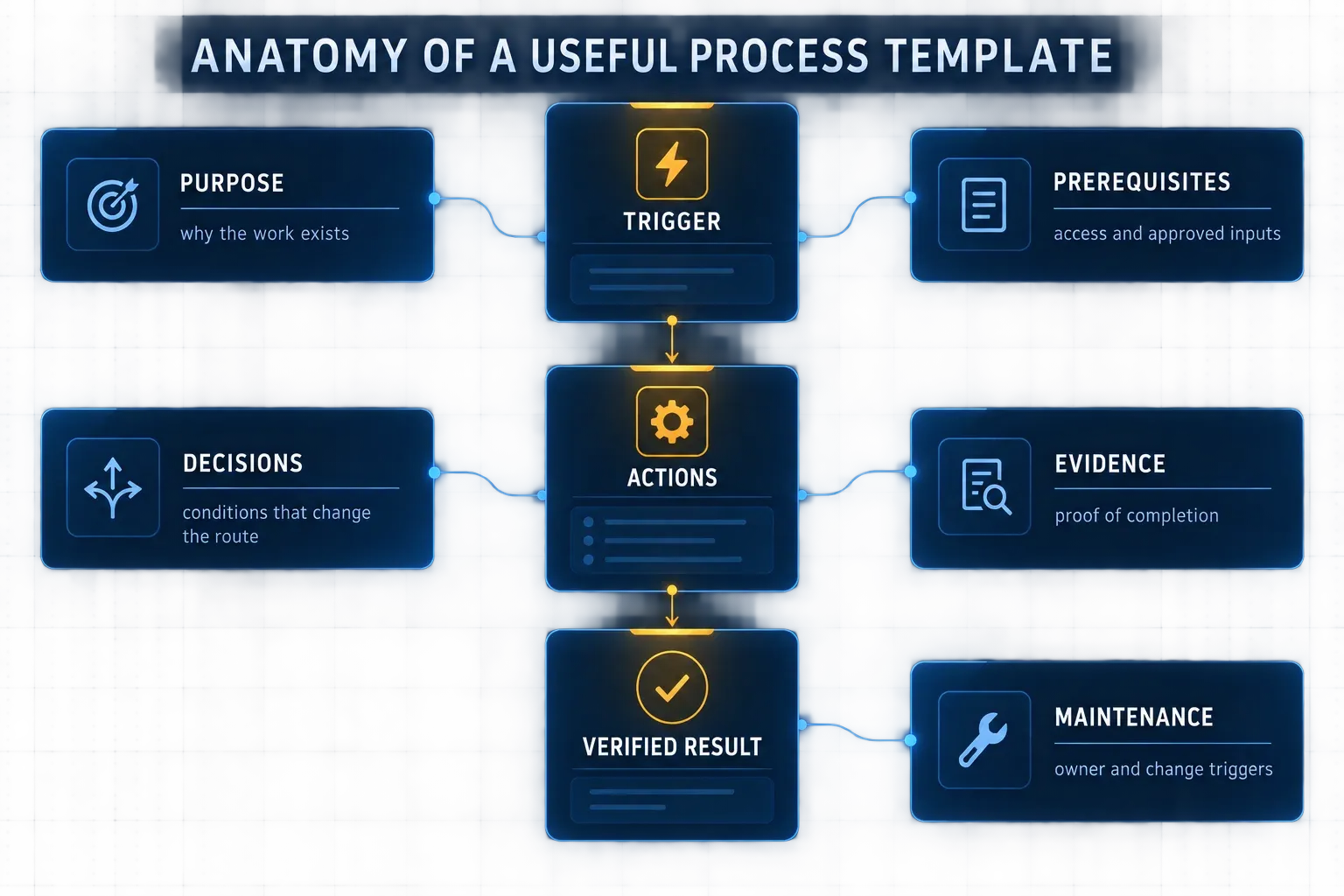
How to write steps readers can follow
Write each step as an action, then attach the result that proves the action worked. Microsoft’s guidance for writing step-by-step instructions recommends direct imperative wording, necessary location context and a clear finish. That produces a stronger instruction than narrating the screen.
Weak:
You will see a button for saving the changes.
Better:
Select Save changes.
Expected: The page shows Published, and the revised article appears at its public URL.
Use the wording that appears in the interface. The Microsoft guidance for describing user-interface interactions is a useful reference for consistent verbs and control names. If the product says Publish update, do not call the same control Save in one step and Submit in another.
Do not bury decisions inside long paragraphs. Put the condition before the branch:
If the article contains a legal or pricing claim: return it to the assigned reviewer before publishing.
The reader should know whether they can continue before they reach the irreversible action.
Filled example: update a help-center article after an interface change
The names and states below are fictional. The example shows how a completed process document should connect the request, the screen change and the release check.
Document control
| Field | Example |
|---|---|
| Process name | Update an approved help-center article after an interface change |
| Status | Approved example |
| Owner | Help Center Manager |
| Audience | Product Support Editor |
| Reviewer | Feature Owner |
| Change triggers | Navigation label, control location, permission rule or published result changes |
Purpose and endpoint
Update one help-center article so its instructions and visuals match the approved product interface.
The process starts when the feature owner confirms the production change and identifies affected help content. It ends when the revised article is published, its links and images are checked at the public URL, and the update record contains the article URL and publication time.
Prerequisites
- approved change notice with the new interface labels;
- editor access to the help center;
- approved reference interface or current product specification;
- article owner identified;
- synthetic data available for any instructional visual;
- reviewer available for claims that affect permissions, billing or data handling.
Procedure
| Step | Action | Expected result | Evidence |
|---|---|---|---|
| 1 | Open the change notice and list the affected labels, screens and outcomes. | The scope contains only confirmed changes. | Change notice ID |
| 2 | Open the current article and mark every affected instruction, image, alt text and caption. | Each changed interface reference has an owner action. | Editing checklist |
| 3 | Replace the affected wording with the exact visible labels. Keep the original outcome and policy unless the change notice modifies them. | The draft names the current controls without changing unrelated rules. | Draft revision |
| 4 | Create or update only the visuals needed to locate the changed control or confirm the new state. | Private information is absent, and the target remains readable at published size. | Approved image files |
| 5 | Submit the draft to the feature owner. | The reviewer confirms the route, labels, expected result and exceptions. | Review approval |
| 6 | Publish the revision and open the public URL in a new session. | The article loads with the correct text, images and links. | URL and publication timestamp |
| 7 | Record the article URL and close the change item. | The update is traceable to the approved change. | Completed change record |
Decisions and exceptions
| Condition | Action | Stop or escalate when |
|---|---|---|
| Only a control label changed | Update the affected text and visual | The new label conflicts with the approved terminology |
| The route or permission changed | Rewrite the affected sequence and send it for review | The owner has not approved the new route |
| A screenshot contains real account data | Replace it with synthetic data or apply verified redaction | The original values remain recoverable or visible |
| The public article differs from the saved draft | Do not close the change item; investigate cache, rendering or publication state | The mismatch cannot be explained and corrected |
Verification
The editor checks the published URL on desktop and mobile, follows every affected internal link, confirms that visuals are readable, and compares the public wording with the approved interface labels. The article passes when the public version matches the approved route and no private values appear in the image, alt text, caption, file name or linked source.
This verification checks the documentation release. It does not claim that the underlying software feature was independently tested.
Screenshot rules for a process template
Screenshots should resolve a specific uncertainty. Use one to orient the reader, locate a difficult control, show a decision state or confirm an important result. Keep rules, values and exceptions in real text.
Before adding an image, complete four fields:
- Purpose: What question does the image answer?
- Scope: Which part of the interface must remain visible?
- Safe-data check: Which values, names, tabs, notifications or identifiers must be removed?
- Replacement trigger: What interface change makes the image stale?
Use one clear annotation for the next action. Multiple arrows, boxes and labels compete with the interface. The guide to annotating a screenshot covers target emphasis without hiding the control itself.
If private information is present, removing it is part of the process, not a final cosmetic pass. Follow a controlled screenshot redaction workflow and inspect the exported file as well as the editing canvas.
Alt text depends on what the visual contributes beside the surrounding instructions. The W3C alt decision tree distinguishes informative images from decorative ones. For a screenshot that helps the reader find a control, useful alt text might be:
Article editor with the Publish update button in the upper-right corner and the revision status shown beside the title.
“Screenshot of editor” names the format but leaves out the useful information. If nearby text already communicates everything the image contains, empty alt text may be the better choice.
Word, Google Docs or a knowledge base?
The fields stay the same; presentation and control differ.
Word
Use heading styles, real tables and automatic lists. Keep the editable source in an approved location, then export a PDF only when the audience needs a fixed copy. A PDF should not become a second uncontrolled version.
Google Docs
Use the document outline, suggestion mode and named version history. Restrict editing to accountable roles and give readers a stable link to the approved version rather than circulating downloads.
Knowledge base
Use one article for one outcome, searchable labels and inline related links at the step where readers need them. A knowledge base is usually easier to update than a file, but it still needs an owner and review triggers.
If you are still choosing a platform, separate that decision from the document itself. The comparison of process documentation software focuses on storage, approvals, capture, maintenance and reader access. The template should remain portable.
Optional capture workflow
You can write the template from observation notes and individual captures. For repetitive software walkthroughs, a capture sequence can speed up the first draft.
Treat captured actions as raw material. A recorder does not know whether the operator had approval, whether a duplicate record should stop the process or which evidence must be retained. Add those rules to the template before release. The automatic SOP generator guide explains where recorded guides save time and where editorial review remains necessary.
When your procedure needs screenshots, place each useful image beside the action it explains and keep the instructions in editable text. The guide to creating an SOP with screenshots covers capture, annotation, privacy checks and reader validation.
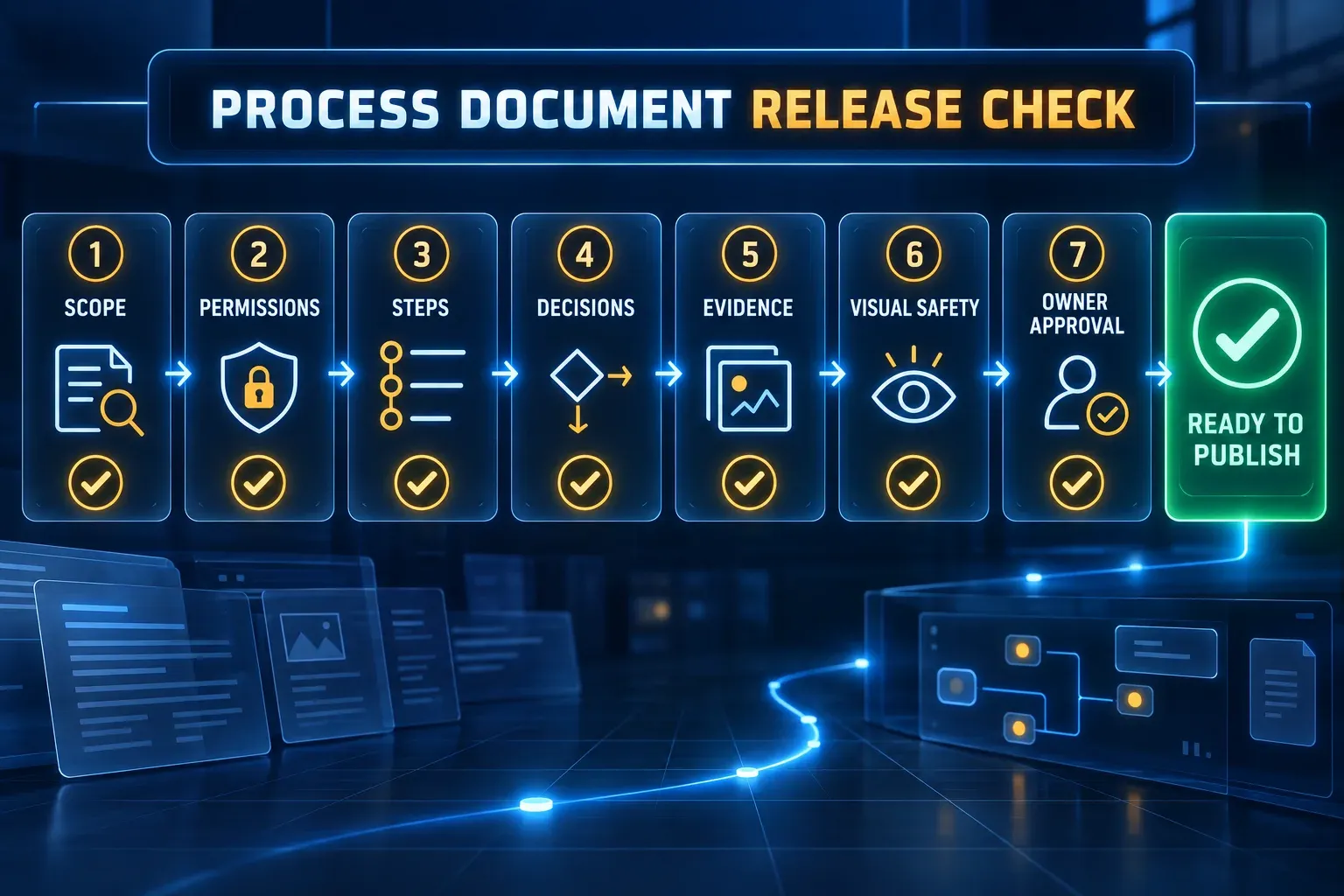
Release checklist
Before approving the document, confirm all of the following:
- the title describes one outcome;
- the trigger authorizes the reader to begin;
- the endpoint is observable;
- the intended audience has the stated permissions;
- prerequisites are available before step 1;
- steps use current visible labels and direct actions;
- important actions include expected results;
- decisions and known exceptions have explicit routes;
- stop conditions appear before risky actions;
- required evidence is named and stored in an approved place;
- screenshots use safe data and remain readable at published size;
- alt text communicates the visual’s purpose without exposing private values;
- recovery and escalation instructions name the responsible role;
- a representative reader can complete the affected route without coaching;
- the accountable owner confirms the procedure;
- the approved version, owner and change triggers are visible;
- the final published copy matches the approved source.
Do not wait for a perfect documentation system before using the template. Copy the smallest version that fits the risk, fill it with the approved route, then test the document with the role expected to use it. The value is not in having every field. It is in making the next correct action clear and the completed result visible.