
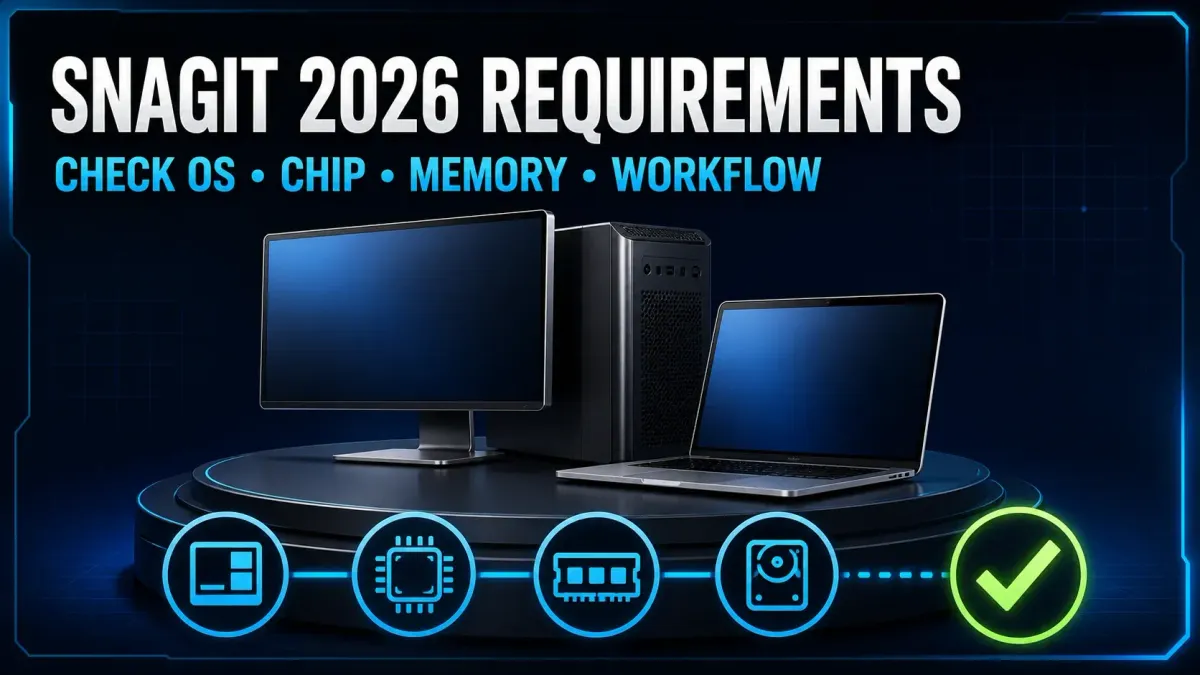
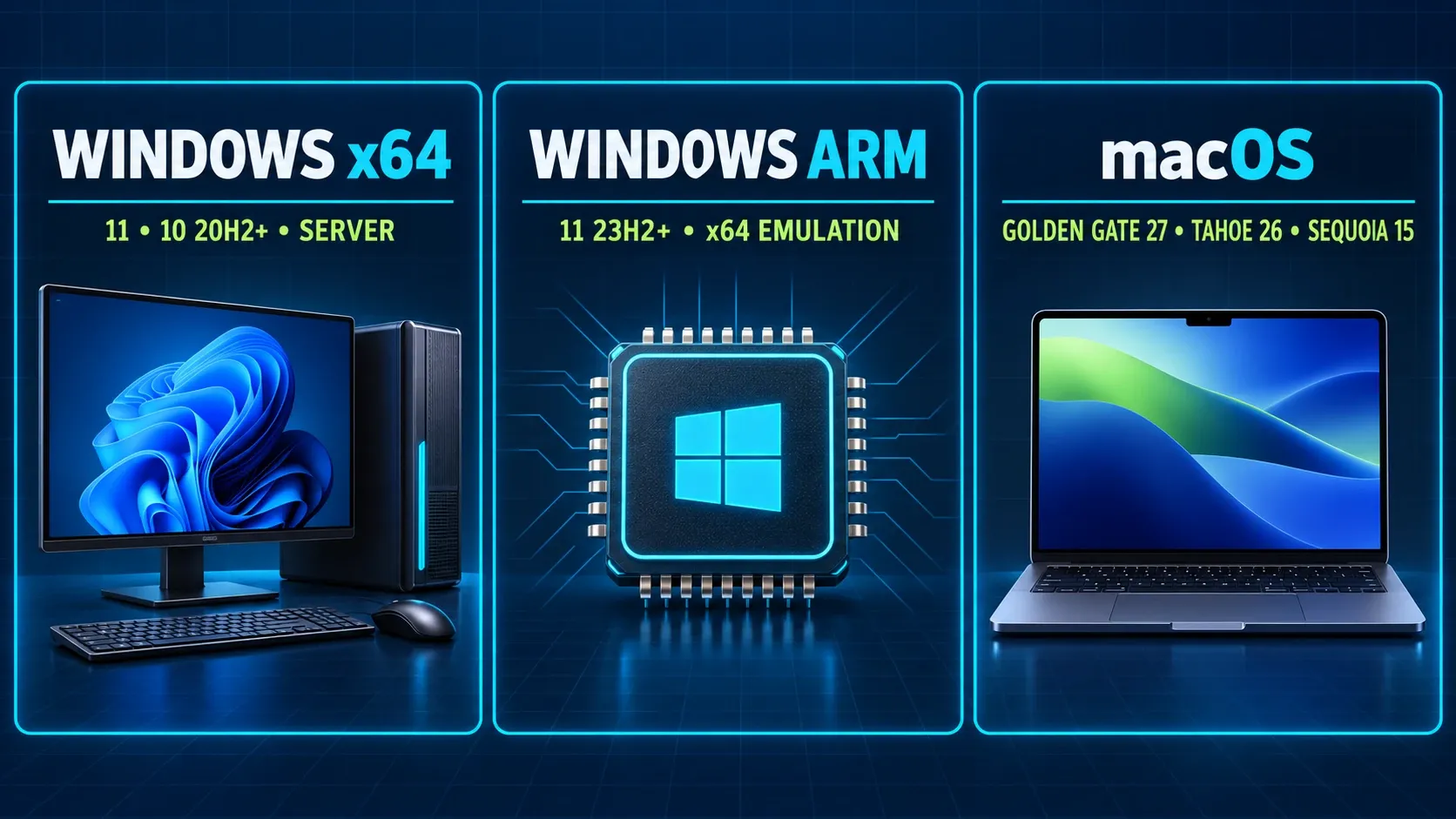
Snagit 2026 supports 64-bit Windows 11, Windows 10 20H2 or later, and Windows 11 on ARM 23H2 or later. Server 2016 and 2019 are listed; Server 2022 needs Snagit 2026.1.1 or newer. On Mac, the supported releases are Golden Gate 27, Tahoe 26, and Sequoia 15. The Windows baseline is an Intel i5 sixth-generation CPU or AMD equivalent, with 8 GB RAM recommended and 1.6 GB for installation. Video requires Intel eighth generation or Ryzen 2000 series or newer.
Snagit 2026 requirements at a glance
| Area | Current published requirement | Important limit |
|---|---|---|
| Windows x64 | 64-bit Windows 11; Windows 10 20H2+; Server 2016, 2019, or 2022 | Server 2022 needs Snagit 2026.1.1+; Windows N needs Media Feature Pack |
| Windows ARM | Windows 11 ARM 23H2+ | x64 emulation; Snagit Printer unavailable |
| Windows CPU | Intel i5 6th gen or AMD equivalent | Video needs Intel 8th gen+ or Ryzen 2000+ |
| Windows memory | 8 GB RAM recommended | Recommendation is not a workload guarantee |
| Windows storage | 1.6 GB for program installation | Library, video, exports, and backups need more |
| macOS | Golden Gate 27, Tahoe 26, or Sequoia 15 | Snagit 2026 does not support Sonoma 14 |
Windows also requires .NET Framework 4.7.2 or later and the Microsoft Edge WebView2 Runtime, which TechSmith includes with the installer. Those are compatibility requirements, and they don't promise smooth recording or capture at every resolution. The Mac section doesn't publish separate RAM or installation-space figures, so don't treat the Windows numbers as Mac specifications.
When your device falls outside the table, pick a supported Snagit and OS combination before you install anything. That might mean an older compatible release, an OS update your organization approves, or another device. The Snagit install and update guide explains how your subscription or perpetual key affects which installer you can activate.
Resolve conflicting requirements before choosing a build
The main matrix above comes from the live Snagit requirements page. A separate support summary dated December 5, 2025 still lists ARM 22H2, Windows 10 1903 and Sonoma, and search snippets can keep showing those older values too. They don't override the release-specific requirements.
Read the current matrix together with the release history and the exact OS compatibility row. The Windows table, for example, adds a minimum Snagit build for Server 2022, while the Mac 2026 notes explicitly exclude Sonoma. Don't mix and match the least restrictive values from different pages. For a deployment decision, write down the source URLs and the date you checked them.
Windows 11, Windows 10, and Windows Server
On a new Windows workstation, go with a supported Windows 11 release if your hardware and organization allow it. Snagit lists Windows 10 20H2 or later, but that doesn't extend Windows security support. Microsoft's Windows release-health page records the end of ordinary Windows 10 support on October 14, 2025, and ESU enrollment and LTSC editions follow their own lifecycle rules.
Server compatibility doesn't tell you whether there's capacity for Remote Desktop Services, Citrix or another shared environment. Check the virtualization documentation that fits your setup, then test concurrent users, resolution, profile storage, Library location, security software and sharing. Do not estimate a validated server design by multiplying the single-user 8 GB recommendation by the number of sessions.
The Windows compatibility table maps older Windows releases to Snagit branches and specifies Snagit 2026.1.1 or later for Server 2022. Alongside that table, check the current major's requirements and your activation entitlement. An older row marked "or later" doesn't let you ignore a newer release's restrictions.
Windows ARM is supported through emulation
TechSmith's ARM compatibility note describes x64 emulation rather than a native Windows ARM build. The current requirements set Windows 11 ARM 23H2 as the OS minimum, and Snagit Printer isn't available on ARM.
Test the region capture, scrolling, OCR, audio, video and sharing tasks you need on the exact ARM device. Compatibility on its own doesn't guarantee performance on every model. If you can't work without Snagit Printer, use a supported x64 system.
Windows N needs media components
On Windows N, Snagit installation can fail until the required media components are present. TechSmith's Media Feature Pack instructions call for the pack that matches your Windows edition. Save your work, install the pack the way your organization approves, restart, and then retry the installation or the recording that failed. On a managed device, ask IT to make the change.
A missing media pack and a wrong microphone are two different failures. If image capture works while audio or video fails, note the Windows edition and installed optional features first. Then walk through the Snagit audio troubleshooting workflow to separate system components, device selection, permissions, and application conflicts.
Windows hardware baseline and video requirement
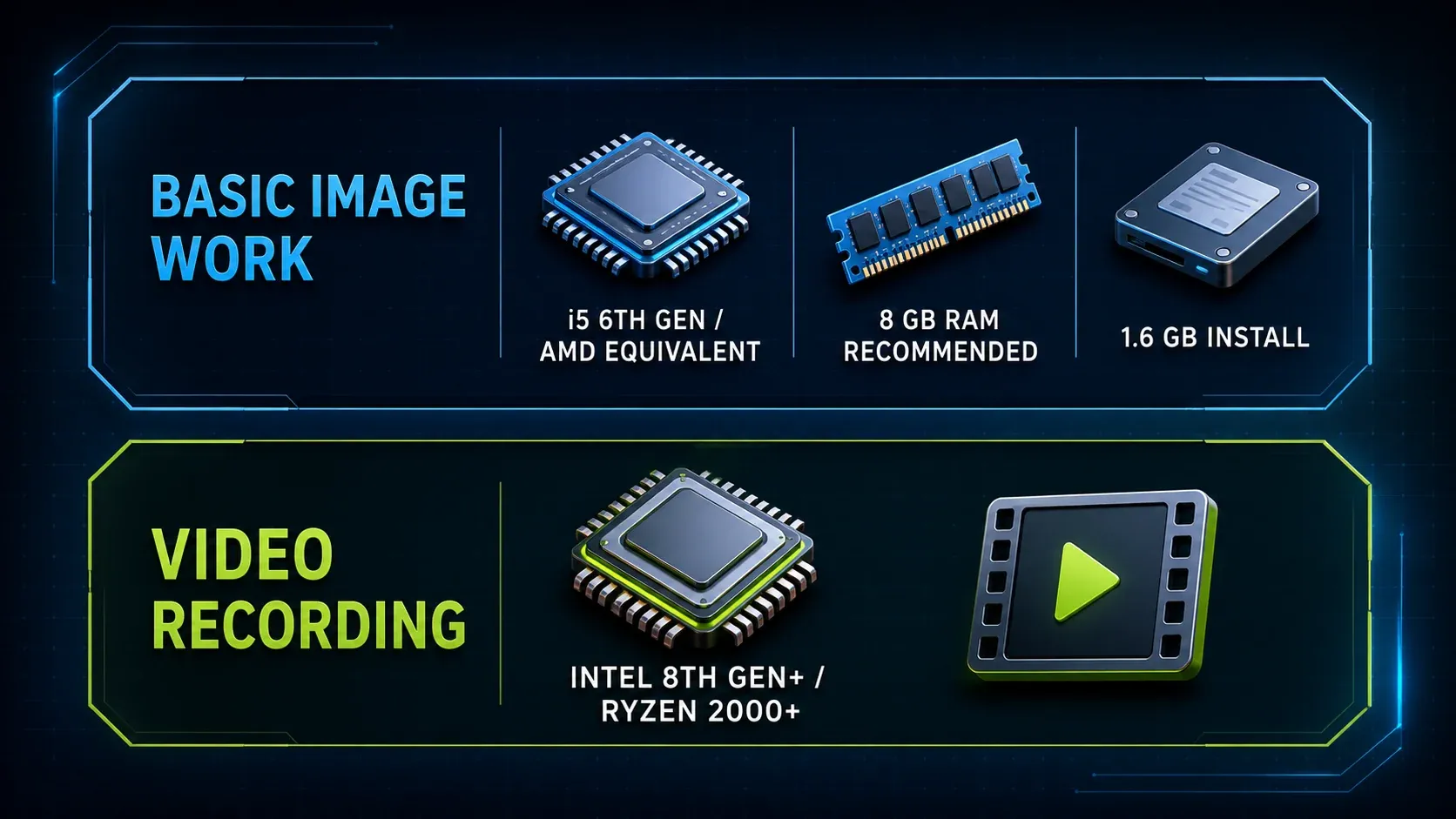
On Windows, the CPU requirement treats image work and video differently. An Intel i5 sixth-generation processor or AMD equivalent meets the published general baseline, but recording calls for Intel eighth generation or newer, or Ryzen 2000 series or newer. So a machine can meet the image requirement and still miss the video one.
The 8 GB RAM recommendation applies to Windows. Set it against the memory your browser, meetings, security software and open Editor files use on a normal workday. More memory may help when capacity is the bottleneck, but it doesn't fix every capture error.
macOS Golden Gate, Tahoe, Sequoia, Sonoma, and Apple silicon
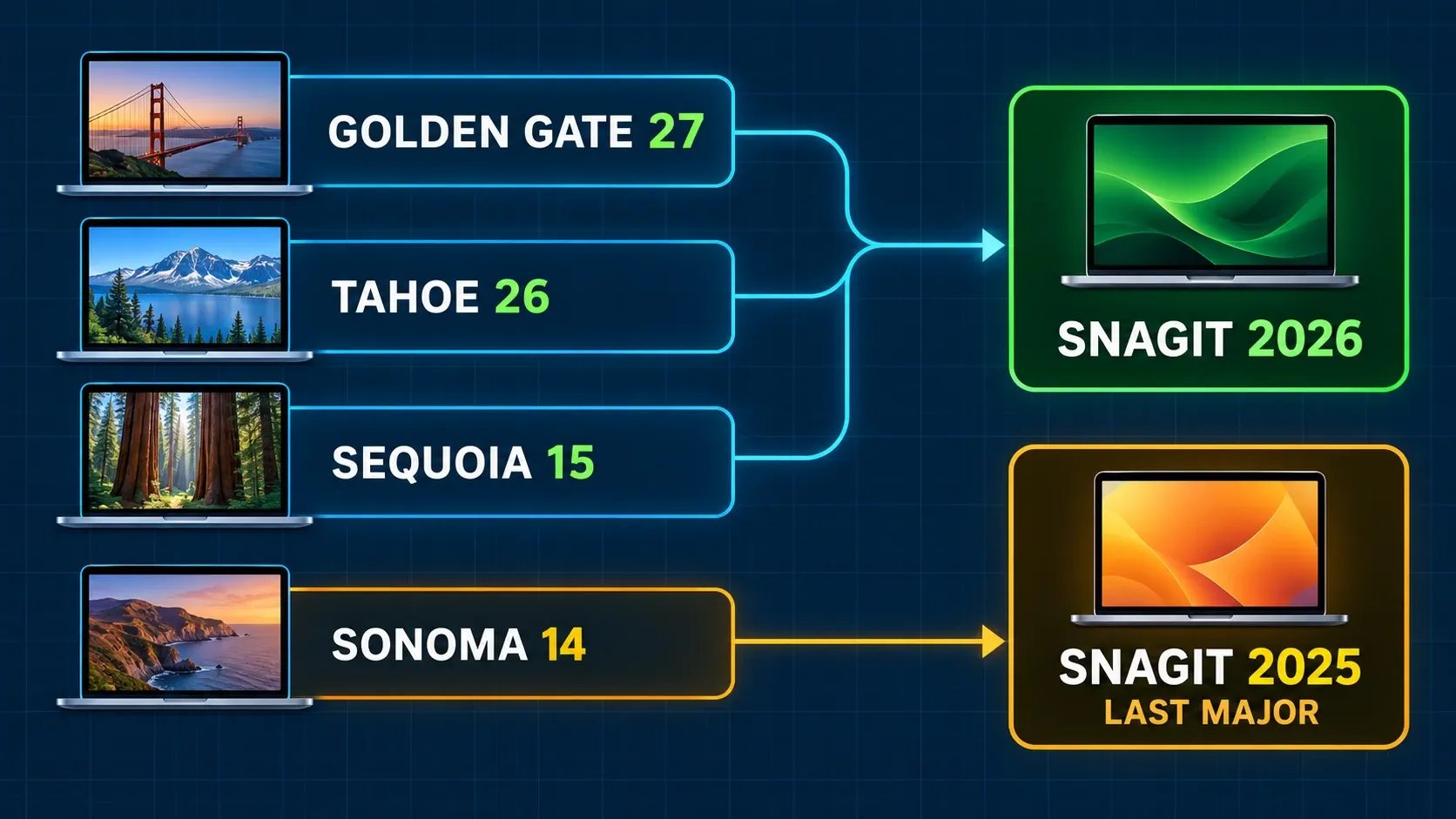
The live page lists Golden Gate 27, Tahoe 26, and Sequoia 15 for Snagit 2026. The Mac 2026 version history says Sonoma 14 is not supported, and it names Snagit 2025 as the last major release for Sonoma. So a Mac limited to Sonoma needs a compatible 2025 build, not the 2026 installer.
For older combinations, use the macOS compatibility table, and check the exact Snagit build, macOS release and activation entitlement each on its own. The Snagit for Mac guide walks through the capture and editing workflow on that platform.
TechSmith documents Snagit Mac 2021.3.0 and later as a Universal application, with native Apple silicon support. An Intel Mac must still natively support the required macOS version.
TechSmith doesn't support Macs patched with third-party software to run an OS their hardware doesn't natively support. Its unsupported Mac environments note lists possible capture, video, system-audio and Editor-color failures, and a successful launch doesn't make that configuration supported.
Give Snagit the Mac permissions your task needs. Screen capture, microphone narration and camera recording each need different permissions, so don't approve unrelated access. Work from the Snagit Mac permissions checklist, and restart when the approval prompt asks you to.
Installation space is not Library capacity
The 1.6 GB figure covers Windows program installation and nothing else. It doesn't include the Snagit Library, editable SNAGX files, scrolling captures, GIFs, videos, exports, backups, or temporary working space. A short image workflow and daily screen recording produce very different storage needs.
Track how much your Library grows over a representative week, and keep room for your largest source file, recordings, backup and restore work. Treat the result as a planning estimate rather than a fixed capacity guarantee, and leave the OS enough free space for updates and temporary files. The Library backup guide covers supported locations and recovery.
High-DPI and multi-monitor work needs a real test
TechSmith's Windows capture-performance guidance describes two to three 1080p monitors, or up to two 4K monitors at 60 Hz or below. That isn't a guarantee for every combination of GPU, dock, HDR and scaling settings, so make your display setup part of the test.
Capture each display and make a short test recording, then look at the dimensions, text, colors, cursor position and whether you got the intended audio. If selection, mixed scaling, slow crosshairs or HDR output fails, note which setup fails before you change any settings, and use the multi-monitor capture checks to investigate one condition at a time.
Translate the matrix into your workflow
Occasional screenshots and light markup
Try an ordinary work session with your browser, meeting software and security tools open, then capture a typical region, add the notes you need and save it. That tells you more about your real workload than launching Snagit on an otherwise empty desktop.
Open the export at its intended destination size and look closely at the text. A successful launch tells you nothing about capture selection or output scaling. For the basic sequence, follow the capture, edit and share tutorial.
Documentation with long captures and editable sources
Long captures, open SNAGX sources, templates, OCR, and a growing Library all ask for more memory and storage, and the 1.6 GB installation number doesn't plan for any of that. Capture a typical long page and add your notes. Save the editable source, export the final image, and measure how much the Library and backup grew.
Build version history and restore space into your storage plan. Pick a Library location that's supported for your Snagit release, and test its backup procedure. Do not assume an arbitrary network or cloud-synced folder behaves like local storage.
Screen recording on high-resolution displays
Start with the video CPU requirement, then test the region, resolution, duration and audio sources you plan to use. You could record five to ten minutes of typical material, for example, and play back the whole clip to check audio sync and image quality. If the job runs longer, make the test longer too.
A faster processor doesn't fix missing media components, denied permissions or every application conflict. Before you buy hardware or reinstall, write down the exact task that failed and the error it showed. Keep private content out of any diagnostic samples.
Managed Windows or Mac rollout
A managed rollout means validating the installer, license, activation route, proxy rules, update policy, account permissions, security controls, Library location and sharing destinations. Before you deploy widely, make sure you know how to restore the previous approved configuration.
Run a small pilot with the same user permissions and policies production will use, because a test run as a local administrator can hide permission and storage failures that a standard employee would hit. Write down the approved Snagit build and operating-system build, so you can compare a later update against a known working state.
Internet, activation, and unsupported platforms
TechSmith's deployment guidance says subscription applications normally need internet access for activation and at least every 90 days to verify the license. Cloud features also need connectivity. Documented Business and offline configurations have separate conditions and do not automatically promise unlimited disconnected use. The offline activation guide explains those routes.
Linux and ChromeOS aren't listed as supported Snagit desktop platforms. TechSmith does document some Windows virtualization routes, but that doesn't cover every virtual machine or compatibility layer, so use the deployment guide for your environment. For release-specific changes, see the Snagit 2026 update guide.
Compatibility preflight
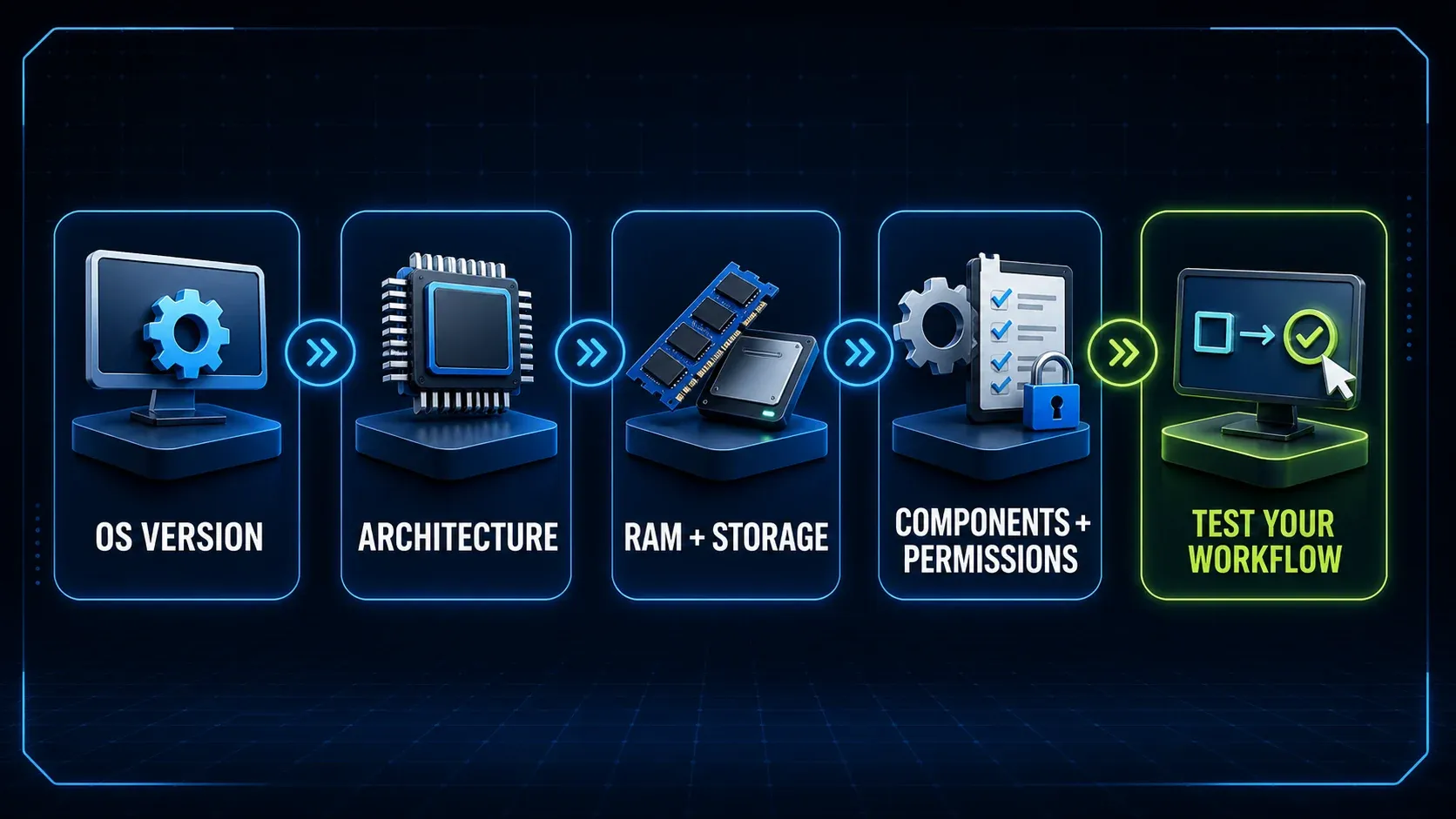
Record the exact operating system
Write down the edition, version, and build. A name such as Windows 11 or macOS alone is not enough for an ARM or old-version decision.
Confirm the processor architecture
Separate Windows x64, Windows ARM, Intel Mac, and Apple silicon before checking feature limits or deployment packages.
Check hardware and free space
Compare the published processor, memory, and installation figures, then allow separate capacity for the Library, recordings, and active applications.
Verify components and permissions
Check Windows media components or Mac privacy permissions before treating a failed capture as a hardware problem.
Test the real workflow
Run each task on the exact device before a purchase or team rollout. Include region and scrolling capture, audio, video, displays, storage, and sharing.
On a personal computer, start with a typical image, scrolling capture and short recording. For a team, repeat the preflight with the production package, standard-user permissions, network rules, Library path and sharing destinations. Save the results so you can compare them after an update.
Snagit 2026 system requirements FAQ
Does Snagit 2026 work on Windows 11?
Yes. TechSmith lists 64-bit Windows 11. Windows 11 on ARM needs version 23H2 or later, runs Snagit through x64 emulation, and does not support the Snagit Printer.
Does Snagit 2026 still work on Windows 10?
TechSmith's live requirements page lists 64-bit Windows 10 20H2 or later. That is application compatibility, not a Windows lifecycle recommendation. Ordinary Windows 10 support ended on October 14, 2025; ESU and LTSC have separate rules.
Which macOS versions support Snagit 2026?
TechSmith's live page lists macOS Golden Gate 27, Tahoe 26, and Sequoia 15. The Snagit Mac 2026 release history says Sonoma 14 is not supported and Snagit 2025 is the last major release for Sonoma.
How much RAM does Snagit 2026 need?
TechSmith recommends 8 GB of RAM on Windows. It does not promise that 8 GB will be comfortable for long scrolling captures, large Libraries, high-resolution video, and heavy multitasking. Test the actual workload.
Can Snagit run on an Apple silicon Mac?
Yes. TechSmith says Snagit Mac 2021.3.0 and later is a Universal application with native Apple silicon support. The Mac must also run a macOS version supported by the Snagit release.
Can Snagit run on Linux or Chromebook?
TechSmith does not list Linux or ChromeOS as supported desktop platforms for Snagit. A virtual machine or compatibility layer does not become a supported configuration unless TechSmith documents it.
Does Snagit need an internet connection?
Subscription applications normally need internet access for activation and license verification at least every 90 days. Cloud features also need connectivity. TechSmith documents separate Business and offline configurations; check their conditions rather than assuming unlimited offline use.
Is 1.6 GB of free space enough for Snagit?
The 1.6 GB figure is for Windows program installation. Your Snagit Library, editable SNAGX files, scrolling captures, GIFs, videos, exports, backups, and temporary working space require additional storage.