
Open Snagit > Settings > Capture > Fix Capture Permissions, then check the permission for the task that fails. Screen capture, microphone, camera and automatic scrolling each have their own control. When a capture comes out blank or a recording silent, check access first; if it’s already on, the sections below cover the other causes. Save unfinished work before you restart Snagit.
Permission labels change between macOS versions, and a few steps below apply only to older Snagit branches, so note your macOS and Snagit versions before you start.
Match the symptom to the permission
Start with the one capability that failed, and leave unrelated permissions as they are. After each change, run a harmless local test.
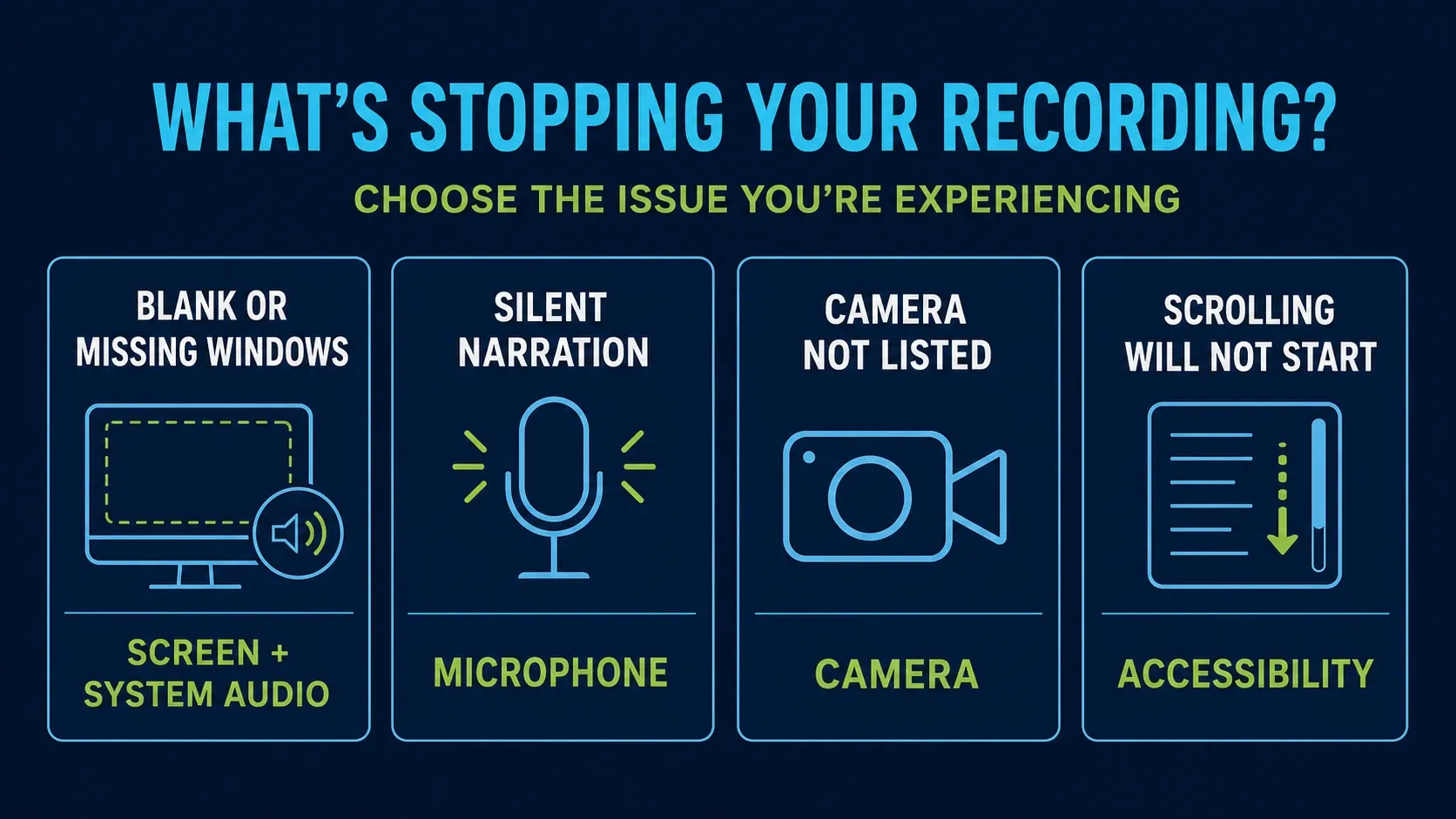
| Symptom | Check | Test |
|---|---|---|
| Blank or missing window content | Screen & System Audio Recording | Capture a plain local text window |
| Computer sound missing | Screen & System Audio Recording, plus Snagit’s system-audio switch | Record local playback with microphone off |
| Your voice missing | Microphone, selected input and recording switch | Record one spoken sentence |
| Webcam missing | Camera, selected device and compatibility | Preview or record the intended camera |
| Automatic scrolling will not start | Accessibility for Snagit and SnagitHelper | Try a simple scrollable page |
| Permission locked or reverting | Possible device-management restriction | Ask IT to check the installed app and policy |
Keep protected video, customer records and confidential dashboards out of your tests. A passing test covers the task you tried, so test each capability you rely on.
Start with the built-in permission check
Save your open captures and stop any recording first. On a managed Mac, follow your organization’s access policy and leave locked controls alone.
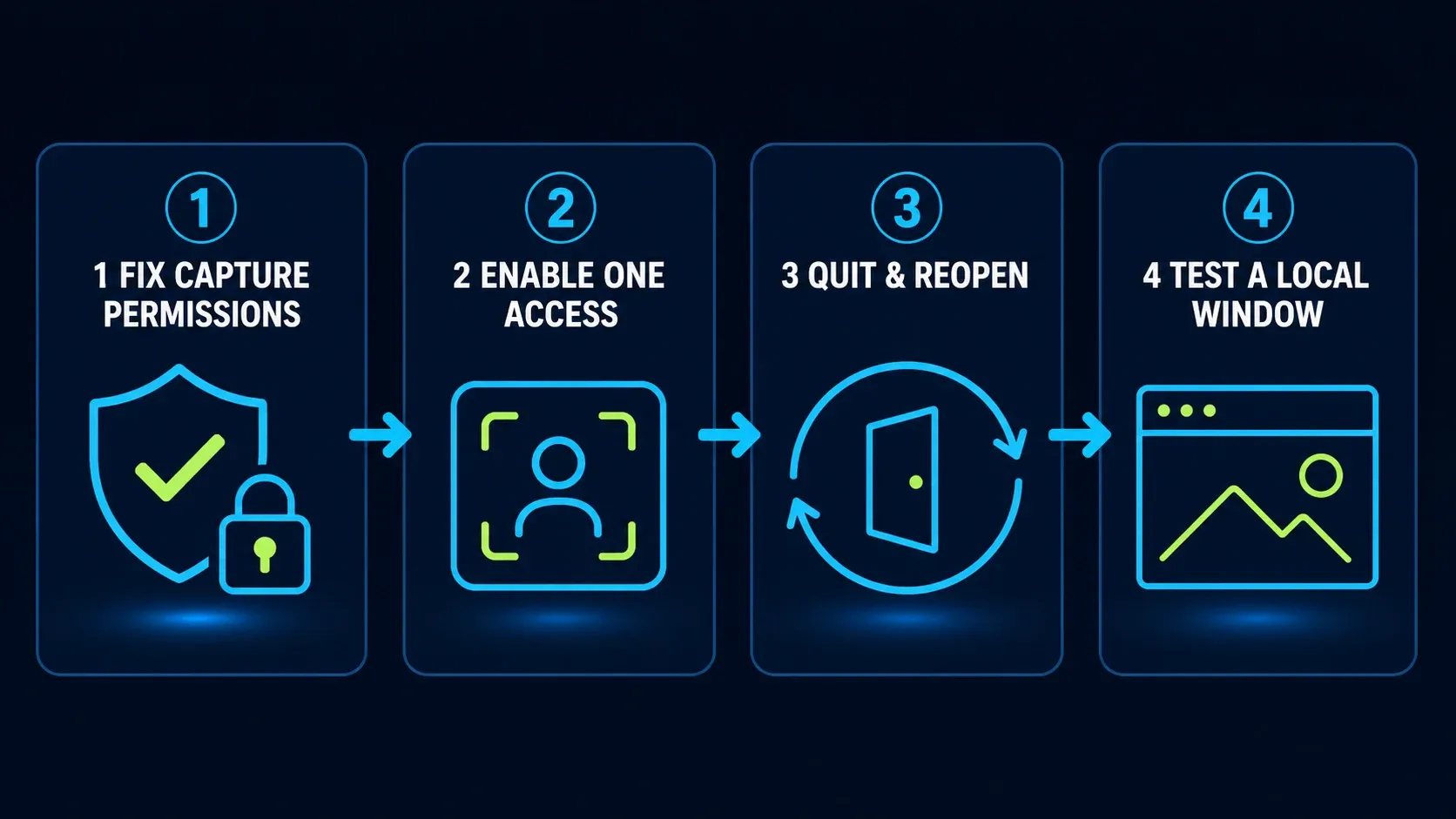
- Open Snagit and choose Snagit > Settings > Capture.
- Select Fix Capture Permissions.
- Select Enable or Edit System Permissions for the capability you need.
- In macOS Privacy & Security, approve the matching Snagit permission only if you trust this installed app and are authorised to change it.
- Choose Quit & Reopen if prompted, or quit and reopen Snagit after saving your work.
- Capture a plain local window or record a harmless local source. Inspect the result before changing another setting.
TechSmith’s Mac permission procedure explains the panel and when you need to restart: some changes don’t take effect until the app restarts. If the test works, stop there and don’t reset other permissions.
Fix blank captures and missing windows
In System Settings > Privacy & Security > Screen & System Audio Recording, check the entry for the Snagit copy you run. Apple’s screen and audio access guide separates combined screen/audio access from audio-only access, and audio-only permission doesn’t grant screen capture.
Save your work, quit and reopen Snagit, then capture a plain local window. If normal windows work but one protected app stays blank, look into that app instead of granting more access. For desktop-only captures in Snagit 2022 or earlier, TechSmith also calls for SnagitHelper screen access; that step belongs to those older releases.
If Snagit isn’t in the screen-access list, use its permission panel or start a capture so it asks for access. Apple also documents an Add button below the list. Select the actual installed app, not an unrelated copy or installer. On older macOS versions, this category may be called Screen Recording.
If local windows still fail after the permission and restart checks, the Snagit black-screen guide covers other causes. A recurring approval prompt on its own is a different issue: TechSmith documents a periodic screen-access prompt for SnagitHelper 2024 on Sequoia. TechSmith calls it a macOS 15 change it can’t suppress and tells you to choose Allow For One Month to keep capturing.
Fix silent system audio without installing an old component
System audio is sound from the Mac; microphone audio is an input such as your voice. Check the matching screen/audio access, then turn on Record System Audio in Snagit’s video capture settings. Test local playback with the microphone off so you know which channel you’re hearing.
On macOS 13 or later with a current supported Snagit, the legacy audio component is unnecessary. The version matters, though: TechSmith’s Ventura guidance points to native audio in 2022.2.3 and 2023.0.1, while 2023.0.0 still used the older workflow. Do not install an old extension or change Recovery security settings as a routine fix for Snagit 2026.
Install a supported update within the Snagit branch your Mac and licence allow. The Mac release history lists 2026.4.3 (October 22, a licensing-crash fix) as the latest 2026 build, and Snagit 2027.0.0 followed on October 29. Earlier 2026.3.3 fixes concerned macOS 27 controls. The microphone-options button was removed during recording in 2026.3.2, so choose the input before recording; the Timer added in 2026.4.0 is a different control.
If only one source is silent, try a different local source before a permission reset. The Snagit audio troubleshooting guide covers recording switches, devices and playback separately.
Fix a silent microphone
Save your work and quit Snagit. In System Settings > Privacy & Security > Microphone, allow Snagit if that’s appropriate, then reopen it. Apple’s audio-input instructions cover built-in microphones, USB microphones and audio-interface inputs.
Before you start a video, enable microphone recording and select the input you want. TechSmith’s sample-buffer troubleshooting starts with that device choice. Record one sentence and listen back. If another app records correctly, the microphone itself works, so look at Snagit’s own permission, input selection and compatibility.
Recheck the selected input after you reconnect a headset, dock or USB microphone. Do not enable Camera or Accessibility just to repair microphone recording, because those permissions grant different capabilities.
Fix a missing camera
Open System Settings > Privacy & Security > Camera and check Snagit’s entry. Apple’s camera-access guide says the list contains apps that have asked for access. If Snagit isn’t there, use its camera feature to trigger a request, then reopen the app after any approval it needs.
Select the camera you want in Snagit. Close any other camera app only after saving its work or ending your session, then retest. For an external camera, check its connection and try a direct Mac port if appropriate.
TechSmith’s camera compatibility table lists tested internal webcams and selected Logitech models through Snagit 2025, not 2026, and marks virtual cameras such as XSplit VCam and ManyCam as unsupported. For a camera or capture card that isn’t on that list, make a short test recording in Snagit before you rely on it.
Photo Booth or FaceTime working doesn’t confirm Snagit’s permission, because Apple’s built-in camera apps have automatic access. If Snagit still can’t list a working device, note its exact model, connection and software version for support.
Give Automatic Scrolling its separate Accessibility access
TechSmith’s Automatic Scrolling procedure uses Snagit > Settings > Capture > Fix Capture Permissions. Under Scrolling Capture, select Enable, then Enable Scrolling Capture and Open Settings when offered. Approve the requested Accessibility entries for both Snagit and SnagitHelper.
Check those entries in System Settings > Privacy & Security > Accessibility. Reopen Snagit if needed and try a simple scrollable page before a complex application. Screen access and Accessibility are separate checks.
Apple explains that Accessibility lets an app control your Mac, so grant it only to the trusted installed app and only for a feature you use. Do not turn on every optional permission just to capture a normal screen region.
If stitching fails after scrolling starts, the cause can be the content or the capture method, and the scrolling capture guide covers those alternatives. The Snagit Mac 2026.3.2 release fixed Automatic Scrolling in Microsoft Edge, and later builds retain that fix, so check the installed version before you reset permissions for that case.
Check for an old or duplicate Snagit copy
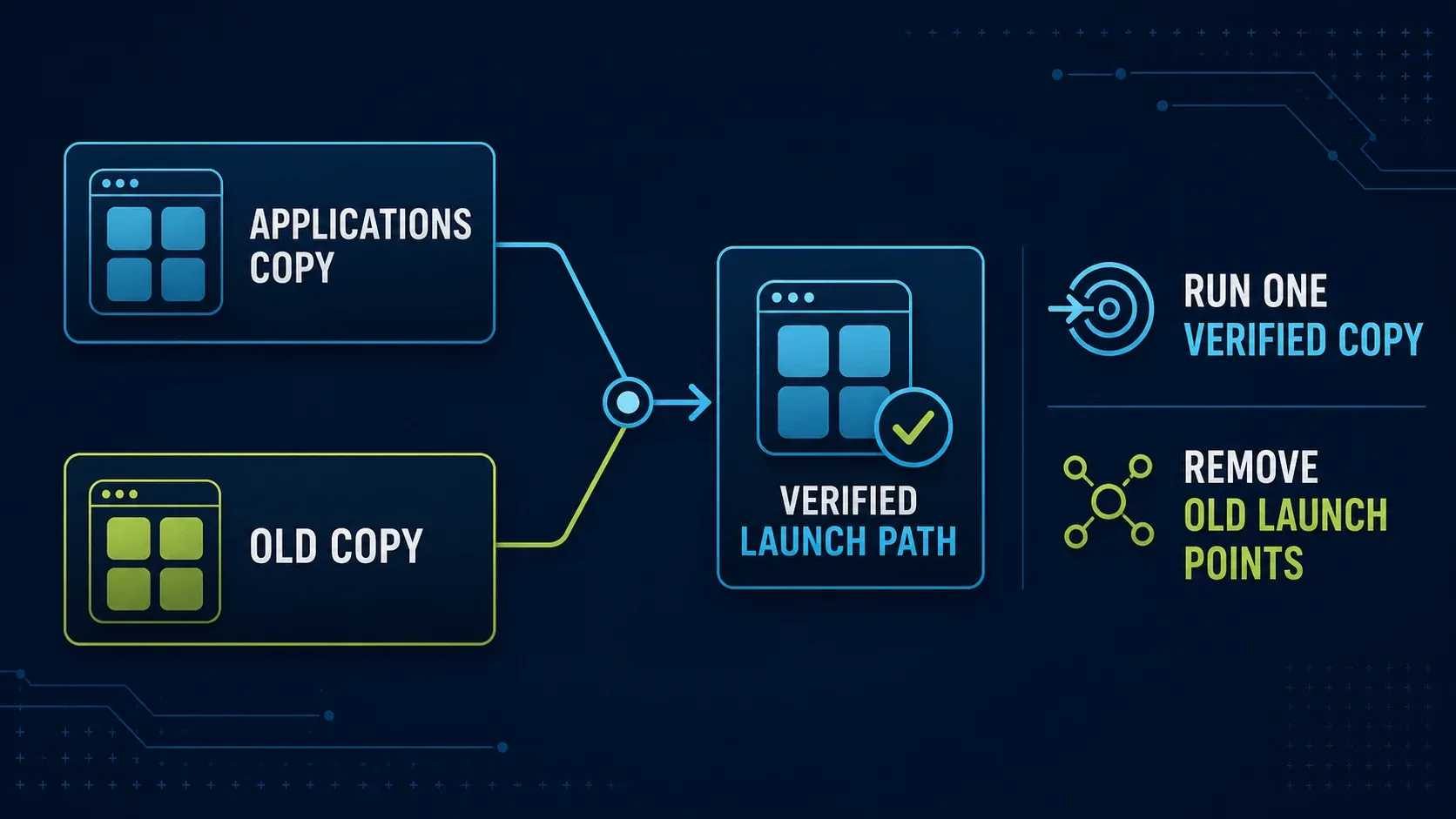
If the approved entry and the running version don’t match, check which app you’re launching. An old Dock shortcut or a second installed copy can send you to a different release. If the copy is right and the switch still reverts, go to the managed-Mac section below.
- Save open captures, stop recording and quit Snagit normally.
- Locate the intended installed app in Applications.
- Launch that copy and read its version under Snagit > About Snagit.
- Check whether the Dock shortcut or login item launches a different copy. Correct only an entry you have identified.
- Use Fix Capture Permissions from that verified copy and retest.
Do not delete the Library, captures or an older installation as a diagnostic shortcut. Back up valuable source files before changing installations. The install and update guide covers supported releases and update routes.
Use the official Support Tool only after scoped checks
The Support Tool is available in website editions from 2022.1.0 onward, but not in App Store editions. With Snagit active, open Help > Support Tool.
Reset System Permissions resets Snagit’s screen, microphone and webcam access. Save your work before you restart the Mac, then reopen Snagit and review the fresh requests. On managed Macs, check with IT first.
Reset All Preferences changes the toolbar, capture settings, stamps and Library location. If support recommends it, run Create Preferences Archive first and keep Snagit_Data.zip somewhere private. Back up your captures separately.
TechSmith says this preferences reset keeps themes, favorites and captures. Restoring preferences can also bring the fault back. Do not post the archive publicly.
If your edition doesn’t have the Support Tool, use the permission panel and put together a reproducible case for TechSmith. Do not substitute a broad Terminal reset, edit the privacy database or weaken system security. Older forum commands may target a different app bundle entirely.
Stop and contact IT on a managed Mac
A locked or reverting permission can come from a management policy, so on a work Mac start with IT. Apple’s Privacy Preferences Policy Control documentation handles each service separately: its camera and microphone entries describe denial, while Accessibility can be authorized. So even on a managed Mac, expect to approve camera and microphone access yourself.
Ask IT to check the installed app’s identity, the policy that applies to it and any user approval that’s still required. Give them the failed task, your macOS and Snagit versions, the permission category and a redacted view of the locked control. Do not send a whole desktop full of private information.
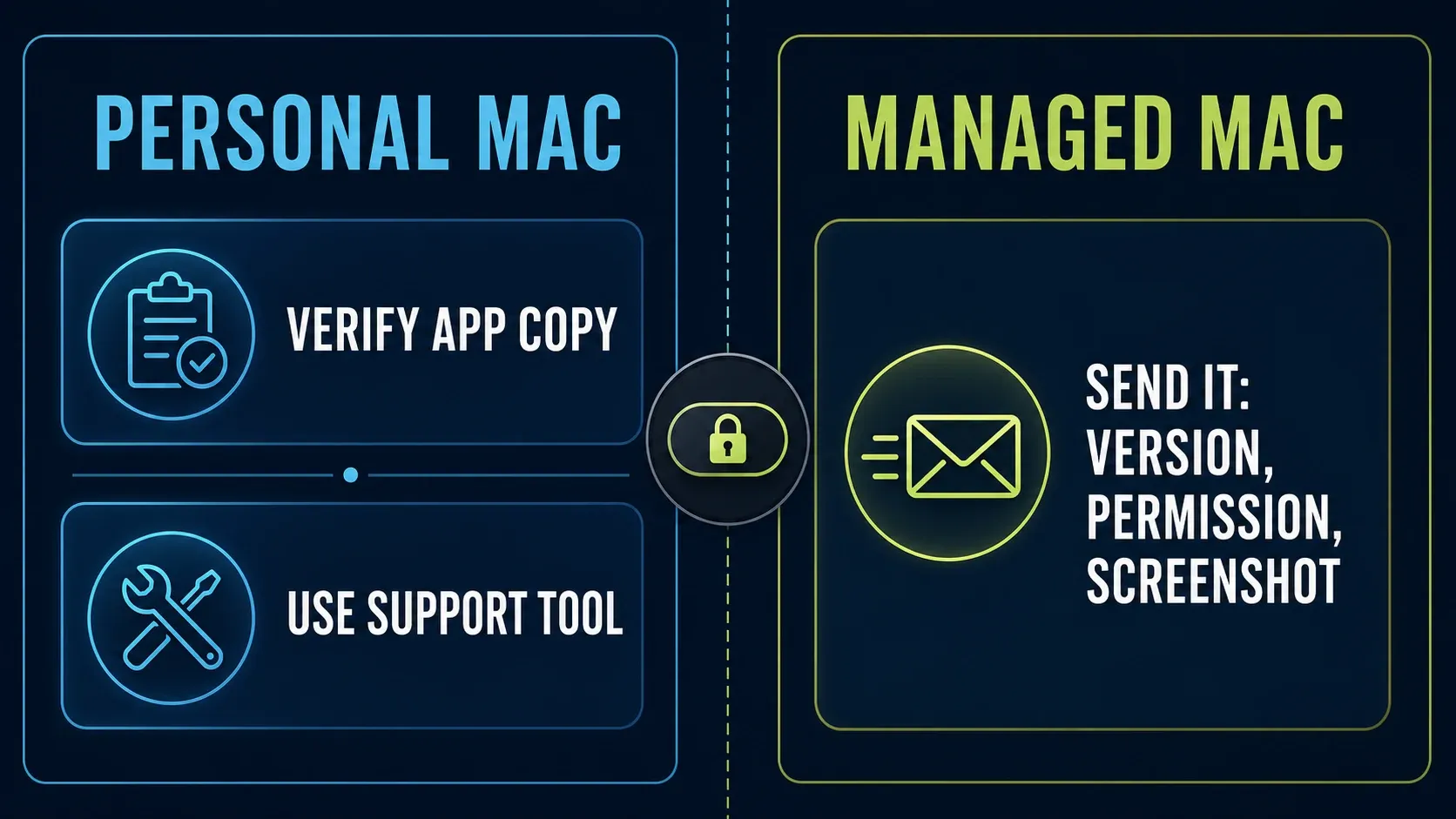
On a personal Mac, start by confirming the installed copy and the specific access it asks for. On a managed Mac, leave the restriction to the administrator. Do not install another copy or remove a management profile to get around it.
Keep the permission set as small as possible
Keep access tied to the task: screen access for screenshots, microphone for narration, camera for webcam video and Accessibility for Automatic Scrolling. Skip the permission for any feature you do not use. Screen access alone does not justify Full Disk Access.
You can review or revoke optional access in System Settings > Privacy & Security. When you do, the matching feature may stop working or ask for approval again, so retest it before you rely on it for a meeting or deadline.
Look over the exported test before you share it, and check Snagit’s sharing actions and any synced destination folder too. A local permission controls capture access, not where a later export or upload goes.
Build a support packet that leads to an answer
If the scoped checks fail, send the vendor a small reproducible case. Don't repeat resets just because the first one did not help.
- Exact Snagit version and website or Mac App Store distribution.
- macOS point release and whether the Mac is managed.
- Failed task: screen, computer audio, microphone, camera or scrolling.
- Permission state: enabled, disabled, missing, locked or reverting.
- Harmless local test and its actual result.
- Recent software, device or management change.
- One redacted screenshot and the test time, if useful.
Check the current system requirements as well. Snagit 2026 lists Golden Gate 27, Tahoe 26 and Sequoia 15, not Sonoma 14. Use the Mac compatibility guide to identify a supported app/OS combination before reinstalling or changing licences.
Snagit Mac permissions FAQ
Which permission does Snagit need to capture the screen?
Check Snagit in System Settings > Privacy & Security > Screen & System Audio Recording. Audio-only access does not grant screen capture. Save work, reopen Snagit after any required approval and test a plain local window. Older macOS versions may label the category Screen Recording.
Why can Snagit record the screen but not my voice?
Microphone access, the selected input and Snagit’s recording switch are separate checks. Allow Snagit in Privacy & Security > Microphone if appropriate, reopen it and select the intended input before recording a sentence.
Does Snagit need Accessibility permission on Mac?
Automatic Scrolling requires Accessibility for Snagit and SnagitHelper in TechSmith’s procedure. Do not grant every optional permission for a normal region capture. Enable access only for a trusted installed app and the feature you use.
Why is SnagitHelper listed in Accessibility?
The helper participates in Automatic Scrolling, for which TechSmith specifies both apps in Accessibility. Its older screen-recording instructions also mention the helper for Snagit 2022 and earlier. These are separate categories and version-specific instructions.
Do I need the old system audio component on macOS 13 or later?
Current supported Snagit uses native system audio on macOS 13 or later. For older releases, native support starts at 2022.2.3 and 2023.0.1; 2023.0.0 used the old workflow. Check the app version before following legacy extension instructions.
What should I do when a permission switch is locked?
Check whether management or another restriction applies and ask IT to review the installed app and policy. Do not remove profiles or bypass the restriction. Include versions, the failed task and a redacted image of the permission state.
How do I reset Snagit permissions safely?
Start with Fix Capture Permissions and the specific failed capability. If a reset is still appropriate, website editions from 2022.1.0 have Help > Support Tool > Reset System Permissions. Save work before restarting the Mac and approving fresh requests. This is different from Reset All Preferences.
If Snagit will not launch at all, use the Editor launch troubleshooting guide. For a different capture error, the Snagit troubleshooting hub routes you to the relevant checks.