
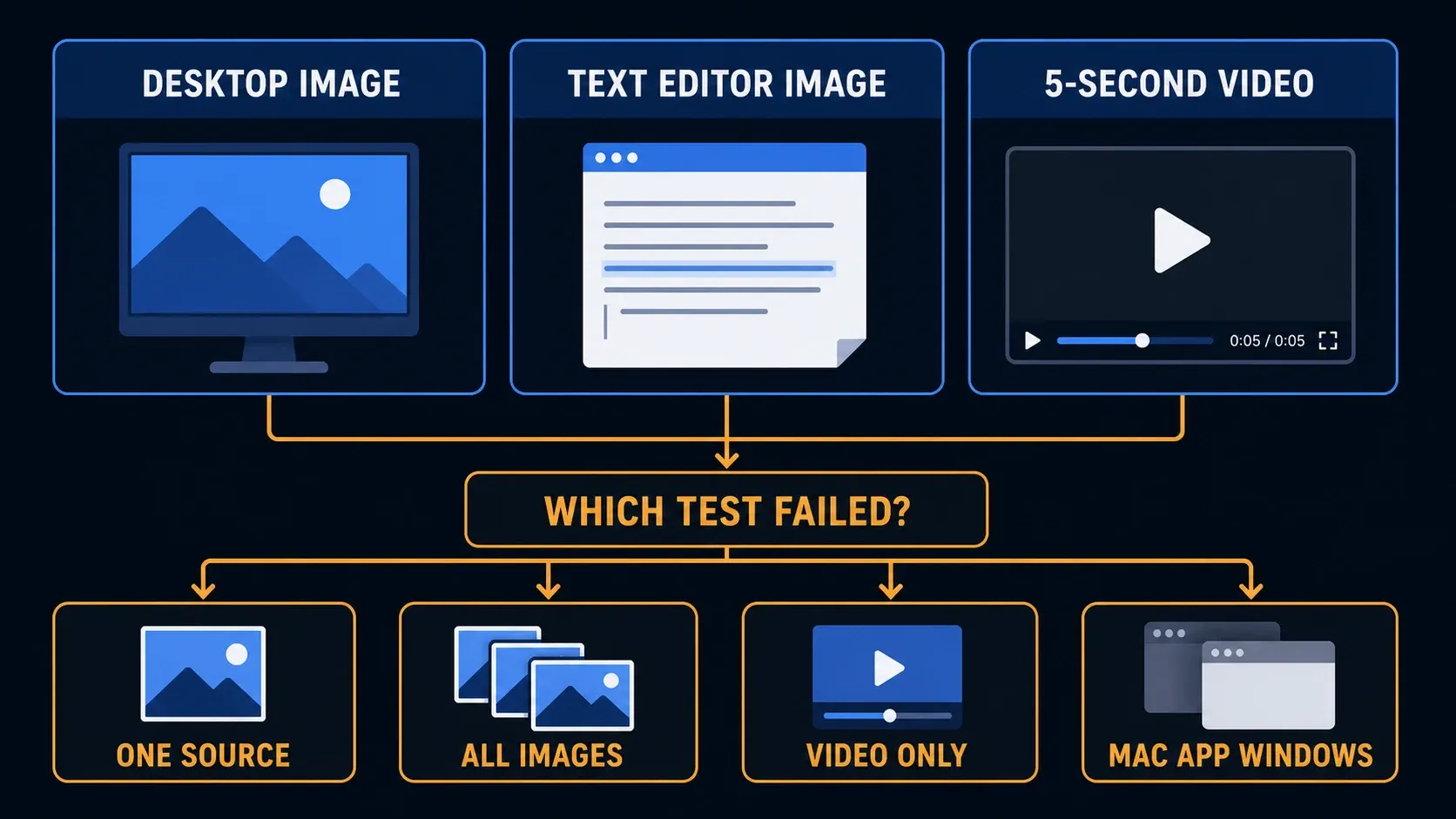
If Snagit captures a black screen, first compare a desktop screenshot, a local text-window screenshot, and a short recording of that text window. These tests help separate a source-specific restriction, still-image failure, video problem, or Mac permission issue. They narrow the investigation without proving the cause. Save open work before restarting or changing settings.
Run three controlled tests first
Start with a harmless local document. Close protected streaming content and sensitive windows first, without interrupting work you need to save, and keep banking, password-manager, exam, customer, or restricted remote-session content out of the test. The Snagit beginner tutorial covers basic capture controls.
- Capture the plain desktop as an image after saving work and closing protected or sensitive windows.
- Open a local text editor and capture its harmless text window as an image.
- Record about five seconds of that text window with microphone, system audio, and webcam recording turned off.
| Result | Investigate next | What it does not prove |
|---|---|---|
| Local tests work; one source is black | Source restrictions, browser or app-specific behavior | That every such failure is DRM |
| Desktop and text screenshots fail | Still-capture, security or display conflict | That antivirus is necessarily responsible |
| Images work; video is blank or Initializing | Recording, encoding and playback paths | That muted audio hardware is irrelevant |
| Mac captures wallpaper but no app windows | Snagit screen-recording permission | That every black Mac capture has this cause |
| MP4 plays elsewhere, but not in Editor | Editor playback or local rendering | That a registry capture change is needed |
| One display or remote session fails | That display path or session policy | That a system-wide reset is justified |
Five seconds is plenty for this comparison. After each change, repeat the failing test and keep a note of the previous settings. I’d run all three tests before changing anything, because the one that fails points you to the right section below.
One streaming service or protected app is black
TechSmith’s black or fragmented image-capture guidance identifies protected services such as YouTube TV, Hulu, and Netflix as possible capture restrictions. An app or administrator can also restrict recording. A black result alone does not identify which mechanism is responsible.
Compare an ordinary local document with content you are authorized to capture. If the source explicitly blocks capture, it’s no longer a Snagit repair problem, and you shouldn’t change protection settings to get around the restriction.
For a tutorial, use your own demonstration, request an approved asset, or link to the provider’s material. Avoid capture unlockers, unknown codec downloads, hosts-file changes, and instructions that promise to bypass protected playback.
Every Windows screenshot is black, white, or fragmented
When the desktop and ordinary windows fail too, check broader still-capture conflicts. TechSmith documents security-software interference, including application-protection features, and its capture troubleshooting hub also identifies anti-keylogger controls and graphics-driver problems. Treat these as places to investigate; a screenshot alone can’t diagnose them.
Review the security product’s event history at the test timestamp. If a block is recorded, check the exact executable and policy with whoever owns the security setup. Application protection, antivirus scan exclusions, and folder-access permissions are different controls, so don’t use a whole-folder exclusion in place of a specific approved rule.
- Save open work, then install the supported maintenance update for your version, or ask IT to do it.
- Restart Windows only after the work is protected.
- For one comparison, close nonessential recorders, overlays, or screen-sharing tools you control. Do not stop managed security or another person’s remote session.
- Retest the desktop and text window with protected media closed.
- Review any matching security event before changing a rule.
- If practical, test the built-in display without optional docks or displays. Save work and safely disconnect attached storage first.
For its Webroot example, the vendor’s 2026 image-capture instructions list SnagitCapture.exe and SnagitEditor.exe under C:\Program Files\TechSmith\Snagit\. Before creating an approved application rule, verify your installed version, the genuine executable, and its actual path. Older releases use different directories, and a matching filename alone isn’t enough.
If closing an overlay changes the result, repeat the comparison before blaming it. Put back any setting that didn’t help instead of leaving several untracked changes in place. Keep endpoint protection active, and involve IT on a managed computer.
Screenshots work, but Snagit video is black or stuck on Initializing
TechSmith’s blank-video instructions address a recording that opens in Snagit Editor with no picture or an Initializing screen, sometimes with audio or cursor movement. That’s a different problem from a recorder that never starts or an Editor window that wasn’t selected as the destination.
For the local test in Snagit 2026.1.0 or later on Windows, check the Video tab’s Open In setting. Choose Snagit Editor if you want to inspect the recording there. None skips the preview and saves the clip to the Library, while Camtasia Editor and, since 2026.4.0, Camtasia Online send it to Camtasia instead. Record a fresh short clip after each change. Turning off microphone, system audio, and webcam simplifies the example, but does not rule out audio-device initialization problems.
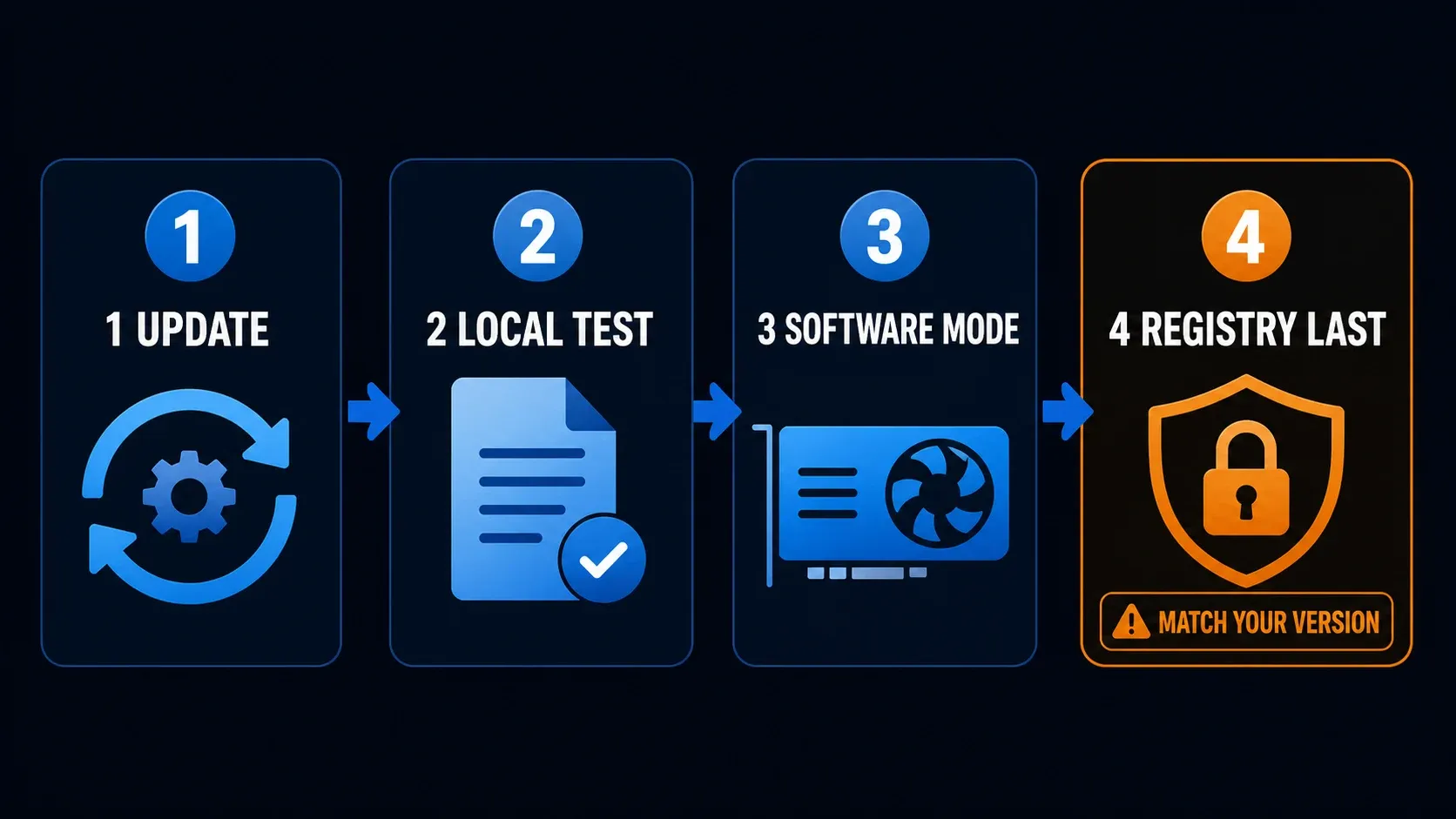
- Update after saving work. TechSmith’s update guide uses Help > Check for Updates in the Windows Capture window. Use the maintenance update supported by your licence and operating system; managed installations belong with IT.
- Restart and repeat the local clip. A previous recording cannot show whether a new setting helped.
- Compare software recording on Windows. For Snagit 2023+, the video troubleshooting guide specifies File > Capture Preferences > Capture > Disable hardware accelerated recording. Record the original setting, test the option, and restore it if it does not help.
- Check approved display-driver updates. Use the computer manufacturer’s support route for your model. Avoid third-party driver packs and let IT review managed changes.
The same video guide says Snagit can initialize audio devices even when audio recording is off. If recording fails before a usable clip is created, use the audio-device troubleshooting guide or support instead of assuming the mute switches eliminated that branch.
If a new local recording is still blank, the vendor documents a different capture-method setting for Windows Snagit 2026.0.0 and later:
HKEY_CURRENT_USER\Software\TechSmith\Features\snagit
AllowDxgiScreenCapture: change an existing value of 1 to 0
This is an advanced, version-specific test. Save work, quit Capture and Editor, and verify that those Snagit processes have ended. First export the exact key by following Microsoft’s registry backup procedure, and note the existing value. Change only the documented value, reopen Snagit, and test a new local clip. If it doesn’t help, close Snagit and restore the original value.
Stop if the key is missing, the value is already 0, your version doesn’t match, or policy prevents changes, and don’t create guessed keys. The vendor’s 2024.2+ section uses a major-version-specific location, so follow the exact section for your installed release. Ask TechSmith Support or IT to review the case. This setting won’t get you around protected content.
Mac captures the desktop but not application windows
If the Mac captures wallpaper but omits application windows, check screen-recording permission first. TechSmith documents this specific symptom in Only Desktop Captured. Apple’s screen and system audio recording guide explains the per-app control.
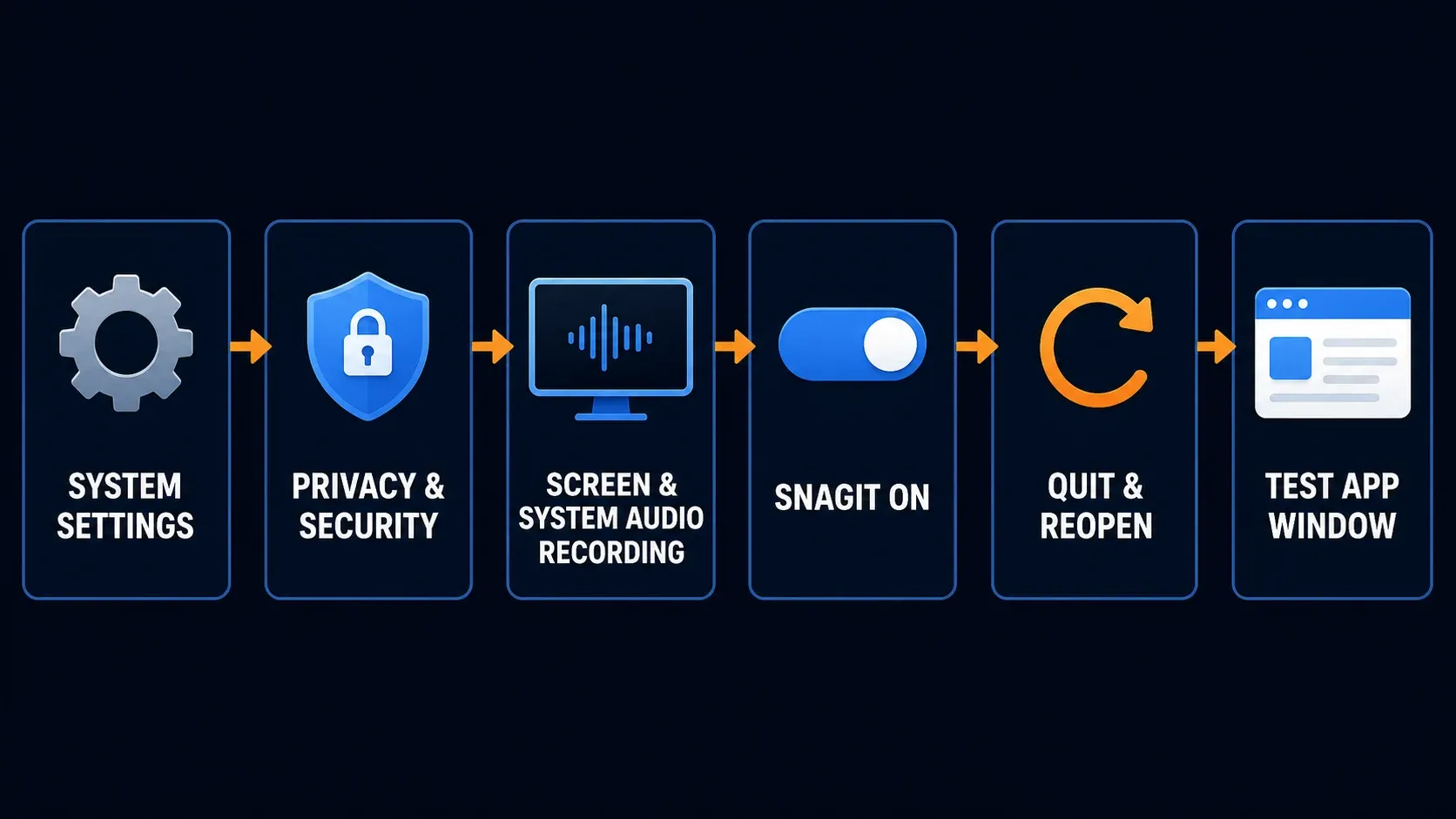
- Save work before closing or restarting Snagit.
- Open System Settings > Privacy & Security > Screen & System Audio Recording.
- Grant screen-recording access to the genuine Snagit app if you intend to allow it. If the entry is already on but this symptom remains, the vendor suggests switching it off and on.
- Choose Quit & Reopen if macOS prompts you to apply the change.
- Capture an ordinary local application window again.
TechSmith’s Mac permission instructions also provide Snagit > Settings > Capture > Fix Capture Permissions. Complete the requested restart rather than assuming the toggle alone applied. Do not grant unrelated access or edit the macOS privacy database for this symptom.
The vendor calls out SnagitHelper for 2022 and earlier, so match that advice to the old version you actually use. It also notes that a macOS update can deselect a previous grant. Check the permission after an update, and look before concluding the update erased it. The Mac permissions guide covers other access categories separately.
Check whether the file is black or only the preview
For a recording saved to Snagit Editor, use File > Save As to create a uniquely named MP4 copy, then open it in another trusted local player. TechSmith recommends this comparison in its blank playback article. Keep the original rather than overwriting it.
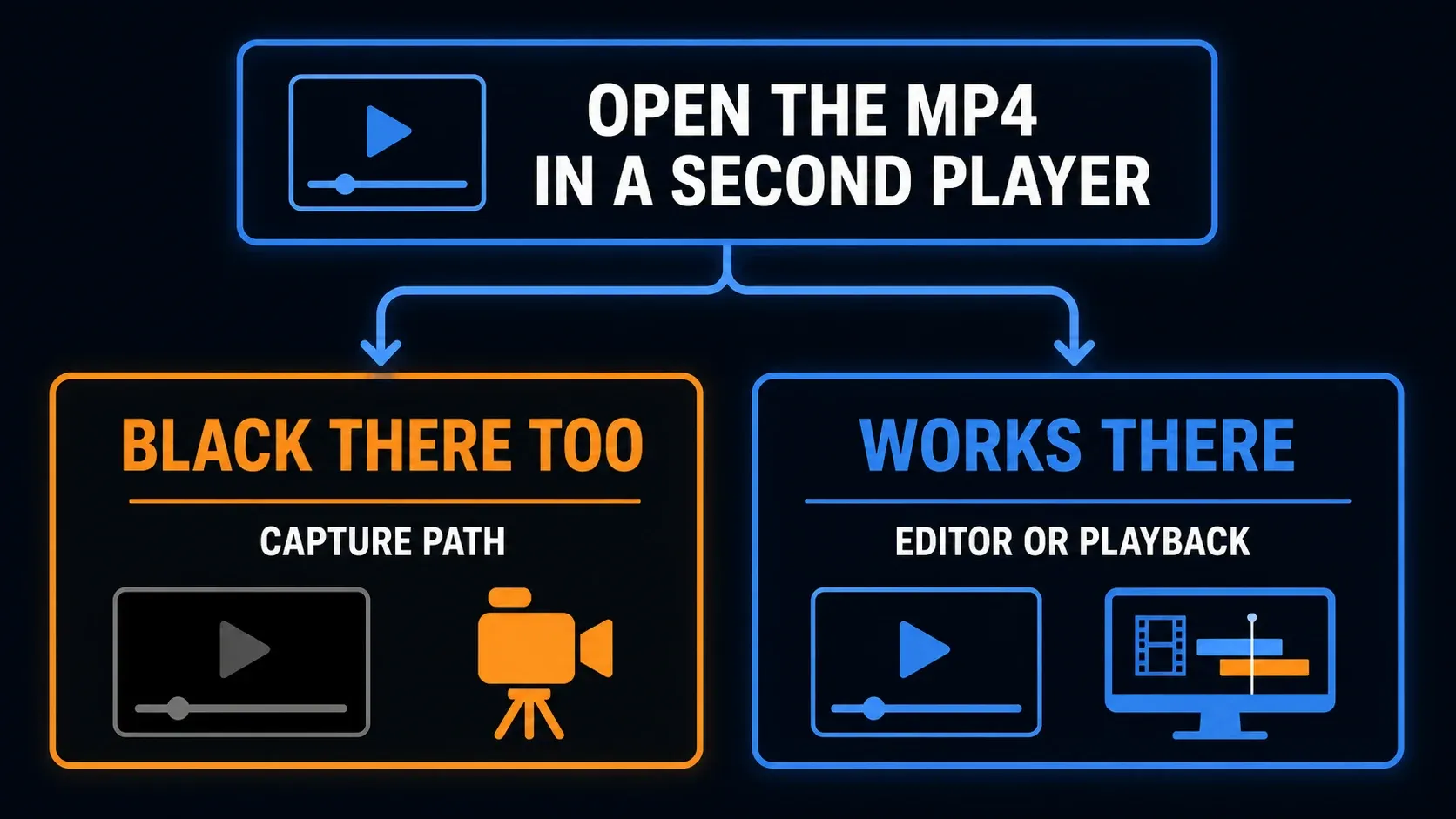
If the new MP4 is black in both players, investigate capture, encoding, file integrity, and shared graphics or playback components. This result alone does not prove that no image was recorded. Compare a known-good local MP4 in the same players and record whether audio or cursor movement remains in the failing clip.
If the MP4 plays correctly in the second player, the file contains a visible recording. Focus on Editor playback and rendering before changing capture permissions or recording-method registry values. If Editor cannot open at all, use the Editor launch troubleshooting guide; that is a different symptom.
Use a harmless local file and a trusted player already on the computer. The export settings guide covers format choices. Don’t upload a private recording or install an unknown codec pack just to run this comparison.
Only one browser, display, dock, or remote session fails
If only one browser fails on ordinary content, compare the same harmless page in another browser and a different ordinary page in the failing browser. Keep protected playback outside this test. Save browser work before updating or restarting it.
For Firefox, Mozilla’s extension and acceleration troubleshooting guide explains a temporary Troubleshoot Mode comparison. It changes several things together, so a successful test can’t tell you which extension or GPU setting was responsible. Skip Refresh Firefox as a casual test, since it resets settings. For a different browser, use that vendor’s instructions, and leave managed security extensions in place.
If only one display fails, compare it with the built-in panel or another available display. Where practical, test one monitor directly instead of through the dock. Record the adapter, driver, display, dock, cable, scaling, refresh rate, and HDR state. Save work and disconnect storage safely before unplugging a dock. A washed-out image is a different observation from a completely black one.
For a remote session, compare a harmless local app outside the session and ask the administrator about capture restrictions. Microsoft documents screen-capture protection for Azure Virtual Desktop and Windows 365, which can deliberately block remote content in screenshots. That’s one documented platform example and doesn’t explain every Remote Desktop or virtual-machine problem. Leave the session policy alone.
Avoid fixes that add risk without useful evidence
- Do not bypass protected playback or managed capture restrictions.
- Do not disable endpoint protection or add broad exclusions without a justified, approved security change.
- Do not make several registry changes at once or import an unknown .reg file.
- Do not reinstall before identifying the symptom. External policies and hardware problems may remain.
- Do not delete the Library or private recordings as a troubleshooting shortcut.
Build a support report that someone can use
Before further changes, collect a small reproducible example and the following details:
- Snagit build and operating-system version.
- Results of the two still images and short local recording.
- Whether the file is black outside Editor, and whether audio or cursor movement remains.
- The affected app, browser, display, dock, or remote session.
- Graphics adapter and driver version, plus any confirmed security event and timestamp.
- Original setting, single change, and fresh test result.
Remove private names, internal URLs, account details, passwords, licence keys, and protected content from diagnostics, and send them through an approved support channel. The Snagit troubleshooting index routes other named errors; once capture works, the screen recording guide covers normal recording and editing.
Snagit black screen FAQ
Why does a streaming video turn black in Snagit?
Protected media or an application policy may block recording. A successful local test narrows the scope but does not prove DRM is the cause. If the source blocks capture, use approved material or its sharing method rather than bypassing it.
Why does Snagit capture the Mac desktop but not app windows?
Check Snagit in System Settings > Privacy & Security > Screen & System Audio Recording. Preserve work, grant the intended access, and choose Quit & Reopen if prompted. Retest a local application window.
Why are Snagit screenshots normal but videos black?
Investigate recording, encoding and playback separately. Save work, update, and test a new local clip. Compare the documented Windows software-recording option where applicable. Muted audio does not rule out audio-device initialization faults.
Is AllowDxgiScreenCapture used in Snagit 2026?
TechSmith documents an existing AllowDxgiScreenCapture value of 1 changed to 0 for Windows Snagit 2026.0.0 and later. Back up the exact key first and stop if the value, version or policy does not match. It is not a generic screenshot fix.
Should I disable antivirus to fix black captures?
Not as a first diagnostic step. Review matching blocked events and the genuine application path. Any justified application rule should follow the security product’s guidance and your organization’s policy; avoid broad exclusions.
Will reinstalling Snagit fix a black screen?
Not necessarily. Protected content, permissions, security policy and graphics problems can remain. Identify the failed test and preserve your work before considering reinstalling.
Why does Snagit fail only in Remote Desktop or a virtual machine?
A session policy or rendering difference may be involved. Compare local content outside the session and consult its administrator. Azure Virtual Desktop and Windows 365 can deliberately block screenshots when capture protection is enabled.