
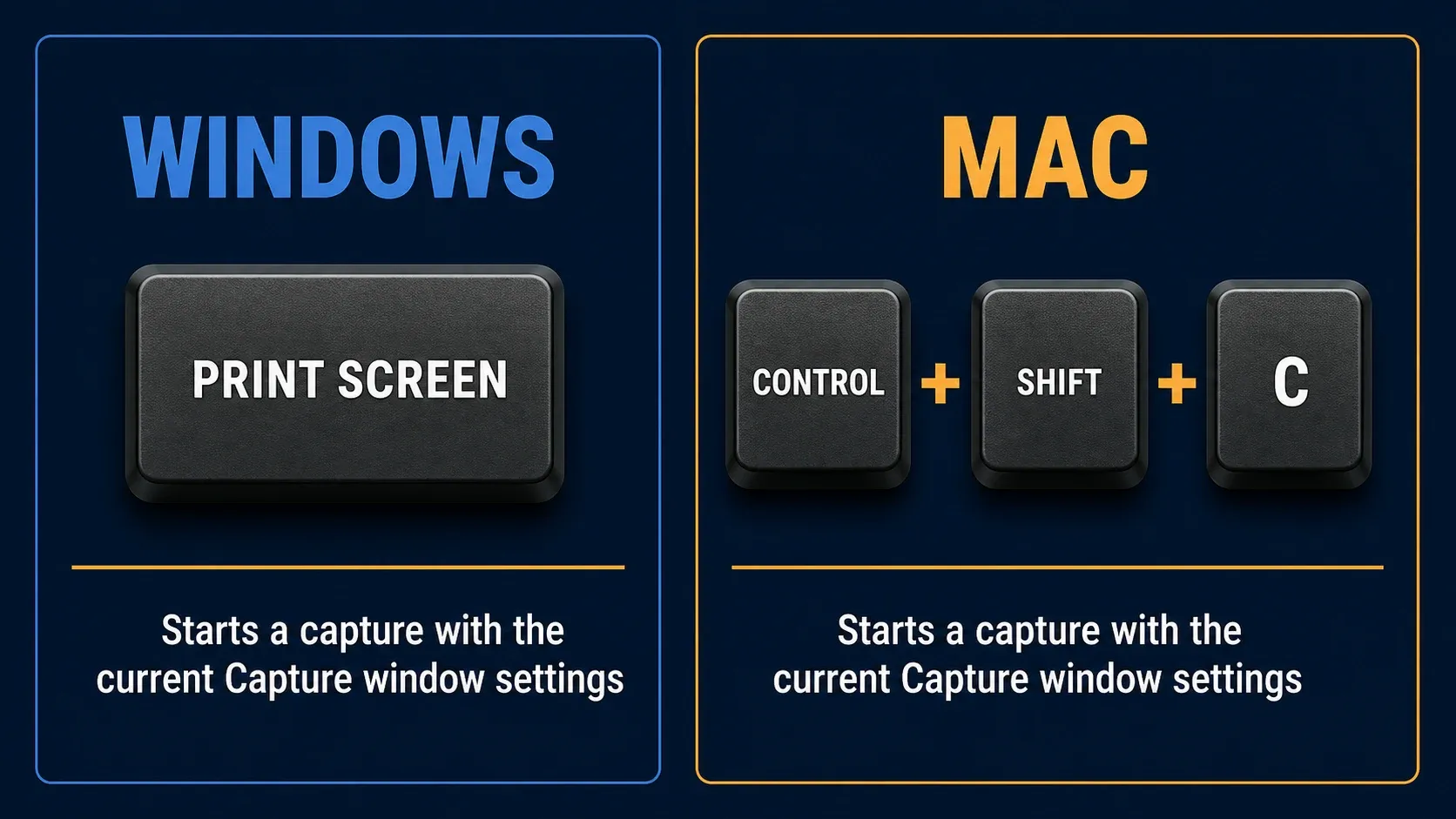
The default Snagit capture hotkey is Print Screen on Windows and Control+Shift+C on Mac. It starts a capture using the current Capture window settings, which may be image or video. In Editor, use Ctrl+S or Command+S to save. During capture selection, Esc cancels; it is not the documented shortcut for stopping a recording.
I checked this Snagit reference on September 14, 2026 against TechSmith’s live Hotkeys Guide. These are published defaults, and custom assignments, keyboard layouts and the active capture or editing context can change what happens.
Snagit shortcuts and hotkeys quick reference
The file and editing commands below apply in Snagit Editor. Only the capture launch hotkey is global while Snagit is running, and Esc applies during capture selection. “Not listed” means the cited Hotkeys Guide publishes no matching default for that platform. The action itself may still be available.
Flattening converts editable objects into part of the image, so save an editable copy first if you might need to move a callout or correct text later.
| Action | Windows | Mac |
|---|---|---|
| Capture with current settings | Print Screen | Control+Shift+C |
| New image | Ctrl+N | Command+N |
| Open file | Ctrl+O | Command+O |
| Save | Ctrl+S | Command+S |
| Undo | Ctrl+Z | Command+Z |
| Redo | Ctrl+Y | Shift+Command+Z |
| Copy All (capture with annotations) | Ctrl+Shift+C | Option+Command+C |
| Flatten selected objects | Ctrl+T | Shift+Command+T |
| Actual size | Ctrl+0 | Command+0 |
| Zoom in | Ctrl+Plus | Command+Plus |
| Zoom out | Ctrl+Minus | Command+Minus |
| Cancel capture selection | Esc | Esc |
Use the current reference rather than older Snagit PDFs, whose paths and defaults may differ. For full capture, editing and export workflows, use the Snagit guides hub.
Snagit capture launch shortcuts
Keep Snagit running to use a global capture shortcut from another app. TechSmith’s capture hotkey instructions explain why the global key uses the current Capture window settings. A preset hotkey instead uses that preset’s saved settings.
| Action | Windows | Mac |
|---|---|---|
| Capture with current settings | Print Screen | Control+Shift+C |
| All-in-One capture | Not listed | Control+Shift+O |
| Image capture | Not listed | Control+Shift+S |
| Video capture setup (not yet recording) | Not listed | Control+Shift+V |
| Repeat last capture | Assign in File > Capture Preferences > Hotkeys | Control+Shift+R |
Keys during capture selection
Use these keys after starting a capture, while the selection controls are active. Pressing F or M in an ordinary document will not launch the corresponding Snagit action.
| Action | Windows | Mac |
|---|---|---|
| Capture fullscreen during selection | Not listed | F |
| Capture multiple regions during selection | Not listed | Hold Command |
| End multiple-image capture | Right-click the screen | Not listed |
| Cancel capture selection | Esc | Esc |
| Show or hide capture magnifier | M | M |
| Move crosshairs one pixel | Arrow keys | Not listed |
| Constrain image selection to a square | Hold Shift | Not listed |
| Constrain region to 16:9 while dragging | Hold Ctrl | Not listed in Hotkeys Guide; video selection uses Shift |
| Take selected capture | Enter | Not listed |
| Start region selection | Shift+Enter | Not listed |
| Show or hide capture help | F1 | H |
Selection modifiers depend on capture mode. The video recording tutorial separately documents Shift for a 16:9 selection on Mac. For exact video dimensions, enter Width and Height in the recording selection controls rather than assuming an image-selection modifier applies.
Automatic scrolling keys
These keys apply only when Snagit’s automatic scrolling arrows are present. They do not launch manual scrolling capture.
| Action | Windows | Mac |
|---|---|---|
| Scroll horizontally | H | R |
| Scroll vertically | V | D |
| Scroll both directions | B | X |
If the arrows are missing or the result is incomplete, follow the Snagit scrolling capture guide.
To exit Snagit Capture on Windows, the guide lists Ctrl+Shift+X. On Mac, Command+Q quits Snagit and closes Editor too. Do not treat quitting the app as a recording-stop shortcut.
Start, pause and stop a Snagit recording
Select the recording area before starting the recording. These controls are listed in both the Hotkeys Guide and TechSmith’s recording instructions.
| Action | Windows | Mac |
|---|---|---|
| Start recording after selecting the area | Shift+F9 | Control+Shift+Space |
| Pause or resume an active recording | Shift+F9 | Control+Shift+Space |
| Stop an active recording | Shift+F10 | Control+Shift+V |
On Mac, Control+Shift+V has two contexts: it launches video capture setup when you are not recording, and stops an active recording. Control+Shift+Space starts, pauses or resumes the recording. Esc cancels capture selection; use the documented Stop command to finish a recording.
Screen Draw shortcuts
During a recording, enter Screen Draw mode before using the single-letter drawing keys. These are not the Editor tool shortcuts.
| Action | Windows | Mac |
|---|---|---|
| Enter or exit Screen Draw mode | Ctrl+Shift+D | Control+Shift+D |
| Select Arrow in Draw mode | A | A |
| Select Square in Draw mode | S | S |
| Select Step or restart numbering in Draw mode | 1 | 1 |
Exit Draw mode before clicking links or typing into the recorded application. The same Windows Ctrl+Shift+D combination duplicates a file in Editor, so check the active context rather than treating it as a universal drawing key.
Snagit Editor keyboard shortcuts
Use file and workspace commands in Editor with the intended capture selected. Recent Captures Tray navigation belongs to the tray; its Mac bracket directions should not be substituted for Video from Images navigation. Delete file or Move to Trash removes the selected file, rather than merely closing its tab.
| Action | Windows | Mac |
|---|---|---|
| Open Editor | Not listed | Command+Shift+E |
| Open preferences or settings | Use menus | Command+Comma |
| New image | Ctrl+N | Command+N |
| New from Clipboard | Ctrl+Shift+N | Shift+Command+N |
| Create image from template | Ctrl+Alt+T | Option+Shift+T |
| Apply or combine in template | Ctrl+Alt+C | Option+Shift+C |
| Create video from images | Ctrl+Alt+V | Option+V |
| Open file | Ctrl+O | Command+O |
| Find capture | Not listed | Command+F |
| Reveal selected capture in Library | Not listed | Shift+Command+L |
| Close file | Ctrl+F4 or Ctrl+W | Shift+Command+W |
| Close all files | Not listed | Option+Command+W |
| Save | Ctrl+S | Command+S |
| Save As | Ctrl+Shift+S | Shift+Command+S |
| Save all | Not listed | Option+Command+S |
| Rename | F2 | Not listed |
| Ctrl+P | Command+P | |
| Duplicate file | Ctrl+Shift+D | Shift+Command+D |
| Delete file or move to Trash | Ctrl+Delete | Command+Delete |
| Share Link | Ctrl+Shift+L | Option+Command+L |
| Close Editor window | Alt+F4 | Command+W |
| View Editor | Not listed | Command+1 |
| View Library | Not listed | Command+2 |
| View Assets | Not listed | Command+3 |
| Show Effects/Properties | Not listed | Command+4 |
| Show or hide sidebar | Not listed | Command+5 |
| Show or hide Recent Captures Tray | Not listed | Option+Command+T |
| Next capture in tray | Right Arrow | Command+[ |
| Previous capture in tray | Left Arrow | Command+] |
| Pin or unpin capture in tray | Ctrl+Shift+P | Control+Shift+P |
| Open Share History | Not listed | Option+Shift+S |
Reach for the Snagit Editor guide when the shortcut is only one piece of a larger annotation or export workflow. This table sticks to commands with a clear current official listing.
Snagit image editing shortcuts
These commands act on the open image and its current selection. Copy All copies the capture with its annotations for pasting into another app; it does not mean “copy only editable objects.” Share Link is different: it can upload the capture to the configured cloud destination. Check the content before sharing.
Keep an editable copy before using either Flatten command.
| Action | Windows | Mac |
|---|---|---|
| Undo | Ctrl+Z | Command+Z |
| Redo | Ctrl+Y | Shift+Command+Z |
| Cut | Ctrl+X | Command+X |
| Copy | Ctrl+C | Command+C |
| Paste | Ctrl+V | Command+V |
| Paste in place | Not listed | Shift+Command+V |
| Paste and match style | Not listed | Option+Shift+Command+V |
| Select all | Ctrl+A | Command+A |
| Deselect all | Ctrl+D | Command+D |
| Invert selection | Ctrl+Shift+I | Shift+Command+I |
| Copy All (capture with annotations) | Ctrl+Shift+C | Option+Command+C |
| Group objects | Ctrl+Shift+G | Shift+Command+G |
| Ungroup objects | Ctrl+Shift+U | Shift+Command+U |
| Bring forward | Ctrl+Shift+F | Command+Up Arrow |
| Send backward | Ctrl+Shift+B | Command+Down Arrow |
| Toggle canvas snapping | Ctrl+Semicolon | Command+Semicolon |
| Flatten selected objects | Ctrl+T | Shift+Command+T |
| Flatten all objects | Ctrl+Shift+T | Control+Shift+T |
| Crop to canvas | Not listed | Command+K |
| Trim | Not listed | Shift+Command+X |
| Actual size | Ctrl+0 | Command+0 |
| Zoom to fit | Not listed | Shift+Command+0 |
| Zoom in | Ctrl+Plus | Command+Plus |
| Zoom out | Ctrl+Minus | Command+Minus |
| Resize image | Not listed | Shift+Command+R |
| Rotate | Not listed | Command+R |
| Grab Text | Not listed | Shift+Command+O |
For OCR rather than ordinary copying, follow the Grab Text and OCR workflow.
Snagit tool hotkeys on Windows and Mac
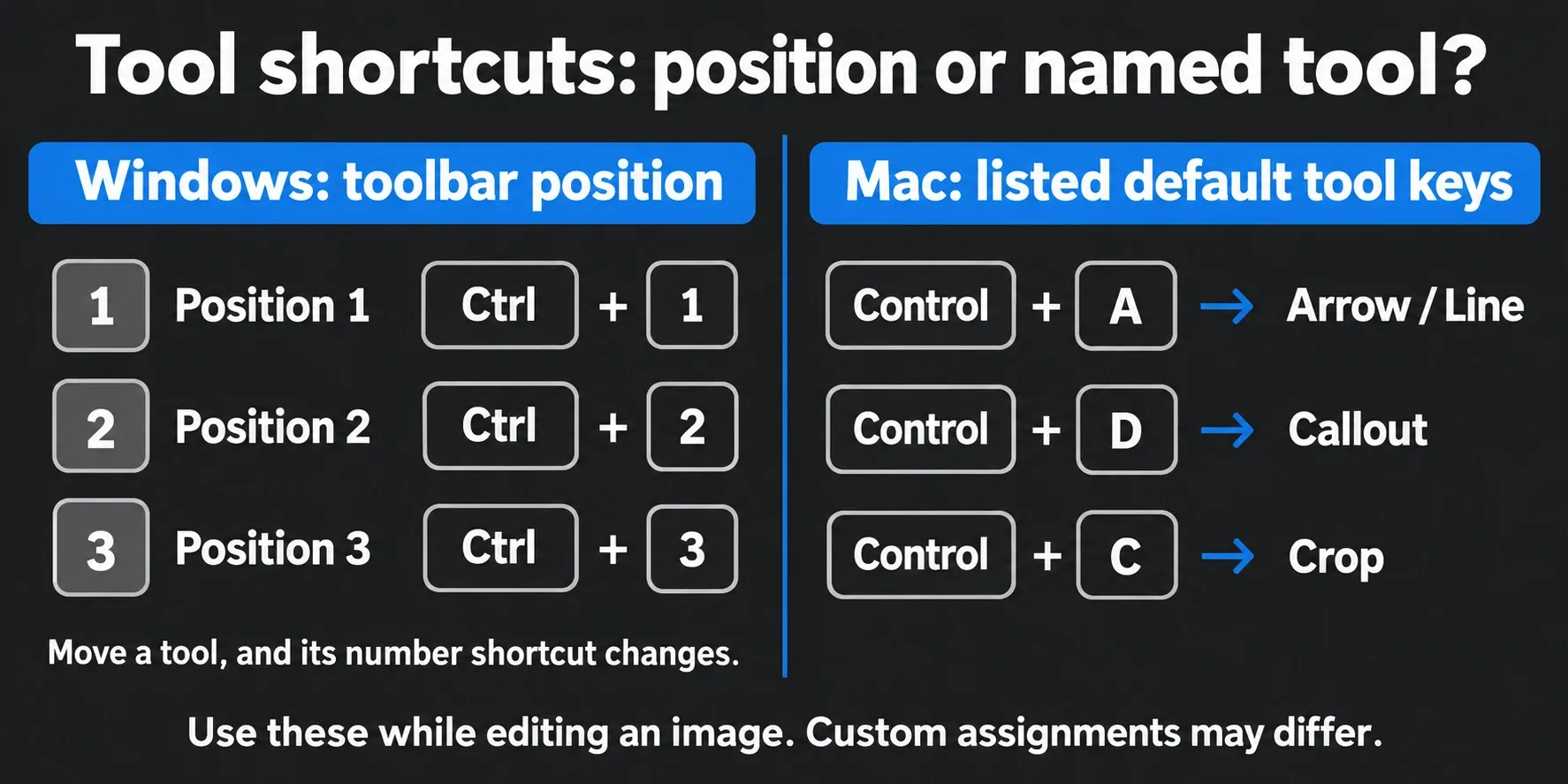
Windows uses toolbar positions. Ctrl+1 through Ctrl+9 select the tool in the corresponding numbered position. Reordering the toolbar changes which tool each number selects, so treat these as position shortcuts rather than permanent Arrow, Crop, or Text commands.
Mac tool defaults use Control-letter combinations. Control (⌃) and Command (⌘) are different keys; Option (⌥) is also called Alt. Apple’s keyboard notation guide explains the symbols. The table gives default tool assignments, not a promise that every assignment is unchangeable.
| Tool | Mac shortcut |
|---|---|
| Favorites | Control+R |
| Arrow and Line | Control+A |
| Text | Control+T |
| Callout | Control+D |
| Shape | Control+U |
| Stamp | Control+I |
| Fill | Control+F |
| Move | Control+V |
| Selection | Control+L |
| Blur | Control+B |
| Simplify | Control+Y |
| Magic Wand | Control+W |
| Crop | Control+C |
| Cut Out | Control+X |
| Pen | Control+P |
| Highlighter | Control+H |
| Step | Control+S |
| Eraser | Control+E |
| Magnify | Control+M |
Mac video playback shortcuts
These shortcuts control a video open for playback in Snagit Editor on Mac. Space pauses playback, not an active screen recording. TechSmith’s playback table does not publish a matching Windows column. Arrow keys have different jobs when the tray, canvas or video has focus.
| Action | Mac shortcut |
|---|---|
| Play or pause | Space |
| Move one frame backward | Left Arrow |
| Move one frame forward | Right Arrow |
| Jump to beginning | Command+Return |
| Jump to end | Shift+Command+Return |
For recording setup, audio sources, and light editing, use the Snagit screen recording guide.
How to change the global capture shortcut
- Open the Snagit Capture window.
- Click the shortcut field directly under the Capture button.
- Press the key combination you want to use. With Snagit still running, switch to another app and test whether it starts the intended capture.

This changes the hotkey that starts a capture with the current Capture window settings. It doesn't make every Editor command customizable.
How to customize more shortcuts
Windows: open Snagit Capture, then choose File > Capture Preferences > Hotkeys and select the available shortcuts you want to change. Use Allow Snagit to override other hotkey assignments only when you want Snagit to take that combination while it is running. Click OK to confirm the changes.

Mac: open Snagit Editor, then choose Snagit > Settings > Keyboard. Click a listed shortcut, press a replacement combination, or remove the assignment. Changes save automatically, and Restore Shortcuts brings back the defaults.

TechSmith checks its shortcut reference on a QWERTY keyboard. Other layouts may register letters or symbols differently. Change a listed assignment where Snagit supports it; do not assume every Editor command can be remapped in Capture preferences.
Use preset hotkeys for repeatable captures
A global shortcut uses the current Capture window settings. A preset hotkey runs one saved capture configuration, so you can choose a repeatable image or video workflow without first changing the active tab.
- Create or select the preset with the capture settings you need.
- In the Capture window, expand Presets. Click Add Hotkey on Windows or + Shortcut on Mac for that preset.
- Press the desired key combination. Choose one that does not conflict with another app or system command.
- Test the preset shortcut from another app while Snagit is running.
These field names come from TechSmith’s preset instructions. For selection, effects and output settings, follow the Snagit presets guide.
When a Snagit shortcut does not work
First try the Capture button. If it works but the keyboard shortcut does not, inspect the assigned combination, keyboard layout and competing app shortcuts. If capture itself fails, changing the hotkey alone will not fix it.
Print Screen opens another app on Windows
Save your work before updating or restarting. TechSmith’s Print Screen guidance covers Snipping Tool, Logi Options+, and documented OneDrive or Dropbox conflicts. On Windows 11, inspect Settings > Accessibility > Keyboard for the option that uses Print Screen to open screen capture or Snipping Tool. Turn it off if you want Snagit to use that key, then restart and test.
If a keyboard utility remaps the physical key, or a laptop shares it with an Fn function, check that keyboard’s settings rather than assuming a universal Fn+Esc fix. You can choose another global hotkey instead. Follow the guide to setting Snagit as the Print Screen capture app for the full diagnostic sequence.
Capture fails on Mac
If the Capture button also fails, open Snagit > Settings > Capture > Fix Capture Permissions. TechSmith’s macOS permission instructions explain how to enable required permissions for Snagit and SnagitHelper, if shown. Save any open work, then use Quit & Reopen when prompted for a permission change to take effect.
Do not replace Control with Command when entering the Mac capture shortcut. macOS’s own screenshot shortcuts are separate from Snagit’s global default.
Snagit keyboard shortcuts FAQ
What is the default Snagit screenshot shortcut?
The default global capture shortcut is Print Screen on Windows and Control+Shift+C on Mac. It starts a capture with the settings currently selected in the Capture window.
Are the Windows and Mac shortcuts the same?
No. Many file and editing commands use Ctrl on Windows and Command on Mac, but capture, tools, workspace and playback shortcuts differ. Windows tool shortcuts follow toolbar positions. Mac tool defaults use Control-letter combinations, and Control is not Command.
Can I change Snagit keyboard shortcuts?
You can change the global capture shortcut in the Capture window. Windows provides more capture settings under File > Capture Preferences > Hotkeys. Mac provides listed assignments under Snagit > Settings > Keyboard. The available commands are not identical across platforms.
Why does Print Screen open Snipping Tool instead of Snagit?
Windows 11 can assign Print Screen to Snipping Tool. Save your work before updating or restarting. Inspect Windows Settings > Accessibility > Keyboard, check competing apps, and decide whether Snagit should use Print Screen or another capture shortcut.
Can a shortcut start a specific Snagit preset?
Yes. Expand Presets in the Capture window, then click Add Hotkey on Windows or + Shortcut on Mac and press a combination. That shortcut uses the preset’s saved settings; the global capture shortcut uses the current Capture window settings.
Why does a published shortcut not work on my keyboard?
TechSmith tests its shortcut reference on a QWERTY keyboard. Other layouts, operating-system shortcuts, keyboard utilities, and function-lock settings can change what registers. Assign a combination that works on your actual layout.
Does this shortcut list apply to Snagit 2026?
This reference was checked against TechSmith’s live documentation on September 14, 2026. It is not a hands-on test of every Snagit 2026 build. Published defaults can differ from your custom assignments. Check Help > About Snagit on Windows or Snagit > About Snagit on Mac, then compare the shortcut shown in your installed app.