

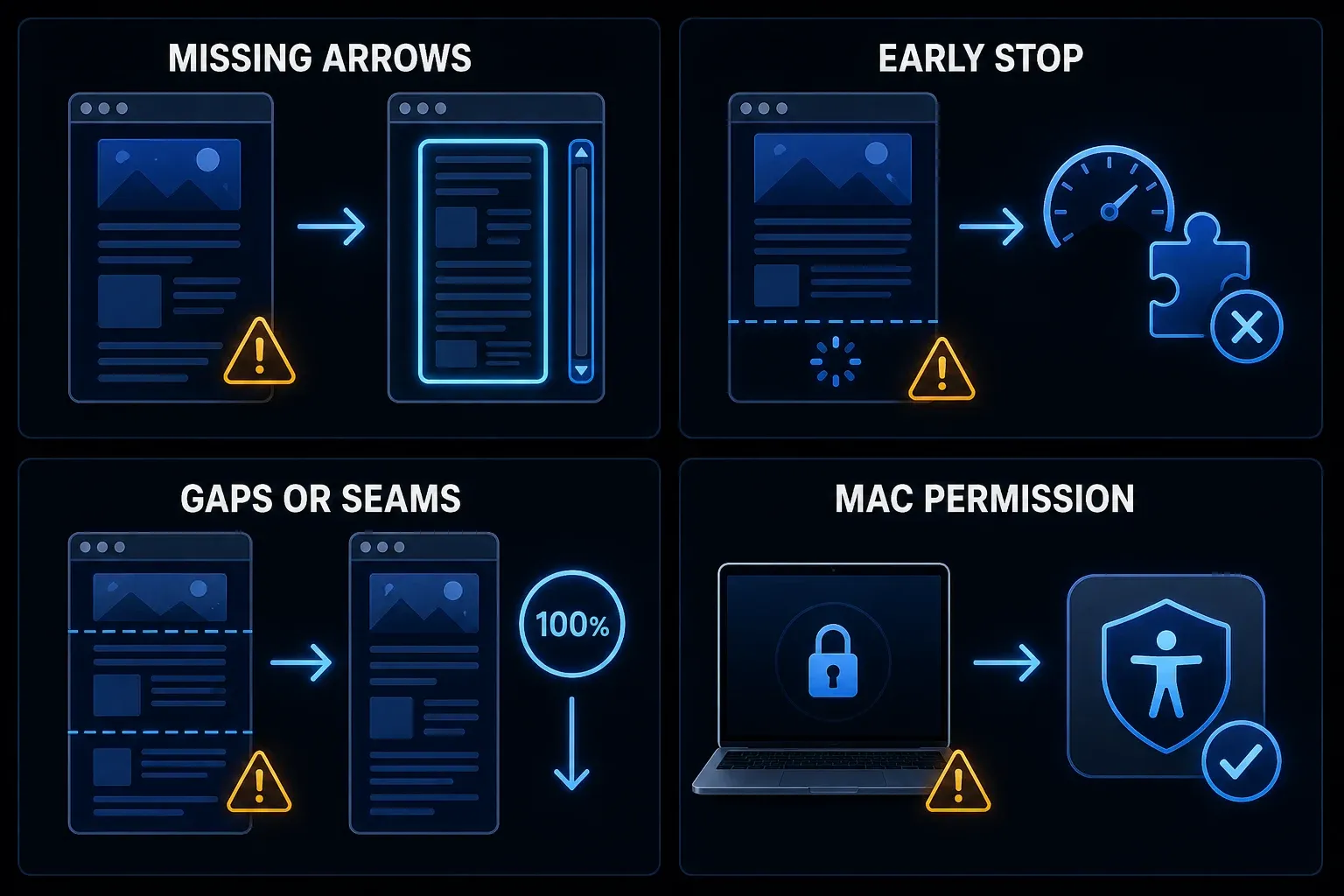
If Snagit scrolling capture isn't working, figure out which part fails first. Missing arrows call for a window-detection or permissions check, while a capture that stops early needs a different test than an image with repeated headers or gaps. Start with a simple public page, then compare automatic and manual scrolling before changing your installation.
Save any open work and note your Snagit version, operating system, browser and the failing page. Use a test page with no private data on it. If the test works, you've narrowed the problem to a particular setup, though that doesn't prove every Snagit component or every other page is fault-free.
Menu labels and available settings can differ by version and platform. I checked these suggested diagnostic steps and the test sequence against documentation and release notes on September 19, 2026.
Snagit scrolling capture not working: quick diagnosis
| Symptom | What to investigate | First check |
|---|---|---|
| No scrolling arrows | Window detection, nested panel or Mac permission | Try manual capture on a simple public page |
| Capture stops early | Page changes, focus or browser configuration | Preload a finite page and compare a smaller region |
| Gaps or missing content | Stitching or content loaded during capture | Wait for content and inspect overlapping sections |
| Repeated headers | Fixed page elements or capture boundary | Exclude the fixed area where practical |
| Mac automatic capture fails | Accessibility or a version-specific browser bug | Check permissions; see the Edge fix below |
| Excel repeats or skips rows | Worksheet panes, views or hidden scrollbars | Copy the required range into Editor |
| PDF has no arrows | All-in-One PDF-reader limitation | Use an allowed export, print or manual route |
| Snagit controls appear in the image | Capture preferences or selected boundary | Check the hide-controls option for your build |
Run one clean baseline test
- Save open work and record your app versions. Keep private windows and notifications out of the capture.
- Open a finite public page in a normal-sized browser window. Avoid a live feed for this first test.
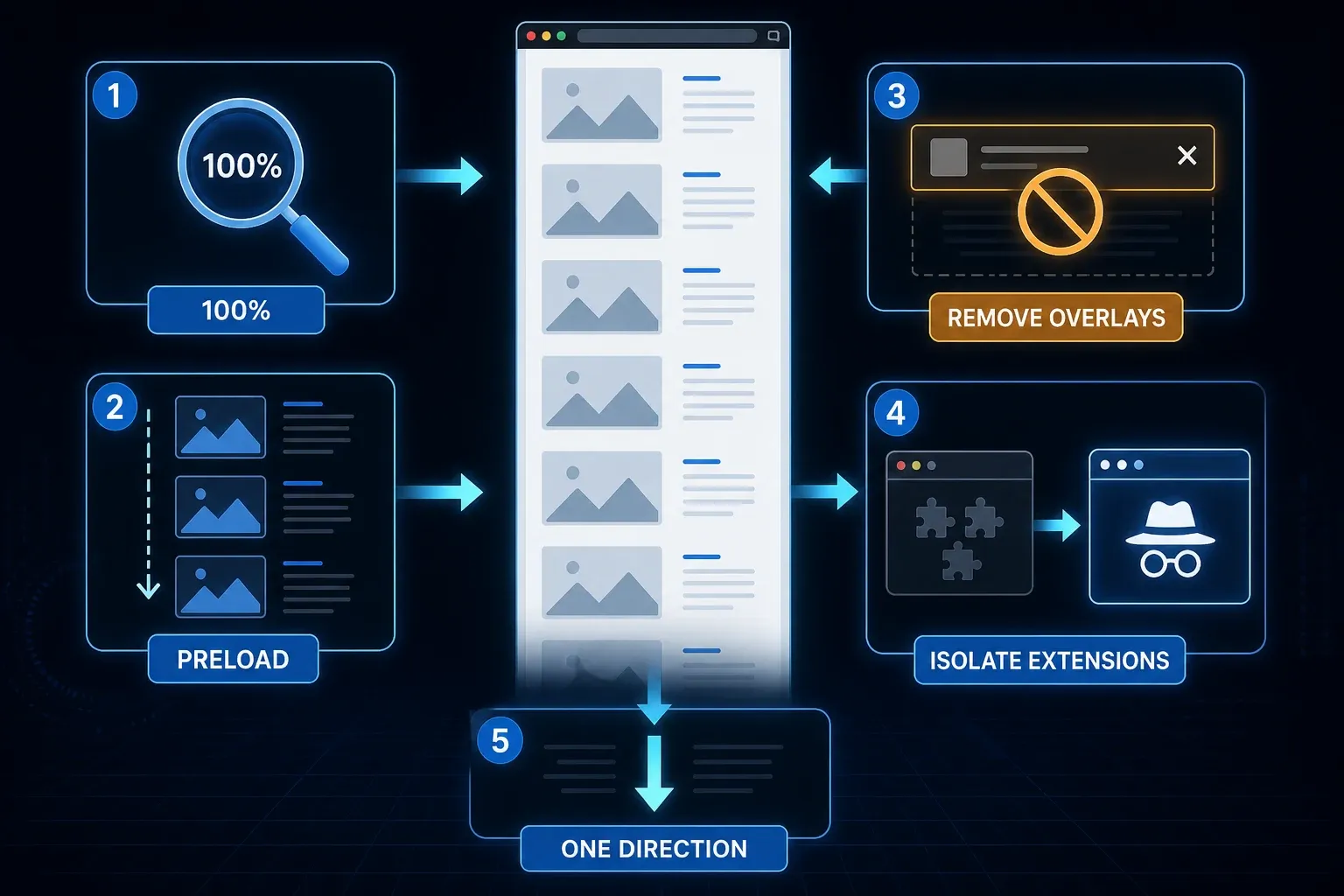
- Set browser zoom to 100 percent so both tests use the same scale.
- Scroll through once, wait for images to load, and return to the top.
- Try automatic capture and note whether arrows appear and scrolling begins.
- Repeat with manual Scrolling Capture, formerly Panoramic Capture. Move steadily in one direction.
- Inspect the beginning, seams and end at 100 percent in Editor. Compare the result with the source page.
When manual capture succeeds but automatic capture fails on the same page, inspect the manual result before you use it, and look into automatic detection separately. If both fail, try another simple page before you make system changes. Note each result as you go, since changing several settings at once makes the cause harder to pin down.
No scrolling arrows appear
TechSmith's missing-arrows support page identifies window detection, security conflicts and unsupported scrolling surfaces. A page with an inner scrolling panel may need manual capture. Missing arrows alone don't mean Snagit is broken.
Click the content and check which scrollbar really moves it. If you can, enlarge the window, then select the useful inner area instead of the whole surrounding page, keeping the scrollbar and unrelated panels outside the region where that's practical. Test again before changing permissions.
For the manual capture route, select a region, choose scrolling capture on the All-in-One toolbar and scroll the target yourself. Automatic capture uses the detected direction arrows. Check the selected capture mode instead of assuming an ordinary region preset will scroll.
Capture starts but stops too early
Start by comparing a shorter section of the same page. Before you begin, wait for images to load, expand the content you need and dismiss any overlays you're allowed to close. A page that changes height during capture makes a poor baseline, and with an endless feed it's better to pick a defined stopping point than to wait for a bottom that may never arrive.
During manual capture, scroll at a steady pace in one direction. If the result has gaps, retry a smaller section and look closely at the overlap. Do not keep extending a failed capture in the hope that the missing rows will appear at the end.
A private-window test can help, but it won't prove an extension caused the failure, because cookies, login state and page content may differ. Chrome lets individual extensions run in Incognito when allowed, so check that setting. On an unmanaged device, disable only the nonessential extensions you're allowed to change, then retest one at a time in the normal window. Do not bypass company browser controls.
Gaps, repeated headers and uneven seams
A sticky header can stay on screen while the page beneath it moves. You can leave it out of the selection, use the site's own hide option if there is one, or take shorter sections with enough overlap to inspect. Do not hide content that the final image is supposed to document.
Keep vertical and horizontal movement separate: TechSmith's scrolling-control troubleshooting notes advise against zigzag movement and unsuitable scroll speeds. A smaller region also helps keep floating controls and unrelated page elements out of the capture.
Check whether the blur you see is just Editor zoom, since a tall image may be shrunk to fit the window. On Windows, use View Zoom Options and Always Shrink to Fit to inspect the original size. That setting changes only the display scale, so a shrunk view doesn't mean pixels are missing. If text is still unclear at 100 percent, look at the captured image itself instead of blaming fit-to-window.
The preview window or control bar is captured
Look in Capture Preferences for the option that hides Snagit during capture and keeps its controls out of completed captures. TechSmith's scrolling-control support note documents it for version 2024.1.0 and later. If your build offers it, enable it and make a harmless test capture.
The version number alone doesn't prove the setting is enabled or that every toolbar problem is fixed. Where you can, keep controls outside the selected area. If they still show up, record the build, platform and capture mode, then compare the relevant release notes below.
Mac: check the correct capture permissions
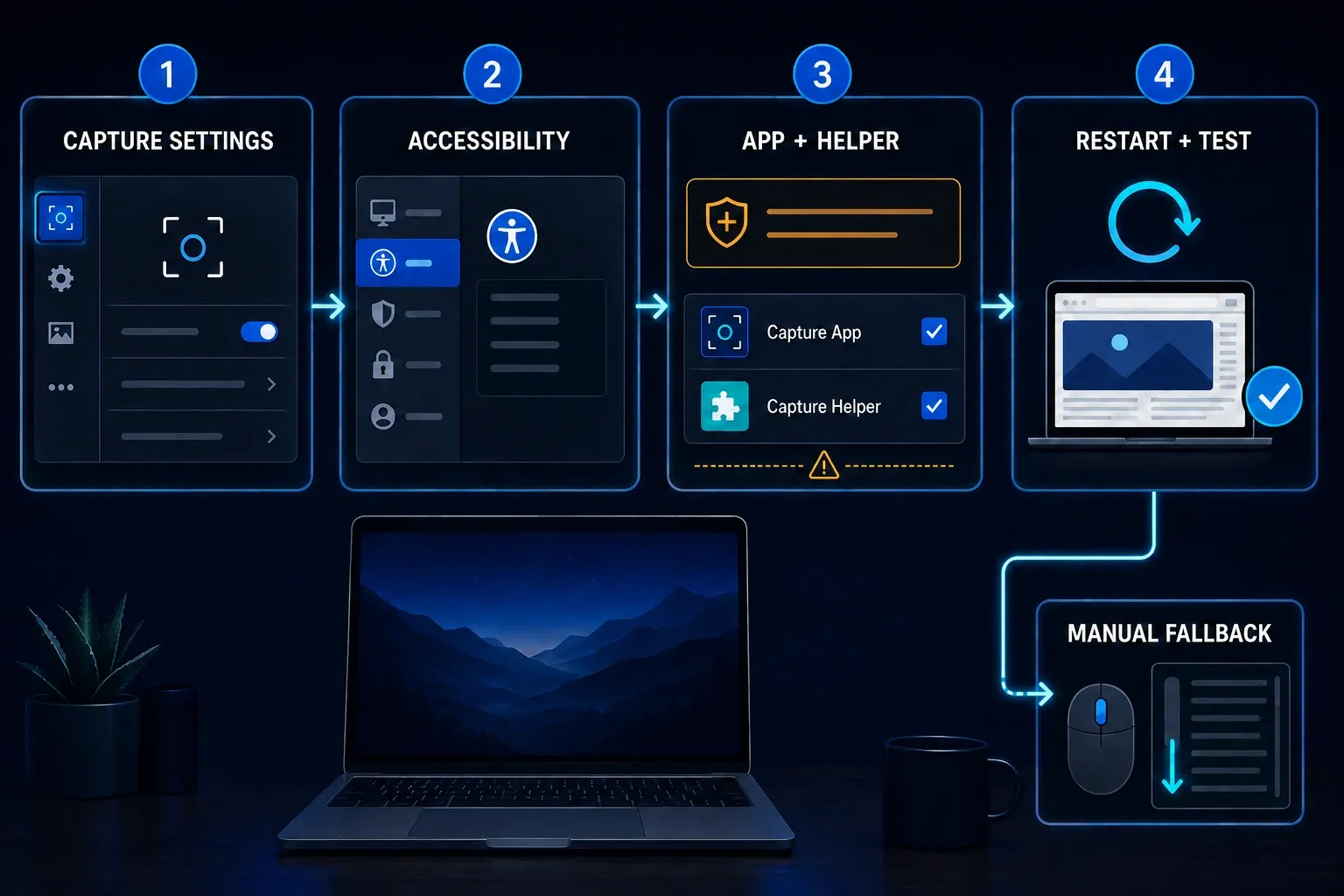
For automatic scrolling, follow TechSmith's Accessibility setup: Snagit > Settings > Capture > Fix Capture Permissions. Under Scrolling Capture, choose Enable, then Enable Scrolling Capture and Open Settings. Approve the Snagit and SnagitHelper entries in Accessibility. Restart Snagit if the status doesn't update.
Capturing the screen also needs Screen Recording approval, which is a separate requirement. TechSmith's Mac permissions instructions say to choose Quit & Reopen when prompted. Work from the current app's permission dialog, and don't delete random application copies or reset every permission as a first step. My Snagit Mac permissions guide covers each of these permissions separately in more detail.
For Chrome on Mac, TechSmith's Mac scrolling-failure article also lists View > Developer > Allow JavaScript from Apple Events. It's an older, browser-specific diagnostic, not a general macOS requirement. Check whether the option exists and whether your administrator allows it. If changing browser automation permissions isn't appropriate, use an approved manual route instead.
Mac App Store builds: check the exact edition
The documentation conflicts here. TechSmith's 2021 App Store support note says automatic arrows are unavailable, while the newer Snagit 2024 App Store version history includes automatic-scrolling fixes. So the old blanket restriction doesn't reliably describe every later build, and the newer notes don't guarantee support for your particular target either.
Note whether the app came from the App Store or TechSmith, along with its full version, and stick to the update channel approved for that installation. If automatic capture is still unavailable, try the manual mode your build offers or an allowed document export. Do not replace a managed installation just to test this difference.
Chrome, Edge, Firefox and difficult web pages
Try the same public page in another browser you're allowed to use. If it works there, note the browser version and capture mode. A logged-out page in a private window may not match the original page. For automatic Edge capture on Mac, check the specific September 2026 fix below before changing unrelated settings.
Virtualized tables may swap out off-screen rows as you scroll. Stitching can still work, but a long image doesn't show that every row made it in. Check row identifiers and totals against the source, and if completeness matters, the application's permitted table export is the better choice; verify its filters and row count.
For a nested panel, hover the pointer over it and make sure the panel scrolls rather than the outer page, then select that region for a manual attempt. If the application keeps replacing content or the result leaves out rows, switch to smaller verified sections or its own export instead of trusting image length.
For the normal setup steps, use my Snagit scrolling capture guide. If you need a different capture method for this particular page, the scrolling screenshot hub separates browser and operating-system options.
PDF readers and Excel need different fallbacks
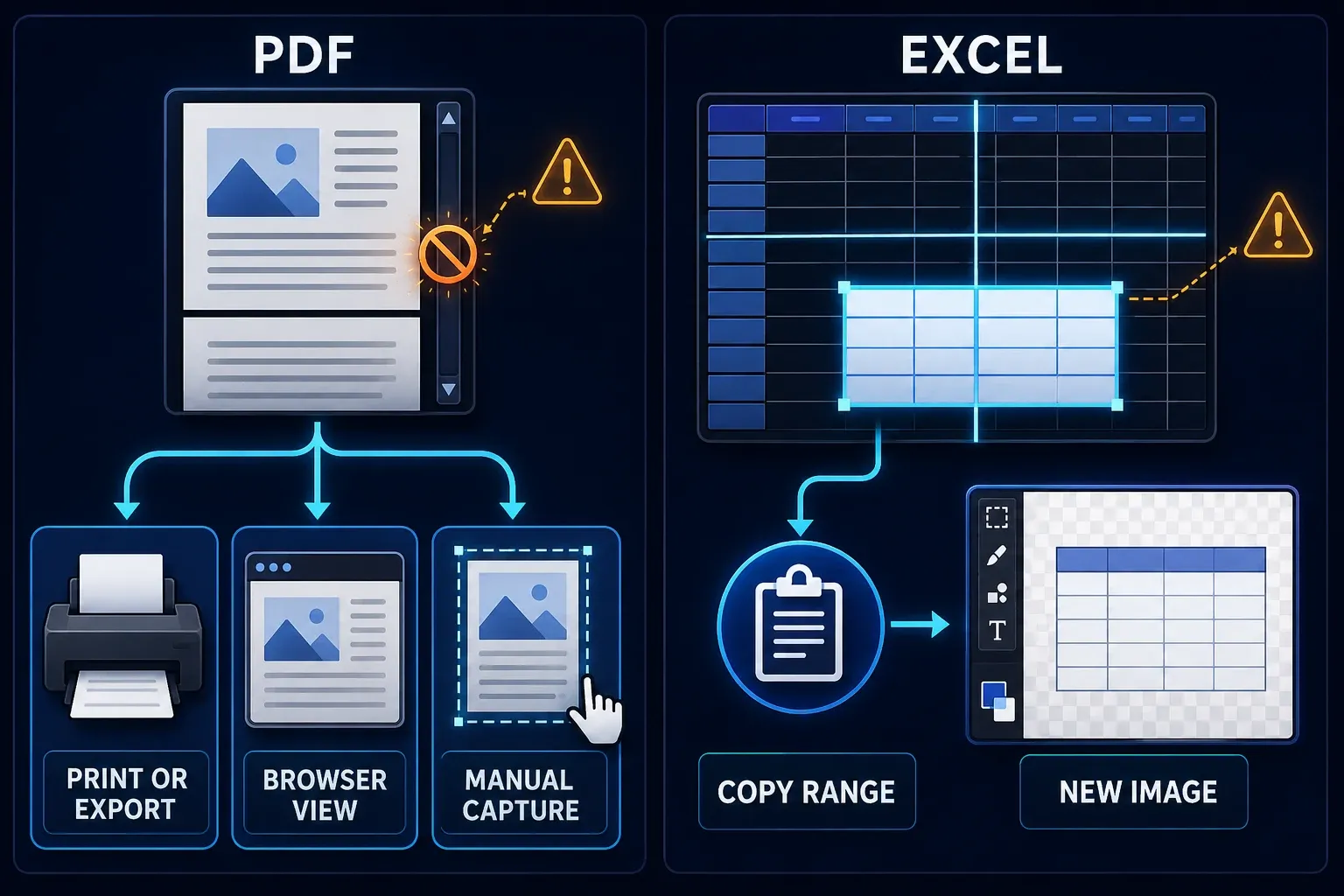
According to TechSmith's missing-arrows note, All-in-One capture doesn't detect PDF-reader scrollbars, so when you need the document itself, go with an allowed export or print route. For an image in Editor, Snagit Printer is an option on supported Windows installations where the component is installed; it's not supported on Windows on ARM. Some browser PDF views or manual capture may work, but check every required page. Do not bypass document restrictions.
TechSmith's Excel troubleshooting guide lists custom views, Print Preview, hidden scrollbars and worksheet panes as limitations, and Page Layout can also fail. Finish any active cell edit before you start. With panes, automatic capture can end up selecting the upper-left pane. For a defined range, copy it and use File > New from Clipboard in Editor, then check the first and last row, columns and values in the resulting image.
Security software and managed computers
Security software can block capture, but don't start by turning off protection. Go over any relevant block notification or log with your administrator or security vendor. On a managed computer, stick to the approved diagnostic process, because a screenshot problem doesn't give you permission to bypass capture restrictions.
If support asks for a controlled security test, agree on its scope and how protection gets restored before you start, and use harmless content. A successful test points to a possible conflict; it doesn't make a permanent exception safe. Ask the vendor or administrator for the narrowest supported fix, and don't leave protection disabled.
Check version-specific Windows fixes
The Windows 2026 release history records three relevant fixes: 2026.1.0 addressed manual-scrolling freezes or crashes on some virtual-machine configurations; 2026.2.0 addressed a crash with a very small selection; 2026.3.0 addressed a crash when stopping manual scrolling. Match the symptom and installed version before choosing an update.
These fixes don't explain every failed capture, so skip unrelated driver changes or permanent administrator mode as generic remedies. If a support engineer needs an elevated test, use only the trusted installed application, harmless content and the approved procedure, and note whether that specific test changes the result.
Check Mac fixes, then prepare a useful support report
The Mac 2026 release history says version 2026.3.2, released September 2, fixed automatic scrolling capture in Microsoft Edge. Version 2026.0.1, released February 4, improved accuracy for long automatic captures. Choose a build compatible with your Mac: the current requirements list macOS Golden Gate 27, Tahoe 26 or Sequoia 15. Do not blindly install a newer major version on an unsupported OS.
If the problem continues, send support the Snagit version and install source, OS, browser or target app, automatic/manual mode, selected region and the outcome on a simple page, plus a public reproduction URL or a sanitized sample. Before you share anything, remove account names, tokens, customer data and private document content.
A useful example report might read: automatic capture has no arrows on the public test page; manual capture works; the original application stops after the first panel. This is only a sample report, so add your real versions and permission status. In an archived macOS 15 discussion, users reported different results and the original poster later said the issue had disappeared without knowing why. That's a reason to record reproducible steps rather than evidence for a universal fix.
Snagit scrolling capture FAQ
Why are Snagit scrolling arrows not showing?
Missing arrows can involve window detection, a nested or unsupported surface, security restrictions or Mac Accessibility permissions. Try manual capture on a simple public page and record which mode fails; missing arrows alone do not prove a broken installation.
Why does Snagit scrolling capture stop early?
Changing page content, browser configuration or the capture method can contribute. Try a finite page at 100 percent browser zoom, wait for content and compare a smaller manual capture. A private-window success does not by itself prove an extension is responsible.
How do I enable Snagit scrolling capture on Mac?
Use Snagit > Settings > Capture > Fix Capture Permissions, then the Scrolling Capture setup. Approve Snagit and SnagitHelper in Accessibility and restart if needed. Screen Recording is a separate permission; use Quit & Reopen when prompted.
What is Panoramic Capture called now?
TechSmith calls the manual route Scrolling Capture, formerly Panoramic Capture. You select a region and scroll it yourself; automatic capture instead uses detected direction arrows.
Why are headers repeated in the final image?
A fixed header or floating element may remain visible while the page moves beneath it. Exclude it where practical or capture shorter sections, then inspect the seams. Do not omit information the final image needs to document.
Can Snagit automatically scroll a PDF?
TechSmith says All-in-One capture does not detect PDF-reader scrollbars. Use a permitted export, print, browser view or manual capture. Snagit Printer requires a supported Windows installation with that component installed and does not support Windows on ARM.
Why does Snagit repeat rows in Excel?
Worksheet panes, custom views, Print Preview and hidden scrollbars can interfere with automatic capture; Page Layout can also fail. Copy the required range and use File > New from Clipboard in Editor, then verify the rows and columns.
Should I reinstall Snagit?
Not as the first step. Compare automatic and manual capture on a simple page, check the relevant permissions and version-specific fixes, and use approved browser or security diagnostics. Preserve your work and involve support before resetting or reinstalling.