
If Print Screen does nothing on Windows 11, first check whether it copied an image or opened a selection toolbar. When a toolbar appears, finish a small rectangular capture, then paste it into a blank Paint document with Ctrl + V and check that the image is new. A missing popup or file doesn’t necessarily mean the key failed.
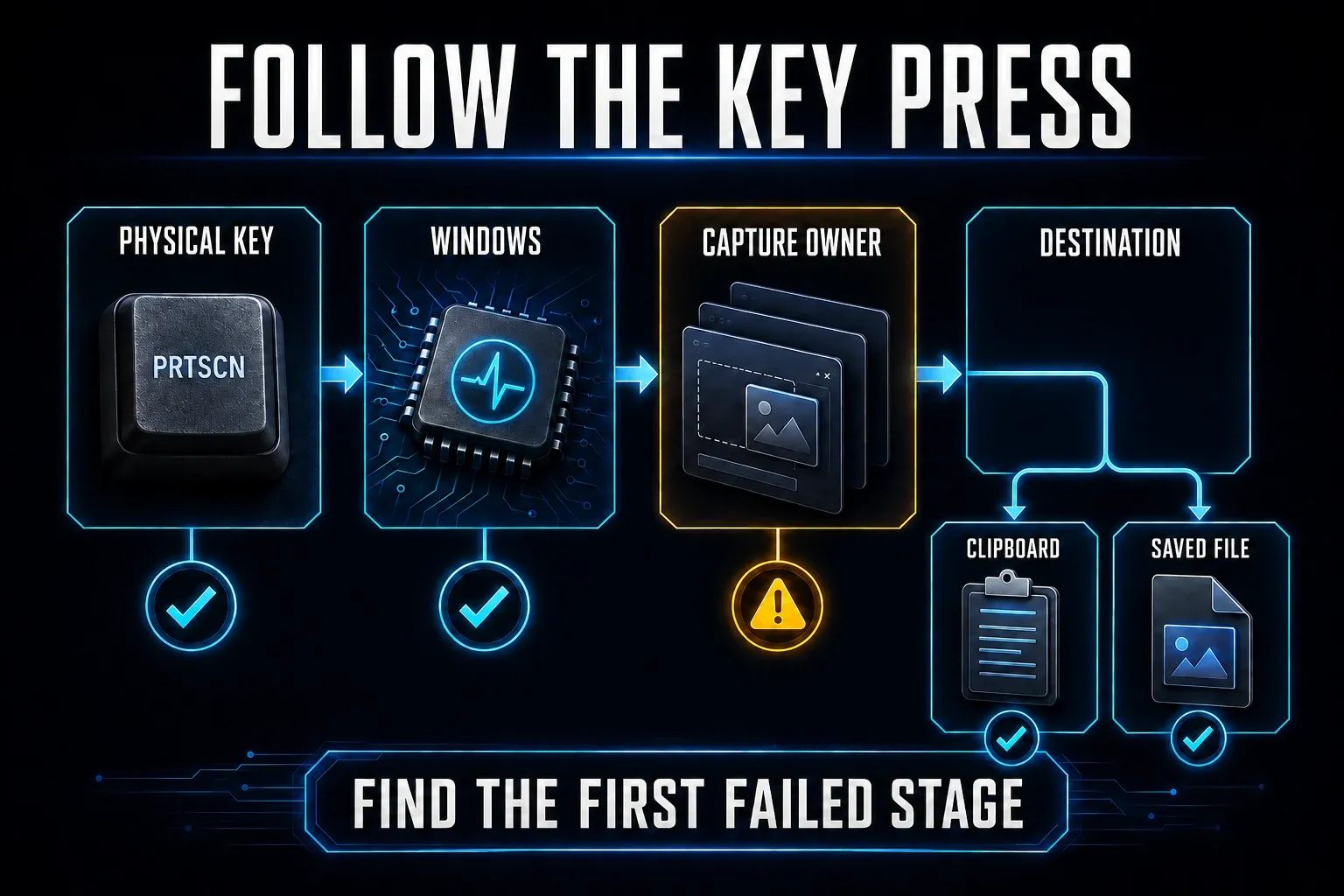
Next, compare a complete capture made with Windows + Shift + S. If that works but PrtScn fails, look at the key’s assignment, the laptop Fn combination and any keyboard software. If neither shortcut produces an image, try New in Snipping Tool before you assume the keyboard is broken.
Checked September 18, 2026 against Microsoft, Dell, Logitech and TechSmith documentation. Choose the checks that match your symptom and stop when the intended capture works. The illustrations explain the checks; they are not records of hands-on Windows testing.
What each screenshot shortcut should do
| Shortcut | Expected Windows behavior | Verify the result |
|---|---|---|
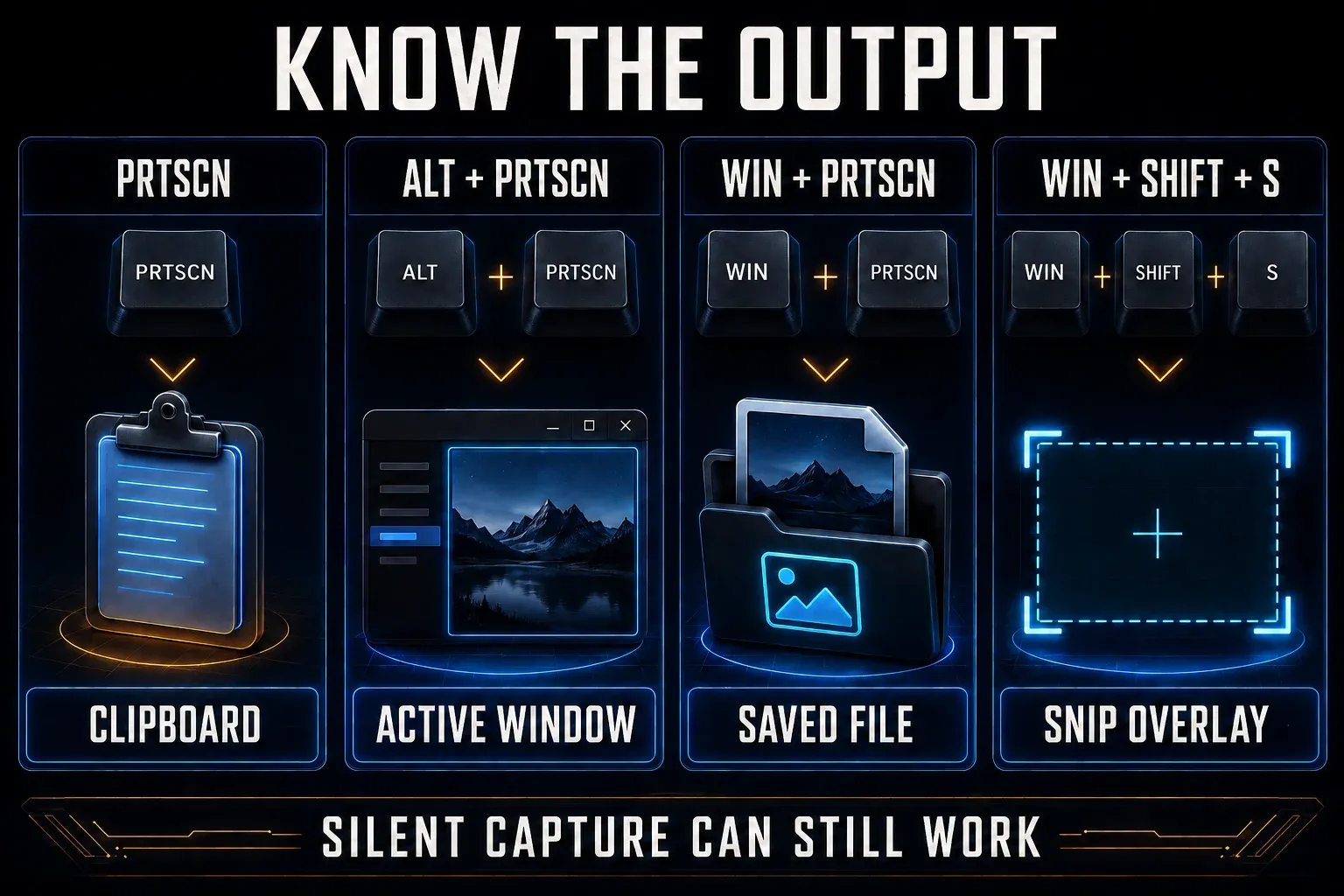
| Print Screen / PrtScn | Opens screen snipping when that setting is on; otherwise may use the traditional clipboard action or an assigned app | Finish any selection, then inspect the new image |
| Alt + Print Screen | Copies the active window to the clipboard | Paste into Paint and identify the window |
| Windows + Print Screen | Saves a full-screen capture | Open the newest file in Pictures > Screenshots |
| Windows + Shift + S | Opens the image snipping toolbar | Complete the selection; check the image, not just the toolbar |
| Fn + Windows + Space | Microsoft’s hardware-dependent alternative when PrtScn is absent | Try it if your hardware supports it; check Pictures > Screenshots |
Microsoft’s Windows keyboard shortcuts document the screen-snipping assignment, and its copy-screen instructions also describe traditional clipboard capture. The first column of the diagram below shows that clipboard mode, which isn’t how every Windows 11 setup behaves. Microsoft’s screenshot shortcut page gives the saved-file location and an alternative for keyboards without PrtScn. Capture apps can change shortcut behavior.
1. Test the clipboard first
- Put a harmless, recognizable note on screen, such as “capture check A”. Avoid private messages or customer information.
- Press Print Screen. If a selection toolbar opens, choose a rectangle, drag across the note and release.
- Open a blank Paint document and press Ctrl + V. Check for the note you just captured; an older clipboard image is not a successful test.
- Change the note to “capture check B”, make that window active and test Alt + Print Screen. Paste into Paint and verify the changed note.
A correct new paste confirms that this capture reached the clipboard. If you expected a file, save it explicitly or test Windows + Print Screen. If you expected a different capture app, go to Fix 5. You do not need to turn on clipboard history just to use Ctrl + V.
A full-desktop image can include multiple monitors. Use Alt + Print Screen when you want the active window instead. Do these tests on an ordinary local desktop, not inside a remote session or protected video.
2. Try the Windows screenshot routes
Change the test note to something not present in an earlier capture, such as “capture check C”. Press Windows + Print Screen and inspect the newest file in Pictures > Screenshots. Confirm that changed note rather than relying on a brief screen dim or an old file. Then change the note again, press Windows + Shift + S and finish a rectangular snip. If no editor opens, paste into Paint and identify the fresh image.
If neither shortcut works, open Snipping Tool from Start, choose image mode and New, and complete the same capture. Microsoft’s Snipping Tool instructions cover manual capture and saving. Use these results to choose the next check:
- Windows + Shift + S produces the correct image, but PrtScn does not: start with key assignment and the laptop Fn layer.
- PrtScn captures, but Windows + Print Screen produces no file: check the Windows key, keyboard remapping and destination.
- Manual New works, but both shortcuts fail: check shortcut handling; the app can capture in this test.
- Manual New also fails or crashes: use the app checks in Fix 9. An on-screen key test alone cannot establish the cause.
3. Check the laptop Fn layer and key label
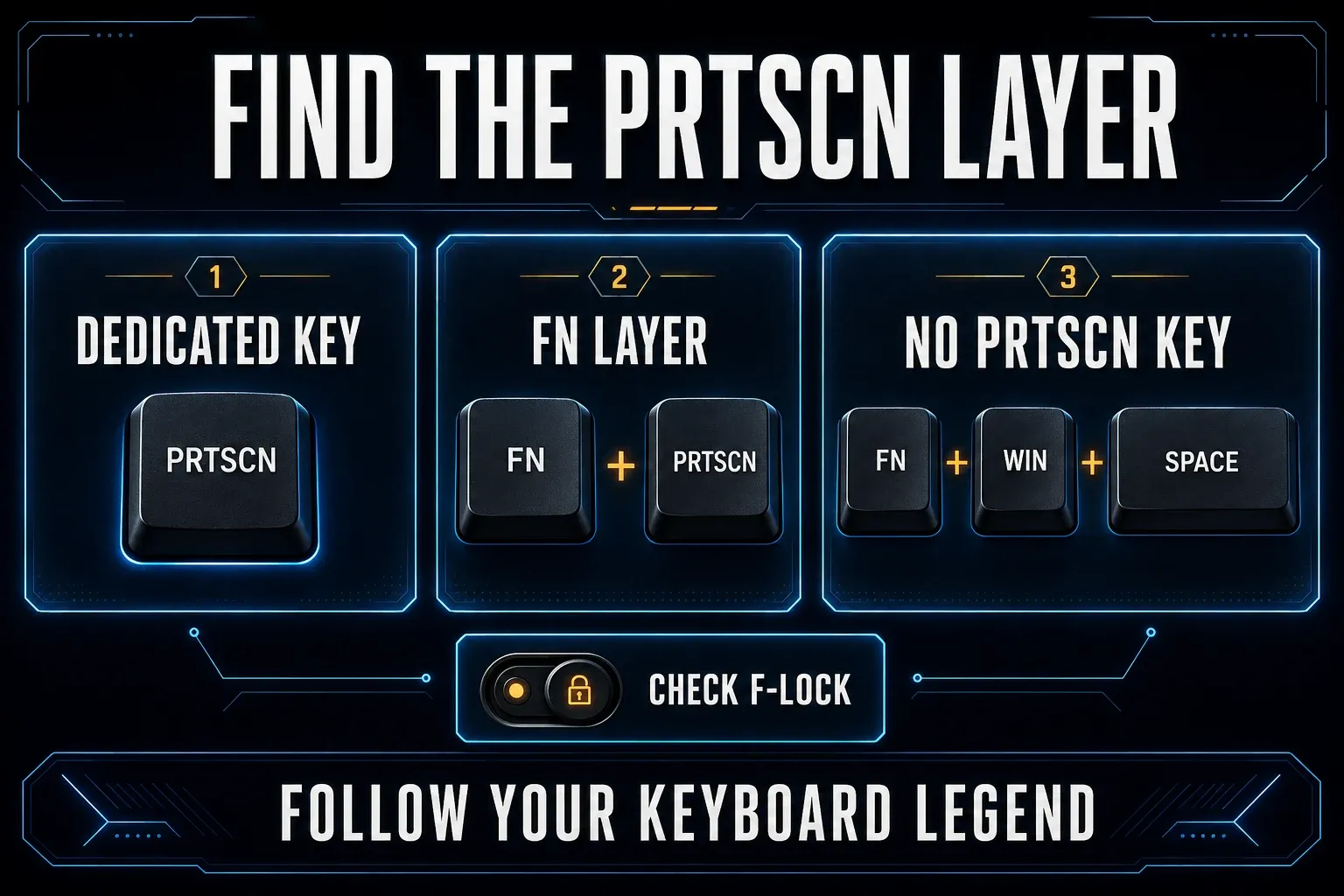
Look for PrtSc, PrtScn, PrntScrn or a similar label, often on the upper-right or function-key row. A second label can indicate an Fn combination. Dell’s keyboard guide gives model-dependent examples, including Fn + F10 and Fn + Insert; neither is a universal laptop shortcut.
Use your keyboard’s printed legend and model manual. Check its function-lock setting if the manual says that affects the key. Do not assume Fn + Esc toggles it on every keyboard. If Windows + Print Screen fails but PrtScn works, also check whether a documented gaming-mode setting disables the Windows key.
With no PrtScn key, Windows + Shift + S avoids that key entirely. Microsoft also lists Fn + Windows + Space, depending on hardware. The diagram shows possible layouts, not three combinations that every laptop supports. If a fallback does nothing, use New in Snipping Tool and consult the model manual.
4. Compare the on-screen and physical keys
- Open Settings > Accessibility > Keyboard and turn on On-Screen Keyboard. This is the accessibility keyboard, not the touch keyboard.
- If only navigation keys appear, select General to show the full layout. Locate its Print Screen key.
- Change the test note, select the on-screen Print Screen key and complete any selection toolbar that appears.
- Inspect the fresh result in the capture app or paste into Paint. Compare with the physical key on the same desktop and settings.
Microsoft documents the On-Screen Keyboard and its General layout. If it captures but the physical key does not, investigate that keyboard’s layout, remapping, connection or hardware. Software can treat physical and on-screen input differently, so this is a useful comparison, not proof that a switch has failed.
5. Choose what Print Screen should open
Open Settings > Accessibility > Keyboard. Find Use the Print Screen button to open screen snipping; wording can vary slightly. Turn it on to use PrtScn for Snipping Tool. Turn it off to stop that Windows assignment, then check any capture app or keyboard utility that also uses the key.
Turning this setting off does not automatically assign PrtScn to Snagit or another app. Set the desired shortcut in that app and retest. If the old behavior persists, save your work, restart Windows and repeat the test. Do not change the registry for a preference already available in Settings.
For one-key Snagit capture, follow the Snagit Print Screen setup. It covers the app’s hotkey configuration after Windows releases the assignment.
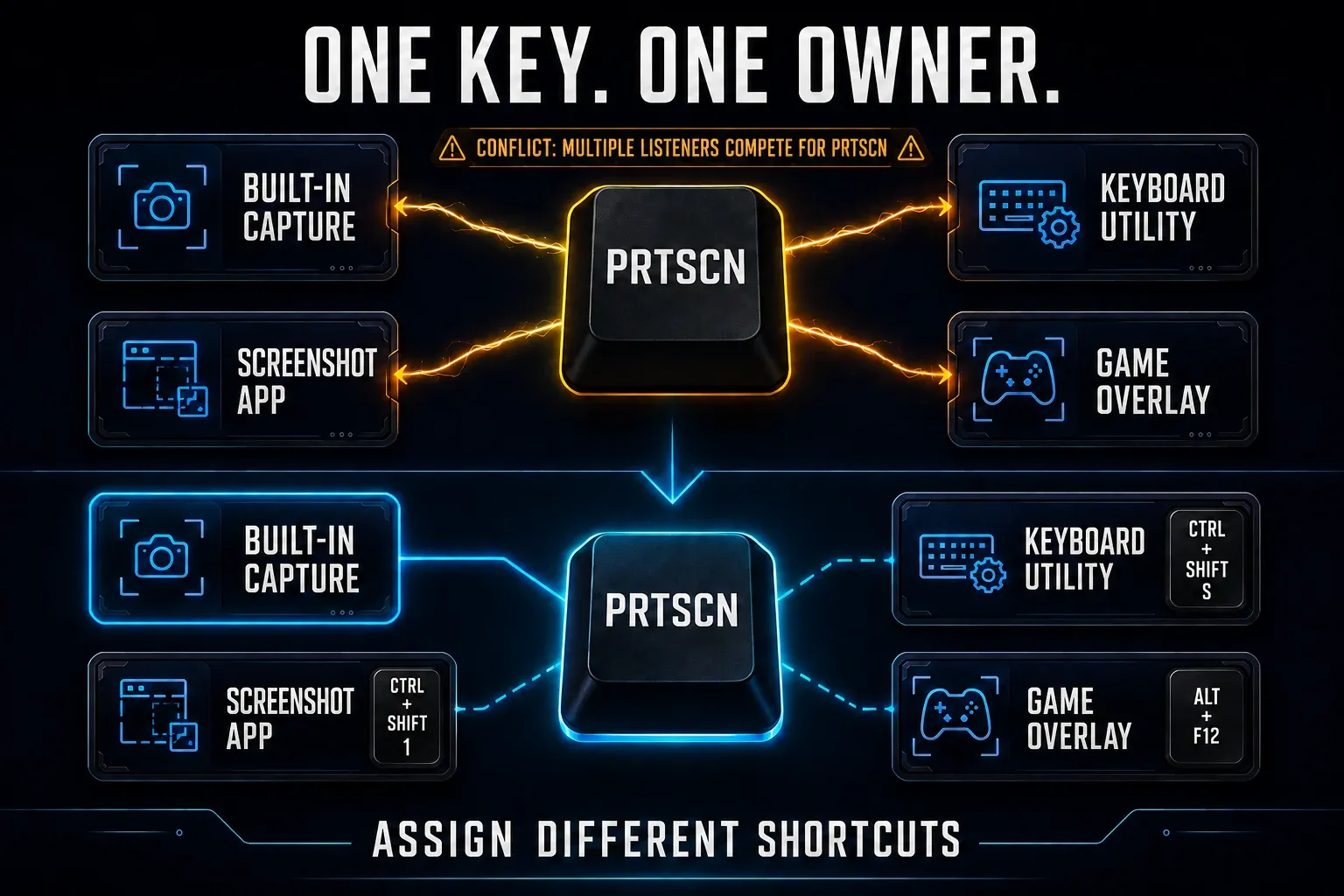
6. Give the key one capture owner
Check screenshot apps and keyboard utilities you recognize. TechSmith’s hotkey troubleshooting guide confirms that another app can claim Print Screen and prevent Snagit from receiving it. If you use Logi Options+, check Fix 8 as well: its Screen Capture action is different from sending a Print Screen keypress.
- Save any open captures. Note which recognized utilities assign an action to Print Screen.
- Exit one of those utilities, then repeat the same completed capture test. Do not end unknown processes.
- Reopen it if the result did not change. If it did, inspect that utility’s assigned action before changing anything else.
- Keep your intended app on Print Screen and choose non-conflicting shortcuts for other capture tools. Test the combinations in the apps where you use them.
The shortcuts in the diagram are examples, not recommended defaults; they may already do something in your apps. Do not uninstall every capture tool or disable antivirus, endpoint security or company policy to free a key.
7. Restart the capture path
If the intended capture app is frozen, save any accessible capture or unsaved annotation before closing it. Reopen the app and test. If it remains stuck, use Ctrl + Shift + Esc, identify only that app in Task Manager and end its task. Ending the task loses unsaved work in that session.
If the failure persists, save your other work and restart Windows once. Repeat the original test before making another change. A temporary improvement after a restart does not identify the cause; record whether the problem returns after one capture or only in a particular app.
8. Check Logitech remapping and official updates
Logitech documents a specific change in Logi Options+ 1.86: Screen Capture stopped acting as an ordinary Print Screen key. If you use that action, open Logi Options+, select your device, choose Keys or Buttons, select the affected key and assign Print Screen. Retest. This restores the keycode for Windows or your capture app to handle; it does not choose the app for you.
For other keyboards, inspect the assigned action in the manufacturer’s utility. If the problem persists, save your work and check supported updates in Settings > Windows Update. Microsoft recommends Windows Update for driver updates. Use the keyboard or PC manufacturer’s official support route for model-specific software; avoid generic driver-download sites. Ask IT before driver or firmware changes on a managed PC.
9. Repair Snipping Tool if manual capture also fails
Use app repair when Snipping Tool itself fails, not merely when PrtScn opens the wrong app. First compare a complete capture through New with the shortcut. Save any accessible work before closing the app, then:
- Open Settings > Apps > Installed apps and find Snipping Tool.
- Open its More (...) menu and choose Advanced options, if available.
- Select Repair if offered, reopen the app and repeat the complete capture through New and the shortcut.
- If repair is unavailable, blocked or ineffective, use the detailed Snipping Tool guide or ask IT. Do not jump straight to removing the app.
Microsoft’s app repair instructions put Repair before Reset. Our Snipping Tool troubleshooting guide covers updates, account errors and the precautions for Reset or reinstalling. Skip those changes if capture already works and the only issue is a missing popup or file.
10. Compare with another keyboard
If you have another compatible keyboard, test it on the same local desktop. For a removable suspect keyboard, try another computer if practical, with its key assignment checked too. If that keyboard alone fails while alternatives work, contact its manufacturer with the comparison. The result narrows the problem but does not distinguish a switch, firmware or device-specific software by itself.
For a laptop, try an external keyboard before considering physical repair. Record the model, Windows version, keyboard utility version, on-screen test and which exact combinations failed. Do not replace or dismantle the built-in keyboard as a diagnostic step.
Special cases that change the diagnosis
Print Screen opens the wrong app
If an app opens, the key may be working but assigned to something unexpected. Check Fix 5 and, for Logitech, Fix 8. Pick one capture workflow and test it after you change the relevant setting. If you’re still deciding which editor to use, the Snagit vs Snipping Tool comparison explains how they differ.
Windows + Print Screen does not save
Open Pictures > Screenshots in File Explorer and check the newest file. Go by the Pictures folder your PC uses instead of assuming a fixed local path. Check that the Windows key opens Start, since keyboard remapping can also affect the combination. If Snipping Tool handled the capture, check See more (...) > Settings for its separate automatic-save setting and destination. If you have a usable image but no file, use the Windows screenshot saving checks.
The key fails only in a game, remote desktop, or virtual machine
Go back to the local desktop and repeat the same test. If it works there, check how the game, virtual machine or remote client documents its shortcut handling. Microsoft’s Remote Desktop Connection shortcut reference explains the Local Resources setting, which controls where Windows combinations apply, and other clients may differ. If the app or your organization explicitly blocks capture, use the permitted export or sharing options and don’t bypass the restriction.
Your keyboard has no Print Screen key
Complete a capture with Windows + Shift + S or use New in Snipping Tool. Try Fn + Windows + Space only if your hardware supports Microsoft’s alternative. You don’t need to buy software just because a compact keyboard lacks PrtScn. If you want a different capture workflow, the screenshot software guide compares the available options.
Print Screen not working FAQ
Why does Print Screen do nothing on Windows 11?
It may have copied an image silently or opened a selection toolbar that still needs you to choose an area. Complete any selection, paste into Paint and verify a fresh image. If that fails, compare Windows + Shift + S and manual New in Snipping Tool before changing drivers.
Where are Windows + Print Screen screenshots saved?
The standard Windows shortcut saves to Pictures > Screenshots. Open the newest file and verify it. If a keyboard utility redirected the shortcut to Snipping Tool, check that app’s save settings instead. Plain Print Screen may use the clipboard or open a capture tool rather than create a file directly.
Why does Print Screen open Snipping Tool?
Windows 11 has a screen-snipping assignment under Settings > Accessibility > Keyboard. Turn off the Print Screen option to stop that assignment, then configure the key in any capture app or keyboard utility you want to use. Turning it off alone does not assign the key to Snagit.
How can I tell whether the Print Screen key is broken?
Compare a completed capture using the accessibility On-Screen Keyboard with the physical key on the same desktop. Then try a second keyboard if available. If only one keyboard fails, investigate its settings, connection, software and hardware; the comparison does not prove which component failed.
Why is Print Screen not working on my laptop?
The function may require Fn or a model-specific function-lock setting. Follow the printed legend and manufacturer’s manual, not a universal Fn shortcut. Windows + Shift + S avoids the PrtScn key; Fn + Windows + Space is a hardware-dependent alternative.
Can Snagit stop Print Screen from working in Windows?
Snagit and Windows can both be configured to use Print Screen, so the expected app may not receive it. Check Windows’ screen-snipping assignment and the capture app’s hotkey settings. Also inspect keyboard remapping. A conflict does not establish that either app is broken.
Should I edit the registry to fix Print Screen?
Not as a first response. The normal clipboard, screen-snipping, app assignment and keyboard checks here do not require registry edits. If those fail, record the controlled test results and ask Microsoft Support, IT or the keyboard manufacturer before trying a system-level workaround.