
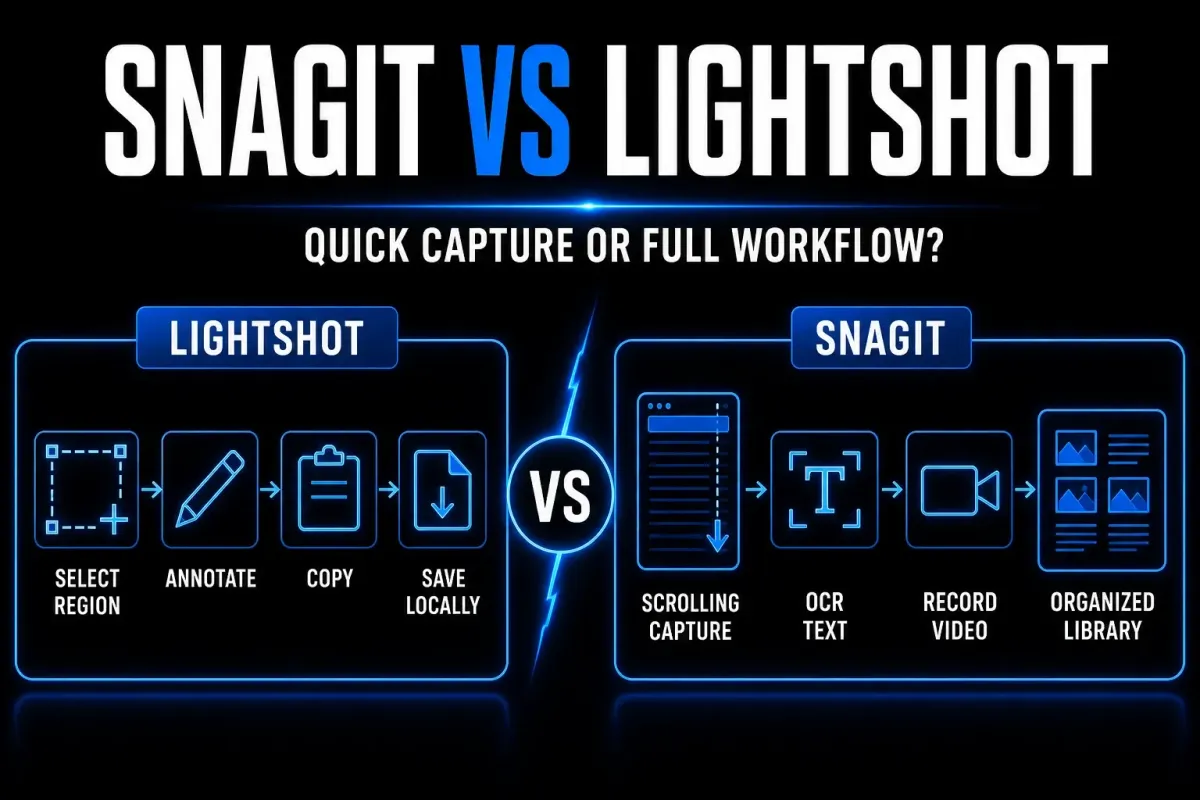
My short answer: choose Lightshot if you want a free, focused tool for grabbing a region, adding a few marks, then copying or saving the image. Choose Snagit if the screenshot is the start of a larger job — a scrolling page, repeatable documentation, OCR, a short recording, or a capture that must be found and revised later.
The price gap is real. Lightshot is free, while TechSmith's regional store showed Snagit Individual at €39.56 per user per year, billed yearly, in the region checked on September 18, 2026. Paying only makes sense when Snagit's wider workflow removes work you actually repeat.
Sources rechecked September 18, 2026. This is a source-led comparison, not a claim that both apps were benchmarked on the same device. SnagitPro is independent and is not affiliated with or endorsed by TechSmith or Skillbrains.
Snagit vs Lightshot in 30 seconds
| Decision point | Lightshot | Snagit |
|---|---|---|
| Best fit | Fast, simple still screenshots | Documentation, support, training, and repeat revisions |
| Price checked | Free download | Annual Individual subscription; checkout price varies by region |
| Desktop platforms | Windows and Mac | Supported Windows 10/11 configurations; macOS 27, 26 or 15 |
| Region capture | Yes | Yes |
| Scrolling capture | Not listed in current official pages checked | Vertical and horizontal |
| Screen recording | Not listed in current official pages checked | Screen, webcam, microphone, and system audio |
| OCR or text recognition | Not listed in current official pages checked | Grab Text and text recognition tools |
| Editing | Pen, brush, blur, a translucent marker, and text in the documented online editor | Annotations, steps, callouts, templates, redaction, OCR, and reusable styles |
| Organization | Online history for signed-in uploaded screenshots | Local Library with search, filters, and tags |
| Sharing | Clipboard, local file, or public-by-URL upload | Clipboard, local export, connected services, or Screencast link |
What Lightshot is good at
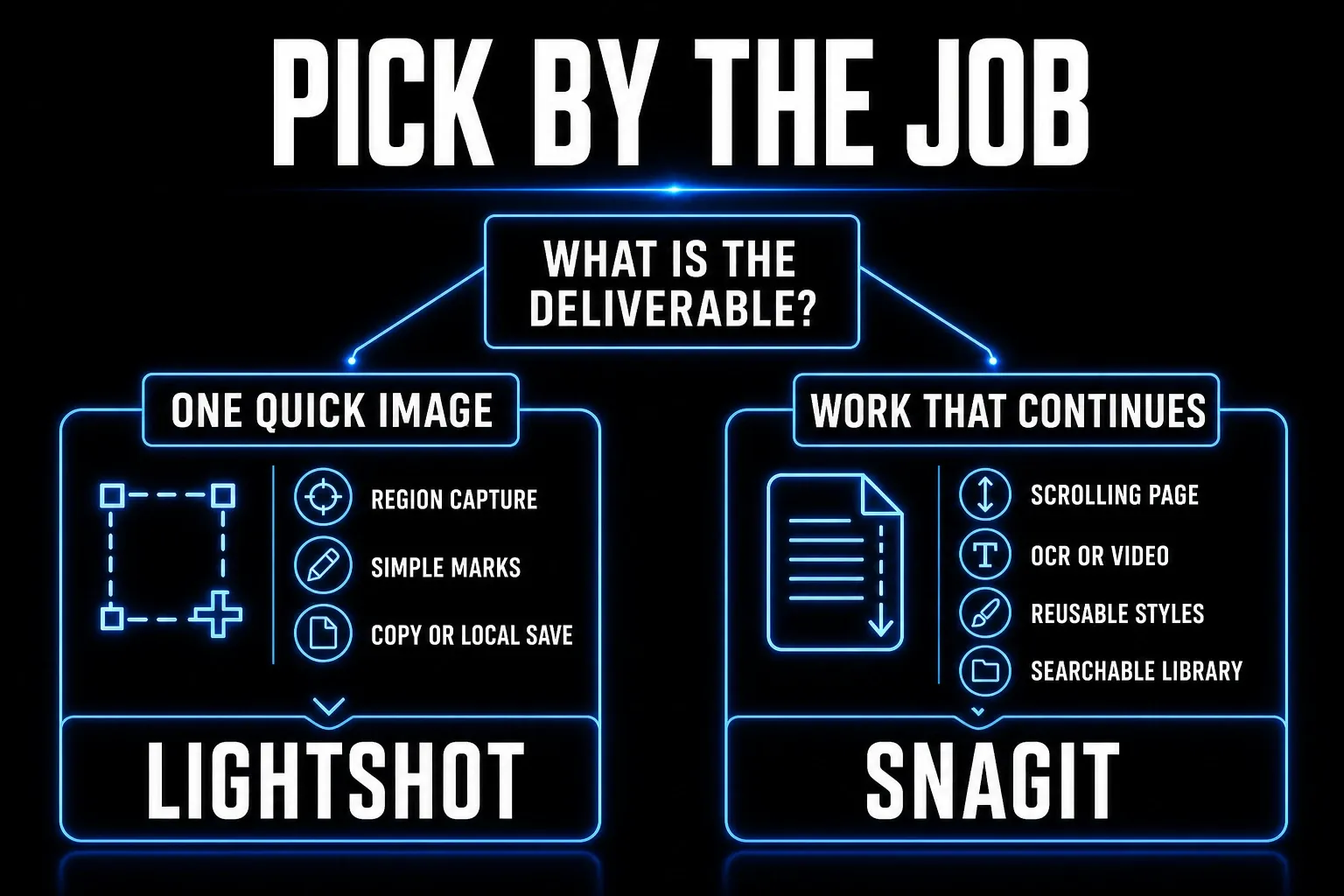
Lightshot keeps the first step small: press the capture shortcut, drag around the area, then mark, copy, save, or upload. Its official feature page documents clipboard copy, local save, hotkeys, quick online editing, web sharing, and screenshot history for signed-in users.
That narrow path earns its keep when the image is disposable. Examples include:
- cropping one error message into a support chat;
- adding an arrow to a button for a colleague;
- copying a product detail into a document;
- saving a PNG, JPG, or BMP to a local folder;
- sharing a non-sensitive image through a quick public link.
Lightshot is not automatically a cloud-only workflow. The vendor states that Copy puts the image on the clipboard and Save writes it to the computer without an upload. That distinction matters — a fair comparison shouldn't claim that taking a screenshot sends it to a server.
The official pages I checked for this guide did not document scrolling capture, screen recording, or OCR. If you need one of those tasks covered, don't assume a hidden setting will handle it. Test the current build or choose a tool that documents the feature.
What Snagit adds after capture
Snagit can run the same region-capture loop, but its value shows up after the pixels are captured. TechSmith's current feature catalog lists scrolling capture, screen and webcam recording, text recognition, numbered steps, templates, reusable styles, Smart Redact, a searchable Library, tags, batch processing, and several export routes.
Those features fit work that outlives one message:
- a help article with a full-page screenshot;
- a support procedure that changes after each software release;
- a bug report containing screenshots and a short recording;
- a training guide that uses the same callout colors and step markers;
- a capture archive that must be searched months later.
Don't buy it for a feature count. If you never record, extract text, capture long pages, reuse styles, or revisit old sources, much of that list means nothing to you. The current Snagit review separates useful repeat-work features from extras you may never open.
Capture: basic regions or long, changing content
Both products handle the ordinary task: select an area and capture it. Lightshot can also expand its selection to full screen through the documented hotkey, which covers most short messages.
Snagit has the stronger documented route once content runs past the visible window. TechSmith currently supports vertical and horizontal scrolling capture, so a long webpage or a wide sheet can land in one image — though sticky headers, nested panels, permissions, and dynamic content can still cause stitching failures. Run the Snagit scrolling capture test on the exact page or application that drives your decision.
A full-screen screenshot and a scrolling screenshot are different things: full screen captures the visible display, while scrolling capture continues through off-screen content. Plenty of comparison pages blur those terms and make Lightshot look more capable than its current documentation supports.
Editing: quick marks or reusable documentation
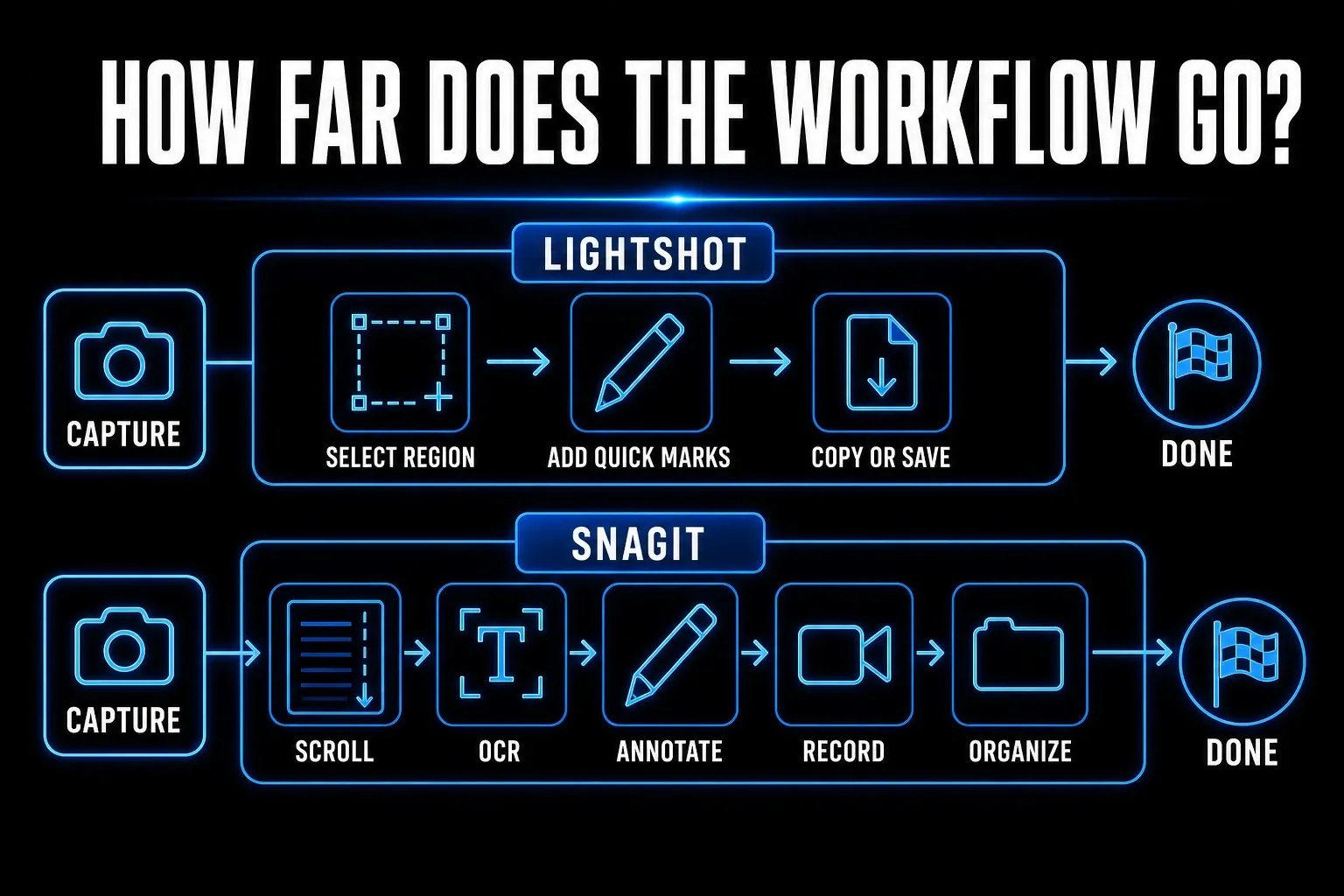
Lightshot’s feature guide places pen, brush, blur, translucent marker, and text in its online Pixlr editor. That is a separate route from the desktop capture editor: the Edit Online shortcut uploads the selected area. For a one-time public image, that may be enough; do not choose the online route for a private screenshot on the assumption that every listed tool works locally.
Snagit adds callouts, step numbers, stamps, shapes, templates, backgrounds, effects, reusable styles, and OCR-assisted text work. Its text recognition can edit, copy, or delete text found in a screenshot — but OCR output still needs inspection. A product key, total, punctuation mark, or name can be wrong even when the paragraph looks plausible. The Snagit OCR workflow shows how to constrain the selection and verify the result.
The deciding question is whether the image will be revised, rather than which editor has more buttons. If a screenshot will appear in a maintained SOP, release note, course, or support article, editable source material and consistent styles reduce rebuild work. If the image expires after one conversation, a smaller editor is often better.
Video and audio are a category break
Lightshot's current official pages checked for this comparison do not list screen recording. Snagit, meanwhile, records a region or screen with microphone and system audio, supports webcam and picture-in-picture workflows, and includes basic trimming and clip combining.
That doesn't make Snagit a full video editor. It fits a short walkthrough, narrated answer, or bug reproduction. A course with separate tracks, detailed audio repair, transitions, or designed captions needs a timeline editor. The Snagit screen recording guide covers capture area, audio, webcam, output, and the point where another editor is required.
If video is your main output, stop forcing this two-product decision and compare recording tools instead. The screenshot software guide by workflow keeps still capture and recording-first choices separate.
Privacy: choose the exact storage route
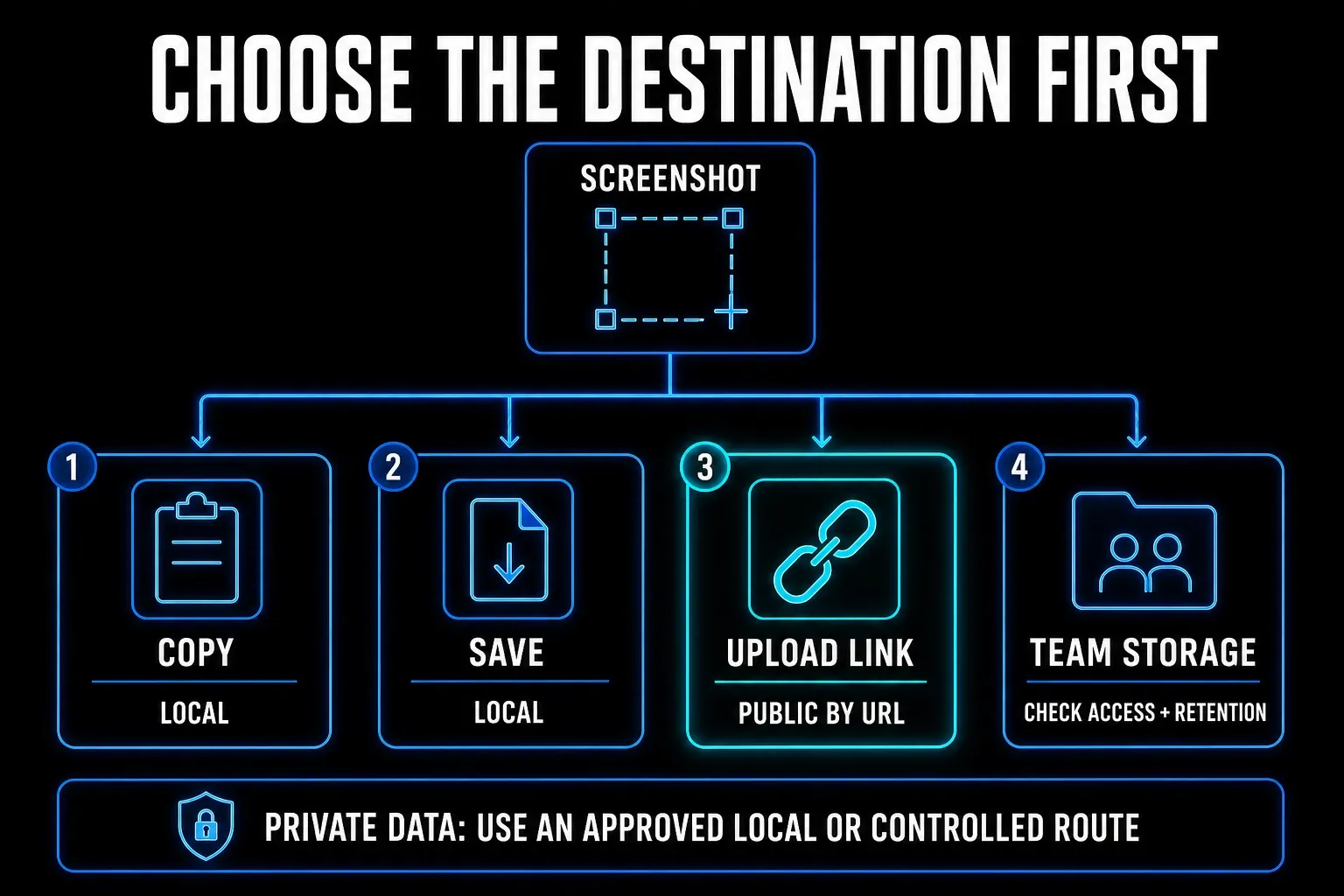
Lightshot gives you three materially different routes:
- Copy puts the screenshot on the clipboard.
- Save writes JPG, PNG, or BMP to the computer without an upload.
- Upload sends the image to the service and returns a web link.
There's a fourth route worth noticing. The Lightshot hotkey documentation says Edit Online uploads the selected area to the online editor.
For sensitive material, stay with Copy or Save and inspect the destination. Lightshot's official privacy policy states that every uploaded image is public by its exact URL, even when it appears in a signed-in gallery, and the same policy says the service is not intended as secure image storage. Don't upload passwords, customer records, private messages, recovery codes, medical details, or internal URLs.
Snagit has local and hosted routes too. Saving a file or copying it is different from creating a Share Link through Screencast or sending the capture to another service. Check the account, permissions, retention, and recipient before using any hosted route. A paid product doesn't make a careless share safe.
Price and platform support
Lightshot's official site offers free desktop downloads for Windows and Mac. It lists browser options too, but a browser extension and a desktop capture app don't have identical reach: the extension sees browser content, while the desktop app handles content outside the browser.
TechSmith's dedicated system requirements list supported Windows 10/11 configurations and macOS Golden Gate 27, Tahoe 26 or Sequoia 15. A broader macOS 14+ store badge does not establish Snagit 2026 compatibility. The regional store showed €39.56 per user/year on September 18, 2026; confirm currency, tax and licence terms in your own checkout.
For a multi-year budget, allow for renewals and possible price changes. Weigh it against the work you'd avoid. One long documentation rebuild each quarter can cost more than the software; five quick screenshots a week with no later revision may not justify any subscription.
Which tool should you choose?
Choose Lightshot for a short still-image loop
Start with Lightshot when you need region capture, a few marks, clipboard copy, or a local file on Windows or Mac. Keep the workflow local when the content is private. It's also the sensible first test when you don't yet know which paid feature would save you time.
Choose Snagit for work that continues
Choose Snagit when you repeatedly need scrolling pages, screen recording, OCR, structured annotations, reusable styles, a searchable Library, or source captures that will be revised. Its strongest case is a maintained documentation process shared across Windows and Mac — that's where the subscription stops feeling optional.
Choose neither if the requirement points elsewhere
Use ShareX when a Windows workflow needs free automation. Use a smaller still-image editor when quick Windows markup is the real job — the Snagit vs Greenshot comparison covers that narrower decision. Use a native Mac-focused tool when Mac polish matters more than Windows parity, and a recording-first tool when long video is the deliverable. The free Snagit alternatives guide and alternatives hub map those routes without pretending one app fits every team.
Run this five-task test before deciding
Use neutral sample content with no personal or company data. Run the same tasks in each candidate and record pass, workaround, or fail.
- Capture a region, add one arrow and one line of text, then copy it into a document.
- Save a local PNG to a chosen folder and confirm the filename and image quality.
- Capture a long page that extends beyond the visible window.
- Extract one paragraph from an image and compare every character with the source.
- Record a 30-second explanation with the audio route you normally use.
Count the repair work after capture. A task that needs a second app, manual stitching, a repeated export, or a new storage rule isn't a clean pass. Pick the smallest tool that completes the set you really repeat.
Snagit vs Lightshot FAQ
Is Lightshot better than Snagit?
Lightshot is the better fit for free, quick still screenshots with simple marks and local copy or save. Snagit is the better fit for scrolling capture, screen recording, OCR, structured documentation, and captures that must be organized or revised later.
Is Lightshot completely free?
Lightshot's official site offers the desktop app as a free download for Windows and Mac. Managed or commercial deployments should still review the current terms, installer source, update process, and privacy policy before rollout.
Does Lightshot upload every screenshot?
No. Lightshot documents local clipboard copy and local file saving without upload. The Upload action sends the screenshot to the service, and Edit Online uploads the selected area to the online editor.
Are uploaded Lightshot screenshots private?
No. Lightshot's official privacy policy says every uploaded image is public to anyone who has its exact URL, including images in a signed-in gallery. Use local copy or save for sensitive material.
Can Lightshot record video or capture a scrolling page?
The official Lightshot feature, hotkey, and privacy pages rechecked on September 18, 2026 did not list screen recording or scrolling capture. Verify the current build if either feature is a requirement.
Is Snagit worth the subscription price compared with Lightshot?
It can be worth the subscription price when scrolling capture, screen recording, OCR, reusable styles, Library search, or later revisions remove repeated work. If your workflow ends after a basic screenshot and a quick mark, start with Lightshot.