
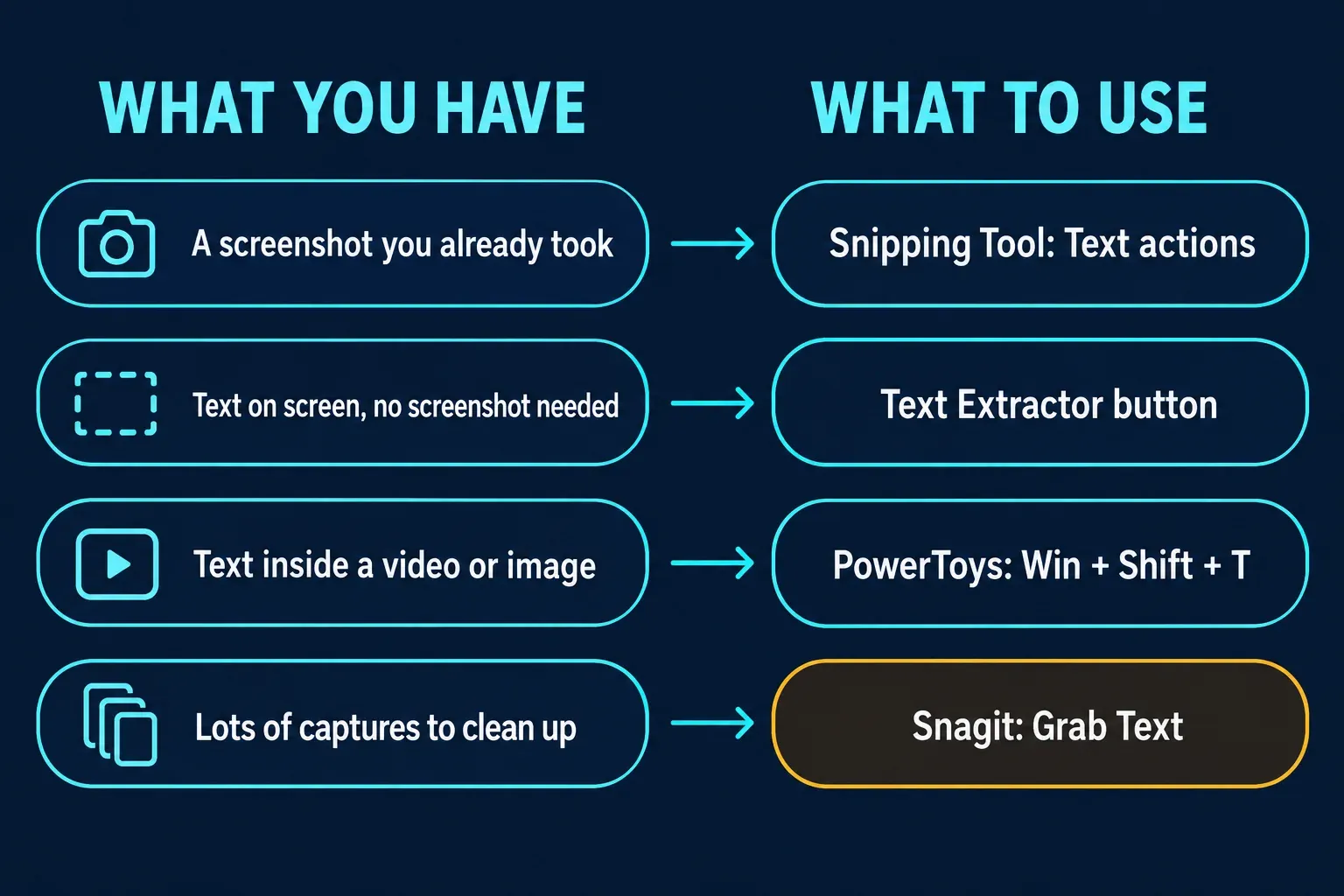
The fastest way is Snipping Tool. Capture the area, click Text actions, then choose Copy all text or select just the words you need. If your Snipping Tool capture bar has a Text Extractor button, you can skip the screenshot and copy text straight off the screen. For a shortcut that works on anything visible, including video, Microsoft's free PowerToys has a Text Extractor on Win + Shift + T.
If the screenshot is already saved, open it on screen at a readable size and capture the text area with Snipping Tool, then follow Text actions below. This uses the documented capture-to-OCR route; keep the original file and proofread the copied text.
I went through Microsoft's current Snipping Tool support page, the Windows Insider announcement of the Text Extractor button and the PowerToys documentation on October 10, 2026. The search results mix Microsoft pages, news posts from the rollout and forum threads, and few of them explain which of these tools to reach for. Below is how each one works, what Microsoft says about its limits, and what to check when the text comes out wrong.
Which method to use
| Method | Best for | How it starts |
|---|---|---|
| Snipping Tool, Text actions | A screenshot you want to keep, or one you already took | Capture a snip, then click Text actions |
| Snipping Tool, Text Extractor button | Copying text without saving a screenshot | Win + Shift + S or open the app, then click Text Extractor |
| PowerToys Text Extractor | Text inside videos, images or any app, from one shortcut | Win + Shift + T, then drag over the text |
| Snagit Grab Text | Lots of captures, or text that needs cleanup | Capture with Snagit, then use Grab Text |
Copy text from a screenshot with Snipping Tool
This is the method Microsoft documents on its Snipping Tool support page, and it works on a screenshot you've already taken.
- Capture a snip with Win + Shift + S, or open Snipping Tool and start a new snip, so the capture is open in the Snipping Tool window.
- Click the Text actions button in the toolbar. Microsoft says this turns on optical character recognition (OCR), which extracts the text from your image.
- Select the words you want and copy them, or use Copy all text to take everything Snipping Tool found.
- Paste with Ctrl + V into Notepad, Word or wherever the text is going.
Microsoft's page adds two details worth knowing. Text actions also offers Quick redact for any email addresses or phone numbers in the snip, and all text recognition happens locally on your device. Quick redact covers those two types only, so names, postal addresses and account numbers still need a separate manual redaction check before you share the image. My guide to blurring and redacting in Snagit covers that side, and my Snipping Tool guide for Windows 11 covers the rest of the app.
Copy text without saving a screenshot
Microsoft's Windows Insider announcement from April 15, 2025 describes a shorter route. Snipping Tool versions 11.2503.27.0 and 11.2503.29.0 added a Text Extractor button to the capture bar, "designed to minimize the number of steps it takes to copy text to your clipboard without having to take a screenshot of your screen." The post says to open Snipping Tool with Win + Shift + S, or launch the app, and click the button.
- Click Text Extractor in the capture bar.
- Drag over the region you want to scan, the same way you would for a rectangle snip.
- Select the text manually, or click Copy all text in the toolbar.
The More options menu adds Remove line breaks, handy when a paragraph arrives chopped into short lines, and Automatically copy text, which closes Snipping Tool sooner and copies everything in your selection straight to the clipboard.
That post covers a rollout to Windows Insiders, first in the Canary and Dev Channels and then, per its April 23 update, to Beta and Release Preview. I couldn't find Microsoft's regular support page describing this button, so I wouldn't promise it on every PC. Open the capture bar and look. If the button isn't there, the Text actions steps above still work.
PowerToys Text Extractor: one shortcut for anything on screen
Microsoft's PowerToys Text Extractor page says the utility copies text from anywhere on your Windows screen, including inside images or videos. You need PowerToys installed, and then:
- Press the activation shortcut, Win + Shift + T by default. An overlay appears.
- Click and hold the primary mouse button, then drag over the text.
- Release. The recognized text goes to your clipboard and capture mode closes. Press Esc at any moment to cancel.
If your selection starts in the wrong place, hold Shift to move the region instead of resizing it. Microsoft also notes that the output may not be perfect and needs a quick proofread, and that the page recommends Snipping Tool, not Text Extractor, for capturing screenshots. I'd use PowerToys when the text lives somewhere you can't select it, such as a paused video frame, and Snipping Tool when you want a screenshot as well.
When the text comes out wrong
| What you see | What to check |
|---|---|
| Text Extractor reports "No Possible OCR languages are installed" | Install an OCR language pack. If the pack is installed and your system drive isn't C:, Microsoft says to copy the Windows\OCR folder from that drive to C:\Windows\OCR |
| Letters come out in the wrong script or language | PowerToys uses your Windows system language by default; set the preferred language in its settings and make sure that language's OCR pack is installed |
| A few characters are wrong | Proofread. Microsoft says the result may not be perfect; recapture at a larger size if a word looks like a smudge |
| No Text actions button | Update Snipping Tool and Windows, then try a fresh capture; see Snipping Tool not working if the app itself misbehaves |
Recapturing larger is my advice, not a Microsoft step: OCR works on pixels, and a blurry small snip gives it less to read. If you copy text from screenshots all day, Snagit's Grab Text gives you more control. My guide to copying text from a screenshot in Snagit covers it, including what to do when recognition misses characters.
The short version
For a screenshot you already have, use Snipping Tool's Text actions and Copy all text. To skip the screenshot, look for the Text Extractor button in the capture bar. For text inside a video or any app, install PowerToys and press Win + Shift + T. Whichever you choose, proofread what you paste, and redact private details before you share the screenshot.