
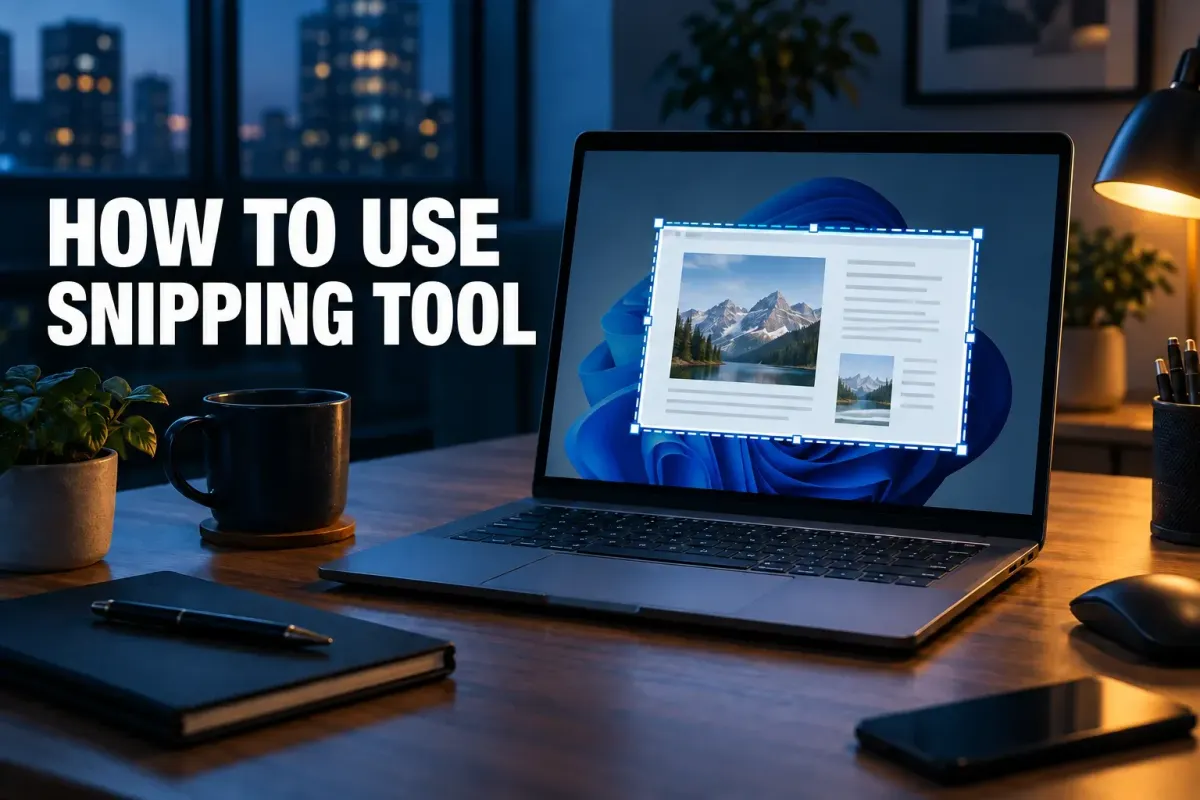
Press Windows + Shift + S, choose Rectangle, and drag around what you need. That makes a still screenshot in Windows 11. If you need a file to attach or keep, check Snipping Tool's automatic save or choose Save as yourself. A picture you can paste and a file you can find later are not quite the same outcome.
I would start with a rectangular snip for an error message, a quick instruction, or a support request. It keeps the useful detail while leaving unrelated windows out. The current Microsoft Snipping Tool guide documents the capture modes and the two ways to open the tool. I'll take the shortest route to a still screenshot first, then delays, text, video and the things the tool can't do.
Take your first screenshot
- Put the target on screen. Open the window or document you want to show. If private tabs or notifications are visible, move them out of the way before capturing.
- Open image capture. Press
Windows + Shift + S. To use the app with a mouse instead, search for Snipping Tool from Start, open it, choose Snipping Mode, then select New. - Choose the shape. Select Rectangle in the overlay and drag from one corner of the needed area to the other. Release the pointer to finish. For an entire app window, choose Window and select that window; Full screen captures the visible display.
- Open the result if you want to edit it. The capture notification can take you into Snipping Tool, where you can crop, mark up, copy, save, or share the image. If the notification has gone, check the app's Screenshots save setting before assuming the image vanished.
The keyboard route opens the capture overlay; the Start route opens the app window first. Both lead to the same still-image task. If you want a complete key reference, the separate Snipping Tool shortcuts guide covers the keys without turning this walkthrough into a shortcut list.
Two more ways in save a step if you snip often. On Windows 11, PrtSc on its own opens the same capture bar; Microsoft's shortcut list describes that as the default, and the shortcuts guide shows where to turn it off. If you'd rather click, type snipping tool in the taskbar search box and choose Pin to taskbar.
Choose the area you actually need
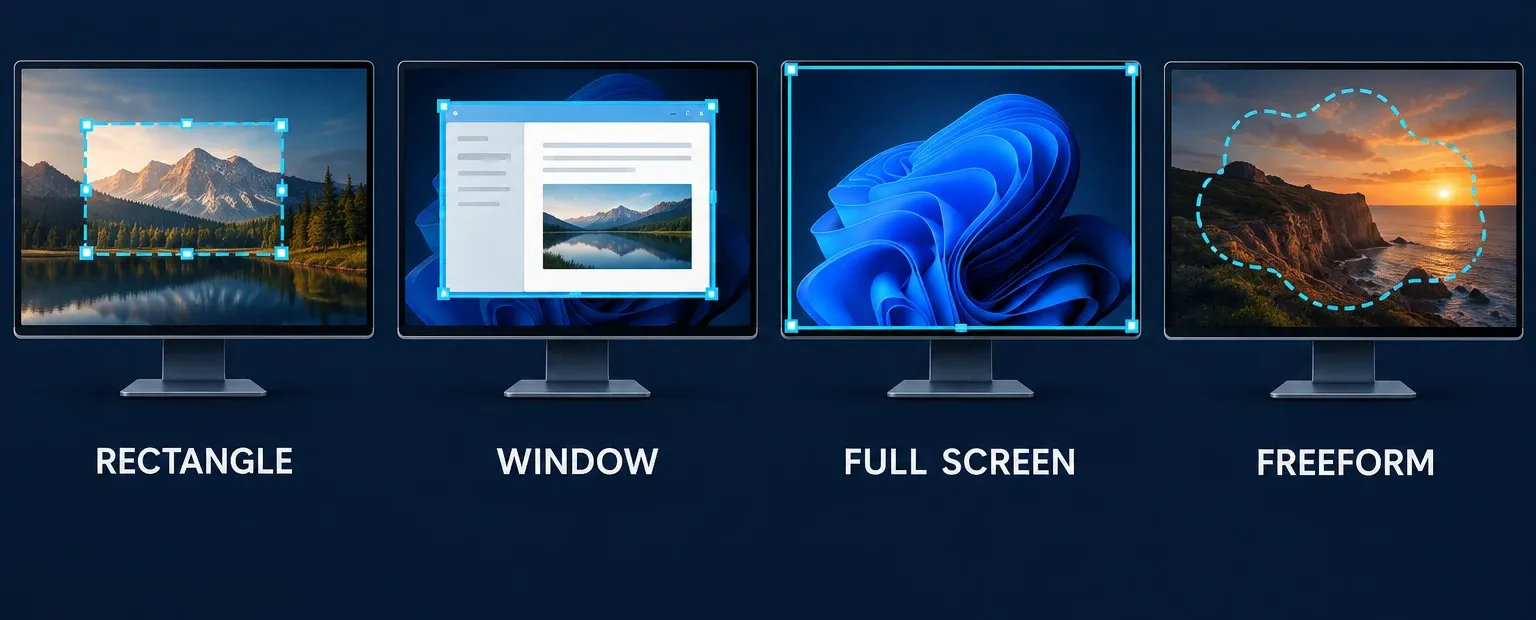
Rectangle is the useful default when the reader needs one control, message, or part of a page. Window is cleaner when the whole app matters. Full screen is for the whole visible display, which can expose other open material and is not a capture of an entire scrolling web page. Freeform lets you draw around an irregular shape, though a rectangle is usually easier for someone else to read. These four still-image choices match Microsoft's description of the snipping modes.
If you see a camera and a Record control in the app, choose the still-image Snipping Mode for a screenshot. Record and Windows + Shift + R start the separate video-capture route; they are not needed for a picture.
Take a delayed screenshot of a menu or tooltip
Menus, tooltips and right-click lists close as soon as you press a shortcut, so capture them on a timer. The timer is in the app window, not in the Windows + Shift + S bar:
- Open Snipping Tool from Start.
- Select Delay and pick a time, for example 5 seconds.
- Choose the snipping mode, then select New.
- During the countdown, open the menu you want to show. When the screen turns gray, draw around it.
That's the order in Microsoft's delay steps. The same page puts the timer at 1 to 5 seconds, so get the window ready before you select New and keep the menu one click away.
Save a file, or paste the capture
For a file you can reliably attach, open the snip in Snipping Tool, select Save as, choose a folder and filename you recognize, then save it. Open that file in File Explorer once before sending it. That last check catches a wrong folder, an old capture, or an image that includes more of the screen than you meant to show.
Snipping Tool also automatically saves snips to a Screenshots folder, subject to its Settings. In the app, open See more → Settings to check or change automatic saving and the default folder. Do not assume every PC uses the same location or that auto-save is enabled. Save as is the deliberate route when the destination matters.
For a quick message or document, copy the open snip and paste it where you need it. That is useful for one immediate handoff, but the Clipboard is not a named file you can browse to later. If you expect to attach the image to a ticket, save it first. When a capture appears to be missing, the Windows screenshot save checklist helps separate a Clipboard result from a missing file.
Make the screenshot clear before sharing
Snipping Tool provides Image crop, Pen, and Highlighter for a captured image, as Microsoft describes in its annotation instructions. Crop away irrelevant surroundings, then use a single mark to point to the control or error the reader should notice. A thick mark over the very text you are trying to explain defeats the point.
The rest of the toolbar is small. Shapes adds outlines such as arrows and rectangles, plus a few emojis; Eraser removes marks you've drawn; Undo and Redo step through your edits. Microsoft's list of editing tools has no text tool, so for a typed label, a resize or a rotation, choose Edit → Edit with Paint. If you mark up screenshots often, the guide to annotating screenshots covers numbered steps and callouts.
Before sending the file, inspect the actual saved image for account names, messages, browser tabs, and other private details. Cropping can remove unwanted edges, but it does not protect a secret that remains inside the frame. For that case, follow the screenshot redaction guide before sharing. You can attach the saved file in the destination app or use Snipping Tool's See more → Share command.
Copy or hide text with Text actions
Text actions makes the words in a snip selectable. Capture an image, select Text actions, then highlight the words you need or use Copy all text. Quick redact in the same bar hides email addresses and phone numbers. Microsoft says the text recognition runs locally on your device.
Quick redact only knows those two patterns. Names, order numbers and account IDs stay visible, so check the image and cover anything else yourself before sending it. For other ways to pull text out of an image, see copying text from a screenshot on Windows 11.
Record a video snip
- Press
Windows + Shift + R, or open the app, select Record, then New. - Drag over the part of the screen you want to record.
- Turn on the microphone if you want your voice in the clip.
- Select Start, and Stop when you're done.
Recordings are saved automatically to the Screen Recordings folder, according to Microsoft's Snipping Tool overview. From the finished clip you can save a copy where you want it or select Edit in Clipchamp to add captions or work with the audio. For a short bug clip that's enough; for longer recordings, the Snagit screen recording guide covers a tool built for it.
Keys inside the Snipping Tool window
System-wide hotkeys such as Windows + PrtSc are in the Snipping Tool shortcuts guide. Once the app window is open, Microsoft lists these:
Ctrl + Ssaves the snip.Ctrl + Ccopies it to the clipboard.Alt + Nstarts a new snip in the same mode as the last one.Alt + Mchooses the snipping mode.Alt + Dsets a delay.
Perfect screenshot and Color picker on Copilot+ PCs
If a video shows Perfect screenshot or Color picker and your toolbar doesn't, nothing is wrong with your PC. Microsoft lists both as Copilot+ PC features. Perfect screenshot adjusts the capture area to frame the content on screen tightly, so you crop less; Color picker captures exact color values from anywhere on the screen. On other PCs, a rectangle plus Image crop gets you the same framing.
Snipping on Windows 10
Windows + Shift + S works on Windows 10 too, but its notification opens the capture in Snip & Sketch for editing. The older Snipping Tool app on Windows 10 has Mode and Delay menus, with delays of up to 5 seconds, as Malwarebytes' walkthrough shows. That app has a pen, a highlighter and an eraser; Text actions, video snips and Clipchamp editing belong to the Windows 11 app this guide follows.
What Snipping Tool can't do
Microsoft's list of snip types stops at five: freeform, rectangle, window, full screen and video. None of them scrolls, so a long web page or chat thread needs a scrolling screenshot method instead. The editor stays small too: pen, highlighter, shapes, crop and Text actions, with Paint for anything typed.
For one-off captures I'd stay with Snipping Tool; it's already installed and fast. If you write instructions, file bug reports or document software every week, step numbers, blur and scrolling capture in one place start to matter, and the Snagit vs Snipping Tool comparison shows where the paid tool pulls ahead.
If Snipping Tool is missing or won't open
Snipping Tool is distributed through the Microsoft Store. If it's missing, or your toolbar lacks features shown here, open Snipping Tool's Microsoft Store page and install or update it.
If the capture overlay does not open, that is a different problem from choosing a mode or finding a saved file. Work through the Snipping Tool troubleshooting steps instead of changing unrelated screenshot settings at random.