
Start with ShareX if you want a free Snagit alternative for Windows with scrolling capture, OCR, annotation, and recording. On Mac, use Screenshot and Preview for everyday capture, or consider Shottr for scrolling pages and text extraction. Shottr requires payment for commercial use. For Linux annotation, choose Flameshot; for video-first work, choose OBS Studio.
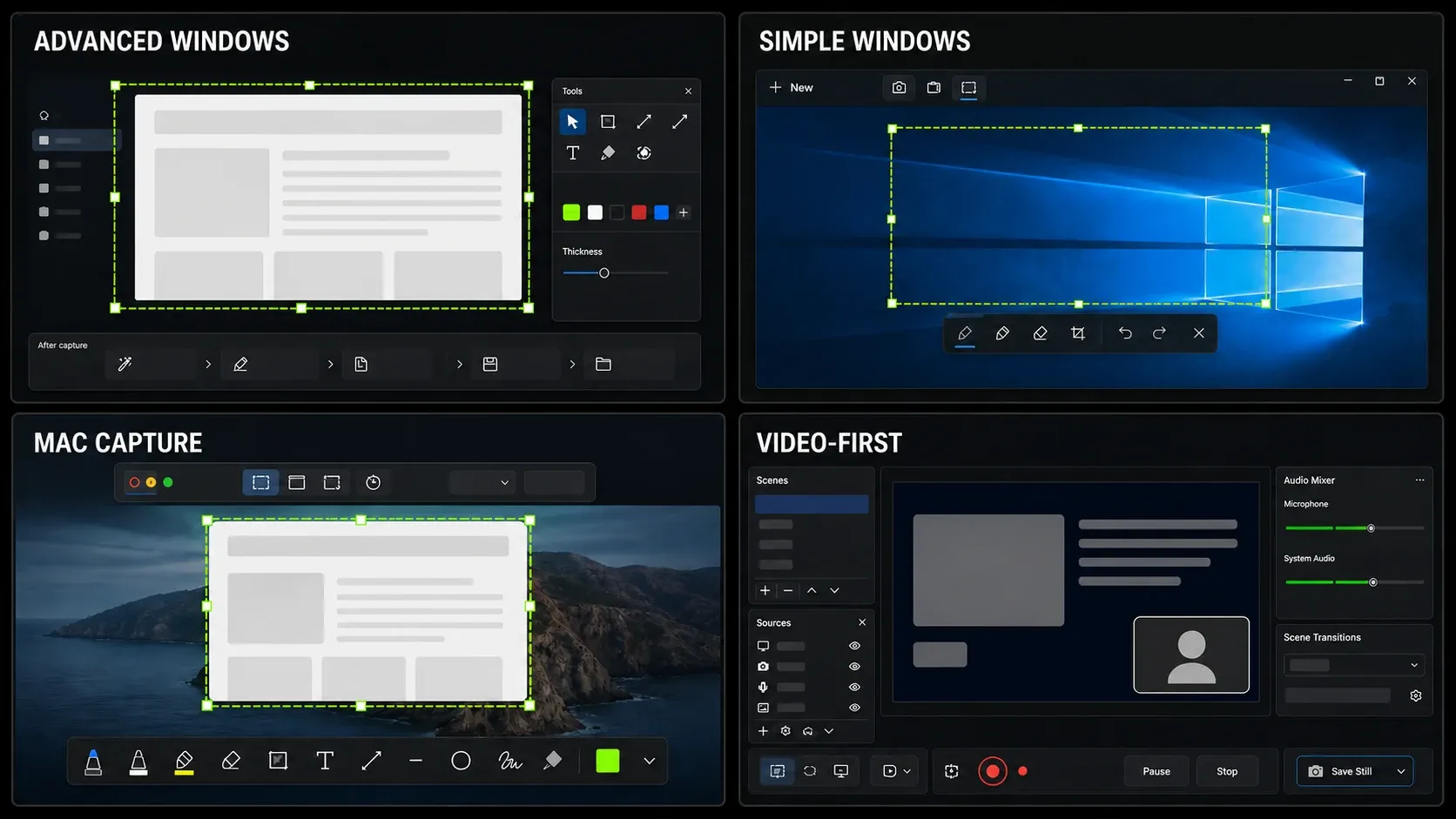
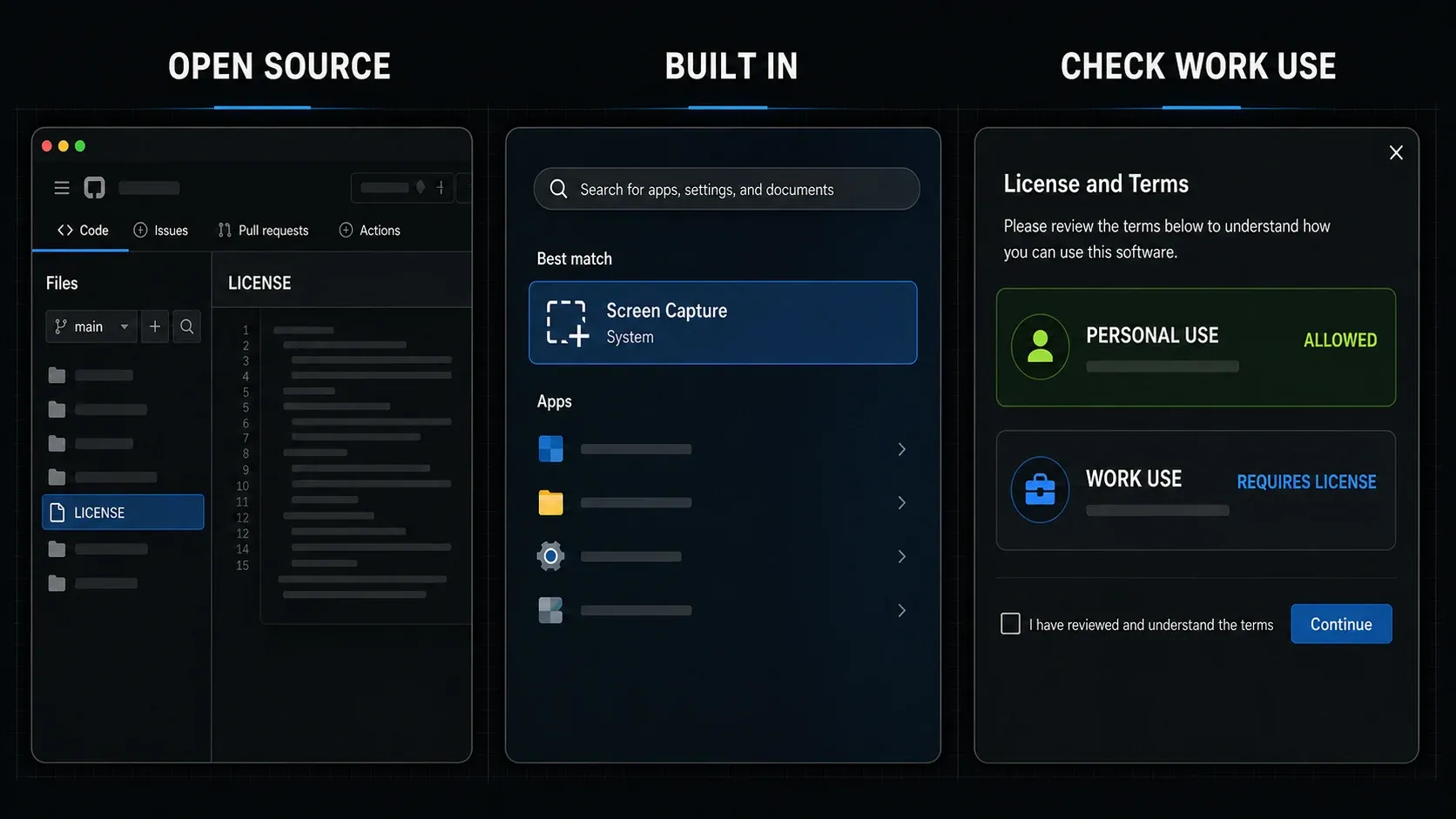
This comparison covers eight tools with a usable free edition or no separate app charge. It separates personal-use offers from tools you can consider for work. Recommendations are based on documented capabilities and license terms checked on September 13, 2026, not a timed hands-on benchmark. The illustrations explain workflows; they are not verified screenshots of current app interfaces.
Which alternatives are actually free?
- Free and open source: ShareX, Flameshot, OBS Studio, and the Windows edition of Greenshot.
- Included with your operating system: Windows Snipping Tool and macOS Screenshot/Preview.
- Free for personal, non-commercial use: PicPick. Commercial use requires a license.
- Indefinite free mode with restrictions: Shottr. Most features remain usable without payment, but commercial use requires a license and some features need activation.
Snagit itself has a 15-day trial, not a permanent free edition. If keeping Snagit is an option, compare the current Snagit license choices before deciding whether to switch.
Compare the eight options
| Tool and platform | Free-use condition | Main reason to choose it | Check before switching |
|---|---|---|---|
| ShareX · Windows | Free, open source | Scrolling, OCR, annotation, video/GIF, automated actions | Capture/upload settings and OCR languages |
| PicPick · Windows | Personal, non-commercial use | Scrolling capture, editor, video with audio | Paid license for commercial work |
| Snipping Tool · Windows 11 | Included | Quick snips, Text actions, region recording | No scrolling mode in the cited capture guide |
| Shottr · Mac | Free mode; commercial use is paid | Scrolling, OCR, annotation, measurement | Some features require activation; recording is not listed |
| macOS Screenshot/Preview | Included | Capture, markup, recording; Live Text in Preview | No scrolling mode; available controls depend on macOS |
| Flameshot · Windows, Mac, Linux | Free, open source | Arrows, text, boxes, pixelation | Permissions and desktop-specific setup |
| Greenshot · Windows edition | Free, open source | Region/window capture and a simple editor | The separate Mac app is paid and has fewer features |
| OBS Studio · Windows, Mac, Linux | Free, open source | Recording, audio sources, scenes, streaming | Not a still-image annotation editor |
A feature missing from a cited product page is not proof that no plugin or future version can provide it. This table compares the documented native workflows. For scrolling capture, test the actual page: sticky headers, animation, and nested panels can spoil the stitched image.
1. ShareX: free Windows capture with more control
ShareX combines still capture, video and GIF recording, an image editor, OCR, and configurable actions. Its core capture workflow needs no account; an upload service you connect may have its own account requirements.
Open the after-capture task list before using it with private material. Decide whether each capture should go to the clipboard, a local folder, or the editor. Disable unwanted uploads and check destructive actions such as Delete file locally. More options are useful only when you know what will happen after pressing the shortcut.
The scrolling screenshot guide explains stitching feedback and page-related failure cases. For text extraction, ShareX uses OCR languages installed in Windows. Test a sample in the language you actually need. The Snagit versus ShareX comparison covers the broader workflow decision.
2. PicPick: a conventional Windows editor for personal use
PicPick offers scrolling screenshots, image annotation, resizing, and screen recording with system audio and a microphone. It suits someone who wants capture and an editor together without configuring a long chain of actions.
The free edition is for personal, non-commercial use. PicPick says the tools are the same in its free and licensed editions; payment changes the permitted use. If you make screenshots for clients or a business, budget for a license rather than treating it as a free work tool. The Windows alternatives comparison includes paid options too.
3. Snipping Tool: start here on Windows 11
Press Win+Shift+S for an image or Win+Shift+R for a region recording. Microsoft's Snipping Tool instructions cover rectangle, window, full-screen, and freeform image capture.
Text actions copies recognized text and can quickly redact detected email addresses and phone numbers. Microsoft says recognition runs locally. That does not make every saved file private: check whether its folder syncs to cloud storage, and inspect any redaction yourself. Names, tokens, and account numbers are not covered by the email/phone shortcut.
Choose this for an error message, a quick crop, or an occasional recording. The cited guide does not offer a scrolling capture mode. Use ShareX or PicPick when you regularly need content below the visible window. These recording and Text actions recommendations concern Windows 11, not the older Windows 10 tool.
4. Shottr: Mac still-image tools with a work-use limit
Shottr provides scrolling capture, OCR, annotation, pinned captures, image combining, and measurement tools. It is a useful candidate for interface feedback or documentation built around still images. The official feature list does not advertise screen recording.
The app remains usable without payment and starts showing upgrade reminders after 30 days. Most features are available free, but do not assume that every feature is: uploading, for example, requires activation. Its license terms require payment for commercial use. On September 13, 2026, Basic cost $12 once for one user on up to five computers.
If you need recording or team sharing as well, use the Mac alternatives comparison to choose the combination that fits your work. Shottr's free personal-use mode is not a free commercial license.
5. macOS Screenshot and Preview: no extra installation
Press Shift-Command-5 to open Screenshot. Apple's capture instructions cover entire-screen, window, and selected-area screenshots. The floating thumbnail gives you markup for a still image or trimming for a recording.
For video, record the whole screen or a selected portion. Recording one selected window requires macOS Tahoe 26 or later. You can choose a microphone, timer, and save location; do not assume the microphone option records internal system audio.
For OCR, open the image in Preview and use Live Text to select and copy recognized words. Language and regional availability vary. This is separate from the Screenshot panel, whose documented modes do not capture a scrolling page.
6. Flameshot: open-source annotation across three platforms
Flameshot runs on Windows, macOS, and Linux and focuses on marking up a capture with arrows, boxes, text, and pixelation. Choose it when those actions cover your screenshot work. Its official feature list does not promise native OCR, scrolling capture, or video recording.
Cross-platform availability does not mean identical setup. The project documents macOS permission and display problems, while its Wayland guide separates GNOME, KDE, and other desktop configurations. Check the instructions for your version instead of copying an old workaround. A fix for an earlier release does not establish that the current one has the same fault.
7. Greenshot: a free Windows edition, not a free Mac pick
The Greenshot downloads page offers the free Windows app and a separate Mac App Store link. The Windows release listed on September 13, 2026 was 1.3.315, dated March 20, 2026. Use it as a candidate for region/window captures and straightforward annotation.
The US Mac App Store listing costs $1.99 and explicitly says that its feature set is smaller than the Windows edition's. It lists version 1.2.19 from June 29, 2020. Do not assume current macOS compatibility from the existence of that listing. The recommendation here is specifically the free Windows edition.
8. OBS Studio: choose it for recording
OBS Studio is a free, open-source recording and streaming application for Windows, macOS, and Linux. Its sources and scenes let you combine a display or window with cameras, media, and audio. This makes sense for a narrated demonstration with several inputs.
OBS can save still images too. The project's 26.0 release notes document screenshot hotkeys for previews, sources, and scenes. That capability does not provide a Snagit-style editor for adding arrows and callouts to the saved image.
For a simple clip, compare this setup with the Snagit recording workflow. Free recording software still needs enough disk space and a working audio configuration; do a sample recording before committing to a long session.
Keep private captures private
Price does not tell you where a screenshot goes. Before capturing customer details or an internal dashboard, check both the app's upload actions and your destination folder.
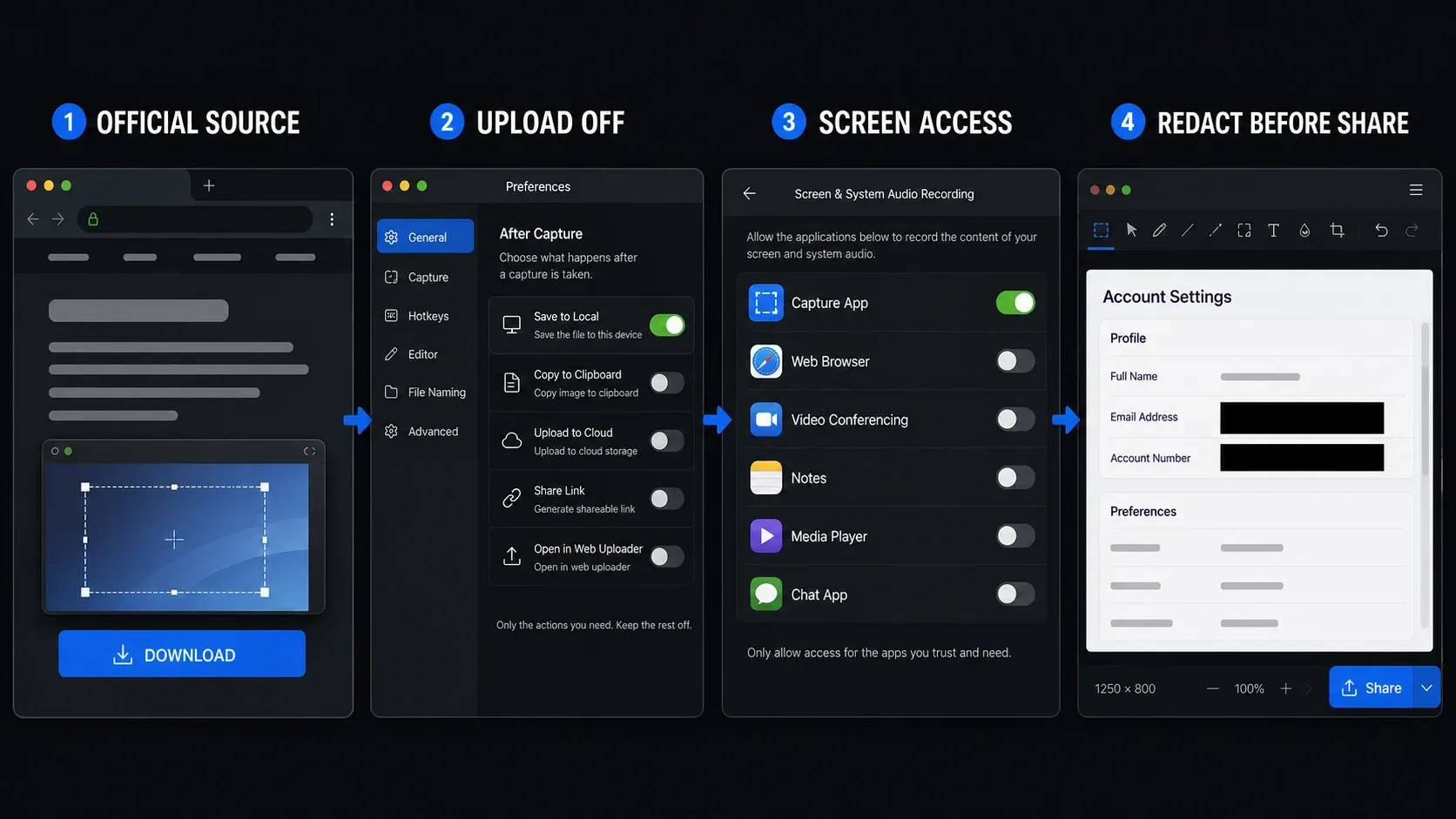
- Download from the linked project or platform store, not a lookalike download domain.
- Turn off upload actions you do not need. In ShareX, check the after-capture and after-upload lists.
- Grant the screen access required for the task; do not bypass an operating-system warning just to make a capture work.
- Use a non-sensitive sample first. Reopen the exported file and inspect redacted areas, not just the editor preview.
- Check cloud sync separately. A capture saved to a synced folder can leave the computer even when the capture app has no upload action enabled.
Before you replace Snagit
Compare the work you repeat, not the longest feature list. A numbered arrow, an editable source file, and an automatically assembled step guide solve different problems.
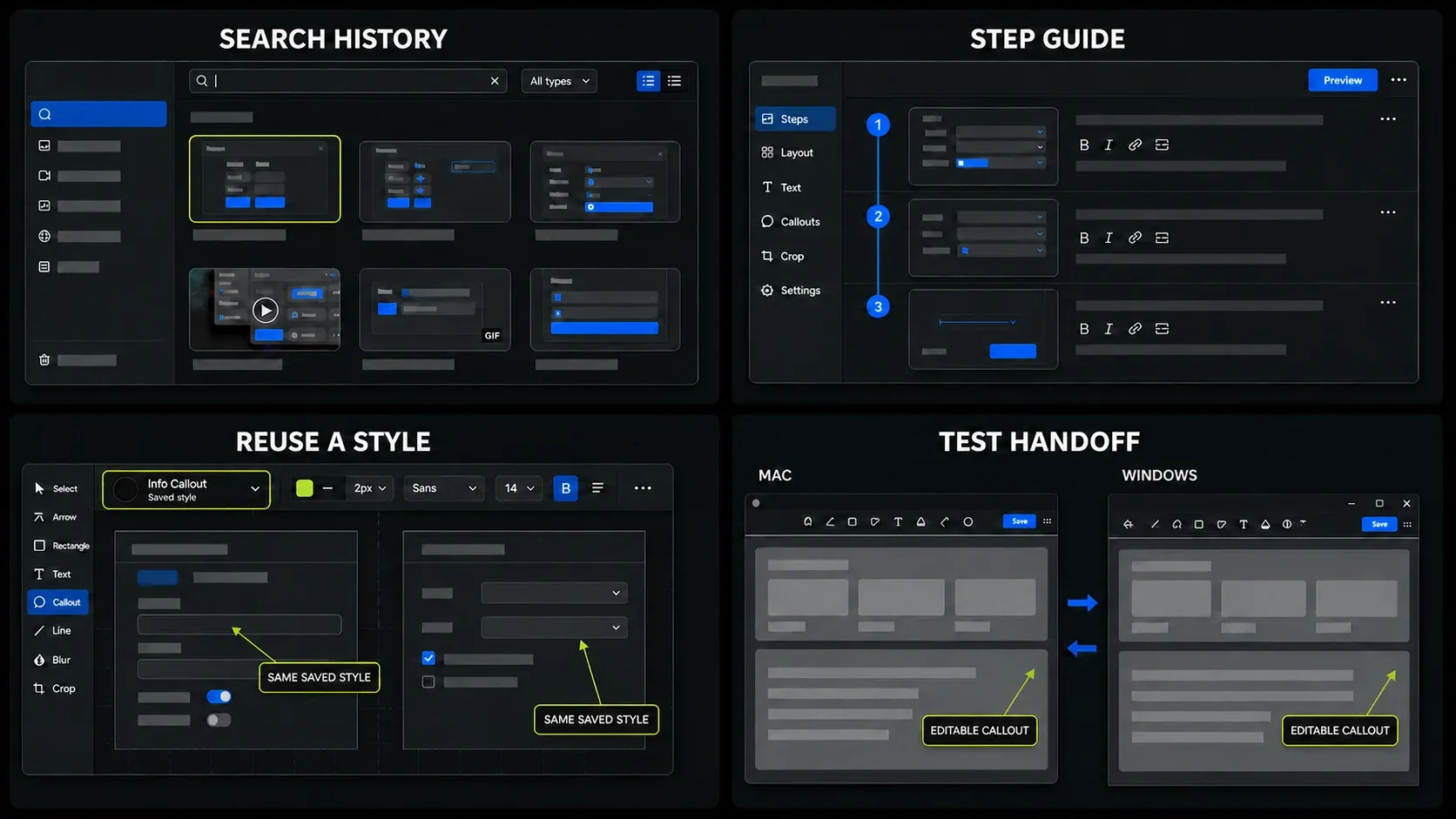
- Pick three real tasks. For example, a scrolling help page, a marked-up bug report, and a narrated recording. Use harmless sample data.
- Test the candidate on your computer. Inspect stitched sections, OCR text, audio, export clarity, and the steps needed to save or share. This is a suggested comparison, not a promised five-minute test.
- Check the handoff. Can a colleague reopen the file and change the annotation? Can you find an older capture and reuse the styles your team needs?
- Protect your archive before uninstalling. TechSmith recommends exporting image captures while you still have active Snagit access. Keep native originals and export ordinary image copies. Use the SNAGX opening and conversion guide for that separate task; do not assume a replacement can edit Snagit project files.
If the free tool completes those jobs with less effort, switch. If it loses a required workflow, compare the cost of keeping Snagit with the extra work involved. The screenshot software hub compares free and paid choices by task.
Free Snagit alternatives FAQ
What is the best completely free Snagit alternative?
For Windows, ShareX is the strongest fit in this selection when you need scrolling screenshots, OCR, annotation, and video or GIF capture without a software license fee. It is not a Mac or Linux application.
What is the best free Snagit alternative for Mac?
Start with macOS Screenshot and Preview for basic capture, markup, recording, and supported Live Text recognition. Shottr adds scrolling and measurement tools, but commercial use requires a paid license and some features need activation.
Is ShareX as good as Snagit?
ShareX is a good candidate for configurable Windows capture and automated actions. Test your required editing, archive, and sharing tasks before switching. Its feature list alone does not establish that it replaces your whole Snagit workflow.
Can OBS Studio take screenshots?
Yes. OBS supports screenshot hotkeys for previews, sources, and scenes. It is primarily a recording application, so use a separate image editor if you need arrows, callouts, or other still-image annotations.
Does Windows Snipping Tool have OCR?
Yes, the Windows 11 app has Text actions for recognized text. Microsoft says recognition runs locally. Quick redact covers detected email addresses and phone numbers, not every kind of private information.
Is PicPick free for business use?
No. The free edition is for personal, non-commercial use. Commercial work requires a license, even though the vendor says the tools are the same in the free and licensed editions.
Does Greenshot support Mac?
There is a separate Mac App Store edition, linked from the official downloads page. The US listing was $1.99 on September 13, 2026 and warns that it has fewer features than the Windows version. This free-tools selection recommends the Windows edition.
How do I choose a safe free screenshot tool?
Use the official download, review permissions and upload actions, and check whether your save folder syncs to cloud storage. Capture harmless sample data first and inspect the exported file before sharing private material.