
To take a high-resolution screenshot, capture more useful detail at the source and keep those pixels through export. For a desktop app, make the required text readable before using the native capture tool. For a web page, Chrome DevTools can render a chosen viewport at a higher device pixel ratio and capture that rendered page.
Changing a screenshot's DPI label or making an old image larger will not capture missing detail. I would start with the source and the saved pixel dimensions, then check whether the labels remain readable where the image will be used.
Web pages: capture at a higher density in Chrome
This route is useful when you need a clear screenshot of a website or web app at a particular layout width. It renders the page again, rather than enlarging a screenshot you already took. It captures page content, not the browser's tabs, address bar, or another desktop application.
- Open the page in desktop Chrome. Wait for the content you need to load, and choose a state without private information.
- Open More → More tools → Developer tools from Chrome's main menu. Google's DevTools opening instructions also list the Windows and Mac shortcuts.
- Click Toggle device toolbar in DevTools. In the device toolbar, keep Dimensions set to Responsive and enter the layout width and height you need.
- Open the device toolbar's More options menu and choose Add device pixel ratio. Choose a DPR value such as 2 from the new dropdown.
- For a desktop layout, use Add device type if the device-type list is hidden, then select Desktop. Check the visible page: changing the viewport can move menus, wrap text, or switch a responsive layout.
- In the device toolbar's More options, choose Capture screenshot for the viewport, or Capture a full size screenshot for the whole page.
- Open the saved image, check its actual pixel dimensions, and inspect the section you intend to use. Turn off device mode when you return to ordinary browsing.
Google's device-mode documentation describes the DPR, device-type, and screenshot controls. DPR relates CSS pixels to rendering pixels. As a sizing example, a width of 1200 CSS pixels at DPR 2 corresponds to 2400 image pixels across. Check the file rather than treating the toolbar preview as proof of the saved dimensions.
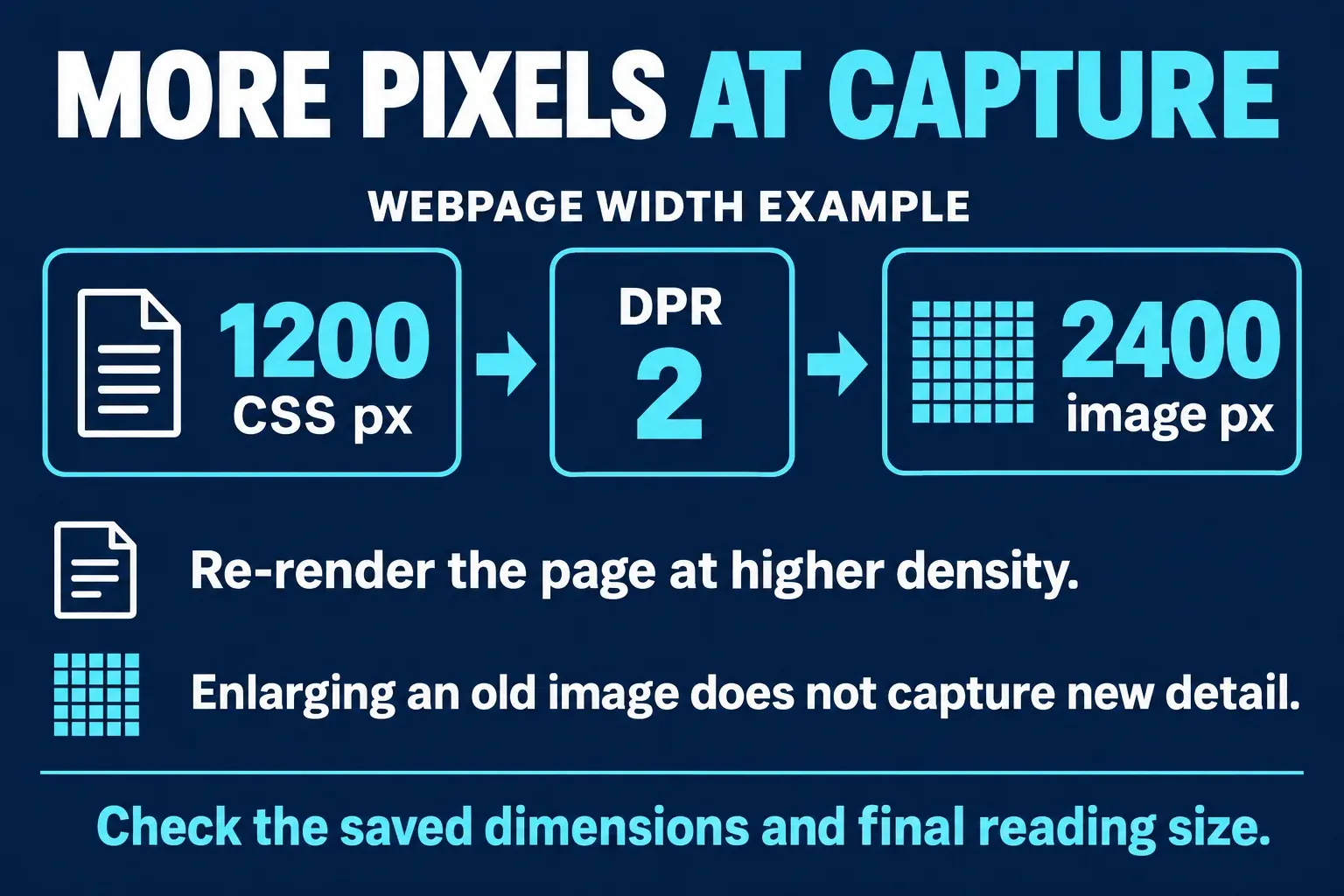
A higher DPR can give newly rendered text and vector shapes more pixels. It cannot recover detail from a small bitmap already embedded in the page. If that image is the part you need, obtain a larger original rather than increasing DPR indefinitely.
Use a moderate density that meets the destination's needs. Extremely large or long captures consume more memory and are harder to review. For a full-page image, check that the intended content is present and no overlay covers it; do not assume that a successful download means the whole page was captured correctly.
Windows or Mac: prepare the app before capturing
For ordinary desktop captures, the source's rendered detail matters. Enlarge the source application's text or content where supported, give the needed controls enough room, and capture the useful region. Merely making a window wider does not necessarily make its labels larger.
| Situation | Useful action | What to avoid |
|---|---|---|
| Windows display looks soft | Check the intended display and its recommended resolution | Choosing an arbitrary unsupported or lower resolution |
| One control is too small | Increase source content size, then capture a useful region | Enlarging a tiny crop after capture |
| A Mac screenshot must work in a help article | Use a compatible still-image format and keep the original | Assuming HDR is a resolution upgrade |
| A whole desktop makes labels tiny in a document | Use a task-focused region or several meaningful captures | Fitting everything into a narrow image slot |
On Windows 11, open Settings → System → Display and select the relevant monitor. Under Scale & layout, check Display resolution. Microsoft advises using the display resolution marked (Recommended) and notes that lower-than-native modes can make text less sharp. Do not change scaling just to force a nominally larger screenshot if it makes the source harder to use.
Once the source is readable, capture the relevant area with Snipping Tool and retain the original file. The capture shortcut alone is not a quality preset; there is no need to save the same pixels as a much larger BMP merely to make the file heavier.
On Mac, Shift + Command + 4 captures a region, and Shift + Command + 5 opens the Screenshot app. Apple's current Mac screenshot instructions also distinguish SDR (Most Compatible), which uses PNG, from HDR/HEIF on supported Macs running macOS Tahoe 26 or later. For a conventional interface screenshot in a support article, I would choose the compatible SDR route when that option is available. HDR concerns dynamic range, not a promise of extra captured pixels.
If the problem appears specifically inside Snagit, use the Snagit image-quality checks. That guide covers preview scaling, Retina sharing preferences, and the comparison between capture, export, and destination.
Judge pixel dimensions, not DPI or file weight
A screenshot has a grid of image pixels. DPI or PPI metadata describes how that grid maps to a physical print size. TechSmith's explanation of screenshot DPI confirms that changing DPI alone does not add or remove captured pixels.
For example, a 1800-pixel-wide image printed at 6 inches provides 300 pixels per inch. At 12 inches, the same image provides 150. These are sizing calculations, not measured print results. Ask the printer for the requirement for your actual output.
Resampling is a different operation: an editor calculates a new pixel grid. Enlarging a small capture that way does not record the source again. Apple's Preview resizing guidance distinguishes resizing with Resample image from changes that preserve the image's detail. Keep an untouched master before making either kind of adjustment.
File weight is also a poor shortcut for quality. A PNG can compress a simple interface image efficiently without losing its pixel data. A heavier file containing the same pixel grid is not automatically sharper.
Keep a clear master and make a delivery copy
For interface text, I would keep a PNG master. MDN's image-format guide identifies PNG's lossless compression and distinguishes it from ordinary JPEG's lossy compression. PNG will not repair an already blurred source or prevent another app from resizing the image.
Crop and annotate a copy. Keep enough surrounding interface to orient the reader, but give each image a manageable job. A full-page capture is useful as an archive; several focused images often make a better instruction than one very tall screenshot squeezed into a document.
Do not rely on sharpening or an AI upscaler to restore exact interface labels. A plausible-looking letter is not a verified record of the original screen. If a label matters for instructions or evidence, recapture it at a readable source size.
Check the version your reader will actually see
Open the exported file and inspect both its dimensions and the important labels. Then view the inserted or uploaded version at the size your reader will use. A large original does little good if the destination reduces it to an unreadable thumbnail.
For a screenshot attached to a support ticket, keep the original outside the ticket system and check the attached file separately from its preview. For a QR code in a screenshot, retain the complete pattern and its clear margin; a larger file cannot compensate for a missing corner.
My final check is simple: the necessary text is readable, the saved image has the expected useful detail, and the destination preserves enough of it. If one of those fails, fix that stage. Changing every setting at once makes it harder to know what helped.