
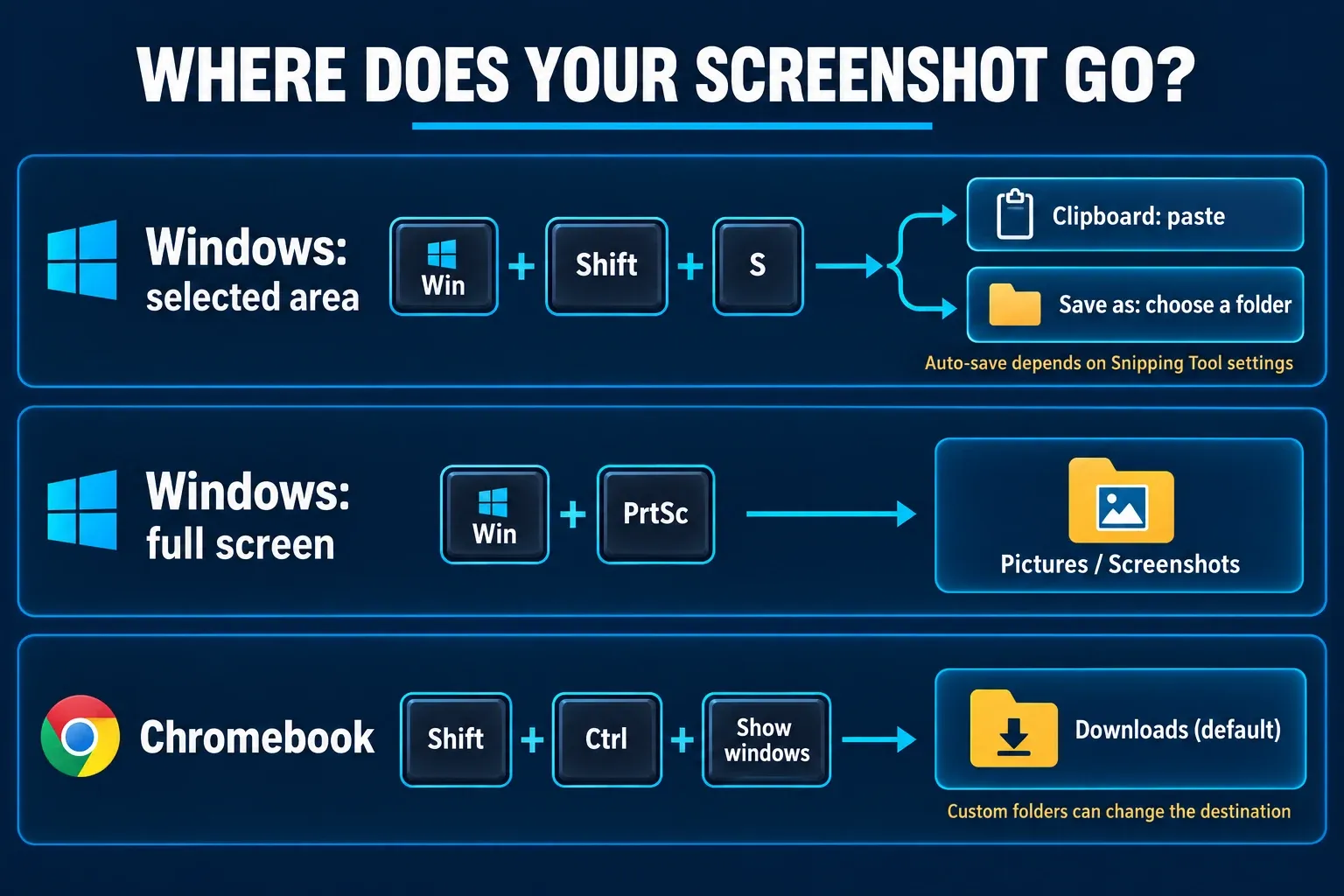
On a Lenovo laptop running Windows, press Windows + Shift + S, drag around the area you need, then open the capture in Snipping Tool to save a copy. For a full-screen file, use Windows + PrtSc if your keyboard exposes the Print Screen command. A Lenovo Chromebook uses a different shortcut: Shift + Ctrl + Show windows.
The useful distinction is what happens after capture. A screenshot in your clipboard is ready to paste; a screenshot file is ready to attach. I would start with the method that produces the result you need.
Choose the shortcut for your Lenovo
Check whether your device runs Windows or ChromeOS before following a keyboard combination. ThinkPad, IdeaPad and Yoga describe product families, so the family name alone does not establish the operating system or the location of the Print Screen key.
| Device and task | Method | What to do next |
|---|---|---|
| Windows: capture part of the screen | Windows + Shift + S | Select an area; open the capture and use Save as for a known destination. |
| Windows: save the whole screen | Windows + PrtSc | Look in Pictures → Screenshots. |
| Windows: copy the active window | Alt + PrtSc | Paste into a message or an image editor; save if you need a file. |
| IdeaPad or Yoga: open Snipping Tool | Key with a scissors icon (alone or with Fn) | Choose a snip mode, capture, then save the image. |
| Windows: capture a game | Windows + Alt + PrtSc | Look in Videos → Captures. |
| Lenovo Chromebook | Shift + Ctrl + Show windows | Choose full screen, partial screen or window; look in Downloads unless you changed the folder. |
Capture part of the screen on a Windows Lenovo
- Bring the window or message you want to capture into view. Close or move anything private that would be inside the selected area.
- Press Windows + Shift + S.
- Choose the rectangular capture option and drag from one corner of the required area to the other.
- Open the screenshot notification to review it in Snipping Tool.
- Select Save as, choose a folder you can find again, give the file a useful name and save it.
This is the capture-and-save workflow described by Microsoft. Current Windows 11 Snipping Tool also saves captures automatically; its settings let you change that behavior and the default folder. Saving an explicit copy avoids depending on someone else's auto-save settings. On Windows 10, use the tool's save command rather than assuming a file was created.
The same capture bar offers Window, Full screen and Freeform besides the rectangle. To catch an open menu or a tooltip, open the Snipping Tool app, choose a Delay such as 5 seconds and select New, then open the menu before the screen turns gray. Microsoft's guide uses that 5-second example, and I'd start there because it leaves time to open a submenu as well.
For a support request, keep the error text and enough of the application visible to explain where it appeared. A tight crop can make an error readable, but cutting away its context makes the screenshot harder to interpret.
Save a full-screen screenshot with Windows + PrtSc
Press Windows + PrtSc on a keyboard that exposes Print Screen. Microsoft says this shortcut saves the image in Pictures → Screenshots. Open File Explorer and check your Pictures folder. If Pictures is redirected or backed up, use the location shown there instead of assuming it is always a particular local drive path.
Look for the latest image, open it and check what it includes before sending it. A full-screen capture may include other open applications or information you did not intend to share. For an error dialog or one small setting, the selected-area method is usually a clearer choice.
If capture works but you cannot find a file, my guide to Windows screenshots that are not saving follows the clipboard, folder and save-setting checks in more detail.
Copy one window with Alt + PrtSc
Click the window you need, then press Alt + PrtSc. This copies the active window to the clipboard. Open a destination that accepts images, such as Paint or a message composer, and press Ctrl + V.
If your destination needs an attachment, paste into Paint and save the image first. Copying to the clipboard does not itself create an attachment file. Review the pasted image before sending: the active window may contain names, account details or other sensitive information.
Why Print Screen behaves differently on different Lenovos
In Windows 11, Microsoft's shortcut reference describes PrtSc as opening screen snipping by default. The setting is under Settings → Accessibility → Keyboard → Use the Print Screen button to open screen snipping. Turning it off changes that behavior. Windows 10's default Print Screen action copies the full screen to the clipboard, with its own optional snipping setting.
That explains why advice to “press Print Screen and find the file” often fails: the key's action depends on the Windows version and setting, and a clipboard capture is not a saved image. Use Windows + Shift + S plus an explicit save when you want a predictable route.
No Print Screen key, or the key does nothing?
Look for PrtSc, PrtScn or Print Screen on the keyboard. If the label shares a key with another function, consult your exact model's keyboard instructions. There is no single Fn combination I would recommend for every ThinkPad, IdeaPad or Yoga.
You can bypass that key entirely. Open Start, search for Snipping Tool, open the application, choose New and select the required area. For a keyboard-specific failure, work through the Print Screen troubleshooting checks after you have saved the capture you need.
Take a screenshot on a ThinkPad
A ThinkPad running Windows uses the same shortcuts as any other Windows Lenovo, so Windows + Shift + S and Windows + PrtSc work as described above. What changes between ThinkPad models is where Print Screen sits and whether you need Fn to reach it. Lenovo documents that model by model, so here are the patterns its own guides describe.
- A dedicated PrtSc key, with Fn + PrtSc for Snipping Tool. The user guide for the ThinkPad T14 Gen 3, P14s Gen 3, T16 Gen 1 and P16s Gen 1 lists Fn + PrtSc as the combination that opens Snipping Tool. Lenovo's note on Print Screen on the ThinkPad X1 Carbon describes two options for every X1 Carbon from the 1st to the 6th generation except the 2nd: press PrtSc and paste the capture into Paint, or press Fn + PrtSc to open Snipping Tool.
- Print Screen on the top row. On the X1 Carbon Gen 12, the X1 Carbon Gen 12 user guide lists Print Screen and Open Snipping Tool among the special functions of the F1–F12 keys. Fn + FnLock switches those keys between their icons and plain F1–F12, and the light on the Esc key shows which set is active: when it's off, the icons work. If the key types an F-number instead of taking a screenshot, FnLock is the first thing I'd check.
- No PrtSc key at all. The 2nd-generation X1 Carbon has an Adaptive Keyboard without a PrtSc key. The same Lenovo note says to press Fn + T and then paste the screenshot into Paint.
If your model isn't listed here, open its user guide and find the keyboard shortcuts table. Lenovo's own Snipping Tool and Print Screen instructions point the same way: the Print Screen key is normally labeled PrtSc or Print Scrn, and the User Guide tells you which key it is on your keyboard.
Take a screenshot on an IdeaPad, Yoga or Legion
On an IdeaPad or Yoga running Windows, look for a key with a scissors icon. Lenovo's hotkey table for the IdeaPad Slim 5 says that key opens Snipping Tool, so you don't need to search the Start menu for it. The same table notes that each keyboard supports only part of Lenovo's hotkey list, so a model without the icon still has Windows + Shift + S.
Whether that key needs Fn depends on hotkey mode. Lenovo's IdeaPad hotkey mode guide explains that with hotkey mode enabled you press the hotkey on its own, with it disabled you hold Fn first, and Fn + Esc switches between the two. I'd keep hotkey mode on if you use the volume and brightness keys more often than F1 to F12, because then screenshots also take a single press.
When a Yoga is folded into tablet mode and the keyboard is out of reach, use the pen menu. Microsoft's pen guide for Windows says the Windows 11 pen menu includes Snipping Tool by default; if the pen icon is missing from the taskbar corner, turn on Pen Menu under Taskbar settings > System tray icons. Settings > Bluetooth & devices > Pen & Windows Ink is where you choose what the pen's shortcut button does.
On a Legion, or any Lenovo you play games on, press Windows + Alt + PrtSc to capture the game through Xbox Game Bar. Microsoft's Game Bar guide says the image is saved as a PNG in the Captures folder, so look in Videos > Captures rather than Pictures > Screenshots.
Take a screenshot on a Lenovo Chromebook
- Press the dedicated Screenshot key if your keyboard has one. Otherwise press Shift + Ctrl + Show windows.
- Choose Screenshot in the capture toolbar.
- Select full-screen, partial-screen or window capture, then complete the capture.
- Open Files → Downloads to find the image, unless you selected another save folder.
If an external keyboard has no Show windows key, use Ctrl + Shift + F5. Without using a keyboard shortcut, select the time at the bottom of the screen, then Screen capture. To change the destination, open the capture toolbar's settings and choose a folder.
A Chromebook does not use the Windows Pictures → Screenshots path. If you followed a Windows shortcut on a Chromebook, switch to its Screen capture controls before investigating missing files.
Using a Lenovo Android tablet?
The Windows and Chromebook instructions above do not apply to Android. Google's general Android screenshot instructions start with pressing Power + Volume down together on supported devices. That document covers phones, so treat it as a starting point and check your Lenovo tablet's manual if the button combination does not work.
If the capture appears in Google Photos, check Collections → On this device → Screenshots. Devices using a different gallery application may label the screenshot album differently. Use the capture preview or the tablet's own documentation to locate the saved image.
Check the image before you attach it
Open the saved file and make sure the important text is readable, the useful context remains visible and private details are removed. My screenshot redaction guide covers the privacy step when a capture includes information the recipient does not need.
For a quick paste, a clipboard capture is enough. For an upload or ticket attachment, use a saved file and confirm its location. That final check is what turns “I pressed the shortcut” into an image you can share.