
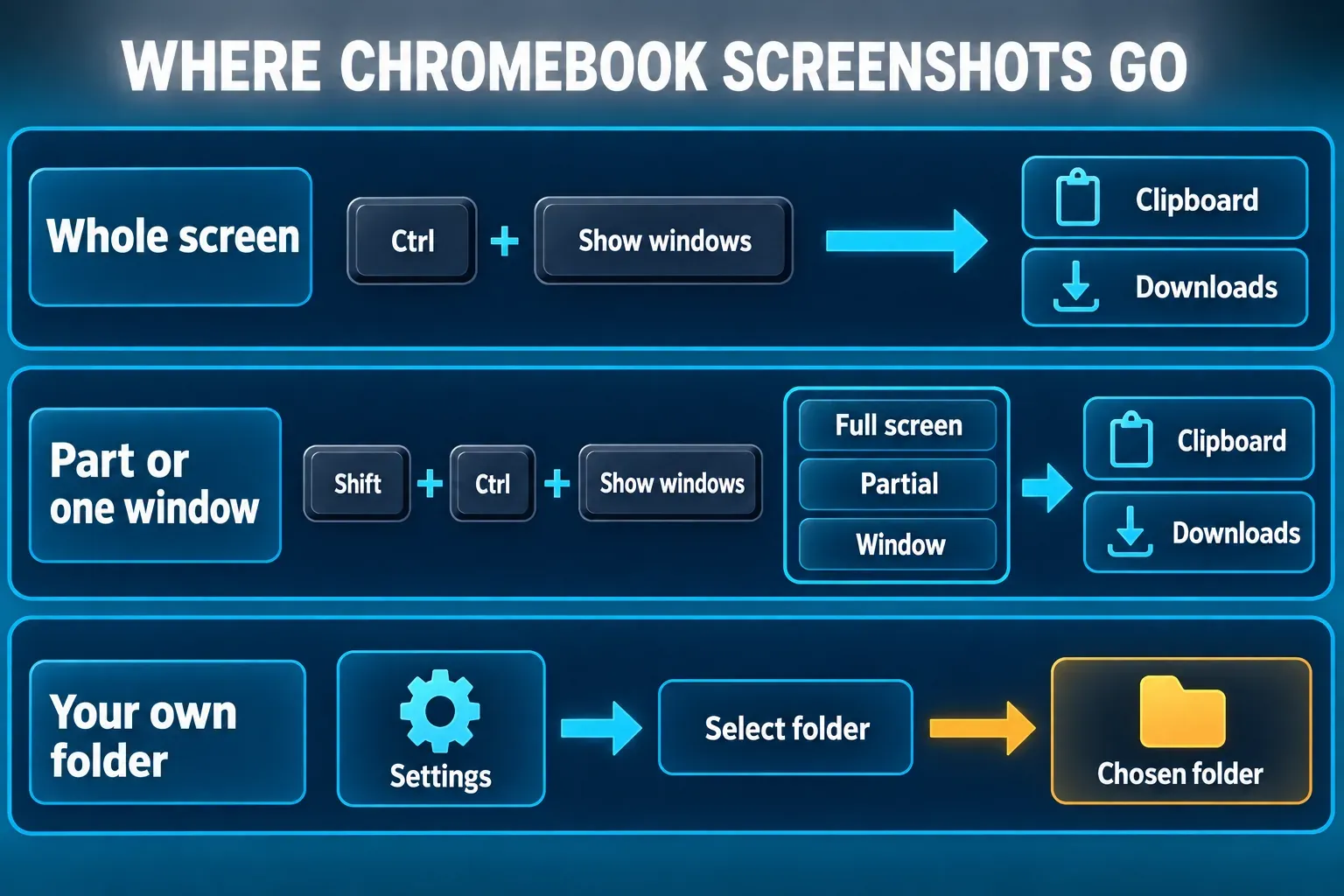
To screenshot the whole screen on a Chromebook, press Ctrl + Show windows. To pick part of the screen or a single window, press Shift + Ctrl + Show windows and choose from the capture toolbar that opens at the bottom. If your keyboard has a dedicated Screenshot key, it opens the same toolbar. Every screenshot is copied to the clipboard and saved in Downloads, unless someone chose a different folder.
These controls belong to ChromeOS rather than to the laptop maker, so the steps are the same on HP, Lenovo, Acer, ASUS, Dell and Samsung Chromebooks. What changes is the hardware: some keyboards have a Screenshot key, a tablet may have no keyboard attached, and an external keyboard may not have a Show windows key. I've covered each of those cases below.
Chromebook screenshot shortcuts at a glance
| What you want | Method | What happens |
|---|---|---|
| The whole screen | Ctrl + Show windows | Captured immediately, copied to the clipboard and saved. |
| Part of the screen | Shift + Ctrl + Show windows, then drag | The capture toolbar opens; drag over the area you need. |
| One app window | Shift + Ctrl + Show windows → window option | Select the window you want to keep. |
| Keyboard with a Screenshot key | Screenshot key | Opens the capture toolbar. |
| No shortcut at all | Select the time at the bottom right → Screen capture | Opens the capture toolbar. |
| External keyboard without Show windows | Ctrl + Shift + F5 | Opens the capture toolbar. |
| Chromebook tablet | Power + Volume down | Takes a screenshot; hold Power and choose Screen capture for more options. |
| Supported stylus | Stylus menu → Capture screen or Capture region | Captures the full screen or the area you draw across. |
The shortcuts come from Google's Chromebook keyboard shortcut list, and the toolbar steps from its help page on taking a screenshot or recording your screen. Because they are system shortcuts, they capture a Chrome tab exactly the way they capture any other app.
Where is the Show windows key?
Look along the top row of the keyboard. HP describes the Show windows key as a rectangle with two vertical lines on its right side. On keyboards that have a dedicated Screenshot key, it sits in the same top row.
A common question is how to take a screenshot on a Chromebook without a Windows key. You don't need one: a Chromebook keyboard has no Windows key, and none of the screenshot shortcuts use it. The Windows key only comes into play with an external Windows keyboard, where Google says it stands in for the Chromebook's Search or Launcher key.
Take a partial screenshot
- Close or move anything private that will sit inside the area you plan to capture.
- Press Shift + Ctrl + Show windows, or the Screenshot key if your keyboard has one.
- In the toolbar at the bottom of the screen, make sure Screenshot is selected rather than Screen record.
- Choose the partial screenshot option.
- Drag across the area you need and release.
If dragging with a touchpad is awkward, the selection also works from the keyboard. Google's help notes that the space bar changes the selected section, Tab moves between the circle handles at the corners, the Up and Down arrows change the height, and Left and Right change the width.
A partial capture is usually the better choice for an error message or one setting. The full screen also picks up open tabs, notifications and whatever else happens to be on the shelf. That makes the image harder to read and can share more than you meant to.
Capture one window
- Open the window you want and make sure it isn't covered by another one.
- Press Shift + Ctrl + Show windows.
- Select Screenshot, then the window option.
- Select the window you want to capture.
Some guides list Ctrl + Alt + Show windows as a direct window shortcut. Google's own shortcut list doesn't include it, so I would use the toolbar's window option, which is documented and works the same way from the keyboard, the Screenshot key or Quick Settings.
Screenshot without a keyboard, on a tablet or with a stylus
From the screen. Select the time in the bottom-right corner to open Quick Settings, then select Screen capture. The same toolbar appears, with full, partial and window options. This is the route to use when you can't remember the shortcut or a key isn't responding.
On a Chromebook tablet, or a convertible folded into tablet mode, press Power + Volume down together. For the partial and window options, press and hold the Power button and select Screen capture.
With a stylus, tap the Stylus icon on the shelf. Choose Capture screen for the full screen. For part of it, choose Capture region, touch and hold the stylus on the screen, drag, then release to finish. Google's stylus help notes that Bluetooth styluses can't be used with Chromebooks, so these options depend on a supported pen.
Where do screenshots go on a Chromebook?
Each screenshot lands in two places. It is copied to the clipboard straight away, so you can press Ctrl + V in a chat, email or document without opening a file. It is also saved as a file in the Downloads folder.
To get to your screenshots, select the Launcher, open Files, then open Downloads. Double-click a screenshot to open it in the Gallery app.
If you've taken several captures in a row, press Search + V (or Launcher + V, depending on your keyboard) to open the clipboard menu. Google says the clipboard keeps up to five items, so you can paste an earlier screenshot without hunting for the file.
Change where screenshots are saved
- Press Shift + Ctrl + Show windows.
- At the bottom of the screen, select Settings.
- Choose Select folder and pick the folder you want.
New screenshots and recordings go to that folder from then on. If Downloads stays empty after a capture, check this setting first. On a shared Chromebook, someone else may have pointed it at another folder.
Edit, crop or copy text from a screenshot
Open the screenshot from Files and it opens in Gallery. Google's Gallery help lists these editing tools:
- Crop & rotate trims the edges or turns the image.
- Rescale changes the width and height.
- Lighting filters adjust contrast and brightness.
- Undo and Redo reverse or repeat a change, and Delete removes the file.
- More → Print sends the image to a printer.
- More tools in Photos hands the image to the Photos app for more advanced edits.
Google also lists an Edit with AI option, but says it is only available on the Lenovo Chromebook Plus (14", 10). Gallery's help doesn't mention arrows, boxes or text labels. If you need to point at something, the guide to annotating a screenshot covers markup that stays readable. If the image shows an email address, account number or customer name, follow the screenshot redaction steps before you share it.
For text, use Google Lens in Gallery. Open the screenshot, select Search with Google Lens at the top, then select the area you want. Google lists copying text among the things Lens can do there. That helps when you need the exact wording of an error message rather than a picture of it.
Record the screen instead
The same toolbar records video. Press Shift + Ctrl + Show windows, select Screen record, then choose full screen, a partial area or one window. Under Settings, you can turn on Front Camera, choose Device audio, Microphone or both, and turn on Show clicks and keys.
For a partial recording, Google offers a choice of formats: a .webm video or a .gif. A GIF records no audio and no camera input, which suits a short silent loop. To stop, select Stop recording at the bottom right or press Search + Shift + X. Recordings are saved in the same folder as your screenshots.
When the screenshot shortcut does nothing
A school or work Chromebook may block it. Administrators can turn on a ChromeOS policy that disables screenshots and video recordings. When it's on, screenshots can't be taken with keyboard shortcuts or through extension APIs. If every method fails on a managed device, ask whoever manages it.
An external keyboard needs a different key. If it has no Show windows key, press Ctrl + Shift + F5. HP and Digital Trends also list Ctrl + F5 as a full-screen shortcut, but Google's help only documents Ctrl + Shift + F5. Use that and pick the full screen option from the toolbar.
Check the shortcuts on your own device. Press Ctrl + Search + S to see every keyboard shortcut, or go to Settings → Device → Keyboard and inputs → View keyboard shortcuts. Google's printed list is written for US English QWERTY keyboards, so check the on-device list if you use another layout.
The Chromebook suddenly started talking. Ctrl + Alt + Z turns ChromeVox spoken feedback on and off. It is easy to hit while trying shortcut combinations. Press it again to turn the voice off.
The capture worked, but the file is missing. Try pasting first, because the image is on the clipboard. Then check Downloads or the folder chosen under Select folder.
Long web pages and browser extensions
Screen capture offers full screen, partial and window options. None of them scrolls, so a web page longer than the screen won't fit in one ChromeOS screenshot. The guide to full-page screenshots in Chrome covers the browser-side ways to save a whole page.
A screenshot extension can add scrolling capture and quick markup inside the browser. The Chrome screenshot extension guide explains what to check before installing one. On a managed Chromebook, remember that the same screenshot policy that blocks the shortcut also blocks extension screenshot APIs.
Can you use Snagit on a Chromebook?
No. Snagit is a desktop app for Windows and macOS, and TechSmith says Snagit doesn't run on a Chromebook or come as a Chrome plugin. On a Chromebook, the built-in Screen capture tool, Gallery and a browser extension cover most of what people need. If you also work on a Windows or Mac computer, the Snagit system requirements show what that machine needs.
One more change is coming. Google has introduced Googlebook OS, a new operating system that combines ChromeOS with Android technology, and says existing Chromebooks will keep getting updates through their supported lifetime. The steps in this guide are for ChromeOS. Screenshot controls on Googlebook OS may differ.